In this guide
When a PC won’t boot, the fix depends on where the start-up stops: no power at all, power but no picture, a firmware message such as “No bootable device”, or Windows failing after its logo appears. Work out which of those you have with the checklist below, save your files if Windows is involved, and then go to the guide for that exact symptom. Most “dead” computers turn out to be a loose cable, a wrong boot setting or damaged start-up files rather than broken hardware.
This guide is the starting point for every boot problem on Technology Sage. It works for desktops and laptops from any maker (HP, Dell, Lenovo, Acer, ASUS, MSI and self-built PCs) running Windows 10 or Windows 11.
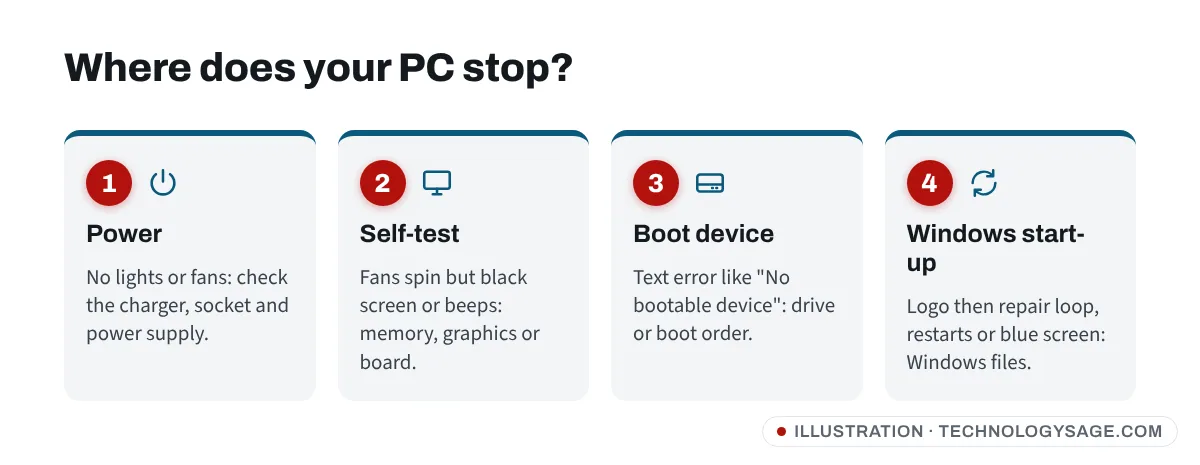
Why won’t my computer boot? Find where it stops
Every PC starts in the same order. Microsoft’s own troubleshooting guide splits it into the firmware stage (the power-on self-test), Windows Boot Manager, the Windows loader and the Windows kernel. You don’t need the jargon; you only need to match what you see:
| What you see | Where it stops | Go to |
|---|---|---|
| Nothing: no lights, no fans | Power | Step 1 below |
| Lights and fans, but a black screen | Hardware or display | PC turns on but no display |
| “Reboot and Select proper Boot device” | Firmware can’t find a boot drive | Reboot and Select proper Boot device |
| “No bootable device” or “Boot device not found” | Firmware can’t find a boot drive | No bootable device fixes |
| “Operating system not found” or “Missing operating system” | Drive found, Windows not | Operating system not found |
| “BOOTMGR is missing” | Older (legacy BIOS) boot files | BOOTMGR is missing |
| Logo, then “Preparing Automatic Repair” again and again | Windows start-up | Preparing Automatic Repair loop |
| Restarts over and over before you can sign in | Windows start-up | Windows boot loop |
| Blue screen with INACCESSIBLE_BOOT_DEVICE | Windows can’t read its own drive | Inaccessible boot device |
| Blue screen with UNMOUNTABLE_BOOT_VOLUME | Windows drive damaged or unreadable | Unmountable boot volume |
| Windows starts, then a black screen after sign-in | Windows desktop | Black screen after login |
If you are not sure which firmware boot entry your PC should use, read Windows Boot Manager in BIOS as well.
Save your files before you try risky fixes
If your documents and photos aren’t backed up, protect them before running repair commands, resetting Windows or reinstalling. Most fixes in this cluster don’t touch your files, but a few (a reset that removes everything, a clean install, diskpart clean) erase the drive, and a failing drive can get worse each time it is powered on.
Ways to get files off a PC that won’t start:
- Check what is already safe. Files in OneDrive, Google Drive or Dropbox are already in the cloud. Sign in from another device to check.
- Move the drive to another computer. Remove the SSD or hard drive and connect it to a working PC with a USB enclosure or adapter that matches the drive type (2.5-inch SATA or M.2 NVMe). Your files appear as an ordinary drive. If the drive is encrypted with BitLocker, you’ll need the recovery key (see below).
- Copy files from the recovery environment. From Windows Recovery, open Command Prompt, type
notepadand press Enter. In Notepad, use File → Open, set the file type to All files, and you can browse the drive and copy folders to a USB stick by right-clicking. It is slow but it works without extra software. - If the drive clicks, grinds or isn’t detected at all, stop. Repeated power-ons can destroy a failing drive. A professional data recovery service is the safer option for irreplaceable files.
BitLocker: many Windows 11 laptops encrypt the drive automatically. Repairs, BIOS changes or moving the drive may ask for a 48-digit recovery key. Microsoft’s Find your BitLocker recovery key page explains where to look; for a personal device it is usually saved in the Microsoft account that set up the PC. Microsoft support cannot recreate a lost key, so find it before you change anything.
How to open BIOS setup and the boot menu
Many boot fixes need the firmware setup screen (still called “BIOS”, though modern PCs use UEFI) or the one-time boot menu. You press a key right after switching on, before the Windows logo. The keys below are common examples from each maker’s support pages and manuals. They vary by model, so watch for a prompt at the bottom of the start-up screen and check your model’s manual if a key does nothing.
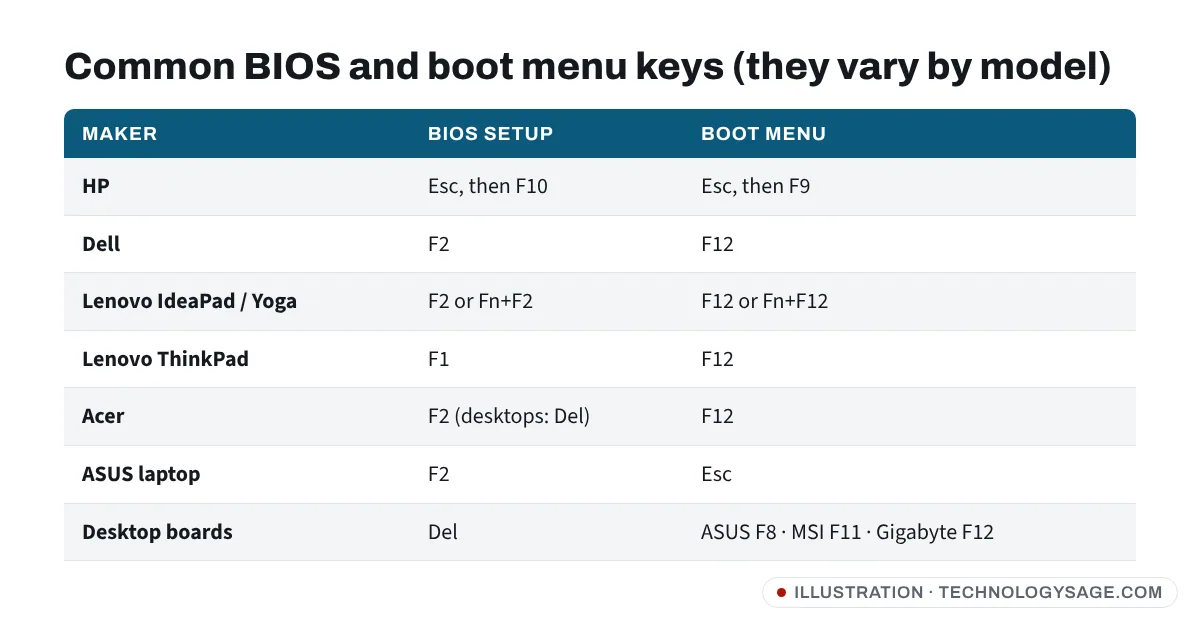
| Maker | BIOS setup | One-time boot menu |
|---|---|---|
| HP | Tap Esc for the Startup Menu, then F10 | Esc, then F9 |
| Dell | F2 at the Dell logo | F12 |
| Lenovo IdeaPad, Yoga, Legion | F2 (or Fn + F2); Novo button on some models | F12 (or Fn + F12) |
| Lenovo ThinkPad | F1 | F12 |
| Acer | F2 (laptops), Del (desktops) | F12 (may need enabling in BIOS) |
| ASUS laptops | F2, or Esc then Enter Setup | Esc |
| ASUS, MSI, Gigabyte desktop boards | Del (ASUS also F2) | ASUS F8, MSI F11, Gigabyte F12 |
Tips that make it work:
- Tap the key about once a second from the moment you press power. Holding it down can cause a keyboard error.
- If Windows starts too quickly, shut down fully first: hold Shift while you click Shut down, or use the Windows route below. Fast Startup can skip the key window.
- On a laptop with the function keys set to media controls, add Fn.
- From a working Windows, go to Settings → System → Recovery → Advanced startup → Restart now, then Troubleshoot → Advanced options → UEFI Firmware Settings → Restart. This opens BIOS setup without any key timing.
How to get into Windows Recovery (WinRE)
Many Windows-side fixes (Startup Repair, System Restore, Safe Mode, Command Prompt) live in the Windows Recovery Environment, the blue Choose an option screen. Microsoft lists these ways in:
- Automatically: Windows opens it after two failed starts in a row. You can force this by switching the PC off with the power button while the Windows logo shows, twice; on the third start you should see Preparing Automatic Repair, then Advanced options.
- From Windows: Settings → System → Recovery → Advanced startup → Restart now, or hold Shift while clicking Restart.
- From a USB stick: if the built-in recovery is damaged, make Windows installation media on another PC with Microsoft’s Media Creation Tool, boot from it, choose your language, then select Repair my PC (called Repair your computer on older media).
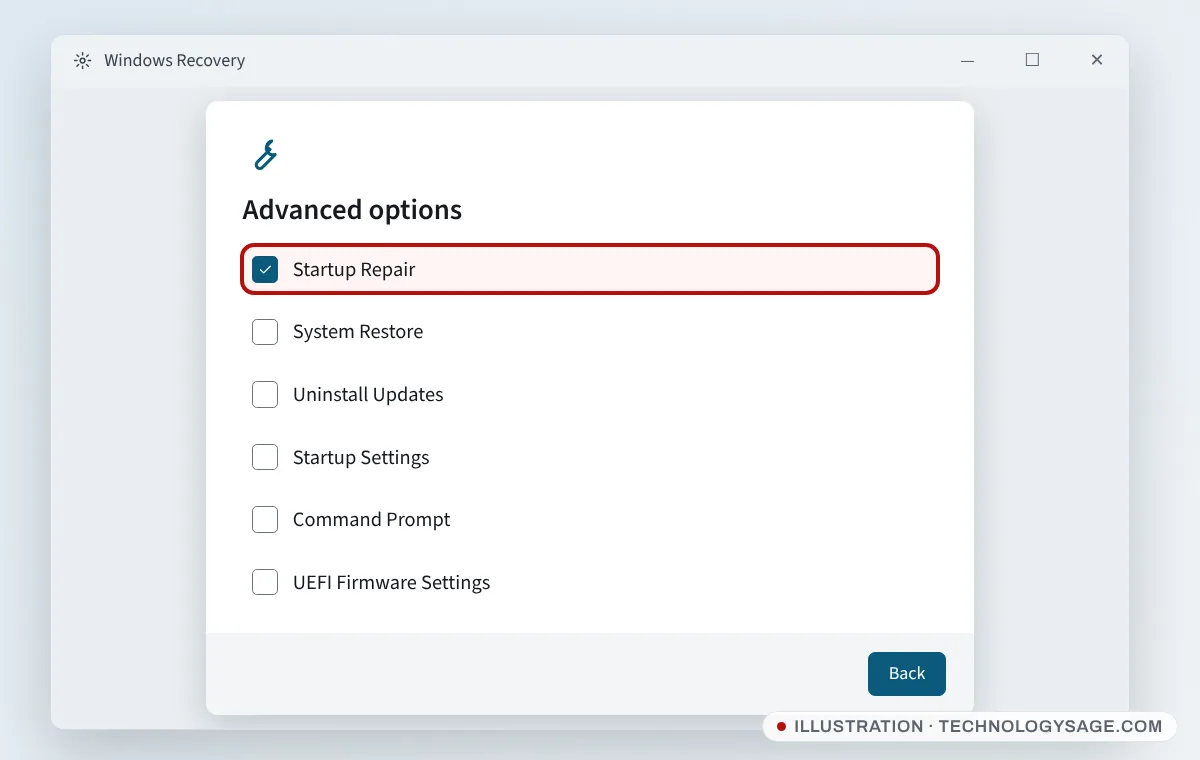
Once there, Troubleshoot → Advanced options shows Startup Repair, System Restore, Uninstall Updates, Startup Settings (for Safe Mode), Command Prompt and UEFI Firmware Settings. Each error guide tells you which of these to use and in what order, so you don’t have to guess.
The PC won’t boot checklist
Work down the list and stop at the first step that changes something.
1. No power at all: check the power path
- Laptop: plug in the charger and look for the charging light. Then do a power drain: unplug the charger, remove any removable battery, hold the power button for 15 seconds, reconnect only the charger and try again. If it never charges, see laptop not charging.
- Desktop: check the wall socket with another device, the cable at the back, and the switch on the power supply (marked I/O). Try a different power cable if you have one.
2. Power but no picture
Fans spin and lights come on, but the screen stays black. Check the monitor input, try another cable or port (on a desktop, plug into the graphics card, not the motherboard, if you have one), and listen for beeps or watch for blinking lights. These point to memory, graphics or motherboard faults, covered step by step in PC turns on but no display. On an HP laptop, the HP laptop black screen guide has HP-specific shortcuts.
3. Unplug everything you don’t need
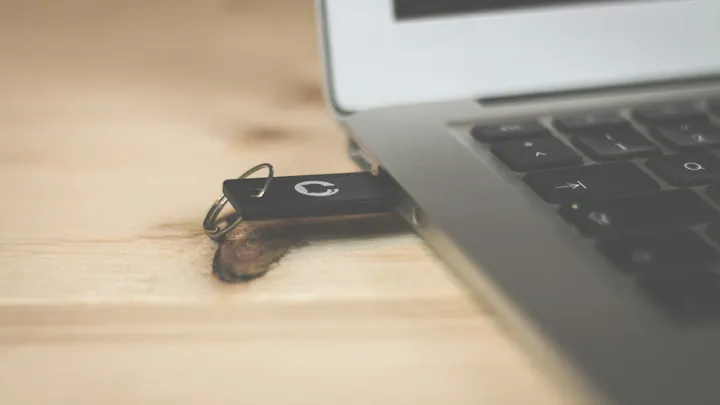
USB sticks, external drives, memory cards, phones charging over USB and docks can all confuse the boot order. Disconnect them, leave only keyboard, mouse and display, and restart. This alone fixes many “Reboot and Select proper Boot device” and “BOOTMGR is missing” messages.
4. Check that BIOS sees the drive
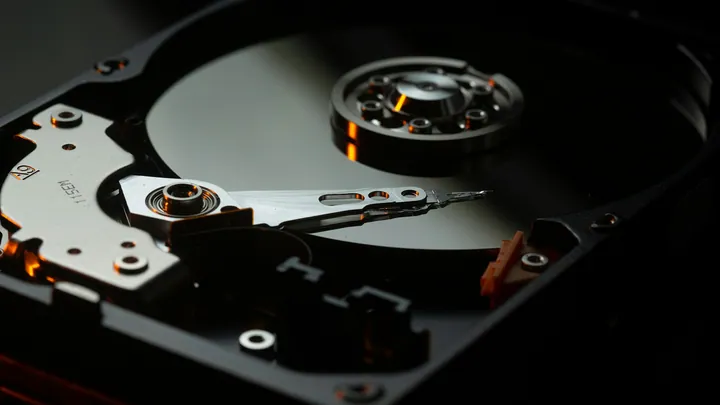
Open BIOS setup (keys above) and look for your SSD or hard drive on the main, storage or boot page. If it isn’t listed, the drive is disconnected or failing: on a desktop, reseat the SATA data and power cables or the M.2 drive; on a laptop, a technician can reseat it. If it is listed, the drive works at a basic level and the problem is the boot order or the start-up files.
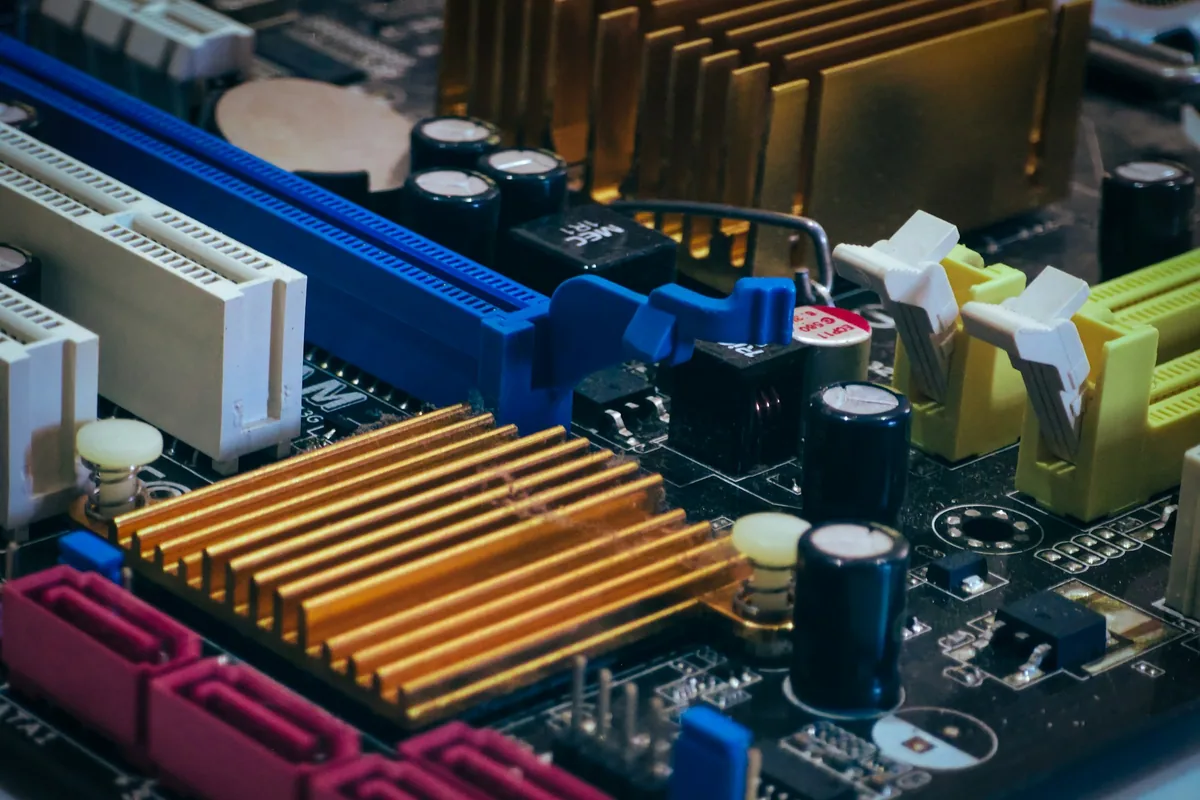 Photo:
5. Set the right boot order
In the Boot section of BIOS, put Windows Boot Manager (on UEFI PCs) or your SSD/hard drive (on older legacy PCs) first. Save with F10 on most PCs and restart. Our Windows Boot Manager guide explains what each entry means.
6. Let Windows try Startup Repair
If the Windows logo appears but start-up fails, go to WinRE and run Startup Repair. It fixes damaged boot files without touching your documents. If it loops, follow the Automatic Repair loop guide.
7. Undo the last change
A failed update, a new driver or new hardware is often the trigger. In WinRE, try Uninstall Updates (latest quality update first) and then System Restore to a date before the problem. Both keep your personal files. If the PC froze during an update, see Windows Update stuck.
8. Repair Windows files
From WinRE’s Command Prompt you can rebuild boot records and scan system files. The exact commands depend on your error, so use the matching guide in the table above. If you want to know the difference between the two main file-repair tools, read SFC vs DISM.
9. Reset or reinstall as the last step
Reset this PC with Keep my files reinstalls Windows but keeps personal files in your user folders (apps are removed). Remove everything and a clean install erase the drive. Only use them once your files are safe.
When it’s probably hardware
Some signs point past software fixes:
- The drive doesn’t appear in BIOS even after reseating it.
- The PC clicks, beeps in a pattern or shows a blinking light code.
- Errors appear at random, the PC restarts without warning, or you get several different blue screens. See PC restarts randomly and how to find the cause of a blue screen.
Many makers include a diagnostics tool you can start before Windows (for example F2 on HP laptops, or the diagnostics entry in Dell’s F12 menu). A failed storage or memory test means a part needs replacing, which is worth doing under warranty where possible.
FAQ
What do I do if my PC won’t boot up?
Note exactly where it stops, then match it to the table at the top of this guide. Disconnect extra USB devices, check that BIOS sees your drive and that Windows Boot Manager is first in the boot order, and run Startup Repair from Windows Recovery. Save your files before trying anything that resets or reinstalls Windows.
How do I force my computer to boot into recovery?
Switch the PC on and, when the Windows logo appears, hold the power button until it turns off. Do that twice. On the third start Windows should show Preparing Automatic Repair and then the Advanced options button. If that doesn’t work, boot from a Windows installation USB and choose Repair my PC.
Can a PC that won’t boot still have my files?
Usually, yes. Boot errors are mostly about start-up files or settings, not your documents. You can copy files using the recovery environment or by connecting the drive to another computer. The exception is a physically failing drive, which should be handled carefully or by a recovery service.
Why does my PC turn on but not boot to Windows?
Common causes are the wrong boot device chosen in BIOS, a drive that has come loose or failed, damaged boot files after an update or power cut, and a changed storage or boot-mode setting. The error message on screen tells you which; each one has its own guide linked above.
Will resetting BIOS to default fix a PC that won’t boot?
Sometimes. Loading defaults undoes a bad setting, but it can also change the boot mode or storage mode and make things worse on some PCs. Before resetting, note or photograph your current settings, especially the boot mode (UEFI or Legacy/CSM) and the SATA mode, so you can change them back.