In this guide
- Restart, shutdown or blue screen? What the symptoms mean
- Step 1: Rule out Windows Update
- Step 2: Turn off automatic restart so you can see the error
- Step 3: Check Event Viewer and Reliability Monitor
- Step 4: Check for overheating
- Step 5: Check the power supply and wall power
- Step 6: Test the RAM
- Step 7: Update drivers and remove any overclock
- Step 8: Scan for malware
- If it still restarts
- FAQ
If your PC restarts randomly, the cause is usually one of five things: a blue screen that flashes past because Windows is set to restart automatically, overheating, a weak or failing power supply, faulty RAM, or Windows Update restarting to finish an install. To find out which, turn off automatic restart, check Event Viewer for the reason Windows logged, then watch temperatures and test the power and memory.
The pattern matters. A PC that restarts only while gaming points to heat or power. One that restarts at 3 a.m. points to Windows Update. One that shows a flash of blue first points to a driver or RAM. Note when it happens before you start.
Save your work often while you troubleshoot, and back up important files now. Sudden power cuts can damage files that are open.
Restart, shutdown or blue screen? What the symptoms mean
| What happens | Likely cause |
|---|---|
| Restarts or switches off under load (games, video editing) | Overheating or power supply |
| Instant off with no warning, then starts again | Power supply, wall socket, loose cable |
| Brief blue flash, then restart | Blue screen with automatic restart on |
| Restarts overnight or when idle | Windows Update or a scheduled task |
| Laptop shuts down when unplugged | Battery or power settings |
| Restarts more after a new driver or hardware | That driver or device |
Step 1: Rule out Windows Update
Windows restarts by itself to finish installing updates, normally outside your active hours.
- Open Settings → Windows Update → Update history. If updates were installed around the time of the restarts, that’s your answer.
- To stop it restarting while you work, go to Settings → Windows Update → Advanced options → Active hours and set them to cover your usual hours (or let Windows set them automatically).
- Turn on Notify me when a restart is required to finish updating, on the same Advanced options page.
Step 2: Turn off automatic restart so you can see the error
By default, Windows restarts straight after a blue screen, so you may never see the stop code. Turn this off:
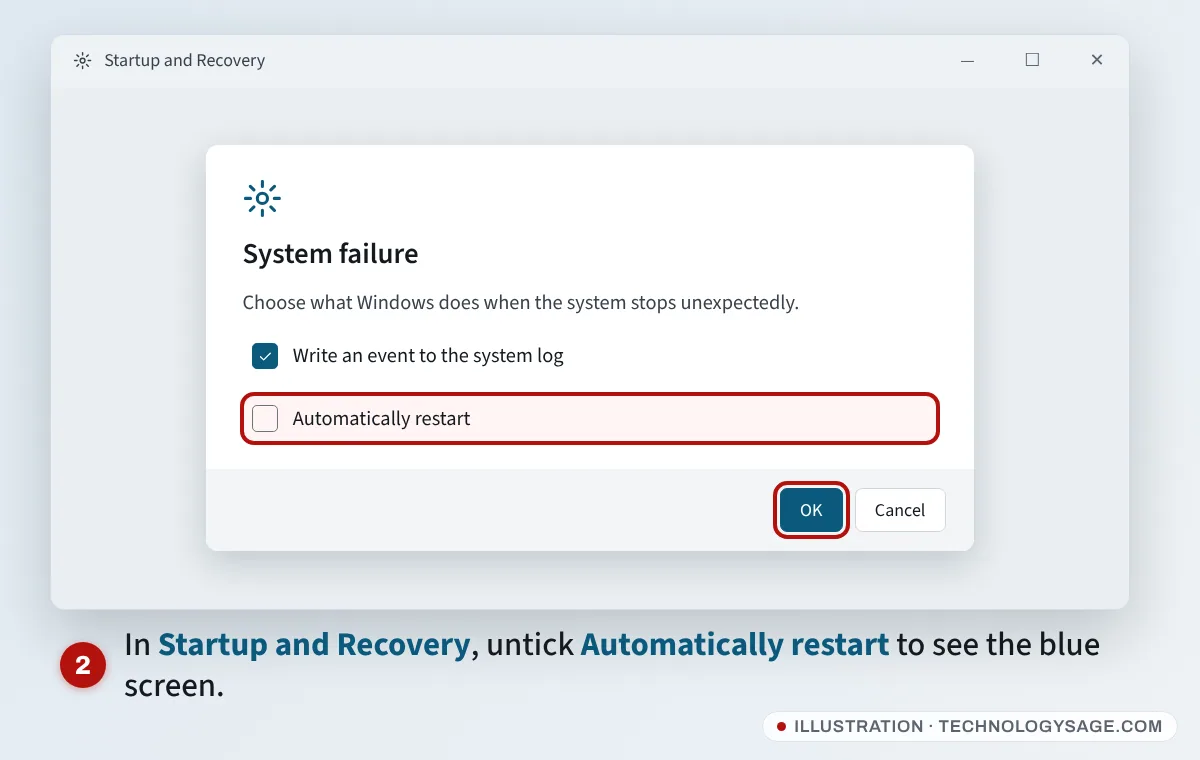
- Press Windows + R, type
sysdm.cpland press Enter. - Go to Advanced → Startup and Recovery → Settings.
- Under System failure, untick Automatically restart. Leave Write an event to the system log ticked.
- Select OK.
Next time, the PC stays on the blue screen. Write down the stop code (for example MEMORY_MANAGEMENT or DPC_WATCHDOG_VIOLATION) and look it up in our guide to finding what caused a blue screen.
If the PC still restarts with no blue screen, that’s a clue in itself: it’s a power or heat problem, not Windows. Windows can’t show an error if the power drops.
Step 3: Check Event Viewer and Reliability Monitor
Windows logs every unexpected restart. Two minutes here can save hours of guessing.
- Right-click Start and choose Event Viewer.
- Go to Windows Logs → System and select Filter Current Log on the right.
- In the box that says
, type 41,1001,6008,1074and select OK. - Read the events around the time of each restart:
| Event ID | Source | What it tells you |
|---|---|---|
| 41 | Kernel-Power | Windows restarted without shutting down cleanly. With BugcheckCode 0, the power was cut: suspect the power supply, heat or a loose cable. |
| 1001 | BugCheck | A blue screen happened; the event gives the stop code. |
| 6008 | EventLog | The previous shutdown was unexpected. |
| 1074 | User32 | A program or user asked for the restart, and it names which one (often Windows Update). |
For a simpler view, press Windows + R, type perfmon /rel and press Enter to open Reliability Monitor. Red X icons show crashes and unexpected shutdowns, day by day, next to updates and new drivers.
Step 4: Check for overheating
Processors and graphics cards protect themselves by switching the PC off when they get too hot. This is very common in dusty desktops and laptops used on beds or sofas.
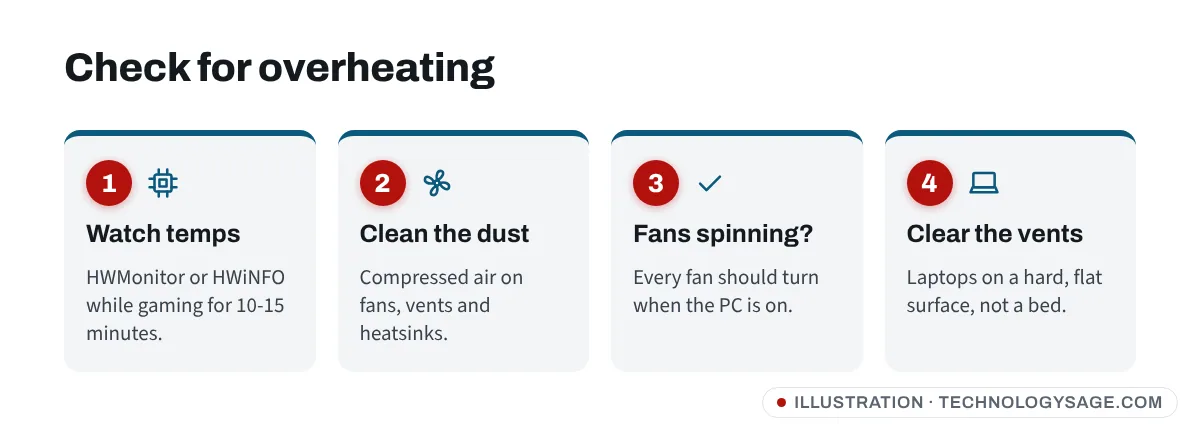
- Install a free temperature monitor such as HWMonitor or HWiNFO from the developer’s own website. Task Manager’s Performance tab also shows the GPU temperature.
- Play a game or run something demanding for 10-15 minutes and watch the CPU and GPU temperatures. If they climb into the high 90s °C and the PC switches off, heat is your cause.
- Shut down, unplug, and clean the dust out of the fans, vents and heatsinks with compressed air. Hold fan blades still while you blow so they don’t over-spin.
- Check every fan actually spins when the PC is on.
- On a laptop, use it on a hard, flat surface and keep the vents clear.
If cleaning doesn’t help, the thermal paste between the processor and its cooler may have dried out after several years. Our guides to a laptop overheating and shutting down and thermal throttling go into more detail.
Step 5: Check the power supply and wall power
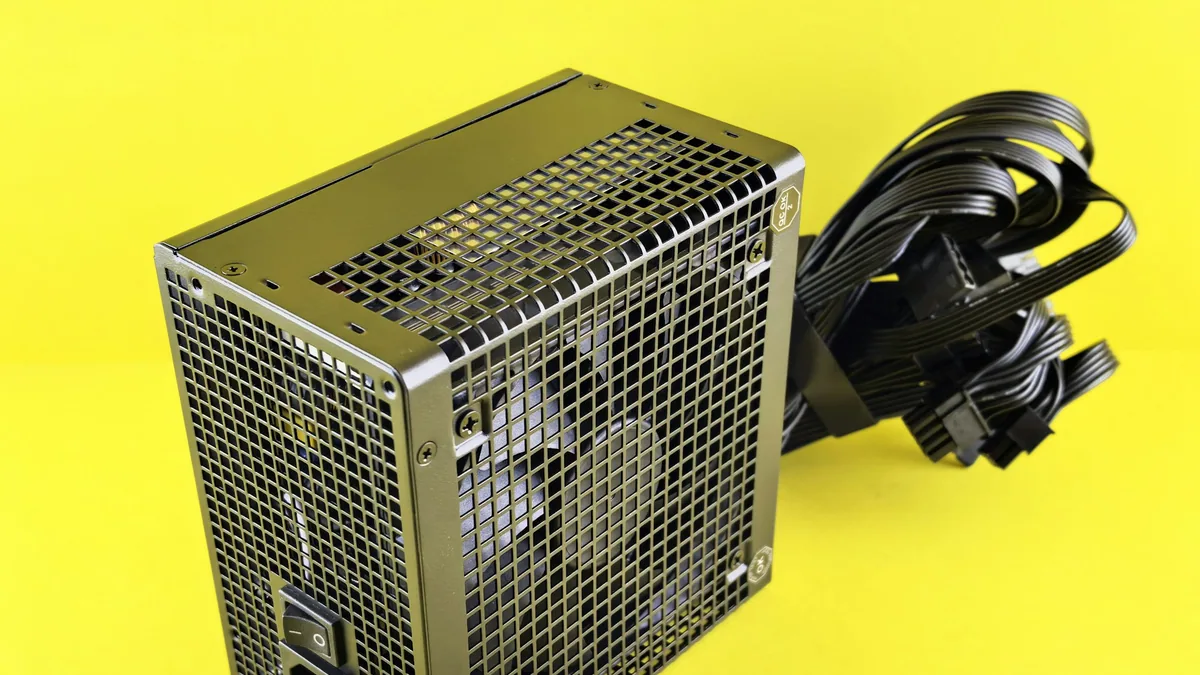
A power supply that can’t deliver enough power under load causes instant restarts or shutdowns with no blue screen, often when a game starts or a heavy scene loads.
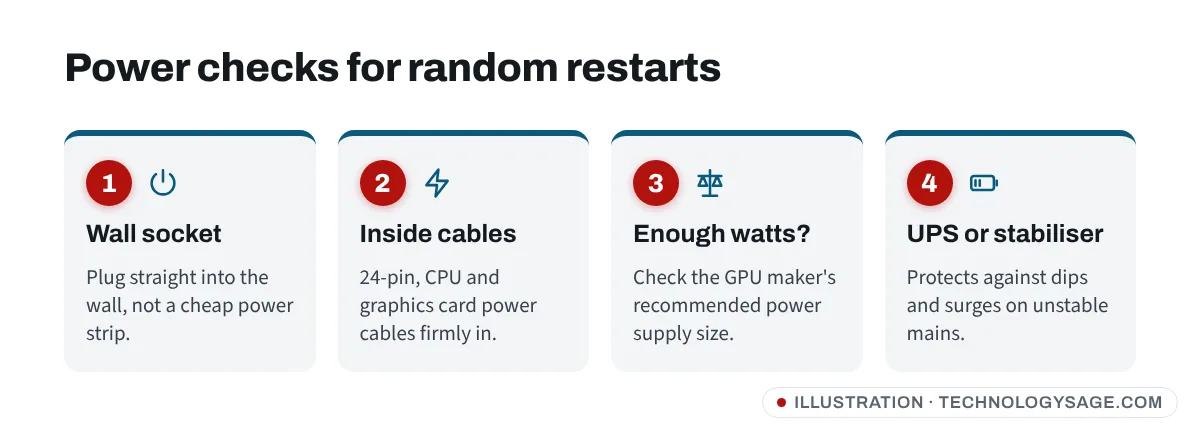
- Plug the PC straight into a wall socket, not a cheap power strip or extension. Try a different socket, ideally on a different circuit.
- Check the cables: the main power cable at the back, plus the 24-pin and CPU power cables inside the case, and the graphics card’s power cables.
- Is the power supply big enough? If you added a more powerful graphics card, the old power supply may not cope. The card maker’s website lists the recommended power supply wattage.
- Is it old or cheap? Power supplies wear out, especially in hot, dusty rooms. The only reliable home test is to swap in a known-good power supply.
- Unstable mains power? In areas with frequent dips and surges, a UPS (uninterruptible power supply) or a good voltage stabiliser protects the PC and stops restarts caused by brief drops.
- Laptops: if it shuts off only when unplugged, the battery is likely worn out. If it restarts while charging, try the original charger; a weak or non-original charger can cause it.
Step 6: Test the RAM
Faulty memory causes random restarts, freezes and blue screens with different stop codes each time.
- Press Windows + R, type
mdsched.exeand press Enter. - Select Restart now and check for problems.
- If errors are found, test one RAM module at a time to find the bad one.
Our memory management blue screen guide explains how to run a longer test with MemTest86 and what to do with the results.
Step 7: Update drivers and remove any overclock
- Install all updates from Settings → Windows Update, including Optional updates.
- Update the graphics driver from NVIDIA, AMD or Intel.
- If restarts began after a driver update, roll it back in Device Manager → Properties → Driver → Roll Back Driver.
- In the BIOS, turn off any CPU or memory overclock, including XMP/EXPO memory profiles, and test at default settings.
- Install the latest BIOS from your PC or motherboard maker’s support page if one fixes stability problems.
Step 8: Scan for malware
Malware rarely causes restarts on its own, but crypto-mining malware can push a PC hard enough to overheat. Open Windows Security → Virus & threat protection → Scan options, choose Microsoft Defender Antivirus (offline scan) and select Scan now. The PC restarts to scan before Windows loads.
If it still restarts
- Restarts only in one game or app: update or reinstall that app, and check its graphics settings. It may be pushing the GPU harder than anything else.
- Desktop with a reset button: a stuck or shorted reset switch on the case can restart the PC. Check it isn’t jammed, or disconnect the reset switch cable from the motherboard to test.
- Restarts during start-up and never reaches Windows: that’s a boot loop rather than a random restart. See our guides to PC won’t boot and Preparing Automatic Repair.
- Nothing found and the PC is old: the motherboard or power supply may be failing. A repair shop can test with spare parts.
- Reset Windows: if you suspect software and nothing else works, Settings → System → Recovery → Reset this PC → Keep my files reinstalls Windows. Back up first.
FAQ
Why does my computer restart without a blue screen?
Usually because the power is being cut, by overheating protection, a failing power supply, a loose cable or the wall socket. Windows can’t show a blue screen if the power drops. Event ID 41 with BugcheckCode 0 in Event Viewer confirms this.
Can a bad power supply cause random restarts?
Yes. A worn-out or underpowered power supply often causes restarts when the PC is working hard, such as in games. Swapping in a known-good power supply is the most reliable test.
Why does my PC restart when I play games?
Games push the processor and graphics card hardest, so heat and power problems appear there first. Check temperatures, clean the dust out and make sure the power supply is strong enough for your graphics card.
How do I see why my PC restarted?
Open Event Viewer, go to Windows Logs → System, and filter for event IDs 41, 1001, 6008 and 1074. Or open Reliability Monitor with perfmon /rel to see crashes on a timeline.
Can overheating damage my PC?
Modern processors and graphics cards switch off before they damage themselves, which is why the PC restarts. But running hot for a long time shortens the life of parts, so clean the dust and fix the airflow.