In this guide
- Why is my printer printing faded?
- Fix 1: Print a test page to see what’s faded
- Fix 2: Check ink and toner levels
- Fix 3: Turn off draft, Economode and Toner Save
- Fix 4: Clean the printhead (inkjet printers)
- Fix 5: Reseat or replace the cartridges
- Fix 6: Match the paper type setting to the paper
- Fix 7: Run alignment and update the driver
- Fix 8: Laser printers – clean the drum and corona wire
- If it still prints faded
- FAQ
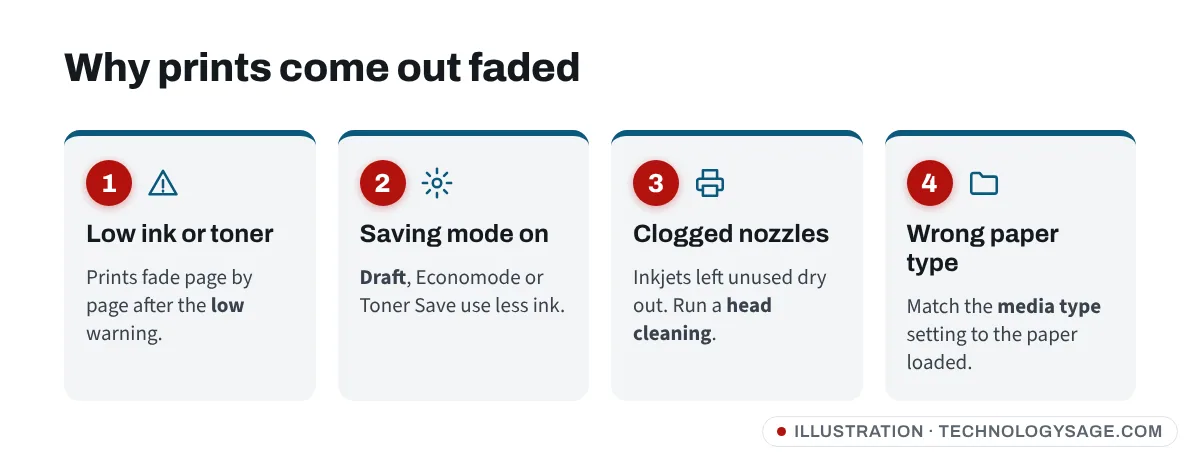
When a printer is printing faded or light, the cause is almost always one of four things: low ink or toner, a draft or toner-save setting, clogged inkjet nozzles, or the wrong paper setting. Start by printing your printer’s print quality report (or nozzle check), turn off any draft, Economode or Toner Save option, and run the printer’s own printhead cleaning. Those three steps fix most faded prints on HP, Canon, Epson and Brother printers.
The fixes below are in order, from quickest to most involved. Inkjet and laser printers fade for different reasons, so each step says which type it applies to.
Why is my printer printing faded?
- Low ink or toner. Printers often keep printing for a while after the “low” warning, getting lighter page by page.
- A saving mode is on. Draft, Fast, Economode (HP lasers) or Toner Save (Brother) deliberately put down less ink or toner.
- Dried or clogged nozzles (inkjet). If an inkjet sits unused for a week or more, ink dries in the tiny nozzles and lines or whole colours go pale.
- Wrong paper type selected. Telling the printer you loaded plain paper when you loaded glossy photo paper (or the other way round) changes how much ink it uses.
- A worn drum or toner (laser). Toner cartridges and drum units wear out, and a dirty corona wire makes the whole page light.
- Refilled or non-genuine cartridges. These can work well, but a poorly seated or badly refilled cartridge is a common cause of pale prints.
Fix 1: Print a test page to see what’s faded
Before changing anything, find out what is faded. A test page tells you whether it’s one colour, all colours or the whole page.
- On the printer’s control panel, look for Reports, Tools, Maintenance or Setup. The name differs by model.
- Print the Print Quality Report (HP), Nozzle Check (Canon and Epson) or Print Quality Check Sheet (Brother).
- Compare the colour blocks or grid pattern with the example on the sheet. Missing lines in one block point to clogged nozzles for that colour. An evenly pale page points to low ink, toner or a saving setting.
You can usually print the same report from the printer’s app on your computer or phone, such as HP Smart, Epson Smart Panel or the Canon software, under a maintenance or print-quality section.
Fix 2: Check ink and toner levels
- Check levels on the printer screen, in the printer app, or in Windows under Settings → Bluetooth & devices → Printers & scanners, then your printer and Printer properties or the printer’s own tool.
- If one colour shows low, replace that cartridge (or top up that tank on an ink-tank printer) and print the test page again.
- On ink-tank printers, look at the actual ink in the tanks. A tank that is near the bottom line will print faint even if the screen hasn’t warned you.
 Photo:
On a laser printer, take the toner cartridge out and gently rock it side to side five or six times, then put it back. This spreads the remaining toner and often buys a few dozen more dark pages until a new cartridge arrives.
Fix 3: Turn off draft, Economode and Toner Save
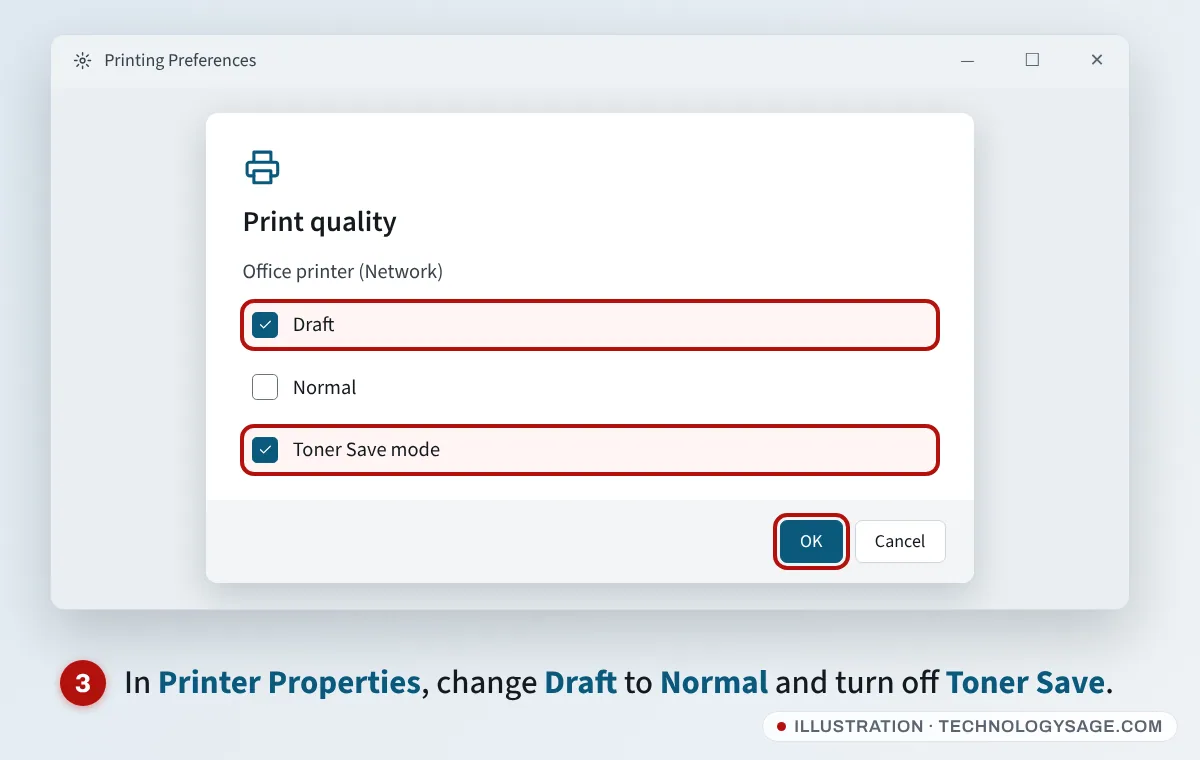
This is the most common cause when everything is evenly light, especially on a laser printer or a shared office machine.
- Open the document and press Ctrl + P (on a Mac, Command + P).
- Choose your printer and open Printer Properties, Preferences or Show Details.
- Change the print quality from Draft or Fast to Normal, Standard or Best.
- On a laser printer, look for Economode, Toner Save or Toner Save Mode and switch it off. On many Brother printers it is also in the printer’s own menu under general settings or ecology settings.
- Print the page again.
Some laser drivers also have a Density or Print Density slider. Moving it up makes text darker but uses more toner, so reset it once the problem is fixed.
Fix 4: Clean the printhead (inkjet printers)
If the test page showed gaps or pale bands in one or more colours, the nozzles need cleaning. Every inkjet maker builds this in.
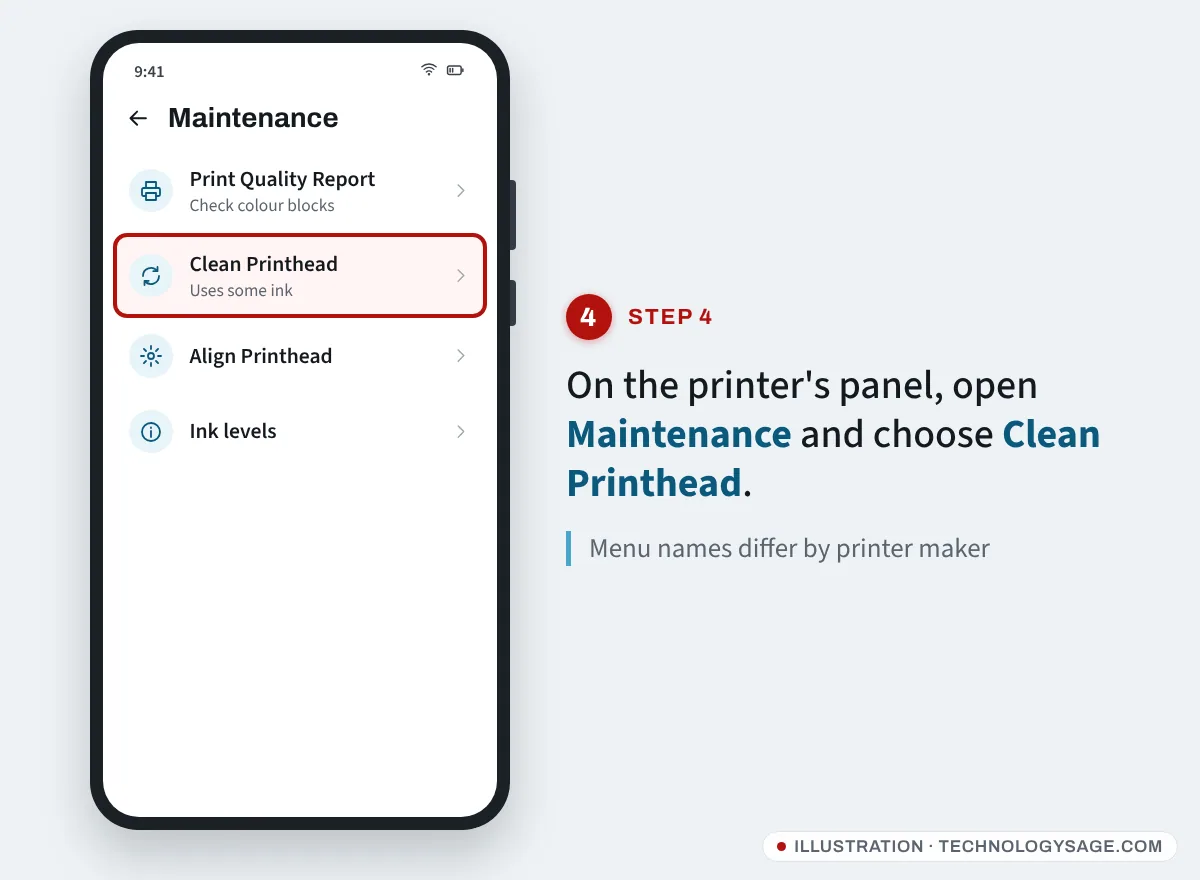
- On the printer’s control panel, open Tools, Maintenance or Setup.
- Choose Clean Printhead, Print Head Cleaning or Head Cleaning.
- Let it finish (it can take a few minutes and is noisy), then print the test page again.
- If it’s better but not perfect, run one more cleaning. HP suggests up to two further cycles; Canon suggests a standard cleaning twice before trying a Deep Cleaning.
Each cleaning uses ink, so don’t run it again and again in a row. If two or three cleanings don’t help, switch the printer off, leave it plugged in for several hours or overnight so the ink can soak through the nozzles, then try once more. Canon’s manuals recommend leaving the printer for 24 hours before repeating a deep cleaning.
Fix 5: Reseat or replace the cartridges
- Open the cartridge access door and wait for the carriage to stop.
- Remove each cartridge, check that the protective tape and plastic tab have been fully removed from new ones, and press it back in until it clicks.
- On cartridges with copper contacts, wipe the contacts gently with a dry, lint-free cloth.
- If one colour stays faded after cleaning and reseating, replace that cartridge. HP’s own guidance is to replace the cartridge for the colour that is still streaked or faded after cleaning.
Fix 6: Match the paper type setting to the paper
- In the print window, open the printer’s properties.
- Set Paper type or Media type to what is actually in the tray: plain paper, photo paper (glossy or matte) or thick paper.
- Load paper the right way up. Glossy photo paper must have the shiny side facing the side that gets printed (check the icon on your tray).
Damp or very cheap paper absorbs ink and looks washed out, so try a fresh sheet from a new pack. On laser printers, Brother suggests choosing a thicker paper setting or the Improve Toner Fixing option if text rubs off or looks pale.
Fix 7: Run alignment and update the driver
- Run Align Printhead or Print Head Alignment from the same maintenance menu as the cleaning. Misalignment can make text look grey and fuzzy rather than black.
- Download the latest driver or app from your printer maker’s official support site and install it.
- If you print over Wi-Fi and some pages fail completely, see our guide to a printer that says it’s offline.
Fix 8: Laser printers – clean the drum and corona wire
If a laser printer is still light with fresh toner:
- Switch the printer off and let it cool for at least 15 minutes. The inside gets very hot.
- Remove the toner and drum assembly.
- On many Brother models the drum has a small green tab. Slide it from side to side a few times to clean the corona wire, then return it to its home position.
- Check the drum’s surface for scratches or marks. A worn drum unit prints faint or blotchy pages and must be replaced; the printer usually shows a Replace Drum message when it’s due.
If it still prints faded
- One colour is missing completely even after cleaning and a new cartridge: the printhead may be damaged or blocked. On printers with a removable printhead, replacing it is possible; otherwise contact the maker’s support.
- Faded on one side of the page only (laser): toner is unevenly spread. Rock the cartridge again or replace it.
- Faded only from one app: check that app’s own print settings (some PDF readers and browsers have their own “save ink” or “print background” options).
- Faded and the paper also keeps getting stuck: see our printer paper jam guide. Worn rollers can cause both problems.
- Brand-specific issues: we have separate guides for an Epson printer not printing and a Brother printer that’s offline.
FAQ
Why is my printer printing light even with new ink?
New cartridges sometimes still have their protective tape, are not clicked fully into place, or need one cleaning cycle to prime the nozzles. Also check that draft or toner-save mode is off and that the paper type setting matches your paper.
How do I make my printer print darker?
Set print quality to Normal or Best, turn off Economode or Toner Save, and on laser printers raise the Density setting in the printer properties. On inkjets, printing a test page and cleaning the printhead usually restores full darkness.
Can a printer print faded because it hasn’t been used?
Yes. Inkjet ink dries in the nozzles when a printer sits for a week or more. Printing one colour page a week keeps the nozzles open and saves ink compared with repeated cleanings later.
How many times should I clean the printhead?
Two or three cleanings with a test page in between is enough. If it doesn’t improve, leave the printer switched off for several hours, then try once more. After that, the cartridge or printhead likely needs replacing.
Is a faded print caused by Windows or by the printer?
Almost always the printer, ink or settings. If a printed test page from the printer’s own control panel (no computer involved) is also faded, the problem is in the printer, not Windows.