In this guide
If Windows 11 shows a black screen after you sign in, often with just a mouse cursor, first press Windows + Ctrl + Shift + B to restart the graphics driver. If the desktop doesn’t come back, press Ctrl + Shift + Esc to open Task Manager, choose Run new task, type explorer.exe and press OK. That reloads the taskbar and desktop. If the black screen returns every time, use Safe Mode to remove the graphics driver, a recent update or the app causing it.
The black screen with a cursor usually means Windows started, but Windows Explorer (the program that draws your desktop and taskbar) didn’t load or crashed, or the picture is being sent to the wrong display.
If your laptop shows a black screen before the sign-in screen, or doesn’t start at all, that’s a different problem; see our guide to an HP laptop black screen, which applies to most brands.
Step 1: Try the keyboard shortcuts
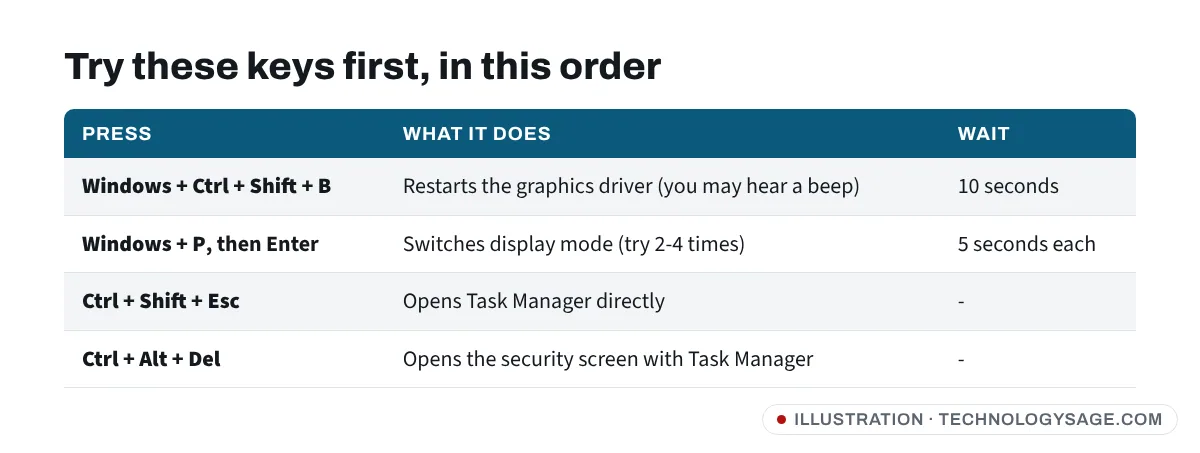
- Wait two minutes. After a big update, the first sign-in can show a black screen while Windows finishes setting up.
- Press Windows + Ctrl + Shift + B. The screen flickers and you may hear a beep while the graphics driver restarts. Microsoft lists this as the first step for a black screen after sign-in.
- Press Windows + P, then Enter. This changes the display mode (PC screen only, Duplicate, Extend, Second screen only). If an external monitor or TV was connected before, Windows may be showing your desktop there. Repeat Windows + P then Enter up to four times, waiting a few seconds each time.
- If the laptop lid was closed with a monitor attached, unplug the HDMI or USB-C cable and try again.
Step 2: Start Explorer from Task Manager
- Press Ctrl + Shift + Esc. If nothing appears, press Ctrl + Alt + Del and choose Task Manager (use the arrow keys and Enter if the mouse doesn’t work there).
- In Task Manager, select Run new task at the top (on older versions, File → Run new task).
- Type
explorer.exeand select OK.
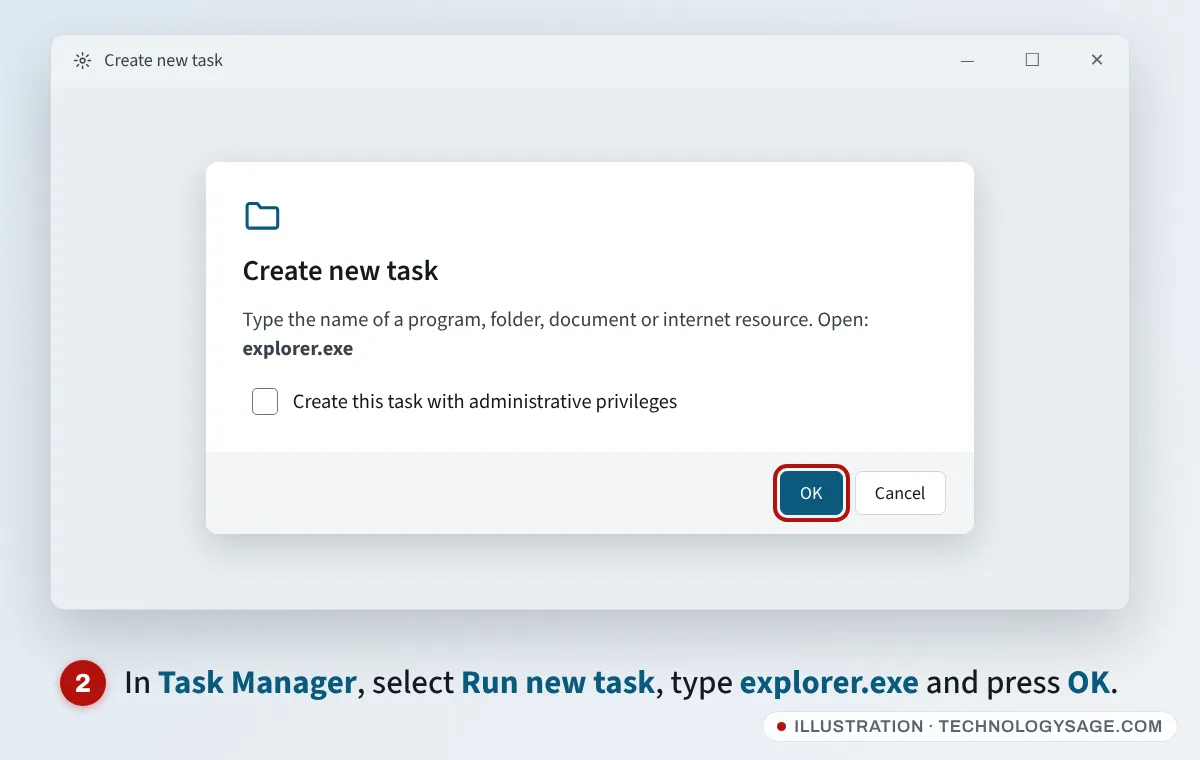
Your taskbar and desktop should appear. This is a fix for now, not a cure. Do the next steps to stop it happening again.
Step 3: Restart Windows Explorer
If Windows Explorer is already listed in Task Manager but the screen is still black, it’s stuck rather than missing.
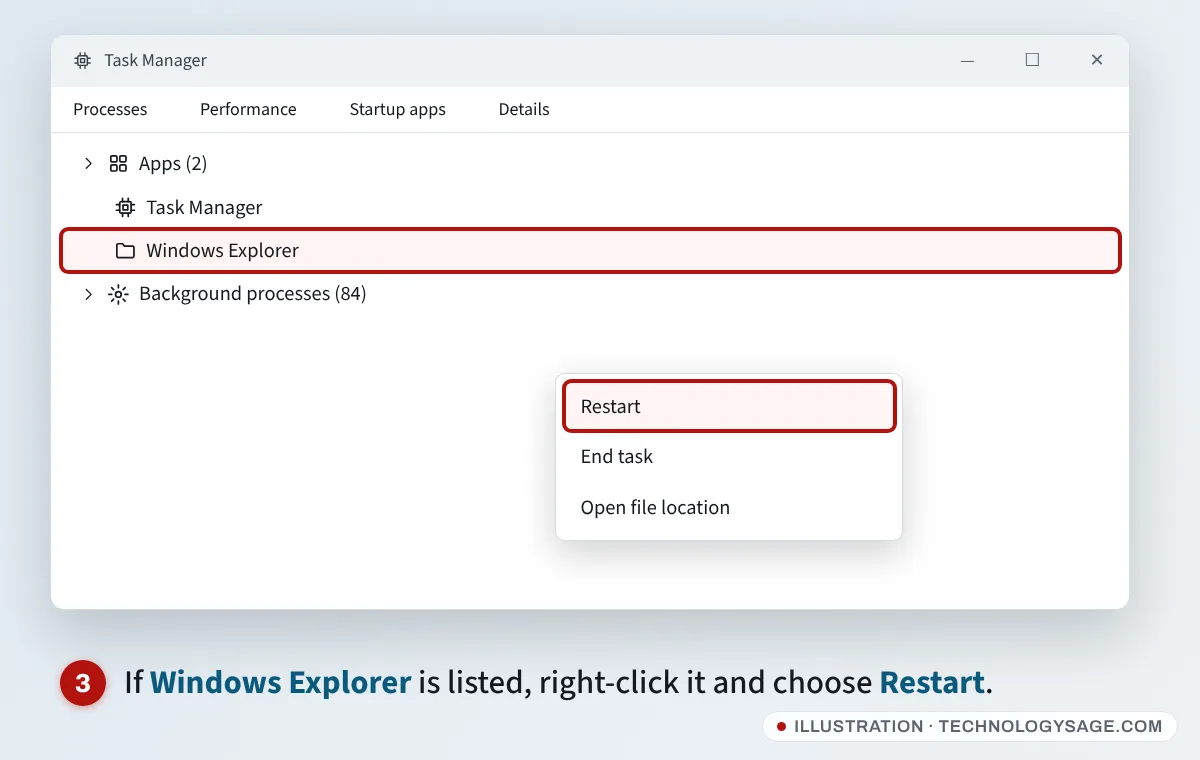
- In Processes, find Windows Explorer.
- Right-click it and choose Restart.
Once you’re on the desktop, restart the laptop normally (Start → Power → Restart) and see if the problem returns. If it doesn’t, install any pending updates in Settings → Windows Update, which sometimes include fixes for Explorer not starting after sign-in.
Step 4: Get into Safe Mode
If the black screen comes back on every sign-in, Safe Mode starts Windows with basic drivers only, so you can remove the cause.
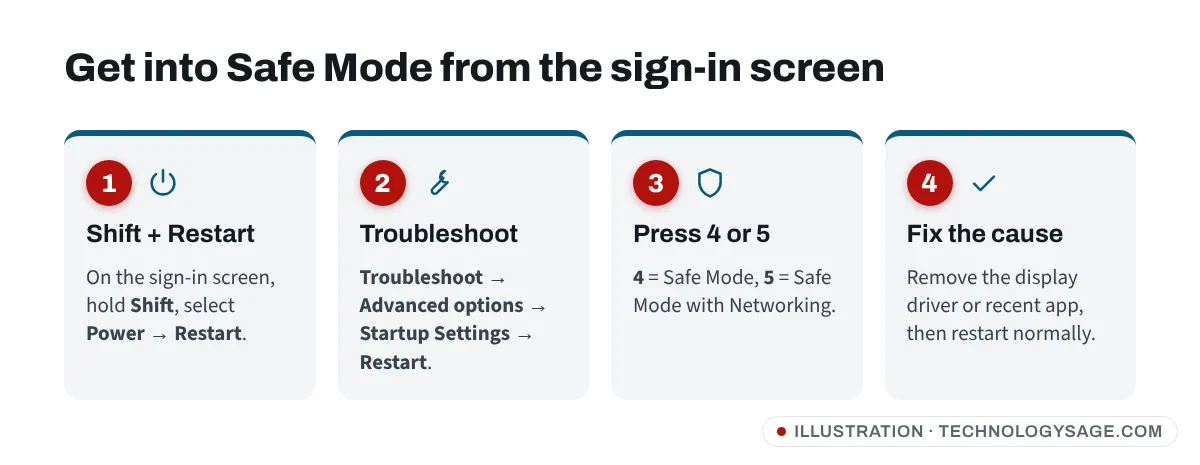
- On the sign-in screen (before you type your PIN), hold Shift and select Power → Restart.
- On the blue Choose an option screen, select Troubleshoot → Advanced options → Startup Settings → Restart.
- After the restart, press 4 for Safe Mode or 5 for Safe Mode with Networking.
- Sign in. If the desktop appears in Safe Mode, a driver or startup app is the likely cause.
You’ll need your Windows PIN or password. If BitLocker or Device encryption is on, Windows may also ask for a recovery key, which you can find by signing in to your Microsoft account at account.microsoft.com from another device.
If you can’t reach the sign-in screen, turn the laptop off and on three times during start-up; on the third try Windows opens Automatic Repair, then Advanced options.
Step 5: Reinstall the graphics driver
A broken or wrong graphics driver is one of the most common causes, especially after Windows installs a new one automatically.
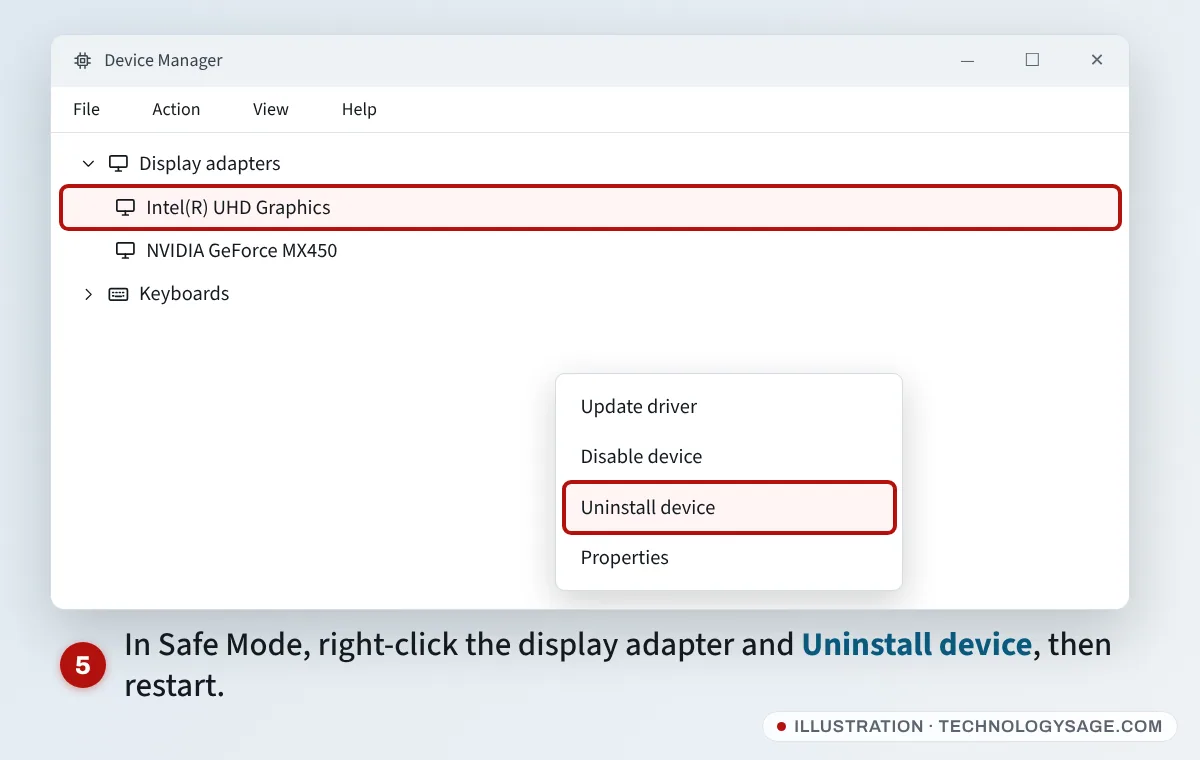
- In Safe Mode, right-click Start and choose Device Manager.
- Expand Display adapters.
- Right-click your graphics adapter (for example Intel UHD Graphics, AMD Radeon Graphics or NVIDIA GeForce) and choose Uninstall device. If there’s a tick box to remove the driver software, you can leave it unticked the first time.
- Restart normally. Windows installs a basic driver, and usually the correct one again from Windows Update.
- For the best result, download the graphics driver for your exact laptop model from the maker’s support site. Our guide to installing drivers on a laptop explains how.
Laptops with two graphics chips (Intel or AMD plus NVIDIA) are more likely to have this problem after driver updates. Install the maker’s driver for the Intel or AMD chip first.
Step 6: Undo a recent update or change
If the black screen started straight after a Windows update:
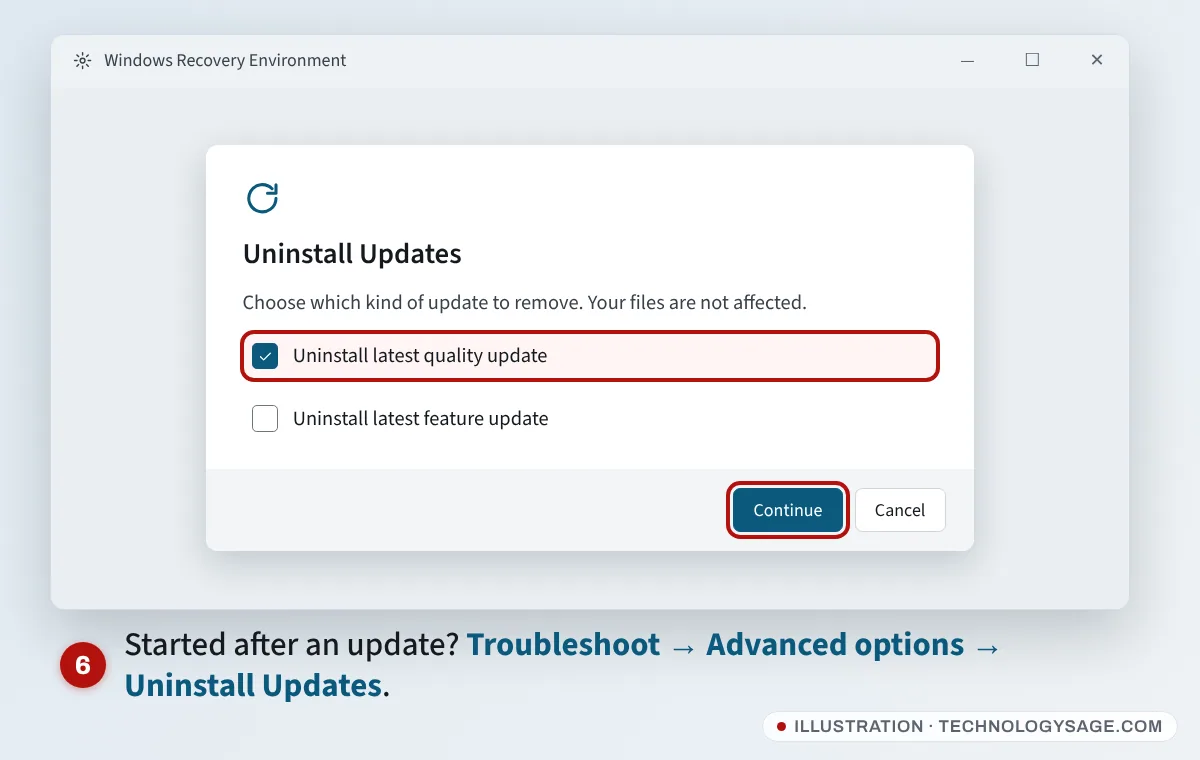
- From the sign-in screen, hold Shift and select Power → Restart.
- Select Troubleshoot → Advanced options → Uninstall Updates.
- Choose Uninstall latest quality update (the monthly update) first. If that doesn’t help, try Uninstall latest feature update.
Alternatively, choose Troubleshoot → Advanced options → System Restore and pick a restore point from before the problem started. Your personal files aren’t changed, but apps installed after that date are removed.
If the update itself got stuck before this happened, see Windows Update stuck.
Step 7: Find a startup app that’s causing it
Some apps (old antivirus, theme or “tweaker” tools, screen recorders, cracked software) can stop Explorer from loading.
- In Safe Mode or after starting Explorer from Task Manager, press Windows + R, type
msconfigand press Enter. - On the Services tab, tick Hide all Microsoft services, then select Disable all.
- Open Task Manager’s Startup apps page and disable all startup apps.
- Restart. If the desktop loads normally, turn the items back on a few at a time to find the culprit, then uninstall it.
This is Microsoft’s “clean boot” method. Remember to set msconfig back to Normal startup when you’re done.
If it still doesn’t work
- Try another account: create a new local account from Safe Mode (Settings → Accounts → Other users → Add account). If it signs in fine, your user profile is damaged; copy your files across to the new account.
- Repair system files: in Task Manager, choose Run new task, type
cmd, tick Create this task with administrative privileges, then runsfc /scannowand restart. - Reinstall Windows, keeping files: go to Settings → System → Recovery and use Fix problems using Windows Update → Reinstall now. If you can’t reach Settings, Troubleshoot → Reset this PC → Keep my files is the last resort; our older guide to resetting a Windows PC explains the options.
- Screen faults: if the screen is black even before you sign in, or you can only see the picture faintly with a torch, the backlight or screen may be faulty. See laptop screen flickering for display hardware checks.
FAQ
Why does Windows 11 show a black screen with only a cursor?
Windows has started, but the program that draws the desktop and taskbar (Explorer) hasn’t loaded, or the picture is going to another display. A graphics driver, update or startup app is usually behind it.
Will Windows + Ctrl + Shift + B delete anything?
No. It only restarts the graphics driver. Open apps and files stay as they are.
How do I fix a black screen without losing my files?
Use the steps above in order: shortcuts, Task Manager, Safe Mode, driver reinstall and uninstalling updates. None of them deletes your files. Back up important files once you can reach the desktop.
Can a virus cause a black screen after login?
It can, but drivers and updates are far more common causes. Once you’re on the desktop, run a Quick scan in Windows Security to be sure.