In this guide
- Why is YouTube not working on my TV?
- Step 1: Rule out YouTube itself and your internet
- Step 2: Restart the TV properly (cold boot)
- Step 3: Update the YouTube app and the TV software
- Step 4: Clear YouTube’s data, or reset Smart Hub on Samsung
- Step 5: Delete and reinstall YouTube
- Step 6: Sign in again the easy way
- Step 7: Check date, time, VPN and DNS
- YouTube not working on an older TV
- If it still doesn’t work
- FAQ
When YouTube is not working on your TV, the quickest fix is a full restart: unplug the TV from the wall for 60 seconds (or, on a Samsung, hold the remote’s power button until the TV restarts), then open YouTube again. If that doesn’t help, update the YouTube app and the TV’s software, clear the app’s data or reinstall it, and check that the TV’s internet connection and date and time are correct.
These fixes work on any smart TV: Samsung, LG, Sony, TCL, Hisense, and TVs or sticks running Google TV, Android TV, Roku or Fire TV. Where menus differ, we give each brand’s path.
Why is YouTube not working on my TV?
Most problems come from one of these:
- The TV was never really switched off. Pressing the power button usually puts a smart TV into standby, so a frozen app stays frozen.
- An out-of-date app or TV software. YouTube updates its TV app often, and an old version may stop loading.
- Corrupted app data or a full cache, which causes black screens, endless loading or the app closing.
- Internet problems on the TV only, even when your phone works fine on the same Wi-Fi.
- Wrong date and time on the TV, which breaks secure connections.
- An old TV model that YouTube no longer supports.
Step 1: Rule out YouTube itself and your internet
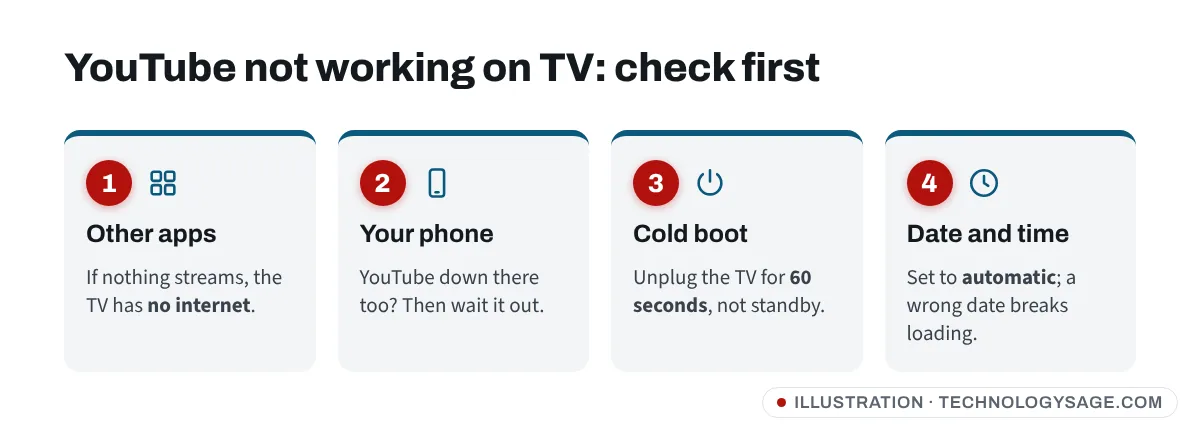
- Open YouTube on your phone. If it’s down there too, the problem is YouTube’s, and you just have to wait.
- On the TV, open another streaming app such as Netflix or the TV’s browser. If nothing loads, the TV has no internet. Restart your router, and check the TV’s network settings. Our guide to Wi-Fi connected but no internet explains the router side.
- If only YouTube fails, carry on below.
Step 2: Restart the TV properly (cold boot)
 Photo: Jonas Leupe on Unsplash
A cold boot shuts the TV down completely, like restarting a laptop, instead of putting it in standby.
- Any TV: leave the TV switched on, unplug it from the wall socket, wait at least 30 seconds (Sony suggests 2 minutes), plug it back in and switch it on.
- Samsung: press and hold the Power button on the remote until the TV switches off and back on, about 5 seconds.
- Sony and other Google TV models: press and hold the remote’s Power button and choose Restart if a menu appears.
- Roku: go to Settings → System → Power → System restart (on some models it’s under Settings → System → System restart).
- Fire TV: go to Settings → My Fire TV → Restart.
Then open YouTube again. This alone fixes most “YouTube not working on TV” cases.
Step 3: Update the YouTube app and the TV software
- Update the TV’s software:
- Samsung: Settings → Support → Software Update → Update Now.
- LG: Settings → General → About This TV (on some models Support → Software Update), then check for updates.
- Google TV / Android TV: Settings → System → About → System update.
- Roku: Settings → System → Software update → Check now.
- Fire TV: Settings → My Fire TV → About → Check for Updates.
- Update the YouTube app from the TV’s app store (Google Play on Google TV and Android TV, Samsung’s Apps, LG Content Store or LG Apps, Roku Channel Store, Amazon Appstore). Many TVs update apps automatically, but only while they’re connected and in standby.
Step 4: Clear YouTube’s data, or reset Smart Hub on Samsung
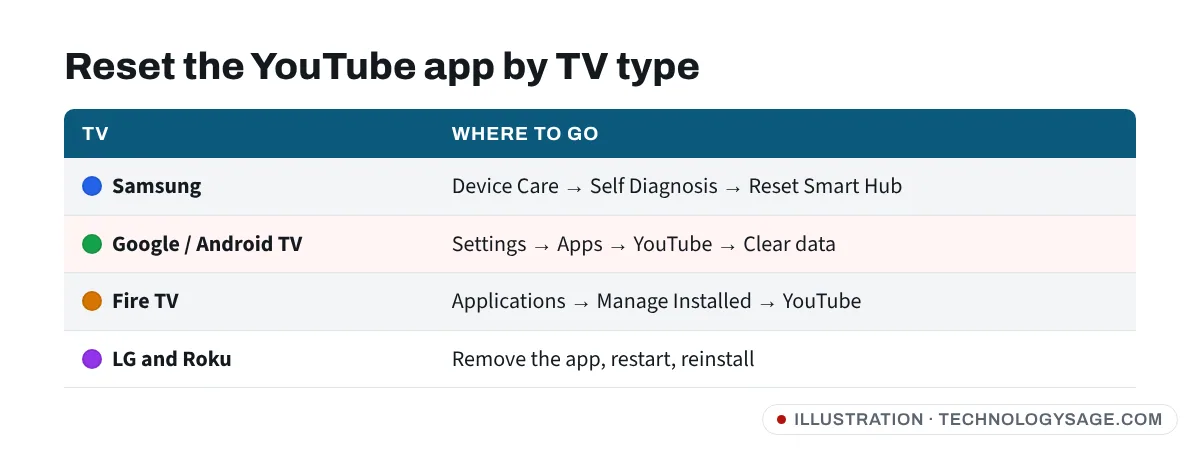
Google TV and Android TV (Sony, TCL, Hisense, Philips and others):
- Go to Settings → Apps (on some models Settings → Apps → See all apps).
- Select YouTube.
- Choose Force stop, then Clear cache. If that doesn’t help, come back and choose Clear data. Clearing data signs you out of YouTube on that TV.
Fire TV: Settings → Applications → Manage Installed Applications → YouTube → Force stop → Clear cache (then Clear data if needed).
Samsung: Samsung’s own fix order is cold boot, software update, delete and reinstall the app, then reset Smart Hub.
- To reset Smart Hub on recent models, go to Settings → Support → Device Care → Self Diagnosis → Reset Smart Hub. On older models it’s under Settings → Support → Self Diagnosis → Reset Smart Hub.
- Enter your TV PIN if asked (it’s 0000 unless you changed it).
- Resetting Smart Hub removes downloaded apps and signs you out of them, so you will need to reinstall and sign in to your apps afterwards. If Device Care is greyed out, cold boot the TV and try again.
LG and Roku don’t offer a simple “clear data” for YouTube. Reinstalling the app (Step 5) does the same job.
Step 5: Delete and reinstall YouTube
- Sign out of YouTube in the app first if you can (open the app’s Settings, then Sign out).
- Delete the app:
- Samsung: Apps → Settings (gear), select YouTube and choose Delete (on some models you can only Reinstall; that works too).
- LG: on the home screen, highlight YouTube, press and hold OK (or use Edit), and choose remove.
- Roku: highlight YouTube on the home screen, press the * button, choose Remove channel (or Remove app).
- Google TV: YouTube is often built in and can’t be deleted. Use Uninstall updates in the app’s settings instead, then update it again.
- Restart the TV.
- Install YouTube again from the app store and sign in.
Step 6: Sign in again the easy way
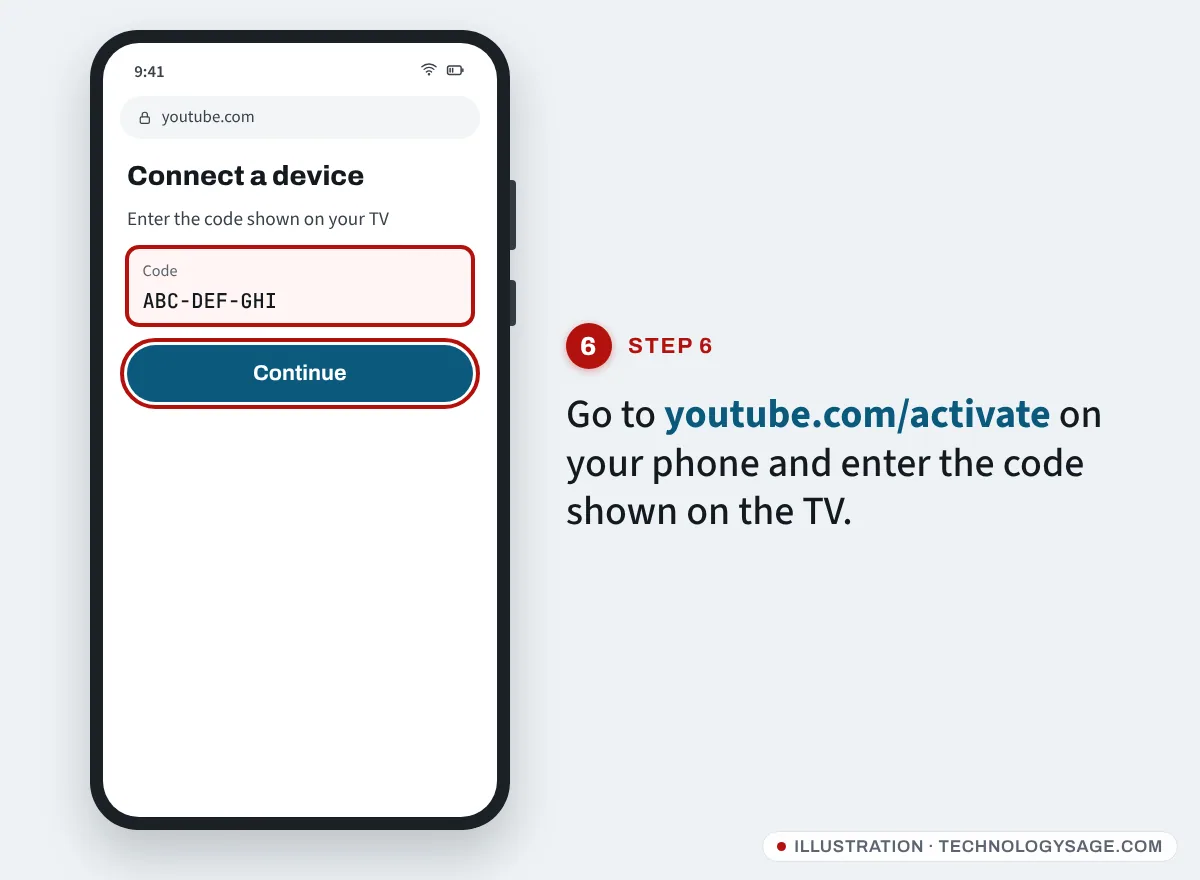
If the app opens but sign-in fails or loops, use the code method:
- In the TV app, choose Sign in. The TV shows a code.
- On your phone or computer, go to youtube.com/activate and enter the code, then pick your Google account.
If your Google account lists the TV under devices you’ve signed in to, removing it there and signing in fresh can also help.
Step 7: Check date, time, VPN and DNS
- Date and time: set them to automatic in the TV’s general or system settings. A wrong date breaks secure connections, and YouTube won’t load.
- VPN or “smart DNS”: if you set one up on the router or the TV, turn it off and test again.
- Router restrictions: parental controls on some routers block YouTube. Check your router’s settings or ask whoever manages the network.
YouTube not working on an older TV
If your TV is roughly ten years old or more, YouTube may have stopped supporting its app. Google publishes which devices are supported in its YouTube Help pages, and older smart TV models drop off over time. The cheapest fix is a streaming stick (Google TV, Fire TV or Roku) plugged into an HDMI port, or casting from your phone. Our guide to mirroring an Android phone to a TV shows how.
If it still doesn’t work
- Video plays but there’s no sound: see YouTube no sound, which covers TVs, soundbars and HDMI audio.
- The app opens but videos won’t load or keep buffering: follow YouTube videos not playing or loading.
- The TV keeps dropping Wi-Fi: try a wired Ethernet cable or move the router closer.
- Last resort: a factory reset of the TV (in its general or support settings) removes everything and returns it to new. Note your Wi-Fi password and app logins first.
A safety note: search results and social media are full of fake “YouTube TV support” phone numbers. YouTube doesn’t offer phone support for the free app; get help only from support.google.com and your TV maker’s official website.
FAQ
Why is YouTube not working on my Samsung TV?
Usually a frozen app or old data. Hold the remote’s power button for about 5 seconds to cold boot the TV, update the TV software, then delete and reinstall YouTube. If it still fails, reset Smart Hub from Settings → Support → Device Care → Self Diagnosis.
Why does YouTube say “something went wrong” on my TV?
This usually means a connection or sign-in problem. Restart the TV and router, check the TV’s date and time, then sign out and sign in again using youtube.com/activate.
How do I reset the YouTube app on my smart TV?
On Google TV, Android TV and Fire TV, open the app in Settings → Apps and choose Clear data. On Samsung, LG and Roku, delete and reinstall YouTube, or reset Smart Hub on Samsung.
Why does YouTube work on my phone but not my TV?
Your phone and TV use different apps and sometimes different networks. The TV may have an old app, wrong date and time, or a weak Wi-Fi signal. Cold boot the TV and update the app first.
Can I still watch YouTube on a TV that’s no longer supported?
Yes. Plug in a streaming stick, or cast from the YouTube app on your phone to a Chromecast or Google TV device.