In this guide
- First: what does “no display” look like on your PC?
- Step 1: Rule out the monitor, input and cable
- Step 2: Plug into the right video port
- Step 3: Read the beeps and debug lights
- Step 4: Reseat or test the RAM
- Step 5: Check the graphics card
- Step 6: Reset the BIOS (clear CMOS)
- Step 7: Strip it down to the minimum
- Step 8: Suspect the power supply or motherboard
- Step 9: Picture appears, then the screen goes black
- If it still doesn’t work
- FAQ
If your PC turns on but there’s no display, start with the simple things: check the monitor is on the right input, the cable is plugged into the graphics card (not the motherboard) on a desktop with a separate GPU, and try another cable. If that changes nothing, the PC is probably failing its power-on self-test (POST), and the beeps or debug lights on the motherboard tell you which part to look at, usually the RAM, then the graphics card, then the BIOS settings.
The trick is to work from what the PC is telling you. Fans spinning with no beeps, a steady orange light on the motherboard and a monitor that says “No signal” all point to different parts. This guide gives you a decision path rather than a random list.
Before you open anything: switch off at the wall and unplug the power cable. On a desktop, touch a bare metal part of the case to discharge static before handling RAM or cards. On a laptop, don’t open the case if it’s still under warranty; use the laptop checks below and contact the maker.
First: what does “no display” look like on your PC?
Note what happens when you press the power button, then jump to the matching section:
| What you see and hear | Most likely cause | Go to |
|---|---|---|
| Monitor says No signal, PC fans spin | Cable, input, wrong video port, RAM, GPU | Steps 1-5 |
| A pattern of beeps | POST error (RAM and video are the most common) | Step 3 |
| A steady CPU, DRAM, VGA or BOOT light on the motherboard | The part named by the light | Step 3 |
| Fans spin at full speed, no lights, no beeps | RAM, CPU power cable, BIOS, motherboard | Steps 4-7 |
| Picture appears, then goes black at the Windows logo | Windows or graphics driver, not hardware | Step 9 |
| PC turns on and off every few seconds | Power supply, RAM, short circuit | Step 8 |
If the PC doesn’t power on at all (no fans, no lights), that’s a power problem rather than a display problem; see our guide to a PC that won’t boot.
Step 1: Rule out the monitor, input and cable
It sounds obvious, but this fixes a surprising number of “no display” cases, especially after moving the PC or adding a second screen.
- Make sure the monitor’s power light is on. Press its menu button: if the on-screen menu appears, the monitor works.
- Use the monitor’s Input or Source button to pick the port you’re using (HDMI 1, HDMI 2, DisplayPort). Many monitors don’t switch automatically.
- Try a different cable, and a different port on both ends. A loose DisplayPort cable is a common culprit.
- If you can, try the PC on a TV or another monitor, or the monitor on a laptop.
- Unplug any second monitor, TV or capture device. Some PCs send the picture to the “wrong” screen first.
Step 2: Plug into the right video port
On a desktop with a separate graphics card, the monitor cable must go into the ports on the graphics card (the horizontal row of ports lower down on the back of the case), not the ports next to the USB sockets on the motherboard. Many motherboards turn their own video ports off when a graphics card is fitted.
The reverse also matters. If your processor has no built-in graphics, the motherboard’s HDMI port will never show a picture. Intel processors with an F at the end of the model name and most AMD Ryzen processors without a G need a graphics card. This catches out a lot of people building their first PC.
On a laptop: connect an external monitor and press the display-switch key (often Windows + P, or an Fn key with a screen icon), then press Enter. If the external screen works, the laptop’s own screen, its cable or its backlight is the problem. Also turn the brightness up; some laptops boot at zero brightness. Our guide to an HP laptop black screen covers the laptop-specific checks, including a hard reset, in more detail.
Step 3: Read the beeps and debug lights
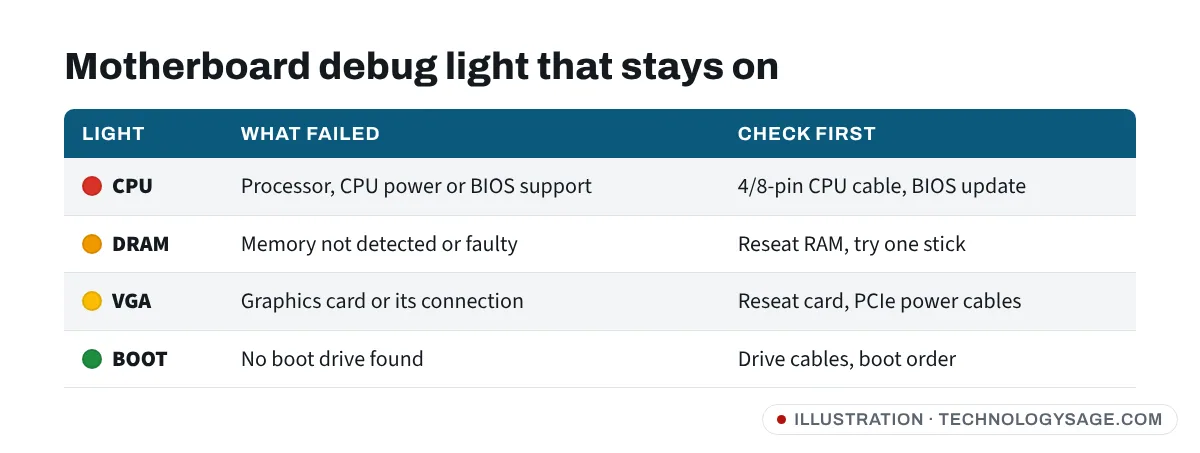
When a PC starts, the motherboard tests the processor, memory and graphics before handing over to Windows. If a test fails, it can’t show you an error on screen, so it uses beeps or lights instead.
- Debug LEDs. Many desktop motherboards have four small lights near the RAM slots or the 24-pin power connector, labelled CPU, DRAM, VGA and BOOT (ASUS calls them Q-LED; MSI, Gigabyte and ASRock have their own versions). They light up in turn as each test passes. The one that stays on is the part that failed: DRAM means memory, VGA means the graphics card or its connection, CPU means the processor, its power cable or BIOS support, and BOOT means no boot drive was found (by then you’d usually see a picture).
- Two-digit code display. Higher-end boards show a code instead; look it up in the manual’s table.
- Beep codes. These differ between BIOS makers, so a pattern that means “memory” on one board can mean something else on another. Count the beeps and look them up in your motherboard or PC manual. Many modern boards have no speaker at all, so silence doesn’t mean much on its own.
- Branded PCs and laptops. Dell, HP and Lenovo use blinking power lights or flashing Caps Lock lights as codes. Count the blinks and search your model’s support page for the meaning.
Write down what you see. It saves a lot of guessing in the next steps.
Step 4: Reseat or test the RAM
Memory is the most common cause of a PC that turns on with fans spinning but no display, especially after the PC has been moved, cleaned or upgraded.
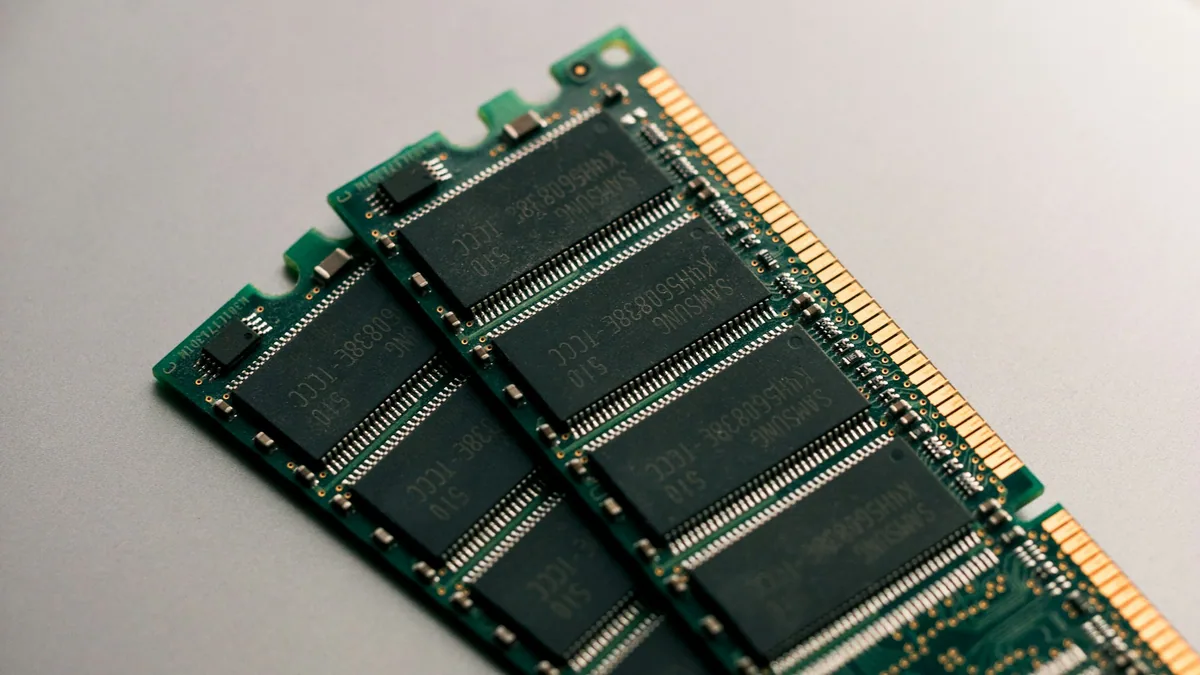 Photo: Harrison Broadbent on Unsplash
- Unplug the PC and hold the power button for 10 seconds to drain leftover power.
- Open the side panel. Push the clips at the end of each RAM slot to release the modules.
- Push each module back in firmly, straight down, until the clips click shut on their own. A module that isn’t fully seated is a very common cause.
- Still nothing? Try one module at a time, in the slot the manual recommends for a single stick (often the second slot from the processor, labelled A2 or DIMM_A2).
- If one module works and the other doesn’t, you’ve found the faulty one.
After new RAM, a BIOS update or a reset: the first start can take a minute or more with a black screen while the board “trains” the memory, especially with DDR5. Give it two or three minutes before you decide it has failed.
If the PC starts but you suspect the memory, our guide on how to tell if your RAM is bad explains how to test it properly.
Step 5: Check the graphics card
- Make sure the card is pushed fully into its slot and the retaining latch is closed.
- Check the PCIe power cables (6-pin, 8-pin or the newer 16-pin connector) from the power supply are plugged in all the way. A card without its power cables often shows nothing at all.
- If your processor has built-in graphics, remove the card, plug the monitor into the motherboard and start the PC. A picture now means the card, its power, or its slot is the problem.
- If you have another graphics card, try it.
Step 6: Reset the BIOS (clear CMOS)
Wrong BIOS settings, a failed memory overclock (XMP or EXPO) or a bad setting from a BIOS update can stop the PC reaching the screen. Resetting the BIOS puts everything back to the factory defaults. It doesn’t touch your files.
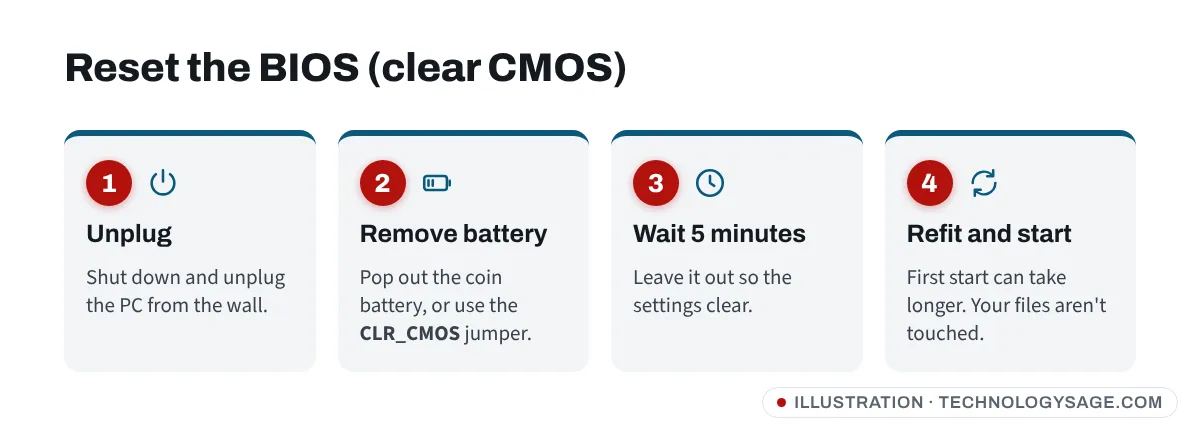
- Turn the PC off and unplug it from the wall.
- Find the flat, coin-sized battery on the motherboard. Gently pop it out and wait about five minutes.
- Alternatively, use the Clear CMOS jumper or button (often labelled CLR_CMOS or JBAT1). The manual shows where it is and how to use it; some boards have a button on the back panel.
- Put the battery back, plug in and start the PC. The first start may take longer than usual.
Step 7: Strip it down to the minimum
If nothing so far has worked, remove everything the PC doesn’t need to show the BIOS screen:
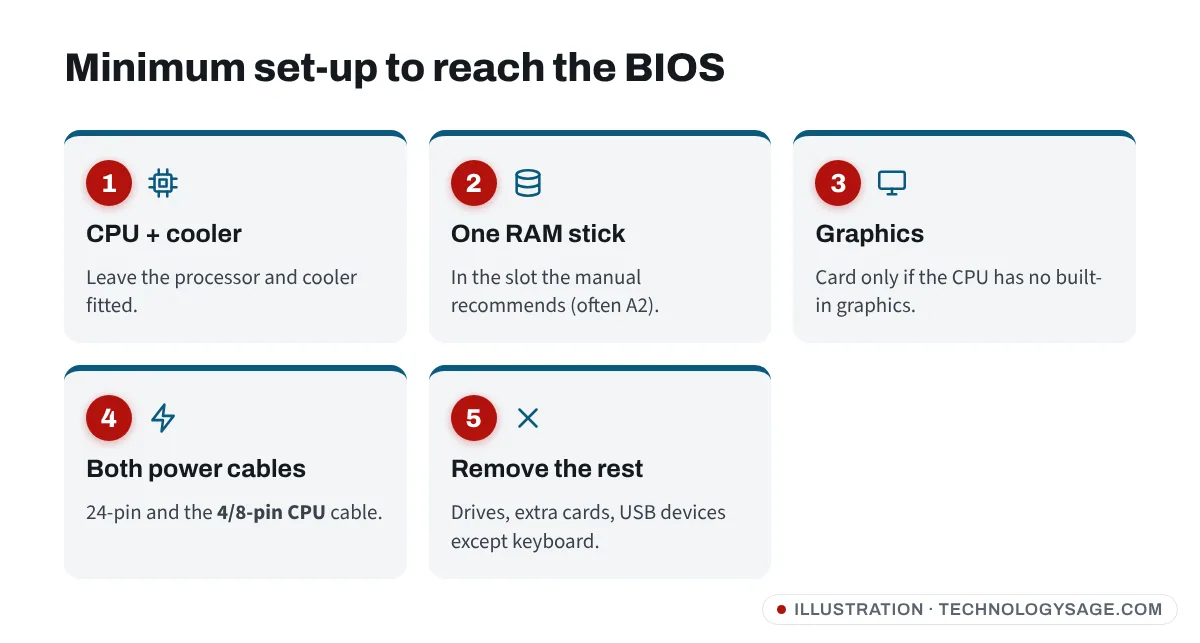
- Keep the processor and cooler, one RAM module, the graphics card (only if the processor has no built-in graphics), and the power supply.
- Disconnect all drives, USB devices except the keyboard, extra cards and front-panel extras.
- Check both power cables to the motherboard: the large 24-pin one and the 4- or 8-pin CPU power cable at the top-left of the board. A missing CPU cable gives you spinning fans and no display.
If the PC now shows the BIOS, add parts back one at a time until the problem returns.
New build or new processor? A board that’s older than your processor may need a BIOS update before it can start with it. Many boards support BIOS Flashback (also called Q-Flashback or similar), which updates from a USB stick without a working processor or screen; check your motherboard’s support page for the exact steps.
Step 8: Suspect the power supply or motherboard
If the PC starts and stops repeatedly, smells hot, or still shows nothing with the minimum set-up, the power supply or motherboard is the likely cause. The only reliable home test is to try a known-good power supply. At this point a repair shop with spare parts can save you buying the wrong one. If the PC restarts by itself once it’s running, see our guide on why a PC restarts randomly.
Step 9: Picture appears, then the screen goes black
If you see the maker’s logo or the BIOS, the hardware is mostly fine and the problem is in Windows: a graphics driver, the wrong display output, or a crash during start-up.
- Black screen after you sign in? Follow our Windows 11 black screen after login fixes (start with Windows + Ctrl + Shift + B).
- If Windows shows a blue screen or keeps restarting, our guide to finding what caused a blue screen helps you read the error.
- If it shows a boot error instead, start with the PC won’t boot guide.
If it still doesn’t work
- Try another monitor and cable together. Two faults at once (a dead cable and a monitor on the wrong input) are more common than you’d think.
- Check the monitor’s refresh rate. If the screen worked until you changed a setting, the monitor may not support it. Start Windows in Safe Mode, which uses a basic display mode, and change it back.
- Look for bent pins or damage in the processor socket if you recently fitted or moved the processor.
- Laptop still black with an external monitor working: the screen, its cable or backlight needs repair. Shine a torch at the screen at an angle; a faint image means the backlight has failed.
FAQ
Why does my PC turn on but there’s no signal to the monitor?
Usually because the cable is in the wrong port (motherboard instead of graphics card), the monitor is on the wrong input, or the PC is failing its start-up test because of RAM or the graphics card. Check the debug lights or beeps to narrow it down.
Can bad RAM cause no display?
Yes. RAM is the most common cause of a PC that turns on, spins its fans and shows nothing. Reseat the modules, then try one module at a time.
How do I know if my graphics card is dead?
Plug the monitor into the motherboard’s video port (if your processor has built-in graphics) with the card removed. If you get a picture, test the card in another PC or try another card in yours. A VGA debug light that stays on also points to the card or its power cables.
Will clearing CMOS delete my files?
No. Clearing CMOS only resets BIOS settings such as the boot order, time and memory profile. Your files on the drive aren’t touched. You may need to set the date, time and any custom settings again.
Why do my PC fans spin but nothing else happens?
Fans only need power, so spinning fans just tell you the power supply is giving some power. If there are no beeps, lights or picture, check the CPU power cable, reseat the RAM, clear CMOS and try the minimum set-up described above.