In this guide
- Why is my computer stuck in a boot loop?
- Before you start: keep your data safe
- 1. Disconnect everything and drain power
- 2. If it restarts before the Windows logo: check hardware
- 3. Force Windows into the recovery menu
- 4. Turn off automatic restart to see the error
- 5. Uninstall the latest update
- 6. Start in Safe Mode and remove the trigger
- 7. Use System Restore
- 8. Repair system files and check the disk
- 9. Reset this PC as the last step
- If it doesn’t work
- FAQ
A Windows boot loop is when the PC restarts over and over before you can use it. To fix it, first note when it restarts: before the maker’s logo (hardware or power), at the Windows logo (drivers, updates or system files), or after you sign in (an app or driver). Then disconnect extra devices, force Windows into its recovery menu, turn off automatic restart so you can read the error, and undo the latest update or driver. Your files are usually untouched.
If the loop shows “Preparing Automatic Repair” each time, go straight to our Preparing Automatic Repair guide. For other start-up errors, use the PC won’t boot checklist.
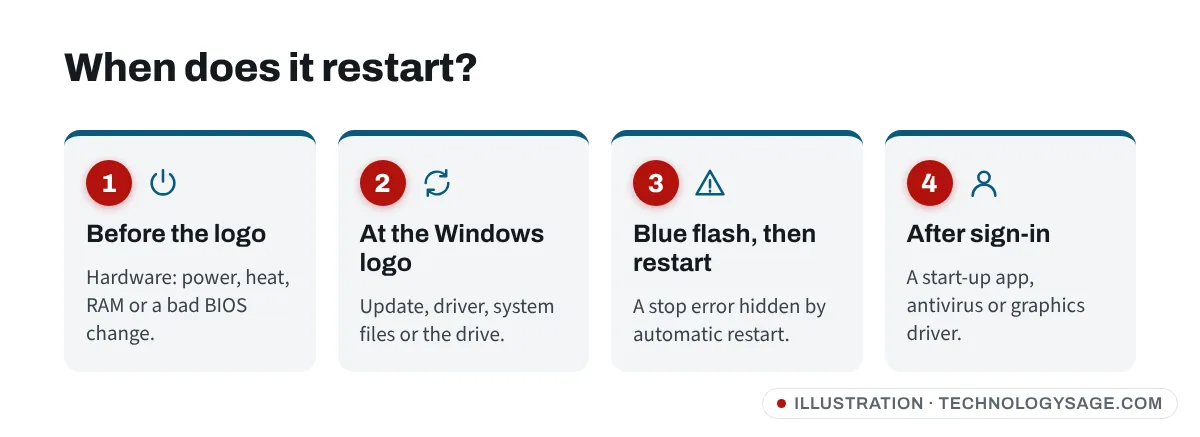
Why is my computer stuck in a boot loop?
| When it restarts | Likely cause |
|---|---|
| Before or during the maker’s logo, often with fans revving | Power supply, overheating, RAM, a short or a bad BIOS update |
| At the Windows logo or spinning dots | Failed update, driver, damaged system files, failing drive |
| With a brief blue screen flash | A stop error, hidden by automatic restart |
| Straight after you sign in | A start-up app, antivirus or graphics driver |
| Over and over during “Working on updates” | An update that can’t install and keeps rolling back |
Knowing which row you’re in saves a lot of time.
Before you start: keep your data safe
None of the first fixes touch your files. Reset and reinstall options later in this guide can, and a loop caused by a failing drive can get worse with every restart. If your files aren’t backed up, read how to save your files from a PC that won’t boot and have your BitLocker recovery key ready if your drive is encrypted.
1. Disconnect everything and drain power
- Unplug USB drives, external disks, printers, docks, webcams, game controllers and memory cards.
- Hold the power button until the PC switches off.
- Laptop: unplug the charger, hold the power button for 15 seconds, reconnect the charger. Desktop: switch off at the power supply, wait 30 seconds, switch on.
- Start the PC with only keyboard, mouse and screen connected.
A faulty USB device or dock can crash the start-up process. If the loop stops, plug devices back one at a time to find the culprit.
2. If it restarts before the Windows logo: check hardware
When the PC restarts before Windows even begins to load, Windows fixes won’t help.
- Overheating: a clogged fan or dried-out cooling can trigger an instant shutdown. Clean the vents; see laptop fan noise for fan problems.
- Power: on desktops, a weak or failing power supply often causes restart loops, especially after adding a new graphics card. On laptops, try a known-good charger.
- RAM: if you recently added memory, remove it and try again. On desktops, reseat the memory sticks.
- BIOS update or settings: if it started after a BIOS update or overclocking, load the BIOS defaults (save a photo of your boot mode and storage settings first).
If the PC restarts at random once it does start, see PC restarts randomly. If it powers on with no picture, see PC turns on but no display.
3. Force Windows into the recovery menu
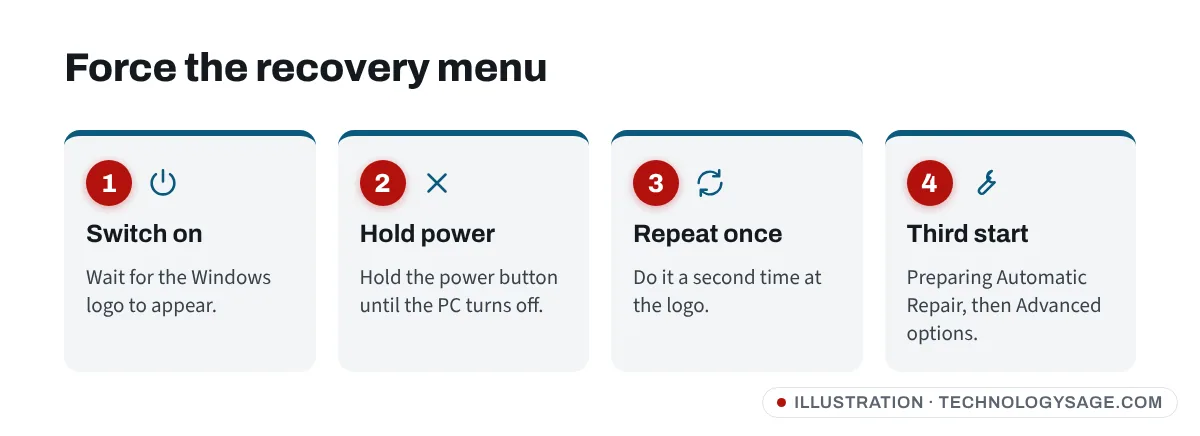
If the loop happens at or after the Windows logo, get to the Windows Recovery Environment:
- Switch the PC on. As soon as the Windows logo appears, hold the power button until it turns off.
- Repeat once more. Microsoft’s documentation says Windows opens recovery automatically after two failed starts in a row.
- On the next start you should see Preparing Automatic Repair, then Advanced options.
If you can’t get there this way, boot from a Windows installation USB (made with Microsoft’s Media Creation Tool on another PC) and choose Repair my PC. The one-time boot menu key depends on your PC; see the boot menu key table.
4. Turn off automatic restart to see the error
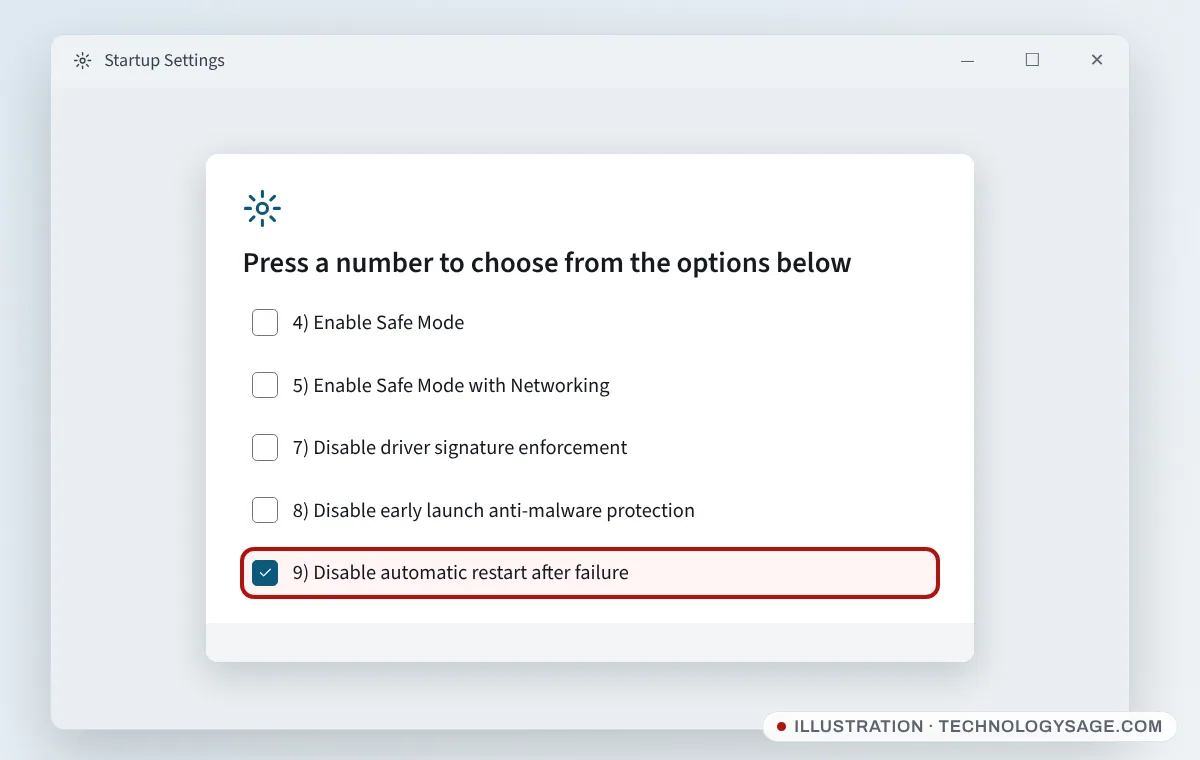
Windows restarts automatically after a crash, so a blue screen can flash past too quickly to read. Stop that:
- In recovery, go to Troubleshoot → Advanced options → Startup Settings → Restart.
- Press 9 (or F9) for Disable automatic restart after failure.
Now, instead of restarting, Windows stays on the blue screen. Write down or photograph the stop code (for example INACCESSIBLE_BOOT_DEVICE or MEMORY_MANAGEMENT) and any file name shown. Then:
INACCESSIBLE_BOOT_DEVICE: see Inaccessible boot device.UNMOUNTABLE_BOOT_VOLUME: see Unmountable boot volume.- Anything else: see how to find the cause of a blue screen.
5. Uninstall the latest update
A Windows update that won’t install, or installs badly, is one of the most common causes of a restart loop.
- Go to Troubleshoot → Advanced options → Uninstall Updates.
- Choose Uninstall latest quality update, then restart.
- If the loop continues, repeat with Uninstall latest feature update.
If the PC loops on “Working on updates” or “Undoing changes”, give it at least an hour first; it may finish on its own. Our Windows Update stuck guide covers that screen in detail.
6. Start in Safe Mode and remove the trigger
- Go to Troubleshoot → Advanced options → Startup Settings → Restart.
- Press 4 for Safe Mode, or 5 for Safe Mode with Networking.
If Windows starts in Safe Mode, the problem is a driver or program that loads in normal mode:
- Uninstall any app, antivirus or utility you installed just before the loop began (Settings → Apps → Installed apps).
- In Device Manager, roll back or uninstall a recently updated graphics, storage or chipset driver (right-click the device → Properties → Driver → Roll Back Driver).
- Run Windows Memory Diagnostic (search for it in Start, or run
mdsched.exe) to test the RAM.
If the loop only starts after you sign in, a start-up app is the likely cause. In Safe Mode, open Task Manager → Startup apps and disable non-essential items, then restart normally.
7. Use System Restore
Troubleshoot → Advanced options → System Restore takes Windows back to an earlier restore point. It undoes system changes (updates, drivers, settings) without touching your documents. Pick a point from before the loop began.
8. Repair system files and check the disk
From Troubleshoot → Advanced options → Command Prompt, run a disk check and an offline system file scan. Our Preparing Automatic Repair guide lists the exact commands and how to find your Windows drive letter, so they’re not repeated here. If you’re choosing between SFC and DISM inside a working Windows, see SFC vs DISM.
9. Reset this PC as the last step
If the drive and memory test fine but nothing else works, go to Troubleshoot → Reset this PC → Keep my files. Windows is reinstalled and your personal files are kept, but installed apps are removed. Remove everything erases the drive; use it only once your data is safe.
If it doesn’t work
- It still loops before the logo: this is hardware. Run your maker’s diagnostics if you can reach them (commonly F2 on HP laptops, or the Diagnostics entry in Dell’s F12 menu), and have the power supply, memory or motherboard checked.
- Safe Mode also loops: the cause is a core driver, damaged system files or the drive. Try System Restore and the command-line checks, then a reset.
- The loop says “No bootable device” or similar between restarts: that’s a different problem; see No bootable device found or Reboot and Select proper Boot device.
FAQ
How do I fix a computer stuck in a restart loop?
Disconnect extra devices and drain power, then force the recovery menu by interrupting start-up twice. In recovery, disable automatic restart to see the error, uninstall the latest update, try Safe Mode and System Restore, and repair system files. Reset this PC with Keep my files is the last software fix.
Why does my PC keep restarting before Windows loads?
If it restarts before the Windows logo, the cause is usually hardware: overheating, a failing power supply or charger, faulty or newly added RAM, or a BIOS problem. Windows repair tools can’t fix those.
Can a boot loop delete my files?
The loop itself doesn’t delete files. A failing drive can lose data over time, and a reset with Remove everything or a clean install erases the drive. Copy important files off before those steps.
How do I get to Safe Mode if Windows keeps restarting?
Interrupt start-up twice at the Windows logo to open recovery, then go to Troubleshoot → Advanced options → Startup Settings → Restart and press 4 for Safe Mode.
Can a Windows update cause a boot loop?
Yes. A failed or incompatible update is one of the most common causes. Use Uninstall Updates in the recovery menu to remove the latest quality update first.