In this guide
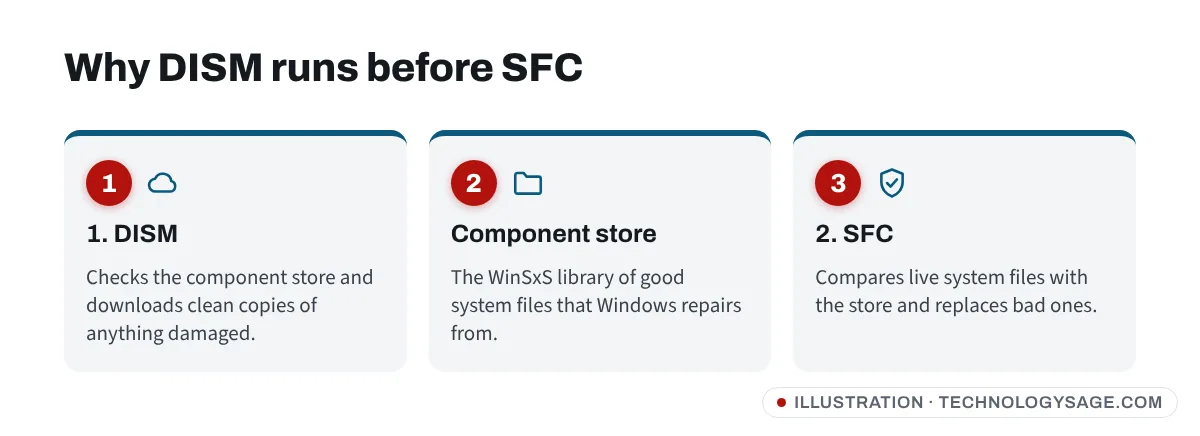
SFC vs DISM in one line: DISM repairs the Windows component store (the hidden library of good system files), and SFC uses that store to replace damaged system files in your running Windows. That is why Microsoft’s own instructions run DISM first, then SFC: if the store itself is broken, SFC has nothing good to copy from.
Both tools are built into Windows 10 and Windows 11, both are free, and neither touches your personal files. This guide gives the exact commands, what each result message means, and how to run them when Windows won’t start.
What SFC does
System File Checker (sfc.exe) scans every protected Windows system file — DLLs, drivers, core executables — and compares it with the known-good copy kept in the component store (the C:\Windows\WinSxS folder). If a file is missing or altered, SFC replaces it.
What SFC can fix:
- Corrupted or missing system files after a crash, power cut or bad shutdown
- Files damaged by malware (after the malware has been removed)
- Some strange errors: Start menu or Settings not opening, built-in apps crashing, random “DLL missing” messages for Windows’ own files
What SFC can’t fix: third-party programs, drivers you installed yourself, your documents, or physical disk damage.
What DISM does
Deployment Image Servicing and Management (DISM.exe) is a bigger tool for managing Windows images. The part home users need is /Cleanup-Image, which checks the component store itself. With /RestoreHealth, DISM downloads clean replacements for anything damaged — from Windows Update by default, or from a Windows installation file you point it at.
What DISM can fix:
- A corrupted component store, which is the usual reason SFC reports “found corrupt files but was unable to fix some of them”
- Windows Update failures caused by store corruption
- Feature or update installs that roll back with corruption-related errors
Which to run first: SFC or DISM?
Run DISM first, then SFC. That is the order in Microsoft’s support article on the System File Checker for Windows 10 and later.
The logic is simple: SFC copies from the store, DISM repairs the store. If you run SFC first on a healthy store, it works fine — but if the store is damaged, SFC fails and you have to run DISM and then SFC again anyway. Starting with DISM saves that second pass.
| SFC | DISM | |
|---|---|---|
| Repairs | Live system files | The component store (repair source) |
| Repair source | The local component store | Windows Update or an install file |
| Needs internet | No | Yes, unless you give it a source |
| Typical time | 5-20 minutes | 5-30 minutes, sometimes longer |
| Run order | Second | First |
How to run DISM and SFC (exact commands)
You need an administrator command window. Your files and apps are not affected, but save your work first because a restart may be needed.
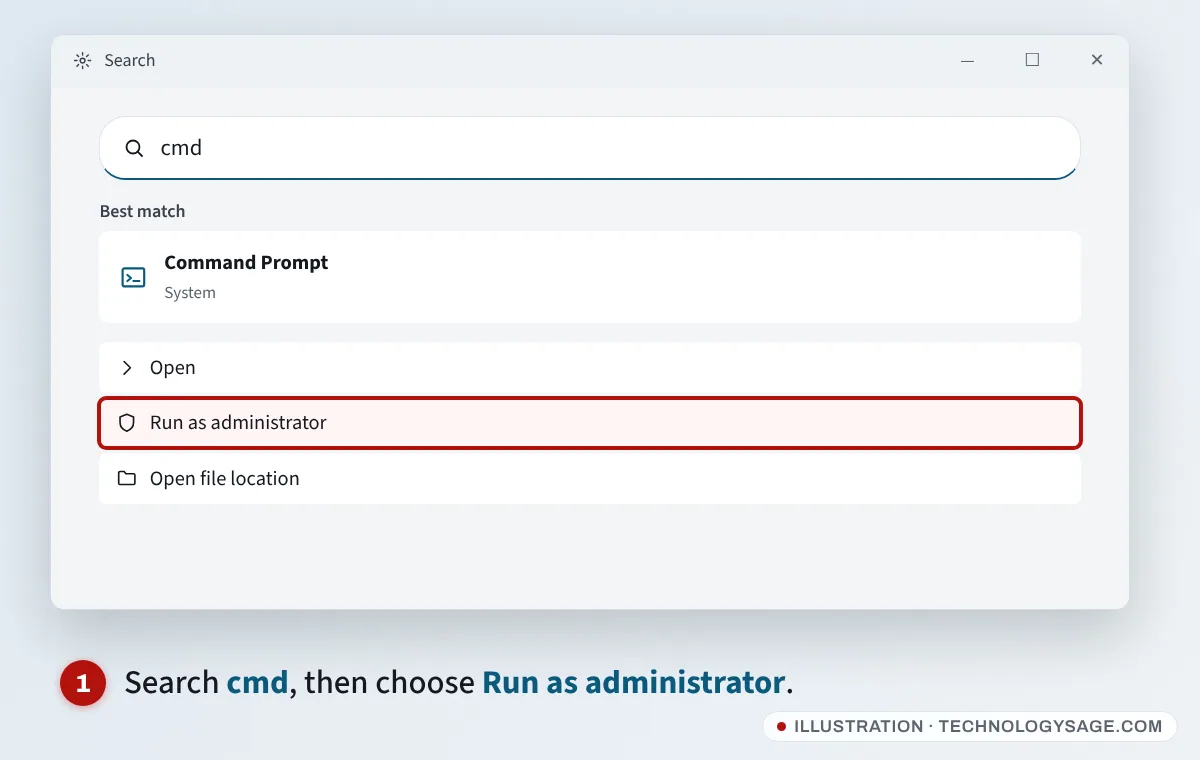
- Click Start, type cmd, then choose Run as administrator (or right-click Start and pick Terminal (Admin); on older Windows 10 builds it says Windows PowerShell (Admin)). Click Yes at the prompt.
- Optionally, do a quick check first. This takes seconds and only reads a flag that says whether corruption was found earlier:
DISM /Online /Cleanup-Image /CheckHealth- Run the repair. Keep the PC plugged in and online:
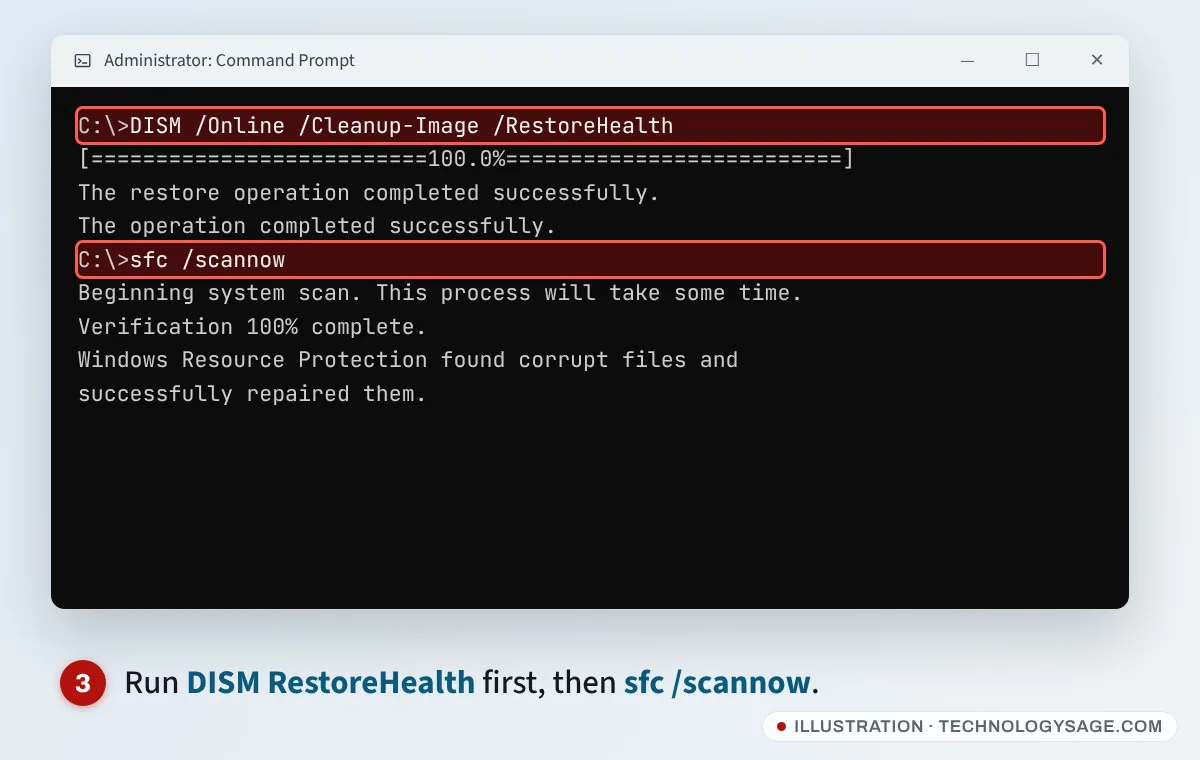
DISM /Online /Cleanup-Image /RestoreHealth-
Wait for “The restore operation completed successfully” and “The operation completed successfully.” The progress bar often sits at one percentage (commonly around 20% or 60%) for many minutes. That is normal — don’t close the window.
-
Now run System File Checker:
sfc /scannow- When it reaches 100%, read the result (see the next section), then restart the PC.
There is also a middle option, DISM /Online /Cleanup-Image /ScanHealth, which does a full scan without repairing. It takes almost as long as RestoreHealth, so most people skip straight to RestoreHealth.
What the SFC results mean
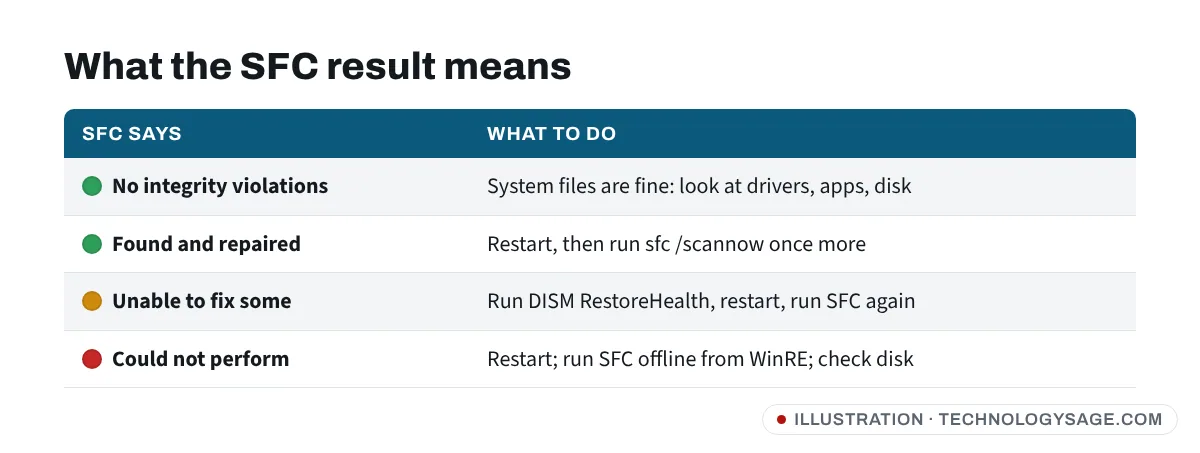
- “Windows Resource Protection did not find any integrity violations.” Your system files are fine. The problem is elsewhere: a driver, an app, the disk or hardware.
- “Windows Resource Protection found corrupt files and successfully repaired them.” Restart and test. If you ran SFC first, running it once more after a restart is a good check.
- “Windows Resource Protection found corrupt files but was unable to fix some of them.” Run DISM RestoreHealth (or repeat it with a source, below), restart, and run
sfc /scannowagain. - “Windows Resource Protection could not perform the requested operation.” Often a pending update or disk error. Restart, then try again; if it repeats, run SFC offline from the recovery environment (further down) and check the disk with
chkdsk C: /scan.
To see exactly which files SFC touched, Microsoft’s command to pull them out of the log is:
findstr /c:"[SR]" %windir%\Logs\CBS\CBS.log >"%userprofile%\Desktop\sfcdetails.txt"This puts an sfcdetails.txt file on your desktop. DISM keeps its own log at C:\Windows\Logs\DISM\dism.log.
If DISM RestoreHealth fails (error 0x800f081f and others)
The common failure is Error: 0x800f081f — The source files could not be found. It means DISM couldn’t get clean files, usually because Windows Update is broken or blocked. Give it a local source instead:
- Download the Windows installation media for the same version and language you have installed (Microsoft’s Windows download page offers an ISO), then right-click the ISO and choose Mount. Note the drive letter, for example
D:. - Check whether the image is
install.wimorinstall.esdby looking inD:\sources. - Find the index for your edition (Home, Pro…):
DISM /Get-WimInfo /WimFile:D:\sources\install.wim- Run RestoreHealth pointing at that index (here, index 1), with
/LimitAccessso it doesn’t try Windows Update:
DISM /Online /Cleanup-Image /RestoreHealth /Source:WIM:D:\sources\install.wim:1 /LimitAccessFor an ESD file, use /Source:ESD:D:\sources\install.esd:1 instead. Then run sfc /scannow again.
If both tools keep failing, Windows 11 has a simpler last step that keeps your files and apps: Settings → System → Recovery → Fix problems using Windows Update → Reinstall now. It reinstalls the current version of Windows in place. It isn’t offered on work-managed PCs or very old builds; on Windows 10, an in-place upgrade from the installation media (“Keep personal files and apps”) does the same job.
Running SFC and DISM when Windows won’t start
If the PC is stuck on Preparing Automatic Repair or a boot loop, you can still repair files from the Windows Recovery Environment (WinRE). Data safety first: if the PC holds files you can’t lose, copy them off before deeper repairs, for example by booting a Windows USB and using Notepad’s File → Open dialog to copy files to a USB drive.
- Open Advanced options → Troubleshoot → Advanced options → Command Prompt from the recovery screen (or boot from a Windows USB and press Shift + F10 at the setup screen).
- Drive letters are often different in WinRE. Find the Windows drive:
diskpart
list volume
exit
Look for the large NTFS volume; the one holding the Windows folder may show as D: here. You can confirm with dir D:\Windows.
- Run SFC against the offline Windows (replace
D:with your letter):
sfc /scannow /offbootdir=D:\ /offwindir=D:\Windows- If SFC can’t fix files, run DISM offline. Offline repairs can’t use Windows Update, so give a source from a Windows USB (here
E:):
DISM /Image:D:\ /Cleanup-Image /RestoreHealth /Source:WIM:E:\sources\install.wim:1list volume in diskpart only lists drives; it changes nothing. Don’t type any other diskpart commands unless a guide for your exact problem tells you to.
How often should you run SFC and DISM?
Only when something is wrong. They are repair tools, not maintenance tools, and running them weekly doesn’t speed anything up. Good times to use them: after a blue screen, after a failed update, after removing malware, or when Windows features stop opening. If you’re chasing a crash, read our guide on finding the cause of a blue screen first, and if updates keep failing see Windows Update stuck.
DISM /Online /Cleanup-Image /StartComponentCleanup is sometimes recommended alongside these. It removes superseded update files to save space; it’s safe but it isn’t a repair, and it stops you uninstalling recent updates.
FAQ
Should I run SFC or DISM first?
DISM first, then SFC. DISM repairs the component store, and SFC then uses that store to fix your system files. If you already ran SFC and it couldn’t fix everything, run DISM and then SFC again.
Does DISM RestoreHealth delete files?
No. It replaces damaged Windows component files only. Your documents, photos and installed programs are not touched. It does need an internet connection unless you give it a /Source.
Why is DISM stuck at 20% or 62%?
The progress counter is not linear: DISM may spend a long time at one value while it downloads or verifies files. Give it at least 30-60 minutes on a slow connection before assuming it’s frozen. If it truly stops, restart and run it again, or use a local source.
Is it safe to run sfc /scannow?
Yes. It only replaces protected Windows files with Microsoft’s own versions. The one thing to avoid is interrupting it by forcing the PC off; let it finish.
What if SFC says no integrity violations but problems continue?
Then the system files are not the cause. Look at drivers (especially graphics and storage), recently installed apps, the disk’s health and RAM. The Command Prompt tricks guide covers other built-in tools such as chkdsk.