In this guide
- What is Windows Boot Manager in BIOS?
- What the other boot list entries mean
- Should Windows Boot Manager be first in the boot order?
- How to set Windows Boot Manager first
- Why are there two Windows Boot Manager entries?
- Windows Boot Manager is missing from BIOS
- Windows Boot Manager and Secure Boot
- If it doesn’t work
- FAQ
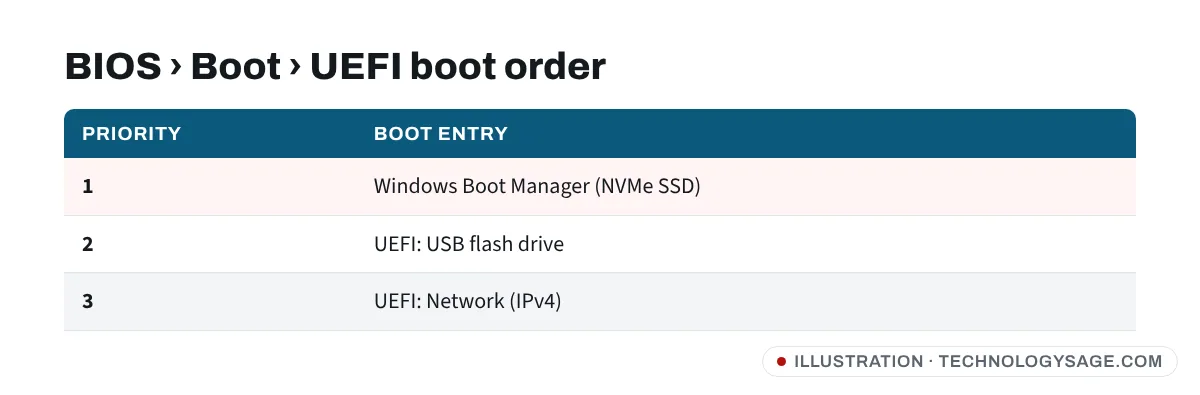
Windows Boot Manager is the entry in your BIOS (UEFI) boot list that starts Windows. It points to a small Microsoft start-up program stored on a hidden partition of your SSD or hard drive. For normal use, put Windows Boot Manager first in the boot order. Leave USB drives and network boot below it, and use the one-time boot menu when you want to start from a USB stick.
If your PC has stopped starting and you landed here from an error message, our PC won’t boot checklist will point you to the right fix.
What is Windows Boot Manager in BIOS?
On a modern UEFI PC (every Windows 11 PC and most PCs sold with Windows 8 or 10), the firmware doesn’t boot “a drive” the way older BIOS PCs did. It boots a boot entry: a named pointer to a start-up file. Windows creates one called Windows Boot Manager, which points to the file \EFI\Microsoft\Boot\bootmgfw.efi on the drive’s small EFI System Partition.
When you choose Windows Boot Manager, that program reads the Boot Configuration Data (BCD), shows a menu if you have more than one Windows installed, and starts Windows. Microsoft’s own boot troubleshooting guide calls this the “Windows Boot Manager” phase, the step right after the firmware’s power-on self-test.
So when you see Windows Boot Manager (Samsung SSD …) or Windows Boot Manager (P1: …) in BIOS, the bracket simply tells you which drive it lives on.
What the other boot list entries mean
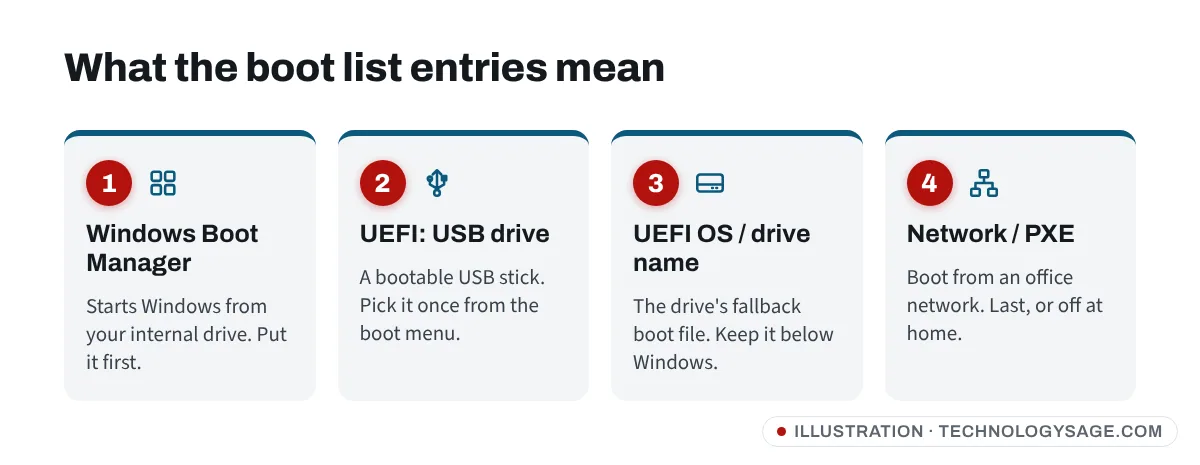
| Entry | What it is | Where it should go |
|---|---|---|
| Windows Boot Manager | Starts Windows from your internal drive | First |
| UEFI: [USB stick name] | A bootable USB drive, such as a Windows installer | Below Windows, or use the boot menu |
| UEFI: [SSD name] or UEFI OS | The drive’s fallback boot file | Below Windows Boot Manager |
| ubuntu, Fedora, GRUB | A Linux boot loader (dual boot) | First only if you want Linux’s menu |
| Network, PXE, IPv4/IPv6 | Boot from a company network | Last, or disabled at home |
| [Drive name] with no “UEFI” (on Legacy/CSM PCs) | Old-style boot from a drive’s master boot record | Only used if Windows was installed in Legacy mode |
Should Windows Boot Manager be first in the boot order?
Yes, for nearly everyone. With Windows Boot Manager first:
- Windows starts straight away, even if a USB stick is plugged in.
- Windows updates that refresh boot files work as expected.
- Secure Boot and BitLocker work normally.
The only common exceptions are dual-boot setups that use a Linux menu (put the Linux entry first) and PCs that should always start from the network (offices).
To start from a USB stick once, don’t change the order: use the one-time boot menu (for example F12 on Dell, Lenovo and Acer, Esc then F9 on HP, Esc on ASUS laptops). Keys vary by maker; see the BIOS key table. From a working Windows you can also go to Settings → System → Recovery → Advanced startup → Restart now → Use a device.
How to set Windows Boot Manager first
- Open BIOS setup: restart and tap the setup key (commonly F2, F1, Del, or Esc then F10 on HP), or from Windows go to Settings → System → Recovery → Advanced startup → Restart now → Troubleshoot → Advanced options → UEFI Firmware Settings.
- Open the Boot tab or page. It may be called Boot Sequence, Boot Priority, UEFI Boot Order or Boot Option Priorities depending on the maker.
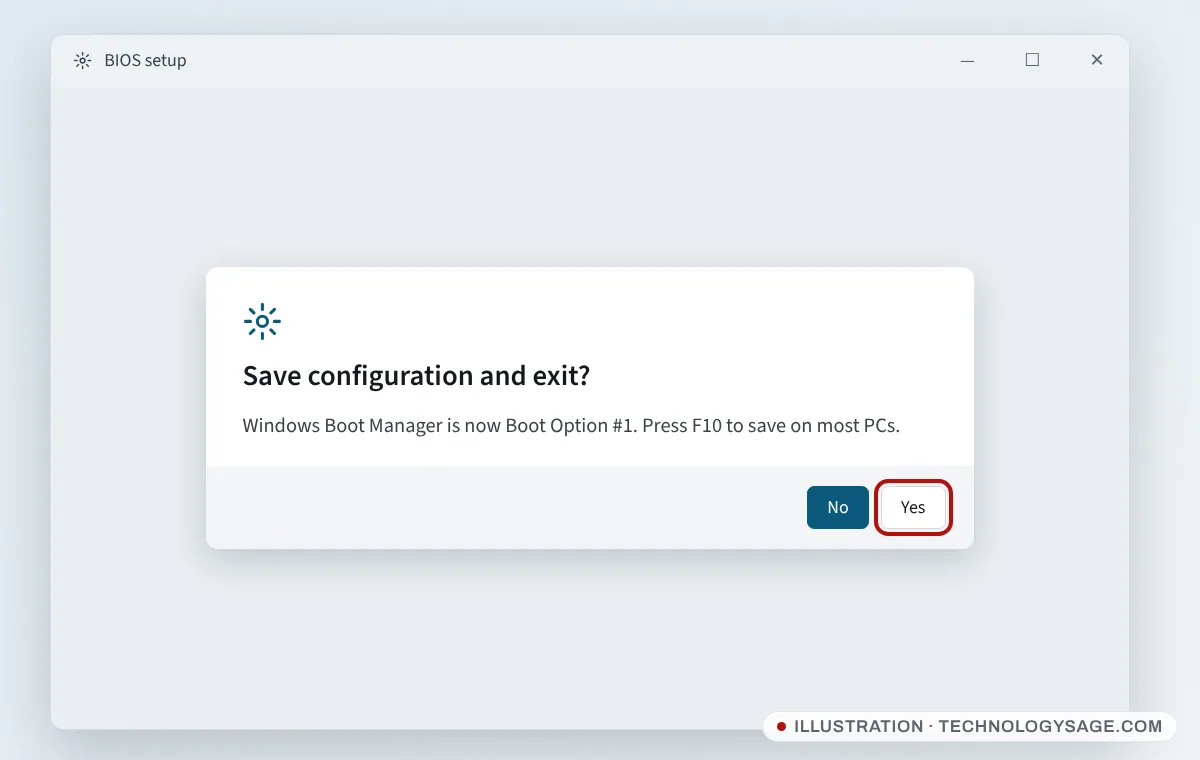
- Select Windows Boot Manager and move it to the top. The keys are shown on screen, often F5/F6, +/- or drag-and-drop with a mouse.
- Press F10 (on most PCs) and confirm to save and exit.
Why are there two Windows Boot Manager entries?
You’ll see two (or more) when:
- You have two drives with Windows, for example an old hard drive and a new SSD after cloning. Pick the one whose bracket shows the drive you actually use. If you’re not sure, try each from the one-time boot menu, then set the working one first. Removing or wiping the old drive later removes the duplicate.
- A previous Windows installation left an entry behind on the same drive. It’s harmless; keep the working entry first.
Don’t delete boot entries or partitions to tidy up unless you’re sure which drive is which. Deleting the EFI System Partition on your Windows drive will stop the PC from starting.
Windows Boot Manager is missing from BIOS
If BIOS shows your drive but there’s no Windows Boot Manager entry, check these in order:
- Boot mode: if the firmware is set to Legacy or CSM only, UEFI entries are hidden. Switch it to UEFI (and back on Secure Boot if you turned it off), save and look again.
- Drive detection: if the drive isn’t listed anywhere, see No bootable device found.
- Recreate the entry: if the drive is detected in UEFI mode but the entry is gone (common after a BIOS update or reset), Windows can rebuild it.
Before typing commands, make sure your files are safe (how to save files from a PC that won’t boot). The commands below don’t erase anything, but you’re working on the boot partition.
- Boot from a Windows installation USB (made with Microsoft’s Media Creation Tool), choose your language and select Repair my PC. Then go to Troubleshoot → Advanced options → Command Prompt.
- Find the letter of your Windows drive. In the recovery environment it isn’t always C:
diskpart
list vol
exit
Look for the large NTFS volume that holds Windows (check with dir C:\Windows or dir D:\Windows).
- Recreate the boot files and the firmware entry (replace
C:with your Windows drive letter):
bcdboot C:\WindowsMicrosoft’s BCDBoot documentation explains that on UEFI PCs this copies the boot files to the EFI System Partition and adds a Windows Boot Manager entry to the firmware, placing it first in the boot list.
- Type
exit, remove the USB stick and restart.
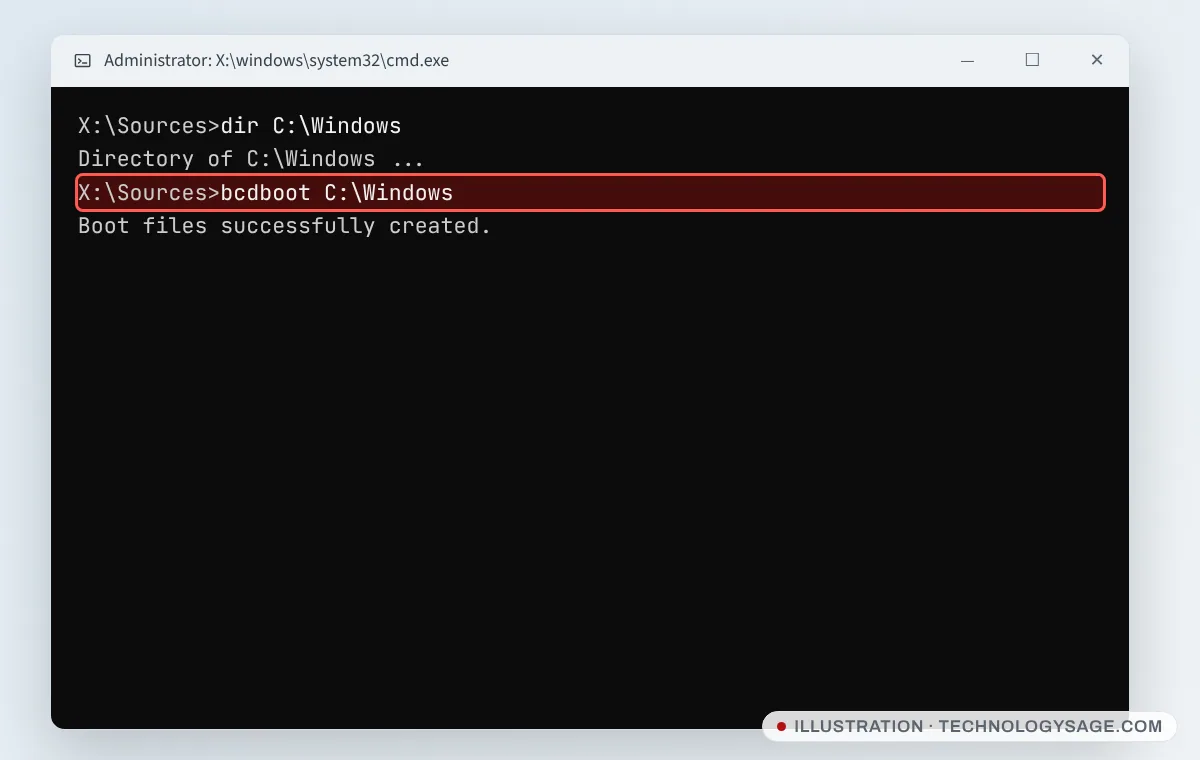
If bcdboot reports an error, the EFI partition itself may be damaged. The step-by-step repair in Operating system not found covers that case.
Windows Boot Manager and Secure Boot
Secure Boot checks that Windows Boot Manager is genuinely signed before running it. Keep it on unless a specific tool requires otherwise, and turn it back on afterwards. Changing Secure Boot, the boot mode or the boot entries can make BitLocker ask for its 48-digit recovery key at the next start, so find the key first (Microsoft explains where at its BitLocker recovery key page).
If it doesn’t work
- The order keeps resetting: a flat motherboard battery or a BIOS that forces “Fast Boot” defaults; see Reboot and Select proper Boot device.
- Windows Boot Manager is first but you get “Operating system not found”: the entry points to missing files; follow Operating system not found.
- Windows Boot Manager starts, but Windows loops into repair: that’s a Windows-side problem; see Preparing Automatic Repair.
FAQ
What is Windows Boot Manager in BIOS?
It’s the UEFI boot entry that launches Windows. It points to Microsoft’s boot program on the EFI System Partition of your drive, which then loads Windows.
Should I boot from Windows Boot Manager or my SSD?
Choose Windows Boot Manager. The plain SSD entry (often “UEFI: SSD name” or “UEFI OS”) is a fallback route. Windows Boot Manager is the official entry that Windows maintains.
Can I disable or delete Windows Boot Manager?
Don’t. Without it the PC can’t start Windows. If you have a duplicate from an old drive, move the working entry to the top; the extra one does no harm.
How do I change the boot order without BIOS?
From Windows, open Settings → System → Recovery → Advanced startup → Restart now and choose Use a device to start once from a USB drive. Permanent changes are made in BIOS setup.
Why did Windows Boot Manager disappear after a BIOS update?
BIOS updates often reset the firmware settings and can clear saved boot entries or change the boot mode. Set UEFI mode again; if the entry is still missing, recreate it with bcdboot as shown above.