In this guide
- What does “BOOTMGR is missing” mean?
- 1. Remove USB drives, discs and memory cards
- 2. Set the right boot order
- 3. Run Startup Repair from a Windows USB
- 4. Repair the boot code and BCD with bootrec
- 5. Mark the correct partition as active
- 6. Recreate the boot files with bcdboot
- 7. Check the drive
- If it doesn’t work
- FAQ
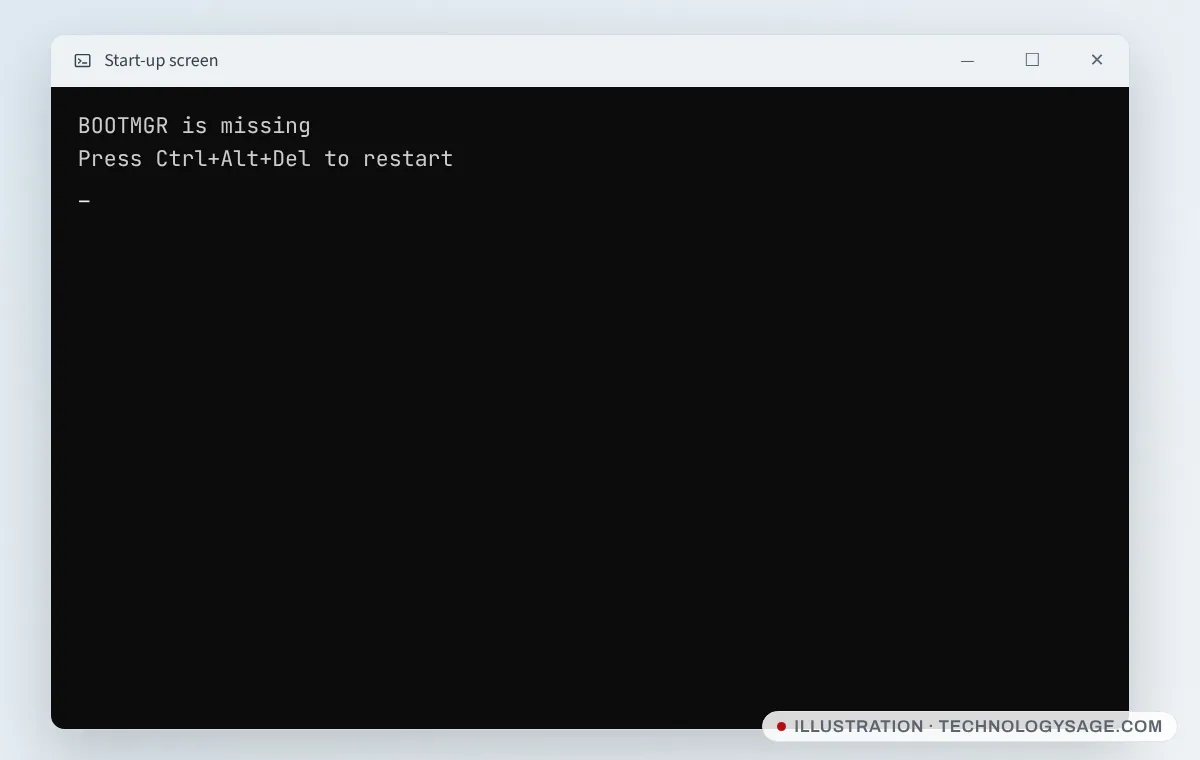
“BOOTMGR is missing. Press Ctrl+Alt+Del to restart” means the PC started from a drive or partition that doesn’t contain the Windows Boot Manager file (bootmgr). Often a USB stick, disc or second drive is first in the boot order; remove it and set your Windows drive first. If the error stays, boot from a Windows installation USB, run Startup Repair, and if needed rebuild the boot files with bootrec, bcdboot or by marking the right partition active.
This error only appears on PCs starting in Legacy BIOS mode from an MBR disk: older PCs, and newer ones with CSM/Legacy switched on. Modern UEFI PCs report the same kind of problem differently (see No bootable device found and Operating system not found). For every boot error in one place, start with the PC won’t boot checklist.
What does “BOOTMGR is missing” mean?
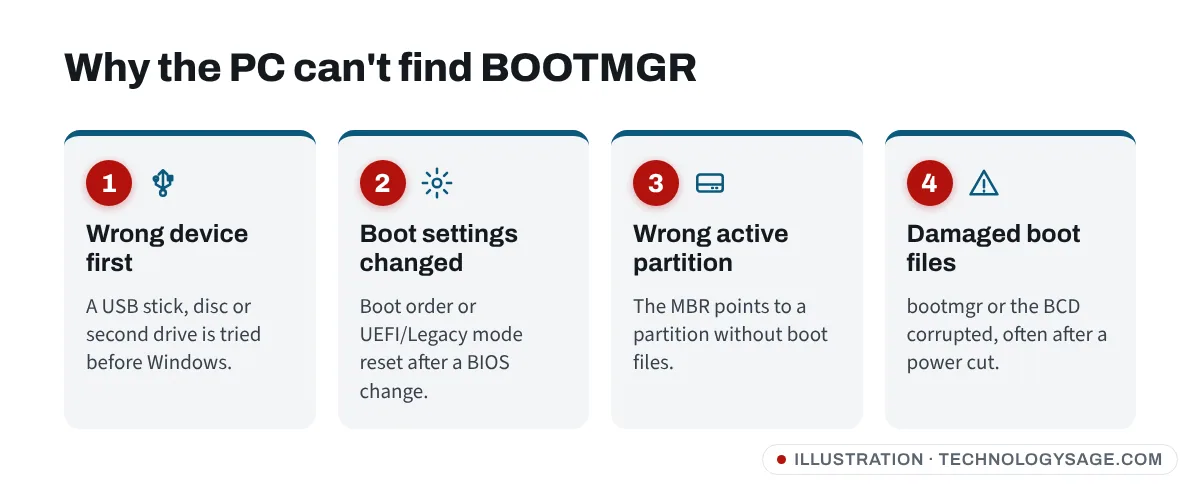
On a Legacy BIOS PC, start-up happens in a chain: the firmware reads the start-up code on the drive’s master boot record (MBR), which looks for the active partition, which loads the file bootmgr. Microsoft’s boot troubleshooting guide lists “Bootmgr missing or corrupted” among the boot-loader errors. The chain breaks when:
- the PC tries to start from a USB stick, memory card, disc or second hard drive that has no Windows on it
- the boot order or boot mode changed (for example after a BIOS reset or update)
- the wrong partition is marked active, often after resizing or partitioning
- the
bootmgrfile or the Boot Configuration Data (BCD) is damaged, for example after a power cut - the drive or its cable is failing
Protect your data first. All the fixes below leave personal files alone if you follow them exactly, but you’ll be working on the drive’s boot partitions. If your files aren’t backed up, copy them off first; our guide to saving files from a PC that won’t boot shows how.
1. Remove USB drives, discs and memory cards
Unplug every USB stick, external drive and memory card, eject any CD or DVD, then press Ctrl + Alt + Delete. If Windows starts, a removable device was being tried first. Fix the boot order (step 2) so it doesn’t happen again.
2. Set the right boot order
Open BIOS setup with your PC’s key (commonly Del or F2 on desktops, F2, F1 or Esc then F10 on laptops; see the BIOS key table).
- On the Boot page, put your Windows hard drive or SSD first.
- If you have two internal drives, make sure the one with Windows is first. The other drive may be what the PC is trying to start.
- Press F10 to save and restart.
If your PC is newer and Windows was installed in UEFI mode, a BIOS reset may have switched it to Legacy/CSM, which produces this error. Set Boot Mode to UEFI, put Windows Boot Manager first and restart. Our Windows Boot Manager guide explains the entries.
3. Run Startup Repair from a Windows USB
- On a working PC, make a Windows installation USB with Microsoft’s Media Creation Tool. See our bootable USB guide for other tools.
- Start the broken PC from the USB with the one-time boot menu.
- Choose your language, then Repair my PC (or Repair your computer on older media).
- Go to Troubleshoot → Advanced options → Startup Repair and let it finish.
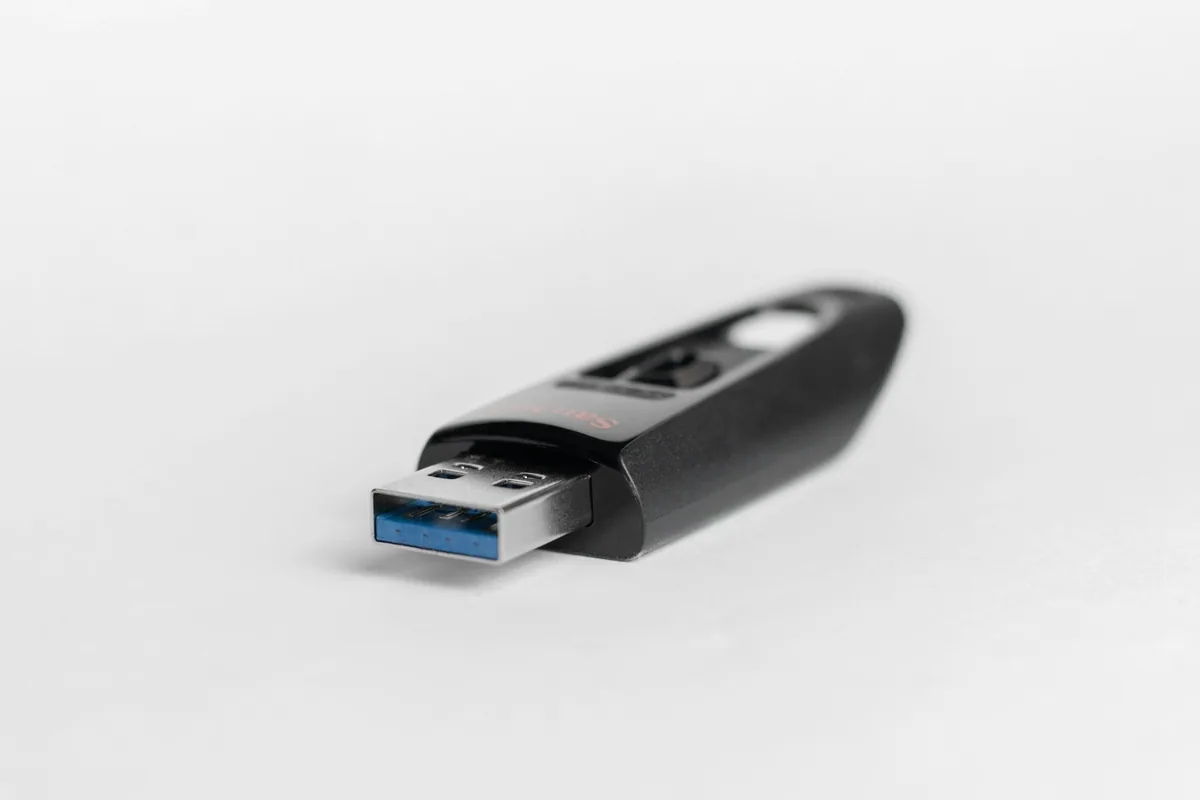 Photo: Sara Kurfeß on Unsplash
Remove the USB stick and restart. Startup Repair often fixes BOOTMGR errors on its own.
4. Repair the boot code and BCD with bootrec
If Startup Repair didn’t help, open Troubleshoot → Advanced options → Command Prompt and run Microsoft’s boot repair commands one at a time:
bootrec /fixmbr
bootrec /fixboot
bootrec /scanos
bootrec /rebuildbcd/fixmbrrewrites the master boot code without touching the partition table./fixbootwrites a new boot sector to the system partition./scanosand/rebuildbcdlook for Windows installations and add them to the boot configuration; typeYwhen asked.
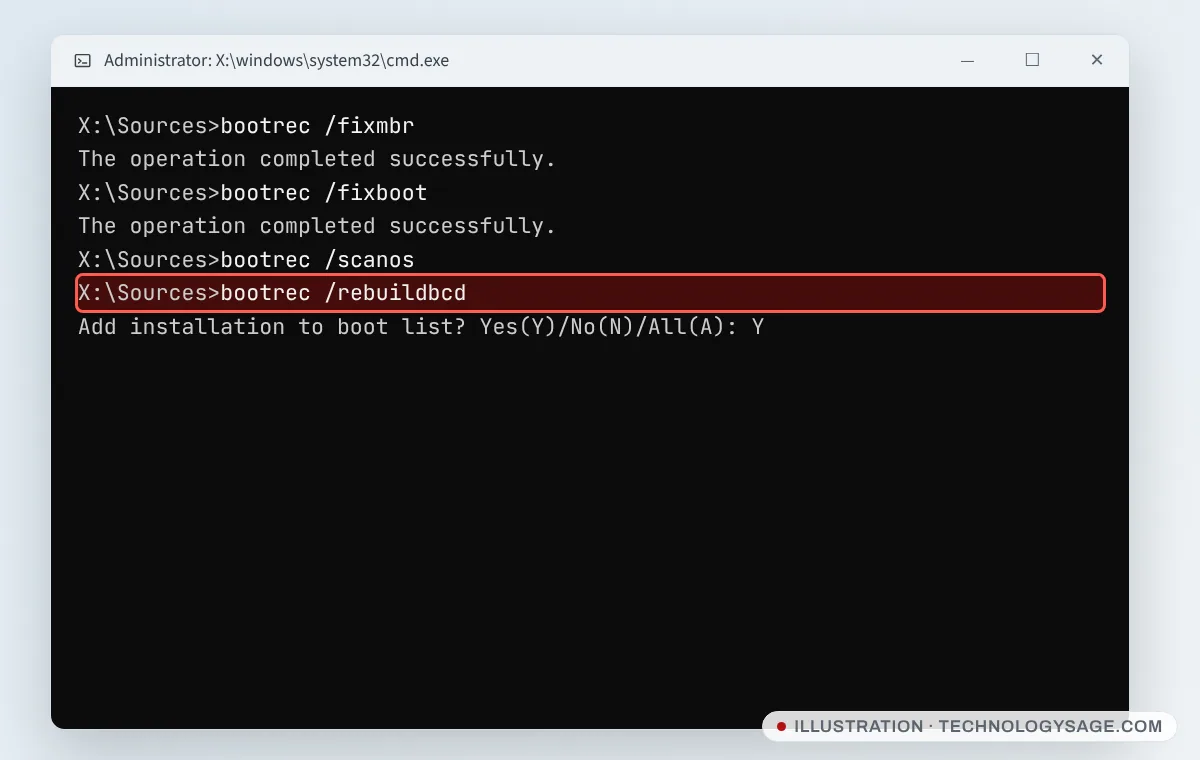
If bootrec /fixboot says Access is denied, see bootrec /fixboot access denied. If /rebuildbcd finds 0 installations, the BCD reset in Operating system not found shows how to back up and replace the old BCD.
5. Mark the correct partition as active
On MBR disks, the start-up code only looks at the partition marked active. If someone changed it (for example with a partition tool), the PC can’t find bootmgr.
Warning: these steps change which partition the PC starts from. They don’t erase data, but selecting the wrong partition will stop Windows starting until you set the right one. Never use clean, delete or format here. This step is for MBR disks only; if list disk shows a * in the Gpt column, skip it and use the UEFI steps in Operating system not found.
diskpart
list disk
select disk 0
list partition
Find the partition to make active:
- the small System Reserved partition (usually 100-500 MB) if there is one, or
- the Windows partition if there’s no System Reserved partition.
Then (replacing 1 with that partition’s number):
select partition 1
active
exit
Restart and test. If you still get the error, run the bootrec commands from step 4 again.
6. Recreate the boot files with bcdboot
bcdboot copies fresh boot files, including bootmgr, from your Windows folder. In the recovery Command Prompt, first find which letter Windows has. In recovery, System Reserved is often C: and Windows is D:, so check:
dir C:\Windows
dir D:\Windows
Then run (using the letter that worked):
bcdboot D:\WindowsOn a Legacy BIOS PC, Microsoft’s documentation says bcdboot copies the boot files to the active partition of the primary drive and creates a new BCD store there. To target a specific partition, give it a letter in diskpart (select partition 1, assign letter=S) and run bcdboot D:\Windows /s S: /f BIOS.
7. Check the drive
Repeated BOOTMGR errors on a PC that worked fine can point to a failing hard drive or a loose cable. Check the disk from the recovery Command Prompt with chkdsk D: /f (use your Windows letter), and on a desktop reseat the SATA data and power cables. If the drive clicks or isn’t always detected, copy your files off and replace it.
If it doesn’t work
- The error appears only sometimes: suspect the drive or cable, or a flat motherboard battery that loses the boot order; see Reboot and Select proper Boot device.
- Windows now starts to the logo, then loops into repair: the boot files are fixed but Windows has another problem; see Preparing Automatic Repair.
- You get a blue screen instead: see Inaccessible boot device or Unmountable boot volume.
- Nothing works on an old PC: if the drive is healthy, a clean install of Windows (after saving your files) is the reliable fix. Note that Windows 11 needs UEFI and Secure Boot support, so very old PCs may only run Windows 10.
FAQ
How do I fix “BOOTMGR is missing. Press Ctrl+Alt+Del to restart”?
Remove any USB sticks and discs, set your Windows drive first in BIOS, then boot from a Windows USB and run Startup Repair. If that fails, use bootrec /fixmbr, /fixboot and /rebuildbcd, set the correct partition active and recreate the boot files with bcdboot.
Can I fix BOOTMGR is missing without a CD or USB?
Only if Windows Recovery still opens on its own, which is rare with this error because it happens before Windows starts loading. In most cases you need a Windows installation USB made on another computer.
Will fixing BOOTMGR delete my files?
No. Startup Repair, bootrec, setting the active partition and bcdboot only touch start-up files. Avoid diskpart’s clean, delete and format commands, which do erase data.
Why does BOOTMGR is missing appear after installing a second hard drive?
The PC is probably trying to start from the new drive. Put the original Windows drive first in the BIOS boot order, or disconnect the new drive to test.
Is BOOTMGR is missing a virus?
It is rarely caused by malware today. Wrong boot order, a changed active partition and damaged boot files are far more common causes.