In this guide
- First, search everywhere for the missing email
- 1. It went to Spam or Junk
- 2. It’s in another tab: Promotions, Updates or Other
- 3. A filter or rule is moving or deleting it
- 4. You blocked the sender
- 5. Your storage is full
- 6. Mail is being forwarded or downloaded elsewhere
- 7. The sender has the wrong address
- 8. Your phone’s email app isn’t syncing
- 9. The email was archived, muted or auto-deleted
- 10. The problem is on the sender’s side, or a delay
- Not receiving or sending emails?
- Safety notes
- FAQ
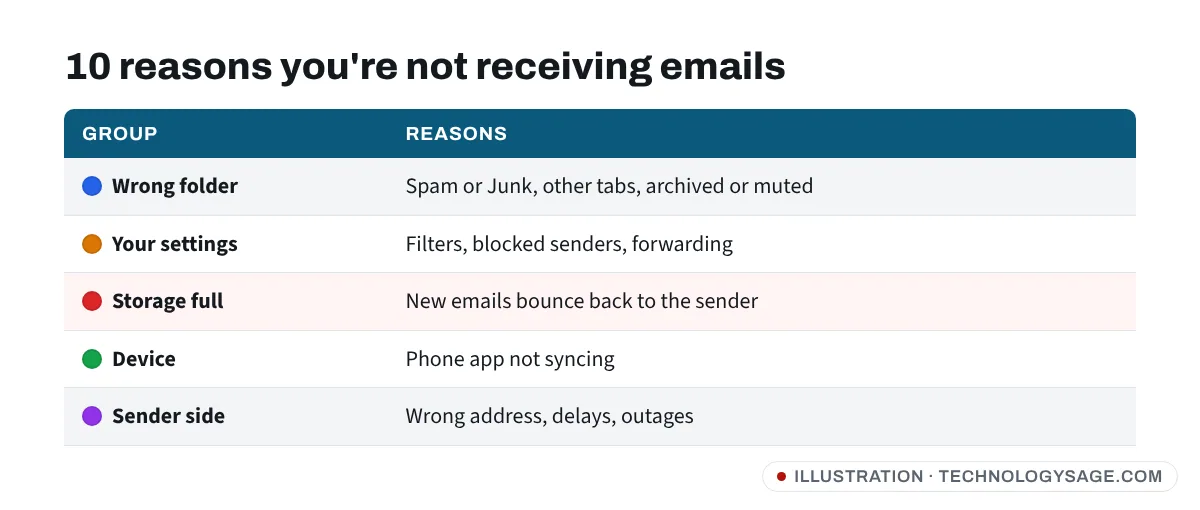
If you’re not receiving emails, the message has usually arrived but landed somewhere you didn’t look: the Spam or Junk folder, Gmail’s Promotions tab or Outlook’s Other tab, or a folder a filter moved it to. If it’s truly missing, the most common cause is full storage: once your Google or Microsoft storage is full, new emails bounce back to the sender. Check those first, then work through filters, blocked senders, forwarding and your phone’s sync settings below.
These checks work for Gmail, Outlook.com (Hotmail and Live), Yahoo Mail and most other providers. Where the menus differ, we show Gmail and Outlook.
First, search everywhere for the missing email
Before changing settings, search your whole mailbox for the sender’s address or a word from the subject.
- Gmail: type
in:anywherefollowed by the sender’s address in the search bar, for examplein:anywhere from:[email protected]. This includes Spam and Trash, which a normal search skips. - Outlook.com: in the search box, choose to search All folders.
If the email turns up, the reason below explains why it landed there. If it doesn’t, ask the sender whether they got a bounce message (“delivery failed”, “mailbox full”, “address not found”). That message tells you exactly what went wrong.
1. It went to Spam or Junk
Spam filters sometimes catch real email, especially verification codes, newsletters and messages from new senders.
- Open Spam (Gmail) or Junk Email (Outlook). On the Gmail phone app, tap the menu (three lines) and scroll to Spam.
- Open the email and choose Report not spam (Gmail) or Not junk (Outlook).
- Add the sender to your contacts. In Outlook, you can also add them to Settings → Mail → Junk email → Safe senders and domains.
2. It’s in another tab: Promotions, Updates or Other
- Gmail sorts mail into Primary, Promotions, Social and Updates tabs. Receipts, codes and shop emails often land in Updates or Promotions.
- Outlook splits mail into Focused and Other. To turn this off, open Settings → Mail → Layout and switch off Focused Inbox (on the phone app, it’s in the app’s settings).
Drag a misplaced email to the right tab and Gmail will ask whether to do the same for future emails from that sender.
3. A filter or rule is moving or deleting it
Old filters can quietly archive, delete or label incoming mail so it never shows in your inbox.
Gmail:
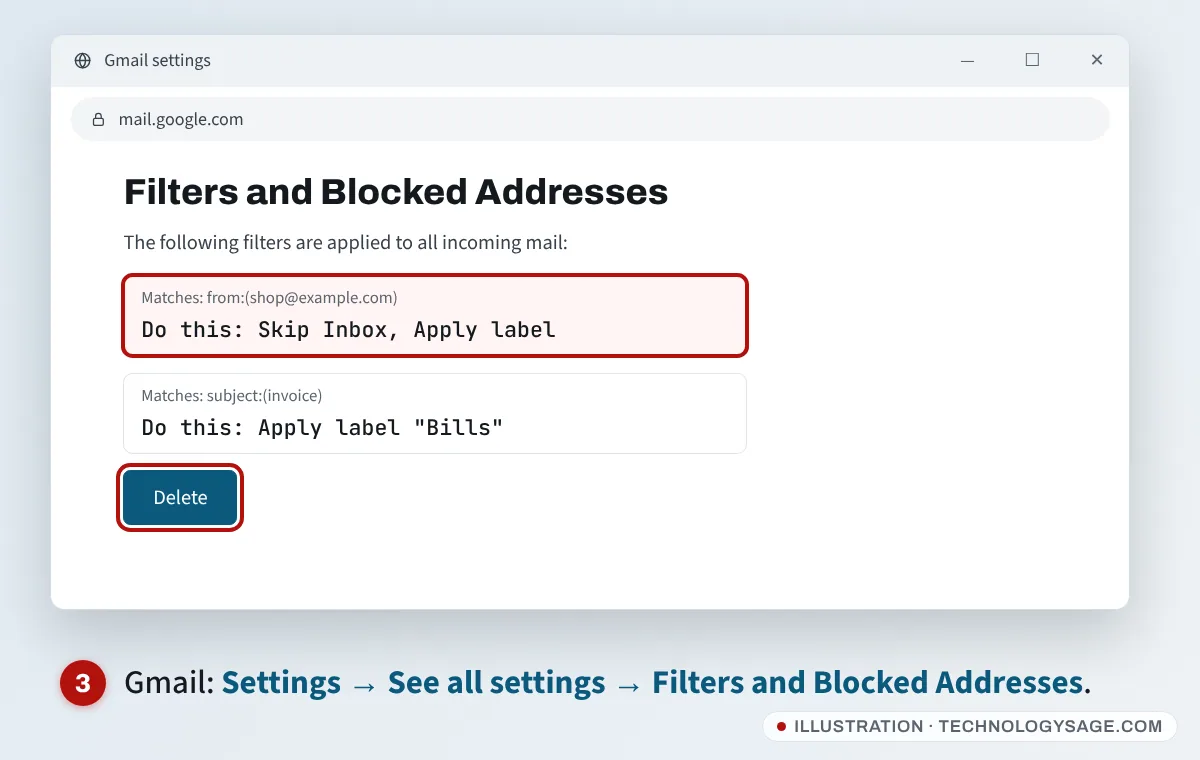
- On a computer, click the gear icon, then See all settings.
- Open Filters and Blocked Addresses.
- Look for filters with actions like Skip the Inbox (Archive it), Delete it or Forward to. Delete or edit any you don’t recognise.
Outlook.com: go to Settings → Mail → Rules and remove any rule that moves or deletes mail you want.
Phone apps: filters can only be created and removed in the web version, so do this from a browser (on a phone, open Gmail or Outlook in Chrome or Safari and request the desktop site if needed).
4. You blocked the sender
A blocked sender’s emails go straight to Spam (Gmail) or are deleted (Outlook).
- Gmail: the bottom of Filters and Blocked Addresses lists blocked senders. Select one and choose Unblock selected addresses.
- Outlook.com: Settings → Mail → Junk email → Blocked senders and domains. Remove the address or domain.
5. Your storage is full
This is the big one, and it causes emails to bounce, not just hide.
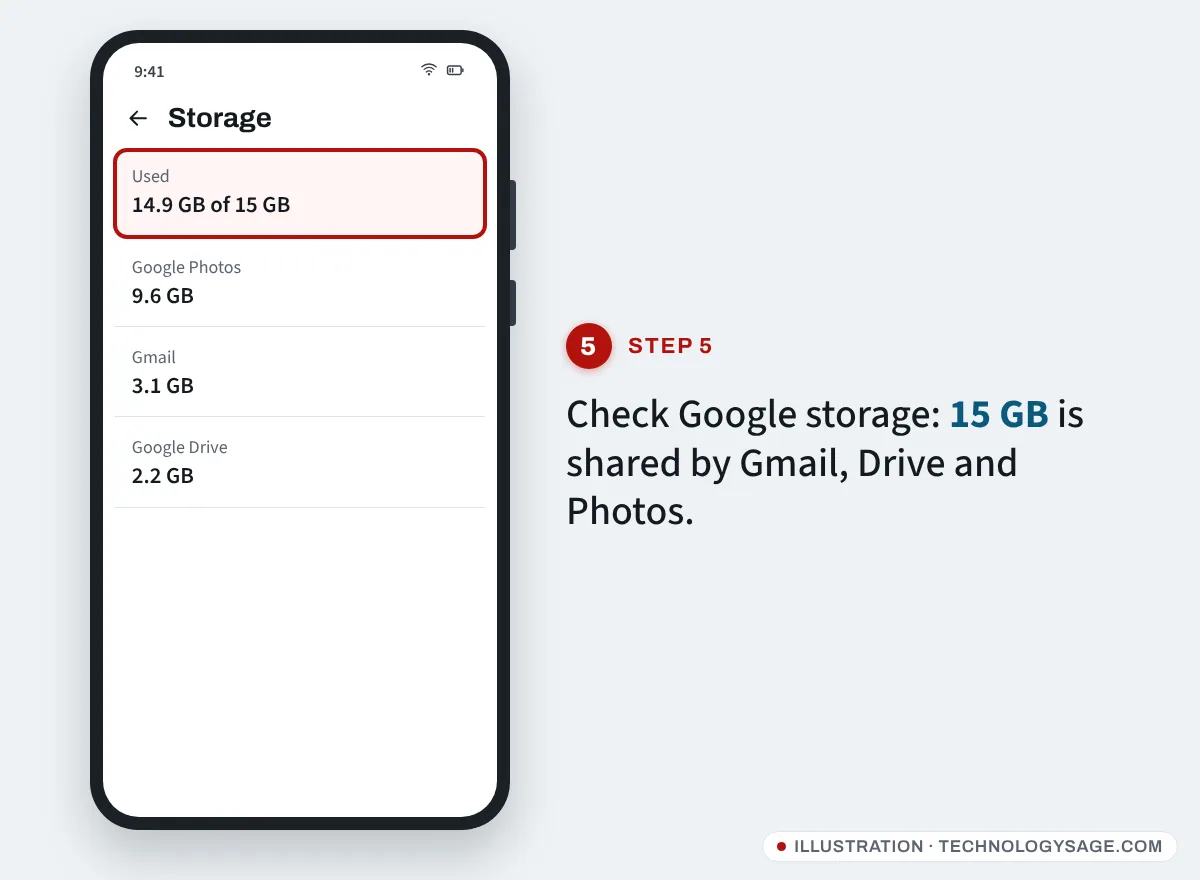
- Google: every Google account gets 15 GB of free storage, shared across Gmail, Google Drive and Google Photos. Phone backups and photos often fill it, even if your inbox is small. Google says that when you’re over the limit, you can’t send or receive emails, and messages sent to you are returned to the sender.
- Microsoft: Microsoft says that if your Outlook.com storage is full, you can’t send or receive email, and messages sent while it was full bounce back and can’t be recovered.
Check and free up space:
- Gmail: open one.google.com/storage (or the Google One / Google Drive app → Storage). Outlook.com: open Settings → General → Storage.
- Delete large emails (in Gmail, search
larger:10M), old Drive files and Photos backups you no longer need. - Empty the Trash and Spam folders in Gmail, Drive and Photos. Items in the trash still count towards your storage.
- If you need more space, both Google and Microsoft sell paid storage plans.
After you free space, ask important senders to send again. Some sending servers retry automatically for a while, but you can’t count on it.
6. Mail is being forwarded or downloaded elsewhere
If you once set up forwarding or an email program that downloads and deletes mail (POP), messages can disappear from your inbox.
- Gmail: Settings → See all settings → Forwarding and POP/IMAP. Check whether forwarding is on and, if so, that it’s set to keep Gmail’s copy in the Inbox. Disable forwarding you didn’t set up.
- Outlook.com: Settings → Mail → Forwarding.
Forwarding you don’t recognise can be a sign someone else accessed your account. Change your password and check your sign-in activity; our guide on how to change your Gmail password walks through it.
7. The sender has the wrong address
It happens more often than you’d think: a typo, an old address, or a dot or letter missing. Ask the sender to copy your address from an email you’ve sent them. Also check whether you signed up for the service with a different email address.
8. Your phone’s email app isn’t syncing
If the email is on the website but not on your phone, the problem is the app, not your account.
Gmail app on Android:
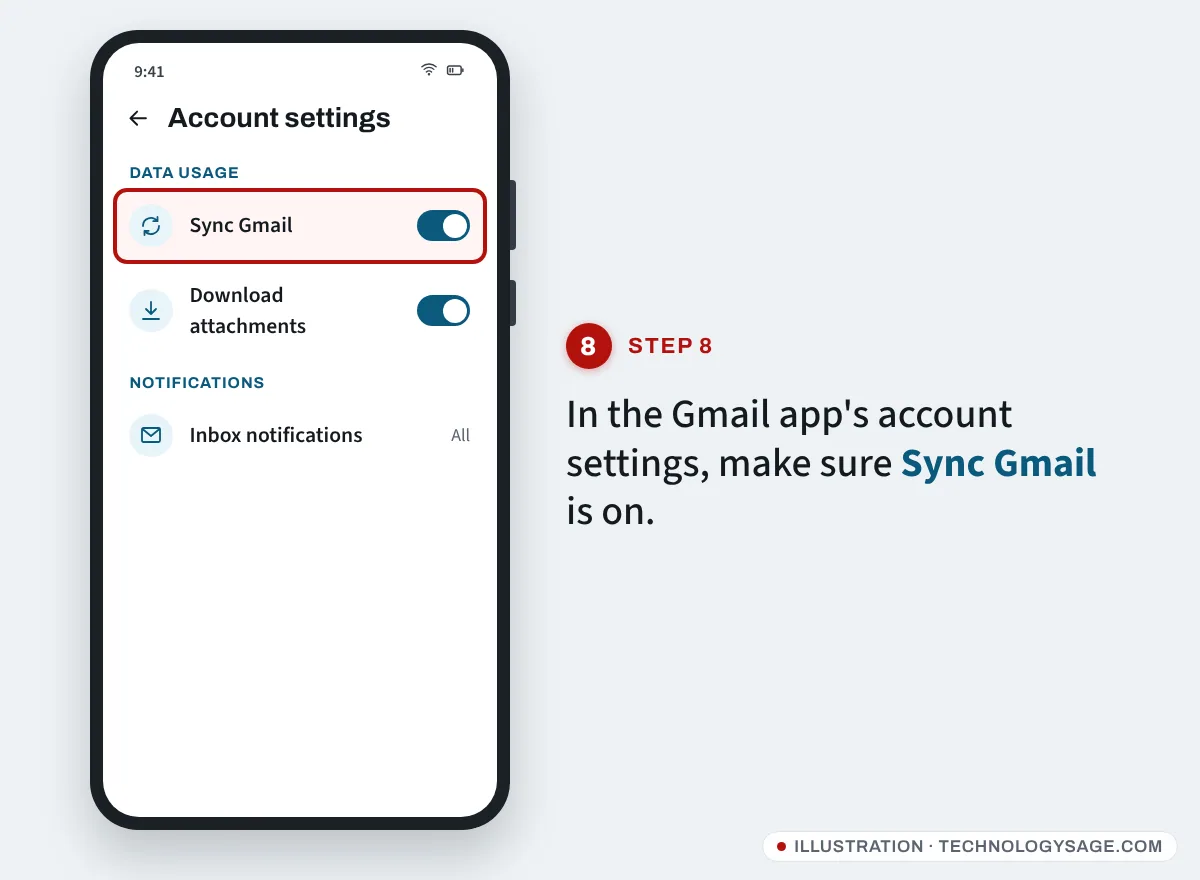
- Open the Gmail app, tap the menu, then Settings and your account.
- Make sure Sync Gmail is ticked, and set Days of mail to sync if you use an older version that offers it.
- In Android Settings → Apps → Gmail, check that battery saver or data saver isn’t restricting background data.
- Pull down on the inbox to refresh.
iPhone Mail app: open Settings → Apps → Mail → Mail Accounts → Fetch New Data (on older iOS, Settings → Mail → Accounts) and turn on Push, or choose a shorter fetch interval.
Outlook app: sign out and back in, and check that notifications and background refresh are allowed.
If your phone has no internet at all, fix that first: see Wi-Fi connected but no internet.
9. The email was archived, muted or auto-deleted
- Archived: in Gmail, archived messages leave the inbox but stay in All Mail.
- Muted: muted Gmail conversations skip the inbox when new replies arrive. Search
is:mutedto find them. - Auto-delete or sweep: Outlook.com’s Sweep feature can automatically delete or move emails from a sender. Check sweep rules if you’ve used it.
10. The problem is on the sender’s side, or a delay
- Some senders, especially verification-code and banking systems, can be delayed or blocked by mail providers. Wait a few minutes, then use Resend code once (requesting many codes quickly can trigger limits).
- Check whether the service is having an outage: Google publishes the Google Workspace Status Dashboard, and Microsoft has a service status page.
- Company and school accounts may have extra filtering run by an administrator. Ask your IT team.
If codes are your main problem, our guide to the WhatsApp verification code not received covers SMS-side causes too.
Not receiving or sending emails?
If you also can’t send emails:
- Full storage blocks sending too: see reason 5.
- Check the Outbox for stuck messages, especially with large attachments. Gmail lets you attach up to 25 MB; larger files are added as a Google Drive link instead.
- Make sure your phone or computer is online and the app is up to date.
For Outlook desktop and Microsoft 365 problems specifically, see our guide to Outlook not receiving emails.
Safety notes
- Gmail and Outlook.com don’t have phone helplines for free accounts. Numbers online claiming to be “Gmail support” are scams.
- Never give anyone your password or a sign-in code to “fix” your email.
- If you’ve lost access to your Gmail account rather than just its emails, see recover a Gmail account without a phone number.
FAQ
Why am I not receiving emails in Gmail?
Most often the email is in Spam, the Promotions or Updates tab, or was moved by a filter. If it’s truly missing, check whether your 15 GB Google storage is full, because then new emails bounce back to the sender.
Why am I not receiving emails from one specific person?
They may be blocked, a filter may be catching their address, or they’re using a wrong or old address. Check blocked senders and filters, then ask them to resend from your exact address.
Can I get back emails that bounced because my storage was full?
Not from your side. Once space is freed, ask the sender to send them again. Microsoft says emails bounced while Outlook.com storage was full can’t be recovered.
Why do emails show on my computer but not my phone?
The phone app isn’t syncing. Check that sync is on in the app’s account settings, allow background data and refresh the inbox. Removing and re-adding the account also helps.
How long can an email take to arrive?
Most arrive within seconds to a few minutes. Delays of longer usually mean the sending server is retrying or the message was held for spam checks.