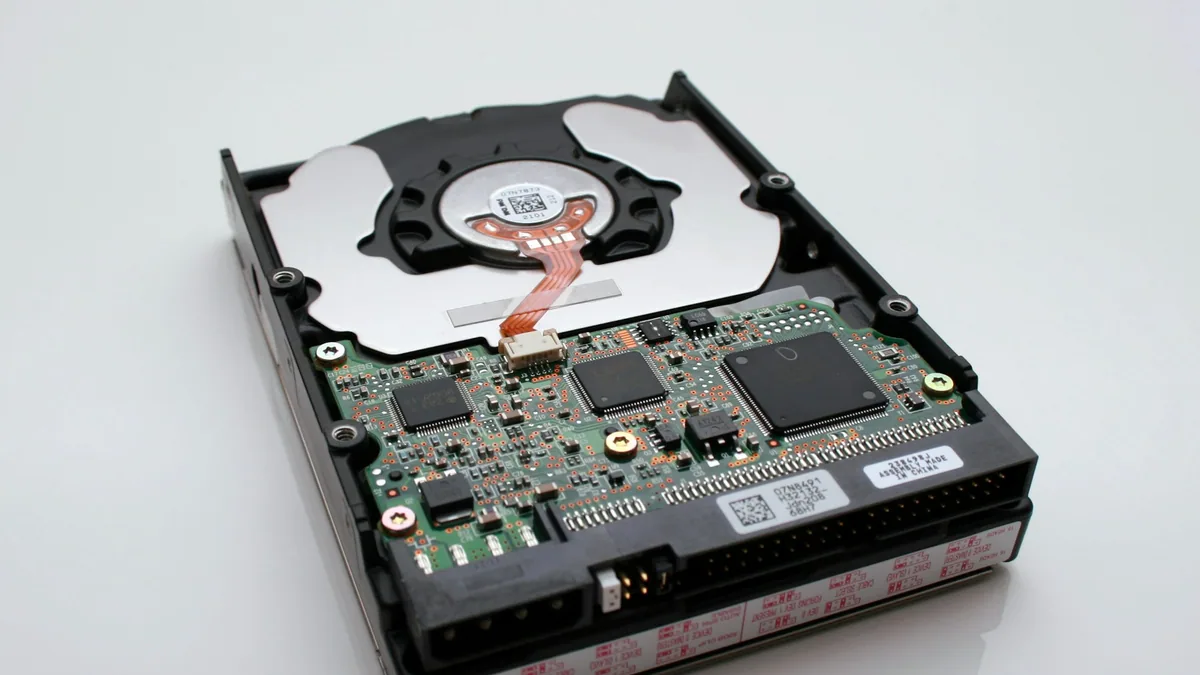
In this guide
- What does “Reboot and Select proper Boot device” mean?
- 1. Remove USB drives, discs and memory cards
- 2. Check that BIOS can see your drive
- 3. Put Windows Boot Manager first in the boot order
- 4. Match the boot mode: UEFI or Legacy (CSM)
- 5. Reseat the drive cables (desktops)
- 6. Replace the CMOS battery if settings keep resetting
- 7. Repair the boot files or test the drive
- If it doesn’t work
- FAQ
“Reboot and Select proper Boot device or Insert Boot Media in selected Boot device and press a key” means your PC’s firmware looked through its boot list and found nothing it could start from. To fix it, remove any USB sticks or discs, open BIOS setup, check that your SSD or hard drive is detected, and put Windows Boot Manager (or that drive) first in the boot order. If the drive isn’t detected at all, the cause is a loose cable, a failing drive or a lost BIOS setting.
The message comes from the AMI firmware used on many desktop motherboards (ASUS, MSI, Gigabyte, ASRock and others) and some laptops. Other makers show the same problem as “No bootable device”; if that’s your wording, see No bootable device found. For the full list of boot errors, start with our PC won’t boot checklist.
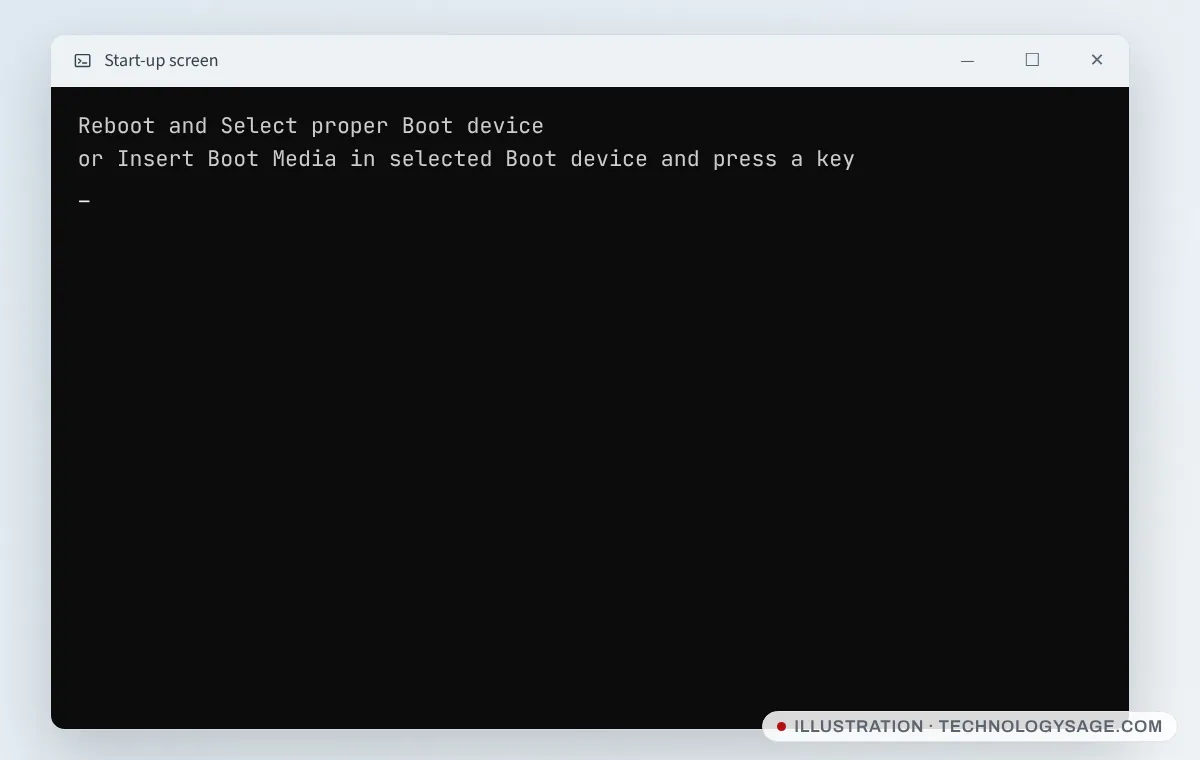
What does “Reboot and Select proper Boot device” mean?
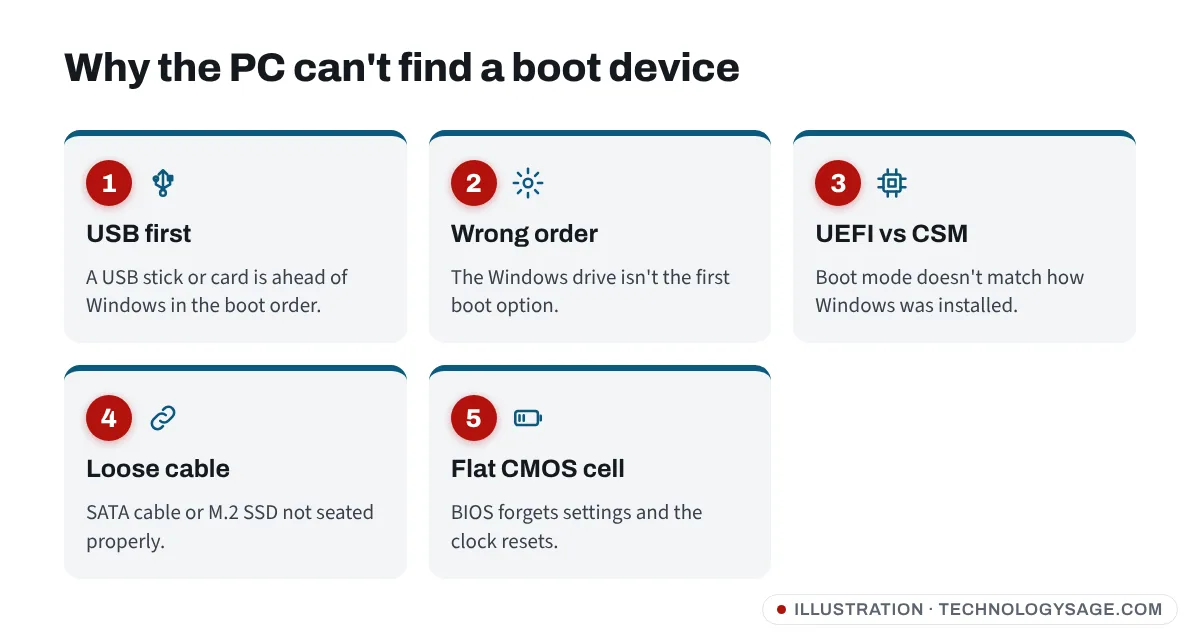
When you switch on, the firmware runs a quick self-test and then tries each device in its boot order, looking for start-up files. This message appears when none of them has a bootable system the firmware can use. Your files are usually still on the drive. The common causes are:
- a USB stick, memory card or DVD sitting in front of the Windows drive in the boot order
- the wrong drive, or no drive, set as the first boot device
- the boot mode (UEFI or Legacy/CSM) not matching how Windows was installed
- a loose SATA cable or badly seated M.2 SSD
- BIOS settings lost because the motherboard’s coin battery is flat
- damaged boot files, or a failing drive
Before you start: none of the fixes below erase data. If your files aren’t backed up and you reach the point of reinstalling Windows, read how to save your files from a PC that won’t boot first.
1. Remove USB drives, discs and memory cards
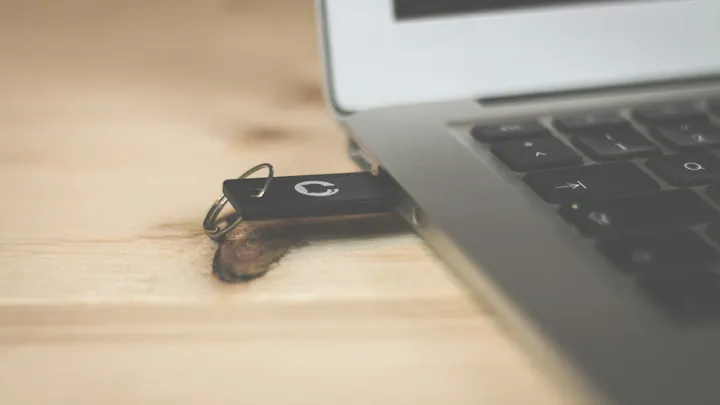
Unplug every USB stick, external drive, phone and memory card, and eject any disc. Then press Ctrl + Alt + Delete or the reset button. If the PC starts normally, the firmware was trying to boot from that device. To stop it happening again, put your Windows drive first in the boot order (fix 3).
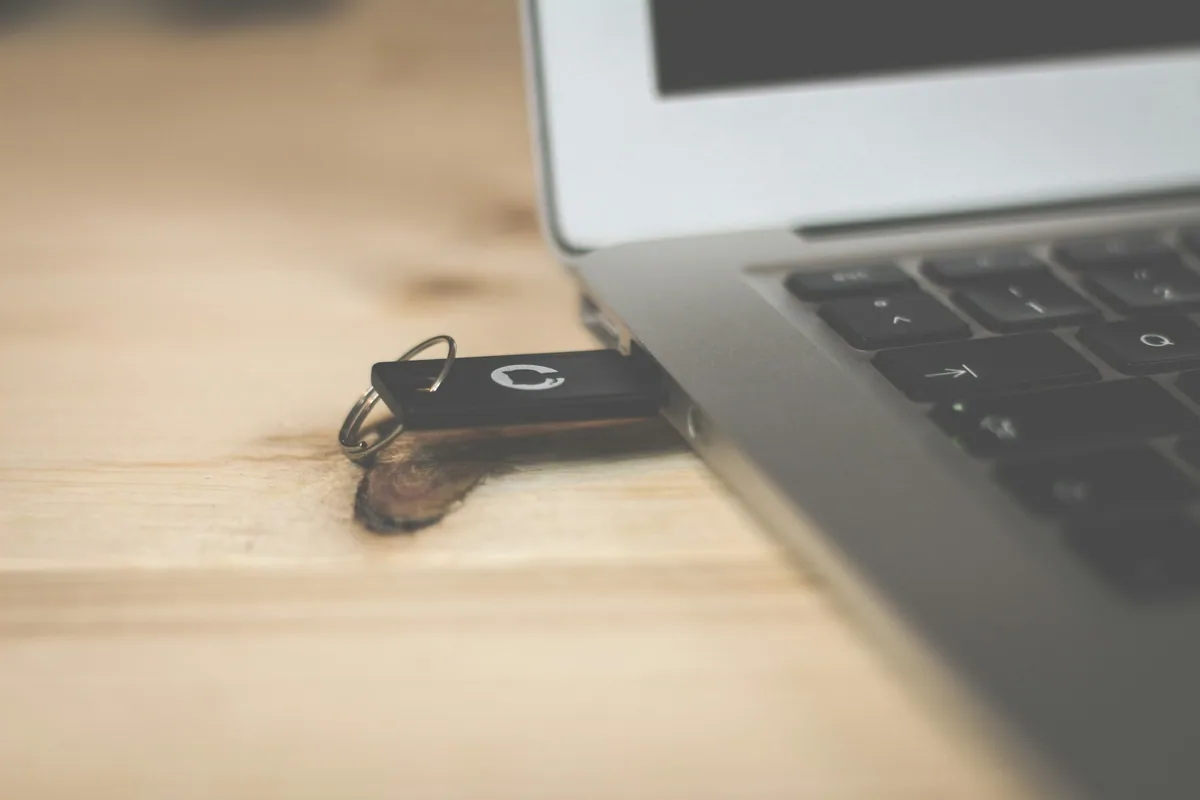 Photo: Brina Blum on Unsplash
2. Check that BIOS can see your drive
Open BIOS setup. On most desktop boards the key is Del (sometimes F2); laptop keys differ by maker, and our table of BIOS keys by maker lists the common ones. Look on the main page, a Storage or SATA Configuration page, or the Boot page for your SSD or hard drive by model name.
- The drive is listed: good news. The hardware is working at a basic level; go to fix 3.
- The drive is missing: go straight to fix 5 (cables) and fix 7 (drive health).
3. Put Windows Boot Manager first in the boot order
On the Boot page, look for Boot Option #1, Boot Priority or Boot Order. Set the first entry to:
- Windows Boot Manager on a modern UEFI PC (most PCs sold with Windows 8 or later, and every Windows 11 PC), or
- the SSD/hard drive by name on an older PC set to Legacy or CSM mode.
Press F10 (on most boards) to save and exit. If you see several “Windows Boot Manager” entries, our guide to Windows Boot Manager in BIOS explains which one to pick.
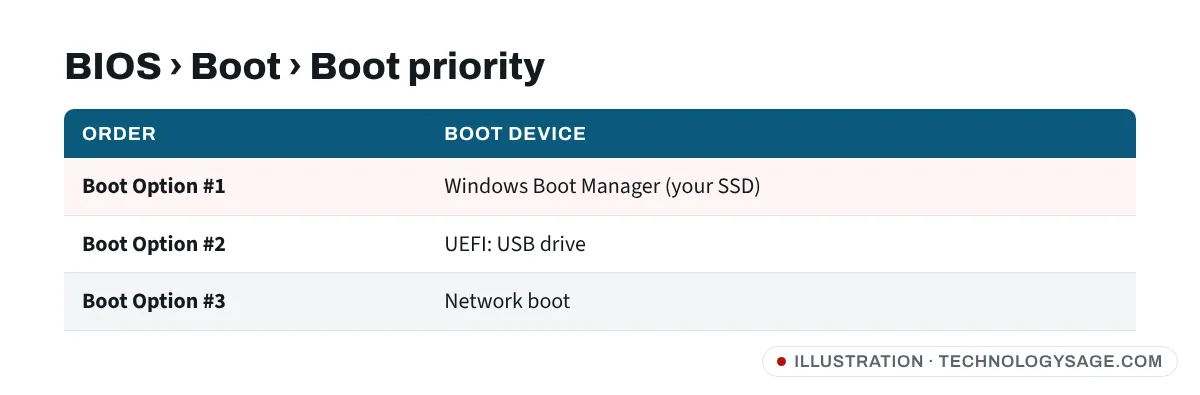
To test without saving anything, use the one-time boot menu instead (for example F8 on ASUS boards, F11 on MSI, F12 on Gigabyte) and choose Windows Boot Manager. If Windows starts, set the permanent order in BIOS.
4. Match the boot mode: UEFI or Legacy (CSM)
Windows installed in UEFI mode won’t start if the firmware is set to Legacy only, and the reverse is also true. This often happens after a BIOS update or a reset to defaults.
- In BIOS, find Boot Mode, CSM (Compatibility Support Module) or Launch CSM. It’s usually on the Boot page.
- If Windows Boot Manager doesn’t appear in the boot list, try enabling UEFI (and disabling CSM). If you know Windows was installed years ago in Legacy mode, try enabling CSM instead.
- Save, restart and check. Change back if it doesn’t help.
Changing the boot mode doesn’t erase the drive, but it can trigger a BitLocker recovery prompt on encrypted PCs, so have your recovery key ready. Also leave the SATA mode (AHCI, RAID or Intel RST/VMD) as it was: changing it can stop Windows with an INACCESSIBLE_BOOT_DEVICE blue screen.
5. Reseat the drive cables (desktops)
A SATA cable that has worked loose is a classic cause, especially after moving the PC or fitting new parts.
- Shut down, switch off the power supply and unplug the PC. Touch the metal case to discharge static.
- Remove the side panel.
- For a 2.5-inch or 3.5-inch drive, unplug and firmly reconnect both the thin SATA data cable (drive to motherboard) and the wider SATA power cable. Try a different SATA port and a spare cable if you have one.
- For an M.2 SSD, remove the screw, take the drive out, reinsert it at an angle until fully seated, press it down and refit the screw.
- Restart and check whether BIOS now lists the drive.
On laptops, opening the case can void the warranty on some models. If the drive isn’t detected, ask the maker’s service centre to reseat or test it.
6. Replace the CMOS battery if settings keep resetting
If the PC’s clock is wrong every time you switch on, or your boot order keeps returning to defaults, the coin-cell battery on the motherboard is probably flat. Without it, the firmware forgets your boot drive. On most desktop boards it’s a common coin cell (usually CR2032) that you can replace with the PC unplugged. Set the date, time and boot order again afterwards.
7. Repair the boot files or test the drive
If BIOS sees the drive, the boot order is right, and you still get the message, Windows’ start-up files may be damaged or missing.
- Make a Windows installation USB on another PC (Microsoft’s Media Creation Tool; our guide to bootable USB tools covers alternatives).
- Boot from it using the one-time boot menu, choose your language and select Repair my PC (or Repair your computer).
- Go to Troubleshoot → Advanced options → Startup Repair.
If Startup Repair can’t fix it, the manual commands depend on whether your PC uses UEFI or Legacy BIOS; follow the step-by-step commands in Operating system not found rather than guessing.
If the drive is detected only some of the time, makes clicking noises, or the maker’s diagnostics report a storage failure, it is failing. Copy your files off now and replace the drive.
If it doesn’t work
- The drive shows in BIOS but not in the boot list: the boot mode is probably wrong (fix 4), or the boot files are missing (fix 7).
- It works once, then the error returns after a shutdown: check the CMOS battery (fix 6) and that you saved the boot order with F10.
- You just installed a new SSD: a new, empty drive has nothing to boot. Either clone your old drive to it or install Windows on it.
- Nothing helps and the drive isn’t detected: the drive or the motherboard port has failed. Data recovery may still be possible; avoid repeated restarts.
FAQ
How do I fix “Reboot and Select proper Boot device” without losing data?
Every fix in this guide, from removing USB drives to changing the boot order, boot mode and cables, leaves your files alone. Startup Repair also keeps your files. Only reinstalling Windows or formatting erases data, so copy your files off first if you get to that point.
Why does my PC say “Reboot and Select proper Boot device” after a BIOS update?
BIOS updates often reset settings to defaults, which can change the boot mode (UEFI or CSM) or the boot order. Open BIOS, put Windows Boot Manager first and check that UEFI mode is enabled if Windows was installed that way.
Can a bad SATA cable cause this error?
Yes. A loose or damaged SATA data or power cable stops the firmware from seeing the drive, which produces exactly this message. Reseat both cables and try a different SATA port and cable.
Is my hard drive dead if I get this message?
Not necessarily. Most cases are boot order, boot mode or a loose connection. The drive is likely failing only if BIOS doesn’t detect it even after reseating, it makes unusual noises, or diagnostics report errors.
What key do I press to select the boot device?
It depends on the maker: ASUS boards use F8, MSI F11, Gigabyte F12, Dell F12, and HP uses Esc then F9. See the full key table, and watch for the prompt on your start-up screen.