In this guide
- Which “no boot device” message do you have?
- Why does my laptop say “No bootable device”?
- Fix 1: Unplug extra devices and do a power reset
- Fix 2: Check whether BIOS sees your drive
- Fix 3: Put Windows Boot Manager first
- Fix 4: Switch the boot mode back to UEFI
- Fix 5: The drive isn’t detected
- Fix 6: Repair the boot files
- Fix 7: Reinstall Windows (only after saving files)
- If it doesn’t work
- FAQ
“No bootable device” means your laptop’s firmware can’t find a drive with start-up files on it. Usually the fix is to put Windows Boot Manager back at the top of the boot order, switch the boot mode back to UEFI, or reconnect a drive that has come loose. If BIOS doesn’t list your SSD or hard drive at all, the drive or its connection has failed, and your next step is to protect your files rather than reinstall Windows.
The message is worded differently by each maker, but it means the same thing. On desktops with AMI firmware it reads “Reboot and Select proper Boot device”, which has its own guide: Reboot and Select proper Boot device. For other boot errors, start at the PC won’t boot checklist.
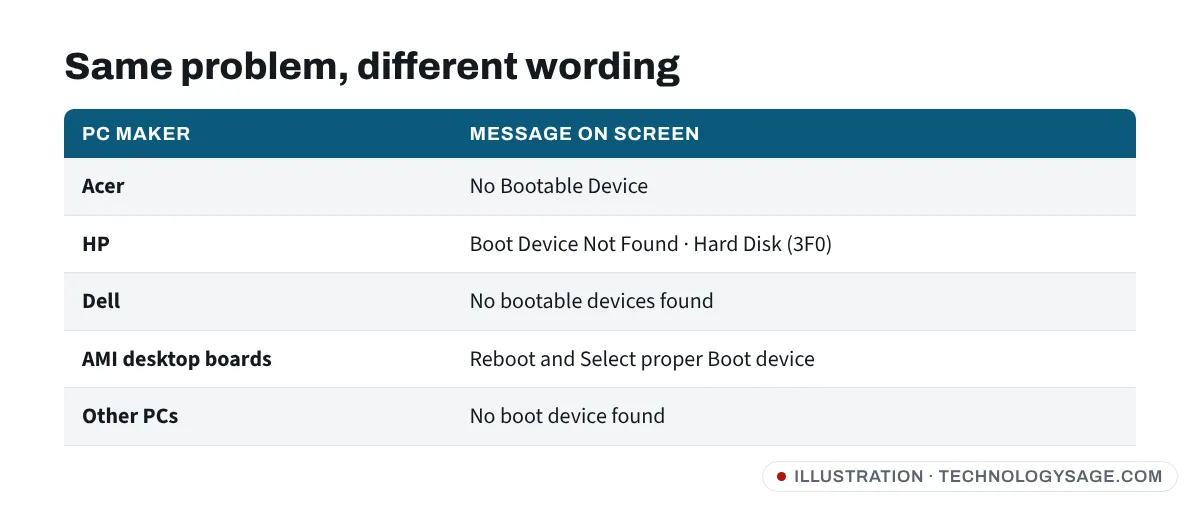
Which “no boot device” message do you have?
| Maker | Typical wording |
|---|---|
| Acer | “No Bootable Device” |
| HP | “Boot Device Not Found. Please install an operating system on your hard disk. Hard Disk (3F0)” |
| Dell | “No bootable devices found” or “No Boot Device Found” |
| Other PCs | “No boot device found”, “No bootable device — insert boot disk and press any key” |
The wording varies by model and firmware version, but in every case the firmware got through its list of boot devices without finding one it could start.
Why does my laptop say “No bootable device”?
The common causes, from most to least likely:
- Wrong boot order or boot entry: Windows Boot Manager has dropped off the list, or a USB drive or network boot is first.
- Wrong boot mode: the firmware is set to Legacy/CSM while Windows was installed in UEFI mode (or the reverse). Dell’s support pages note that switching a UEFI-installed system to Legacy produces this error.
- Drive not detected: a loose or failing SSD or hard drive, often after a drop, a repair or a new part.
- Damaged boot files: after a power cut, an interrupted update or a failed partition change.
- A brand-new, empty drive: nothing has been installed on it yet.
Protect your data first. If BIOS doesn’t see the drive, or the drive makes noises, don’t keep restarting. Follow how to save your files before trying repairs that reinstall Windows.
Fix 1: Unplug extra devices and do a power reset
Remove USB sticks, external drives, memory cards and docks. Then:
- Unplug the charger. If the battery is removable, take it out.
- Hold the power button for 15 seconds.
- Reconnect only the charger (and battery) and switch on.
Some Acer and other laptops with sealed batteries have a small battery reset pinhole on the underside. If yours does (check the manual), pressing it with a straightened paper clip for a few seconds with the charger unplugged does the same job.
Fix 2: Check whether BIOS sees your drive
Open BIOS setup: commonly F2 on Acer, Dell and many Lenovo and ASUS laptops, Esc then F10 on HP, and F1 on ThinkPads. Keys vary by model; see the BIOS key table.
On the Main, Information or Storage page, look for your SSD or hard drive by model name.
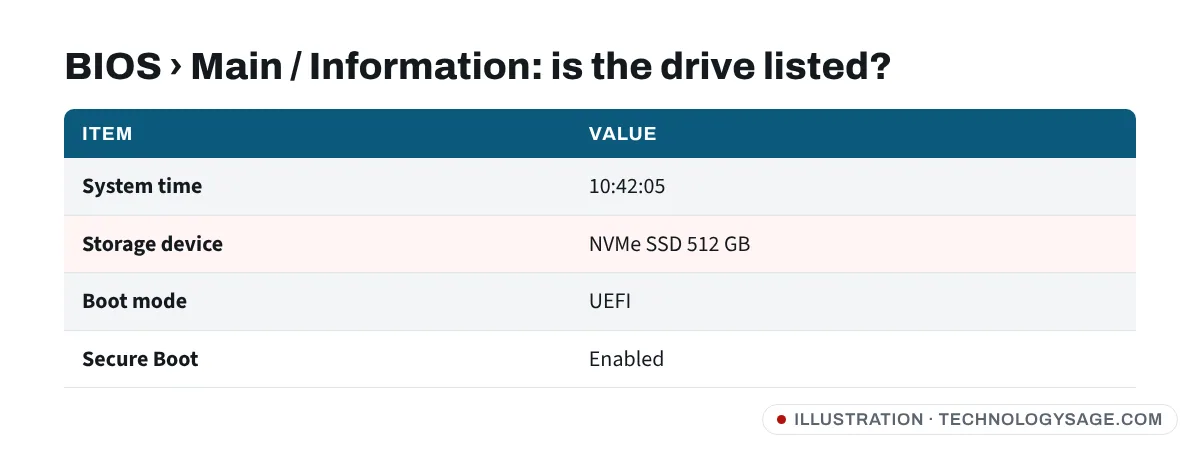
- Listed: the drive is working at a basic level. Go to fix 3.
- Not listed, or shows “None”: skip to fix 5.
Fix 3: Put Windows Boot Manager first
On the Boot page, move Windows Boot Manager to the top of the boot order (often with F5/F6 or +/- keys, or drag on graphical BIOS screens). Press F10 to save and restart.
- On Acer, the boot order is on the Boot tab. If you want to use the F12 boot menu later, set F12 Boot Menu to Enabled on the Main tab; Acer notes that not every model has it.
- On HP, look under Boot Options or UEFI Boot Order.
- On Dell, look under Boot Configuration or Boot Sequence.
If Windows Boot Manager isn’t in the list at all but the drive is detected, the boot entry or the boot files are missing. Our guide to Windows Boot Manager in BIOS explains how to recreate the entry.
Fix 4: Switch the boot mode back to UEFI
Windows 11, and most Windows 10 laptops, are installed in UEFI mode. If someone changed the firmware to Legacy, CSM or Legacy Support (for example to boot an old USB tool), the laptop can no longer find Windows.
- In BIOS, find Boot Mode, Boot List Option, Legacy Support or CSM.
- Set it to UEFI and disable Legacy/CSM.
- If your PC has Secure Boot and you turned it off earlier, turn it back on.
- Save with F10 and restart.
If Windows was actually installed in Legacy mode years ago, do the opposite. Dell notes that a system installed in Legacy mode won’t start just by switching to UEFI. Have your BitLocker recovery key ready, because changing these settings can trigger the BitLocker screen.
Don’t change the SATA operation or storage mode (AHCI, RAID, Intel RST or VMD) unless you know it was changed. A wrong storage mode tends to cause an INACCESSIBLE_BOOT_DEVICE blue screen rather than fixing anything.
Fix 5: The drive isn’t detected
If BIOS can’t see the drive, Windows can’t start, whatever the boot settings.
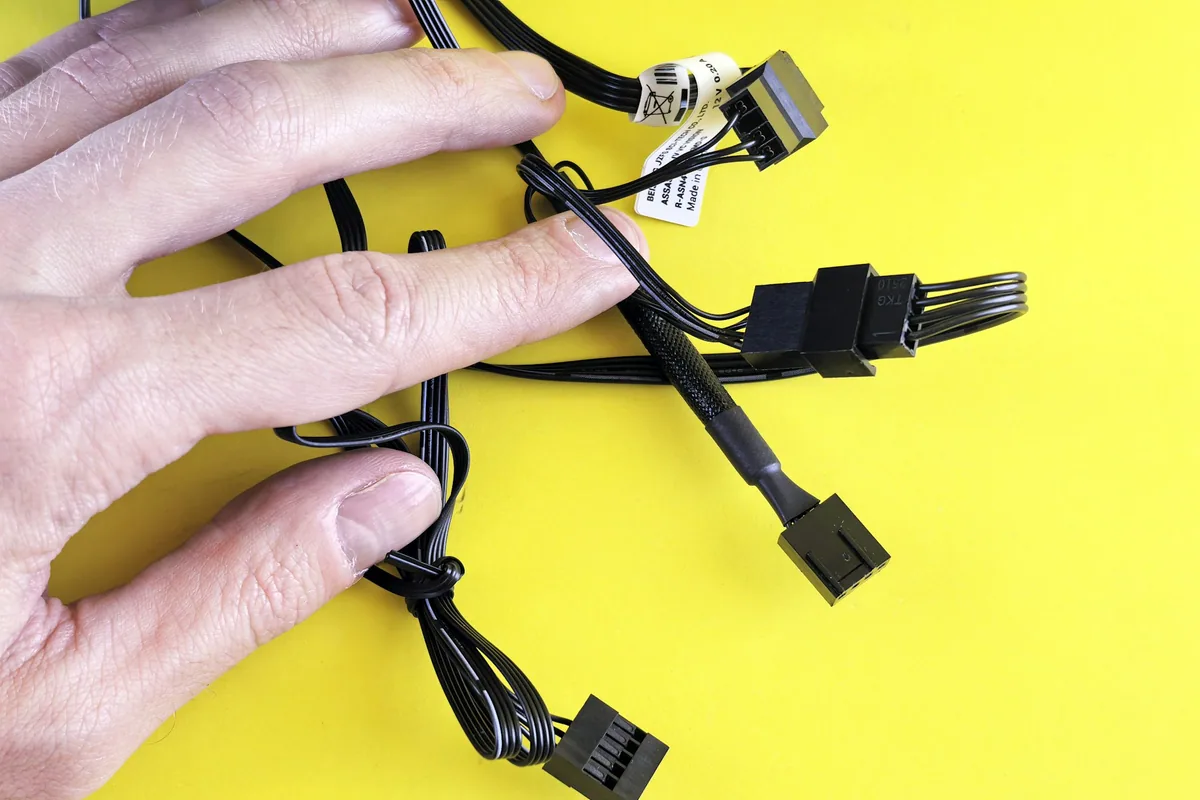 Photo: Andrey Matveev on Unsplash
- Desktop: with the PC unplugged, reseat the SATA data and power cables (or the M.2 SSD) and try another SATA port or cable.
- Laptop: if you’re comfortable and it won’t void the warranty, remove the base cover, unplug the battery connector and reseat the SSD. Otherwise take it to an authorised service centre.
- Run the built-in diagnostics: F2 on HP laptops opens HP’s hardware diagnostics; Dell’s F12 menu has a Diagnostics entry; other makers have similar tools. A storage test failure means the drive needs replacing.
If the drive is failing, ask about data recovery before replacing it. A new drive will need Windows installed from a USB stick.
Fix 6: Repair the boot files
If the drive is detected and the boot settings are right, the start-up files are probably damaged.
- On a working computer, create a Windows installation USB with Microsoft’s Media Creation Tool (other tools are covered in our bootable USB guide).
- Boot from it with the one-time boot menu (F12 on Acer, Dell and Lenovo; Esc then F9 on HP).
- Choose your language, then Repair my PC (Repair your computer on older media).
- Go to Troubleshoot → Advanced options → Startup Repair.
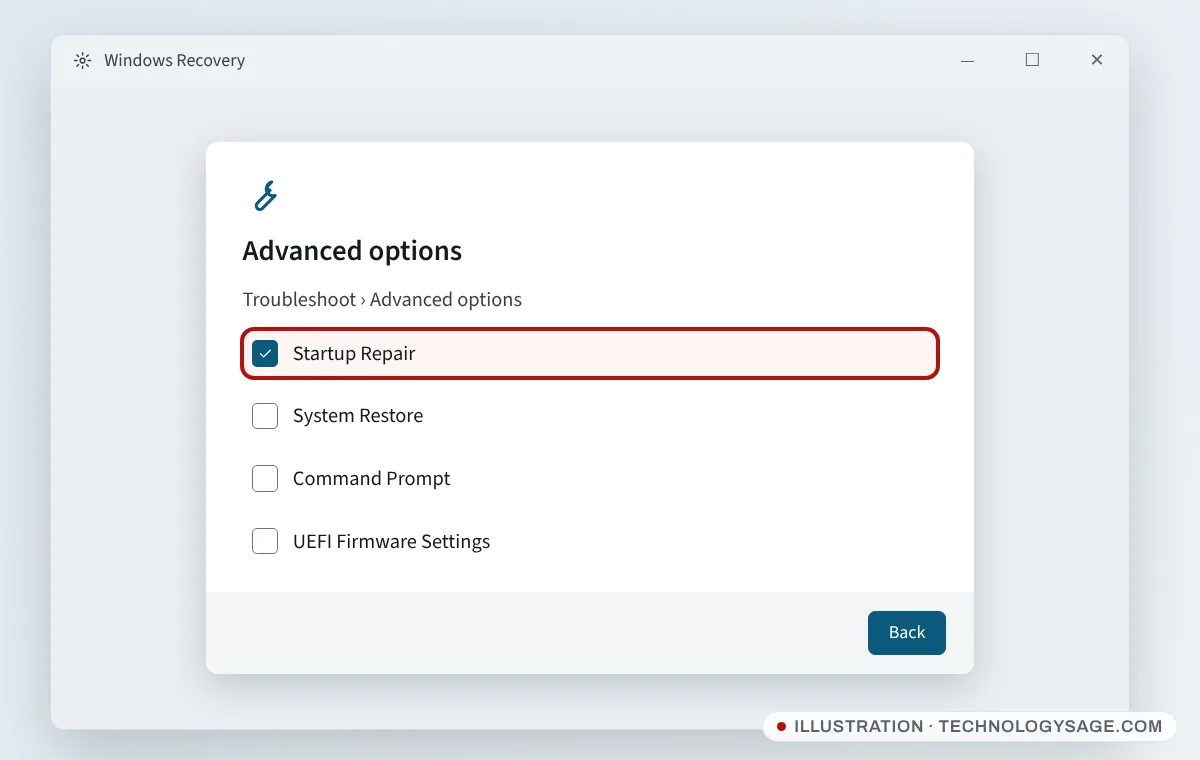
If Startup Repair fails, rebuild the boot files with the commands in Operating system not found, which covers both UEFI and older Legacy PCs. If bootrec /fixboot says “Access is denied”, see bootrec /fixboot access denied.
Fix 7: Reinstall Windows (only after saving files)
If none of the above works and the drive passes diagnostics, a clean install of Windows from the USB stick will make the laptop bootable again. A clean install erases the drive, so copy your files off first. Your Windows licence is usually stored in the firmware or linked to your Microsoft account, so it activates again automatically on most laptops that came with Windows.
If it doesn’t work
- It only happens sometimes: an intermittent drive or connection problem is likely. Back up now and run the storage diagnostics.
- It started after a BIOS update: load the BIOS defaults, then check the boot mode (fix 4) and boot order (fix 3).
- It started after you installed a second drive: make sure the Windows drive’s Windows Boot Manager entry is first, not the new drive.
- Windows setup can’t see the SSD when reinstalling: many newer Intel laptops need the Intel Rapid Storage Technology (RST/VMD) driver from the laptop maker’s support page, loaded with Load driver during setup.
FAQ
How do I fix “No bootable device” on an Acer laptop?
Press F2 at start-up to open BIOS, check the SSD is listed on the Main or Information page, set Windows Boot Manager first on the Boot tab, make sure Boot Mode is UEFI, then press F10 to save. If the drive isn’t detected, it needs reseating or replacing.
What causes “Boot device not found” on an HP laptop?
Most often the boot order or boot mode was changed, or the drive isn’t detected. Press Esc then F2 to run HP’s hard drive test, and Esc then F10 to check the boot options. HP lists the “Hard Disk (3F0)” error in its own support documents.
Can I fix “No bootable device” without losing my files?
Yes. Changing the boot order, boot mode and cables, and running Startup Repair, all leave your files in place. Only a clean install or formatting erases the drive.
Does “No bootable device” mean my SSD is dead?
Not usually. If BIOS still lists the drive, the problem is the boot settings or boot files. If the drive isn’t listed even after a power reset and reseating, it may have failed.
Should I choose UEFI or Legacy to fix it?
Choose the mode Windows was installed in. For any Windows 11 PC and most laptops sold with Windows 10, that is UEFI. Legacy mode is only right for older installations.