In this guide
- How long is too long?
- Before you start
- Fix 1: Pause, restart and resume
- Fix 2: Run the Windows Update troubleshooter
- Fix 3: Reset the Windows Update cache
- Fix 4: Repair Windows system files
- Fix 5: Remove the things that get in the way
- Fix 6: Reinstall Windows 11 without losing files
- Stuck on “Working on updates” or a restart loop
- If it still doesn’t work
- FAQ
If Windows Update is stuck at 0% or 100%, first give it time and keep the laptop plugged in: big feature updates can sit on one number for an hour or more. If nothing changes, restart from Settings → Windows Update (pause, restart, resume), run the Windows Update troubleshooter, then reset the update cache. If you are stuck on a blue “Working on updates, don’t turn off your PC” screen, wait at least two to three hours before you hold the power button.
The fixes below are in order, from safest to most thorough. Most people only need the first two or three.
How long is too long?
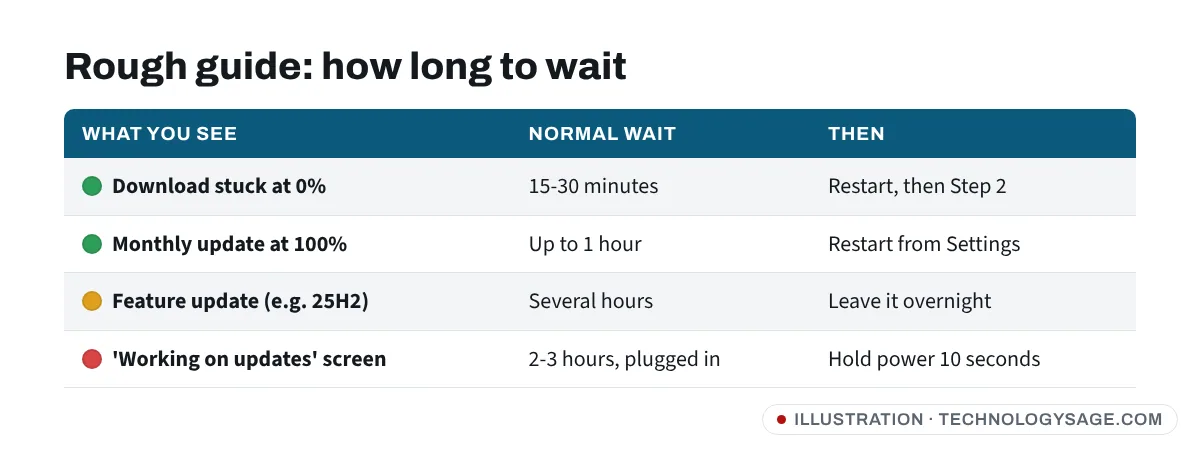
The percentage is not a timer. Windows downloads, unpacks and installs in stages, and the number often freezes while it works. Monthly (cumulative) updates usually finish quickly. Yearly feature updates, such as Windows 11 version 25H2, can stay between 51% and 99% for a long time while they finish installing and clean up.
Signs it really is stuck:
- The number hasn’t moved for several hours.
- The storage light (if your laptop has one) has stopped flickering, and the fan is quiet.
- On the update screen, the spinning dots have frozen.
Signs it is just slow: a slow internet connection (common on mobile hotspots and capped plans), an old hard drive instead of an SSD, or very little free storage.
Before you start
- Plug in the charger. Windows may pause installation on a low battery.
- Check your connection. If you’re on a phone hotspot, Windows may treat it as a metered connection and hold back downloads. Go to Settings → Network & internet → Wi-Fi, select your network and check Metered connection.
- Free up space. Feature updates need a lot of room. Go to Settings → System → Storage and aim for at least 20 GB free.
- Back up anything important to OneDrive, Google Drive or a USB drive before the deeper fixes.
Fix 1: Pause, restart and resume
This simple reset gets many stuck downloads moving again.
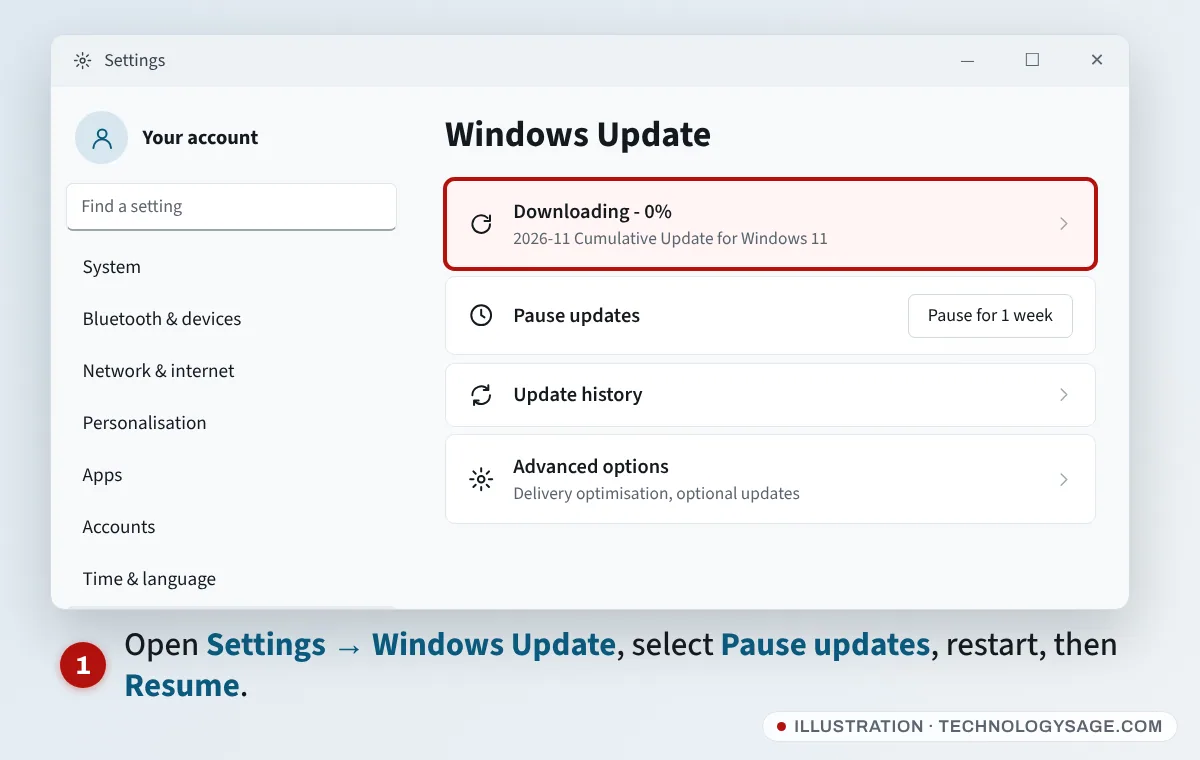
- Press Windows + I and select Windows Update.
- Select Pause for 1 week.
- Restart the laptop from Start → Power → Restart.
- Go back to Windows Update, select Resume updates, then Check for updates.
If the update shows 100% but never asks to restart, use Restart now on this page, or Start → Power → Update and restart.
Fix 2: Run the Windows Update troubleshooter
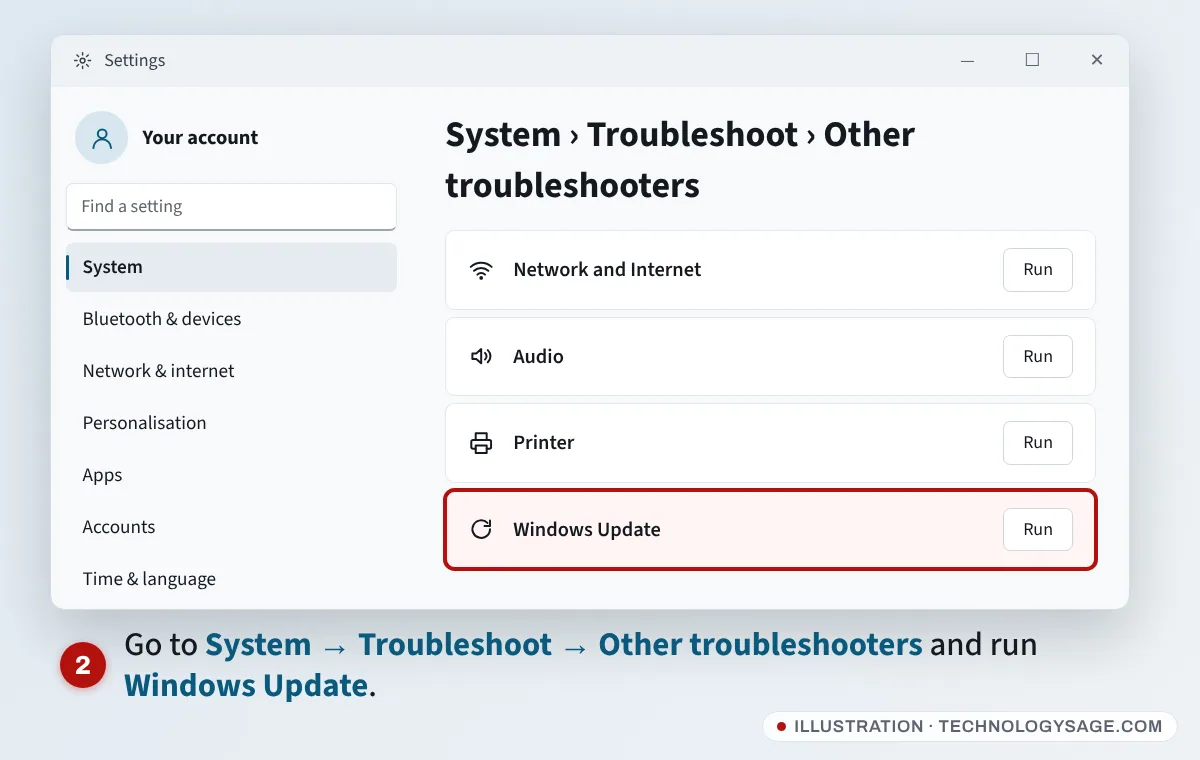
- Open Settings → System → Troubleshoot → Other troubleshooters.
- Select Run next to Windows Update.
- On current Windows 11 versions this opens the Get Help app, which runs the checks for you. Follow its prompts, then restart and try again.
Fix 3: Reset the Windows Update cache
Windows keeps downloaded update files in a folder called SoftwareDistribution. If a download is corrupt, Windows can keep failing on the same file. Renaming the folder makes Windows start the download fresh. This is safe: it only removes temporary update files, and you may lose your update history list.
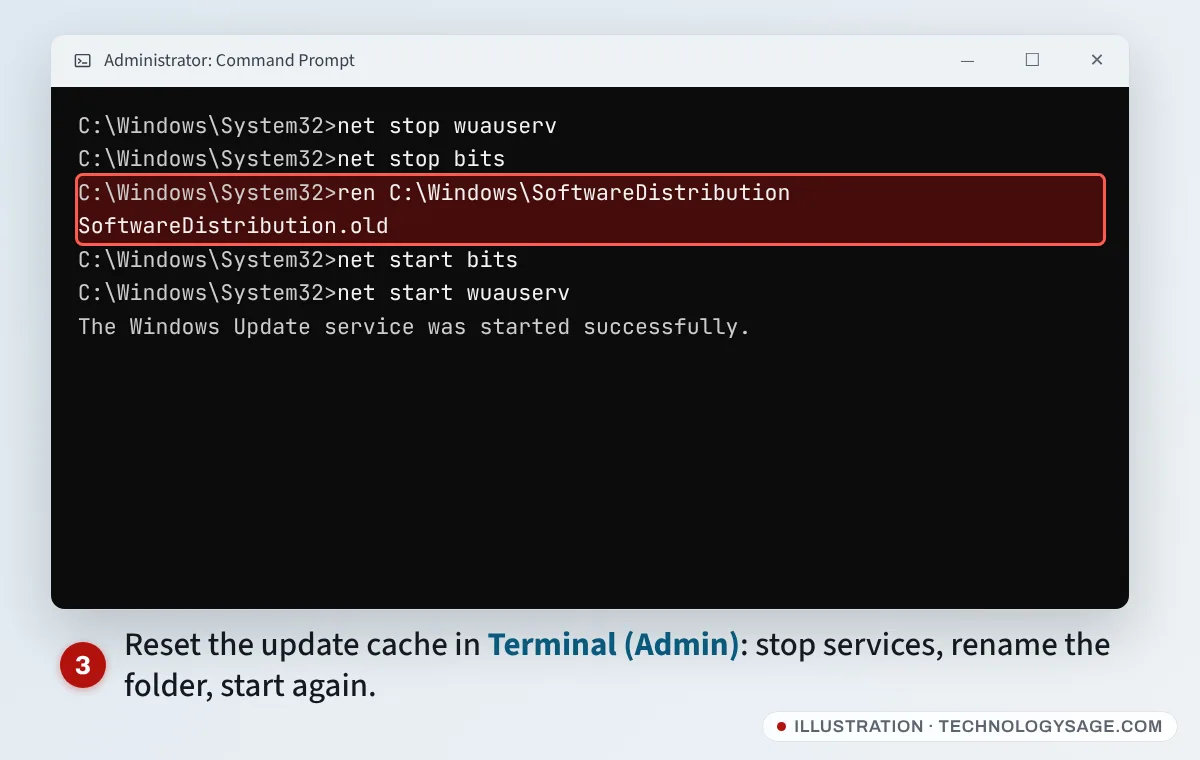
- Right-click Start and choose Terminal (Admin) (on some PCs it says Windows PowerShell (Admin)). Select Yes.
- Type each command and press Enter after each one:
net stop wuauserv
net stop bits
ren C:\Windows\SoftwareDistribution SoftwareDistribution.old
net start bits
net start wuauserv- Restart the laptop and go to Settings → Windows Update → Check for updates.
If the ren command says access is denied, a service is still running. Run the two net stop commands again, wait a few seconds and retry.
Fix 4: Repair Windows system files
Damaged system files can block updates. Windows has two built-in repair tools.
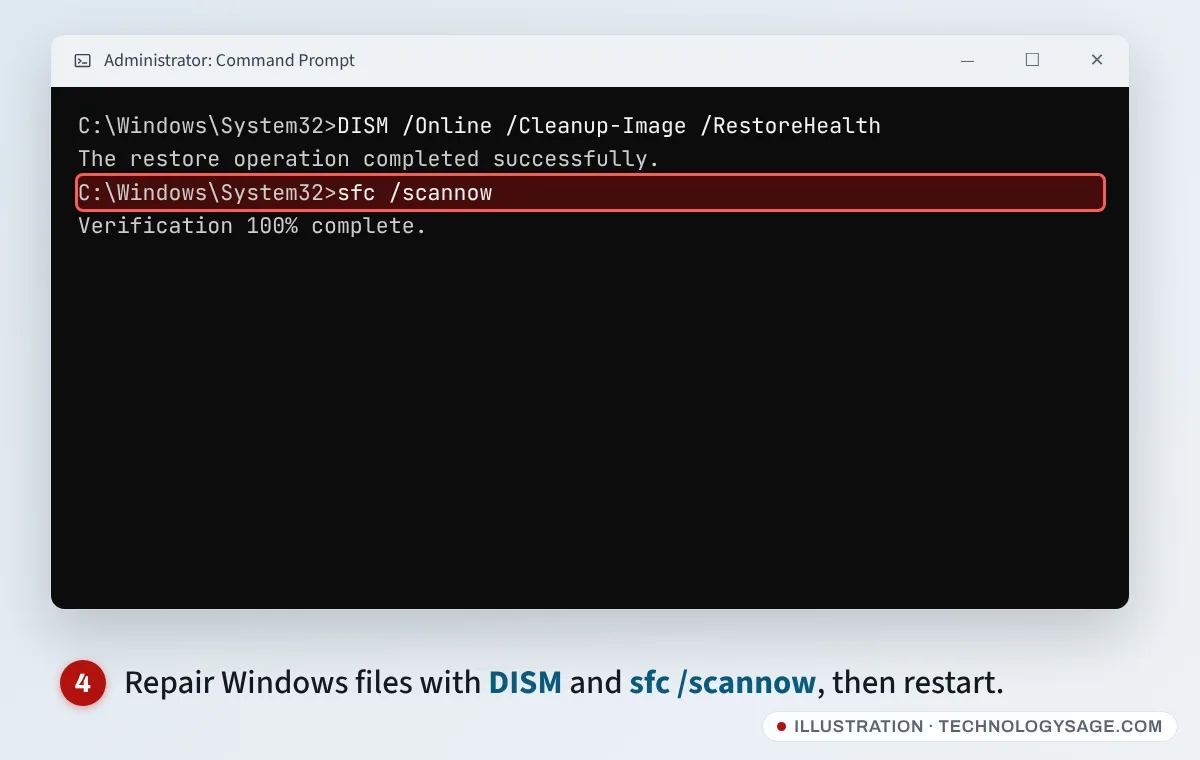
- Open Terminal (Admin) again.
- Run this and wait (it can sit at 20% or 62% for a while; that’s normal):
DISM /Online /Cleanup-Image /RestoreHealth- Then run:
sfc /scannow- Restart and check for updates again.
Fix 5: Remove the things that get in the way
- Unplug extras. Remove USB drives, SD cards, external hard drives and docks during the update.
- Turn off VPNs and third-party antivirus temporarily. Windows Security (built in) doesn’t need to be turned off.
- Install one update at a time. In Windows Update → Update history, note the KB number that keeps failing. You can download that single update from Microsoft’s official Update Catalog site and install it by hand.
Fix 6: Reinstall Windows 11 without losing files
If updates still won’t install, Windows 11 can reinstall its current version over itself through Windows Update. It keeps your apps, files and settings.
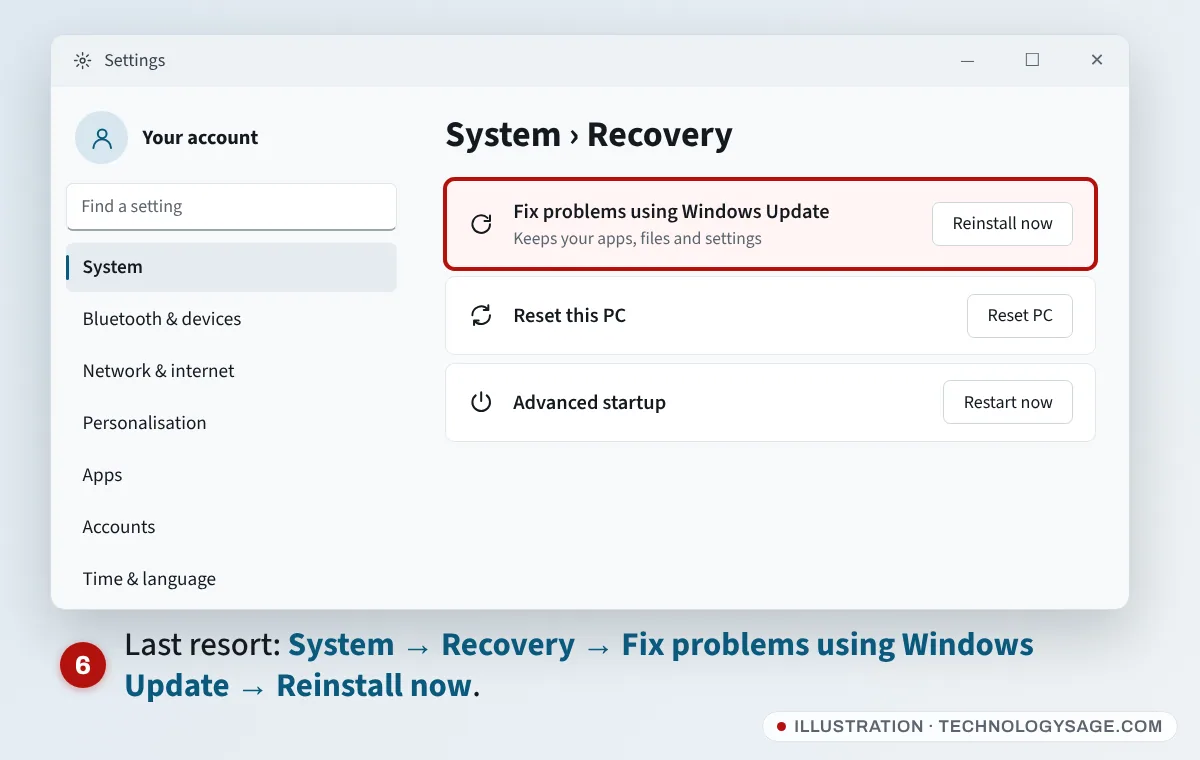
- Go to Settings → System → Recovery.
- Under Fix problems using Windows Update, select Reinstall now.
- Keep the laptop plugged in and online until it finishes. It downloads several gigabytes, so use Wi-Fi rather than mobile data.
This option is missing on older Windows 11 versions and on work-managed PCs. Microsoft explains it on its page Fix issues by reinstalling the current version of Windows.
Stuck on “Working on updates” or a restart loop
If the blue update screen hasn’t changed for several hours:
- Hold the power button for about 10 seconds until the laptop turns off, then turn it on again. Windows often rolls back the update and starts normally (“Undoing changes”).
- If it loops back to the same screen, force it off and on three times. On the third start, Windows should open Automatic Repair.
- Choose Advanced options → Troubleshoot → Advanced options → Uninstall Updates, then Uninstall latest quality update (monthly update) or Uninstall latest feature update.
- Once you’re back in Windows, use Pause updates for a week and try again later.
If the screen goes black after signing in once the update finishes, see our guide to the Windows 11 black screen after login. If the laptop runs very hot and loud during updates, that’s normal for a while, but see why your laptop fan is so loud if it continues.
If it still doesn’t work
- Error code shown: note it from Update history (for example 0x800f0922) and search Microsoft’s Troubleshoot problems updating Windows page.
- Unsupported PC: if Windows 11 was installed on hardware below the official requirements, feature updates may refuse to install. Check your processor with our guide on how to know your laptop’s generation.
- Fresh start: as a final step, Reset this PC in Settings → System → Recovery lets you keep your files. Our older guide to resetting a Windows PC explains the choices.
Microsoft never calls you about a failed update or asks for payment by gift card to fix one. Ignore pop-ups and phone numbers claiming otherwise.
FAQ
Is it safe to turn off my laptop during a Windows update?
Avoid it if you can. Only force it off when the update has made no progress for several hours. Windows usually recovers by undoing the update.
Why is Windows Update stuck at 0%?
Usually a slow or metered connection, a corrupt download in the update cache, or a stuck background service. Fixes 1 to 3 solve most cases.
Will resetting the SoftwareDistribution folder delete my files?
No. It only holds temporary update downloads. Your documents, photos and apps are not touched.
Can I stop Windows 11 from updating?
You can pause updates for up to a few weeks from Settings → Windows Update, but not stop them for good on Home editions. Security updates matter, so pausing should be temporary. Our older post on uninstalling Windows updates shows how to remove one that causes trouble.