In this guide
- What “plugged in, not charging” means
- 1. Turn off the battery charge limit
- 2. Check the charger, cable and power outlet
- 3. Do a power reset
- 4. Let it cool down (or warm up)
- 5. Reinstall the battery driver
- 6. Update the BIOS, chipset and power drivers
- 7. Check battery health with a battery report
- Charging but the percentage isn’t going up
- When it’s a hardware fault
- FAQ
If your laptop is plugged in but not charging, first check whether it stops at a fixed level such as 60% or 80%: that’s a battery-care charge limit, not a fault, and you can switch it off in your laptop maker’s app. If it isn’t charging at all, check the charger and cable, use the right USB-C port and a powerful enough charger, then do a power reset and reinstall the battery driver in Device Manager. If none of that works, a battery report shows whether the battery itself is worn out.
These steps work for HP, Dell, Lenovo, ASUS, Acer and other Windows laptops. Some brand-specific settings are listed below.
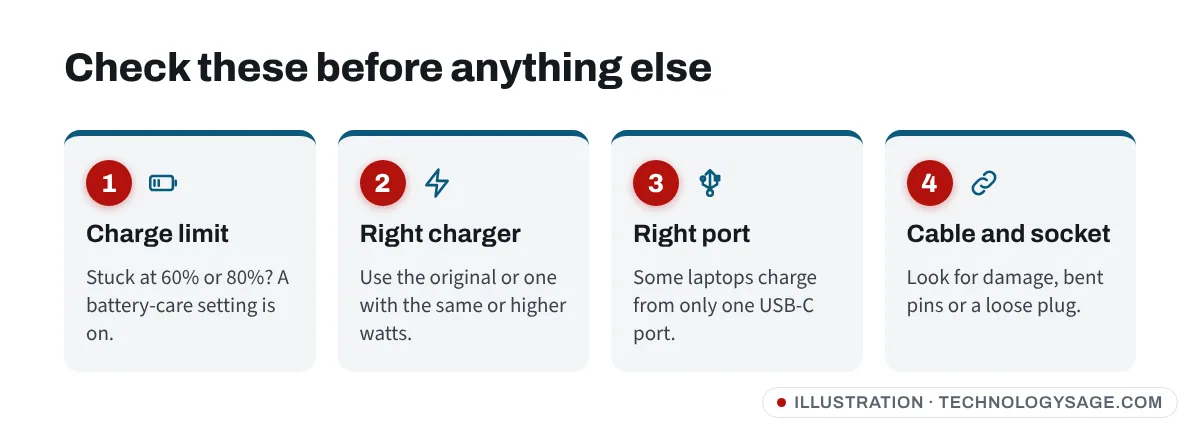
What “plugged in, not charging” means
Windows shows the charger is connected, but the battery percentage doesn’t go up. That tells you power is reaching the laptop, but the laptop has decided not to charge the battery, or can’t. The reasons, from most to least common:
- A charge limit or battery-saving mode is on.
- The charger isn’t powerful enough or isn’t recognised (common with USB-C and non-original chargers).
- The battery is too hot or too cold to charge safely.
- A driver, BIOS or power-management glitch.
- The battery has worn out, or the charging socket or board is faulty.
1. Turn off the battery charge limit
Many laptops come with a setting that stops charging below 100% to make the battery last longer. If your laptop always stops at the same number (often around 55-60% or 80%), this is almost certainly why. It’s harmless; turn it off only if you need the full charge.
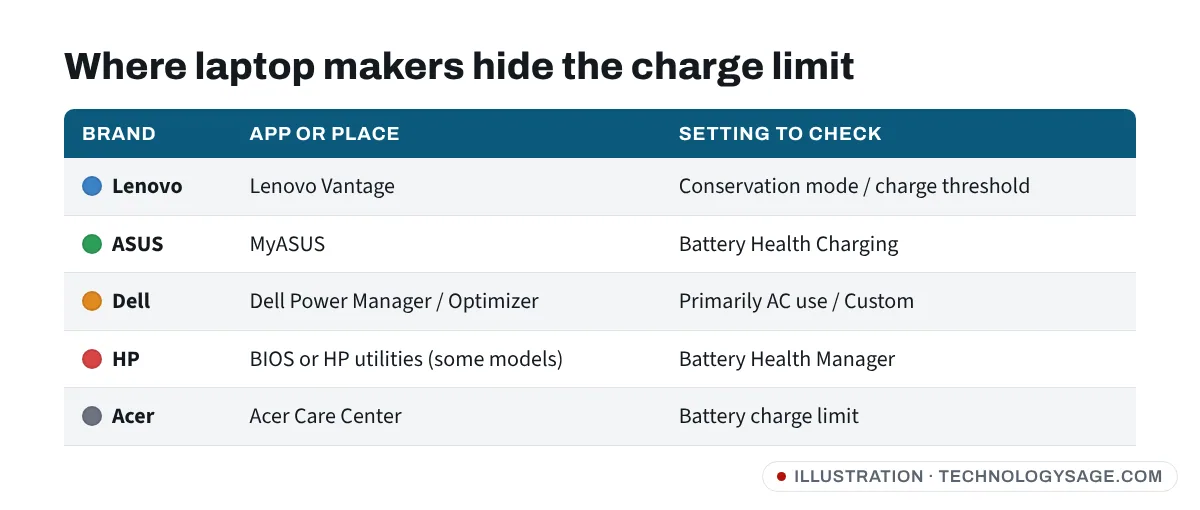
- Lenovo: open Lenovo Vantage, go to the power or battery settings, and turn off Conservation Mode (or adjust the Battery Charge Threshold on ThinkPads).
- ASUS: open MyASUS and find Battery Health Charging (under Customization or Device settings, depending on the version), then choose Full Capacity Mode.
- Dell: in Dell Power Manager or Dell Optimizer, check the battery settings. Primarily AC use and custom modes stop charging early; choose Standard or Adaptive.
- HP: on many HP business laptops, Battery Health Manager is in the BIOS setup. Some consumer models have a similar option in HP’s own apps. Set it to let the battery charge fully.
- Acer: in Acer Care Center (or Acer’s newer system app), turn off Battery charge limit.
- Microsoft Surface: Smart Charging (in the Surface app) or Battery Limit (in the Surface UEFI settings) can hold the charge below 100%.
Also check whether your laptop has a hotkey that disables charging; Dell notes some of its models do.
2. Check the charger, cable and power outlet
- Plug straight into a wall socket, not an extension lead or a power strip with a switch. Try another socket.
- Look at the charger’s light, if it has one. No light means the adapter or wall cable has failed.
- Check the whole cable for kinks, frayed sections and a hot or swollen adapter brick. Stop using damaged chargers.
- Check the connector and the laptop’s socket. Look for bent pins, fluff or dirt. If the laptop only charges when you hold the plug at an angle, the socket or cable is loose.
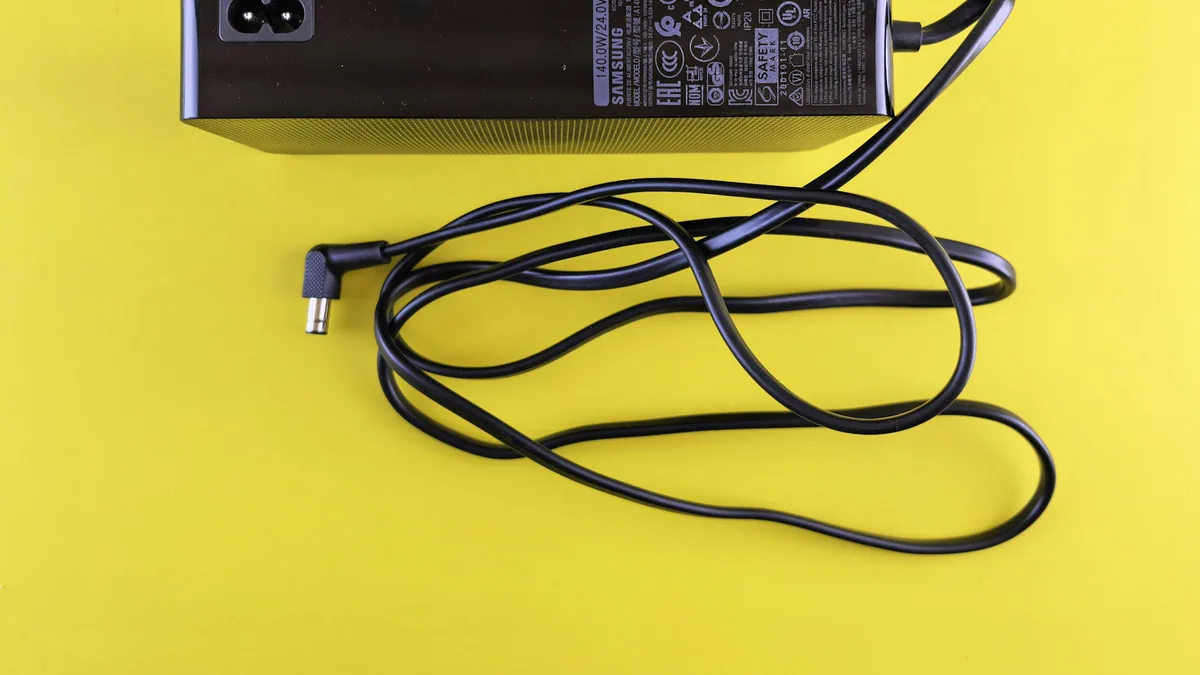
- Use the original charger, or one with the same voltage and at least the same wattage. The wattage (W) is printed on the adapter and usually on the laptop’s base. An underpowered charger may run the laptop without charging the battery, or charge so slowly that the percentage falls while you work. Windows sometimes warns you about a “slow charger”.
 Photo: Rebecca Aldama on Unsplash
USB-C laptops
- Not every USB-C port charges. Look for a lightning-bolt or plug icon next to the port, or check your manual.
- Use a USB Power Delivery (PD) charger rated for your laptop’s wattage. A phone charger (typically 15-25 W) can’t charge most laptops.
- Use a cable rated for the charger’s power. Cheap cables made for phones can limit charging speed.
- Avoid charging through a hub or dock to test; plug the charger straight into the laptop.
3. Do a power reset
A power reset clears a stuck power controller, which often fixes “plugged in, not charging”.
- Shut down the laptop (hold Shift while clicking Shut down for a full shutdown).
- Unplug the charger and any USB devices.
- If the battery is removable, take it out.
- Hold the power button for 15-30 seconds.
- Put the battery back, plug in the charger and turn the laptop on.
Some laptops with built-in batteries have a tiny reset pinhole on the bottom or a specific key combination; your maker’s support page will say if yours does.
4. Let it cool down (or warm up)
Batteries stop charging when they’re too hot, and some won’t charge when very cold. If the laptop is hot from gaming, sitting on a bed, or in the sun, let it cool on a hard surface and try again. If it’s always hot, clean the vents; see laptop fan noise and thermal throttling for cooling help.
5. Reinstall the battery driver
Windows manages charging through a battery driver. Reinstalling it fixes many “plugged in, not charging” cases.
- Right-click the Start button and choose Device Manager.
- Expand Batteries.
- Right-click Microsoft ACPI-Compliant Control Method Battery and choose Uninstall device. (Don’t touch Microsoft AC Adapter.)
- Shut down, unplug the charger, then plug it in and turn the laptop on. Windows reinstalls the driver.
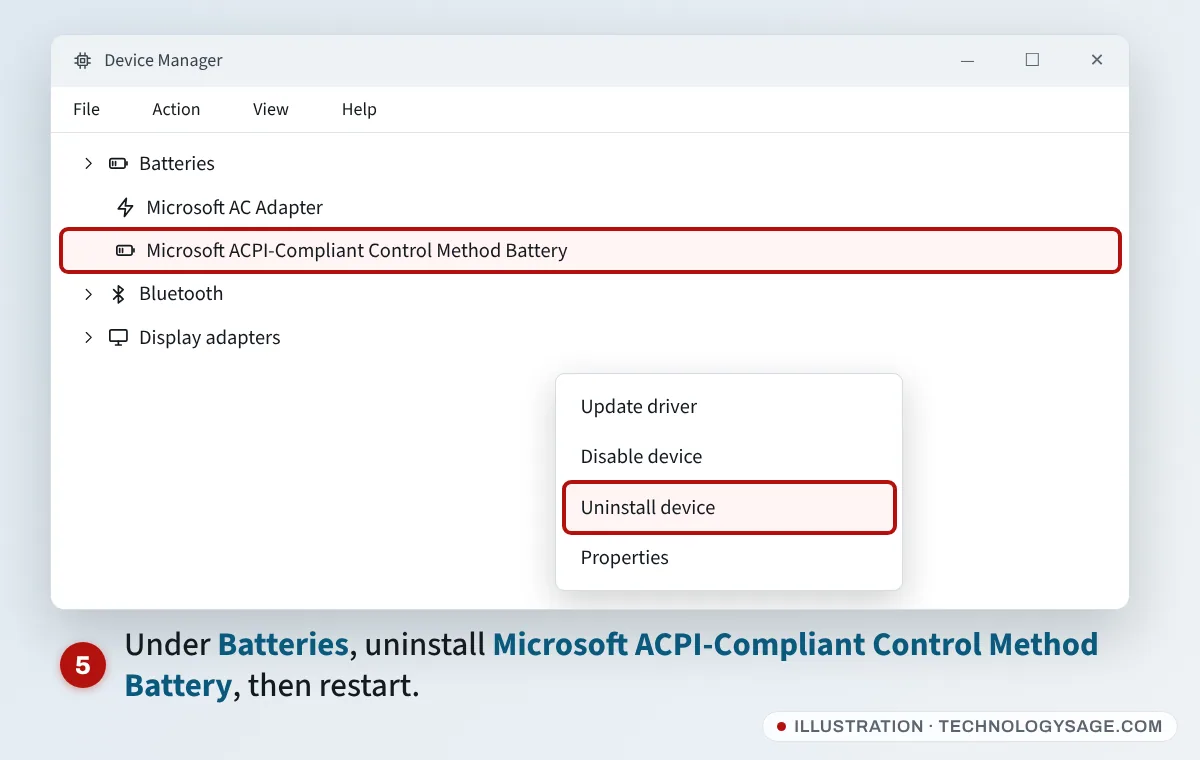
If you see more than one battery entry and you have only one battery, uninstall all the Control Method Battery entries.
6. Update the BIOS, chipset and power drivers
Charging is controlled partly by the BIOS (firmware). Laptop makers regularly release BIOS updates that fix charging problems.
- Use your maker’s update app (HP Support Assistant, Lenovo Vantage, MyASUS, Dell SupportAssist) or download updates from the support page for your exact model.
- Keep the charger connected during a BIOS update and don’t turn the laptop off until it finishes. Some laptops refuse to update the BIOS below a certain battery level; if yours won’t charge at all, ask the maker’s support.
Many laptops also show battery and adapter information in the BIOS setup. If the BIOS doesn’t recognise the adapter, the problem is hardware, not Windows.
7. Check battery health with a battery report
Laptop batteries wear out over time. A worn battery may charge very slowly, stop at a low percentage, or not charge at all.
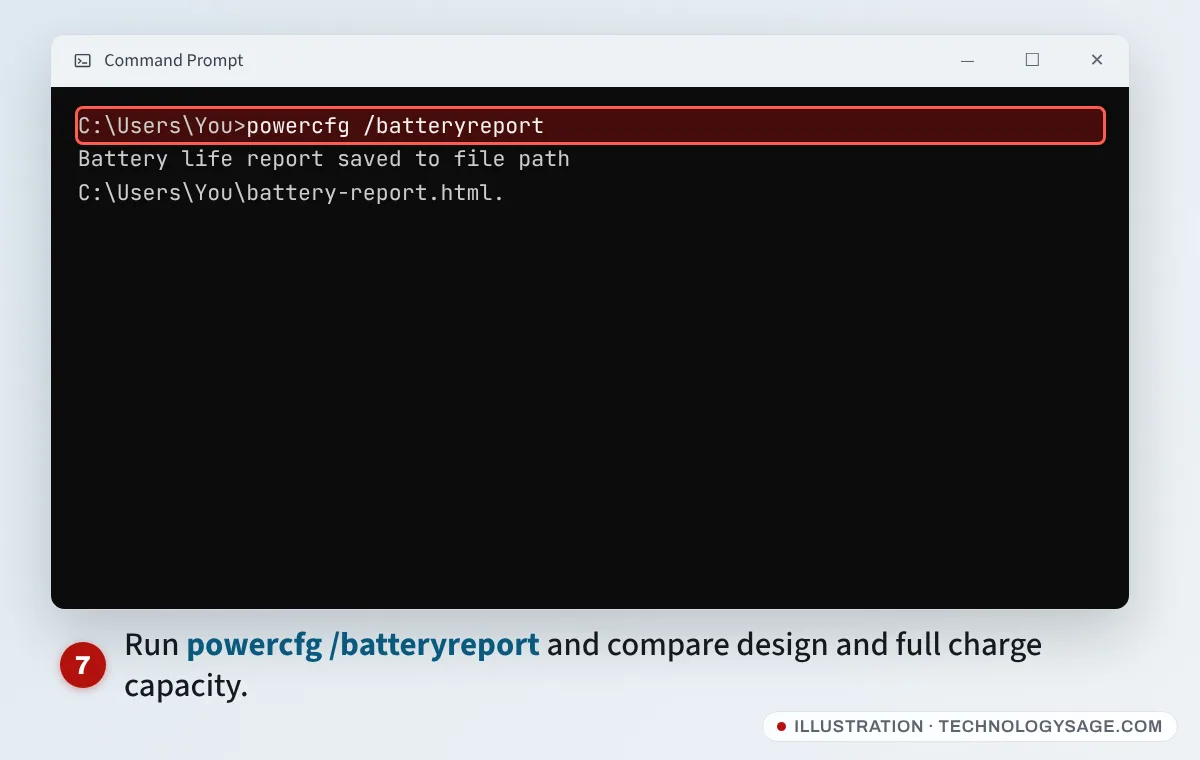
- Click Start, type
cmd, and open Command Prompt. - Run:
powercfg /batteryreport- Windows saves battery-report.html in your user folder (the path is shown). Open it in a browser.
- Under Installed batteries, compare Design capacity with Full charge capacity. If the full charge capacity is much lower (for example, under half), the battery needs replacing.
Most laptop makers also have built-in diagnostics that test the battery and adapter (HP, Dell and Lenovo all do); run them from the maker’s app or the startup menu described on their support site. A Windows warning such as “Consider replacing your battery” means the same thing.
Charging but the percentage isn’t going up
If the charging icon shows but the percentage stays the same or falls:
- The charger can’t keep up. Gaming and video editing can use more power than a small or non-original charger supplies. Close heavy apps, or charge with the laptop asleep or off.
- A charge limit is on (fix 1).
- The battery is worn (fix 7).
When it’s a hardware fault
- The laptop only works on the charger and dies instantly when unplugged: the battery is dead and needs replacing.
- The battery case is swollen, the touchpad is pushed up, or the case is bending: stop using and charging the laptop, don’t press on or puncture the battery, and take it to a service centre. Swollen lithium batteries are a fire risk.
- The charger works on another laptop but yours won’t charge, even after the steps above: the charging socket or charging circuit is likely faulty. Contact the maker under warranty or a reputable repair shop.
Buy replacement batteries and chargers from the maker or authorised sellers. Fake chargers and batteries are common and can be dangerous. If your screen also gets dim on battery, see laptop screen dim, and if your laptop shuts off without warning, PC restarts randomly may help. To make a healthy battery last longer, see how to extend your laptop’s battery life.
FAQ
Why is my laptop plugged in but not charging?
Most often a battery charge limit is on, the charger is too weak or not original, or the battery driver needs a reset. Turn off charge limits in your laptop maker’s app, try the original charger in a wall socket, do a power reset, and reinstall the battery driver.
Why does my laptop stop charging at 80% (or 60%)?
That’s a battery-care feature such as Lenovo Conservation Mode, ASUS Battery Health Charging, Dell Primarily AC use or HP Battery Health Manager. It protects the battery when the laptop is plugged in most of the time. Turn it off if you need a full charge.
Can I charge my laptop with a phone charger?
Only if the laptop charges over USB-C, and even then a phone charger is usually too weak to charge the laptop while it’s on. Use a USB-C PD charger with at least the wattage of your original adapter.
How do I know if my laptop battery or charger is the problem?
If the laptop runs on the charger with the battery removed (or dies instantly when unplugged), the charger works and the battery is the problem. If the charger’s light is off, or the laptop won’t run on it at all, test with another compatible charger. A battery report shows how worn the battery is.