In this guide
- First, check whether the laptop is really on
- 1. Turn up the brightness and wake the screen
- 2. Restart the graphics driver with Windows + Ctrl + Shift + B
- 3. Do a hard reset (power drain)
- 4. Try an external monitor or TV
- 5. Shine a torch on the screen (backlight test)
- 6. Get past a black screen after the HP logo
- 7. Start Windows Recovery and use Startup Repair or Safe Mode
- 8. Update or roll back the graphics driver
- 9. Run HP’s hardware test, then check the memory
- If it still doesn’t work
- FAQ
If your HP laptop’s screen is black but the power light and fans are on, first press Windows + Ctrl + Shift + B to restart the graphics driver. If nothing changes, do a hard reset: unplug the charger, hold the power button for about 15 seconds, plug the charger back in and switch on. Most black screens clear up at one of those two steps. If yours doesn’t, the fixes below go from quick checks to the ones that point to a hardware fault.
These steps work for HP Pavilion, HP 15/14, HP Victus, Envy and most other HP laptops running Windows 11 (24H2 or 25H2). Most of them also work on other brands.
First, check whether the laptop is really on
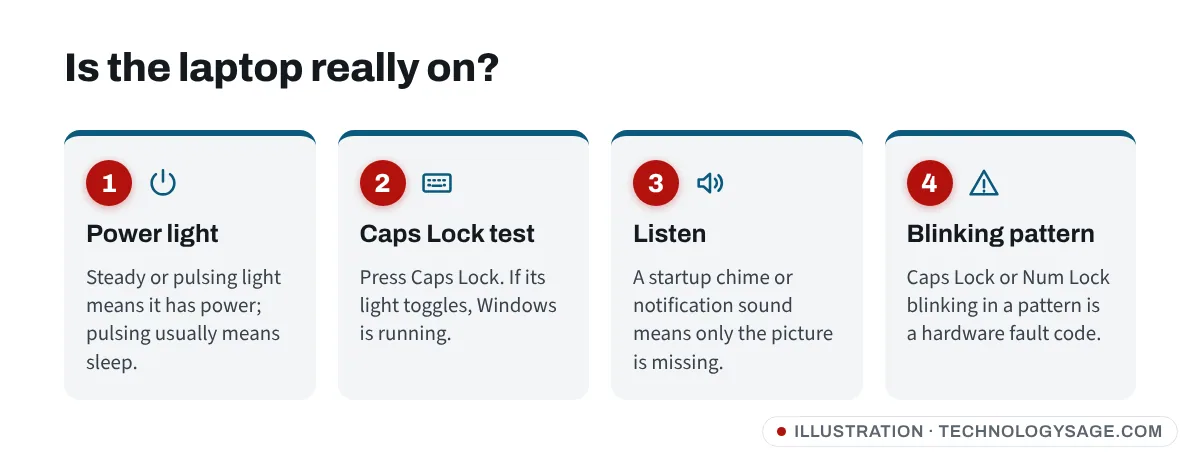
A black screen can mean three different things, and the fix depends on which one you have:
- The laptop is asleep or the screen is just dark. The power light pulses or glows, and pressing a key or the brightness key wakes it.
- Windows is running but the screen shows nothing. The Caps Lock light turns on and off when you press Caps Lock, and you may hear the Windows startup sound or notification sounds.
- The laptop isn’t starting properly. The power light is on and the fan spins, but Caps Lock doesn’t respond, or the Caps Lock or Num Lock light blinks in a repeating pattern.
Keep that in mind as you work through the fixes.
1. Turn up the brightness and wake the screen
It sounds too simple, but brightness turned all the way down looks exactly like a dead screen. Press the brightness-up key (usually F3 on recent HP laptops, the key with a sun icon) several times. If your HP has the action keys turned off, press Fn plus that key.
Then press any key, tap the touchpad or briefly press the power button (don’t hold it) to wake the laptop from sleep.
2. Restart the graphics driver with Windows + Ctrl + Shift + B
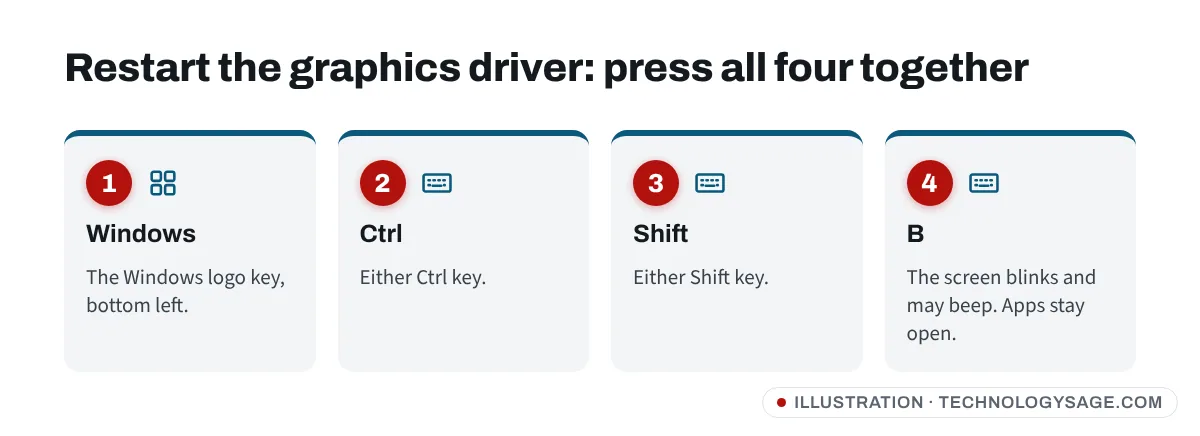
Press Windows + Ctrl + Shift + B together. Windows restarts the display driver, the screen may flicker or stay black for a few seconds, and you may hear a short beep. Your open apps stay open. Microsoft lists this shortcut on its own display troubleshooting pages, and it works on any Windows 11 laptop.
If the picture comes back, the driver had simply crashed. If it keeps happening, update the graphics driver (fix 8).
3. Do a hard reset (power drain)
A hard reset clears leftover power from the hardware and fixes many “power on, screen black” cases, especially after a laptop has been in sleep for a long time or after a power cut.
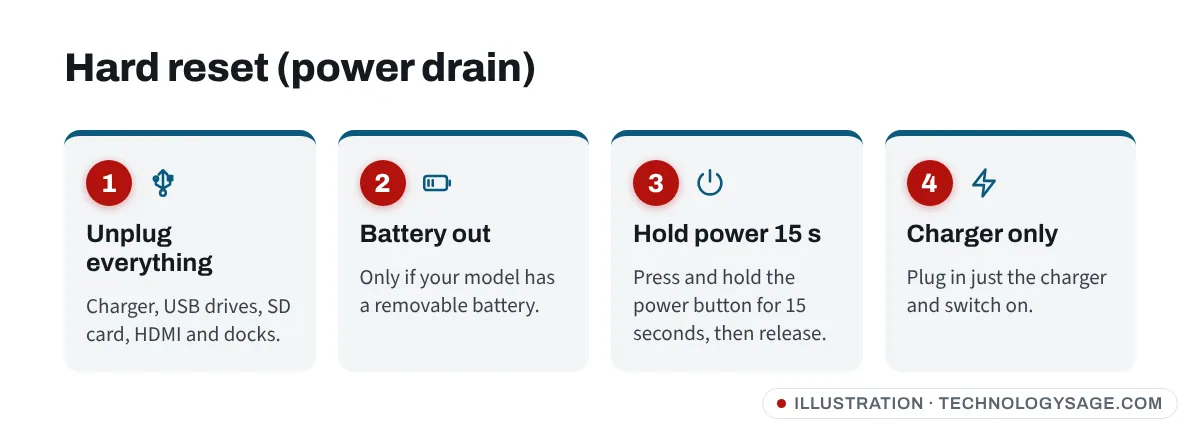
- Unplug the charger and remove any USB drives, SD cards, HDMI cables and docks.
- If your laptop has a removable battery, take it out.
- Press and hold the power button for 15 seconds, then release it.
- Put the battery back (if you removed it) and plug in only the charger.
- Press the power button to switch on.
On sealed laptops where the battery can’t be removed, the 15-second hold with the charger unplugged does the same job. Some HP models also show a Startup Menu or a message that the laptop was not shut down properly; choose Start Windows Normally if you see that.
4. Try an external monitor or TV
Connect the laptop to a TV or monitor with an HDMI cable, then press Windows + P and choose Duplicate or Second screen only. Some HP laptops also have a projection key that does the same as Windows + P.
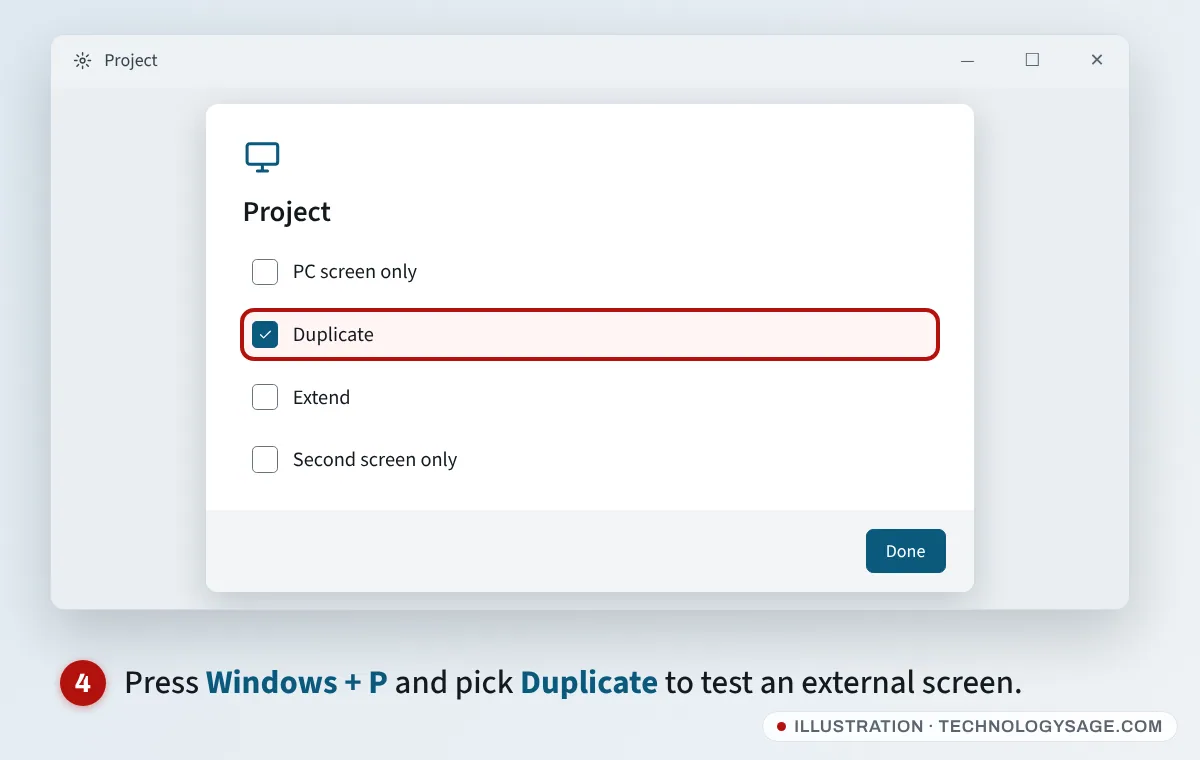
- The TV shows a picture: Windows and the graphics chip are working. The problem is the laptop’s own screen, its backlight or the cable inside the hinge. Use the TV to back up your files and update drivers before anything else.
- The TV is also black: the problem is deeper (graphics, memory or Windows itself). Carry on with the next fixes.
If you accidentally chose Second screen only earlier with a monitor attached and then unplugged it, Windows usually switches back by itself. If it doesn’t, press Windows + P and then the up arrow key a few times and Enter, which steps back towards PC screen only.
5. Shine a torch on the screen (backlight test)
With the laptop on, shine a phone torch at an angle onto the screen from close up. If you can faintly see the Windows desktop or the HP logo, the screen itself works but its backlight has failed, or the cable or a fuse that powers it has. That’s a repair job, not something settings can fix. Take it to an HP service centre or a trusted repairer, and see our guide to taking your laptop for repair first.
6. Get past a black screen after the HP logo
If you see the HP logo, then a black screen (sometimes with just a mouse pointer), Windows is starting but the desktop isn’t loading.
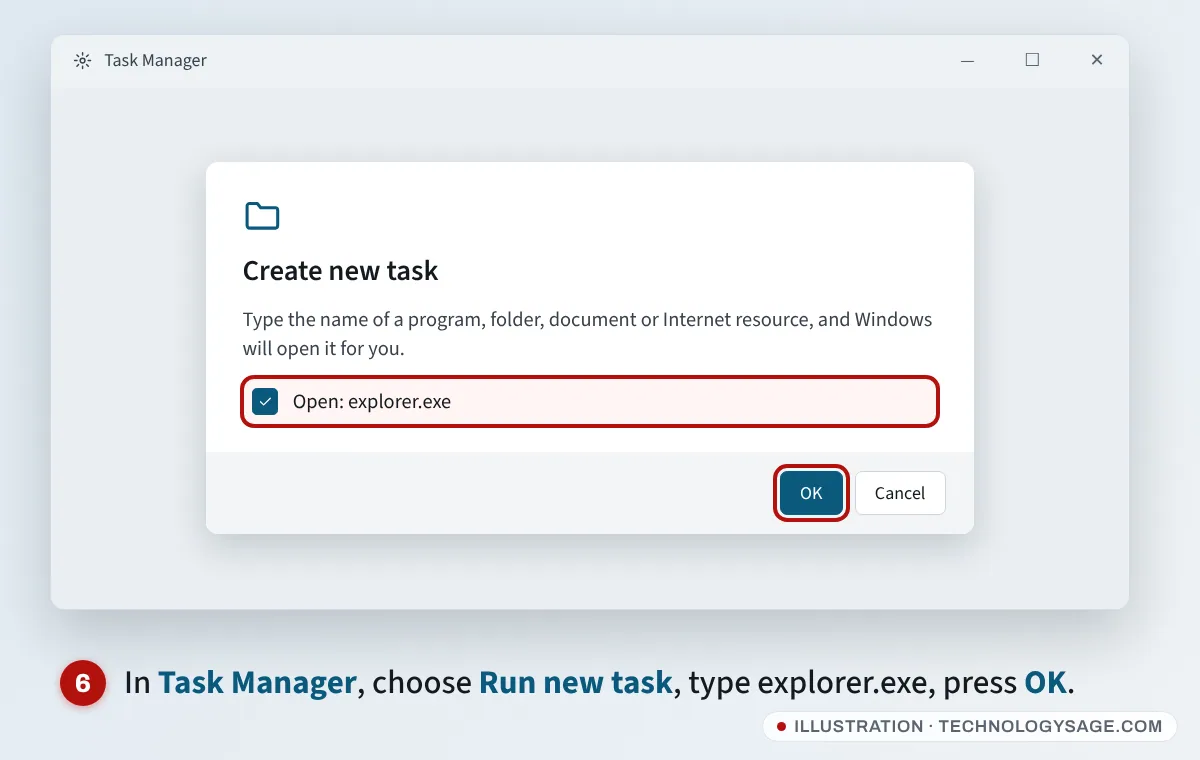
- Press Ctrl + Alt + Delete. If the blue menu appears, choose Task Manager.
- Click Run new task, type
explorer.exeand press Enter. The taskbar and desktop should come back. - Restart the laptop normally.
If this happens after you sign in every time, our guide to Windows 11 black screen after login goes through the causes in more detail.
7. Start Windows Recovery and use Startup Repair or Safe Mode
If Windows never gets as far as the desktop, open the Windows Recovery Environment:
- Switch the laptop on. As soon as the HP logo appears, hold the power button until it switches off.
- Do this three times. On the next start, Windows shows Preparing Automatic Repair and then the blue recovery screen. On many HP laptops you can also tap F11 repeatedly at startup to get there.
- Choose Troubleshoot → Advanced options.
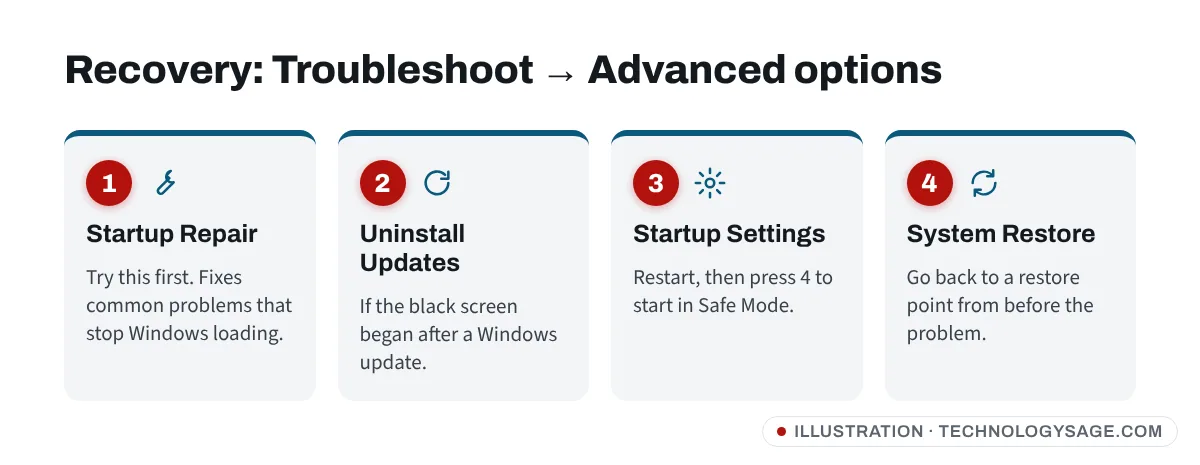
From here you can try, in this order:
- Startup Repair, which fixes common boot problems.
- Uninstall Updates, if the black screen started after a Windows update.
- Startup Settings → Restart → 4 to start in Safe Mode. If the screen works in Safe Mode, a driver or app is to blame (see the next fix).
- System Restore, if you have a restore point from before the problem began.
8. Update or roll back the graphics driver
Once you can see the screen (normally, in Safe Mode or on an external monitor):
- Right-click Start and open Device Manager.
- Expand Display adapters, right-click your graphics chip (Intel, AMD or NVIDIA) and choose Properties.
- On the Driver tab, click Roll Back Driver if the problem started after an update. Otherwise close the box, right-click the adapter again and choose Update driver.
It’s best to get graphics and BIOS updates from the HP Support Assistant app or the drivers page for your exact model on HP’s support site (support.hp.com). Our guide on how to install drivers covers the basics.
9. Run HP’s hardware test, then check the memory
HP laptops have a built-in hardware test that runs before Windows. Switch the laptop on and immediately press Esc repeatedly until the Startup Menu appears, then press F2 for System Diagnostics (HP PC Hardware Diagnostics UEFI). Run the Fast test, or the memory and component tests. If you only get a picture on an external monitor, the test will show there.
If a test fails, it gives you a failure ID. Note it down, along with your laptop’s serial number from the sticker underneath. HP support asks for both.
If the Caps Lock or Num Lock light blinks in a pattern at startup with no picture, that’s also a hardware fault code. Count the long and short blinks and look them up for your model on HP’s support site. A common cause is loose or faulty memory (RAM). Reseat it only if you are comfortable opening the laptop and it is out of warranty, because opening it yourself can affect the warranty. Our guide on how to tell if laptop RAM is bad explains the symptoms.
If it still doesn’t work
- Remove everything plugged in and try again with just the charger. A faulty USB device or dock can stop a laptop starting.
- Try a different charger if you have a matching HP one. A failing charger can supply enough power to light the LED but not enough to start properly.
- Let it cool down. A laptop that shuts its screen off after a few minutes may be overheating. See laptop overheating and shutting down.
- Contact HP support or an authorised service partner with your serial number. Official HP support never asks you to pay with gift cards or airtime, and won’t ask for your Windows or Microsoft account password. Ignore “HP support” numbers posted in social-media comments.
FAQ
Why is my HP laptop on but the screen is black?
The most common causes are a crashed graphics driver, the laptop stuck in sleep, very low brightness, a Windows startup problem or, less often, a failed screen, backlight or memory module. The external monitor and torch tests tell you which one it is.
Will a hard reset delete my files?
No. A hard reset only drains leftover power. Your files, apps and settings are not touched.
What does Windows + Ctrl + Shift + B do?
It restarts the graphics driver without restarting the laptop. The screen goes black for a moment, then comes back, and your open apps are kept.
My HP laptop shows the logo, then goes black. What now?
Windows is starting but not reaching the desktop. Try Ctrl + Alt + Delete and run explorer.exe from Task Manager, then use Startup Repair or Safe Mode from the recovery screen (fixes 6 and 7).
How do I know if the screen itself is broken?
If an external monitor shows a picture but the laptop screen stays black, and a torch shows nothing or only a faint image, the screen, backlight or display cable has failed and needs a repair.