In this guide
- “Missing operating system” vs “An operating system wasn’t found”
- Save your files first
- 1. Disconnect extra drives and USB sticks
- 2. Check that BIOS detects the Windows drive
- 3. Put Windows Boot Manager first
- 4. Match the boot mode to your Windows installation
- 5. Run Startup Repair from a Windows USB
- 6. Rebuild the boot files with commands
- 7. Check the drive for errors
- 8. Reinstall Windows as a last resort
- If it doesn’t work
- FAQ
“Operating system not found” means your PC found a drive but couldn’t find anything on it to start. In most cases Windows and your files are still there: the boot order, the boot mode (UEFI or Legacy) or the small set of boot files is wrong. Fix it by unplugging extra drives, checking that Windows Boot Manager is first in BIOS, matching the boot mode to how Windows was installed, and then rebuilding the boot files from a Windows USB stick with Startup Repair or bcdboot.
This guide has the full command-line repair that other guides in our boot series link to. If you’re not sure your error belongs here, start with the PC won’t boot checklist.
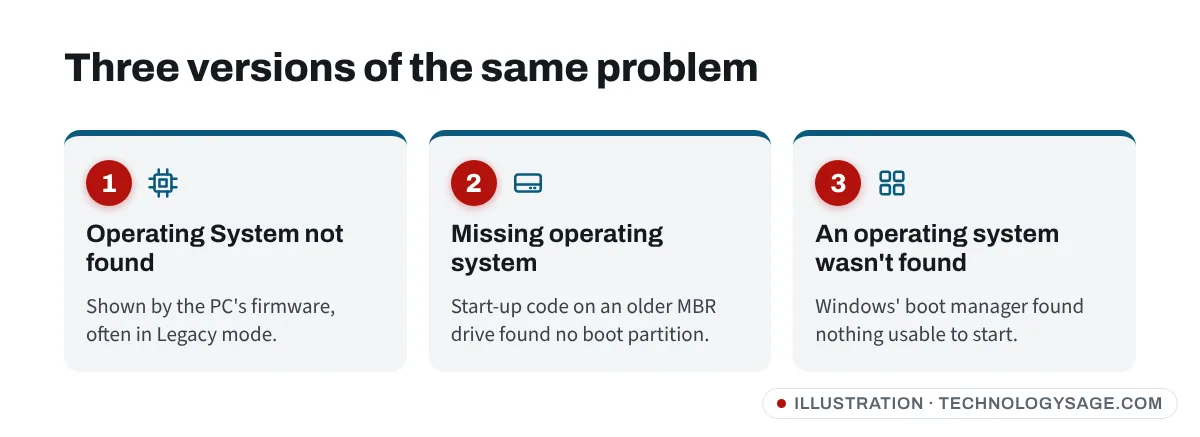
“Missing operating system” vs “An operating system wasn’t found”
You might see one of several messages:
- “Operating System not found”: from the PC’s firmware, often on older laptops in Legacy mode.
- “Missing operating system”: from the start-up code on an older (MBR) drive that can’t find a bootable partition.
- “An operating system wasn’t found. Try disconnecting any drives that don’t contain an operating system. Press Ctrl+Alt+Del to restart”: from Windows’ own boot manager when its configuration points to nothing usable.
Microsoft lists “Operating system Missing” among the errors from the boot loader stage, alongside a missing BOOTMGR and damaged Boot Configuration Data (BCD). If your screen says “BOOTMGR is missing”, use our BOOTMGR guide; if it says “No bootable device”, use No bootable device found.
Save your files first
Most of the fixes below don’t touch your documents, but you’ll be working on the boot partitions and the last resort is a reinstall. If anything matters, copy it off before step 5 using the methods in how to save files from a PC that won’t boot. If your drive is encrypted with BitLocker, have the 48-digit recovery key ready; the recovery tools will ask for it before they can read the drive.
1. Disconnect extra drives and USB sticks
The firmware may be trying to start from a second hard drive, an external drive or a USB stick with no Windows on it. That’s exactly why Windows’ own message suggests disconnecting drives. Unplug everything except keyboard, mouse and screen, and restart.
2. Check that BIOS detects the Windows drive
Open BIOS setup (the key varies by maker; see the BIOS key table) and check that your SSD or hard drive is listed. If it isn’t, the error is really a hardware or connection problem: follow fix 5 in No bootable device found.
3. Put Windows Boot Manager first
On the Boot page, move Windows Boot Manager to the top (on Legacy PCs, the hard drive itself), then press F10 to save. If you have two Windows Boot Manager entries or none at all, see Windows Boot Manager in BIOS.
4. Match the boot mode to your Windows installation
If Windows was installed in UEFI mode and the firmware is now set to Legacy/CSM (or the reverse), the firmware can’t see the boot files and reports no operating system.
- Windows 11 and most PCs from the last decade: set Boot Mode to UEFI and disable CSM/Legacy.
- Very old Windows installations: Legacy/CSM may be correct.
You can check which your drive uses in step 5: in diskpart, a GPT disk (marked with * in the Gpt column) needs UEFI; an MBR disk needs Legacy. Changing the mode doesn’t erase data.
5. Run Startup Repair from a Windows USB
- On another computer, download Microsoft’s Media Creation Tool and make a Windows installation USB stick (8 GB or larger). Other tools are covered in our bootable USB guide.
- Plug it into the broken PC and start from it using the one-time boot menu.
- Choose your language and keyboard, then select Repair my PC (older media: Repair your computer).
- Go to Troubleshoot → Advanced options → Startup Repair.
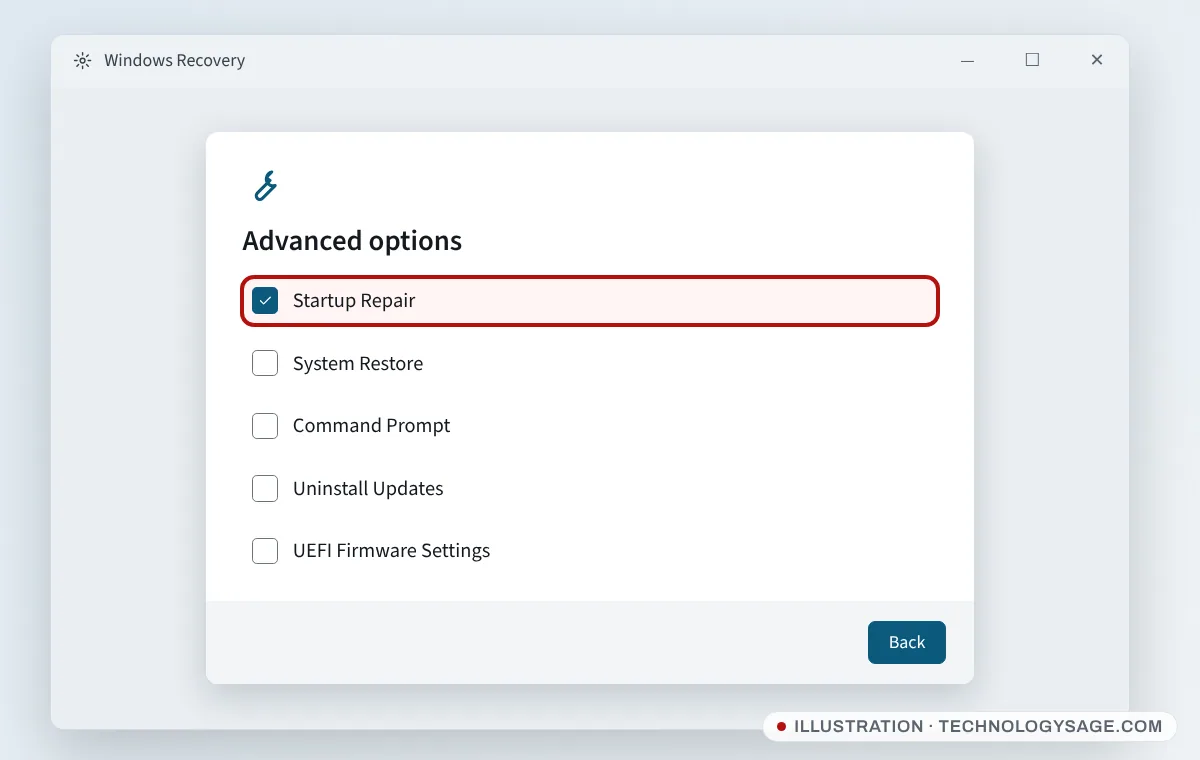
Startup Repair checks the boot files and BCD and fixes what it can. It writes a log to C:\Windows\System32\LogFiles\Srt\SrtTrail.txt. Restart without the USB stick. If the error is still there, continue.
 Photo: Sara Kurfeß on Unsplash
6. Rebuild the boot files with commands
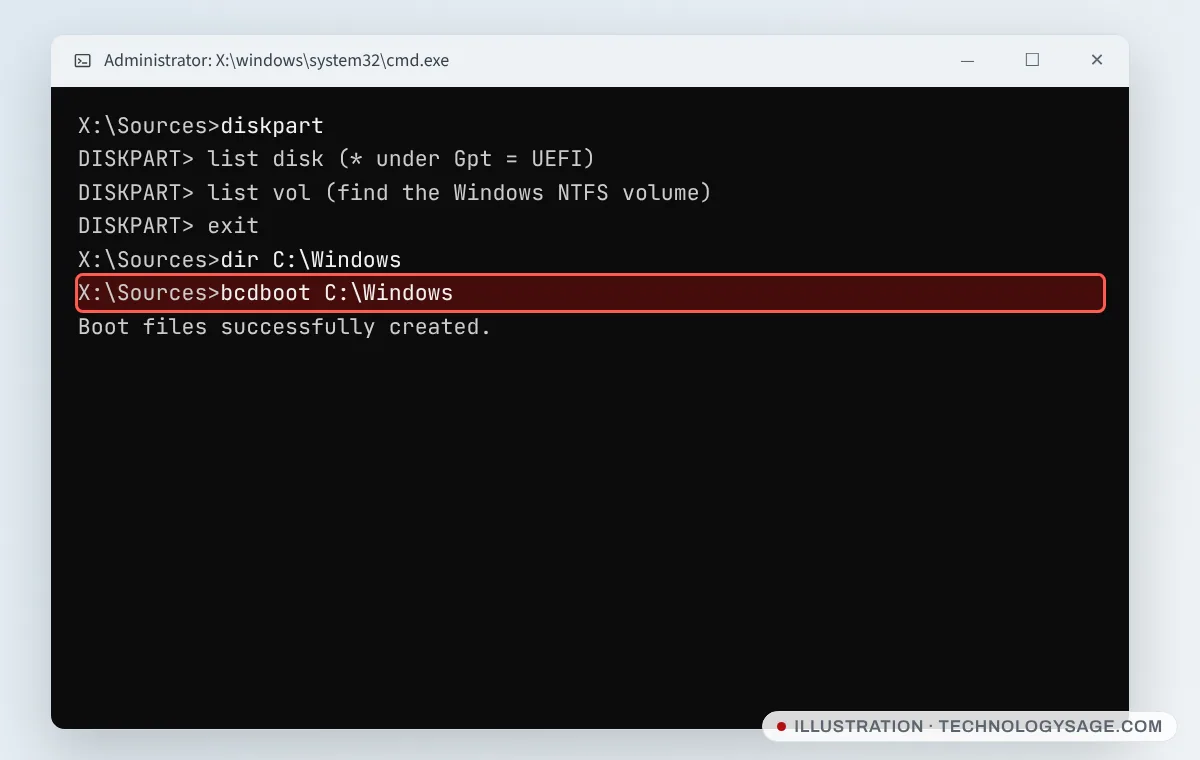
From the same Advanced options screen, open Command Prompt. First find out which drive letter holds Windows and whether the disk is GPT (UEFI) or MBR (Legacy):
diskpart
list disk
list vol
exit- In
list disk, a*under Gpt means UEFI. No star means MBR (Legacy). - In
list vol, find the large NTFS volume with Windows. In the recovery environment it may not be C:. Confirm withdir C:\Windows(try D: and E: if needed).
These commands repair boot files only. They don’t delete partitions or personal files. Type them exactly, replacing C: with your Windows letter.
On a UEFI PC (GPT disk)
bcdboot C:\WindowsAccording to Microsoft’s BCDBoot documentation, this copies fresh boot files from your Windows folder to the EFI System Partition, creates a new BCD store and adds Windows Boot Manager to the firmware’s boot list. Restart and test.
If it reports “Failure when attempting to copy boot files”, give the EFI System Partition a letter and point bcdboot at it:
diskpart
list vol
select vol 1
assign letter=S
exit
bcdboot C:\Windows /s S: /f UEFI
Replace 1 with the number of the small (usually 100-300 MB) FAT32 volume, often labelled System. Don’t select or change any other volume.
On a Legacy BIOS PC (MBR disk)
Run Microsoft’s boot code repair, then scan for Windows and rebuild the BCD:
bootrec /fixmbr
bootrec /fixboot
bootrec /scanos
bootrec /rebuildbcd
When /rebuildbcd finds your installation, type Y to add it. If it finds nothing (it says “Total identified Windows installations: 0”), Microsoft’s guide backs up and replaces the old BCD first:
bcdedit /export C:\bcdbackup
attrib C:\boot\bcd -r -s -h
ren C:\boot\bcd bcd.old
bootrec /rebuildbcd
Here C: is the drive that holds the \boot folder (on many PCs the small System Reserved partition). If bootrec /fixboot returns Access is denied, see bootrec /fixboot access denied.
7. Check the drive for errors
If boot files keep going missing, the drive may have damaged sectors. From the same Command Prompt:
chkdsk C: /f /rThis can take hours on a large hard drive. On a drive that’s failing badly, scanning adds wear, so copy important files off first. If Windows starts but then crashes with a blue screen about the boot volume, see Unmountable boot volume.
8. Reinstall Windows as a last resort
If the drive is healthy but nothing above works, reinstalling Windows from the USB stick will fix the error. A clean install erases the drive, so make sure your files are saved first.
If it doesn’t work
- The error returns after every shutdown: the BIOS may be forgetting the boot order because of a flat motherboard battery; see Reboot and Select proper Boot device.
- Windows now starts but gets stuck on “Preparing Automatic Repair”: the boot files are fixed but Windows has a further problem; see Preparing Automatic Repair.
- Startup Repair says it can’t repair your PC: open the SrtTrail.txt log with Notepad from Command Prompt (
notepad, then File → Open) to see the cause it found.
FAQ
How do I fix “Operating system not found” without losing data?
Disconnect extra drives, set Windows Boot Manager first, match the boot mode and run Startup Repair. If needed, rebuild the boot files with bcdboot (UEFI) or bootrec (Legacy). None of these erase personal files.
What causes “Missing operating system”?
Usually the boot order points at the wrong drive, the boot mode changed, or the boot sector or boot configuration on an older MBR drive is damaged. A failing or disconnected drive can also cause it.
Does “Operating system not found” mean Windows is deleted?
Rarely. Windows and your files are almost always still on the drive; only the path to start them is broken. Check with dir C:\Windows from the recovery Command Prompt.
Can I fix this without a Windows USB?
If Windows Recovery opens by itself after two failed starts, you can use its Startup Repair and Command Prompt. If it doesn’t, you need a Windows installation USB made on another PC.
Should I use bootrec or bcdboot?
Use bcdboot on UEFI PCs with GPT disks, which is almost every modern PC. The bootrec /fixmbr and /fixboot commands are for older Legacy BIOS PCs with MBR disks.