In this guide
- Where are the ads coming from?
- Step 1: Catch the app in the act
- Step 2: Restart in Safe mode to confirm
- Step 3: Uninstall the suspicious apps
- Step 4: Remove “Display over other apps” permission
- Step 5: Stop ad notifications from websites in Chrome
- Step 6: Scan with Google Play Protect
- Step 7: Turn off ads built into your phone’s software
- Still seeing pop-up ads?
- FAQ
To stop pop-up ads on an Android phone, first find where they come from. Full-screen ads that appear over your home screen or other apps almost always come from a recently installed app: restart in Safe mode, then uninstall the app and remove its Display over other apps permission. Ads that arrive as notifications usually come from a website you allowed in Chrome, which you can block in Chrome → Settings → Notifications. Ads on the lock screen or inside system apps are often built into the phone’s own software, and you can switch most of them off in Settings.
You don’t need a “cleaner”, “booster” or “ad remover” app for any of this. Many of those apps show ads themselves, and some are the cause of the problem.
Where are the ads coming from?
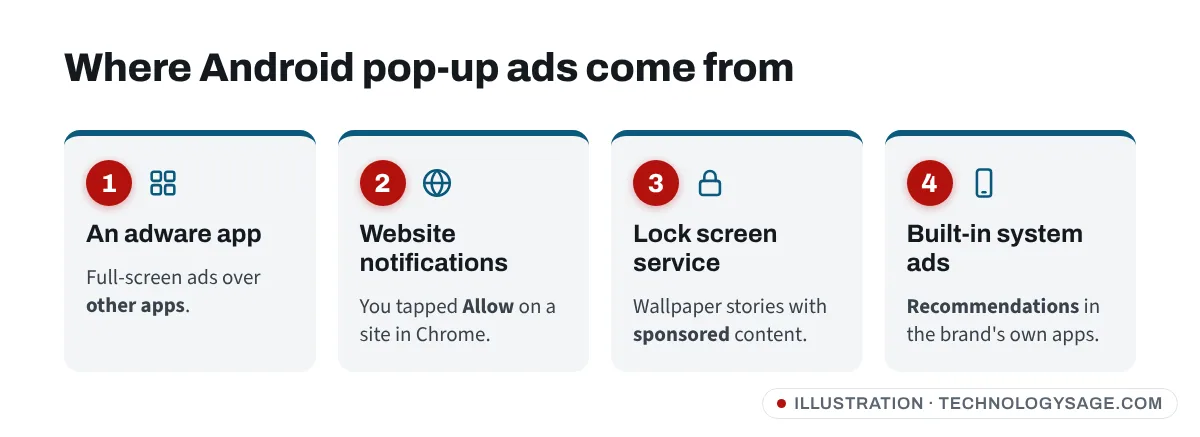
The fix depends on where you see the ads. Match yours to one of these:
| Where the ad appears | Most likely cause | Jump to |
|---|---|---|
| Full screen over the home screen or other apps | A recently installed app (adware) | Steps 1-4 |
| As a notification, often with a website name | A site you allowed in Chrome | Step 5 |
| On the lock screen or as wallpaper | The phone brand’s lock screen service | Step 7 |
| Inside system apps (file manager, themes, app store) | The phone brand’s built-in ads | Step 7 |
| Inside a free game or app while you use it | Normal in-app advertising | FAQ |
Step 1: Catch the app in the act
When a full-screen ad appears, don’t tap it. Instead:
- Open the Recent apps view (the square button, or swipe up from the bottom and hold).
- On many phones, the ad shows as its own card with an app icon or name at the top. Tap that icon and choose App info if it appears.
- If it opens an app you don’t recognise, or one you installed recently (a flashlight, QR scanner, wallpaper, “phone cleaner”, VPN, PDF reader or a game), that’s very likely your culprit. Tap Uninstall.
Some adware hides its icon or uses a generic name such as “System Service” or “Update”. If you can’t tell, move on to Safe mode.
Step 2: Restart in Safe mode to confirm
Safe mode starts Android with only the apps that came with the phone. Samsung’s own support pages recommend this test: if the ads stop in Safe mode, a downloaded app is to blame.
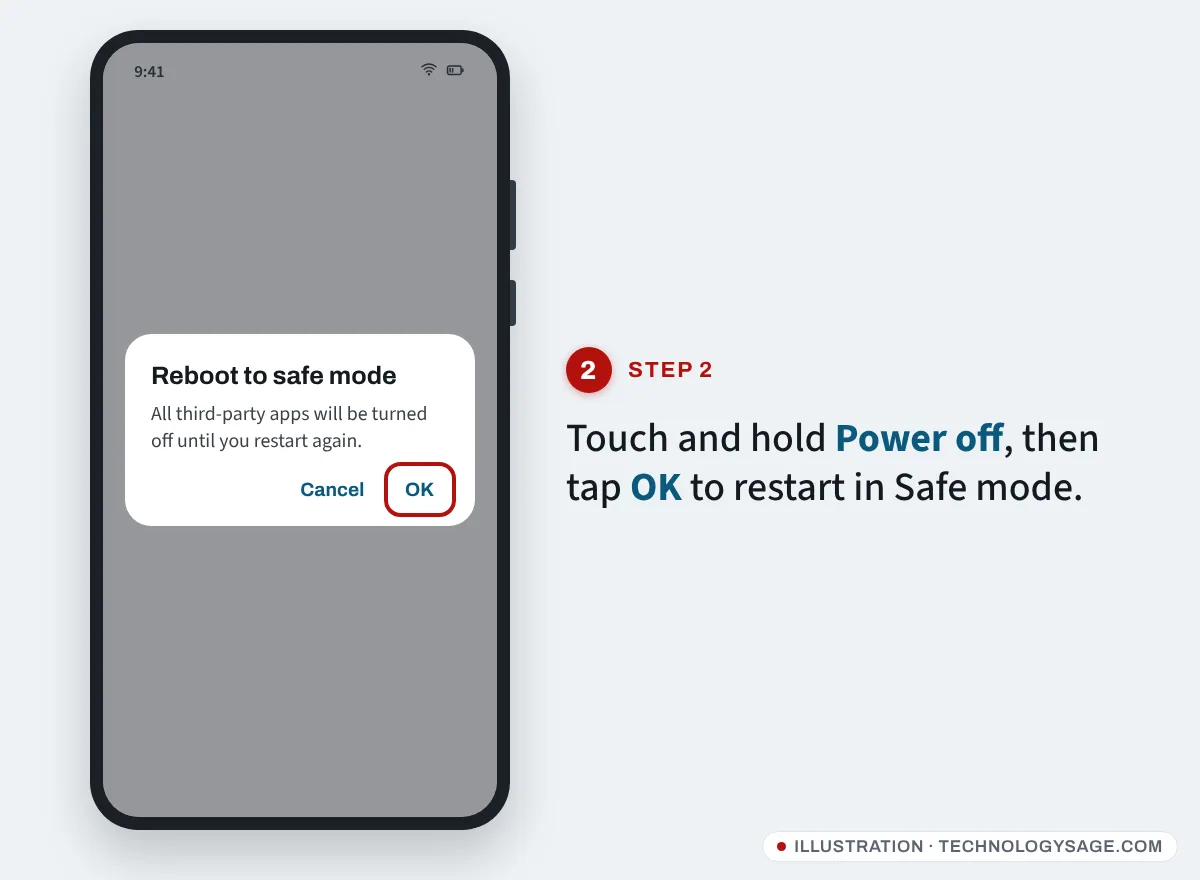
- Press and hold the Power button (on some phones, Power and Volume up together, or swipe down and tap the power icon).
- Touch and hold Power off until Safe mode appears, then tap it. On most phones the prompt says Reboot to safe mode or Restart in safe mode.
- The phone restarts with Safe mode written in a corner.
If the menu doesn’t offer Safe mode, check your phone maker’s support page: on a few models you hold Volume down while the phone starts up instead.
Step 3: Uninstall the suspicious apps
While still in Safe mode (downloaded apps can’t fight back here):
- Open Settings → Apps (on some phones Apps & notifications → See all apps).
- Sort or filter by Last installed or Recently updated if your phone offers it, or scroll the list for anything you don’t remember installing.
- Tap each suspicious app and choose Uninstall. Start with apps installed around the time the ads began.
- Restart the phone normally and see if the ads have stopped.
If Uninstall is greyed out, the app has made itself a device administrator. Open Settings → Security (on Samsung Security and privacy → Other security settings) and look for Device admin apps. Switch the app off there, then uninstall it. Menu names differ by brand; search Settings for “device admin”.
Step 4: Remove “Display over other apps” permission
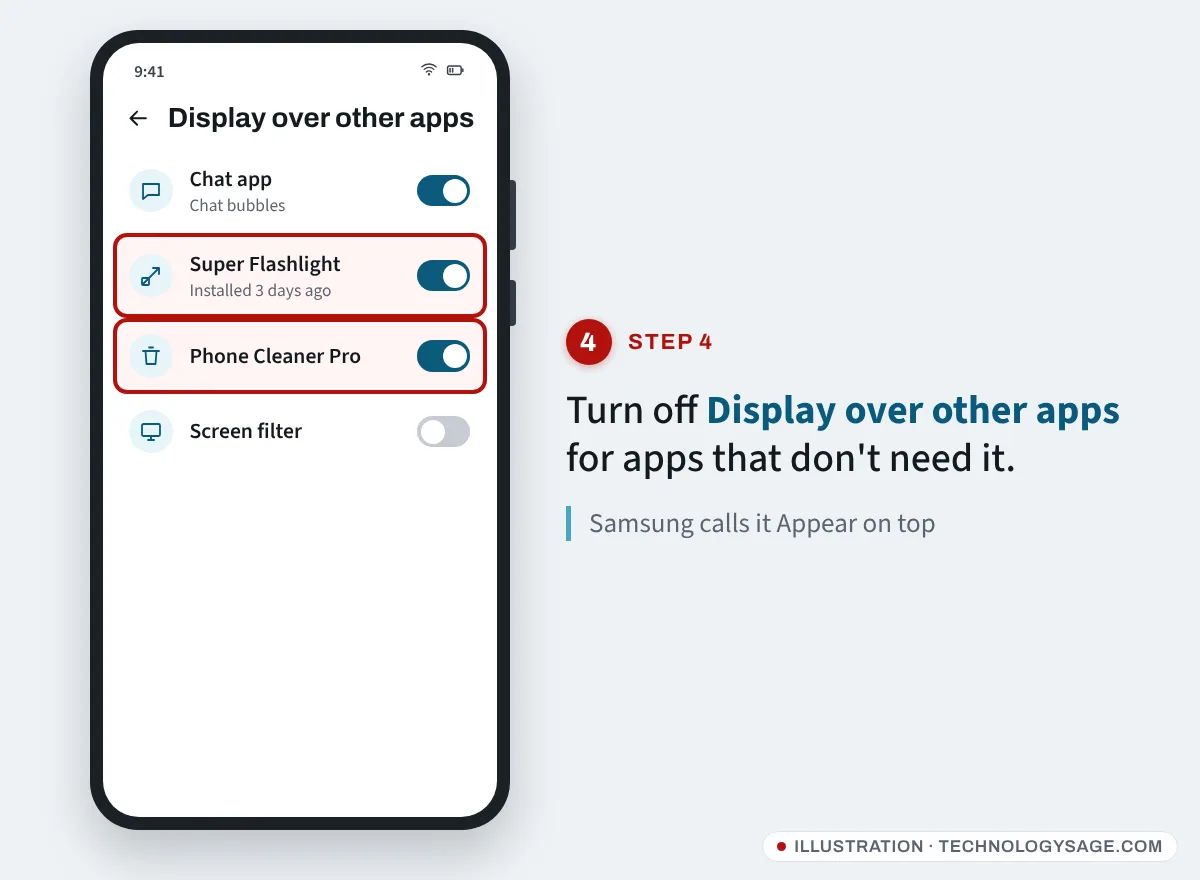
This permission lets an app draw on top of everything else, which is exactly what pop-up ads need. Chat heads and screen filters use it legitimately; a torch app or wallpaper doesn’t need it.
- Open Settings → Apps → Special app access (on some phones under the three-dot menu in Apps, or Settings → Apps → Advanced).
- Tap Display over other apps. On Samsung it’s called Appear on top.
- Switch it off for any app that has no good reason to draw over other apps.
Step 5: Stop ad notifications from websites in Chrome
Many “ads” are really website notifications. Sites trick people into tapping Allow with messages like “Click Allow to prove you’re not a robot”, and then send ads, fake virus alerts and prize scams, even when Chrome is closed.
From the notification itself: long-press the ad notification. Android shows which app sent it (usually Chrome) and often the website’s name. Tap the settings icon and turn that site’s notifications off, or use Unsubscribe if Chrome offers it.
In Chrome settings:
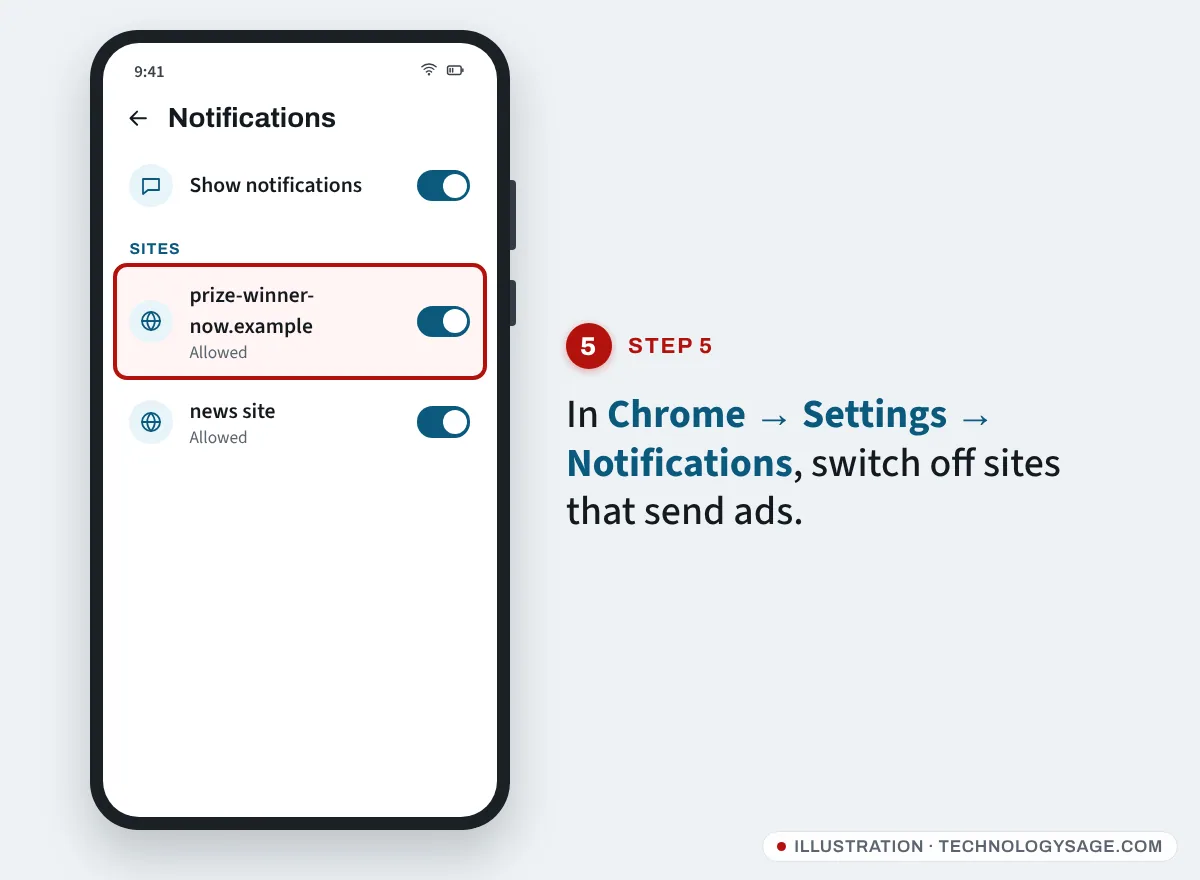
- Open Chrome, tap the three-dot menu, then Settings.
- Tap Notifications (or Site settings → Notifications).
- Find any website you don’t trust and switch it off, or switch off notifications for all sites.
- Back in Site settings, check that Pop-ups and redirects is blocked and that the Intrusive ads (or Ads) setting is set to block ads on sites that show intrusive or misleading ads.
If you use Samsung Internet or another browser, open its settings and look for Notifications in the site or privacy settings to do the same. Our older guide on turning off Chrome notifications on Windows covers the desktop version.
Step 6: Scan with Google Play Protect
- Open the Play Store app.
- Tap your profile picture, then Play Protect.
- Tap Scan. Remove anything it flags as harmful.
- Make sure Scan apps with Play Protect is turned on in the settings (gear icon).
Play Protect is built into Android on phones with Google Play, so you don’t need a separate antivirus app to do this. For more on cleaning up an infected phone, see how to remove viruses from Android.
Step 7: Turn off ads built into your phone’s software
Some brands show their own ads and “recommendations” on the lock screen, in notifications or inside system apps. These are not viruses, and you can usually switch them off. Menu names change between software versions, so if a path doesn’t match, search Settings for the words in bold.
Samsung Galaxy
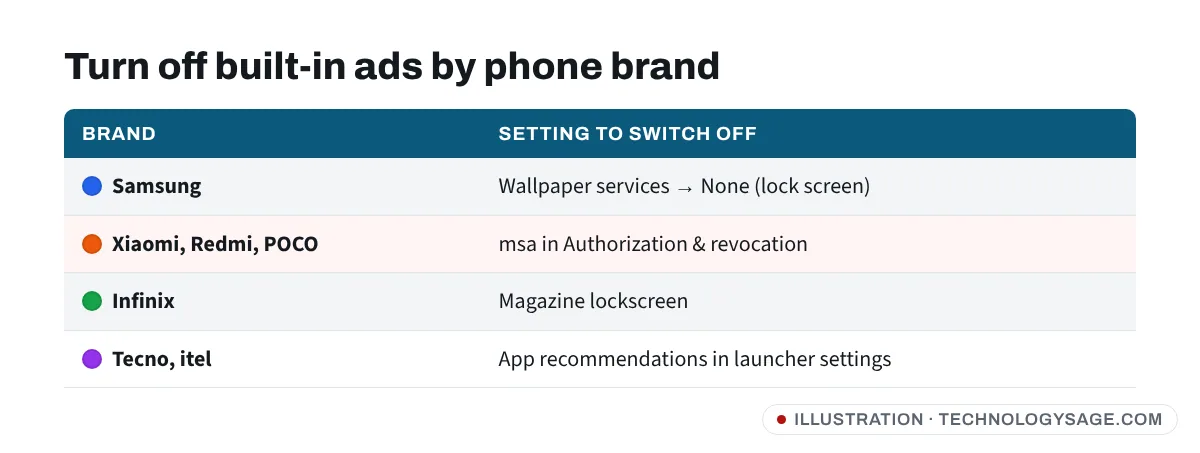
- Lock screen ads: on Galaxy phones that come with Glance (common on some budget models in certain countries), open Settings → Wallpaper and style → Wallpaper services and choose None. Samsung’s own support also mentions the Samsung Global Goals app’s lock screen option, which you can switch off in that app.
- Pop-ups over apps: Samsung says it doesn’t place pop-up ads on Galaxy phones, so these come from a third-party app: use Steps 1-4.
Xiaomi, Redmi and POCO (MIUI and HyperOS)
- System ads: go to Settings → Passwords & security (or Fingerprints, face data and screen lock, depending on version) → Authorization & revocation, switch off msa and confirm with Revoke. If it doesn’t stick the first time, try again.
- Personalised ads: Settings → Privacy (or Additional settings) → Ad services → switch off Personalized ad recommendations.
- Lock screen: switch off Wallpaper Carousel (or Glance, on some phones) in the lock screen settings.
- System apps: turn off recommendations or Show ads inside Downloads, Themes, Music, File Manager, Security and App vault settings.
Tecno, Infinix and itel
- Lock screen wallpapers with ads: switch off Magazine lockscreen (Infinix XOS) or the equivalent lock screen wallpaper service in Settings → Lock screen or the wallpaper settings.
- App suggestions in the app drawer: long-press the home screen, open the launcher’s settings (sometimes Other settings) and turn off application recommendation or similar.
- Ad notifications from system apps: long-press the ad notification, see which app sent it (for example the brand’s app store or a “hot apps” folder), and turn off that app’s notifications.
On any brand, long-pressing a notification and turning off the sending app’s notifications is the fastest way to silence a pushy system app.
Still seeing pop-up ads?
- Ads only inside one app or game: that’s how free apps make money. Look for a paid ad-free version, or uninstall the app.
- Ads came back after a few days: an app you reinstalled, or a second adware app, is still there. Repeat Safe mode and check Display over other apps again.
- Fake “your phone is infected” pages: close the tab, don’t install anything it suggests, and clear Chrome’s history and site data.
- Last resort: factory reset. Back up photos, chats and files first. After the reset, you’ll need the Google account and password that was on the phone (Factory Reset Protection). Only reset your own phone. Then reinstall apps from the Play Store one by one, skipping the one you suspect.
A word on safety: never tap Allow on a website’s notification prompt unless you trust the site, install apps only from the Play Store or your brand’s official store, and ignore pop-ups claiming you’ve won a prize or that your phone is infected. If an ad asked for your Google password or a payment and you entered it, change your password from another device. Our guide to a hacked WhatsApp account also covers securing your phone after a scam.
FAQ
Why do I suddenly get ads popping up on my phone?
Usually because of an app you installed recently, often a free utility or game, or a website you allowed to send notifications. Check Safe mode, recent apps and Chrome’s notification settings.
How do I find which app is showing pop-up ads?
When the ad appears, open Recent apps and look at the icon or name on the ad’s card, then tap it for App info. You can also check Display over other apps (Samsung: Appear on top) for apps that shouldn’t have it.
How do I get rid of ads on my lock screen?
On Samsung, set Settings → Wallpaper and style → Wallpaper services to None. On Xiaomi, turn off Wallpaper Carousel or Glance; on Infinix and Tecno, turn off Magazine lockscreen in the lock screen or wallpaper settings.
Do ad blocker apps work on Android?
Some browsers have a built-in ad blocker (Samsung Internet, for example), but they only block ads in that browser. They don’t stop adware apps. Removing the app causing the ads is the real fix.
Will a factory reset remove pop-up ads?
Yes, if the ads came from an installed app. It also erases everything else, so back up first, have your Google account password ready, and don’t reinstall the suspicious app afterwards.