In this guide
The trick to a Gemini photo editing prompt that keeps your face real is to say exactly what must not change. Start every prompt with a line like “Keep my face, facial features, skin tone and hairstyle exactly the same as in the photo”, then describe one change at a time: the background, the outfit or the lighting. Upload a clear, front-facing photo in good light, and make further edits in the same chat instead of starting again.
Gemini’s image model is nicknamed Nano Banana. It’s what powers the viral trends (retro saree portraits, figurines, polaroids with celebrities), and it works in the free Gemini app on Android. Below are prompts you can copy, plus the settings that matter.
Before you start
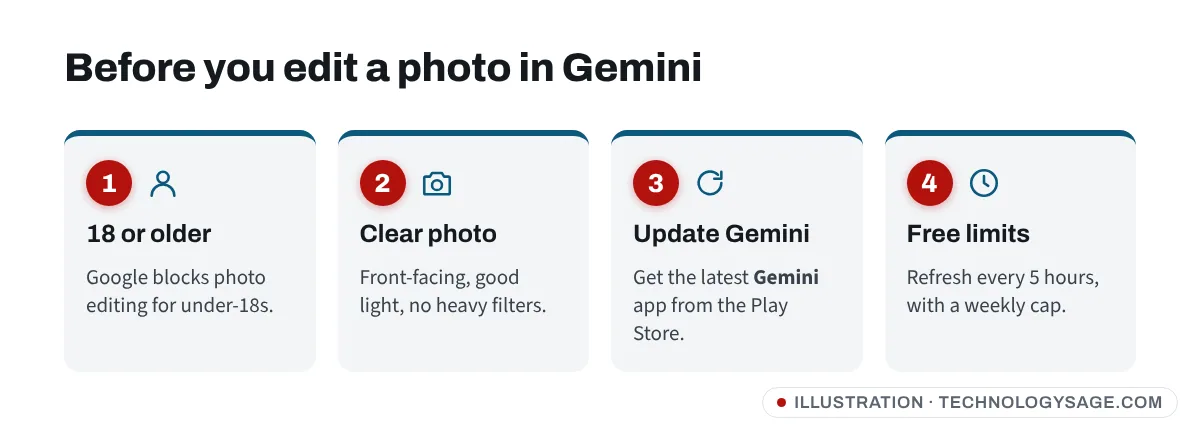
- You must be 18 or older. Google’s help page says editing images isn’t available to users under 18, and school accounts may have extra restrictions.
- Use a good source photo: face clearly visible, looking at the camera, no heavy filters, no sunglasses, decent light. A blurry WhatsApp-compressed photo gives a blurry, less accurate result.
- Update the Gemini app from the Play Store. On many Android phones, Gemini is already installed; if not, install Google Gemini.
- Limits: free accounts get “standard” usage, which Google says refreshes every 5 hours up to a weekly cap. Google AI Plus doubles it and AI Pro quadruples it. Exact numbers aren’t published and change often (as of November 2026). If you hit the cap, Gemini tells you when it refreshes.
How to edit a photo with Gemini on Android
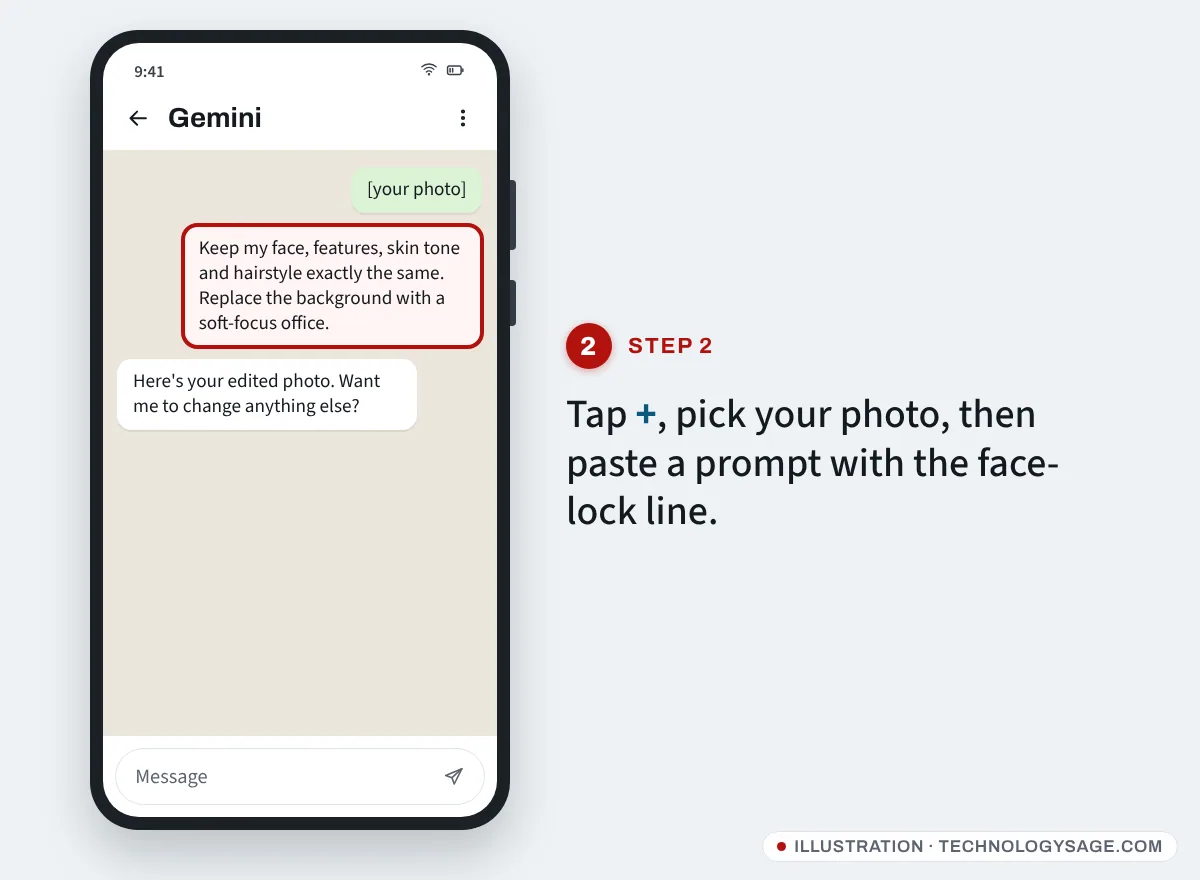
- Open the Gemini app and start a new chat.
- Tap + and choose Gallery (or Photos) and pick your picture.
- Paste one of the prompts below and send it.
- When the image appears, tap it, then use the download icon to save it to your phone.
- To refine it, reply in the same chat: “Same image, but make the background darker.” Gemini keeps the person more consistent when you edit step by step in one conversation.
With a paid Google AI plan, you can also tap More → Redo with Pro on an image to regenerate it with the more detailed Nano Banana Pro model.
The face-lock line to add to every prompt
Paste this at the start of any prompt:
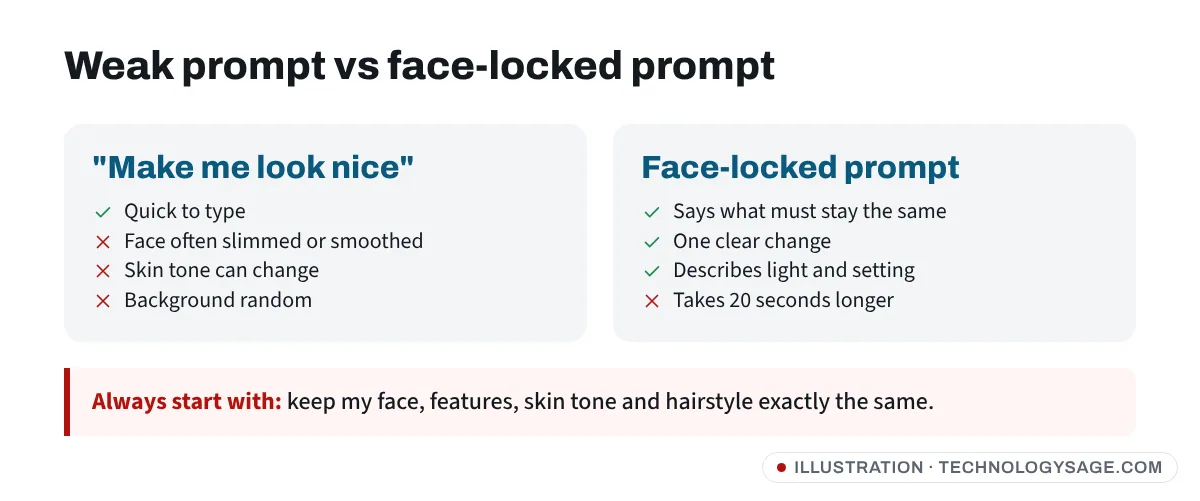
Keep my face, facial features, skin tone, hairstyle and expression exactly the same as in the uploaded photo. Do not slim, smooth or reshape my face. Keep it photorealistic.
Why it works: Google’s own prompting tips say to be specific about what to change and to say explicitly what should stay the same. Gemini can keep a person’s likeness across new poses and backgrounds, but Google also notes it isn’t always perfect, so check every result.
Prompts you can copy
Add the face-lock line above to each one.
Change the background
Replace the background with a clean, softly blurred office with warm light. Keep my clothes, pose and lighting on my face the same.
Professional headshot (CV, LinkedIn)
Turn this into a professional headshot: navy blazer over a white shirt, plain light-grey studio background, soft even lighting, sharp focus on the eyes, head and shoulders framing.
Retro saree portrait trend
Create a 1990s Bollywood-style portrait: a flowing red chiffon saree, warm golden-hour light, soft grain, a plain textured wall behind me, cinematic mood.
3D figurine trend
Create a realistic 1/7 scale collectible figurine of the person in the photo, standing on a round clear acrylic base on a desk, with the figure’s packaging box behind it.
Fix a bad photo
Fix the lighting so my face is evenly lit, reduce the harsh shadows, correct the white balance, and remove the person in the background. Do not change anything else.
New outfit, same you
Change my outfit to a green and gold agbada (or: a smart kente-print dress / a cream kurta) suitable for a wedding. Keep my pose and the background the same.
Graduation or birthday card
Put me in a black graduation gown and cap in front of a university building on a sunny day, holding a rolled certificate. Leave space at the top for text.
Tips that make a big difference
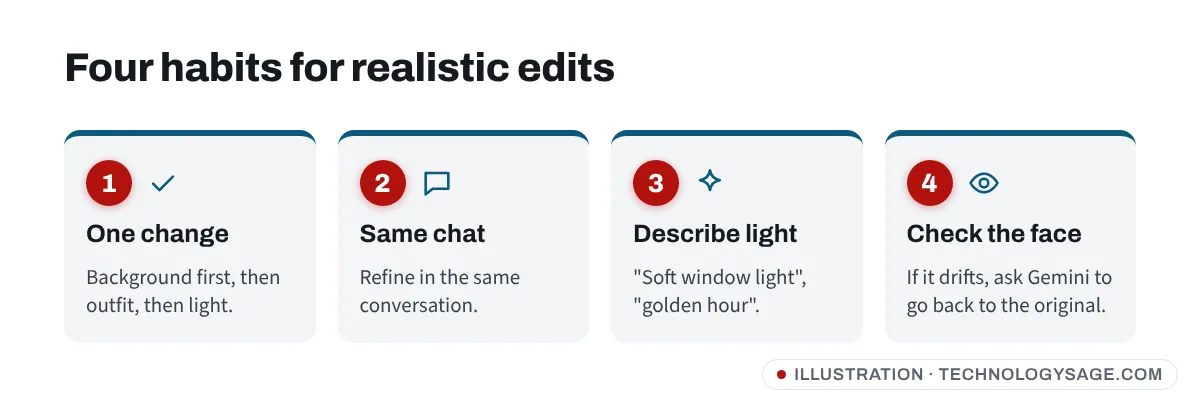
- One change at a time. “Change the background” then “now change the shirt” works better than one long list.
- Describe light and camera: “soft window light”, “85mm portrait lens”, “golden hour”. It makes results look like photos, not paintings.
- Say what to keep: pose, clothes, background, glasses, beard, hijab, braids. If something keeps changing, mention it by name.
- Avoid “make me look better” or “beautiful”. Vague beauty words are what make faces slimmer, lighter or smoother.
- If the face drifts, reply: “Your last image changed my face. Go back to the original photo and only change the background.”
If it doesn’t work
- “I can’t help with editing images of people” or a refusal: check you’re 18+, signed in with a personal Google account, and not on a school account. Some edits of real people (especially public figures or children) are blocked by Google’s policies.
- No + button or image option: update the Gemini app and the Google app from the Play Store.
- Image looks like someone else: use a sharper, front-facing photo and add the face-lock line. Try again in a new chat if one conversation has drifted too far.
- Limit reached: wait for the refresh time Gemini shows, or check Settings → Usage limits in the app.
- Low-quality download: save the image from the Gemini app, not a screenshot.
Privacy and honesty
- Only edit photos you have permission to use. Don’t edit pictures of friends, exes or strangers without their consent, and never make images that embarrass or sexualise someone.
- Your uploads may be stored with your Gemini activity. You can review or delete them in your Gemini Apps Activity; our guide on how to turn off Gemini shows where those settings are.
- Gemini adds an invisible SynthID watermark to images it creates or edits. That’s how tools can tell an image was made with Google AI; see is this image AI?.
- Be careful with “Gemini prompt” APKs and websites that ask you to upload photos or log in with Google. Use the official Gemini app or gemini.google.com.
If you’d rather use an editor with manual controls, see our list of photo editing apps for Android. And if your phone is full of downloaded edits, free up storage on Android.
FAQ
Is Gemini photo editing free?
Yes, the free Gemini app can edit photos with Nano Banana within standard usage limits. Paid Google AI plans raise the limits and add Redo with Pro. See is Gemini free for what each plan includes.
Why does Gemini change my face?
Usually because the prompt didn’t say what to keep, the photo is blurry or side-on, or the chat has had many edits. Add the face-lock line and use a clear, front-facing photo.
Can I use Gemini photo editing on WhatsApp?
Not inside WhatsApp itself. Edit in the Gemini app, save the image, then share it to WhatsApp. Meta AI in WhatsApp has its own image tools; see Meta AI image generator.
What is Nano Banana?
It’s the nickname for the image model inside Gemini. Google’s help pages list Nano Banana 2 (used by default) and Nano Banana Pro (for more detailed redos on paid plans).
Are these prompts the same in ChatGPT?
The face-lock idea works in any AI image tool, but results and limits differ. See ChatGPT image limit for free alternatives.