In this guide
When Facebook asks you to confirm your identity, it has temporarily locked your account because it noticed something unusual, such as a login from a new place or device. To unlock it, log in on a phone or computer you have used before, tap Get started or Continue, and complete the check Facebook offers: a code sent to your email or phone, a photo of your ID, or a short video selfie. Then change your password and review where you are logged in.
The lock is a safety measure, not a ban. Your posts and photos are still there. This guide explains each verification option, what to do when it keeps failing, and how to avoid the fake “Facebook support” numbers that fill search results for this problem.
Locked or disabled? Check which one you have
These look similar but need different fixes:
- Locked / “Confirm your identity” / “We noticed unusual activity”: a security check. You unlock it yourself by completing the steps on screen. This guide covers it.
- “Your account has been disabled” or “We suspended your account”: Facebook believes the account broke its rules. You need to appeal using the option on that screen, not a security check.
- Someone changed your password, email or phone number: your account has been taken over. Go straight to our Facebook hacked recovery guide, which starts at facebook.com/hacked.
Why Facebook locks accounts
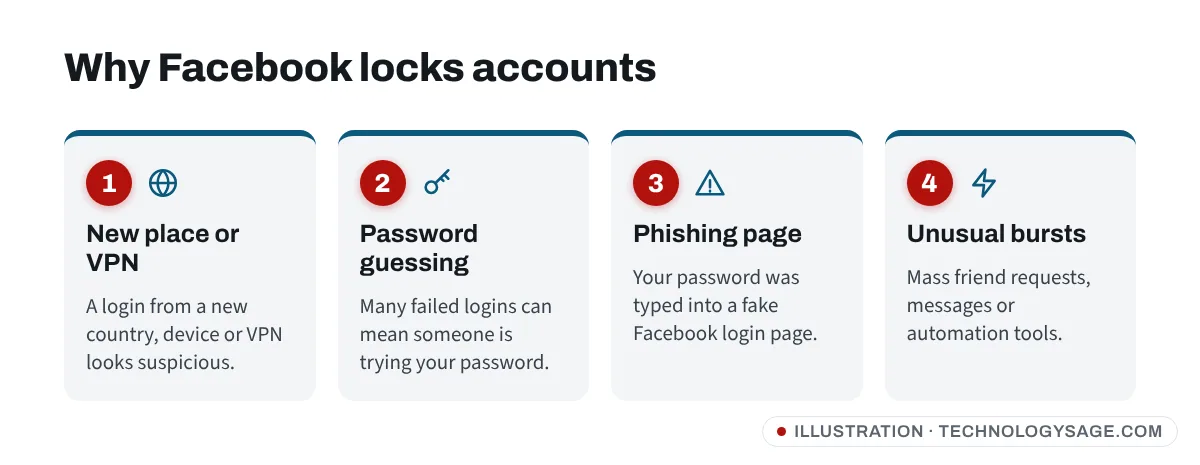
Facebook can lock an account when it sees:
- A login from a new country, a new device or a VPN.
- Many failed password attempts, which can mean someone is guessing your password.
- Your password being typed into a fake Facebook login page (phishing).
- Sudden bursts of activity, such as sending many friend requests or messages, or using automation tools.
- Signs that your password was leaked in another site’s data breach.
Sometimes the lock happens even when the login really was you, for example after buying a new phone or travelling.
How to unlock your account step by step
Step 1: Use a familiar device and connection
Before you start, switch to a phone or computer you have logged into Facebook with before, on your usual Wi-Fi or mobile data. Turn off any VPN. Facebook trusts devices it recognises, and this alone can make the check simpler.
Step 2: Start the security check
- Open the Facebook app or go to facebook.com and log in with your email or phone number and password.
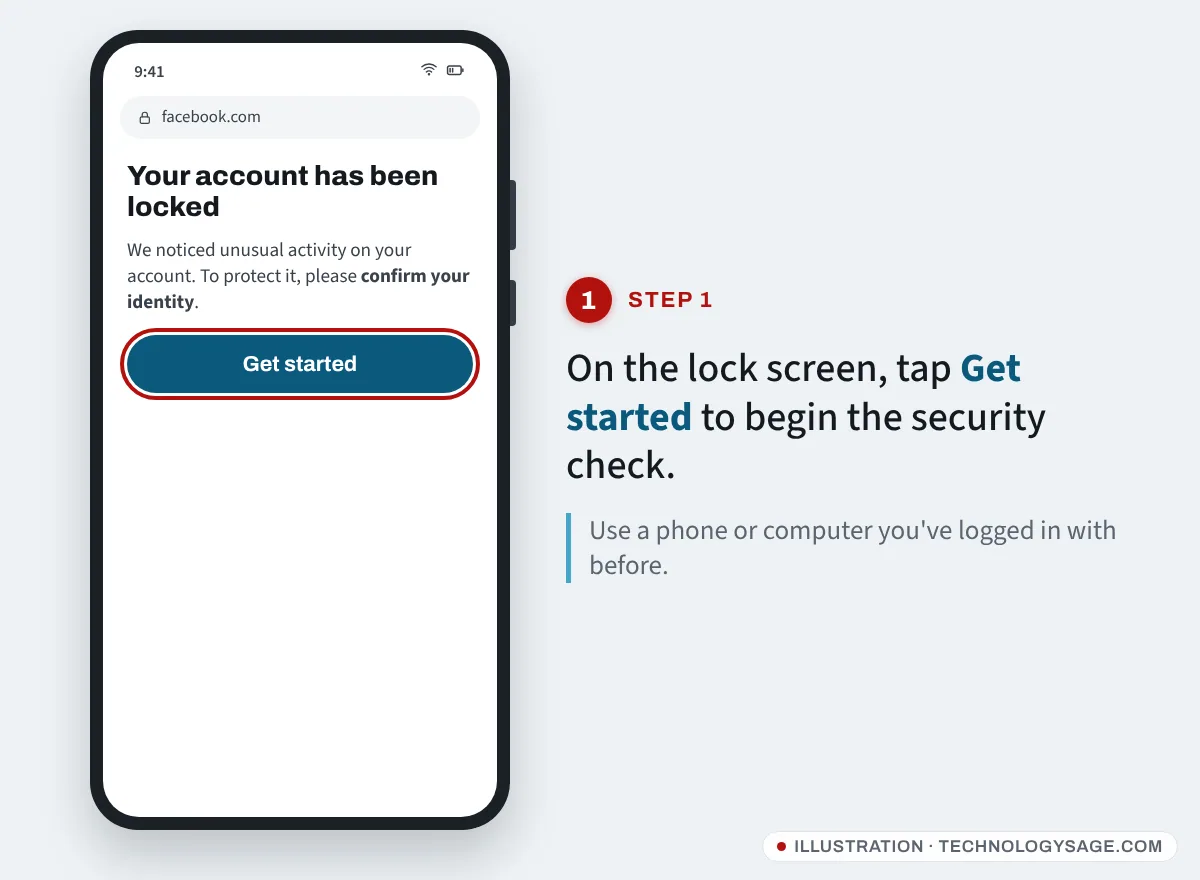
- On the Your account has been locked or Confirm your identity screen, tap Get started or Continue.
- Facebook may show you recent logins it thinks are suspicious and ask whether they were you. Answer honestly. If you do not recognise a login, say so.
Step 3: Choose a way to confirm it’s you
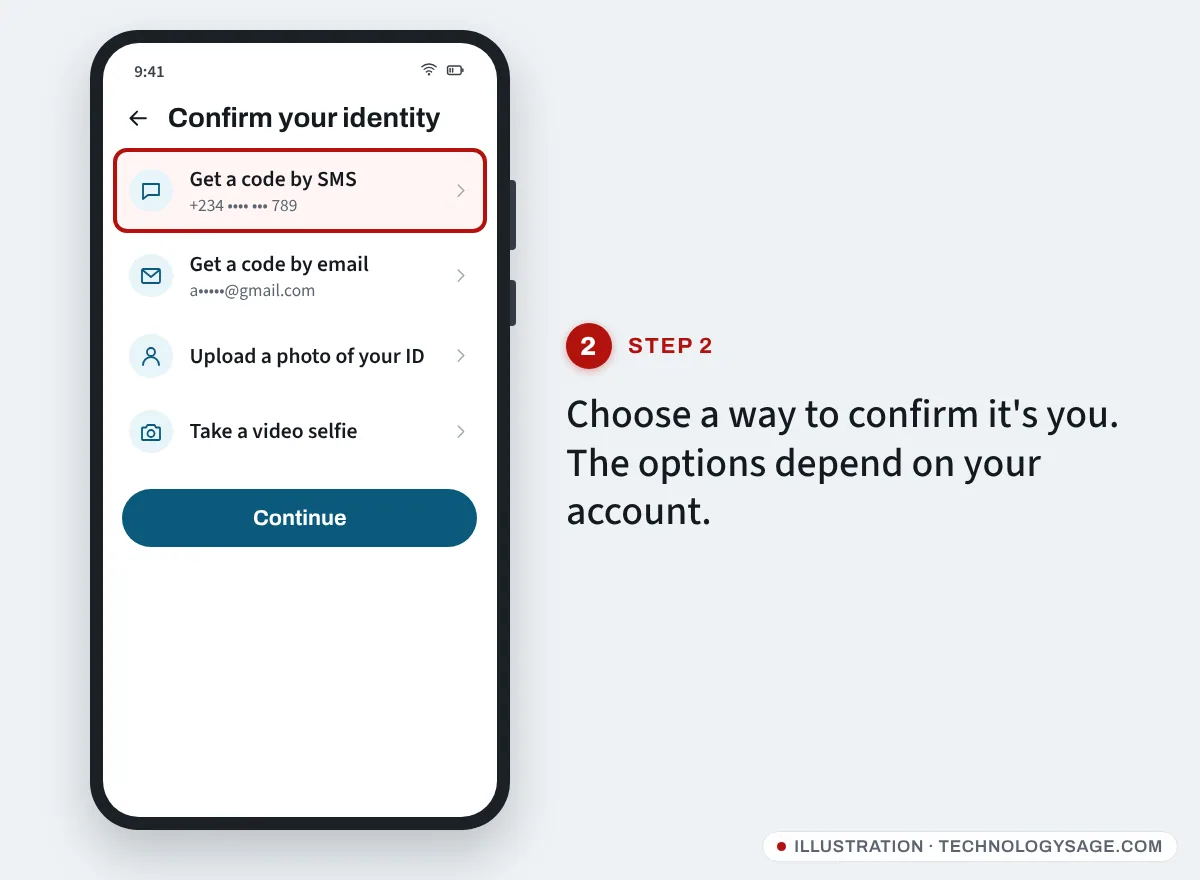
Facebook chooses which options to offer based on your account and situation, so you may not see all of these:
- Get a code by SMS or email. Pick a phone number or email already on your account. Enter the code exactly as received. Only use a code you asked for just now.
- Upload a photo of your ID. Use an original, in-date government ID that shows your name and date of birth. Meta lists the types of ID it accepts, which vary by country. Take the photo in good light with all four corners visible; blurry photos are often rejected. You can cover details that are not needed, such as an ID number, as long as your name, date of birth and photo stay visible.
- Take a video selfie. Facebook asks you to turn your head in different directions. It compares the video with photos on your account, so this works best if your profile has clear photos of your face.
- Approve from a logged-in device. If you are still logged in on another phone or computer, you may be able to approve the login there.
Step 4: Wait for the review
Codes work instantly. ID and video selfie checks are reviewed, and Facebook does not publish a fixed time; it can be a day or two or longer. Check your email (including spam) and the Facebook app for updates. Do not submit the same ID many times in a row; repeated uploads do not speed things up.
Step 5: Secure the account once you’re back in
- Change your password to one you do not use anywhere else.
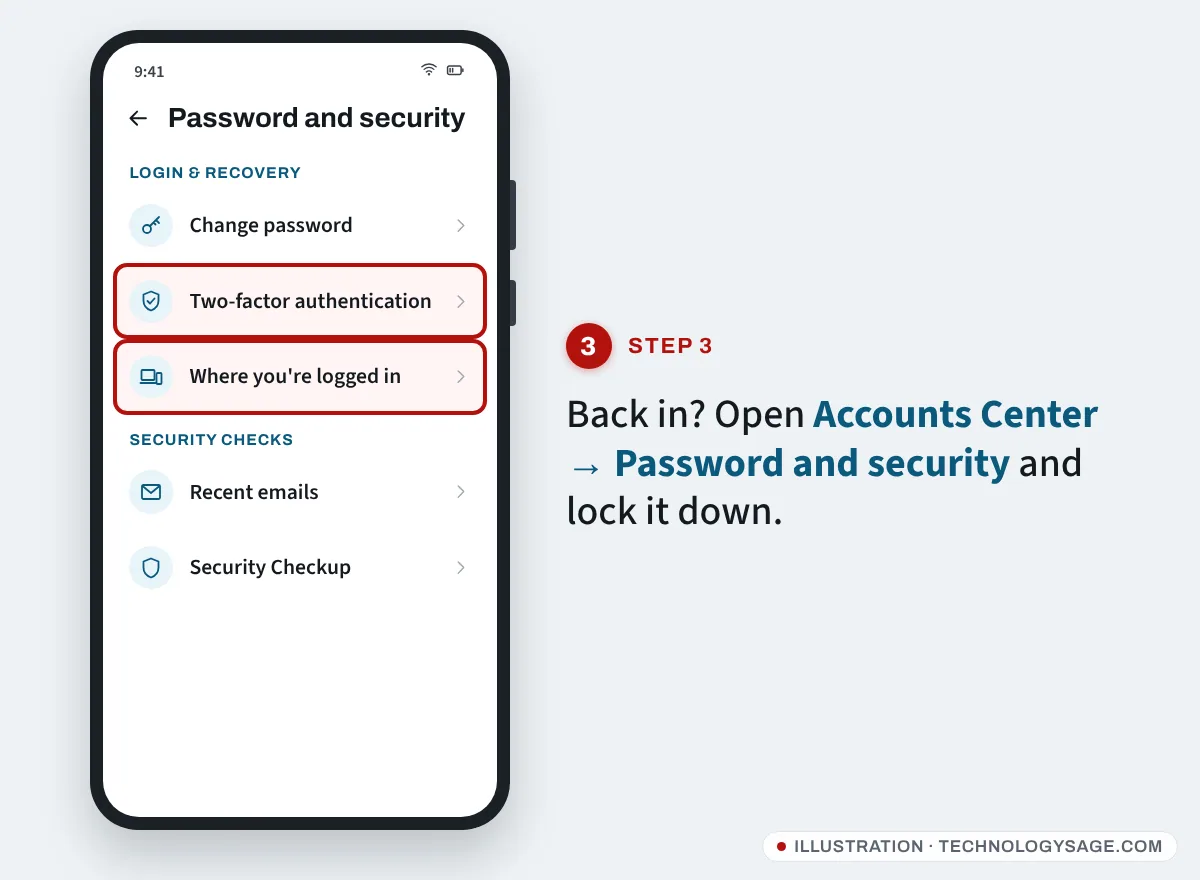
- Go to Settings & privacy → Settings → Accounts Center → Password and security → Where you’re logged in and log out of any device you don’t recognise.
- Turn on Two-factor authentication in the same Password and security section.
- Check that your email address and phone number in Accounts Center → Personal details are still yours.
Our tips on protecting your Android phone from hackers are worth a read too, because a hacked phone can leak your Facebook login again.
Avoid “unlock services” and fake support numbers
Search results for this problem are full of pages listing a “Facebook support phone number” and social media accounts offering to “unlock” or “recover” your profile. They are scams. Facebook does not unlock accounts over the phone, and nobody outside Meta can bypass the identity check for you.
- Never pay anyone to unlock your account, whether by bank transfer, mobile money, airtime, crypto or gift cards.
- Never send your password, login codes or ID photos to a person on WhatsApp, Telegram, Instagram or email. Upload ID only inside Facebook’s own screens.
- Ignore comments under your posts from “hackers” who say they recovered someone’s account. They are fake.
- If an email claims to be from Facebook, check it in Accounts Center → Password and security → Recent emails before clicking anything.
Meta’s genuine help is at facebook.com/help, and recovery for hacked accounts is at facebook.com/hacked.
If it doesn’t work
- The code never arrives: check that you chose the right number or email, wait a few minutes, and look in spam. If your old number is no longer yours, choose another option.
- “We couldn’t confirm your identity”: try again from a device you have used before, on your usual network, after a day or so. Make sure the name on your ID matches your Facebook name.
- Your profile has no photos of you: the video selfie may fail. Use the ID option instead if it is offered.
- You’re stuck in a loop back to the same screen: clear the Facebook app’s cache (Settings → Apps → Facebook → Storage → Clear cache on most Android phones) or try a web browser instead of the app.
- The lock turned into “disabled”: follow the appeal option shown on that screen.
- Your Instagram is affected too: see Instagram hacked and email changed, since many people use the same password on both.
FAQ
How long does a Facebook identity lock last?
The lock stays until you complete the check. If you sent an ID or video selfie, the review time varies and is not published by Facebook.
Can I unlock Facebook without ID?
Often, yes. If Facebook offers a code to your email or phone, or approval from a logged-in device, you will not need ID. The options depend on your account.
Is it safe to upload my ID to Facebook?
Upload it only inside the official Facebook app or facebook.com, never to a person messaging you. You may cover details that are not needed for the check.
Why does Facebook keep locking my account?
Repeated locks usually mean your password has leaked, someone keeps trying to log in, or you use a VPN or automation app. Change your password, turn on two-factor authentication and stop using third-party “auto-like” tools.
Can I call Facebook to unlock my account?
No. Facebook does not offer phone support for account locks. Any number claiming to be Facebook support is a scam.