In this guide
To check if an image is AI, save it to your phone, open the Gemini app, attach the photo and ask “Is this AI-generated?” Gemini looks for Google’s invisible SynthID watermark and any Content Credentials in the file. Then run the photo through Google Lens or Circle to Search to find where it first appeared. No tool can prove every image is real or fake, so combine these checks with your own eyes.
This matters most for photos forwarded on WhatsApp, Facebook and Telegram: fake “breaking news” pictures, edited screenshots, and too-good-to-be-true product or job adverts.
Before you start: what these checks can and can’t do
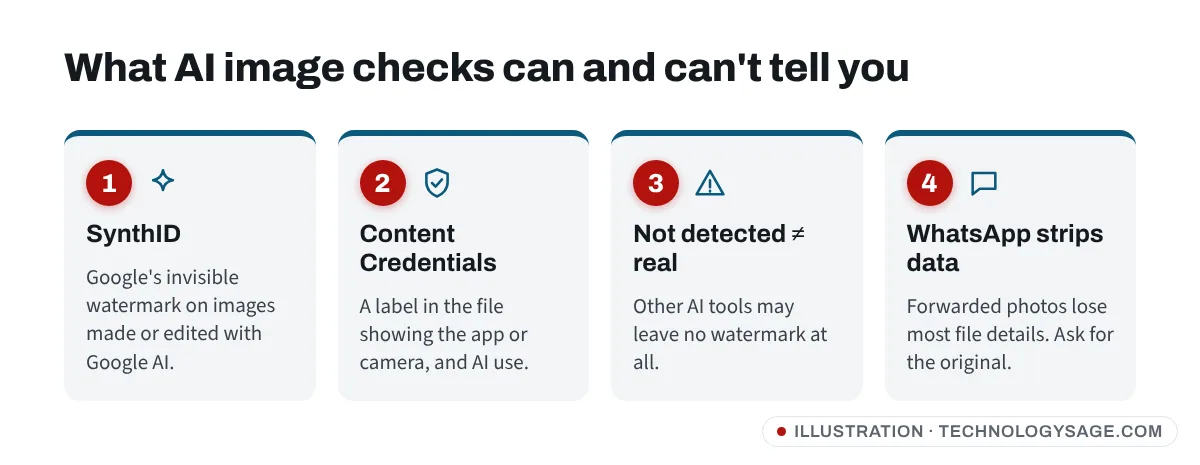
- SynthID is an invisible watermark Google puts into images, video and audio made or edited with its AI tools. Google said in May 2026 that partners including OpenAI and Nvidia are joining SynthID, so more AI tools should carry it over time.
- Content Credentials (the C2PA standard) are a label stored in the file that records which camera or app made it and whether AI was used. Many phones and apps add them, but social media apps often strip them out.
- “Not detected” doesn’t mean real. Google’s own help page says that if no SynthID watermark is found, the image wasn’t made by Google AI, but it could still come from another AI tool.
- WhatsApp compresses photos and removes most file information. A screenshot of a screenshot loses even more. Ask the sender for the original file if you can.
Step 1: Save the photo
- In WhatsApp, open the photo and tap ⋮ → Save (on some phones, photos save to your gallery automatically).
- If the image is inside a post or video, take a screenshot and crop tightly around the picture. Google advises not to upload collages or screenshots with lots of other content around the image.
Step 2: Ask Gemini if it’s AI-generated
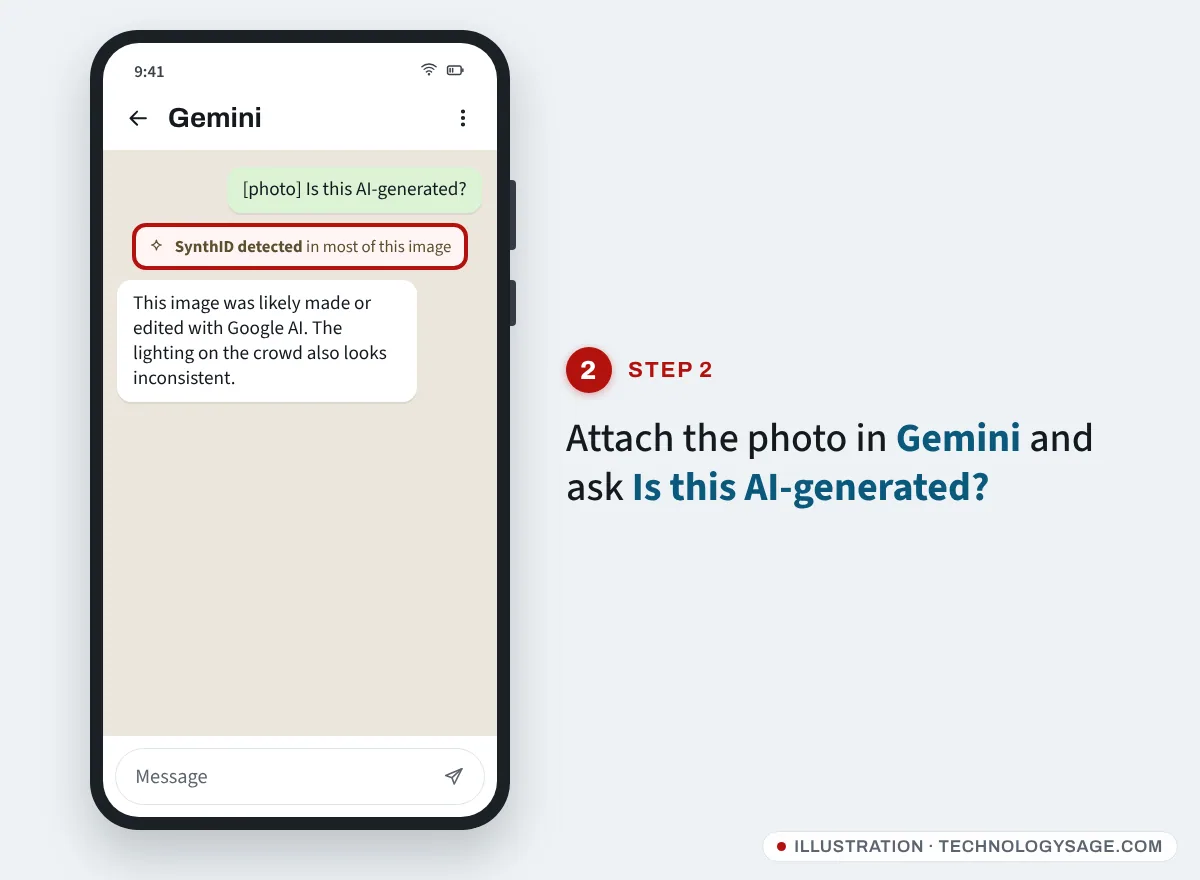
- Open the Gemini app (or go to gemini.google.com in your browser) and sign in with your Google account.
- Tap + (Add files) and choose the photo from your gallery or Google Photos.
- Type Is this AI-generated? or Was this created with Google AI? and send.
- Read the answer:
- SynthID detected: all or part of the image was made or edited with Google AI.
- Not detected: not made with Google AI, but another AI tool could still have made it.
- Content Credentials found: Gemini shows who signed the file, its edit history and whether AI tools were used.
- Unclear: often means the edit was too small, or the image is too small or too compressed to check.
As of November 2026, Google’s help page lists a limit of about 10 image checks, 10 video checks and 10 audio checks per rolling 24 hours, one file at a time, up to 100 MB. Videos must be under 90 seconds. Content Credentials checks work on the web and in the Android app. Limits can change.
Checking a video
The same steps work for a short clip: attach it and ask “Is this video AI-generated?” Gemini tells you which parts carry a SynthID watermark. For a long video, trim the part you care about first.
Step 3: Use Google Lens or Circle to Search
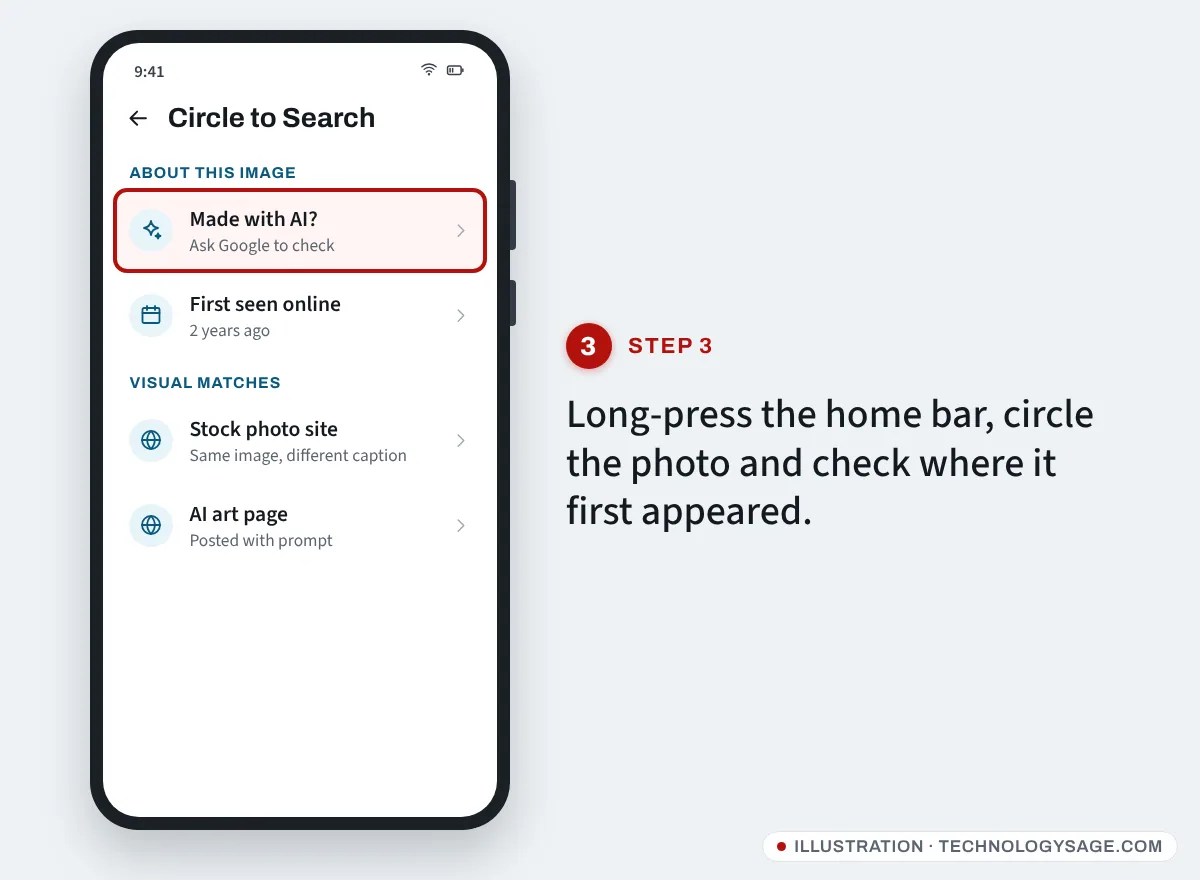
A reverse image search often settles it faster than any detector: if the “breaking news” photo first appeared two years ago on a stock-photo site or an AI art page, you have your answer.
- Circle to Search (many Samsung, Pixel and newer Android phones): with the photo on screen, long-press the home button or navigation bar, then circle the image.
- Google Lens: open the photo in Google Photos and tap the Lens icon, or open the Google app and tap the camera icon in the search bar.
- Scroll the results. Look for:
- Older copies of the same picture, especially with a different caption.
- The original source, such as a news agency, the photographer, or an AI art account.
- An About this image or AI label. Since May 2026, Google has been adding SynthID and Content Credentials checks to Lens, AI Mode and Circle to Search, so you can also ask “Was this made with AI?” there.
Step 4: Look for the tell-tale signs
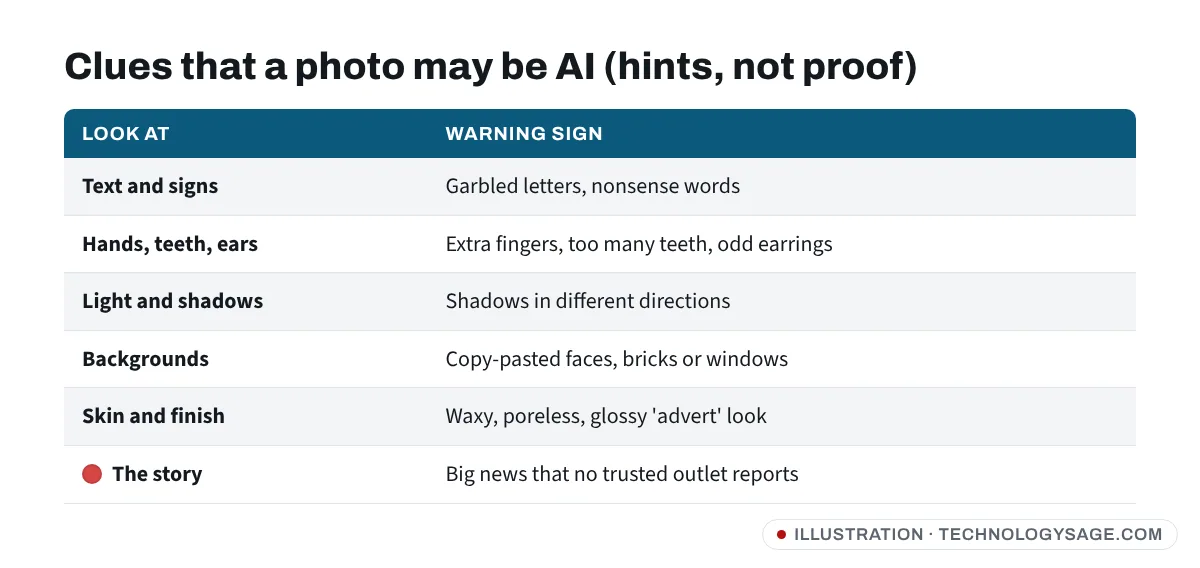
AI images have improved a lot, so these clues are hints, not proof. Zoom in and check:
- Text and signs: garbled letters, nonsense words on shop signs, number plates or T-shirts.
- Hands, teeth and ears: extra or merged fingers, too many teeth, earrings that don’t match.
- Lighting and shadows: shadows pointing different ways, or a face lit differently from the background.
- Repeating patterns: identical faces in a crowd, copy-pasted bricks, leaves or windows.
- Too perfect: waxy, poreless skin, and a glossy “advert” look on what claims to be a phone snapshot.
- The story: a dramatic photo that no major news outlet is reporting is a red flag on its own.
Step 5: Check the file details (original files only)
If someone sends you the original file (as a document on WhatsApp, or by email), its metadata can help:
- In Google Photos, open the photo and swipe up to see the date, camera model and location if they were kept.
- A photo that claims to be from a phone but has no camera details at all isn’t proof of AI, because many apps strip them, but a file that names an AI app or editor tells you a lot.
If you still can’t tell
- Remember screenshots can be faked too. Fake chat screenshots are easy to make (see how fake WhatsApp chats are made), and images can even hide other images (hiding two images in one on WhatsApp).
- Ask the sender where it came from. Real photographers and news outlets can usually tell you.
- Check trusted fact-checkers and major news sites in your country before you share.
- Don’t forward it with “is this true?” Forwarding spreads it either way. If it’s a scam, like a fake giveaway or a fake celebrity endorsement, report it in the app.
- Be careful with “AI detector” websites and apps. Independent tests have found many of them unreliable, and some only want you to upload photos or pay. Our guide on why AI detectors flag real writing explains the same problem with text.
Safety note: AI-generated photos are now common in romance scams, fake job adverts and “send money” messages that use a family member’s face. If a picture is being used to ask you for money, an OTP code or your password, stop and call the person on a number you already know. If your WhatsApp has already been taken over, see WhatsApp hacked: what to do.
FAQ
Can Gemini detect images made by ChatGPT or Meta AI?
Only partly. Gemini reliably detects Google’s SynthID watermark. It can read Content Credentials that other tools add, and Google says more companies, including OpenAI, are joining SynthID. A “not detected” result is not proof the image is real.
Is there a free app to check if a photo is AI?
The Gemini app and Google Lens are free and are the most practical options on Android. Third-party “AI image detector” apps exist, but their results vary a lot, so don’t treat any one score as final.
Does WhatsApp remove AI watermarks?
WhatsApp compression strips most file metadata, including Content Credentials. SynthID is designed to survive resizing and compression, though heavy editing can make detection fail.
How do I check if a video is AI-generated?
Upload a clip under 90 seconds to the Gemini app and ask if it was made with AI. Also look for warped faces, blurry teeth, lip movements that don’t match the words, and objects that change shape between frames.
Are AI images always fake?
Not always. Many are honest art, adverts or edits. The problem is when an AI image is presented as a real event. If you edit your own photos with AI, see Gemini photo editing prompts, and consider saying so when you share them.