In this guide
To turn off Gemini on Android, open Settings → Apps → Default apps → Digital assistant app and change the default assistant to None (or to another assistant such as Bixby on Samsung). Then turn off Hey Google in the Gemini app, change what happens when you hold the power button, and switch off Gemini Apps Activity (now called Keep Activity) if you don’t want your chats saved.
That stops Gemini from popping up when you hold the power button, say “Hey Google” or swipe from a corner. You can also delete the Gemini app on most phones, but deleting it alone doesn’t change your default assistant, so do the first step either way.
Can you switch back to Google Assistant?
Probably not for long. Google has been replacing Google Assistant with Gemini on Android phones during 2025 and 2026. If your Gemini app still offers it, you can switch:
- Open the Gemini app and tap your profile picture (or the menu).
- Tap Switch to Google Assistant, choose Google Assistant, then tap Switch.
On many phones this option is gone, and you’ll only see Gemini. Workarounds you’ll find online (such as uninstalling Google app updates) are temporary and can break other features, so this guide focuses on turning Gemini off instead.
Step 1: Remove Gemini as your default assistant
This is the main switch. It stops Gemini from opening with the power button, the home button or a corner swipe.
Pixel, Motorola, Nokia, Tecno, Infinix, itel and most other phones
- Open Settings → Apps.
- Tap Default apps. (On some Tecno and Infinix versions this is under App management or similar; you can also search Settings for digital assistant.)
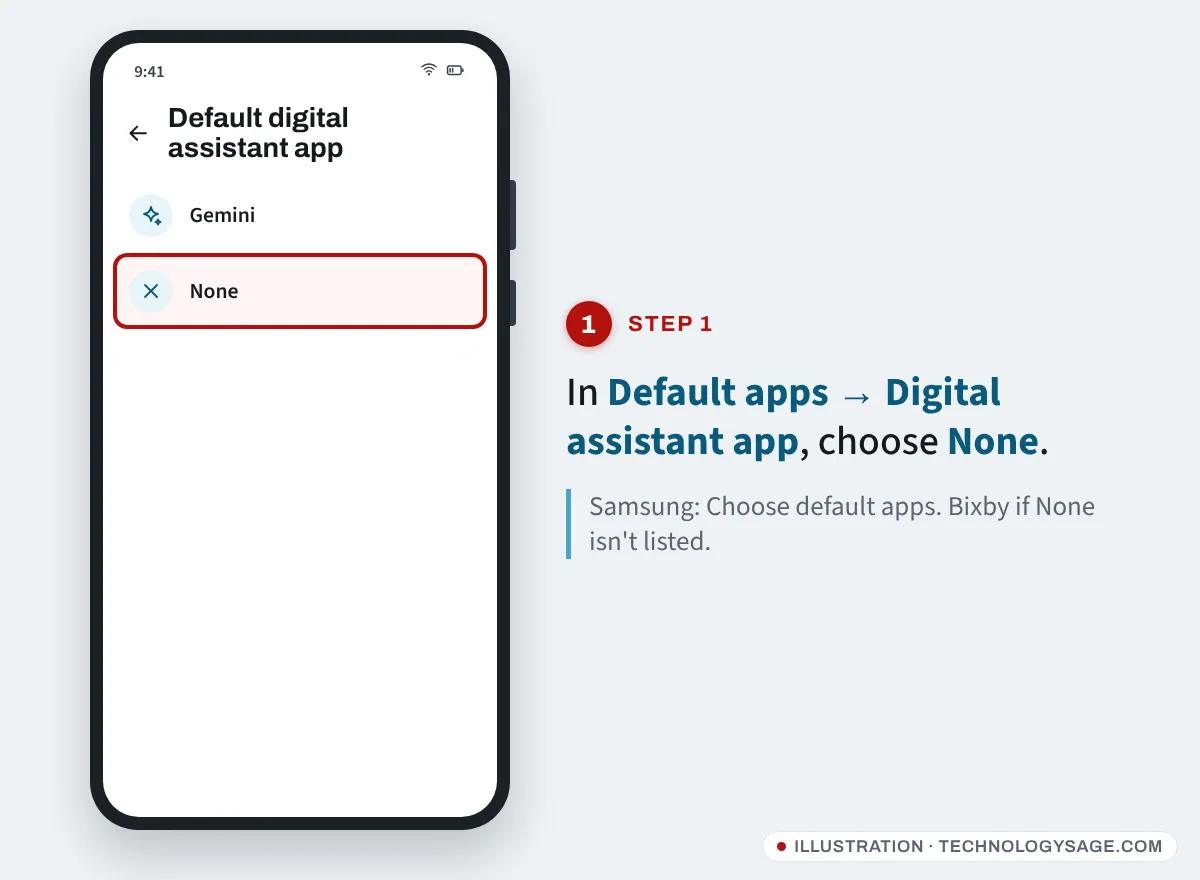
- Tap Digital assistant app, then Default digital assistant app.
- Select None.
Samsung Galaxy (One UI 7 and 8)
- Open Settings → Apps → Choose default apps.
- Tap Digital assistant app, then tap Digital assistant app (or Device assistance app) again.
- Choose None if it’s listed. On some recent Galaxy models None isn’t offered; choose Bixby instead, which keeps Gemini out of the way.
Samsung sometimes resets the default assistant after a big One UI update, so check this setting again after updating.
Step 2: Change what the power (side) button does
On many phones, holding the power button opens the assistant. Change it back so it shows the power menu.
Samsung (One UI 7 and later):
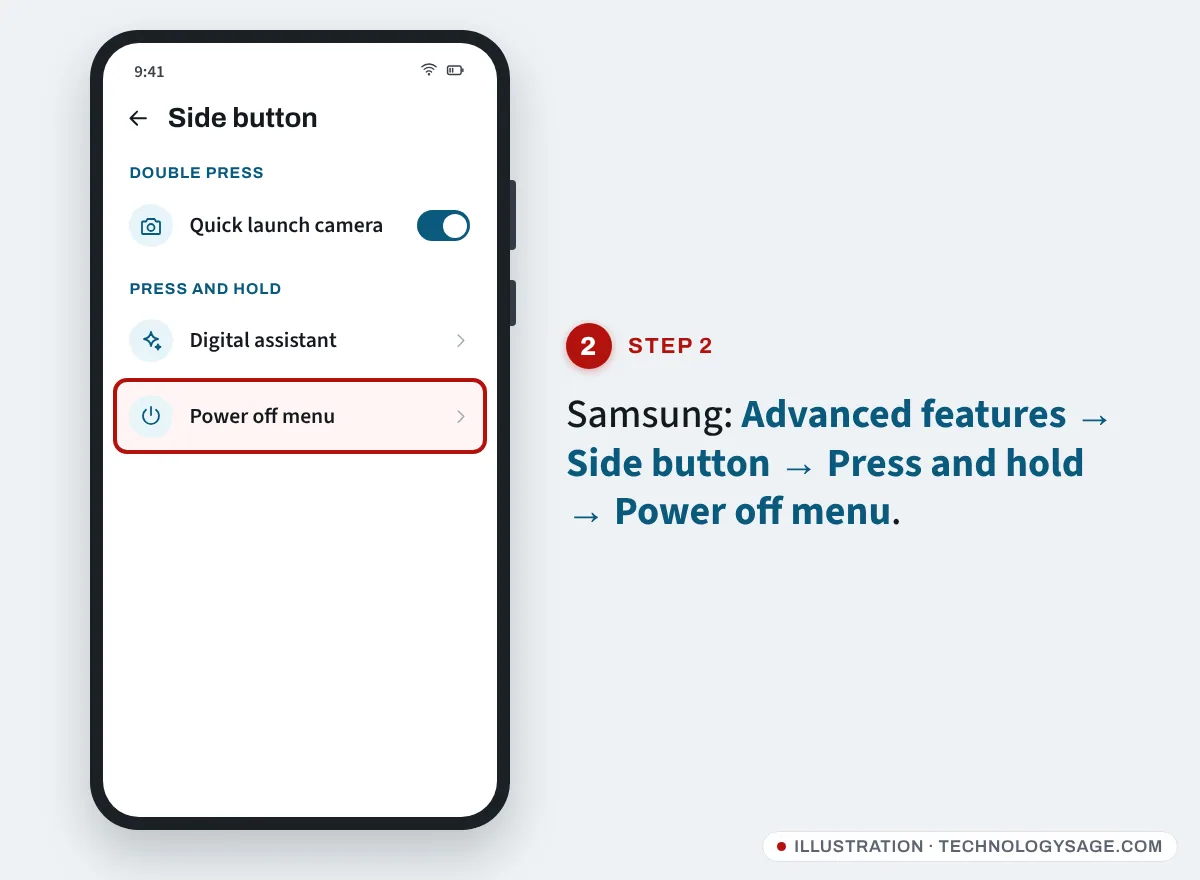
- Open Settings → Advanced features → Side button.
- Under Press and hold, choose Power off menu.
From One UI 7, Samsung set the long-press to open Gemini by default on many phones, so this step matters. If you keep the assistant on the button, you can still switch off with Side + Volume down or the power icon in the quick panel.
Pixel and stock Android:
- Open Settings → System → Gestures.
- Tap Press and hold power button and choose Power menu.
Tecno, Infinix and itel: search Settings for power button or power key and set it to show the power menu. The location varies by HiOS, XOS and itelOS version.
Step 3: Turn off “Hey Google”
If you’ve used voice activation before, Gemini may still listen for “Hey Google”.
- Open the Gemini app.
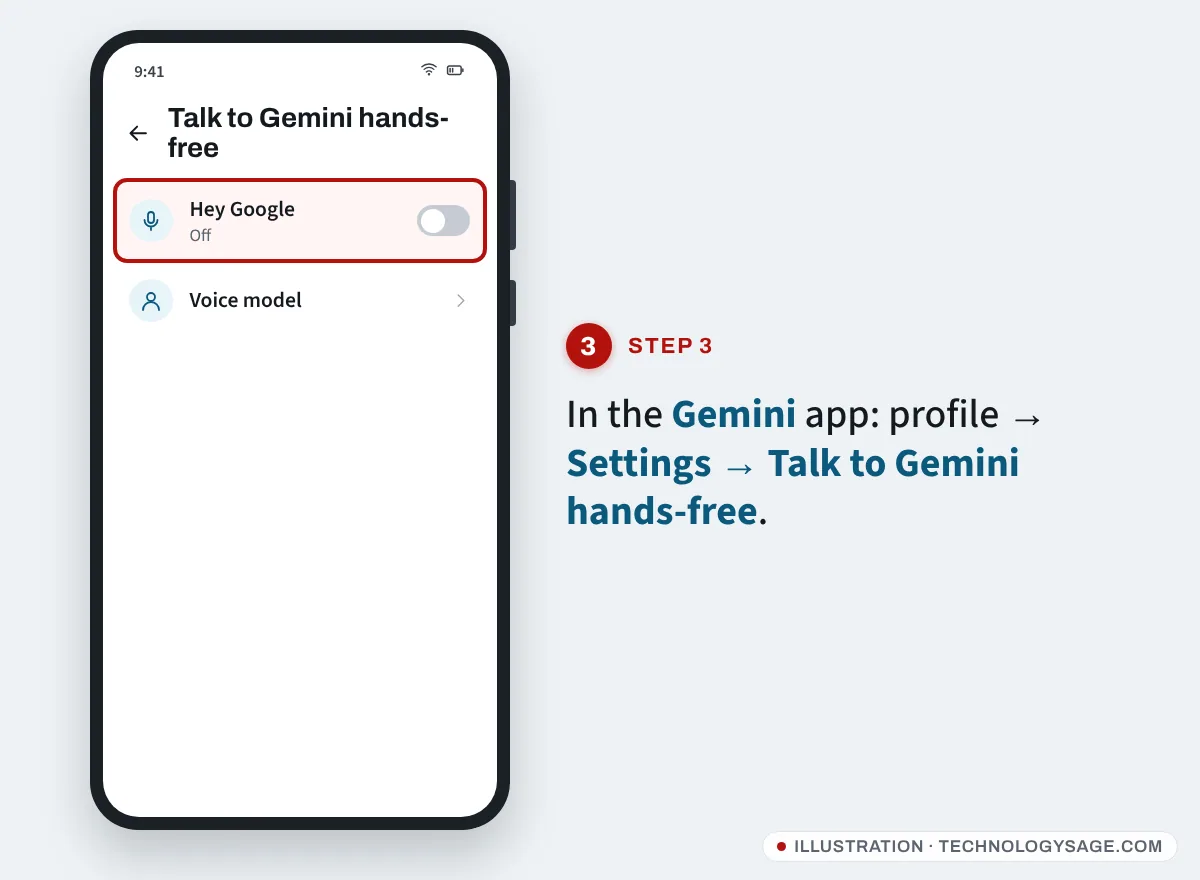
- Tap your profile picture → Settings.
- Tap Talk to Gemini hands-free (on some versions, Google Assistant/Hey Google & Voice Match).
- Turn off Hey Google.
While you’re in the Gemini settings, open Gemini on lock screen and turn off Use Gemini without unlocking so nobody can use it on your locked phone.
Step 4: Turn off and delete Gemini activity
By default your Gemini chats are saved to your Google account.
- In the Gemini app, tap your profile picture.
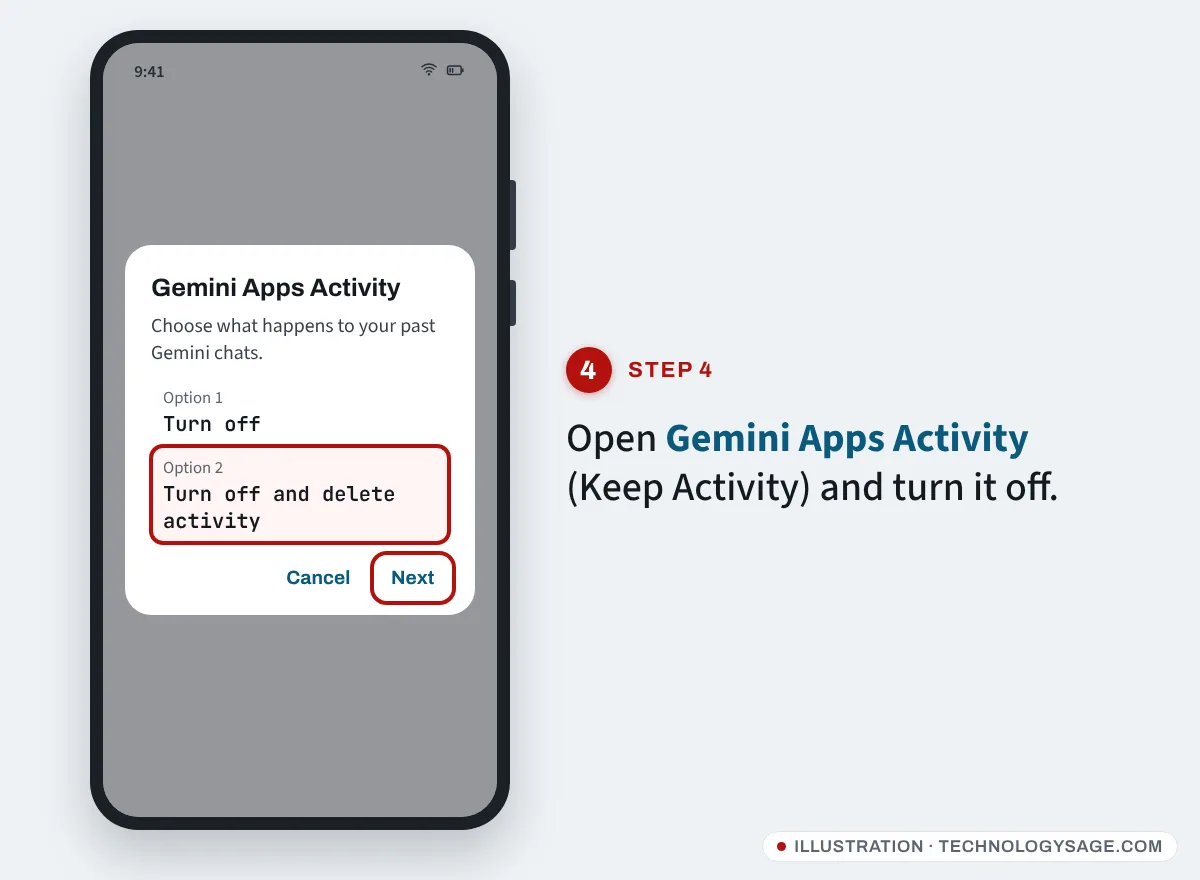
- Tap Gemini Apps Activity (Google renamed the setting Keep Activity; some menus still use the old name).
- Tap Turn off, or Turn off and delete activity to also remove past chats.
You can do the same in a browser at Google’s My Activity page for Gemini. Google says that even with activity off, chats are kept with your account for up to 72 hours to provide the service; they aren’t shown in your activity.
Step 5 (optional): Delete or disable the Gemini app
On most phones you can remove the Gemini app like any other app:
- Long-press the Gemini icon and tap Uninstall, or open it in the Play Store and tap Uninstall.
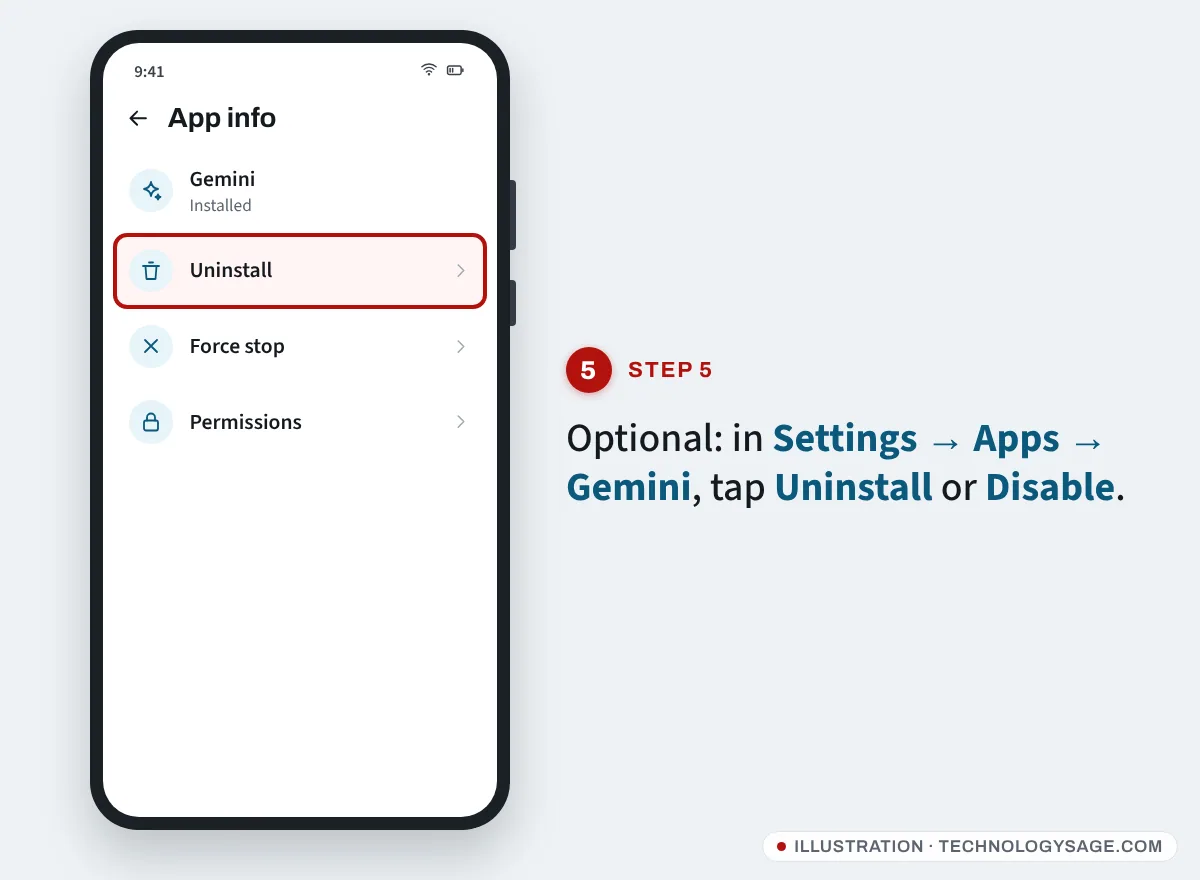
- If Uninstall isn’t available (it’s preinstalled on some Pixel, Samsung and other phones), open Settings → Apps → Gemini and tap Disable or Uninstall updates.
Gemini’s features are partly built into the main Google app, so removing the Gemini app doesn’t remove every AI feature. Don’t disable the Google app itself; it also powers search, Discover and other features many phones rely on.
Gemini in other apps
Gemini also appears inside Gmail, Google Messages, Chrome and Google Docs. Those are controlled separately in each app’s settings (for Gmail, under its “smart features” settings). Turning off the assistant in the steps above doesn’t change them, and the AI buttons in those apps only run when you tap them.
If it doesn’t work
- Gemini still opens when I hold the power button: check Step 2 again, then Step 1. On Samsung, also check Settings → Advanced features → Side button → Double press, which can be set to open an app.
- Swiping from the bottom corner still opens Gemini: that gesture opens the default assistant; set it to None (Step 1).
- “None” isn’t available: pick another assistant you don’t use (Bixby on Samsung), or disable the Gemini app (Step 5).
- Gemini came back after an update: updates can reset assistant settings. Repeat Steps 1 and 2.
- Can’t find the menus on Tecno or Infinix: use the search bar at the top of Settings and type assistant or power button.
Also, be careful with “Gemini remover” or “AI blocker” apps and APKs. They aren’t needed, and many are adware. Everything above uses the phone’s own settings.
FAQ
Does turning off Gemini delete it?
No. Changing the default assistant only stops Gemini from opening automatically. The app stays installed until you uninstall or disable it (Step 5).
Will turning off Gemini affect Google Search or Circle to Search?
Google Search keeps working. Circle to Search is a separate feature and usually keeps working too, though on some phones it’s tied to the navigation bar or Google app settings.
Is Gemini listening all the time?
Only if Hey Google is on, and then it listens on the phone for the hotword. Turn off Hey Google (Step 3) if you don’t want that.
Does Gemini use a lot of data or battery?
Gemini only uses noticeable data or battery while you’re using it. If you’re trying to cut background use generally, see how to reduce data usage on Android and how to make your Android run faster. If your battery drains fast, check your battery health too.
Can I turn Gemini back on later?
Yes. Reinstall or enable the Gemini app and choose it under Default digital assistant app.