In this guide
To make an AI image in WhatsApp, open your Meta AI chat, type imagine followed by what you want to see (for example “imagine a red bicycle on a beach at sunset, watercolour style”) and send it. Meta AI replies with a picture you can save, forward, or ask it to change. You can also send your own photo and ask Meta AI to edit it, or type @Meta AI imagine… inside any group. It’s free for everyday use as of November 2026.
Image tools are rolling out country by country, so if nothing happens when you type “imagine”, see If it doesn’t work.
What Meta AI can do with images
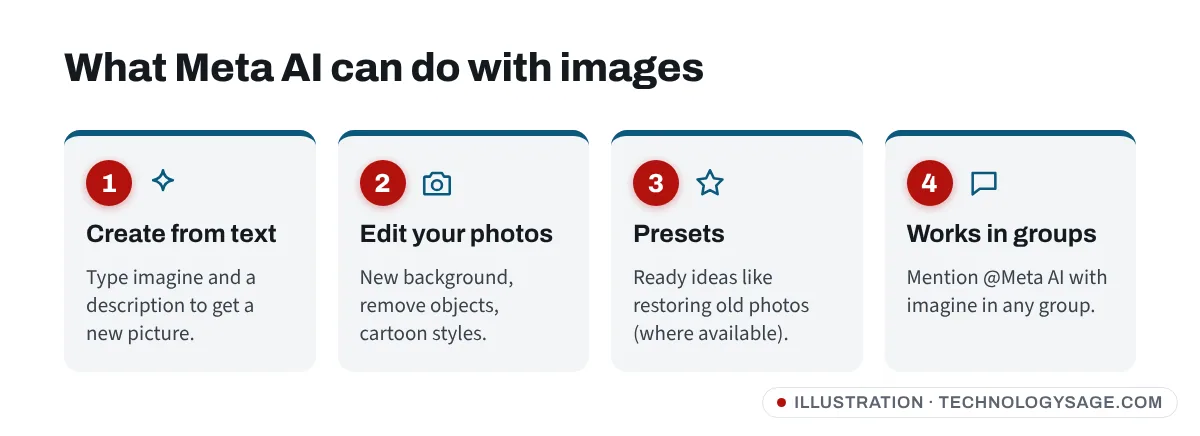
Since July 2026, image creation in Meta AI runs on Meta’s Muse Image model, which Meta says is free for everyday creation and launched in select markets first. Depending on your country and app version, you can:
- Create images from text: logos, cartoons, posters, birthday cards, profile pictures.
- Edit your own photos: change the background, remove an object, or turn a photo into an illustration.
- Use presets: suggested prompts such as restoring an old photo, trying a new hairstyle or turning yourself into an art style.
- Animate some images into short clips (where available).
How to create an image from text
- Update WhatsApp from the Play Store or App Store.
- On the Chats tab, tap the round Meta AI button (or open your Meta AI chat).
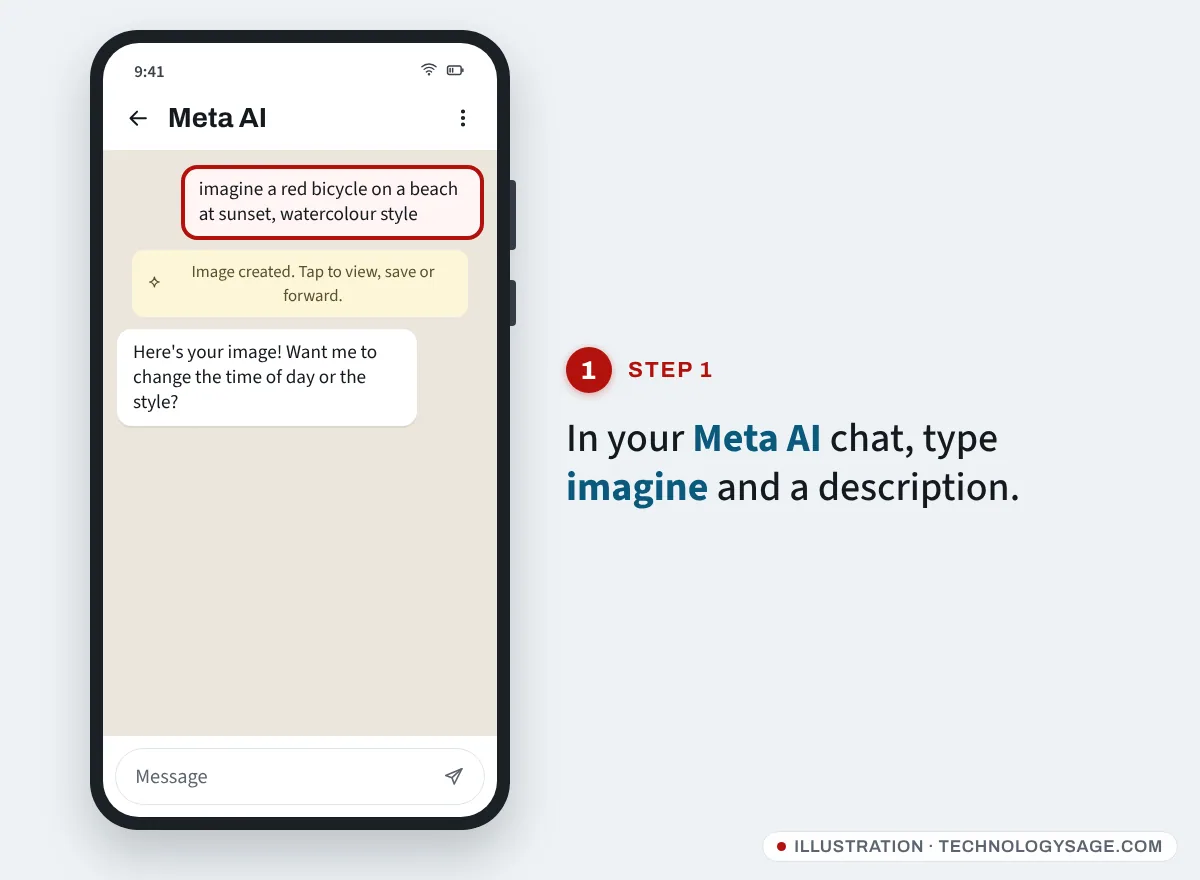
- Type imagine and a description. Be specific about the subject, setting, style and colours.
- Send it. After a few seconds Meta AI sends back an image.
- Tap the image to open it, then use the menu to Save or Forward it.
Tip: “Create an image of…” and “Draw…” also work in newer versions. Older guides mention a live preview that updates as you type; that depends on your version and country.
Prompts that work well
| You want | Try typing |
|---|---|
| A birthday card | imagine a birthday card for my sister Ada, gold balloons, cartoon style |
| A small-business logo | imagine a simple flat logo for “Mama Put Kitchen”, green and orange |
| A profile picture | imagine a friendly robot holding a cup of chai, 3D style |
| A study diagram | imagine a labelled diagram of the water cycle for students |
AI images often get text and spelling wrong, so keep words short or add them yourself in a photo editor.
How to change or improve an image
After Meta AI sends an image, reply in the same chat:
- “Make it night time.”
- “Add a small dog next to the bicycle.”
- “Same picture but in black and white.”
Each change usually produces a new image rather than editing the old one, so details can shift. If it drifts too far, repeat your full original prompt with the change added.
How to edit your own photo
- In your Meta AI chat, tap the attachment (paperclip or +) icon and choose a photo from your gallery.
- Add an instruction: “Change the background to a beach”, “Remove the person on the left”, or “Turn this into a cartoon”.
- Send it and wait for the edited version.
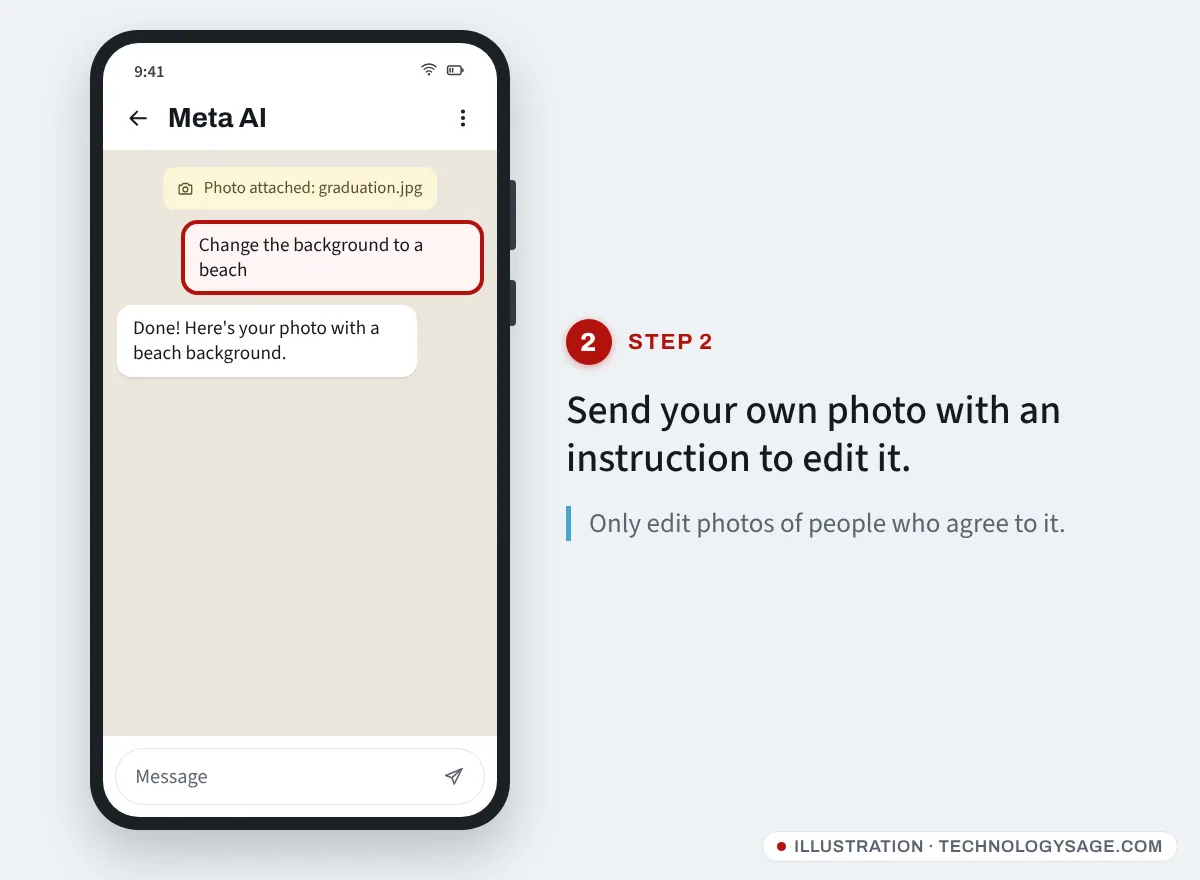
Only edit photos of people who have agreed to it. Making fake, sexual or humiliating images of real people breaks Meta’s rules and is a crime in many countries.
Using Meta AI images in a group
- Open the group chat.
- Type @ and pick Meta AI.
- Add imagine and your description, then send.
Everyone in the group sees the prompt and the image. Meta AI only sees the message you mention it in.
Is it free? Limits and paid plans
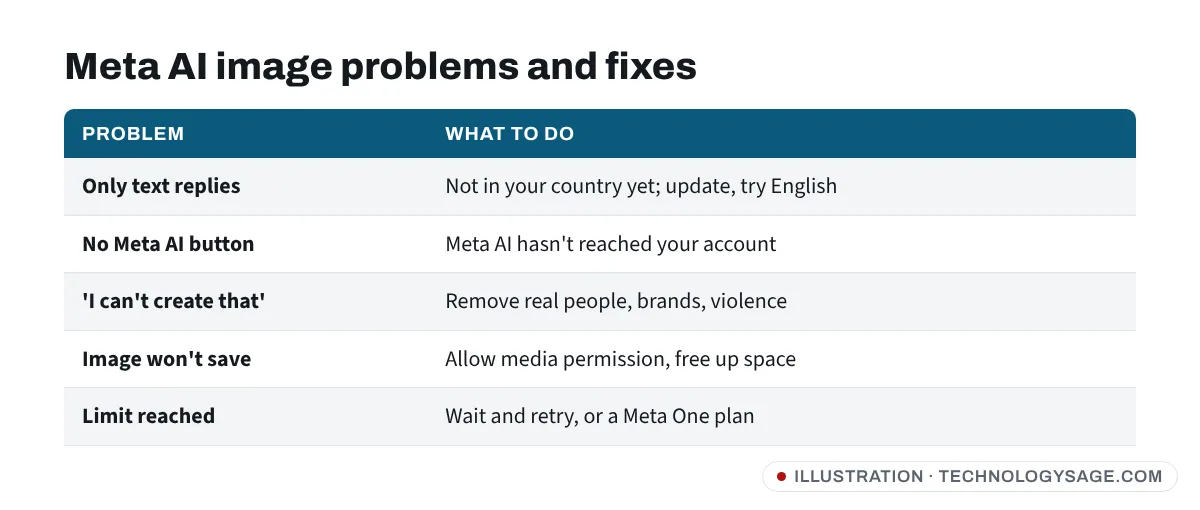
Everyday image creation is free. In September 2026 Meta launched Meta One, with Core ($7.99 a month) and Premium ($19.99 a month) plans in the US that add more image and video generation. If you create a lot, you may see a message that you’ve reached a limit for now; wait and try later, or upgrade if you really need more. Prices and limits vary by country and change often. More on the plans in our Meta AI on WhatsApp guide.
If it doesn’t work
- Nothing happens or you get text only. Image creation isn’t available for your country, language or account yet. Try setting WhatsApp’s language to English and update the app.
- No Meta AI button at all. Meta AI itself hasn’t reached your account; see the fixes in how to use Meta AI on WhatsApp.
- “I can’t create that.” Meta AI blocks some requests: real public figures, violence, nudity, logos of real brands and more. Rephrase without them.
- Image won’t save. Give WhatsApp permission to save media (Settings → Apps → WhatsApp → Permissions → Photos and videos) and make sure your phone has space. Our Samsung storage full guide works on most Android phones.
- Slow or fails. Check your data or Wi-Fi, then try again later. See Wi-Fi connected but no internet if pages won’t load.
Safety tips
- AI images can look real. Don’t pass them off as real photos, especially in news or family groups.
- Be wary of “AI photo” bots from unknown numbers asking for your selfies or payment. The real Meta AI is inside the app and has no phone number.
- To check whether a picture you received was made by AI, see is this image AI?
FAQ
How do I make AI images in WhatsApp?
Open the Meta AI chat, type imagine plus a description and send it. In groups, type @Meta AI imagine and your description.
Is the Meta AI image generator free?
Yes, for everyday use. Meta’s optional Meta One plans add more image and video generation.
Why doesn’t “imagine” work for me?
Image creation hasn’t reached your country, language or account yet. Update WhatsApp and try with English as the app language.
Can Meta AI edit my photos?
Yes, where available. Send a photo to the Meta AI chat and describe the change you want.
Can I use Meta AI images for my business?
You can use them for things like flyers and posts, but check Meta’s terms, avoid copying real brands or people, and remember AI text in images is often misspelt.