In this guide
To check your Infinix warranty, dial *#06# to get your phone’s IMEI, then type that number into the Warranty Check page on the official Carlcare website (carlcare.com) or in the Carlcare app. Carlcare is the official after-sales service for Infinix, Tecno and itel, so its result is the one a service centre will use.
The check is free and takes under a minute. Below is the full process, what each result means, how long Infinix warranties last, and how to claim a repair.
Step 1: Find your Infinix IMEI
The IMEI is a 15-digit number that identifies your phone. Any of these methods works:
- Open the Phone app and dial *#06#. The IMEI appears straight away. Dual-SIM phones show two IMEIs; either one works for a warranty check.
- Or go to Settings → About phone and look for IMEI (on some XOS versions it is under Status or Status information inside About phone).
- Or check the sticker on the side of the original box.
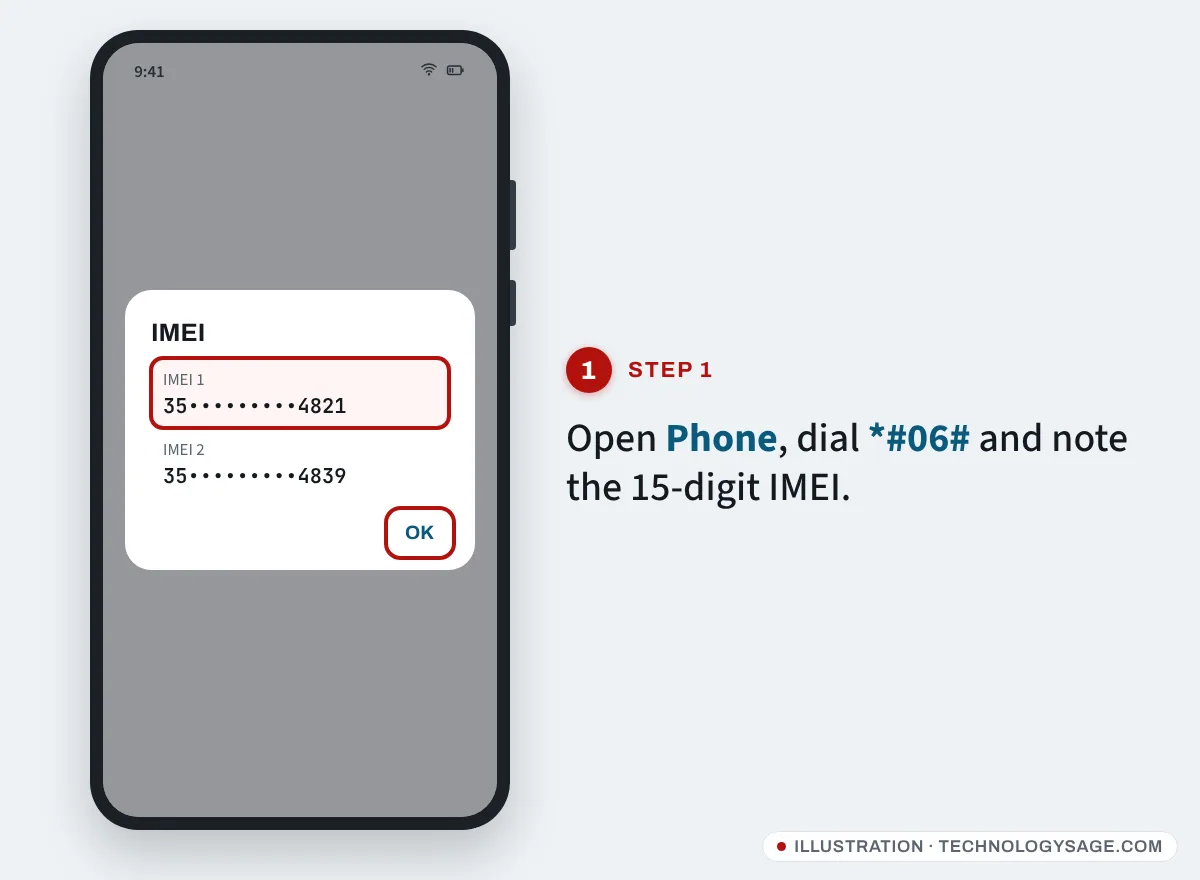
Write the number down or long-press it to copy. Check that the IMEI on the screen matches the box. If they don’t match, the phone may have been repaired with a different board, or it may not be the phone that came in that box.
Step 2: Enter the IMEI on Carlcare’s warranty page
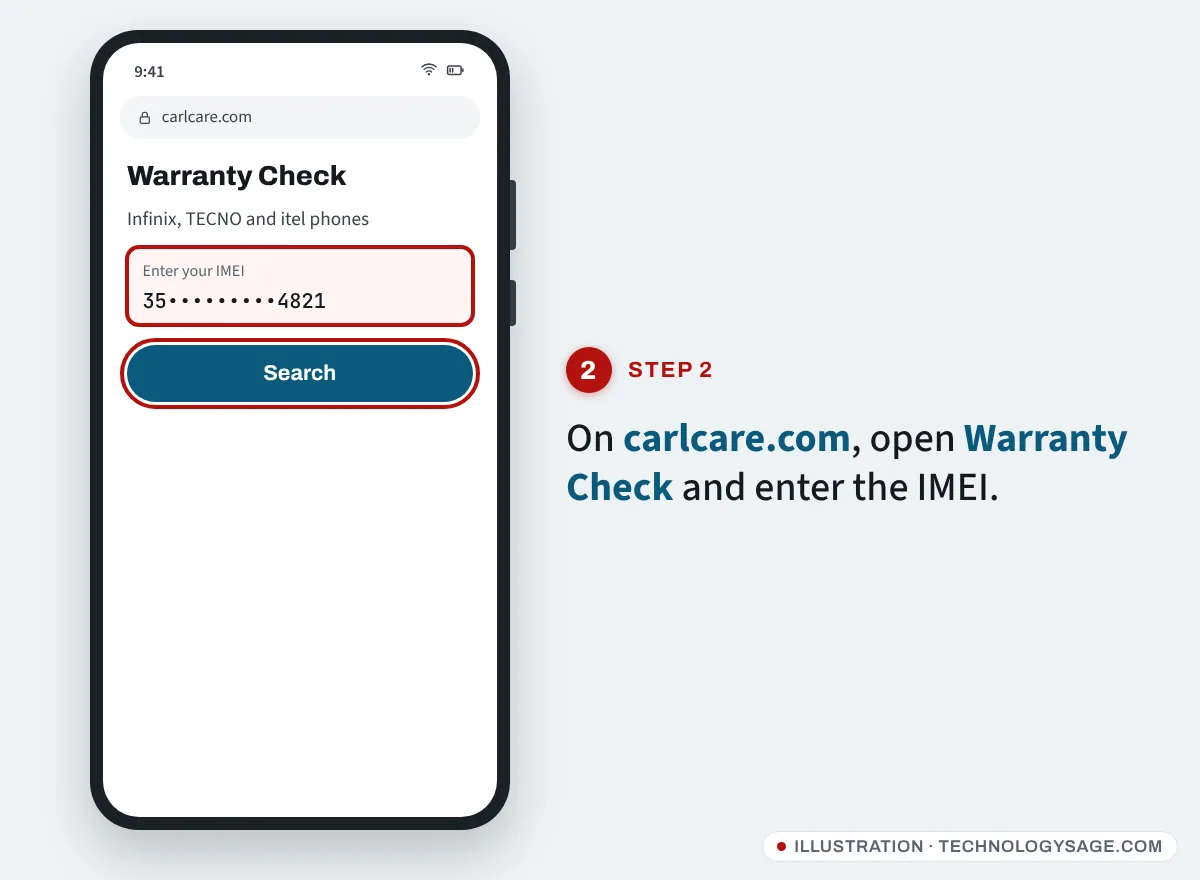
- Open your browser and go to carlcare.com.
- Pick your country or region when asked (it matters, because the warranty terms differ by country).
- Open Repair Service → Warranty Check.
- Type or paste your IMEI into the Enter your IMEI box and tap the search icon.
Only use the carlcare.com site or the official Carlcare app. Third-party “IMEI warranty checker” sites often show made-up dates, harvest your IMEI, or try to sell you something.
Step 3: Read the result
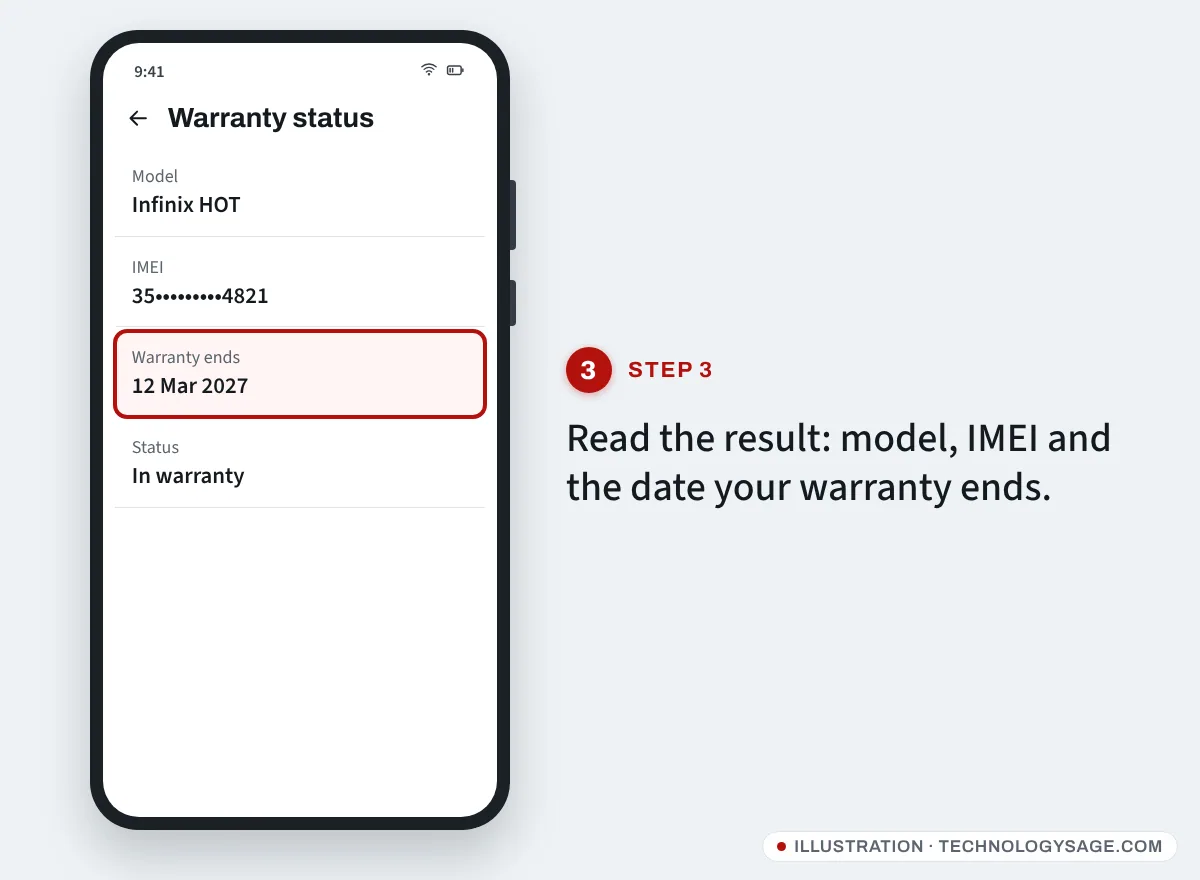
A successful check normally shows your phone model, the IMEI and the date the warranty ends. Here is how to read it:
- Warranty end date in the future: the phone is covered for manufacturing faults until that date.
- Date in the past: the standard warranty has expired. Carlcare will still repair the phone, but you pay for parts and labour.
- “Not found” or “information not available”: the phone’s warranty has not been registered, the IMEI was typed wrongly, or the phone was not sold through an official channel. Re-check the digits first, then contact Carlcare with your receipt.
The electronic warranty usually starts when the phone is first activated, not on the day printed on your receipt. If the date looks too early (for example, the phone sat in a shop for months), bring your purchase receipt and warranty card to the service centre and ask them to correct it.
Check the warranty in the Carlcare app
Many Infinix phones come with the Carlcare app pre-installed. If yours doesn’t, it is a free download from Google Play (published by Transsion Holdings). Check the developer name before installing; there are unrelated apps with similar names.
- Open Carlcare and allow it to read the device information it asks for.
- Look for the warranty or e-warranty card section on the home screen. The app reads the IMEI of the phone it is installed on, so you don’t need to type it.
- From the same app you can find the nearest service centre, book a repair and check repair status.
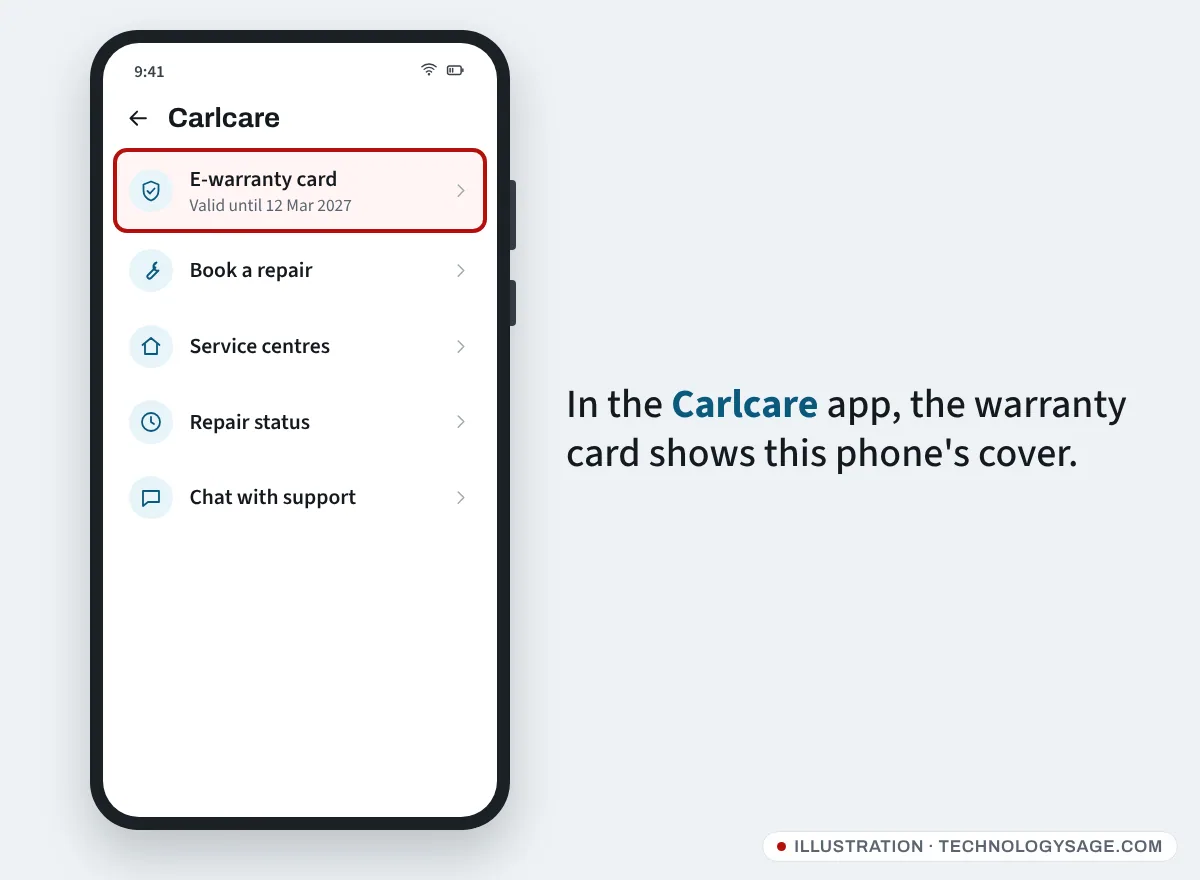
Menu names change between app versions, so if you can’t see the warranty card, use the app’s search or open its service menu.
How long is the Infinix warranty?
It depends on the country, so always check the Service Policy page for your country on carlcare.com. As an example, Carlcare’s Nigeria policy for Infinix lists:
| Item | Warranty (Nigeria example) |
|---|---|
| Handset, including built-in battery | 12 months |
| In-box charger, cable, headset | 6 months |
| Charger or cable bought separately | 12 months |
Other countries can be longer or shorter. Carlcare’s global policy also says the warranty is for the first buyer only and is not transferable, and it does not cover:
- Cracked screens, dents, scratches and other cosmetic damage
- Water and liquid damage, drops, fire and other accidents
- Phones repaired or modified by unauthorised shops
- Normal wear and tear
- Phones whose serial number or IMEI label has been removed
It also warns that phones bought outside official channels may be locked and may not get official Carlcare repairs, which is one more reason to buy from authorised sellers.
How to claim an Infinix warranty repair
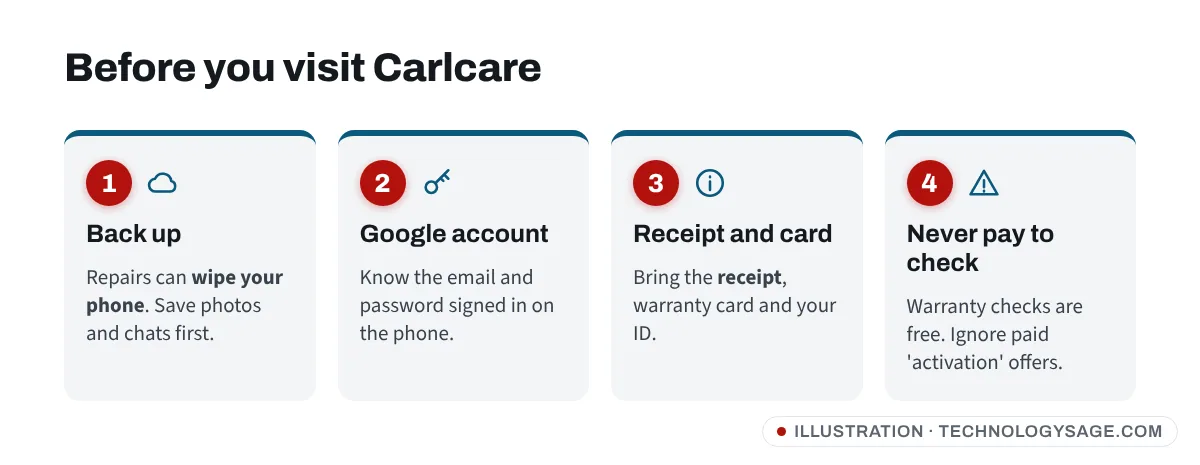
- Back up your phone first. Carlcare’s policy says repairs can wipe your storage. Our guide to moving WhatsApp to a new phone covers backing up chats.
- Note your Google account email and password. After a repair or reset, the phone will ask for the Google account that was on it.
- Find the nearest service centre: on carlcare.com go to Service Center, or use the app.
- Take the phone, the receipt, the warranty card (if you have one) and your ID.
- Explain the fault clearly. If it’s covered, the repair is free; if they find liquid or physical damage, they will quote a price first.
If it doesn’t work
- “Please enter a valid IMEI”: you need all 15 digits, no spaces. Copy it from *#06# instead of typing it.
- Page won’t load or keeps spinning: switch from Wi-Fi to mobile data (or the other way round), or try another browser.
- IMEI shows “null” or all zeros on *#06#: the phone’s software is damaged and the IMEI can’t be read. Take it to Carlcare; don’t use online “IMEI repair” tools, which are illegal in many countries and are a common source of malware (see how to protect your smartphone from viruses).
- The result shows a different model: stop. The phone or its board may not be what the seller claimed. Our Tecno IMEI check guide explains how to verify a phone with your country’s regulator.
Safety note
Carlcare and Infinix never ask you to pay for a warranty check, and official support never asks for payment by airtime, gift card or mobile money to a personal number. Ignore social-media pages offering to “activate” or “extend” your warranty for a fee, and never share your Google password or one-time codes with anyone. Use the hotline and addresses listed on carlcare.com only. For more ways to keep your phone and accounts safe, see our phone security tips.
FAQ
Is the Infinix warranty check free?
Yes. The Carlcare website and app check your warranty for free. You only pay if a repair is not covered.
Can I check Infinix warranty without the IMEI?
Not online. The checker needs the IMEI. If the phone won’t turn on, read the IMEI from the box or take the phone and receipt to a service centre, where staff can look it up.
Does the warranty cover the battery?
The built-in battery is covered under the handset warranty in many countries (Nigeria’s policy lists it with the 12-month handset cover), but normal battery ageing is not a defect. If you think your battery is failing early, see how to check battery health on Android before you go.
My phone was bought abroad. Is it covered?
Sometimes. Carlcare offers international warranty service for some brands in some countries, but phones from unofficial channels may be refused. Ask the service centre with your receipt.
Does flashing or rooting void the warranty?
Carlcare excludes damage caused by unauthorised repairs or modifications, so changes you make to the software can lead to a refused claim. If the phone is still under warranty, go to Carlcare before trying a hard reset or flashing.