In this guide
A red light on a router usually means it has lost its connection to your internet provider (ISP). On most routers, a red or orange Internet, WAN or globe light means “no internet from outside”, and a red LOS light on a fibre box means no fibre signal is reaching your home. Restart the modem or fibre box first, then the router, check the cables, and if the light stays red, check for an outage and call your ISP.
Light colours and names differ between brands (TP-Link, Huawei, ZTE, Nokia, Netgear and others) and ISPs, so use this guide together with the light chart in your router’s manual or your ISP’s help page.
What each red light usually means
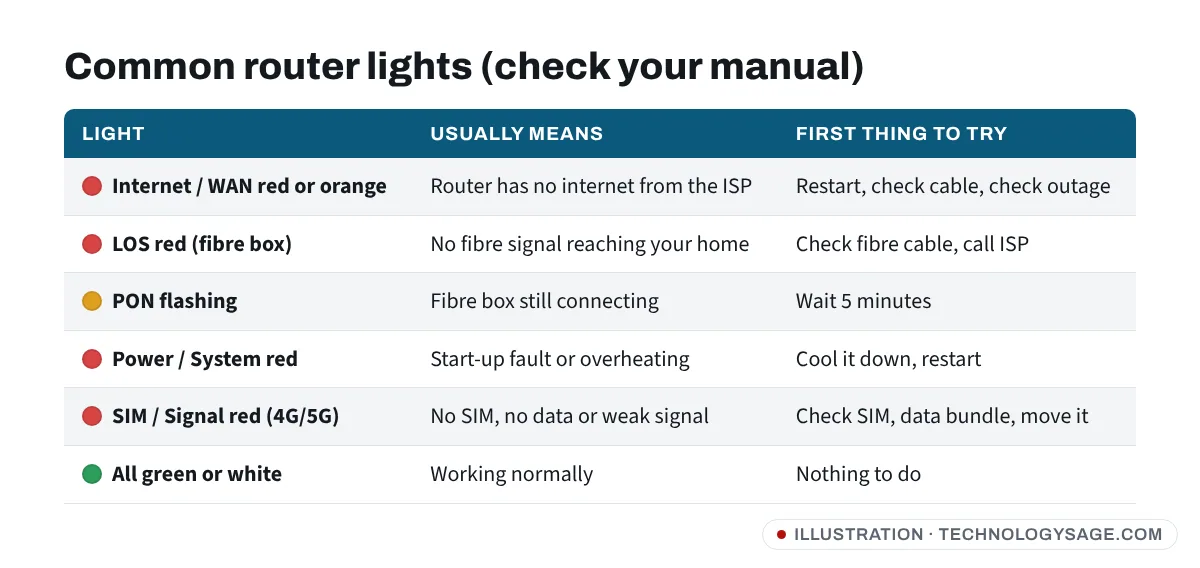
- Internet / WAN / globe light red or orange: the router is working, but it isn’t getting an internet connection from your ISP. Your Wi-Fi may still appear, but with “No internet”. This is the most common red light.
- LOS (Loss of Signal) red or flashing red, on a fibre box (ONT): no light signal is arriving on the fibre cable. The cause is almost always the fibre line or the ISP’s side, not your settings.
- PON flashing: the fibre box is still trying to register with the network. Wait a few minutes after a restart. If it never goes steady, contact your ISP.
- Power or System light red: the router is still starting, has a fault, is overheating, or a firmware update failed. A brief red light at power-on is often normal.
- SIM or Signal red on a 4G/5G home router or MiFi: no SIM, no active data bundle, or very weak signal.
- Wi-Fi light red (on some models): the wireless radio has a problem or is switched off.
If only one device has no internet while others are fine, the router isn’t the problem; see Wi-Fi connected but no internet instead.
Fix 1: Restart in the right order
Restarting fixes most red lights after a power cut or a short ISP outage, because the router gets a fresh connection.
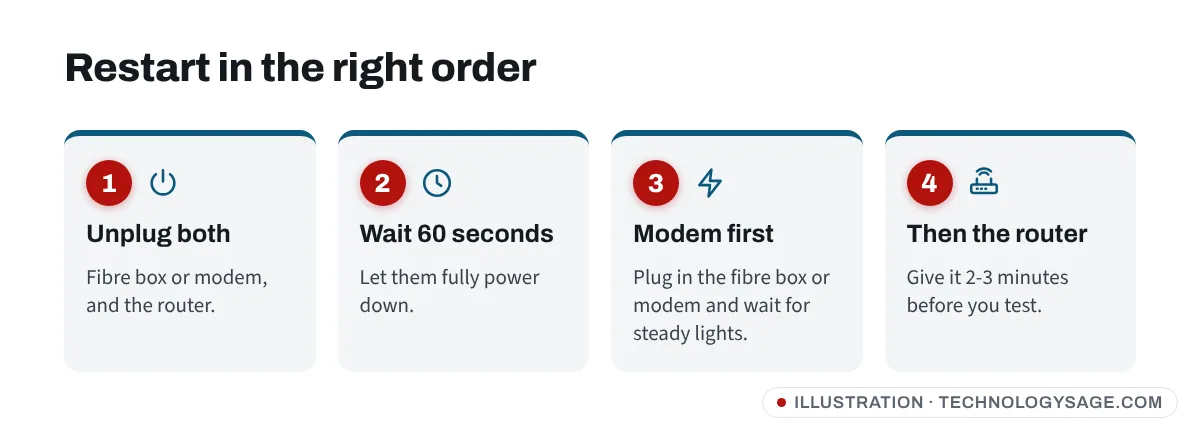
- Unplug the power from both the fibre box or modem and the router. (Many homes have just one combined box; unplug that.)
- Wait at least 60 seconds.
- Plug in the fibre box or modem first. Wait until its lights settle, usually 2 to 3 minutes.
- Plug in the router and wait another 2 to 3 minutes.
- Check the lights again and test on a phone or laptop.
Avoid the pinhole Reset button at this stage. Holding it erases all settings, including your ISP login details, and can leave you with a red light you can’t fix without the ISP.
Fix 2: Check the cables and the power
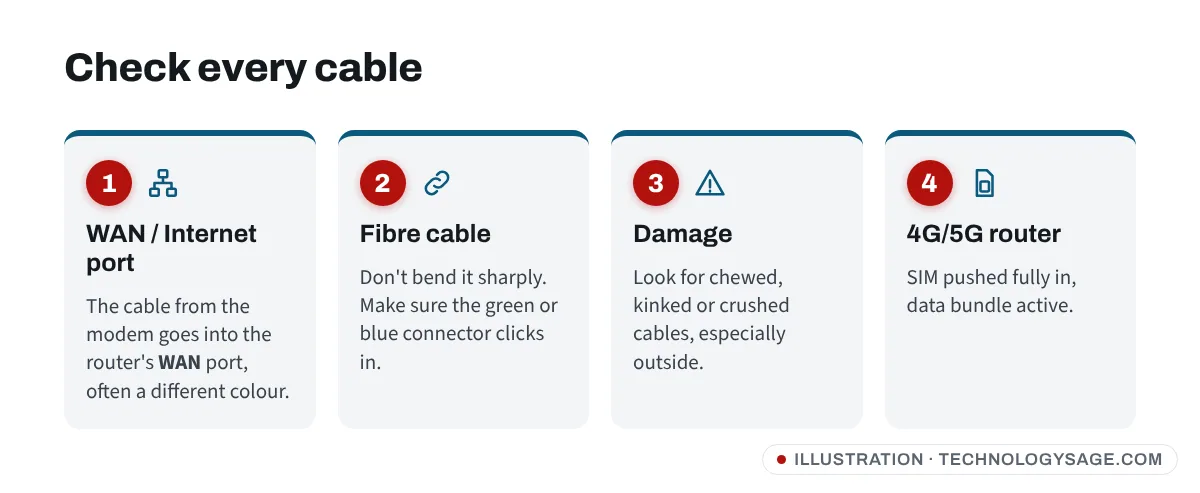
- WAN port: if you have a separate modem or fibre box, its Ethernet cable must go into the router’s WAN or Internet port (often a different colour, such as blue or yellow), not a LAN port.
- Fibre cable: the thin fibre cable should never be bent sharply, pinched in a door or pulled tight. Check that its connector clicks in firmly. Don’t look into the end of a fibre cable or connector.
- Damage outside: after storms, building work or road works, a red LOS light often means the cable outside was damaged. Only the ISP can repair it.
- Power: use the router’s original adapter. A wrong or failing adapter can cause red power lights and random restarts. If you use a UPS or inverter, try the wall socket.
- Heat: routers placed in direct sun, on top of a decoder or in a closed cabinet can overheat. Move it somewhere with air around it.
Fix 3: Check for an outage or an unpaid bill
Before changing settings, rule out the ISP:
- Check your ISP’s app, website or social media for outage notices in your area.
- Make sure your subscription or data bundle is active. Many prepaid fibre and 4G plans (common in Nigeria, Kenya, South Africa, the Philippines and India) cut the internet the moment the plan expires, and the Internet light turns red even though the router is fine.
- On a 4G/5G router, put the SIM in a phone and check that it has data.
Fix 4: Look at the router’s status page
If restarting and cables don’t help, the router’s own page can show where the connection stops.
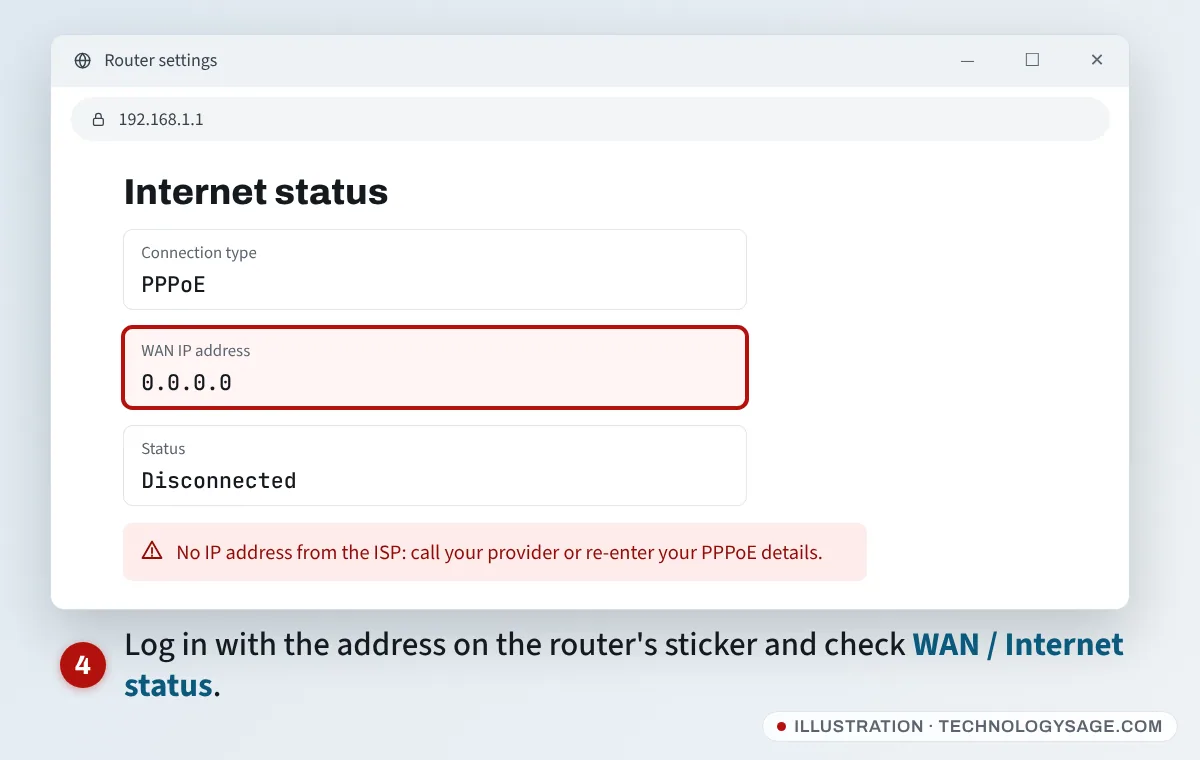
- Connect a phone or laptop to the router’s Wi-Fi (or with a cable).
- Open a browser and type the address printed on the router’s sticker, often
192.168.0.1or192.168.1.1. Some brands use an app instead. - Log in with the admin password on the sticker (or the one you set).
- Find Status, Internet or WAN.
What you might see:
- WAN IP 0.0.0.0 or “Disconnected”: the router isn’t getting an address from the ISP. If your ISP uses PPPoE, check that the username and password are correct (your ISP gives these). Some ISPs also lock the connection to one router’s MAC address, so a new router may need to be registered with them.
- “Cable unplugged” or WAN down: the cable or the fibre box is the problem.
- Connected with an IP address, but the light is red: restart once more. If it stays red but the internet works, it may be a firmware glitch; check for a firmware update from the maker’s official site.
Our older post on finding the Wi-Fi password through the router shows the router login in more detail.
Fix 5: Test without the router
If you have a separate modem or fibre box and your own router:
- Connect a laptop directly to the modem or fibre box with an Ethernet cable.
- Restart the laptop’s network connection.
- If the laptop gets internet this way, your router is at fault: check its WAN settings or replace it.
- If there’s still no internet, the problem is with the line or the ISP.
When to call your ISP
Call your provider if:
- The LOS light is red or flashing red after a restart.
- The Internet light stays red after Fixes 1 to 4, and your plan is paid.
- You see damaged cables outside your home.
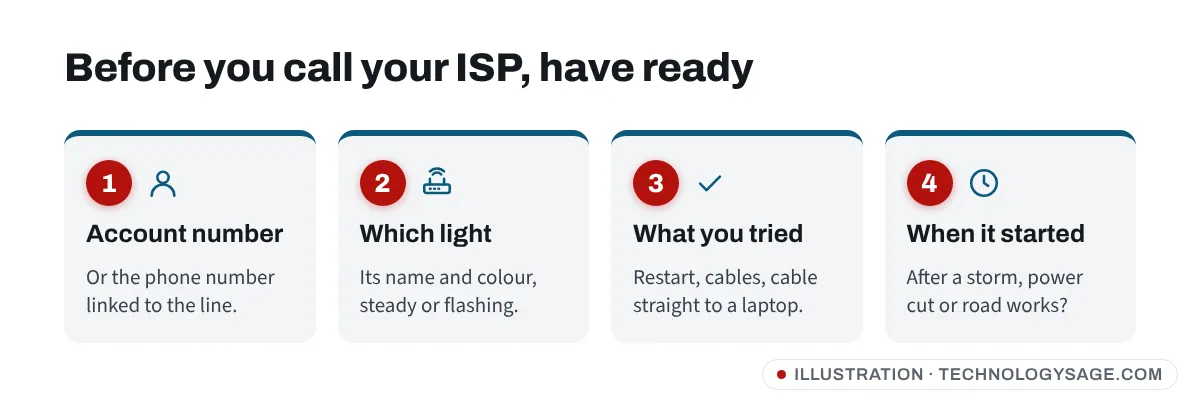
Use only the phone number, app or chat on your ISP’s official website or bill. Real ISP staff won’t ask for your bank PIN, card PIN or one-time codes, and they don’t ask for payment in gift cards or airtime to a personal number.
If it still doesn’t work
- Factory reset (last resort): only if your ISP tells you to, or if you have the ISP login details to set it up again. Hold the Reset pinhole for about 10 seconds while the router is on (the time varies by model), then set it up again from the sticker details.
- Old router: routers that are many years old can fail. If the power light stays red or keeps flashing after a reset, ask your ISP for a replacement if it’s their equipment.
- Weak Wi-Fi rather than no internet: if the lights are all green but your laptop keeps dropping, see laptop Wi-Fi keeps disconnecting. Our post on what affects internet speed explains the rest.
FAQ
Why is my router red but the Wi-Fi is still showing?
The Wi-Fi network comes from the router itself, so it stays on. The red light means the router has no internet connection from your ISP, so devices connect but show “No internet”.
What does a red LOS light mean on my fibre router?
No fibre signal is reaching your box. Check the fibre cable is plugged in and not bent, restart the box once, then contact your ISP. It usually needs their engineer.
Should I reset my router when the light is red?
Restart it (unplug and plug back in), yes. Avoid the reset pinhole unless your ISP asks you to or you have the login details, because it erases the settings the router needs to connect.
My router light is orange, not red. Is that different?
On many routers, orange or amber means the same as red: no internet from the ISP. On some, it means the connection is starting or limited. Check your router’s manual for its exact colours.