In this guide
- First: is it the laptop or the router?
- 1. Stop Windows switching off the Wi-Fi adapter
- 2. Change the power settings
- 3. Forget the network and reconnect
- 4. Turn off random hardware addresses
- 5. Update (or roll back) the Wi-Fi driver
- 6. Improve the signal and pick the right band
- 7. Check the router
- 8. Reset the network stack
- If it still doesn’t work
- FAQ
If your laptop’s Wi-Fi keeps disconnecting on Windows 11, the usual causes are power saving on the Wi-Fi adapter, an outdated or buggy Wi-Fi driver, a weak or crowded signal, or the router itself. Start by checking whether other devices drop too. If only the laptop does, untick Allow the computer to turn off this device to save power on the Wi-Fi adapter in Device Manager, set the power mode to Best performance, and install the latest Wi-Fi driver from your laptop maker.
The eight fixes below go from quick settings to driver and router changes.
First: is it the laptop or the router?
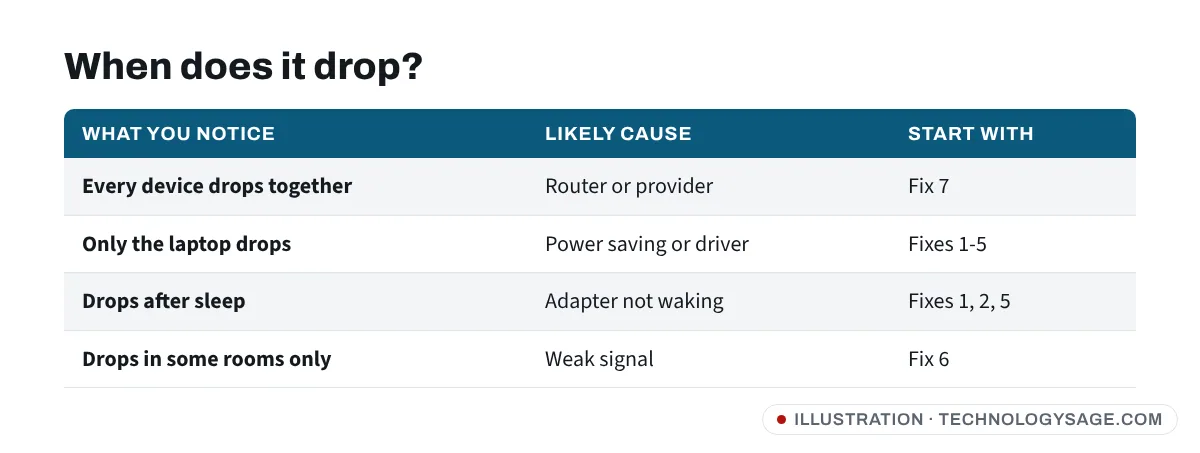
- Phones and other devices drop at the same time: the router, the provider or interference. Restart the router and see fix 7.
- Only the laptop drops: start with fix 1.
- Drops after sleep only: fixes 1, 2 and 5.
- Drops in some rooms only: it’s signal strength. See fix 6.
1. Stop Windows switching off the Wi-Fi adapter
- Right-click Start and choose Device Manager.
- Expand Network adapters, right-click your Wi-Fi adapter (its name includes “Wi-Fi”, “Wireless” or “802.11”) and choose Properties.
- Open the Power Management tab and untick Allow the computer to turn off this device to save power. Click OK.
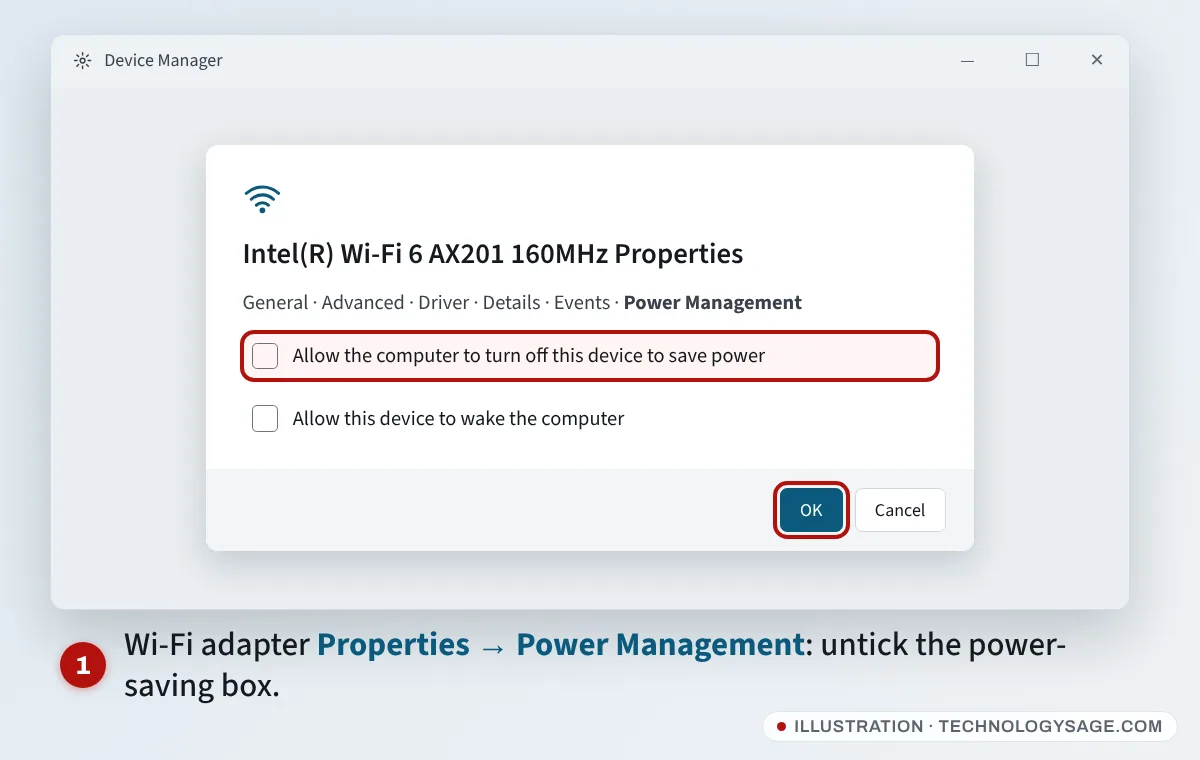
No Power Management tab? That’s normal on many newer laptops that use Modern Standby. Windows manages the adapter’s power itself and hides the tab on purpose. Use fix 2 instead.
2. Change the power settings
- Go to Settings → System → Power & battery.
- Set Power mode to Best performance (or at least Balanced) while plugged in and on battery.
- Under Energy saver, turn it off, or set it to turn on only at a low battery level, and test whether the drops stop.
On laptops that still have classic power plans, you can also open Control Panel → Hardware and Sound → Power Options → Change plan settings → Change advanced power settings, expand Wireless Adapter Settings → Power Saving Mode and set both On battery and Plugged in to Maximum Performance. If the option isn’t there, your laptop doesn’t use it.
3. Forget the network and reconnect
An old saved profile can cause repeated drops, especially after a router change.
- Go to Settings → Network & internet → Wi-Fi → Manage known networks.
- Select the network and click Forget.
- Reconnect and enter the password.
After reconnecting, open [your network] properties on the Wi-Fi page and make sure Connect automatically when in range is ticked. If you don’t know the password, see how to view a saved Wi-Fi password first.
4. Turn off random hardware addresses
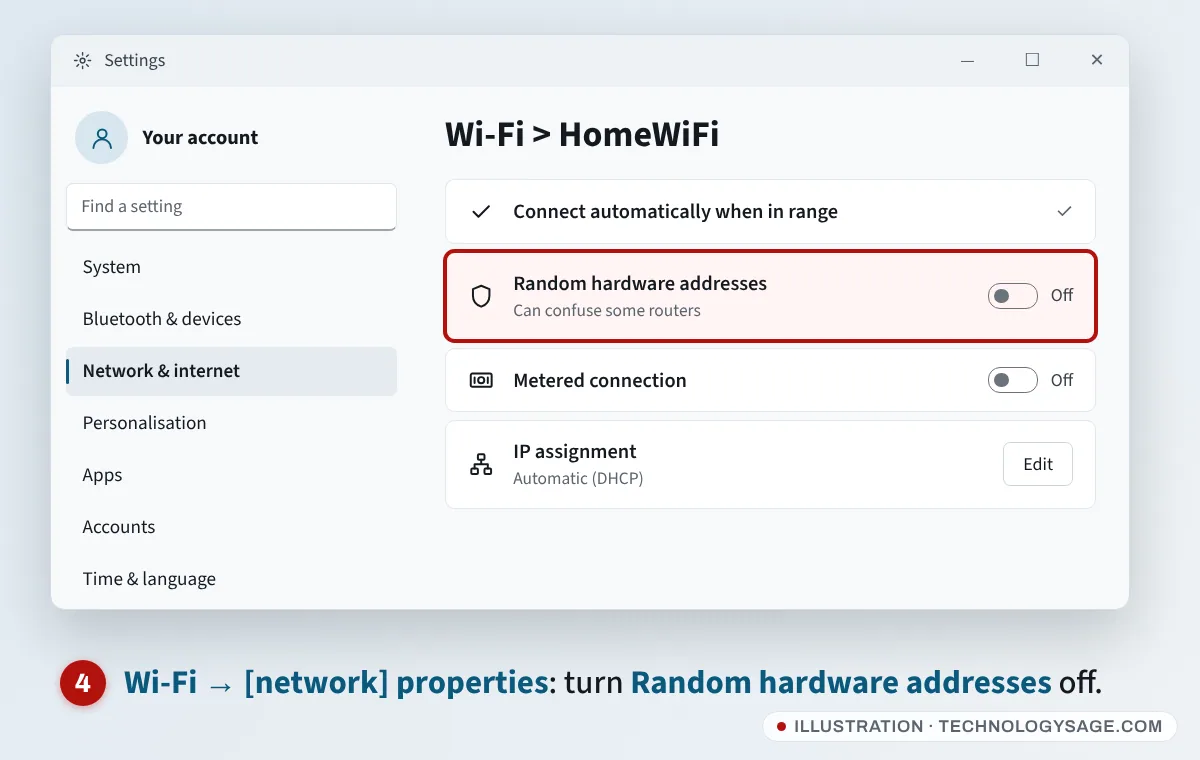
Random hardware addresses (a privacy feature) can confuse some routers, especially those that limit devices or filter by address.
- Go to Settings → Network & internet → Wi-Fi.
- Click [your network] properties.
- Set Random hardware addresses to Off and reconnect.
5. Update (or roll back) the Wi-Fi driver
Wi-Fi drivers have frequent fixes for dropouts, sleep problems and new router features.
- Get the latest Wi-Fi (WLAN) driver for your exact model from HP Support Assistant, Lenovo Vantage, Dell SupportAssist, MyASUS or the model’s support page. Laptop makers’ drivers are tested for their hardware.
- Also check Settings → Windows Update → Advanced options → Optional updates for network driver updates.
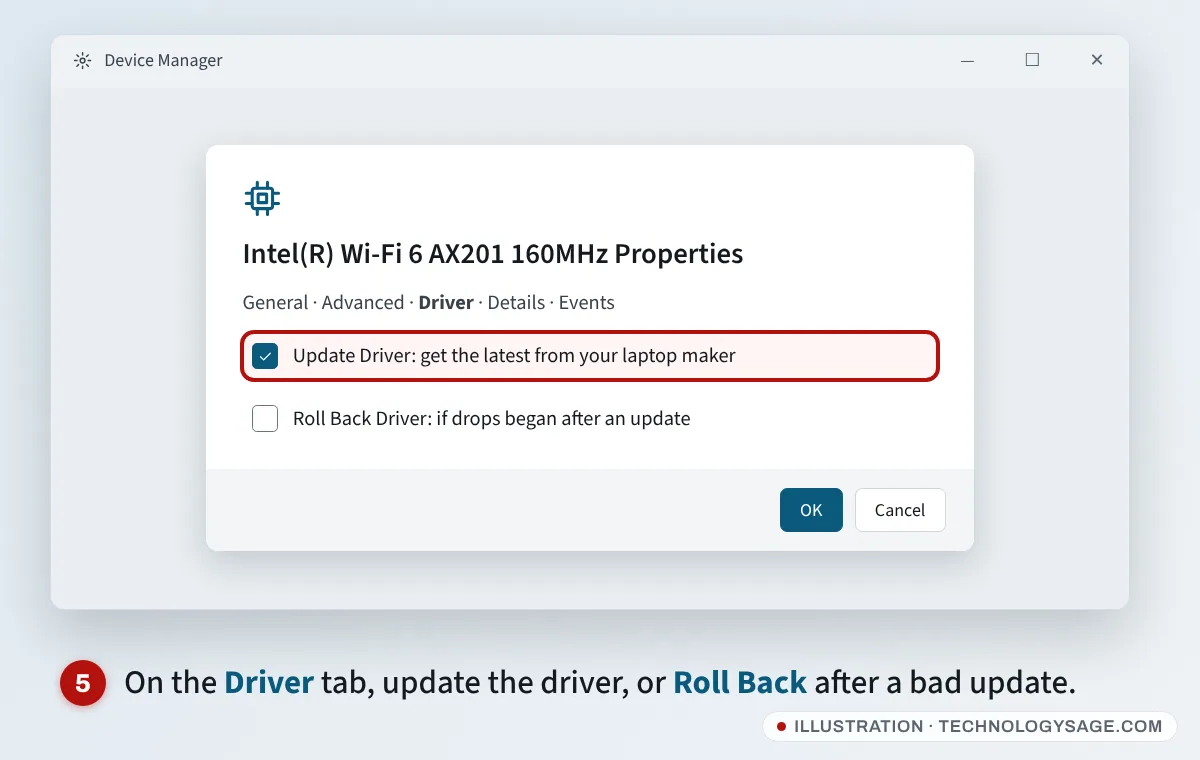
- If the drops began right after a driver update, open the adapter in Device Manager → Properties → Driver and click Roll Back Driver.
Our guide on how to install drivers covers installing a downloaded driver.
Advanced adapter settings: on the adapter’s Advanced tab, some drivers have options such as Roaming Aggressiveness (set it to Lowest if you stay in one room) or MIMO Power Save Mode (set to No SMPS). Change one setting at a time, and change it back if it doesn’t help. Names vary by Wi-Fi chip, and not every driver has them.
6. Improve the signal and pick the right band
- Move closer to the router or remove obstacles. Thick walls, metal doors, water tanks and floors weaken Wi-Fi a lot.
- 2.4 GHz vs 5 GHz: 5 GHz is faster but has shorter range. If the laptop drops at a distance, use 2.4 GHz. If it drops in a crowded block of flats, 5 GHz often works better. If your router has one name for both bands (“band steering”), the laptop may keep switching between them. Some routers let you give each band its own name so you can pick one.
- Bluetooth interference: Bluetooth and 2.4 GHz Wi-Fi share the same airwaves. If drops happen while using Bluetooth earbuds or a mouse, try 5 GHz Wi-Fi.
- USB 3 devices and some external monitors and docks can interfere with 2.4 GHz Wi-Fi when placed close to the laptop’s antenna. Move them away or use 5 GHz.
7. Check the router
- Restart it by unplugging for 30 seconds.
- Update its firmware from its settings page or app.
- Change the Wi-Fi channel to Auto, or try 1, 6 or 11 on 2.4 GHz.
- Too many devices: some MiFi and 4G/5G routers allow only a small number of connections. Disconnect devices you’re not using.
- Look at the lights: a red or orange light means the router itself is losing its connection. See router red light.
- Provider issues: drops on every device at the same time usually mean a service problem. Contact your provider using the number on their official website, app or bill.
8. Reset the network stack
If nothing else works, reset Windows’ network settings:
- Run Command Prompt as administrator (press the Windows key, type
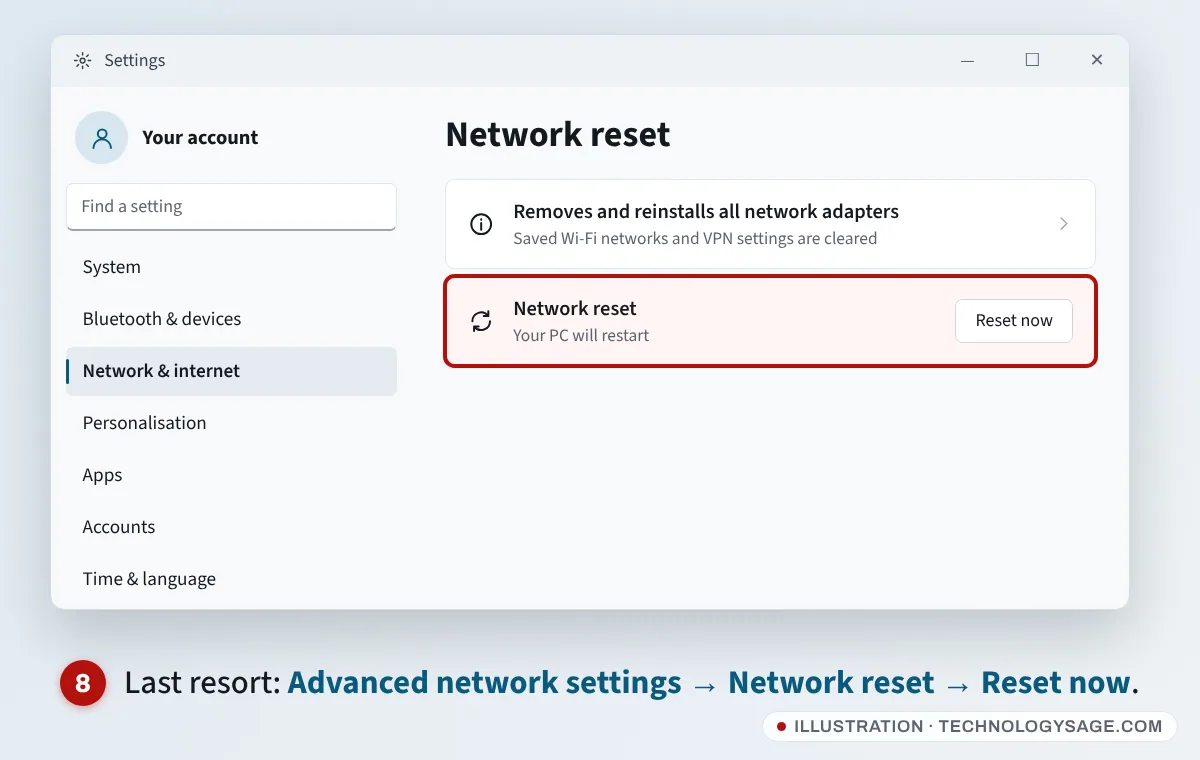
cmd, choose Run as administrator) and runnetsh winsock resetandnetsh int ip reset, then restart. - If the drops continue, go to Settings → Network & internet → Advanced network settings → Network reset and click Reset now. This reinstalls all network adapters. You’ll need to reconnect to Wi-Fi and set up any VPN again.
If it still doesn’t work
- Turn off VPN and third-party firewall apps to test. Some VPNs reconnect in a loop that looks like a Wi-Fi drop.
- Test with a phone hotspot. If the laptop stays connected to the hotspot, the problem is the router or its settings, not the laptop.
- Use a cable or a USB Wi-Fi adapter. If a USB adapter is stable, the laptop’s internal Wi-Fi card or its antenna cable may be failing. A repairer can replace it on most laptops; see taking your laptop for repair.
- Connected but nothing loads, rather than dropping: see Wi-Fi connected but no internet.
- Wi-Fi vanishes completely: see Wi-Fi not showing on laptop.
FAQ
Why does my laptop Wi-Fi keep disconnecting when other devices are fine?
The cause is on the laptop: usually adapter power saving, an outdated Wi-Fi driver, a saved network profile with problems, or random hardware addresses. Fixes 1 to 5 cover these.
Why does Wi-Fi disconnect after sleep?
The adapter may not wake up properly. Untick the power-saving option (fix 1), update the Wi-Fi driver and BIOS, and check your power mode. On Modern Standby laptops, the driver update matters most.
Why can’t I find the Power Management tab?
Many newer laptops hide it because Windows manages the adapter’s power automatically. Use the power mode settings and a driver update instead.
Should I use 2.4 GHz or 5 GHz?
Use 5 GHz when you’re near the router or in a crowded area, and 2.4 GHz when you’re far away or behind walls. If one keeps dropping, try the other.
Will Network reset delete my files?
No. It only resets network adapters and settings. You’ll need to reconnect to Wi-Fi networks afterwards.