In this guide
- First: test where the problem is
- 1. Check the Other tab and all folders
- 2. Look in Junk Email and your blocked senders
- 3. Check rules, Sweep and forwarding
- 4. Make sure your mailbox isn’t full
- 5. Check the sender’s side
- 6. Accounts from other providers (Gmail, Yahoo, others)
- 7. Fix syncing in Outlook for Windows
- 8. Fix the Outlook mobile app
- If it still doesn’t work
- FAQ
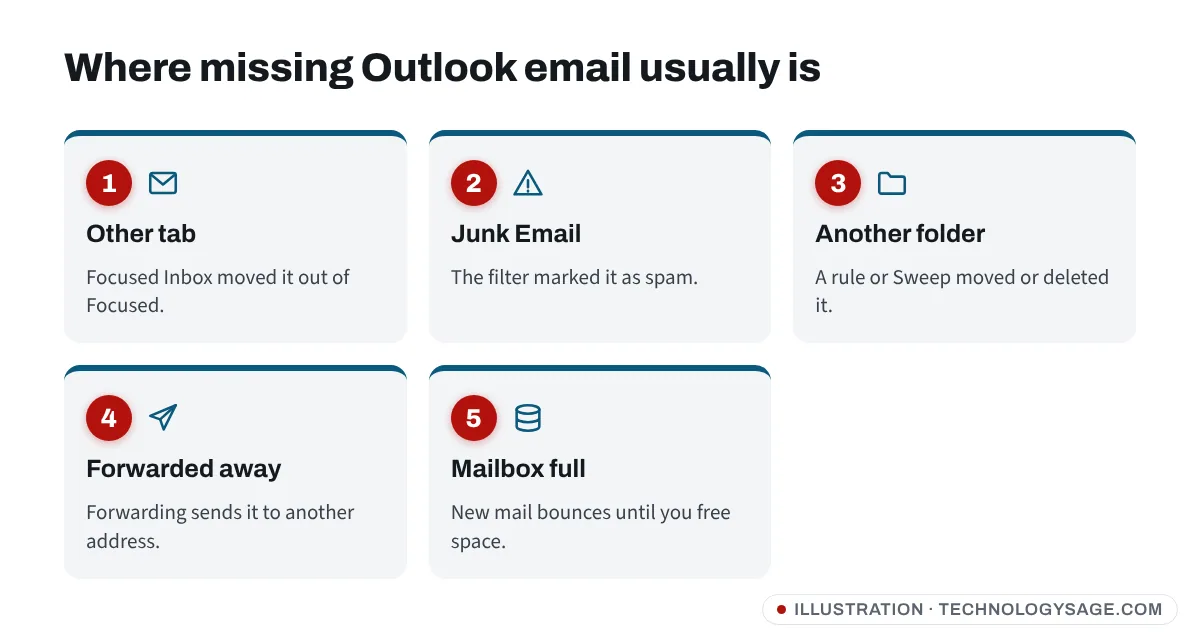
When Outlook is not receiving emails, the mail has usually arrived but landed somewhere you aren’t looking: the Other tab, Junk Email, or a folder a rule moved it to. Check those first, then make sure your mailbox isn’t full and that mail isn’t being forwarded elsewhere. If new mail shows in Outlook on the web but not in the Outlook app, the app isn’t syncing: switch off Work Offline, repair the account, or reset it on your phone.
This guide covers Outlook.com, Hotmail and Live accounts, Microsoft 365 work and school accounts, and other email accounts (such as Gmail or Yahoo) added to Outlook, in the web version, new Outlook for Windows, classic Outlook and the Outlook mobile app.
First: test where the problem is
- Sign in to Outlook on the web (outlook.com for personal accounts, or outlook.office.com for work and school accounts) in a browser.
- Send yourself a test email from another account, such as a Gmail address or a friend’s.
If the test arrives on the web but not in your app, the app isn’t syncing; skip to fixes 7 and 8. If it doesn’t arrive on the web either, the problem is in your mailbox settings (fixes 1 to 6) or on the sender’s side.
1. Check the Other tab and all folders
Focused Inbox splits your inbox into Focused and Other. Newsletters, automated messages and mail from new senders often go to Other, which is easy to miss.
- Click Other at the top of the inbox.
- To stop the split, open Settings → Mail → Layout and choose Don’t sort my messages under Focused Inbox. In classic Outlook, click View → Show Focused Inbox to turn it off.
- Use the search box with the sender’s name or address. Search looks in all folders, including Archive and Deleted Items.
- Check the inbox filter: if it’s set to show only unread, flagged or “to me” messages, new mail can seem to vanish. Set it back to All.
2. Look in Junk Email and your blocked senders
Outlook’s spam filter sometimes catches real messages (shipping notices, verification codes and school emails are common victims).
- Open Junk Email. If you find the message, select it and choose Not junk (or Report → Not junk). Outlook learns from this.
- Open Settings → Mail → Junk email. Under Blocked senders and domains, remove anyone you didn’t mean to block.
- Add important senders to Safe senders and domains so they always reach your inbox.
Junk is emptied automatically after a while, so check it soon after you expect a message.
3. Check rules, Sweep and forwarding
A rule you made months ago, or one set up by someone else, can move, delete or forward mail before you see it.
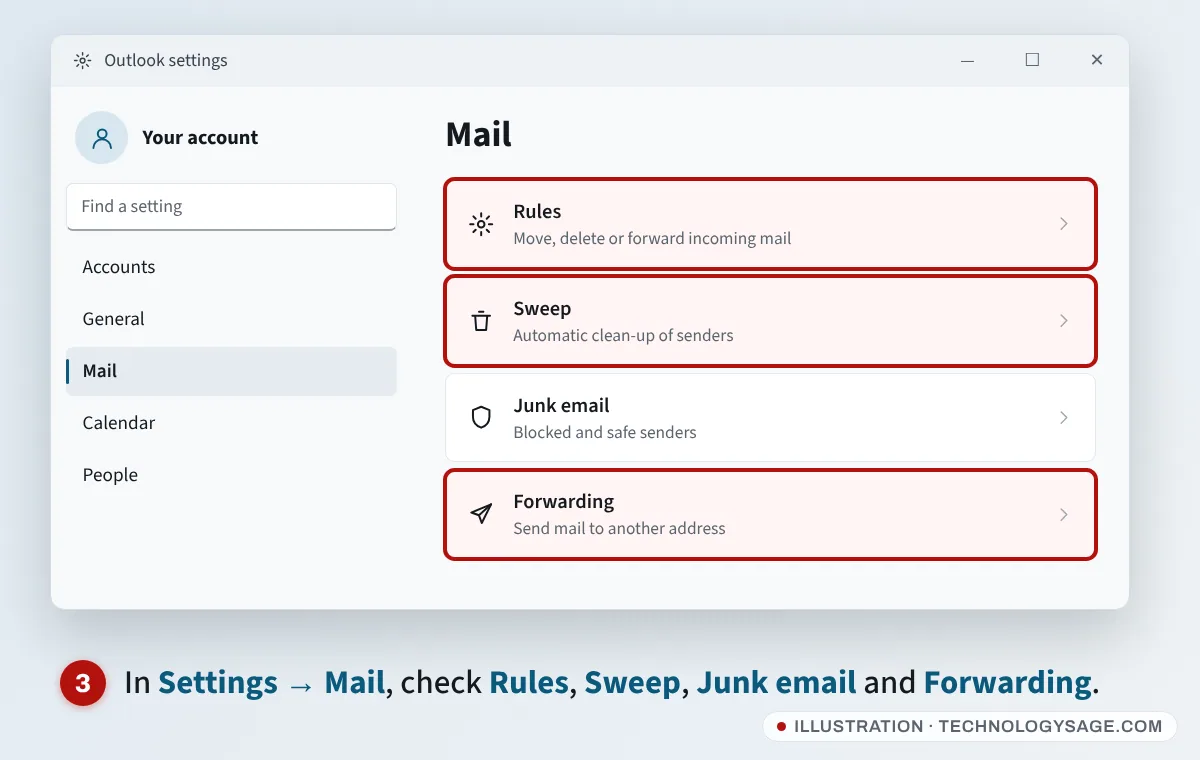
- Open Settings → Mail → Rules. Turn off or delete any rule that moves or deletes the missing mail. To test, turn all rules off for a day.
- Check Settings → Mail → Sweep for clean-up rules that delete messages from certain senders.
- Open Settings → Mail → Forwarding. If forwarding is on, your mail is going to another address; if Keep a copy of forwarded messages is off, it never stays in your inbox.
In classic Outlook, also check File → Manage Rules & Alerts, because some rules there run only on your computer.
Security note: a forwarding address or rule you don’t recognise is a classic sign that someone else got into your account. Remove it, change your password, and turn on two-step verification. Microsoft will never ask for your password or a security code by email, phone call or social media message, and “your mailbox is full, click here” emails are a common phishing trick; check storage only through Outlook’s own settings.
4. Make sure your mailbox isn’t full
When your storage is full, Outlook can’t receive new mail; senders get a bounce message and those emails are lost.
- Outlook.com: open Settings → General → Storage (or Settings → Accounts → Storage in some versions) to see how much you’ve used. Your Microsoft account’s cloud storage is shared with OneDrive, so large OneDrive files can also fill it.
- To free space, delete old messages with big attachments, then empty Deleted Items and Junk Email. Deleting alone doesn’t free space until those folders are emptied.
- Work or school accounts: your organisation sets the mailbox size; ask your IT team if you’re near the limit.
5. Check the sender’s side
If only one person’s emails are missing:
- Ask them whether they received a bounce or “undeliverable” message, and to check the address they used.
- Some organisations’ mail servers are blocked by Microsoft’s spam filters. The sender can find help in Microsoft’s Sender Support pages for Outlook.com.
- On a work or school account, the message may be held in your organisation’s quarantine. Your IT team can release it.
6. Accounts from other providers (Gmail, Yahoo, others)
If the missing mail belongs to a Gmail, Yahoo or other account added to Outlook, sign in to that provider’s own webmail. If the mail is there, re-add the account in Outlook and sign in again (many providers now need you to sign in through their own page, or use an app password, rather than typing your normal password into Outlook). If it isn’t there either, the problem is with that provider, not Outlook. For the provider side, see our guide to not receiving emails, and POP3 and IMAP for Yahoo Mail in Outlook.
7. Fix syncing in Outlook for Windows
Classic Outlook
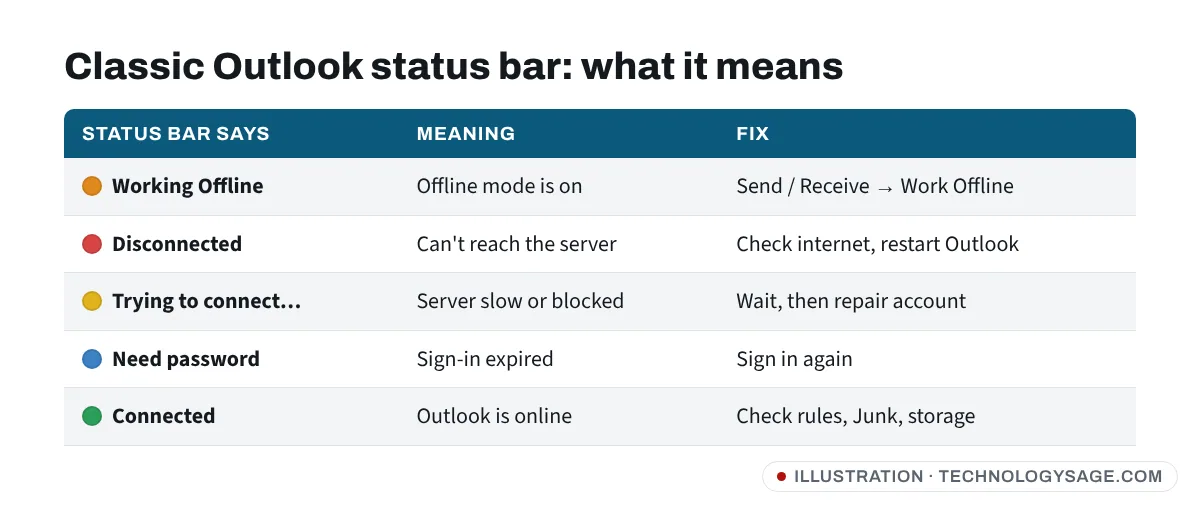
- Look at the status bar at the bottom. If it says Working Offline, go to the Send / Receive tab and click Work Offline to switch it off.
- Press F9 (Send/Receive All Folders) to force a check.
- Restart Outlook and your computer, and make sure the computer is online.
- Start Outlook in safe mode to rule out a faulty add-in: press Windows + R, type
outlook.exe /safe, and press Enter. If mail arrives in safe mode, go to File → Options → Add-ins and disable add-ins one at a time. - Repair the account: File → Account Settings → Account Settings, select the account and click Repair (offered for some account types). If there’s no Repair option or it doesn’t help, create a new profile in Control Panel → Mail (Microsoft Outlook) → Show Profiles → Add.
For Outlook.com and Microsoft 365 accounts, Outlook keeps a local copy of the mailbox in an .ost file. If it’s damaged, Outlook stops showing new mail. With Outlook closed, you can rename the file (it’s in %localappdata%\Microsoft\Outlook) and Outlook rebuilds it from the server when it starts. Only do this for accounts whose mail lives on the server; never delete a .pst file, which can be the only copy of your mail.
New Outlook for Windows
New Outlook works much like Outlook on the web. If mail appears on the web but not in the app, close the app completely, restart the PC, and check for updates. If that doesn’t help, remove the account (Settings → Accounts) and add it back.
8. Fix the Outlook mobile app
- Check the phone has internet and the app isn’t restricted: allow background data and turn off battery optimisation for Outlook (in the phone’s Settings → Apps → Outlook).
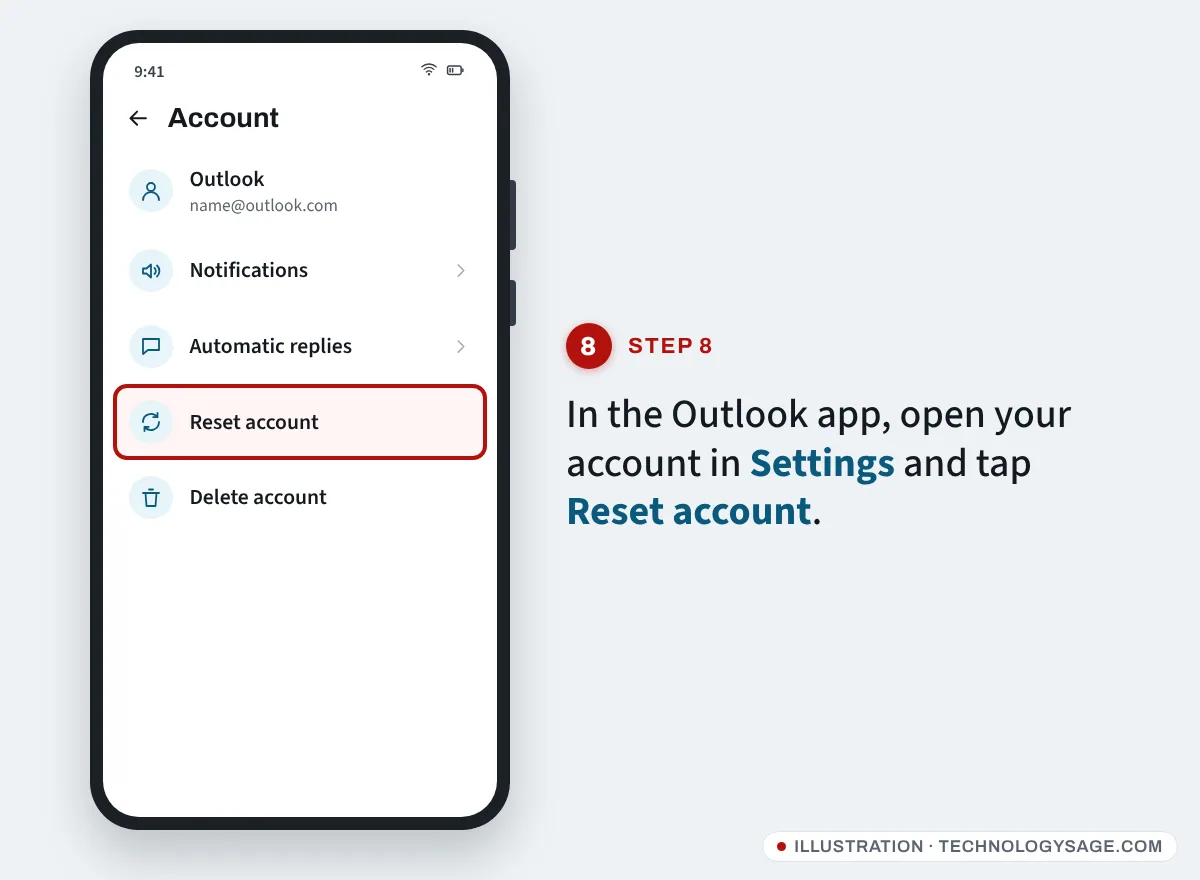
- In the Outlook app, tap your profile picture, then the Settings gear, tap the account, and choose Reset account. The app re-downloads your mail; nothing is deleted from the server.
- If notifications are the issue rather than the mail itself, check Notifications in the same account settings and in the phone’s settings.
If it still doesn’t work
- Outlook on the web also shows nothing for days, from any sender? Check Microsoft’s service status, then contact Microsoft support from the help button (?) in Outlook on the web.
- Work or school account? Your IT admin can trace a specific message and see where it went.
- Only verification codes are missing? Wait a few minutes, check Junk, and make sure you typed the email address correctly on the website. If it’s a Gmail address, our guide to recovering a Gmail account without a phone number covers Google’s side.
FAQ
Why am I not receiving emails in Outlook all of a sudden?
The usual reasons are a full mailbox, a new rule or Sweep setting, Focused Inbox sorting mail into Other, mail going to Junk, or Outlook working offline. If you didn’t change anything, check for unknown rules and forwarding in case your account was accessed by someone else.
Why are emails showing on my phone but not in Outlook on my computer?
The server is receiving your mail, so the computer’s Outlook isn’t syncing. Turn off Work Offline, press F9, restart Outlook, and repair the account or rebuild the .ost file as described above.
How do I stop emails going to the Other tab?
Turn off Focused Inbox: in Outlook on the web or new Outlook, Settings → Mail → Layout → Don’t sort my messages; in classic Outlook, View → Show Focused Inbox. You can also move a message to Focused and choose to always move that sender’s mail there.
Can I get back emails that bounced because my mailbox was full?
No. Mail rejected while your storage was full isn’t stored anywhere for you. Free up space, then ask the sender to send it again.