In this guide
Should you enable UPnP? If you play online on a console or PC and get “Strict” or “Moderate” NAT, or an app you rely on needs incoming connections, turning UPnP on is a reasonable, convenient choice on a home network you trust. If nothing on your network needs it — or you can’t keep track of what’s connected — leave UPnP off and open ports manually only when you need to.
There is no single right answer, which is why advice online conflicts: router makers tend to ship UPnP on for convenience, and security writers tend to say switch it off. Below is what UPnP actually does, what the risks really are, and how to decide for your own network.
What is UPnP?
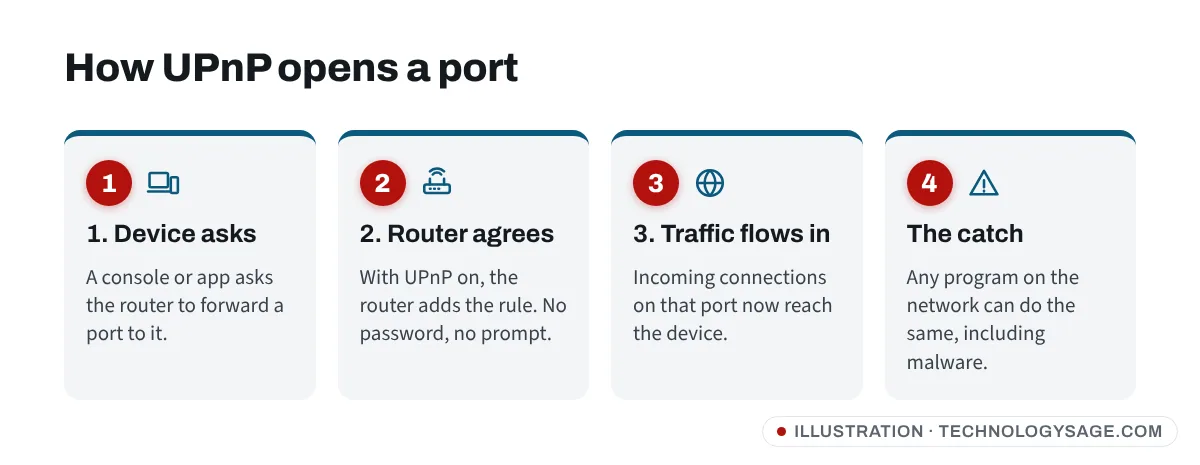
UPnP (Universal Plug and Play) is a set of network protocols that lets devices find and talk to each other automatically. The part that matters for routers is called IGD (Internet Gateway Device): it lets any device on your home network ask the router, “please forward port X from the internet to me” — and the router does it, with no password and no prompt.
Why that’s needed: your router uses NAT (network address translation), so all your devices share one public IP address. Outgoing traffic works automatically, but unsolicited incoming connections are dropped because the router doesn’t know which device they’re for. Games, voice chat, some video-calling and file-sharing apps, and remote access tools sometimes need those incoming connections. UPnP sets up the forwarding automatically; without it, you’d do it by hand.
Apple devices and some routers use a similar protocol called NAT-PMP or its successor PCP. The same trade-offs apply.
UPnP on the router is also a different thing from Network discovery in Windows, which uses related protocols to find printers and shared folders on your own network. Turning router UPnP off doesn’t stop your PC seeing your printer.
What happens if you turn UPnP off?
Ordinary browsing, streaming, video calls in most apps, WhatsApp, email and downloads keep working exactly as before — they all use outgoing connections.
What can change:
- Consoles (PlayStation, Xbox, Nintendo Switch) may report NAT Type 3 / Strict or NAT Type 2 / Moderate instead of Open. You may struggle to join some friends’ parties or host matches, and matchmaking can take longer.
- PC games that host lobbies or use peer-to-peer may show “NAT: strict” warnings.
- Self-hosted things — a game server, a media server’s remote access, some security camera or NVR apps — may stop being reachable from outside, unless they relay through the maker’s cloud (most modern cameras do).
Is UPnP a security risk?
Yes, in specific ways. It’s worth being precise rather than alarmed:
- No authentication. Any program on any device on your network can open ports. If malware gets onto one PC, smart TV or cheap IoT gadget, it can use UPnP to expose itself or other devices to the internet without you noticing. Malware families have used exactly this to recruit devices into botnets.
- Buggy router implementations. Some routers, mostly older or unpatched ones, were found answering UPnP requests from the internet side, letting outsiders open ports. A properly built router only listens on the LAN side.
- Protocol flaws. In 2020 researchers disclosed CallStranger (CVE-2020-12695), a flaw in a UPnP feature that could be abused for data exfiltration, DDoS amplification and port scanning on affected devices. Firmware updates fixed it on many products; very old devices may never get fixed.
What UPnP does not do: it doesn’t open your network to the internet on its own, and it isn’t a risk to devices that never ask it to open ports. The risk scales with how many devices you have and how much you trust them.
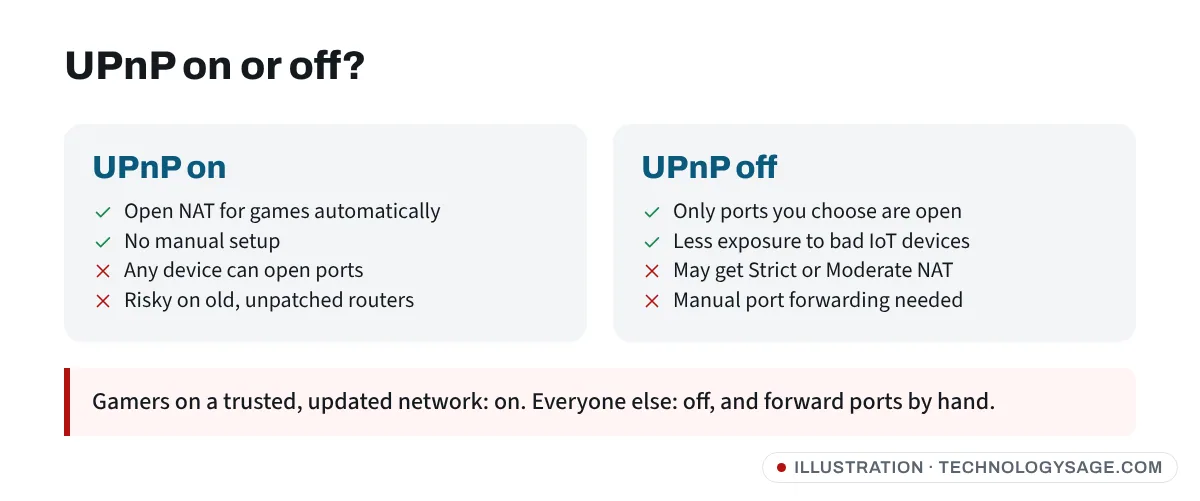
Should I enable UPnP? A quick way to decide
Turn UPnP on (or leave it on) if:
- You game on a console or PC and NAT type matters to you
- Your network is just your own household’s phones, laptops and console
- Your router gets firmware updates and you install them
Turn UPnP off if:
- Nothing on your network needs incoming connections (most homes)
- You have lots of cheap smart-home gadgets, an old unsupported router, or a shared network (flatmates, a small office, guests)
- You’d rather open the one or two ports you need yourself
A middle path many people like: turn UPnP off, give the console or PC a reserved IP address in the router’s DHCP settings, and forward only the ports its maker lists. You get Open NAT for that device and nothing else can open ports.
How to turn UPnP on or off
Every router’s menus differ, but the steps are similar:
- Find your router’s address. It’s printed on the label (often
192.168.0.1or192.168.1.1), or on Windows runipconfigand look at Default Gateway. Many routers and mesh systems use a phone app instead. - Open that address in a browser and sign in with the admin password from the label (or the one you set).
- Look under Advanced, NAT, NAT Forwarding, Port Forwarding, WAN or Network settings for UPnP. On ISP-supplied routers it is sometimes under Security or Firewall.
- Switch it on or off and click Save or Apply.
- Restart the console or app and run its network test.
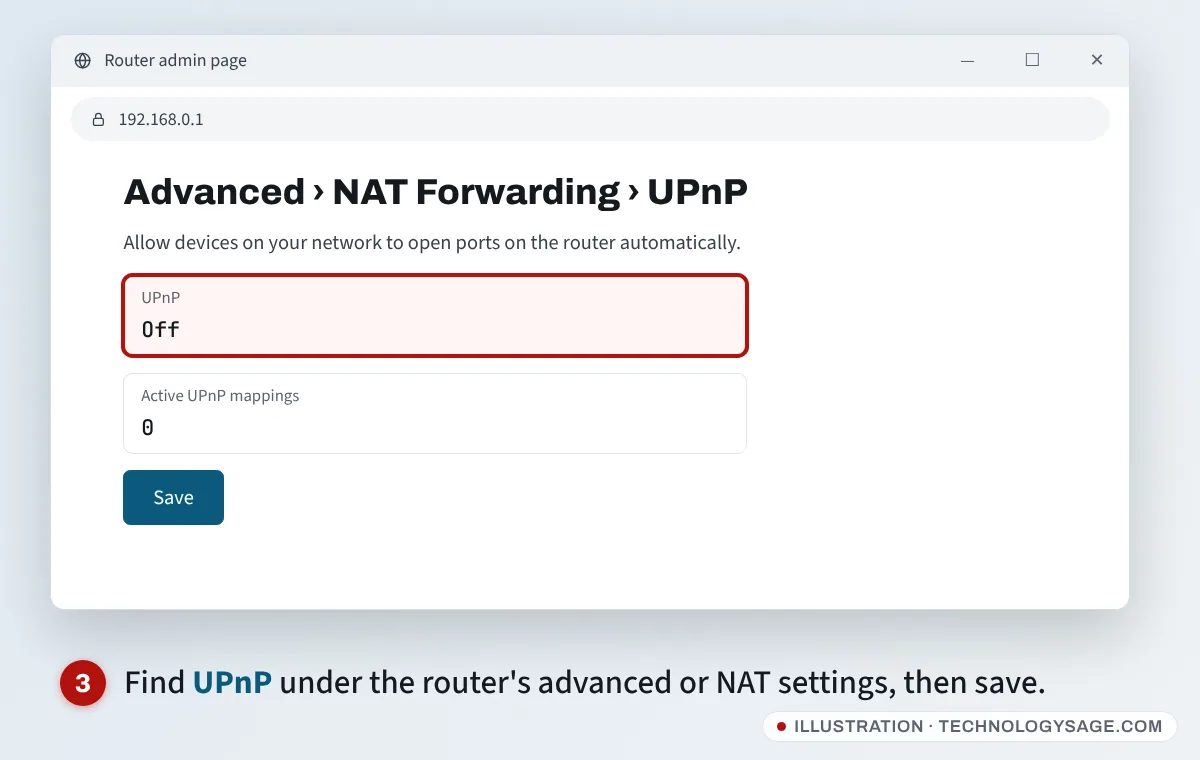
Many routers also show a UPnP service list or mapping table next to the switch. It’s worth a look: it lists every port that’s been opened automatically and which device asked for it. If you see a device you don’t recognise, investigate.
How to forward ports manually instead
- In the router, find DHCP, LAN or Address reservation and reserve a fixed IP for your console or PC (choose it from the connected-devices list).
- Find the ports your device or game needs on its maker’s support site. Don’t copy random lists from forums.
- In Port forwarding (sometimes Virtual server), add a rule: the external and internal port, protocol (TCP, UDP or both) and the reserved IP.
- Save, restart the device, and test the NAT type.
If port forwarding does nothing at all, your ISP may be using CGNAT, which puts your router behind a second, shared NAT you can’t control. Neither UPnP nor port forwarding can fix that from your side. Our guide to CGNAT and how to tell if your ISP uses it explains the test and the workarounds. A double-router setup (an ISP modem-router plus your own router) causes the same symptom; putting the ISP box in bridge or modem-only mode usually fixes it.
Keep UPnP safer if you leave it on
- Update router firmware. Old firmware is where the serious UPnP bugs live. If your router hasn’t had an update in years, consider replacing it; our look at routers that stay secure for online gaming covers what to look for.
- Check the mapping table now and then for unexpected entries.
- Put smart-home gadgets on a guest network if your router supports it.
- Keep devices patched and don’t install software from untrusted sources — UPnP only becomes dangerous when something on the inside misbehaves.
- Don’t buy a VPN to “fix UPnP”. A VPN changes where your traffic exits; it doesn’t secure UPnP and usually makes NAT type worse, not better.
For more on gaming connections, see how much internet speed you need for gaming; for the basics of public and private addresses, read what IP addresses are and how they work.
FAQ
Should UPnP be on or off for gaming?
On is the easy option if your console or PC reports Strict or Moderate NAT and your router is up to date. If you prefer control, leave UPnP off and forward the game’s ports manually to a reserved IP — you’ll get the same Open NAT.
Does turning off UPnP slow down the internet?
No. UPnP has no effect on speed. Turning it off only affects apps that need incoming connections; downloads, streaming and browsing are unchanged.
Is UPnP safe to leave on?
It’s a trade-off rather than safe or unsafe. On a small home network with an updated router and trusted devices, the risk is modest. On a network with old IoT gadgets, unknown devices or an unpatched router, turning it off is the safer default.
Do I need UPnP for Wi-Fi calling or WhatsApp calls?
Usually not. Wi-Fi calling and mainstream calling apps are designed to work through NAT without any ports being opened.
Why does my console still say Strict NAT with UPnP on?
The most common causes are double NAT (two routers), CGNAT from your ISP, or UPnP being disabled on the router that actually faces the internet. Check your router’s WAN IP address against your public IP to find out.