In this guide
To recover a Gmail account without your phone number, start Google’s account recovery at g.co/recover, enter your Gmail address, and keep tapping Try another way until you reach an option you can use: a prompt on a phone or tablet that is still signed in, a code from an authenticator app, a backup code, your last password, or a recovery contact. Do it from a device and Wi-Fi network you normally use, answer every question as accurately as you can, and never pay anyone or call a “Google support number”. Google cannot recover accounts over the phone.
If you only lost the SIM, the quickest fix is often simpler: get a replacement SIM with the same number from your mobile network, then recover the account with the normal SMS code. Here’s how both routes work.
Before you start: the easy wins
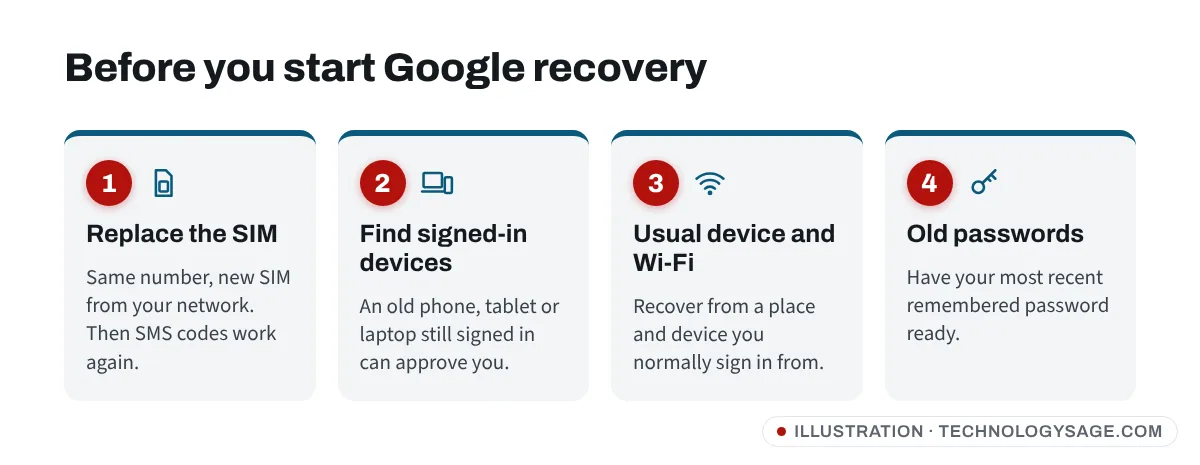
- Replace the SIM, keep the number. If the number on your Google Account is still yours but the SIM was lost, stolen or damaged, visit your mobile network’s shop with your ID and ask for a SIM replacement. Once it’s active, Google’s SMS code will reach you again.
- Check for signed-in devices. An old phone, tablet, Chromebook or laptop browser where you’re still signed into Gmail is very valuable. Don’t sign out of it; Google can send a “Is it you?” prompt to it.
- Use your usual setup. Recover from a device, browser and location where you have signed in before, ideally your home or office Wi-Fi. Google’s own account recovery tips say this makes success more likely.
- Find old passwords. Check notebooks, your browser’s saved passwords on another device, or a password manager. Google may ask for the last password you remember.
Step-by-step: Gmail recovery without your phone
Step 1: Open the recovery page
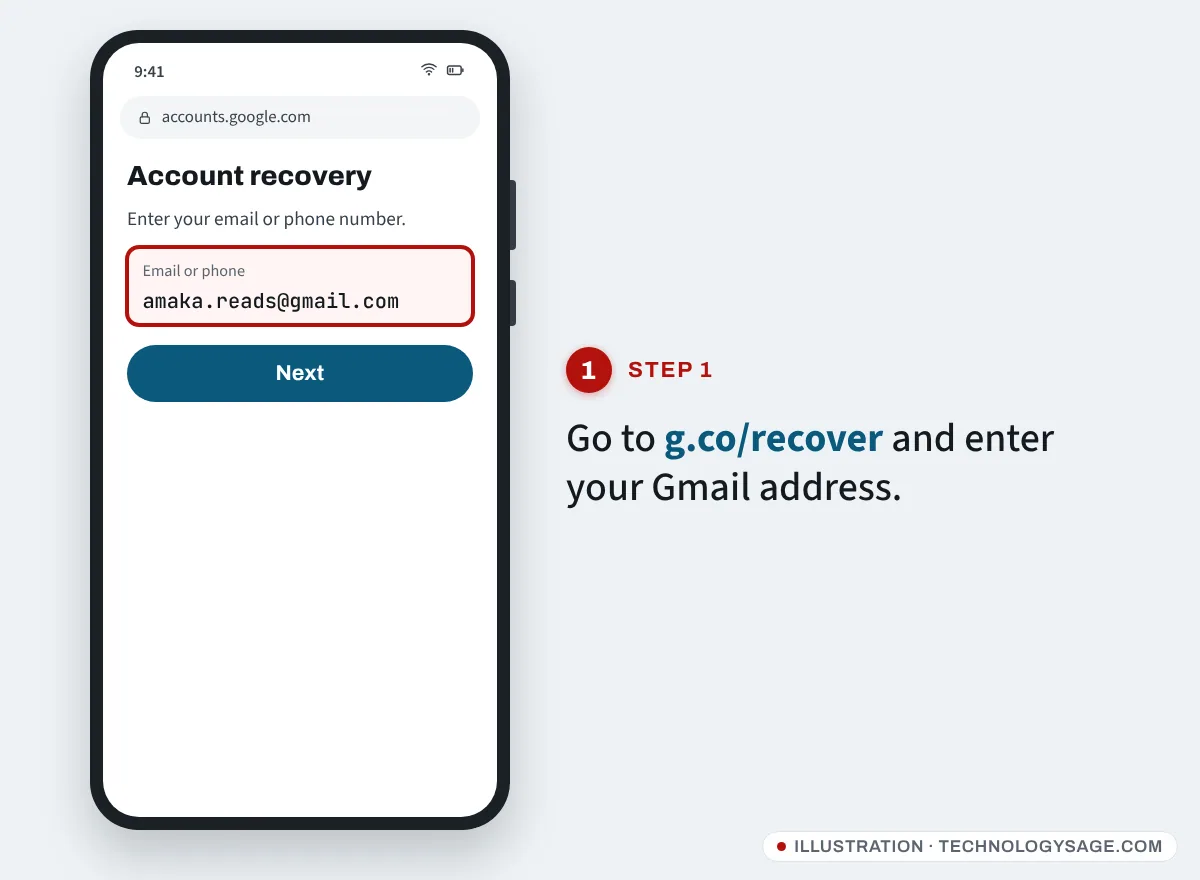
- In a browser, go to g.co/recover (it opens Google’s official account recovery page on accounts.google.com).
- Enter your full Gmail address and tap Next.
Step 2: Tap “Try another way” until you find an option you can use
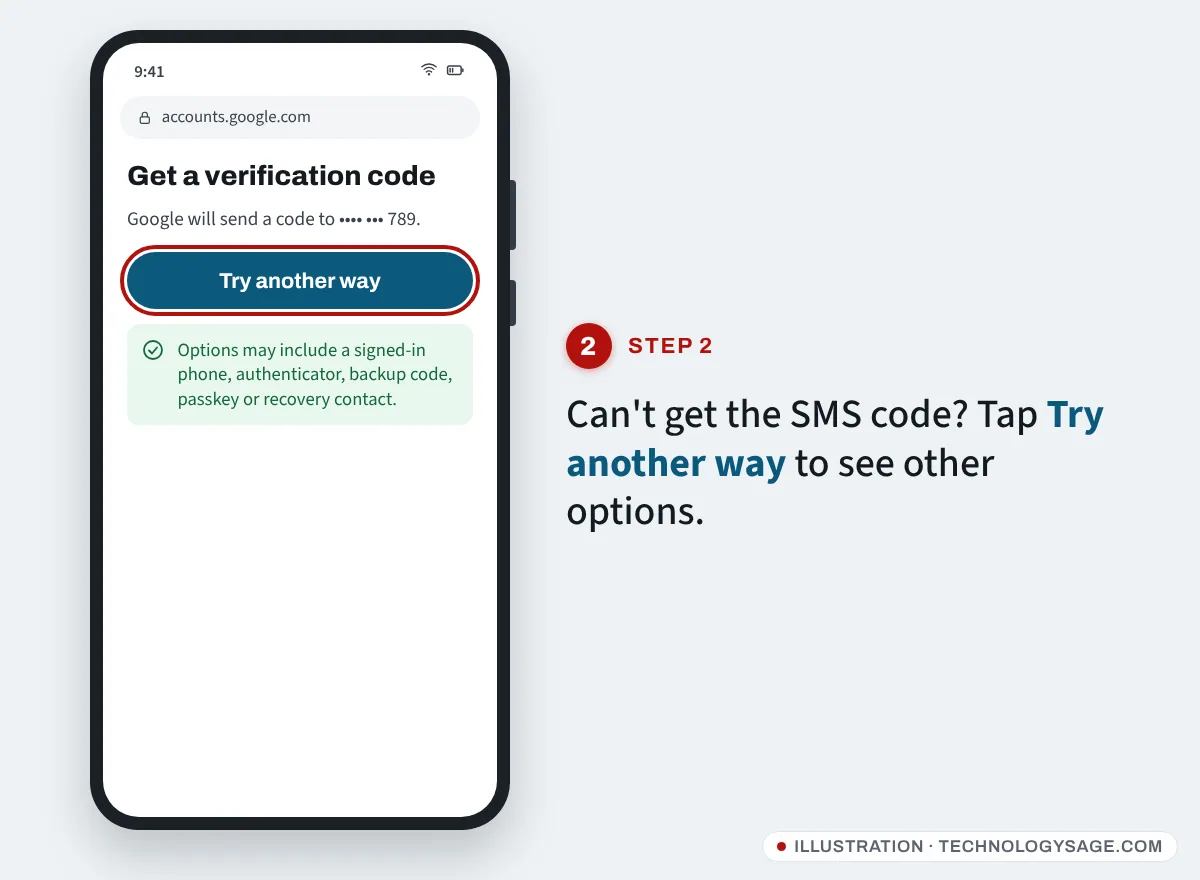
Google shows one method at a time. If you can’t use the one shown (for example “Get a verification code at ••••••789”), tap Try another way. Depending on how your account was set up, you may see:
- Enter the last password you remember. Type it exactly, with the correct capital letters. If you don’t remember the last one, enter an older one or your best guess.
- Tap Yes on a signed-in device. Google sends a prompt to a phone or tablet that’s signed in. Open it, tap Yes, it’s me, and match the number shown if asked.
- Get a code from Google Authenticator or another authenticator app you set up.
- Use a backup code. These are the 8-digit codes you may have saved or printed when you turned on 2-Step Verification.
- Use a passkey saved on your phone, laptop or a security key.
- Get a code at your recovery email if you have one.
- Ask a recovery contact. If you added trusted friends or family as recovery contacts before losing access, Google can show you a code that they confirm on their own device. This only works if you set them up in advance.
Wrong guesses won’t stop the process. Google says there is no limit to how many times you can try to recover your account.
Step 3: Give a contact email if Google asks for one
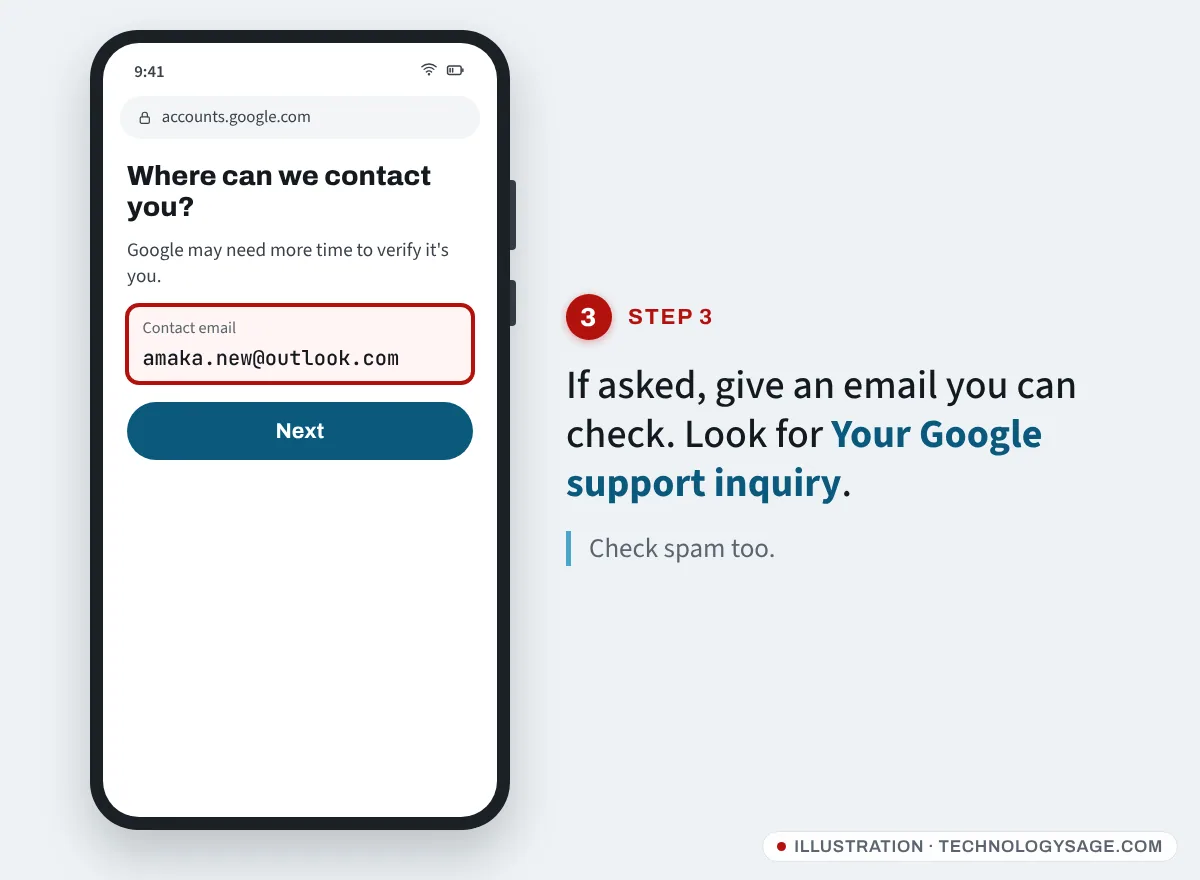
When Google can’t verify you instantly, it may ask for an email address where it can reach you. Use a different email that you control (create a free one if needed). Then check that inbox, including spam, for a message such as “Your Google support inquiry”. Google may ask more questions or tell you when you can try again.
Step 4: Set a new password and fix your recovery info
When Google lets you in, choose a new password you haven’t used on this account before. Then immediately:
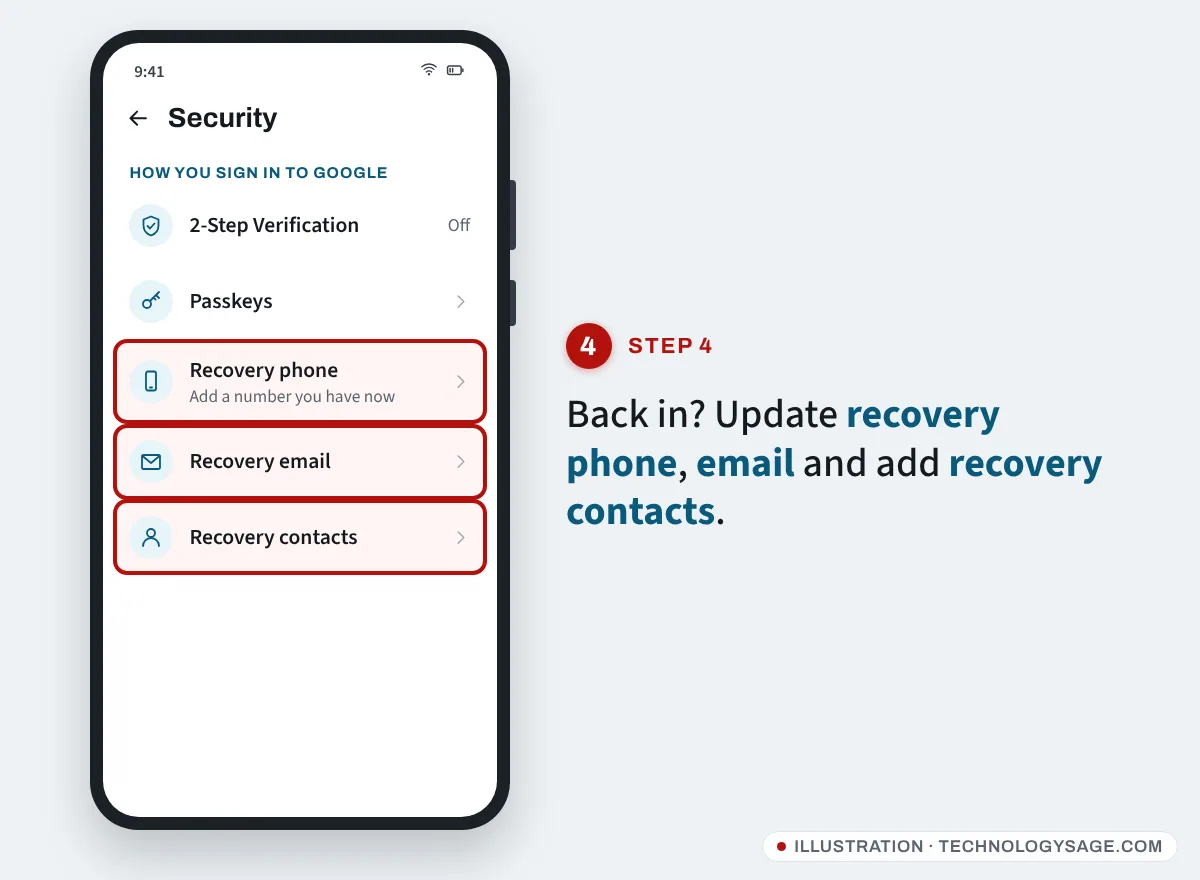
- Go to myaccount.google.com → Security (on Android: Settings → Google → Manage your Google Account → Security).
- Update your recovery phone to a number you have now, and add a recovery email.
- Add one or two recovery contacts you trust.
- Turn on 2-Step Verification and save backup codes somewhere safe, such as on paper at home.
- Review Your devices and sign out of anything you don’t recognise.
Note that if you change recovery info, Google says the change can take up to 7 days to take effect for recovery, so do this before you need it again. For changing your password later, see our guide on how to change your Gmail password.
Don’t call “Google support” numbers or pay recovery services
Search results for this problem are full of phone numbers on PDFs, forums, Google Sites and Medium pages claiming to be “Google Account Recovery support”. Google does not help with sign-in over the phone, and these numbers lead to scammers who will ask for remote access to your computer, your verification codes, or payment by gift card, crypto, mobile money or airtime.
- Google never asks for your password or verification codes by email, call or message.
- Paid “recovery experts” on Instagram, Telegram or anywhere else cannot do anything you can’t do yourself at g.co/recover.
- Type the address g.co/recover yourself rather than clicking links in emails or texts.
Our article on Google Docs phishing shows how convincing fake Google messages can look.
If it still doesn’t work
- “Google couldn’t verify this account belongs to you”: wait a few days, then try again from the same familiar device and Wi-Fi. If you recently changed something, give it up to 7 days.
- Work or school account: Google’s steps may not work for accounts managed by an organisation. Ask your IT administrator to reset it.
- Child account: a parent can reset the password through Family Link.
- Your Android phone is still signed in but locked out elsewhere: use that phone for recovery, and keep it signed in. If it’s lost, see find your lost Android device using Google.
- Nothing works: Google’s advice is to create a new Google Account and take steps to avoid being locked out again. Tell your contacts and update the email on your bank, social media and other accounts.
If a hacker took over your Gmail and then used it to reset your social accounts, recover Gmail first, then follow Facebook hacked recovery and Instagram hacked and email changed.
FAQ
Can I recover my Gmail without a phone number and without a recovery email?
Sometimes. Google may accept a prompt on a signed-in device, an authenticator code, a backup code, a passkey, your last password or a recovery contact. Success depends on how much Google can verify, and it’s not guaranteed.
How long does Google account recovery take?
If you pass the check, it’s immediate. If Google needs more time, it emails your contact address; some people wait a few days.
Is there a Google phone number to recover my account?
No. Google does not offer account recovery by phone. Any “Google recovery number” online is a scam.
Will I lose my emails if I can’t recover the account?
Your emails stay in the account, but you can’t reach them until you recover it. If you create a new account, the old emails don’t move across.
Does Google still ask when I created my account?
It may ask various questions depending on your account. Answer what you can and make your best guess rather than skipping.