In this guide
When YouTube videos are not playing or keep loading, start with the connection: reload the page or restart the app, switch between Wi-Fi and mobile data, and lower the video quality. If videos still won’t play, clear the YouTube app’s cache on your phone, or turn off extensions and clear the browser cache on a computer, then update the app or browser. Google’s own help pages say most playback errors are temporary and fixed by refreshing your connection.
Below are the fixes for phones (Android and iPhone), computers (Chrome, Edge, Firefox, Safari) and TV apps, in the order that solves the problem fastest.
Why are YouTube videos not playing?
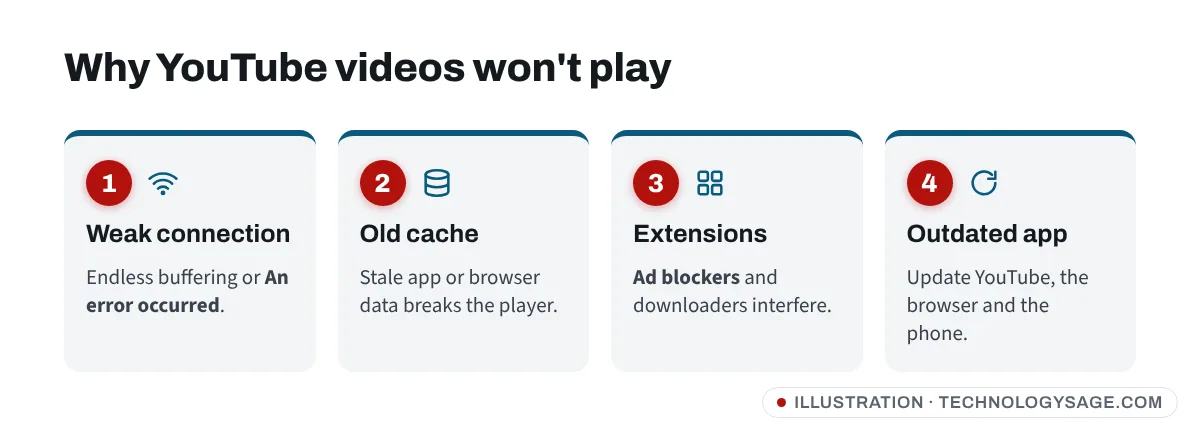
- A weak or interrupted connection, so the video buffers forever or shows “An error occurred”.
- A stuck app or browser tab that needs a restart.
- Old cached data in the app or browser.
- Browser extensions, especially ad blockers and download helpers, which can break the player.
- An out-of-date app, browser or phone.
- A firewall, VPN or network filter (school, office or router) that blocks YouTube.
- A problem with that one video, such as being private, removed or blocked in your country.
Quick checks (1 minute)
- Try another video. If only one video fails, it may be private, age-restricted or unavailable in your region. Nothing on your side will fix that.
- Check if YouTube is down. Open YouTube on a different device or network. If it fails everywhere, wait and try later.
- Reload. Refresh the browser page, or close the app fully (swipe it away from recent apps) and open it again.
- Switch networks. Turn Wi-Fi off and use mobile data for a minute, or the other way round. If the video plays on one, the problem is that network. Our guide to Wi-Fi connected but no internet helps with home Wi-Fi.
- Restart the device. A plain restart clears many temporary glitches.
Fix YouTube not loading on Android
1. Lower the quality
While a video is open, tap it, tap the gear (Settings) icon, choose Quality and pick a lower option (for example Data saver or 480p). If it now plays, your connection is too slow for the higher setting.
2. Clear the YouTube app’s cache
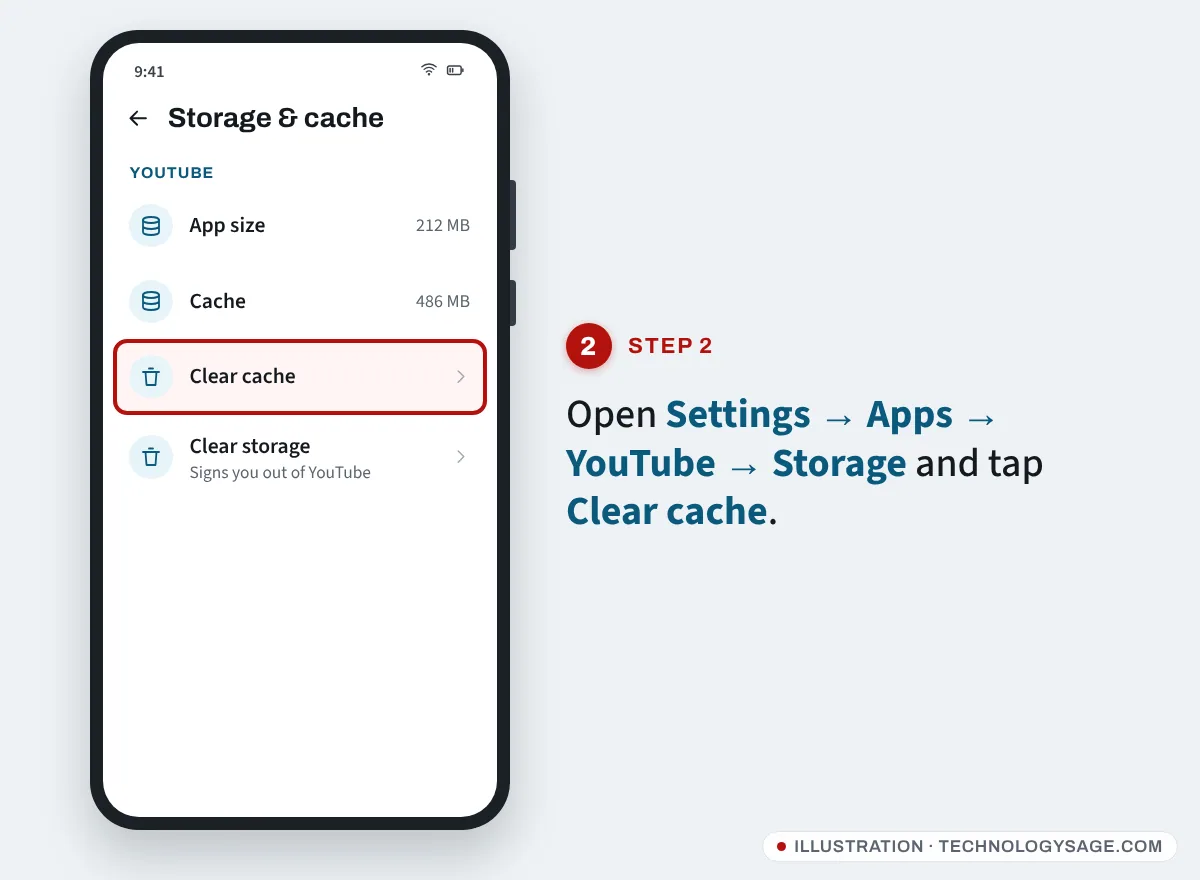
- Open Settings → Apps (on some phones Apps & notifications or Application manager).
- Find and tap YouTube.
- Tap Storage (or Storage & cache), then Clear cache.
- Open YouTube again. If it still fails, come back and tap Clear data or Clear storage. This signs you out of YouTube and removes downloads, but not your account or subscriptions.
3. Update or reset the app
- Open the Play Store, search for YouTube and tap Update if it appears.
- If videos broke after an update, go to Settings → Apps → YouTube, tap the three-dot menu and choose Uninstall updates, then update again from the Play Store.
- Also check for a system update in Settings → System → Software update (the name differs by brand).
If the app crashes with a message rather than refusing to play videos, see our older guide to the Unfortunately YouTube has stopped error.
4. Check storage, data saver and battery saver
- A phone with almost no free storage can fail to buffer video. Free up at least a few GB; our guide to Samsung internal storage full works for most Android phones.
- Data saver and aggressive battery savers can block background data. Turn them off briefly to test.
Fix YouTube videos not playing on iPhone and iPad
- Swipe up and close YouTube, then reopen it.
- Update YouTube from the App Store.
- Check that YouTube is allowed to use mobile data: Settings → Mobile Data (or Cellular), then make sure YouTube is switched on.
- iPhone has no “clear cache” button for apps. To get the same result, delete YouTube (press and hold the icon, Remove App → Delete App) and reinstall it from the App Store.
Fix YouTube not loading in Chrome and other browsers
1. Try a private window
Open a new Incognito (Chrome), InPrivate (Edge) or Private (Firefox, Safari) window and play the video there. Private windows run without most extensions and without your saved cookies. If the video plays, the cause is an extension or cached data.
2. Turn off extensions
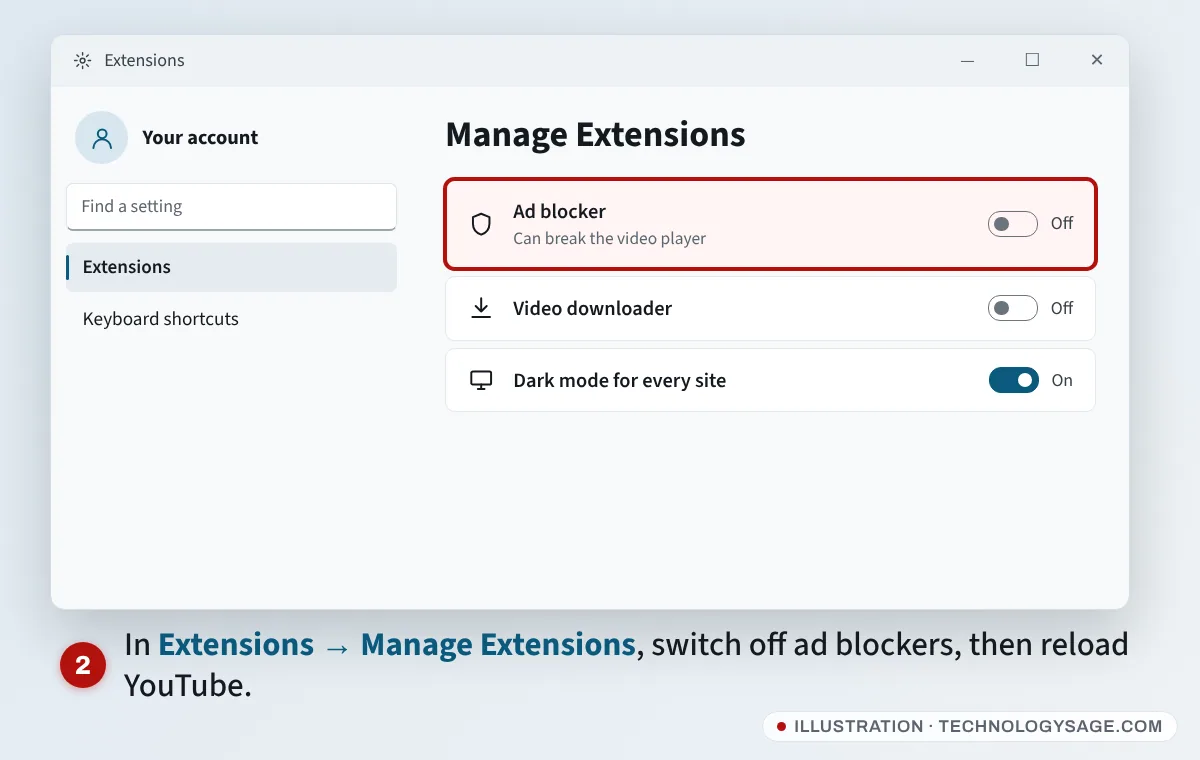
- In Chrome, open the three-dot menu, then Extensions → Manage Extensions (in Edge: Extensions → Manage extensions).
- Switch off every extension, especially ad blockers, video downloaders and “dark mode” tools.
- Reload YouTube. If it works, turn extensions back on one at a time to find the culprit.
3. Clear cache and cookies
- Press Ctrl + Shift + Delete (on a Mac, Command + Shift + Delete in Chrome).
- Choose Cookies and other site data and Cached images and files, set the time range to All time, and clear.
- Sign back in to YouTube.
4. Update the browser and check hardware acceleration
- In Chrome, go to Settings → About Chrome; it checks for updates automatically. Restart when asked.
- If videos show a black or green screen but you hear sound, try switching Use graphics acceleration when available (Chrome: Settings → System) off, restart Chrome, and test. Turn it back on if it makes no difference.
5. Check firewall, antivirus and VPN
Google notes that firewalls sometimes block YouTube videos from playing. Pause your VPN or proxy, and check whether your antivirus has web filtering turned on. On school or work networks, YouTube may simply be blocked by the administrator.
YouTube app not working on a TV
The TV app has its own fixes: a full power-off, Smart Hub reset on Samsung, and clearing app data on Google TV. Follow our dedicated guide to YouTube not working on TV.
If it still doesn’t work
- Videos play but are silent: see YouTube no sound.
- Only YouTube fails on your home Wi-Fi: restart the router, and check for parental controls or a DNS filter on it.
- Error mentions “playback ID” or “an error occurred, please try again later”: reload, sign out and back in, and check your connection. These are almost always temporary.
- Nothing works on any device on your network: contact your internet provider; they may have a routing problem to Google.
FAQ
Why are YouTube videos not playing but the site loads?
The page loads from a different server than the video stream. A slow connection, an ad blocker or extension, or old cached data often blocks only the video. Try a private window, then clear cache and turn off extensions.
Why does YouTube keep buffering?
Your connection can’t keep up with the video quality. Lower the quality from the gear icon, move closer to the router, or switch between Wi-Fi and mobile data.
How do I clear YouTube’s cache on Android?
Go to Settings → Apps → YouTube → Storage → Clear cache. If that isn’t enough, tap Clear data, then sign in again.
Why does YouTube say “An error occurred. Please try again later”?
It’s a general playback error, usually caused by a dropped connection or a temporary YouTube problem. Reload the video, restart the app or browser, and check your network.
Can a VPN stop YouTube videos from playing?
Yes. Some VPN servers are slow or flagged, and videos can fail to load or show region errors. Turn the VPN off and try again.