In this guide
- What DNS_PROBE_FINISHED_NO_INTERNET means
- 1. Check whether the internet is down for everyone
- 2. On a phone hotspot? Check the phone first
- 3. Restart the device and reconnect
- 4. Flush DNS and reset the network on Windows
- 5. Switch to a public DNS server
- 6. Turn off VPNs, proxies and web filters
- 7. On Android: check Private DNS and reset network settings
- 8. Update or reset the network adapter on Windows
- If it still doesn’t work
- FAQ
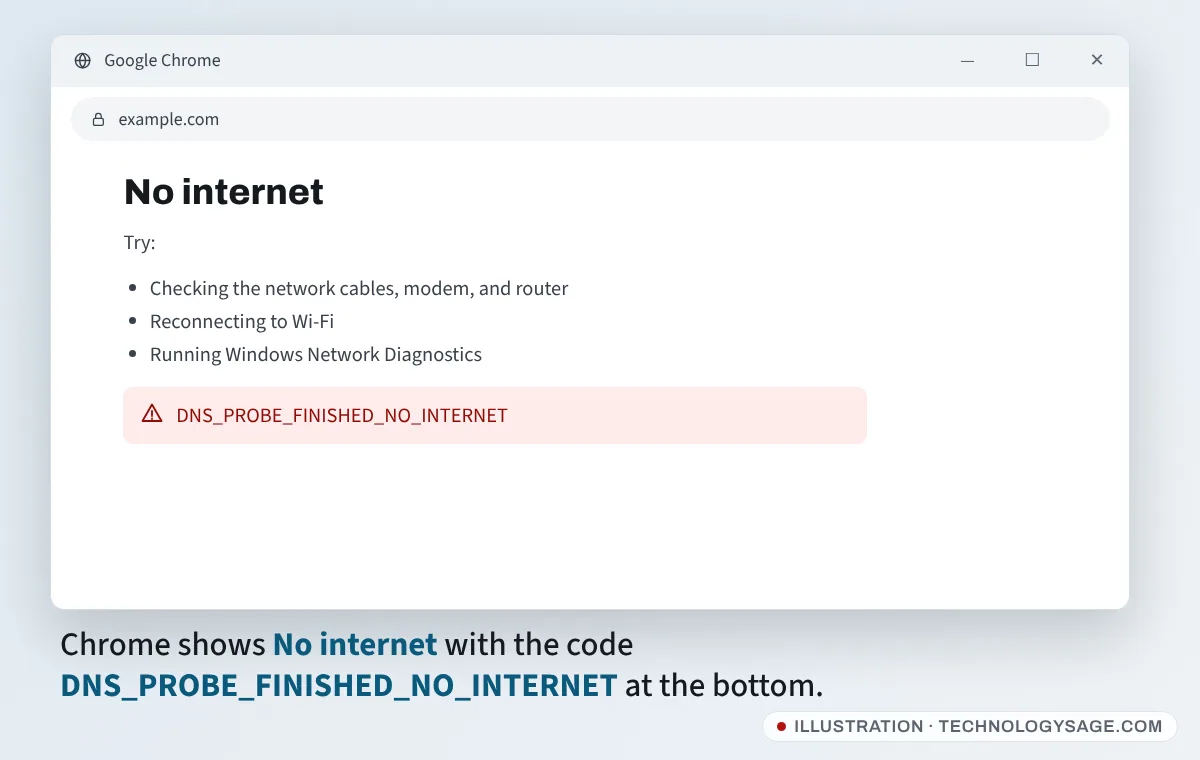
DNS_PROBE_FINISHED_NO_INTERNET is Chrome’s way of saying it couldn’t look up the website’s address because your device has no working internet connection. Chrome asks a DNS server to turn a name like example.com into a number, and that request never got an answer. Most of the time the fix is simple: restart your router (or check your phone’s mobile data if you’re on a hotspot), then flush the DNS cache and, if needed, switch to a public DNS server.
The same code appears in Microsoft Edge, Brave, Opera and other Chromium-based browsers. Windows may describe the same problem as “DNS server not responding”.
What DNS_PROBE_FINISHED_NO_INTERNET means
DNS (the Domain Name System) is the internet’s phone book. When the lookup fails, Chrome runs a quick “probe” to find out why. “Finished, no internet” means the probe concluded that the whole connection is down, not just one website. Compare it with similar codes:
- DNS_PROBE_FINISHED_NXDOMAIN: the internet works, but that web address doesn’t exist (often a typo).
- ERR_INTERNET_DISCONNECTED: the device isn’t connected to any network at all.
- DNS_PROBE_FINISHED_NO_INTERNET: you’re connected to Wi-Fi, Ethernet or a hotspot, but nothing gets through to the internet’s DNS servers.
So the job is to find where the connection breaks: your device, the router, or your internet provider.
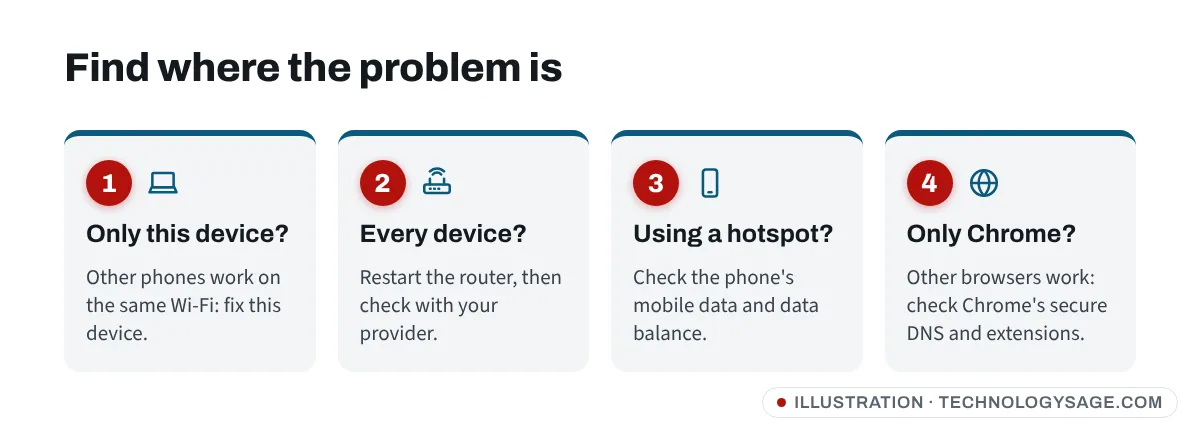
1. Check whether the internet is down for everyone
Try another device on the same Wi-Fi. If no device can browse, the problem is the router or your provider:
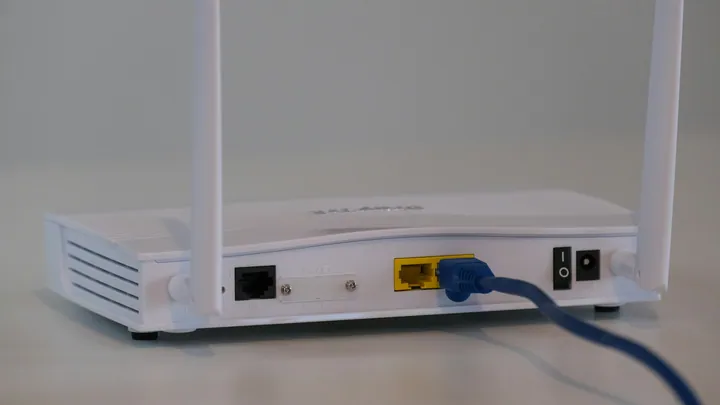
- Restart the router and modem. Unplug them, wait 30 seconds, plug them back in and give them two or three minutes to reconnect.
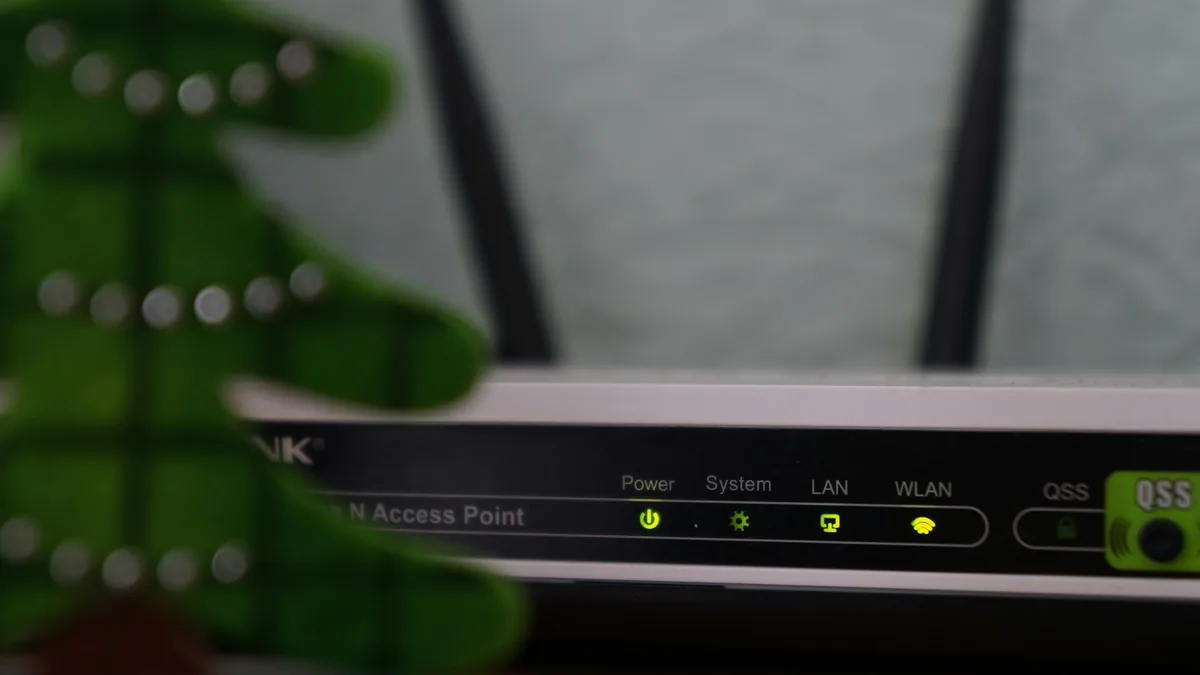
- Check the lights. A red or orange “Internet”, “WAN” or “LOS” light means the connection from your provider is down. See router red light for what each light means.
- Check your account. Prepaid home internet, fibre bundles and 4G/5G routers stop working when the subscription or data runs out. Log in to your provider’s app or website, or call them.
- Look for an outage. Your provider’s app or social media pages usually post outages.
If you see “Connected, no internet” on every device, our guide to Wi-Fi connected but no internet goes through the router side in more depth.
2. On a phone hotspot? Check the phone first
Many people see this error on a laptop using a phone’s hotspot. The laptop is connected to the phone, but the phone isn’t getting internet.
- Make sure mobile data is on and you have data or airtime left. Open a page on the phone itself; if it fails there too, the problem is the phone’s connection.
- Check for a hotspot data limit in the phone’s hotspot settings. When it’s reached, connected devices lose internet while staying connected.
- Turn the hotspot off and on, and toggle airplane mode on the phone for 10 seconds.
- If the phone uses Private DNS (fix 7) and browsing fails on connected devices, set it to Automatic and test again.
3. Restart the device and reconnect
Restart your computer or phone, then forget the Wi-Fi network and join it again (you’ll need the password). If you use Ethernet, unplug the cable at both ends and plug it back in, or try another cable and port. A laptop that keeps dropping Wi-Fi has a separate set of fixes in laptop Wi-Fi keeps disconnecting.
4. Flush DNS and reset the network on Windows
If other devices work but your Windows PC doesn’t, clear its DNS cache and reset the network settings:
- Click Start, type
cmd, right-click Command Prompt and choose Run as administrator. - Run these commands one at a time, pressing Enter after each:
ipconfig /flushdns
ipconfig /release
ipconfig /renew
netsh winsock reset
netsh int ip reset- Restart the computer.
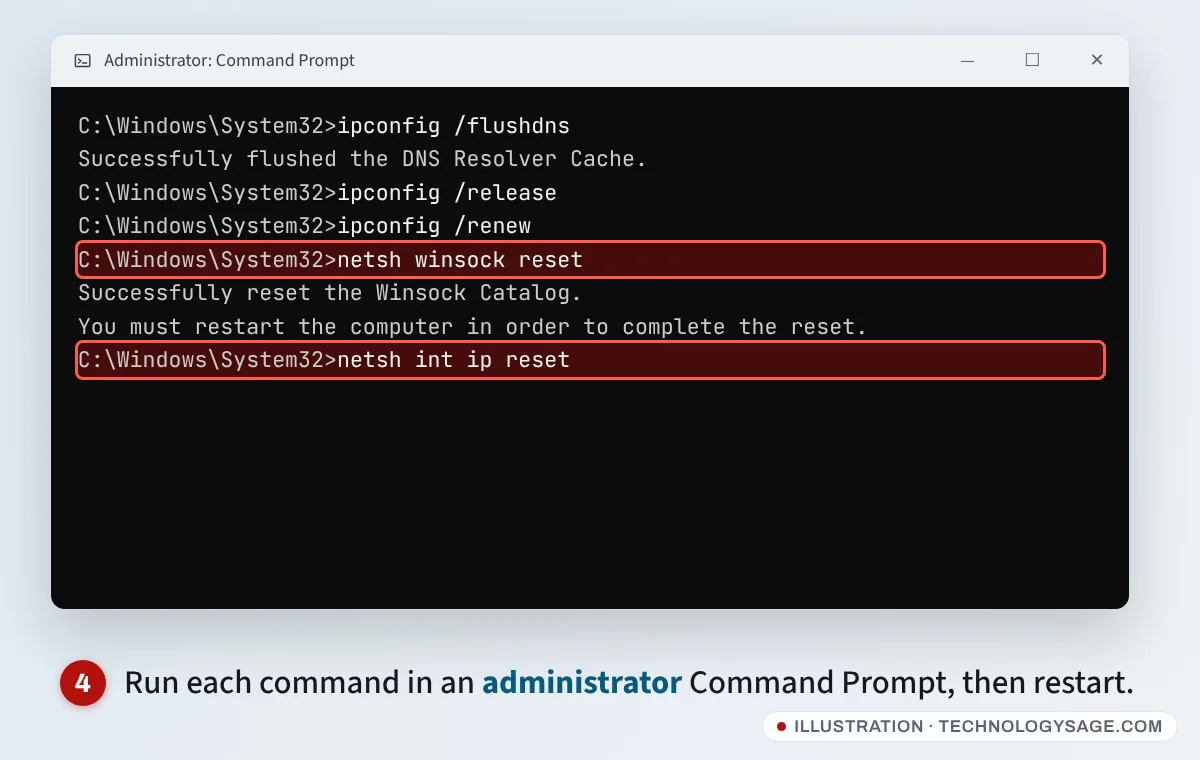
ipconfig /release disconnects you briefly; that’s expected. The Winsock and IP resets put Windows’ network settings back to defaults; if you set a static IP address or custom DNS by hand, you may need to enter it again.
Then clear Chrome’s own DNS cache: type chrome://net-internals/#dns in the address bar and click Clear host cache.
5. Switch to a public DNS server
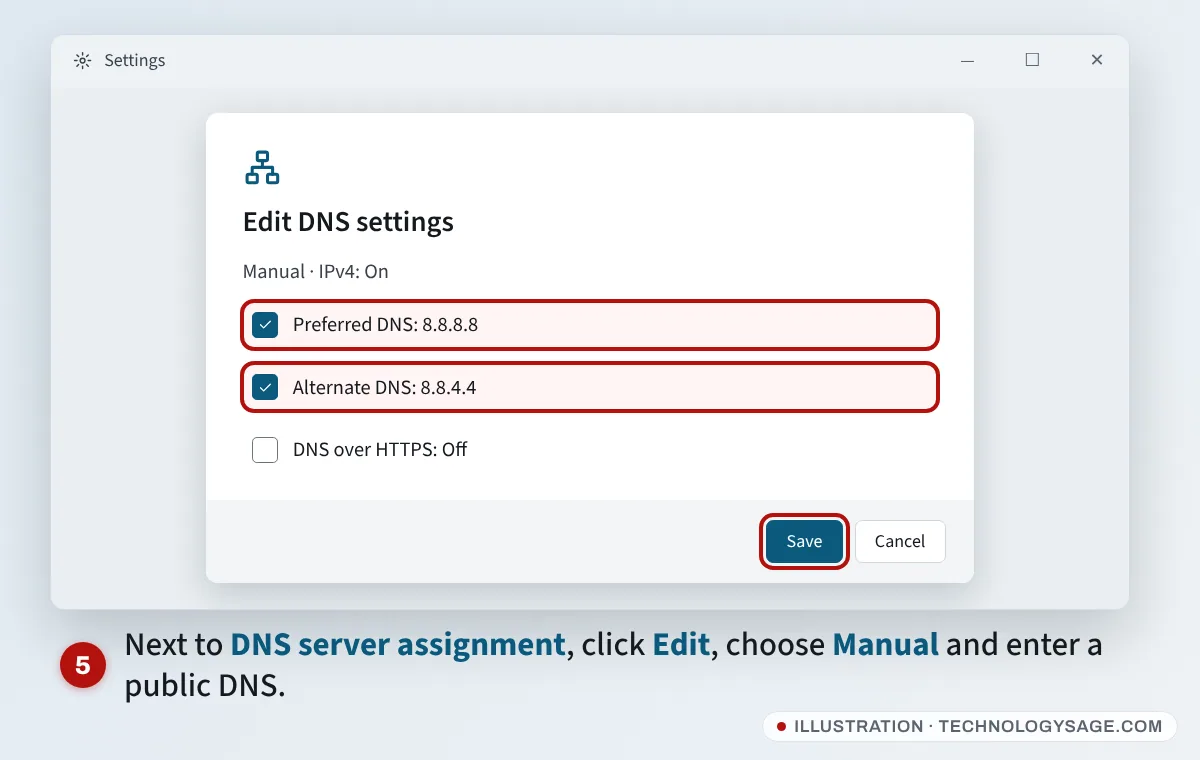
If your provider’s DNS servers are down or unreliable, use a public one. Two well-known free options are Google Public DNS (8.8.8.8 and 8.8.4.4) and Cloudflare (1.1.1.1 and 1.0.0.1).
On Windows 11:
- Open Settings → Network & internet.
- Click Wi-Fi → Hardware properties, or click Ethernet if you use a cable.
- Next to DNS server assignment, click Edit.
- Choose Manual, turn on IPv4, and enter the preferred and alternate DNS addresses.
- Click Save.
On Windows 10: open Control Panel → Network and Sharing Center → Change adapter settings, right-click your connection → Properties → Internet Protocol Version 4 (TCP/IPv4) → Properties, then choose Use the following DNS server addresses.
On a Mac: open System Settings → Network, click your connection, click Details, open DNS, and add the servers with the + button.
You can also set DNS on the router so every device uses it; the option is usually under WAN or Internet settings in the router’s admin page.
6. Turn off VPNs, proxies and web filters
A VPN that has lost its connection, a proxy setting left over from an app, or a security suite’s web filter can all block DNS.
- Disconnect or quit any VPN and test again.
- On Windows, open Settings → Network & internet → Proxy and make sure Use a proxy server is off (unless your workplace requires it).
- Temporarily pause third-party antivirus or firewall web protection to test, then turn it back on.
- In Chrome, open Settings → Privacy and security → Security and, under Use secure DNS, switch it off or choose a different provider to test. Also try Chrome in an Incognito window, which disables most extensions.
7. On Android: check Private DNS and reset network settings
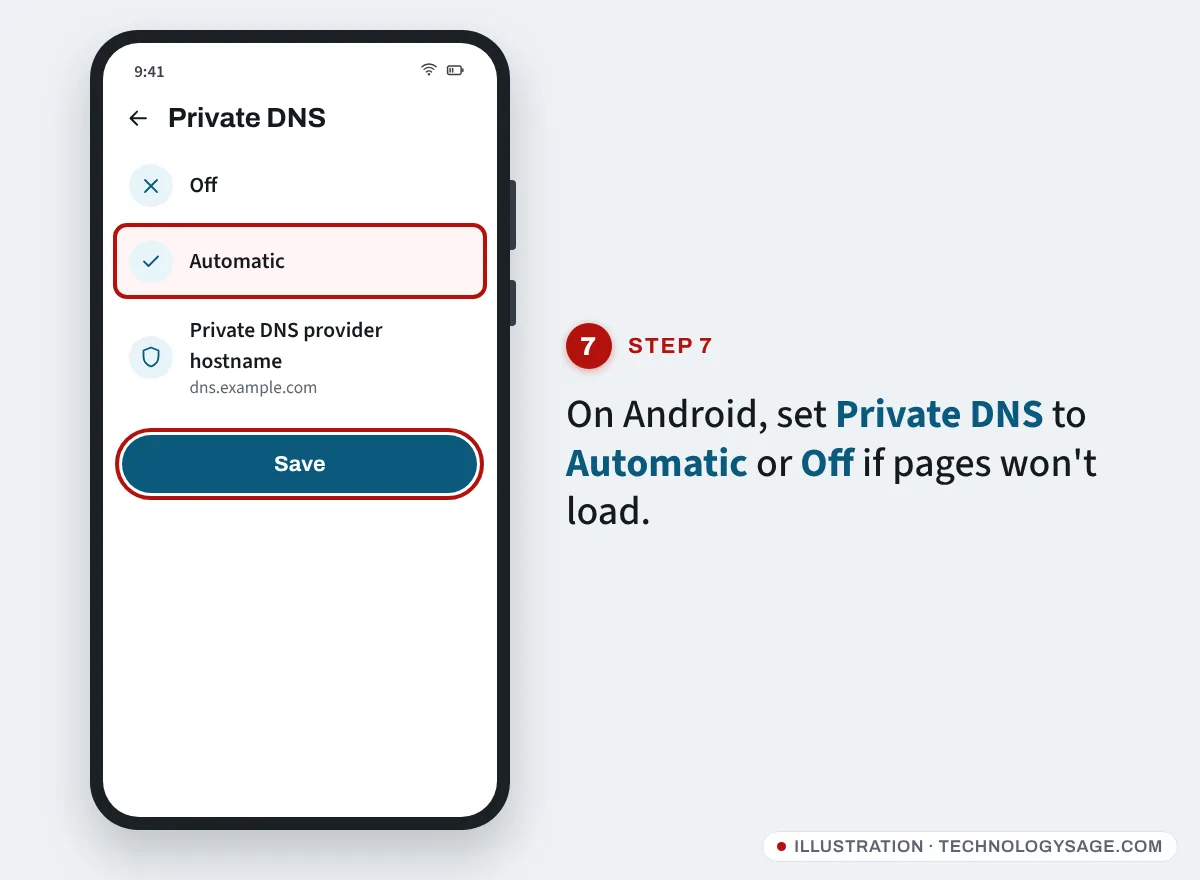
Android’s Private DNS sends DNS lookups to a provider you choose. If that provider can’t be reached on your network, every website fails.
- Open Settings and search for Private DNS (usually Settings → Network & internet → Private DNS; on Samsung, Settings → Connections → More connection settings → Private DNS).
- Choose Automatic (or Off) and tap Save.
If that doesn’t help, restart the phone, then reset network settings (search Settings for Reset Wi-Fi, mobile & Bluetooth or Reset network settings). This forgets saved Wi-Fi passwords and Bluetooth pairings but doesn’t touch your photos or apps.
8. Update or reset the network adapter on Windows
- Right-click Start → Device Manager → Network adapters.
- Right-click your Wi-Fi or Ethernet adapter → Update driver, or Uninstall device and restart so Windows reinstalls it.
- As a last resort, use Settings → Network & internet → Advanced network settings → Network reset. It removes and reinstalls all network adapters and restarts the PC; you’ll need to re-enter Wi-Fi passwords and set up any VPN again.
If your PC is on Ethernet and shows “Unidentified network”, see Ethernet unidentified network.
If it still doesn’t work
- Only some websites fail, or only at certain times? The provider’s DNS may be overloaded; a public DNS (fix 5) usually solves it.
- Hotel, airport or café Wi-Fi? You may need to accept a sign-in page first. If it doesn’t pop up, open a new tab and type an address that starts with
http://rather thanhttps://; that usually brings it up. - School or office network? Its firewall may block outside DNS servers; ask the IT team.
- Every device fails and the router lights look normal? Call your provider and tell them DNS lookups are failing; they can check the line and their servers.
FAQ
How do I fix DNS_PROBE_FINISHED_NO_INTERNET in Chrome?
Restart your router, then on your computer flush the DNS cache (ipconfig /flushdns), reset Winsock (netsh winsock reset) and restart. If it continues, change your DNS server to 8.8.8.8 or 1.1.1.1 and turn off any VPN or proxy.
What does “DNS server not responding” mean?
Your device sent a lookup to its DNS server and got no reply. Either the internet connection is down, the router has frozen, or the DNS server itself isn’t working. Restarting the router and switching to a public DNS fixes most cases.
Is DNS_PROBE_FINISHED_NO_INTERNET a virus?
Not usually. It’s a connection error. Malware or a leftover proxy setting can cause it, so if it keeps returning after the fixes above, run a full scan with Windows Security.
Why does this error show on my laptop but not on my phone?
Then the router and internet are fine and the problem is on the laptop: its DNS cache, network adapter, VPN, proxy or security software. Work through fixes 3 to 6 and 8.