In this guide
- Step 0: Is it the laptop or the network?
- 1. Restart the router (and the laptop)
- 2. Check your data plan, bill and sign-in page
- 3. Turn Wi-Fi off and on, and forget the network
- 4. Run the Network and Internet troubleshooter
- 5. Reset IP, DNS and Winsock with commands
- 6. Change the DNS server
- 7. Turn off VPN and proxy settings
- 8. Check the date, time and security software
- 9. Turn off random hardware addresses
- 10. Update the Wi-Fi driver, then use Network reset
- If it still doesn’t work
- FAQ
“Connected, no internet” means your laptop has joined the Wi-Fi network, but that network can’t reach the internet, or your laptop can’t get a working address or DNS from it. Start by checking whether other devices on the same Wi-Fi work. If they don’t, the problem is the router or your internet plan: restart the router, and check your data bundle or subscription. If only the laptop is affected, forget and rejoin the network, reset IP and DNS with a few commands, and if needed run Network reset in Settings → Network & internet → Advanced network settings.
The fixes below are for Windows 11 (24H2 and 25H2) and go from the quickest to the most thorough.
Step 0: Is it the laptop or the network?
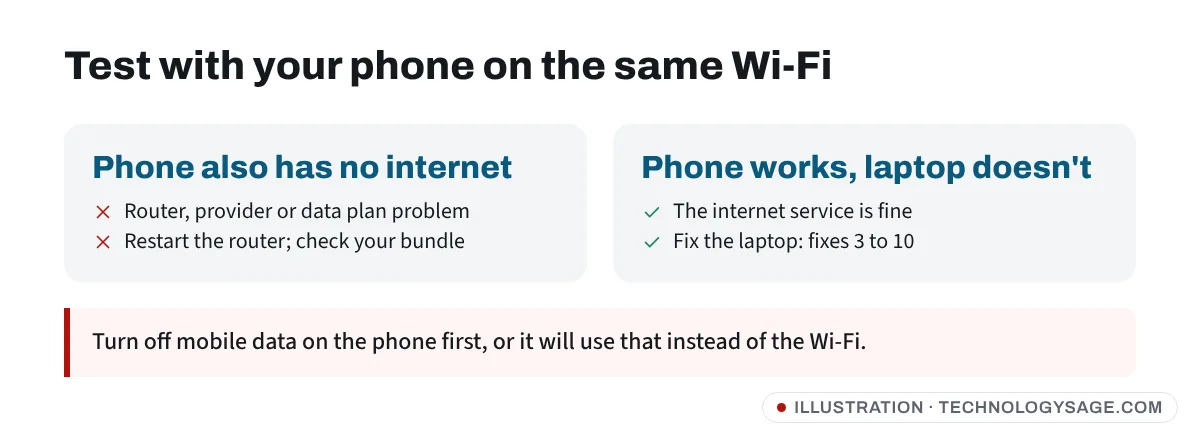
Open a website on your phone while it’s connected to the same Wi-Fi (turn off mobile data first, or the phone will quietly use that instead).
- Phone has no internet either: start with fixes 1 and 2. The router or your internet service is the problem.
- Phone works, laptop doesn’t: skip to fix 3.
1. Restart the router (and the laptop)
- Unplug the router or MiFi from power (or switch it off). For a fibre or cable connection, unplug the modem or ONT box too.
- Wait 30 seconds, then plug it back in.
- Wait 2-3 minutes for all the lights to settle, then restart the laptop.
If a light on the router is red or orange, the router has no connection to your provider. See router red light for what that usually means.
2. Check your data plan, bill and sign-in page
This catches a lot of people with MiFi devices, 4G/5G routers and prepaid home internet:
- Bundle used up or expired: check your balance in your provider’s app or by the provider’s official USSD code or website. Many 4G/5G routers stay “connected” to Wi-Fi with no data left.
- Unpaid bill or service down: check your provider’s app, website or official social media page for outages.
- Hotel, campus, airport or café Wi-Fi: these need you to sign in on a web page first. Open your browser and try to visit any normal website; the sign-in page should appear. If it doesn’t, try a different website or ask staff for the address of the login page.
3. Turn Wi-Fi off and on, and forget the network
- Click the network icon on the taskbar (or press Windows + A) and switch Wi-Fi off, wait 10 seconds and switch it on.
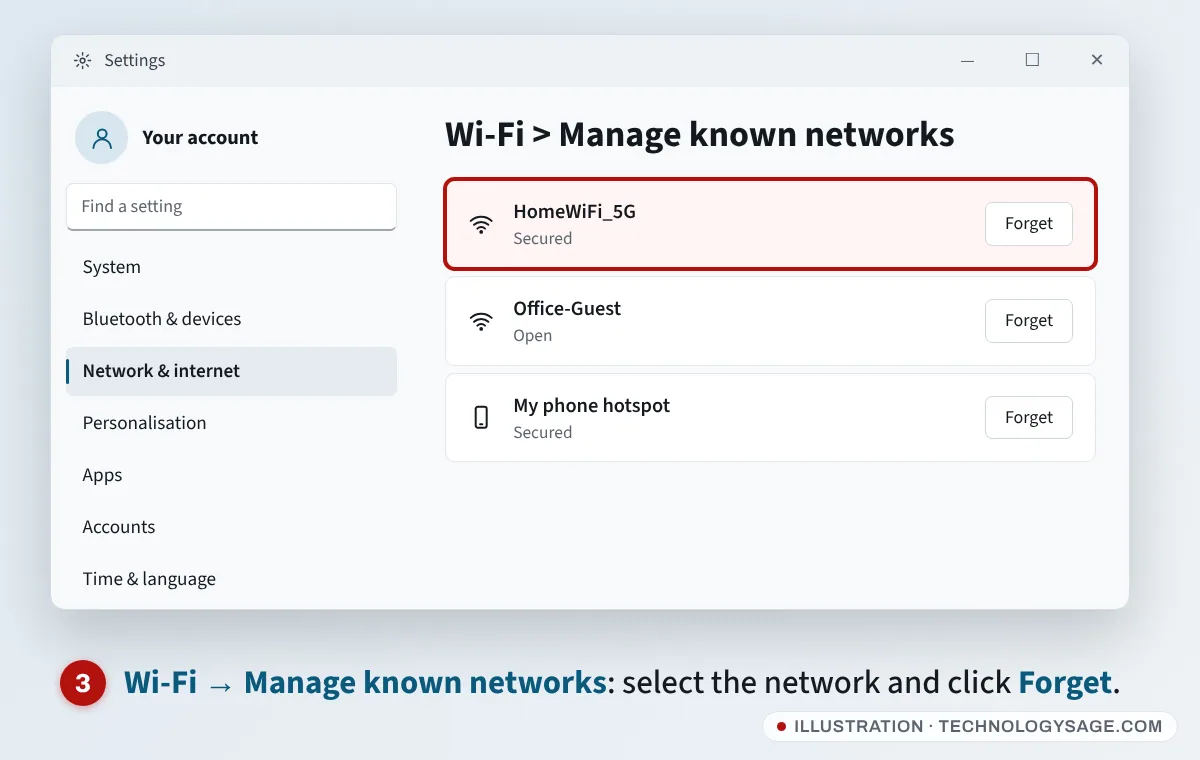
- If that doesn’t help, go to Settings → Network & internet → Wi-Fi → Manage known networks.
- Select the network and click Forget.
- Reconnect and enter the Wi-Fi password again. If you don’t remember it, see how to view a saved Wi-Fi password before you forget the network.
4. Run the Network and Internet troubleshooter
Go to Settings → System → Troubleshoot → Other troubleshooters and click Run next to Network and Internet. On current Windows 11 versions this opens the Get Help app, which runs the checks for you. If it doesn’t start, open Get Help from the Start menu and type network and internet troubleshooter.
5. Reset IP, DNS and Winsock with commands
These commands get a fresh address from the router, clear old DNS entries and reset Windows’ network stack. They don’t delete files.
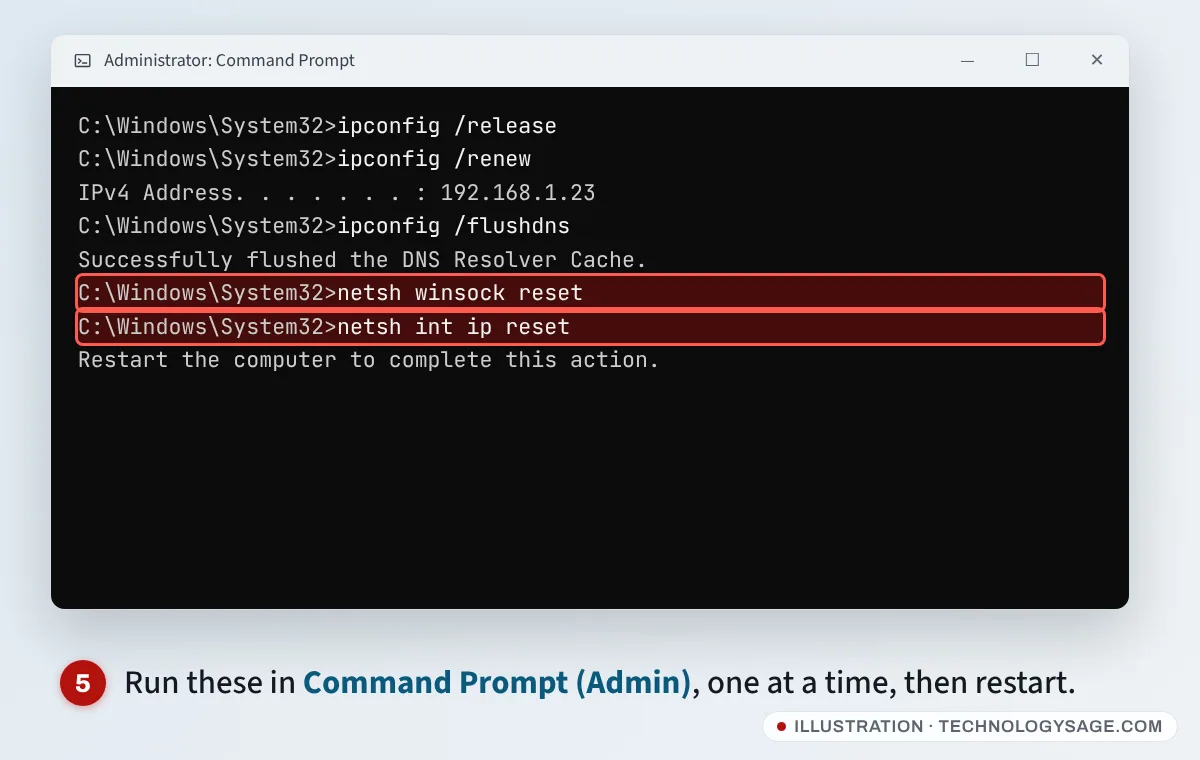
- Press the Windows key, type
cmd, then choose Run as administrator and click Yes. - Type each line below and press Enter after each one:
ipconfig /release
ipconfig /renew
ipconfig /flushdns
netsh winsock reset
netsh int ip reset- Restart the laptop.
What to look for: if ipconfig shows an IPv4 address starting with 169.254, the laptop isn’t getting an address from the router at all. Restart the router again, check that it isn’t limited to a set number of devices, and continue with the fixes below.
6. Change the DNS server
If the laptop has an address but websites still won’t open, DNS (the internet’s address book) may be failing. You can switch to a public DNS service:
- Go to Settings → Network & internet → Wi-Fi and click [your network] properties at the top.
- Next to DNS server assignment, click Edit.
- Change Automatic (DHCP) to Manual, switch on IPv4, and enter:
- Preferred DNS:
8.8.8.8(Google Public DNS) or1.1.1.1(Cloudflare) - Alternate DNS:
8.8.4.4or1.0.0.1
- Preferred DNS:
- Click Save.
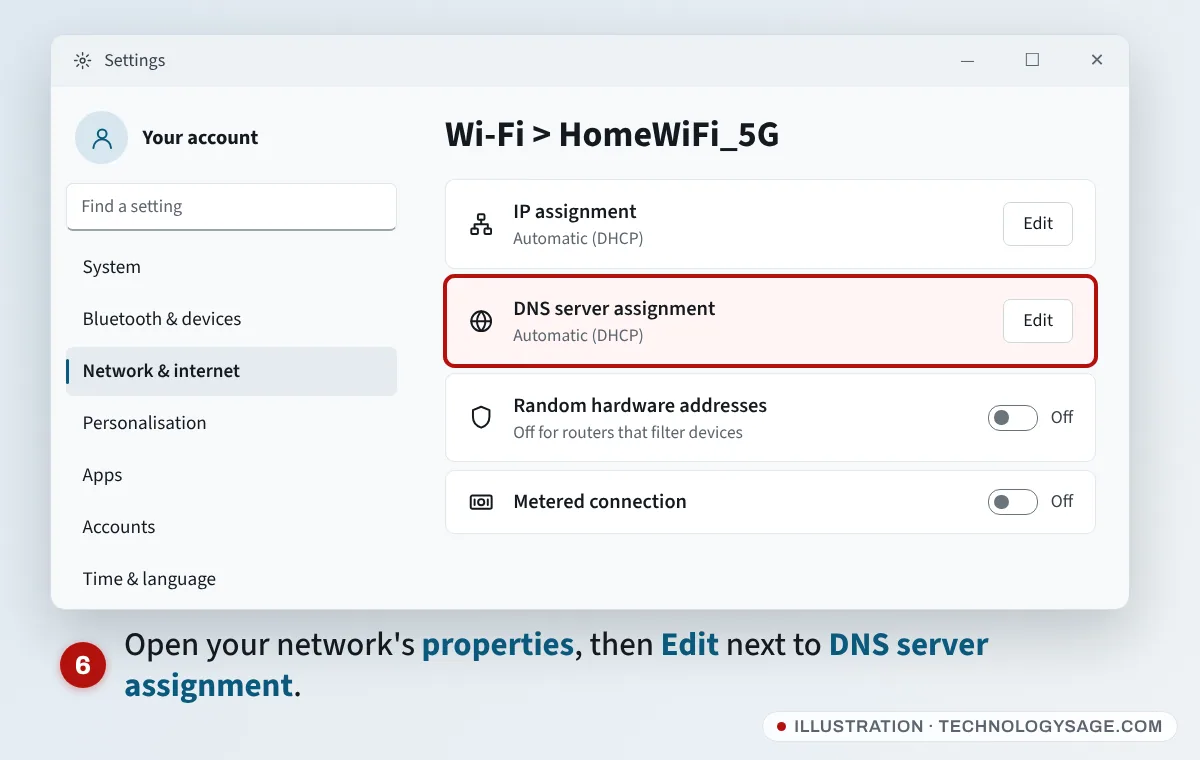
On the same page, check that IP assignment is set to Automatic (DHCP). A manual IP left over from an office or another network stops the laptop working on a home router. Our guide to changing your IP address explains these settings.
7. Turn off VPN and proxy settings
- Disconnect or uninstall any VPN app, then test again. Also check Settings → Network & internet → VPN.
- Go to Settings → Network & internet → Proxy. Make sure Automatically detect settings is on and Use a proxy server (under Manual proxy setup) is off, unless your workplace set it up deliberately.
8. Check the date, time and security software
- A wrong date or time breaks secure websites. Go to Settings → Time & language → Date & time and turn on Set time automatically and Set time zone automatically, then click Sync now.
- Third-party antivirus or firewall apps can block the connection. Temporarily turn them off (or uninstall), test, then turn them back on or replace them. Windows Security is enough for most people.
9. Turn off random hardware addresses
Some routers only allow approved devices (MAC filtering) or give an address per device. A “random hardware address” makes the laptop look like a new device. In Settings → Network & internet → Wi-Fi, open [your network] properties and set Random hardware addresses to Off, then reconnect.
10. Update the Wi-Fi driver, then use Network reset
- Get the latest Wi-Fi driver from your laptop maker (HP Support Assistant, Lenovo Vantage, Dell SupportAssist, MyASUS or the model’s support page). Also check Settings → Windows Update → Advanced options → Optional updates. You’ll need another connection to download it: a phone hotspot or USB tethering works. See how to install drivers.
- If that doesn’t help, go to Settings → Network & internet → Advanced network settings → Network reset and click Reset now. The laptop restarts.
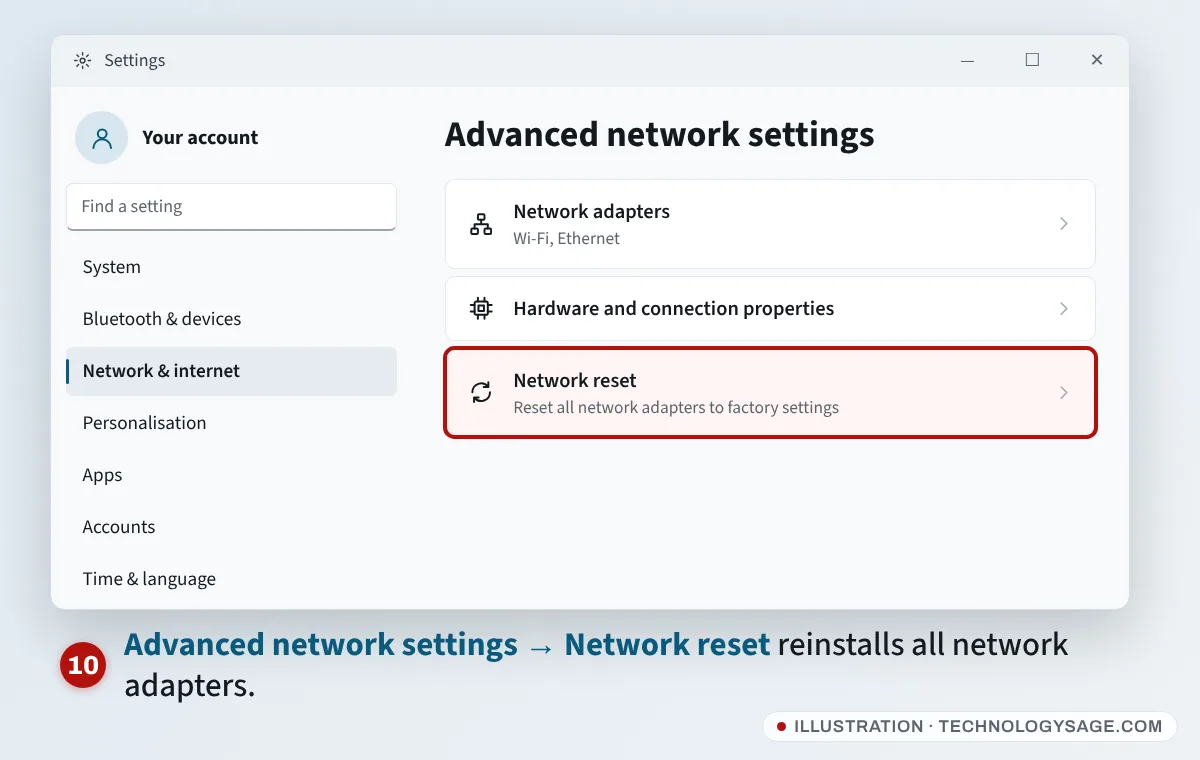
Network reset removes and reinstalls your network adapters and sets everything back to default. You’ll need to re-enter Wi-Fi passwords, and set up any VPN again.
If it still doesn’t work
- Connect with a cable if your router has Ethernet ports. If the cable works, the issue is the laptop’s Wi-Fi; if not, it’s the router or service.
- Reset the router to factory settings only if you know how to set it up again (Wi-Fi name, password and, for some providers, login details). Your provider can help.
- Call your provider using the number on their official website, app or bill. Providers don’t ask for your bank PIN, OTP or payment in airtime or gift cards to fix a connection.
- The Wi-Fi drops every few minutes rather than never working: see laptop Wi-Fi keeps disconnecting.
- Wi-Fi is missing completely: see Wi-Fi not showing on laptop.
FAQ
Why does my laptop say “Connected, no internet”?
It has joined the Wi-Fi network but can’t reach the internet through it. Common reasons are a router or provider problem, an expired data bundle, a sign-in page on public Wi-Fi, or a wrong IP or DNS setting on the laptop.
My phone works on the Wi-Fi but my laptop doesn’t. Why?
The problem is on the laptop: usually an old DNS or IP setting, a VPN or proxy, or the Wi-Fi driver. Try fixes 3 to 10. For the opposite problem, see phone can’t connect to Wi-Fi but laptop can.
Will Network reset delete my files?
No. It only resets network settings and adapters. You’ll need to reconnect to Wi-Fi networks and reinstall VPN software.
Is it safe to use Google or Cloudflare DNS?
Yes, both are widely used public DNS services. You can switch back to Automatic (DHCP) at any time.
What does a 169.254 IP address mean?
It means the laptop couldn’t get an address from the router. Restart the router, forget and rejoin the network, and check whether the router limits the number of connected devices.