In this guide
- Quick check: is it the camera, or the app?
- Fix 1: Clean the front camera glass properly
- Fix 2: Remove the screen protector or case to test
- Fix 3: Hold the phone farther away
- Fix 4: Turn off beauty mode and face smoothing
- Fix 5: Check light, resolution and camera settings
- Fix 6: Stop apps compressing your selfies
- When it’s a hardware problem
- If it doesn’t work
- FAQ
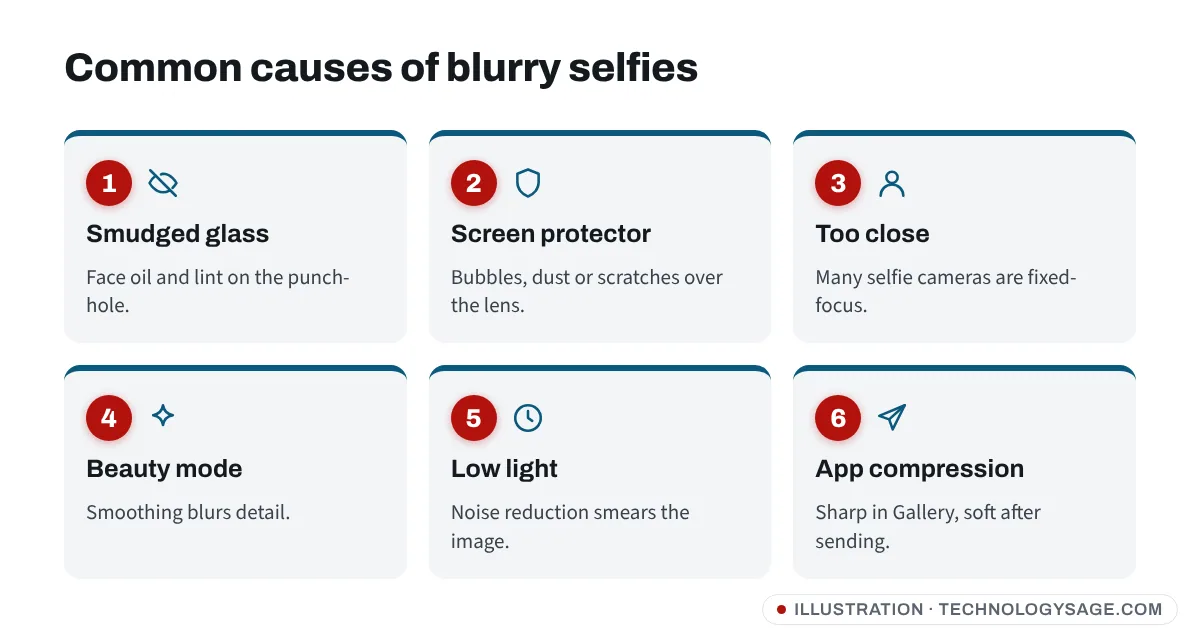
A blurry front camera on Android is usually caused by a smudge on the lens, a screen protector or case edge over the camera, holding the phone too close, or a beauty filter that smooths everything out. Clean the glass over the camera with a microfiber cloth, remove the protector to test, hold the phone at arm’s length and turn beauty mode off. If selfies only look bad after you send them, the app (WhatsApp, Instagram, Snapchat) is compressing them.
Here’s how to find which one it is, in the order that fixes most phones fastest.
Quick check: is it the camera, or the app?
- Open the phone’s own Camera app and switch to the front camera.
- Take a selfie in good daylight at arm’s length.
- Open it in Gallery and zoom in.
- Sharp in Gallery, blurry after sending: it’s compression by the app. Skip to Fix 6.
- Blurry in Gallery too: work through Fixes 1-5.
- Blurry in the preview, sharp in the saved photo (or the other way round): usually normal processing; compare the saved photo, not the preview.
Fix 1: Clean the front camera glass properly
The front camera sits under the screen glass, in the punch-hole or notch, or behind a small window at the top. Face oil from calls and pocket lint build up on it, and that gives a hazy, glowing look, especially around lights.
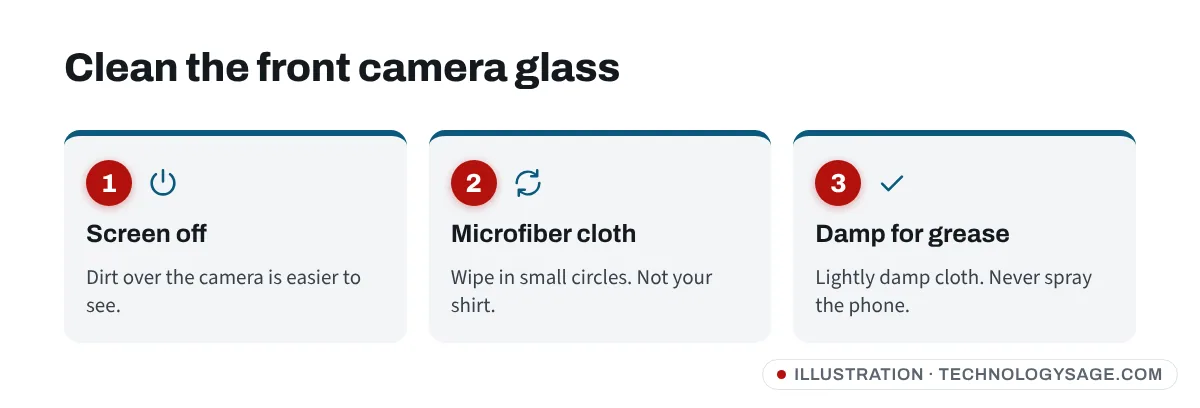
- Turn the screen off so you can see the glass clearly.
- Wipe the camera area with a dry microfiber cloth (the kind used for glasses), using small circles.
- For stubborn grease, slightly dampen the cloth with water or a little isopropyl alcohol. Never spray liquid straight on the phone.
- Don’t use your shirt, tissue or kitchen paper; they leave fibres and can scratch.
Fix 2: Remove the screen protector or case to test
This is the most common cause on budget phones in Africa and Asia, where thick tempered-glass protectors are fitted at the shop.
- Protector over the punch-hole: a protector that covers the camera adds an extra layer of glass and glue. Any bubble, dust or scratch right over the lens makes selfies soft. Cut-out protectors avoid this.
- Factory film: some phones ship with a thin plastic film on the screen. If it’s still on, it’s often scratched over the camera.
- Thick cases: a raised case edge or “privacy” protector can partly block the camera and cause hazy edges.
Take a selfie with the protector or case removed (or peeled back at the corner). If it’s suddenly sharp, replace the protector with one that has a camera cut-out or fits properly.
Fix 3: Hold the phone farther away
Many front cameras, especially on budget and mid-range phones, have fixed focus: they’re set to be sharp at roughly arm’s length and can’t focus closer. Hold the phone 15-20 cm from your face and your face will look soft no matter what.
- Hold the phone at full arm’s length or use a selfie stick.
- If your phone’s front camera has autofocus, tap your face on the screen to focus before taking the picture.
- Use the wide/group selfie mode only when you need it; it can make faces look less sharp.
Fix 4: Turn off beauty mode and face smoothing
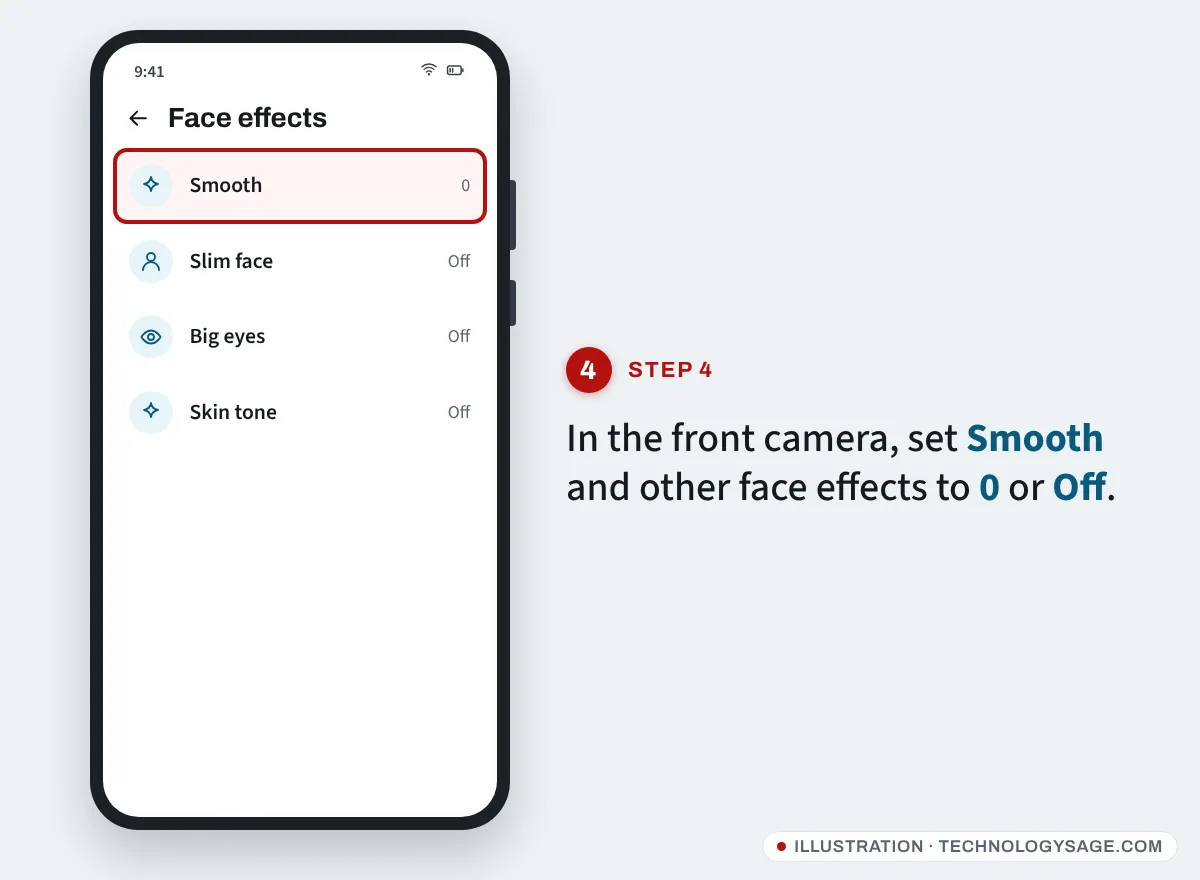
Beauty filters work by blurring skin texture. At high levels they make the whole selfie look smudged, especially in poor light.
- Samsung: in Camera, front camera, tap the effects/face icon (a wand or face symbol) and set Smooth and other face effects to 0 or Off. In Camera settings, check any selfie options such as Selfie colour tone too, if your model has them.
- Tecno and Infinix: tap the Beauty icon in the camera and set it to 0 or Off. Some models also have an “AI” or “Portrait” mode that adds smoothing; switch to the normal Photo mode to compare.
- Redmi/Xiaomi: tap the Beautify icon and set the levels to zero.
- Pixel: face retouching is under the settings in the camera; set it to Off.
Video-call and social apps (Snapchat, TikTok, Instagram) have their own filters too, so turn those off when testing.
Fix 5: Check light, resolution and camera settings
Light: front cameras have small sensors. Indoors or at night the phone uses heavy noise reduction, which makes selfies look smeared. Face a window or a bright light, or use the front flash/screen flash option.
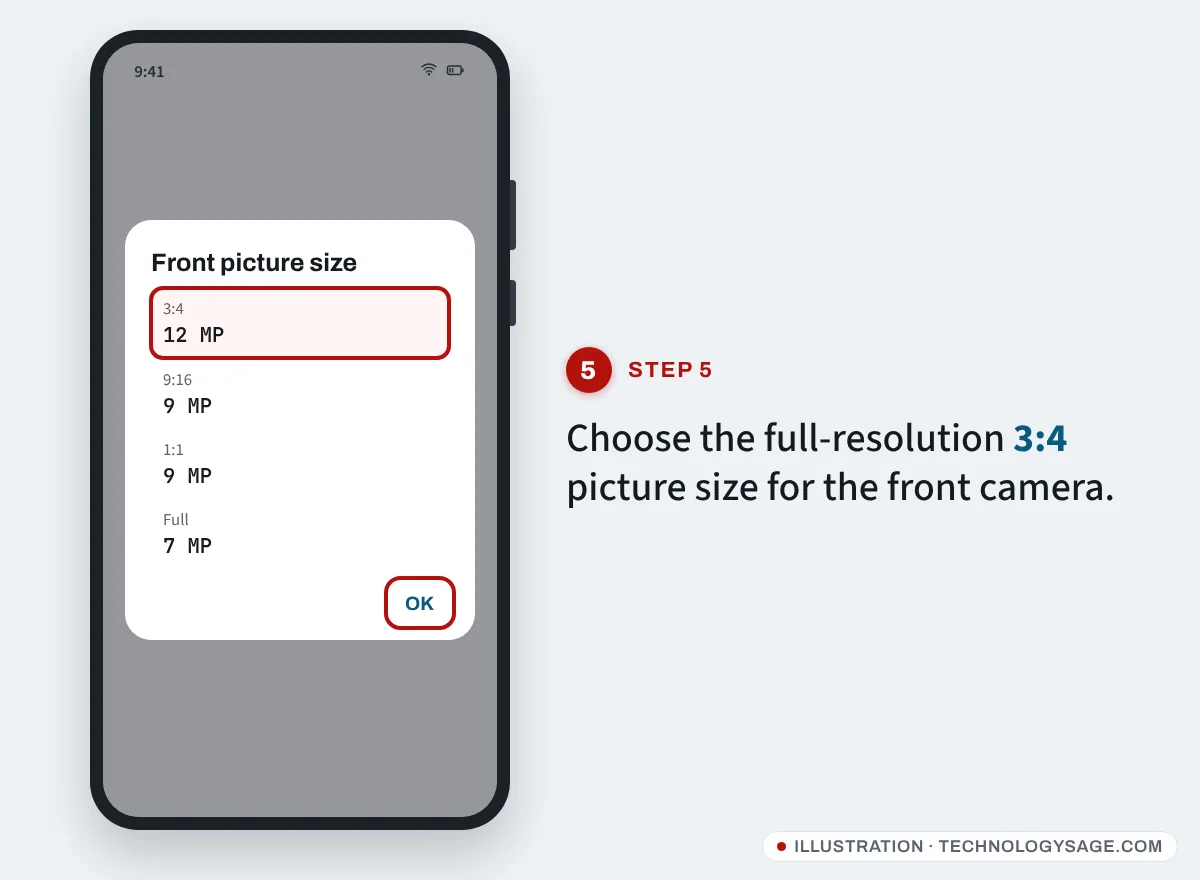
Resolution and ratio: in the Camera app, check the picture size for the front camera. On many phones 3:4 uses the full resolution, while 16:9 or Full crops and uses fewer pixels. Choose the highest option available for the front camera.
Reset camera settings: a mistaken setting (Pro mode, a low resolution, a filter) can stay switched on. On Samsung open Camera → Settings → Reset settings. On other phones, clear the Camera app’s data: Settings → Apps → Camera → Storage → Clear data (photos aren’t deleted).
Fog or condensation: if the phone has just come from a cold air-conditioned room into heat (or the reverse), a haze can form inside the lens. Wait 10-20 minutes for it to clear on its own. If it keeps happening, moisture may have got in; take it to a service centre.
Fix 6: Stop apps compressing your selfies
If selfies look good in Gallery but bad after you post or send them, the app is reducing quality to save data.
WhatsApp:
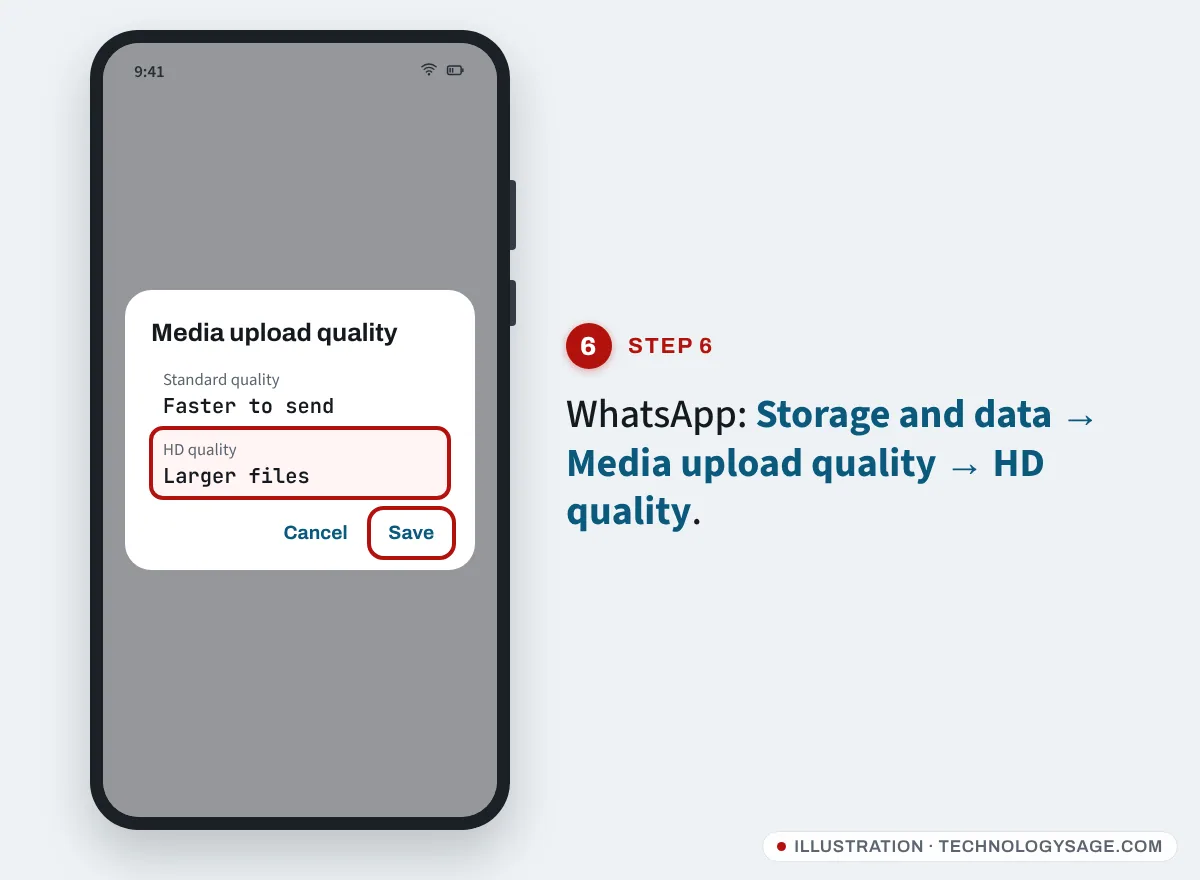
- Open Settings → Storage and data → Media upload quality.
- Choose HD quality.
- When sending a single photo you can also tap the HD button at the top before sending.
Instagram: open Settings → Data usage and media quality and turn on Upload at highest quality. Also turn off any data saver option there.
Video calls: WhatsApp, Google Meet and Zoom reduce video quality automatically on a slow connection. A blurry face in calls with a sharp camera elsewhere is usually the network, not the camera. If Wi-Fi is the problem, see Wi-Fi connected but no internet and our guide to reducing data usage on Android to free up bandwidth.
When it’s a hardware problem
The camera itself may be faulty if:
- selfies are blurry in all apps, in good light, at arm’s length, with no protector and beauty mode off;
- there’s a crack, scratch or chip in the glass right over the camera;
- the phone was dropped or got wet just before it started;
- the front camera hunts in and out of focus, rattles, or the image shakes (on phones with an autofocus selfie camera).
On Samsung, run Samsung Members → Support → Phone diagnostics → Camera to test it. On Tecno, Infinix and itel, Carlcare can test and replace the front camera; under warranty a fault without physical damage is usually covered. For a camera that doesn’t open at all or shows a black screen, see front camera not working on Android.
A replacement front camera module is usually one of the cheaper repairs. Use an official service centre and ask for an original part. While it’s being fixed, a working back camera can still stand in for video calls on your computer: see how to use your phone camera as a webcam.
If it doesn’t work
- Only blurry after an update: check for another update and update the Camera app in the Play Store or Galaxy Store. Then reset camera settings (Fix 5).
- Only blurry in one app (Snapchat, TikTok): those apps sometimes use a lower-quality camera mode on some Android phones. Update the app and turn off its filters; there’s no phone setting that changes this.
- Back camera blurry too: clean the back lenses, remove the case, and tap to focus. A rattling or buzzing back camera usually means a damaged stabiliser or focus motor.
FAQ
Why are my selfies blurry but the back camera is fine?
The front camera has a smaller sensor and often fixed focus, so it’s more sensitive to low light, smudges, a protector and holding the phone too close. Clean it, hold it farther away and use good light.
Can a screen protector make the front camera blurry?
Yes. A protector over the punch-hole adds an extra layer, and any bubble, dust or scratch over the lens softens selfies. Test without it, then use a protector with a camera cut-out.
Why does my front camera look blurry on WhatsApp?
WhatsApp compresses photos and lowers video-call quality on slow connections. Set Media upload quality to HD and test calls on a faster connection.
Is a blurry front camera covered by warranty?
A fault without a crack, drop or water damage is usually covered. Scratched glass or a broken lens from a fall usually isn’t. Check with the official service centre for your brand.
Does beauty mode reduce picture quality?
Yes, at higher levels. It smooths skin by blurring detail, which can make the whole photo look soft. Set it to zero to see what the camera really captures.