In this guide
To hard reset an Infinix phone that still works, go to Settings → System → Reset options → Erase all data (factory reset) and confirm. If you’re locked out or the phone won’t start properly, switch it off, hold Volume Up + Power until recovery mode appears, then choose Wipe data/factory reset. Either way, everything on the phone is erased.
These steps work on current Infinix models, including the Hot, Note, Smart, GT and Zero series running XOS 14, 15 or 16. (Resetting a Samsung instead? See how to factory reset a Samsung phone.) Only reset a phone that belongs to you: after a reset, Android’s Factory Reset Protection (FRP) asks for the Google account that was last signed in.
Before you reset
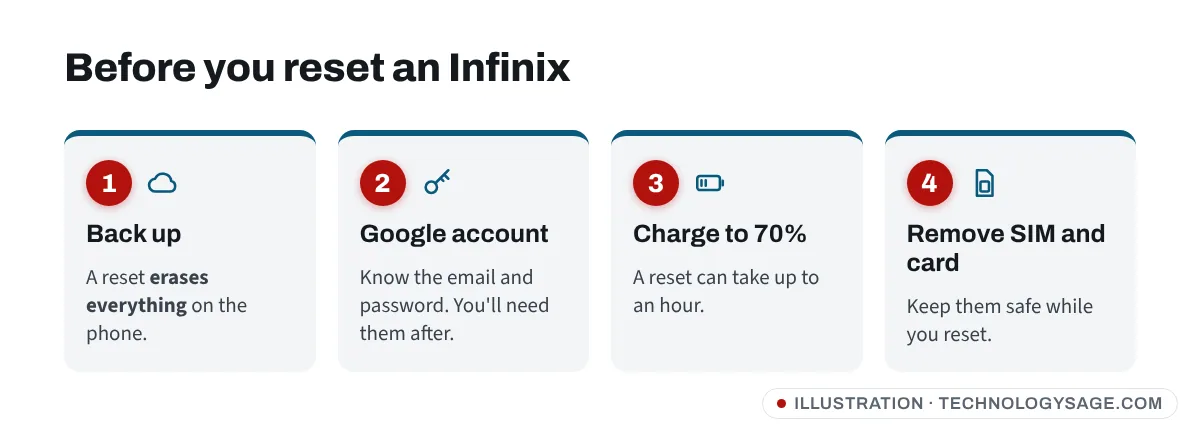
- Back up. Photos, contacts and files go to your Google account (or a computer). WhatsApp needs its own backup; see how to move WhatsApp to a new phone.
- Know your Google account. Write down the email and password signed in on the phone. You’ll need them after the reset. If you’ve forgotten them, recover them first with our guide to recovering a Gmail account without a phone number.
- Wait 24 hours if you just changed your Google password. Google advises this before a factory reset.
- Charge to at least 70%. Google recommends this because a reset can take up to an hour.
- Remove the SIM and memory card if you want to keep them untouched.
- Selling or giving the phone away? Remove your Google account first (Settings → Accounts or Passwords & accounts), then reset, so the new owner isn’t locked out.
Method 1: Factory reset from Settings
Use this if the phone turns on and you can unlock it.
- Open Settings.
- Tap System (called System & updates on some versions).
- Tap Reset options.
- Tap Erase all data (factory reset).
- Review the list of what will be erased and tap Erase all data.
- Enter your PIN, pattern or password and confirm.
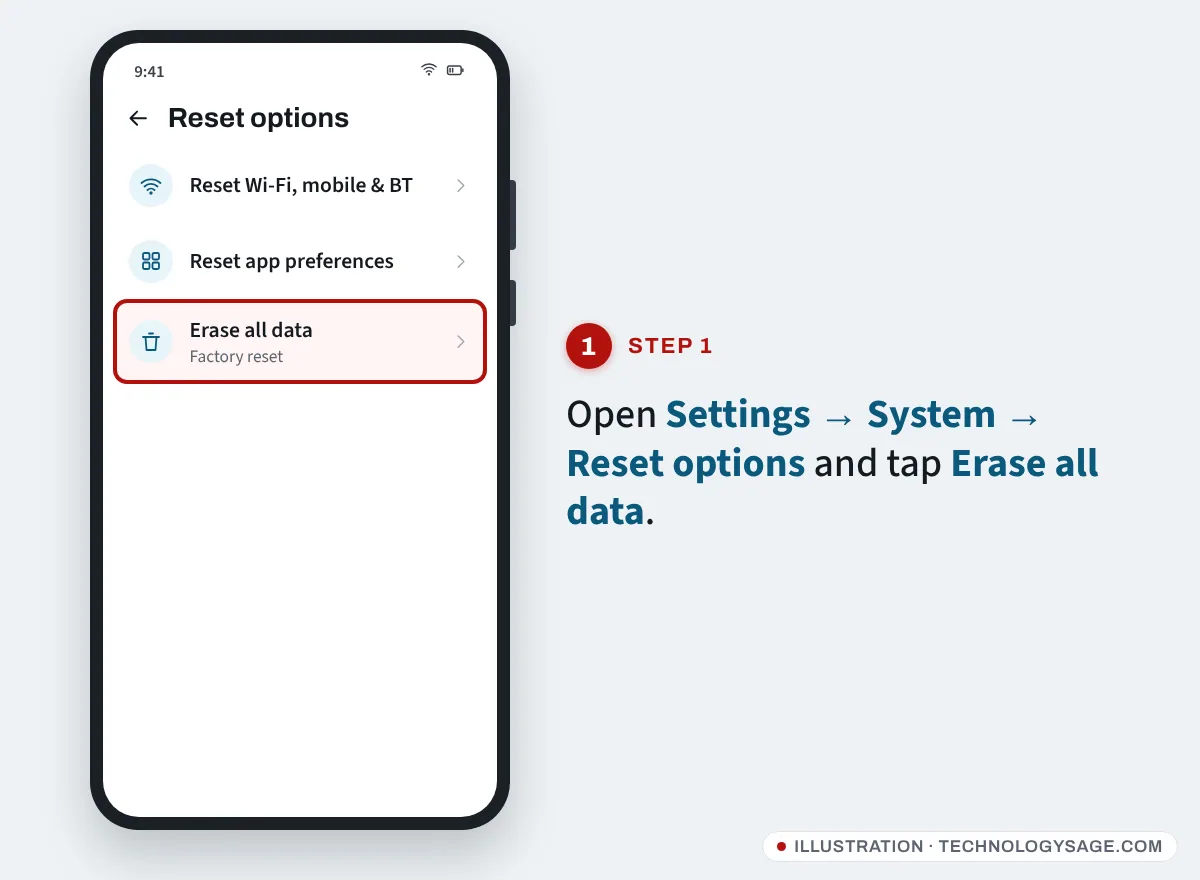
The phone restarts, shows the Infinix logo for a few minutes, then opens the setup screen. Tip: if you can’t find the menu, type reset into the search bar at the top of Settings.
Reset options also has Reset Wi-Fi, mobile & Bluetooth and Reset app preferences. These fix network or app problems without deleting your data, so try them first if the phone isn’t locked or broken.
Method 2: Hard reset with buttons (recovery mode)
Use this when you’ve forgotten the screen lock, or the phone is stuck on the logo or keeps restarting.
Step 1: Turn the phone off
Hold Power and tap Power off. If the screen is locked or frozen, hold Power (or Power + Volume Down) for 10 to 15 seconds until it switches off.
Step 2: Press the key combination
Hold Volume Up + Power together. Release both when the Infinix logo or a menu appears.
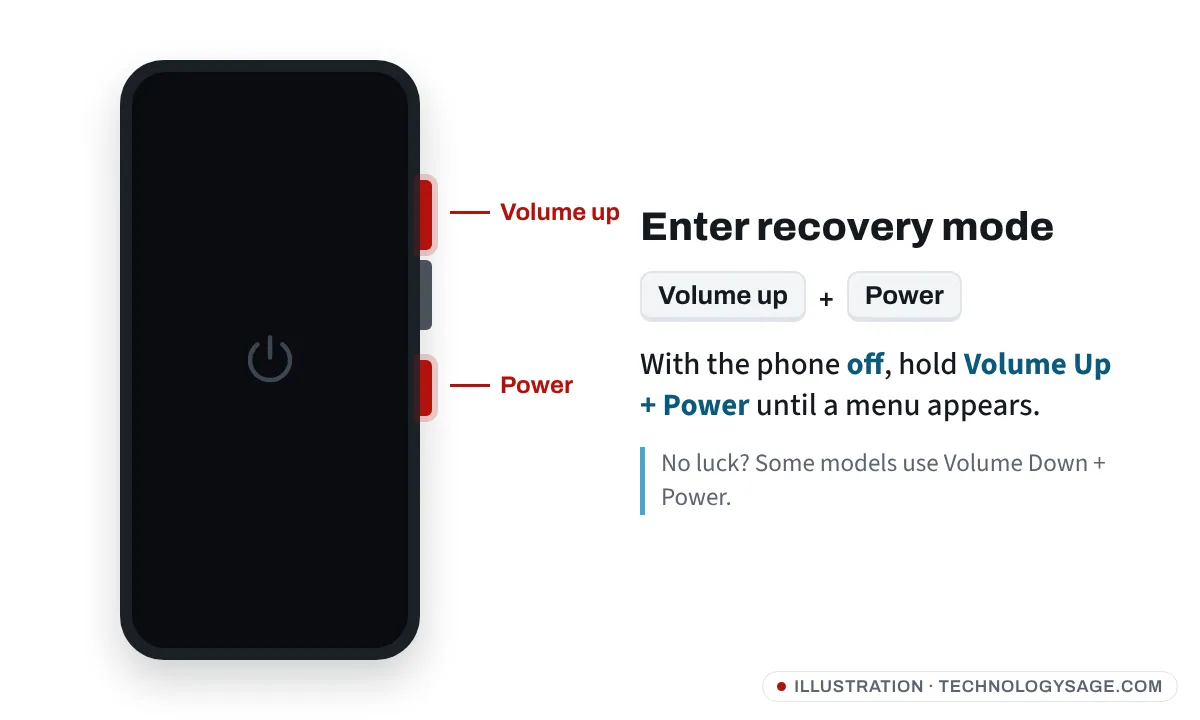
What you see next depends on the model:
- “Android Recovery” menu: go to Step 3.
- A small boot menu (Recovery Mode / Fastboot Mode / Normal Boot): press Volume Up to move to Recovery Mode, then Volume Down to select it.
- A robot with “No command”: hold Power, tap Volume Up once, then let go of Power. The recovery menu appears.
- The phone just boots normally: turn it off and try again, holding the buttons a little longer. On a few models the combination is Volume Down + Power.
Step 3: Wipe the data
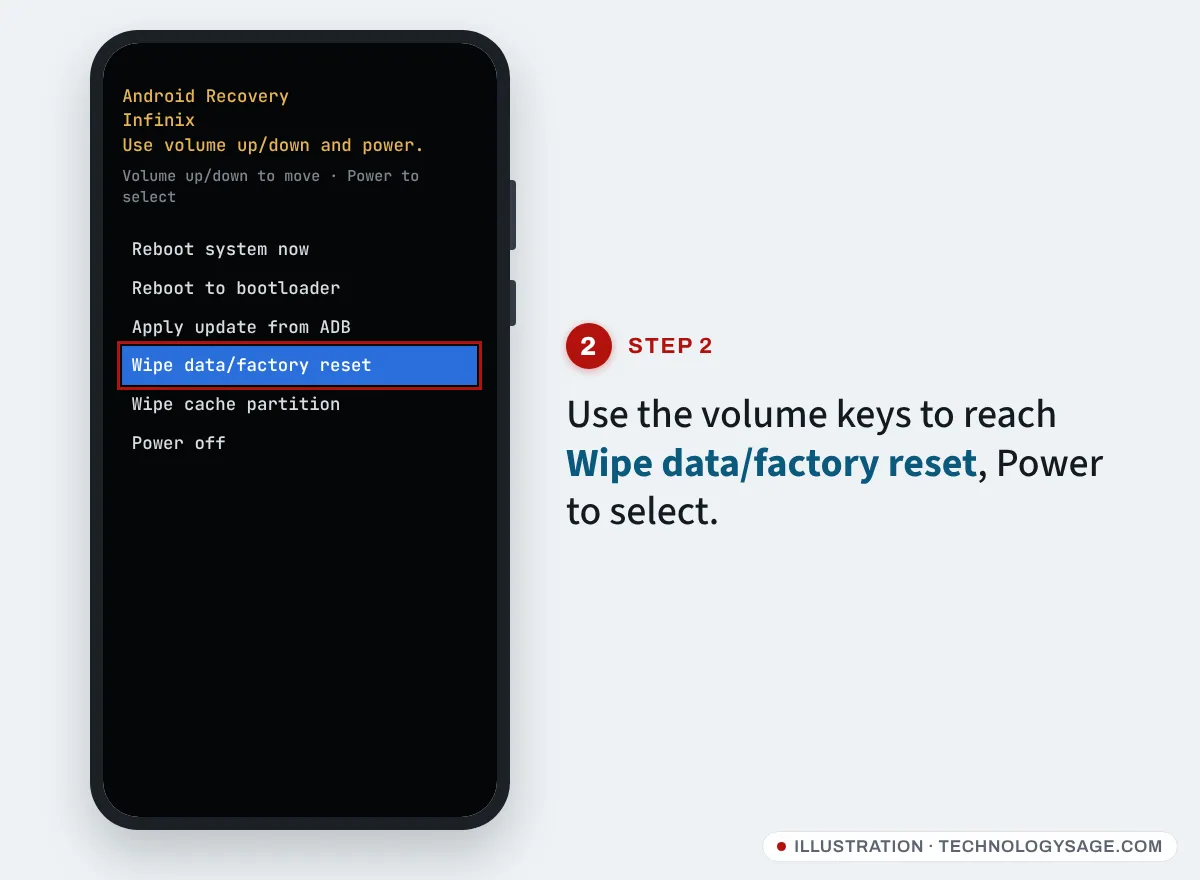
In recovery, the touchscreen doesn’t work. Use Volume Down/Up to move and Power to select.
- Highlight Wipe data/factory reset and press Power.
- Select Factory data reset (or Yes) to confirm.
- Wait for “Data wipe complete” at the bottom of the screen.
- Select Reboot system now.
The first start after a reset takes longer than normal. Don’t press any buttons while the Infinix logo is showing.
Method 3: Erase the phone remotely with Google Find Hub
If the phone is lost or stolen, you can wipe it from another device. Open Find Hub (formerly Find My Device) at google.com/android/find, sign in with the Google account on the phone, select it and choose Factory reset device. This only works if the phone is online and Find Hub was turned on.
After the reset: Google verification (FRP)
During setup, the phone asks you to sign in with the Google account that was on it before. This is Factory Reset Protection. It’s normal, and it’s what stops thieves using a stolen phone.
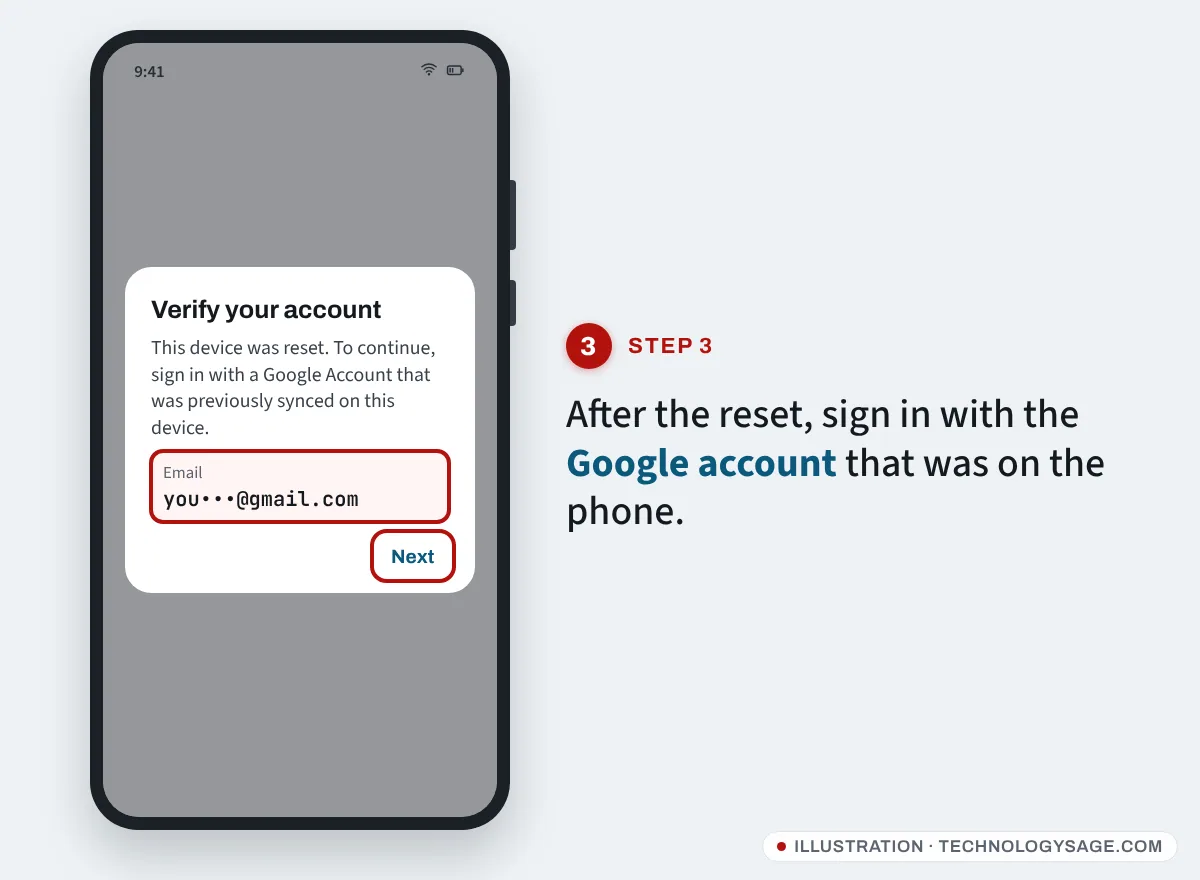
- Connect to Wi-Fi and sign in with that account.
- Forgotten the password? Use Google’s account recovery on another device, then wait (Google may hold the account for a short time after a password change).
- Bought the phone second-hand and it’s still locked? Contact the seller, or take the phone and your receipt to a Carlcare service centre (carlcare.com also has a Phone Unlocking Appeal page under Support). We don’t cover FRP bypass tools.
If it doesn’t work
- Recovery won’t open: make sure the phone is fully off (not just the screen), and charge it for 30 minutes first.
- “No command” won’t go away: keep Power held, tap Volume Up once and release. Timing matters; try a few times.
- Stuck on the Infinix logo after reset: leave it 10 to 15 minutes. If still stuck, go back to recovery, run Wipe cache partition, then Reboot system now.
- Reset done, problem still there: it may be a hardware fault. If the phone is under warranty, check it with our Infinix warranty check guide and visit Carlcare.
FAQ
What’s the difference between a hard reset and a factory reset?
They end the same way: the phone is wiped back to how it left the factory. “Factory reset” usually means doing it from Settings; “hard reset” usually means using the buttons and recovery mode.
Does a hard reset remove the screen lock?
Yes, the PIN, pattern or password is erased. But the Google account lock (FRP) stays, so you’ll need the Google account to set the phone up again.
Will a reset fix a slow Infinix?
Often, yes, because it clears junk and misbehaving apps. Try the tips in how to make Android run faster first, since a reset means setting everything up again.
Does resetting void the Infinix warranty?
No. A reset is a normal user action. Flashing unofficial firmware or unlocking the bootloader is different and can lead to a warranty claim being refused.