In this guide
- First: find out where it fails
- Fix 1: Restart the phone
- Fix 2: Turn on Camera access (Android 12 and later)
- Fix 3: Check the app’s camera permission
- Fix 4: Close apps that are using the camera
- Fix 5: Clear the Camera app’s cache and data
- Fix 6: Update the phone and the Camera app
- Fix 7: Test in safe mode
- Fix 8: Run a hardware test
- Fix 9: Check for physical problems
- Last resort: factory reset
- If it doesn’t work
- FAQ
If your Android front camera is not working, first check that it fails in the phone’s own Camera app and not just in WhatsApp or TikTok. Then restart the phone, make sure the Camera access privacy switch and the app’s Camera permission are on, and clear the Camera app’s cache and data. If it still shows a black screen or “Camera failed” in safe mode, it’s almost certainly a hardware fault that needs a service centre.
Work through the fixes below in order. The first five fix most cases and take a few minutes; they apply to Samsung, Tecno, Infinix, itel, Redmi, Pixel and other Android phones.
First: find out where it fails
- Open the built-in Camera app.
- Tap the flip/switch camera button to change to the front camera.
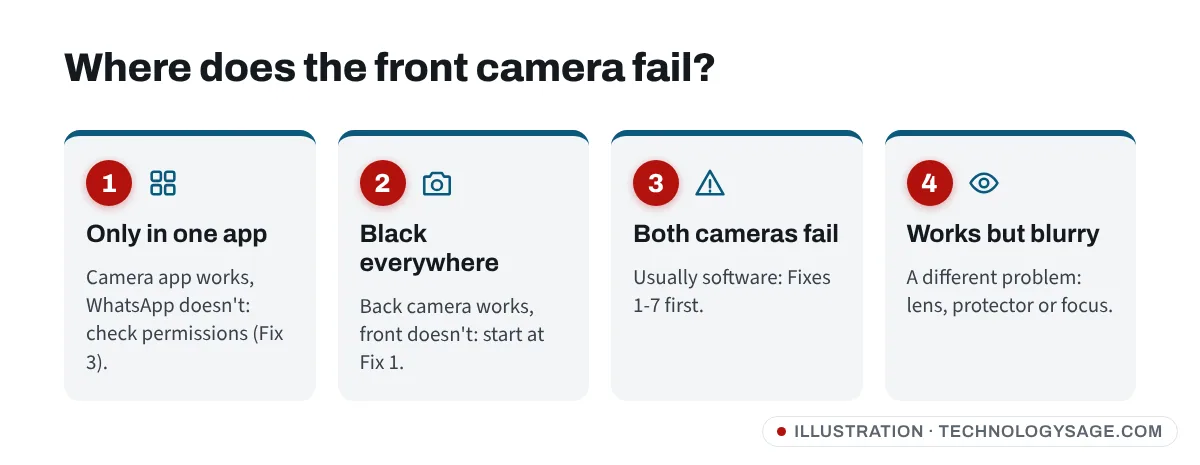
- Note what happens:
- Front works in Camera, fails in one app (WhatsApp video calls, Instagram, a banking app): it’s that app’s permission or settings. Go to Fix 3.
- Front camera is black or shows an error everywhere, back camera works: start at Fix 1 and keep going.
- Both cameras fail: usually software (Fixes 1-7), sometimes a shared hardware fault.
- Front camera works but photos look soft or blurry: that’s a different problem; see why your front camera is blurry.
Fix 1: Restart the phone
A restart closes any app that is stuck holding the camera, which is the most common cause of “Camera failed” or “Can’t connect to camera”.
Hold the Power (Side) button and tap Restart. On Samsung, if the button opens the assistant, hold Side + Volume down instead. If the phone is frozen, hold Power + Volume down for about 10 seconds to force a restart.
Fix 2: Turn on Camera access (Android 12 and later)
Android 12 added a privacy switch that blocks the camera for every app. When it’s off, the camera shows a black screen or a “camera blocked” message.
- Swipe down twice to open Quick Settings.
- Look for a Camera access tile and make sure it’s on. If you don’t see it, tap the pencil/edit icon to find it.
- Or open Settings and search for camera access. On Pixel and stock Android it’s under Security & privacy → Privacy controls; on Samsung it’s in Security and privacy (sometimes under More privacy settings).
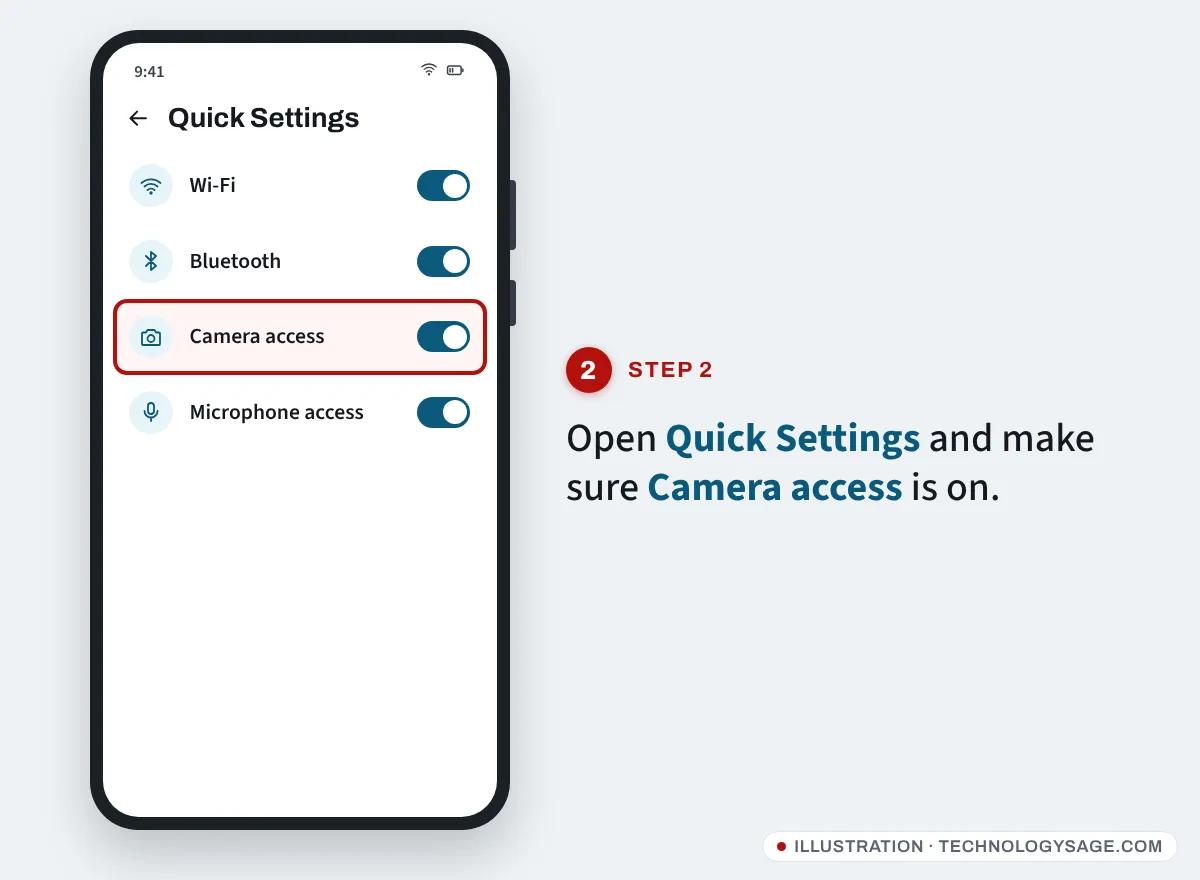
Some budget phones and older versions don’t have this switch at all; that’s normal.
Fix 3: Check the app’s camera permission
If the camera works in the Camera app but not in WhatsApp, Telegram, Zoom or a banking app:
- Open Settings → Apps and tap the app (for example WhatsApp).
- Tap Permissions → Camera.
- Choose Allow only while using the app.
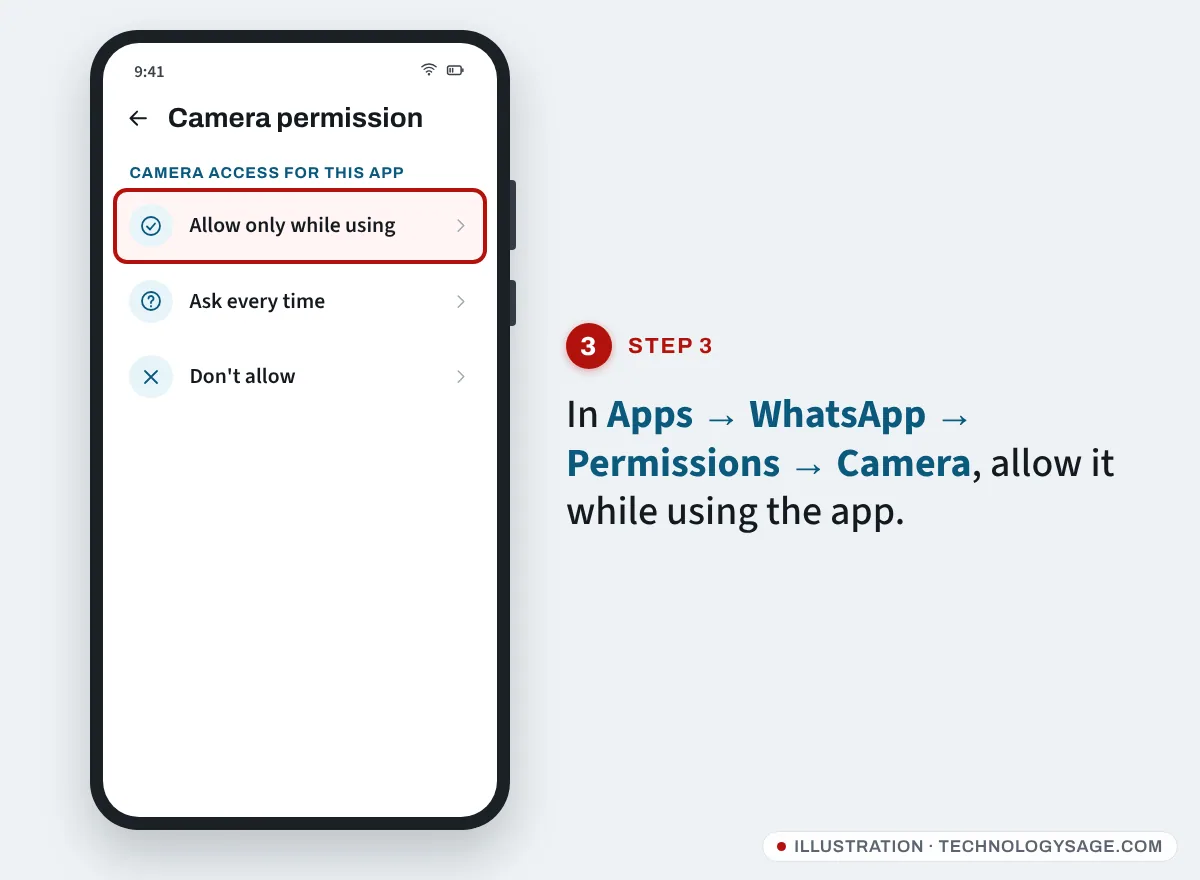
Then fully close the app and open it again. For video-call apps, also check the app’s own settings for a front/back camera choice.
Fix 4: Close apps that are using the camera
Only one app can use a camera at a time. A green dot or camera icon in the top-right corner of the screen (Android 12 and later) means something is using it right now.
- Swipe down and tap the green indicator to see which app is using the camera.
- Open Recent apps and swipe that app away, or go to Settings → Apps → [app] → Force stop.
Video-call apps, screen recorders, “beauty camera” apps and flashlight apps are common culprits.
Fix 5: Clear the Camera app’s cache and data
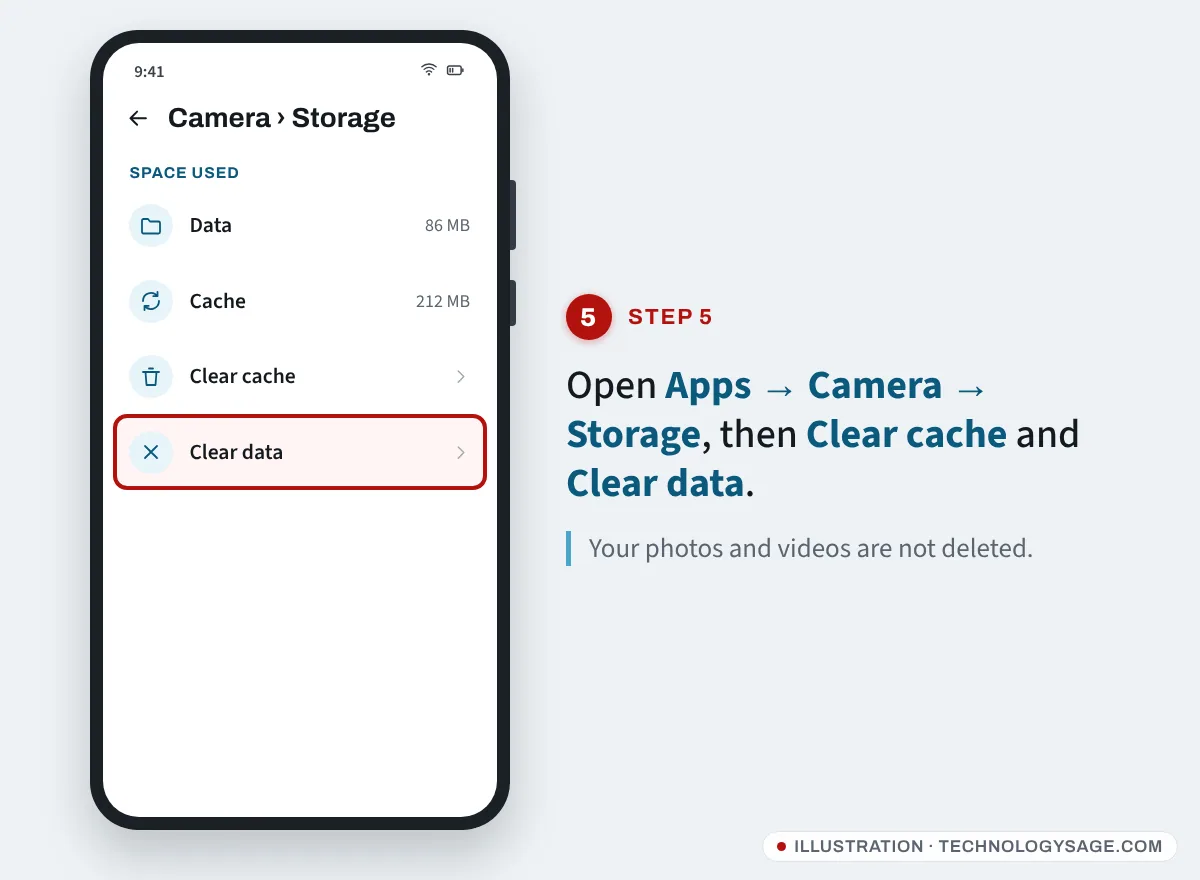
Corrupted camera settings are a frequent cause of camera errors. Clearing the Camera app’s data resets its settings; your photos and videos are not deleted.
- Open Settings → Apps. If you don’t see system apps, tap the filter or three-dot menu and choose Show system apps.
- Tap Camera → Storage.
- Tap Clear cache, then Clear data (or Clear storage) and confirm.
- Open the Camera app again and allow the permissions it asks for.
On Samsung you can also reset the Camera app from inside it: open Camera → Settings (gear icon) → Reset settings.
Fix 6: Update the phone and the Camera app
Camera bugs are often fixed in updates.
- System update: Samsung: Settings → Software update → Download and install. Tecno, Infinix, itel: Settings → System → System update (or About phone → System update on some versions). Pixel: Settings → System → Software updates.
- App updates: open the Play Store (or Galaxy Store on Samsung) and update all apps, especially the camera-related ones.
If the problem started right after an update, check for a newer one a week or two later; manufacturers usually patch widespread camera bugs quickly.
Fix 7: Test in safe mode
Safe mode starts the phone with only its built-in apps. If the front camera works in safe mode, a downloaded app is causing the problem.
- Press and hold Power (or Side + Volume down on Samsung) to open the power menu.
- Press and hold Power off until Safe mode appears, then tap it.
- Open the Camera app and test the front camera.
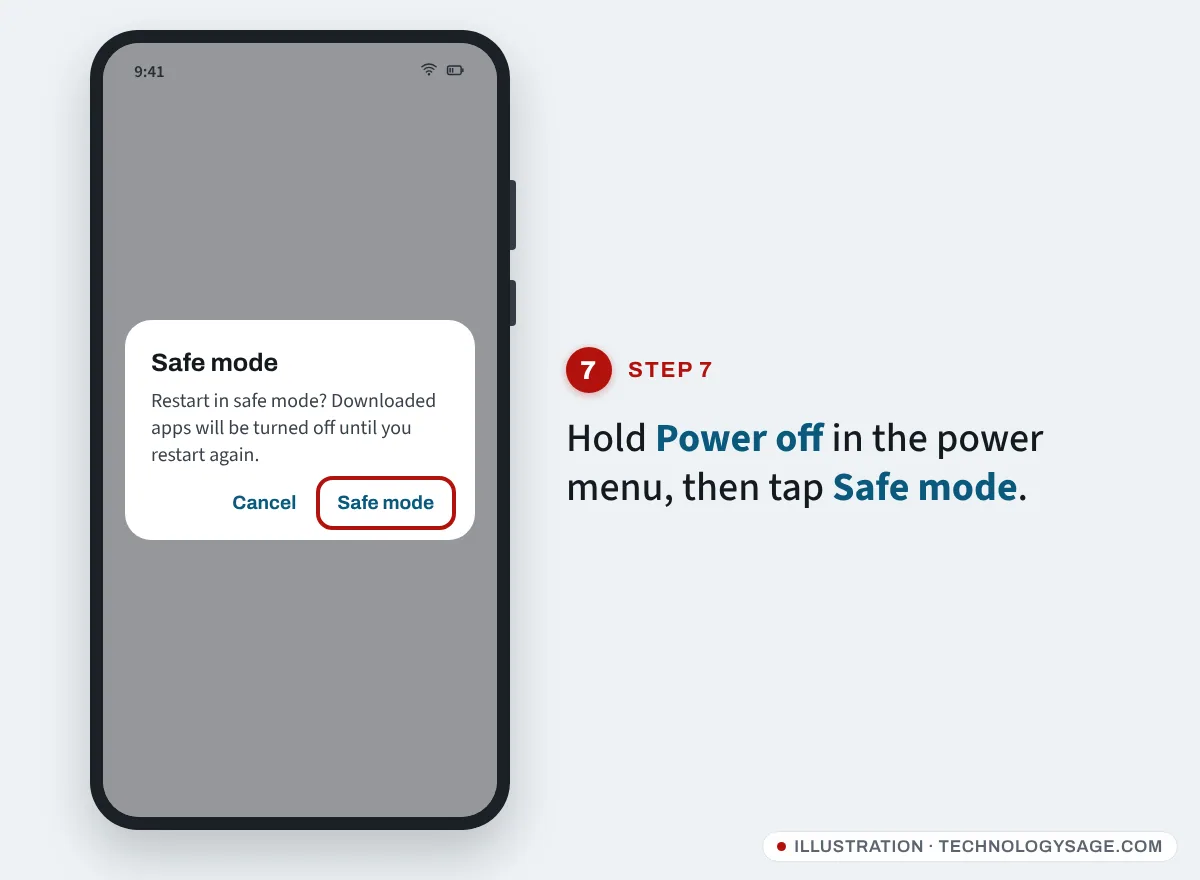
If it works, restart normally and uninstall recently installed apps one by one, starting with camera, beauty, flashlight, cleaner and screen-recorder apps. If it still fails in safe mode, the cause is the system or the hardware.
Fix 8: Run a hardware test
Samsung: open Samsung Members → Support → Phone diagnostics → Get started, then tap Camera. The test checks the cameras and reports whether they work. If the front camera fails here, the module or its connection needs repair.
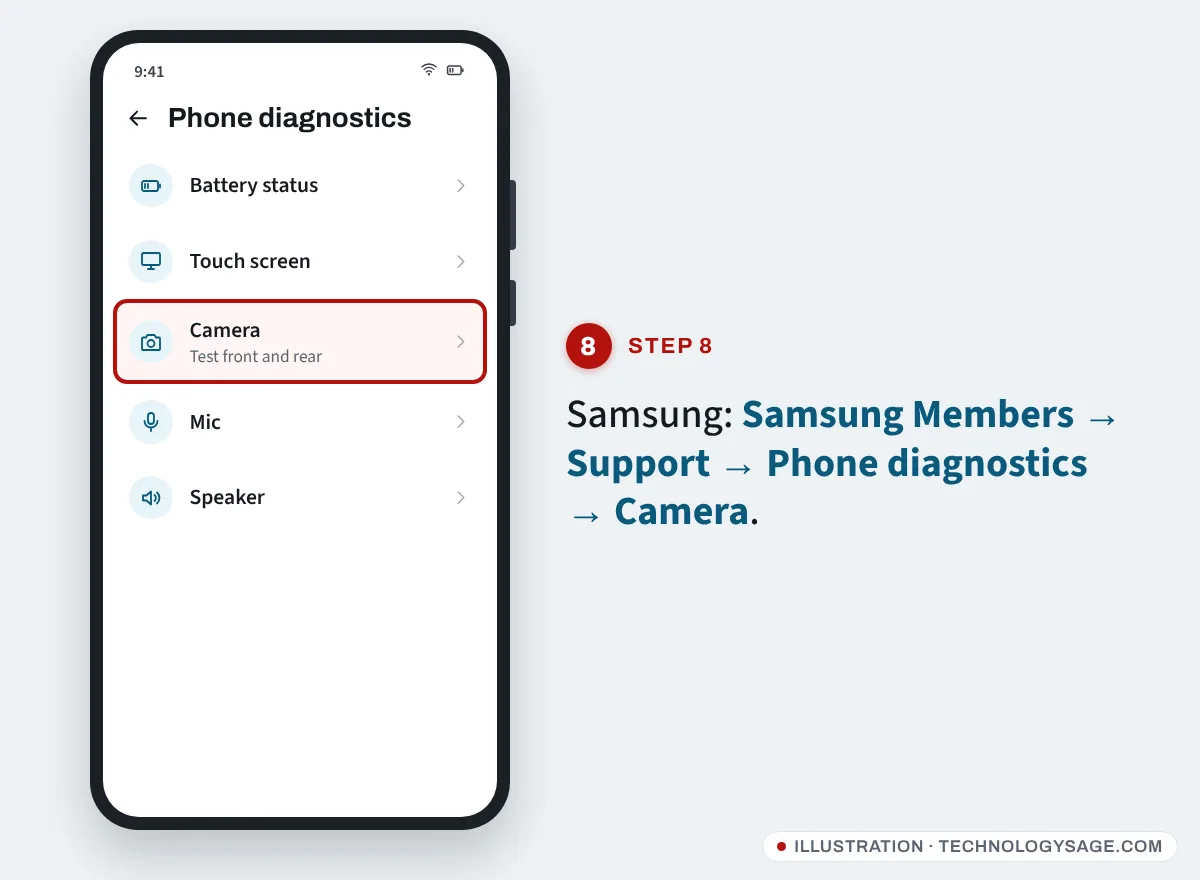
Tecno, Infinix and itel: there’s no reliable public test menu across all models. A Carlcare service centre can run the factory hardware test for you. If the phone is still under warranty, a camera that stopped working without a drop or water damage is usually covered; see how to check your Tecno warranty (Infinix and itel use the same Carlcare system).
Other brands: check the brand’s support app or service centre.
Fix 9: Check for physical problems
- Case or screen protector: some cases and full-cover protectors sit over the front camera or the sensors next to it. Remove them and test.
- Pop-up or flip cameras: if your phone has a motorised pop-up selfie camera, a “camera can’t pop up” message usually means dirt, a fall or a worn motor.
- Drops and water: a front camera that stops working after a fall or getting wet often has a loose connector or damaged module. Don’t keep trying to dry it with heat; take it for repair.
- Screen replacement: if the screen was recently replaced, the front camera connector may not have been reconnected properly. Go back to the repairer.
Last resort: factory reset
If the camera fails in the Camera app, in safe mode and after updates, but the hardware test passes (or you can’t run one), a factory reset can clear deeper software problems.
- Back up your photos, contacts and WhatsApp chats first.
- Make sure you know the Google account and password on the phone. After a reset, Factory Reset Protection (FRP) will ask for that account. Only reset your own phone.
- Reset from Settings (Samsung: General management → Reset → Factory data reset; most others: System → Reset options → Erase all data). Our step-by-step for factory resetting a Samsung phone covers it in detail; for Tecno phones see our Tecno hard reset guide.
If the front camera still fails after a reset, it is a hardware fault.
If it doesn’t work
- “Camera failed” comes back after every restart: an app is likely starting in the background and grabbing the camera. Use safe mode (Fix 7) to find it.
- Front camera works but is upside down or mirrored in video calls: this is a setting in the calling app, not a fault. Mirroring the preview is normal; the other person sees the correct image.
- Only WhatsApp video calls fail: update WhatsApp, check its camera permission, and test a call on Wi-Fi and on mobile data.
- Repair cost: a front camera module is usually one of the cheaper phone parts. Use an official service centre (Samsung, Carlcare, Xiaomi) where you can, and ask for an original part.
FAQ
Why is my front camera showing a black screen?
Usually another app is using the camera, the Camera access switch is off, or the Camera app’s data is corrupted. Restart, check the switch and clear the Camera app’s data. If it’s still black in safe mode, the module or its cable is faulty.
Does clearing Camera app data delete my photos?
No. Photos and videos are stored in the Gallery, not in the Camera app’s data. Clearing data only resets the camera’s settings.
Why does my front camera work in the Camera app but not WhatsApp?
WhatsApp’s camera permission is off or another app is holding the camera. Allow Camera in Settings → Apps → WhatsApp → Permissions, then close and reopen WhatsApp.
Can a virus stop my camera from working?
It’s unlikely. Far more often a camera, beauty or “cleaner” app conflicts with the system camera. Safe mode shows whether a downloaded app is the cause.
Can I use my phone as a webcam if the laptop camera fails?
Yes, if the phone’s camera works. See how to use your phone camera as a webcam for your PC.