In this guide
- Step 1: See what is actually using the space
- Step 2: Empty Trash in Gallery, My Files and Messages
- Step 3: Clear cache for your biggest apps
- Step 4: Clean WhatsApp and Telegram media
- Step 5: Fix a huge “System” storage
- Step 6: Find large and duplicate files
- Step 7: Move photos and videos off the phone
- If it doesn’t work
- FAQ
If your Samsung internal storage is full, open Settings → Device care → Storage to see what is using the space, then empty Trash, clear the cache of your biggest apps, and clean out WhatsApp and Telegram media. If System looks far too large, restart the phone, finish or delete pending updates, reduce RAM Plus, and wipe the cache partition from recovery mode.
The steps below work on Galaxy A, M, F and S phones running One UI 6, 7 and 8. On older versions Device care is called Battery and device care.
Step 1: See what is actually using the space
- Open Settings → Device care (older: Battery and device care).
- Tap Storage.
- Look at the breakdown: Images, Videos, Audio, Documents, Apps, Other files and System. Below it you’ll see suggestions such as Trash, Unused apps and Duplicate files.
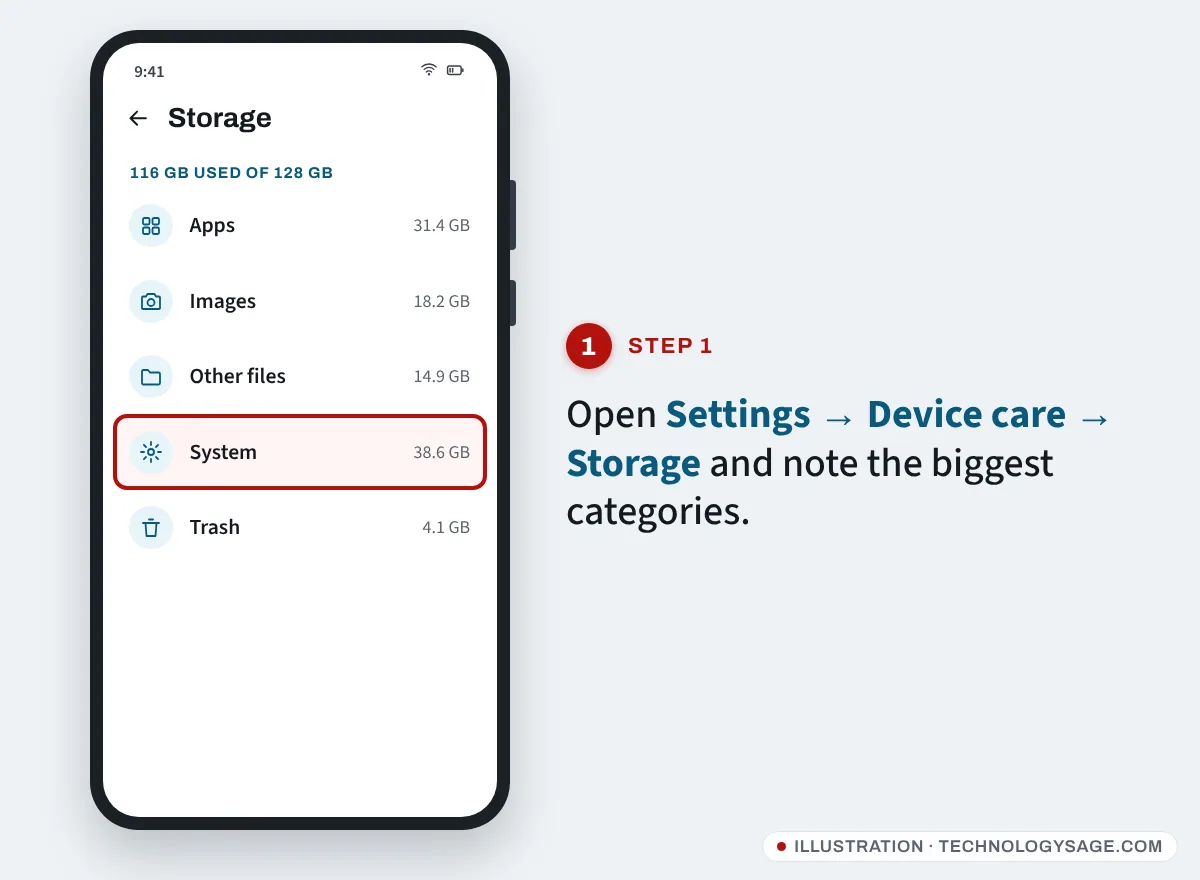
Write down the three biggest categories. That tells you which of the fixes below will free the most space.
What the categories mean:
- Apps: the apps plus their data and cache. A chat app with years of media can be several gigabytes.
- Other files: files the phone can’t put in another category, such as downloaded APKs, ZIP files, and app folders inside
Android/data. - System: Android and One UI themselves, plus space the phone reserves (for updates, RAM Plus and temporary files). On recent One UI versions this is often 15-20 GB or more even on a healthy phone, so a large number alone isn’t a fault.
Step 2: Empty Trash in Gallery, My Files and Messages
Samsung keeps deleted photos, videos and files for 30 days. Until then they still use space.
- In Settings → Device care → Storage, tap Trash.
- Open each one listed (Gallery, My Files, sometimes Messages, Samsung Notes or Voice Recorder).
- Tap Empty (or the three-dot menu → Empty) and confirm.
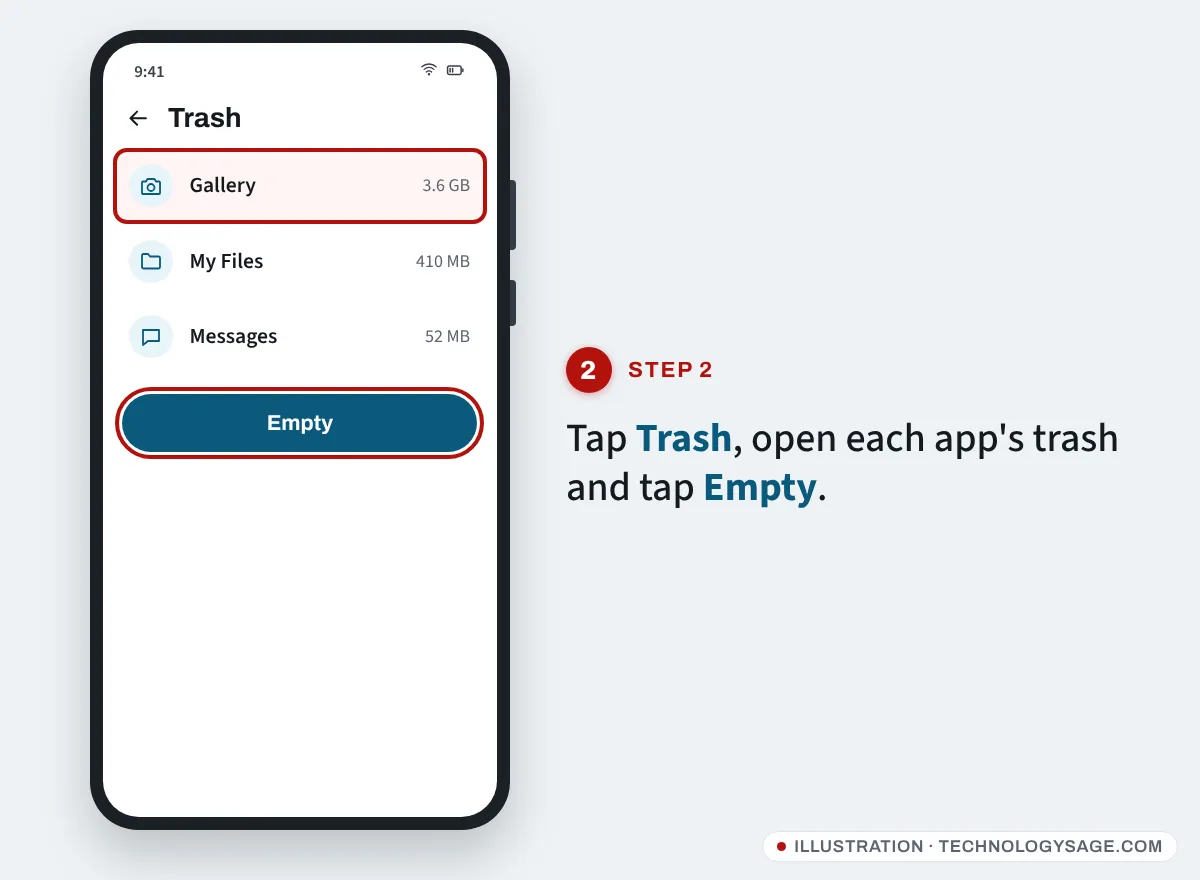
This alone often frees several gigabytes after a big clean-out.
Step 3: Clear cache for your biggest apps
Cache is temporary data the app can rebuild. Clearing it is safe and doesn’t delete your accounts or chats.
- Open Settings → Apps.
- Tap the sort/filter icon and choose Size so the biggest apps are at the top.
- Tap an app (Facebook, TikTok, Instagram, Chrome, YouTube, Snapchat are common culprits).
- Tap Storage → Clear cache.
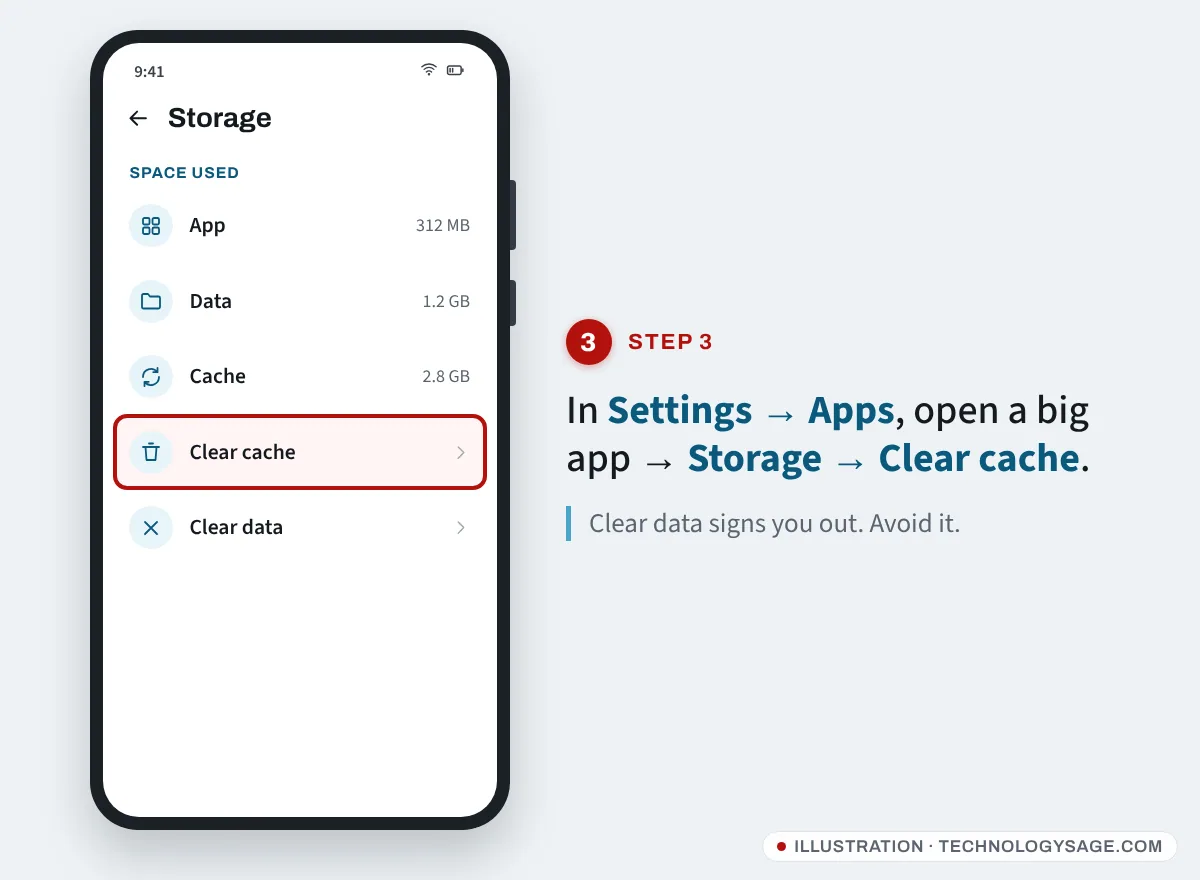
Don’t tap Clear data unless you’re happy to sign in again and lose that app’s offline files.
Step 4: Clean WhatsApp and Telegram media
On many Galaxy A phones in Africa and Asia, WhatsApp and Telegram are the single biggest users of storage, and their media can show up under Apps, Images, Videos or Other files.
WhatsApp:
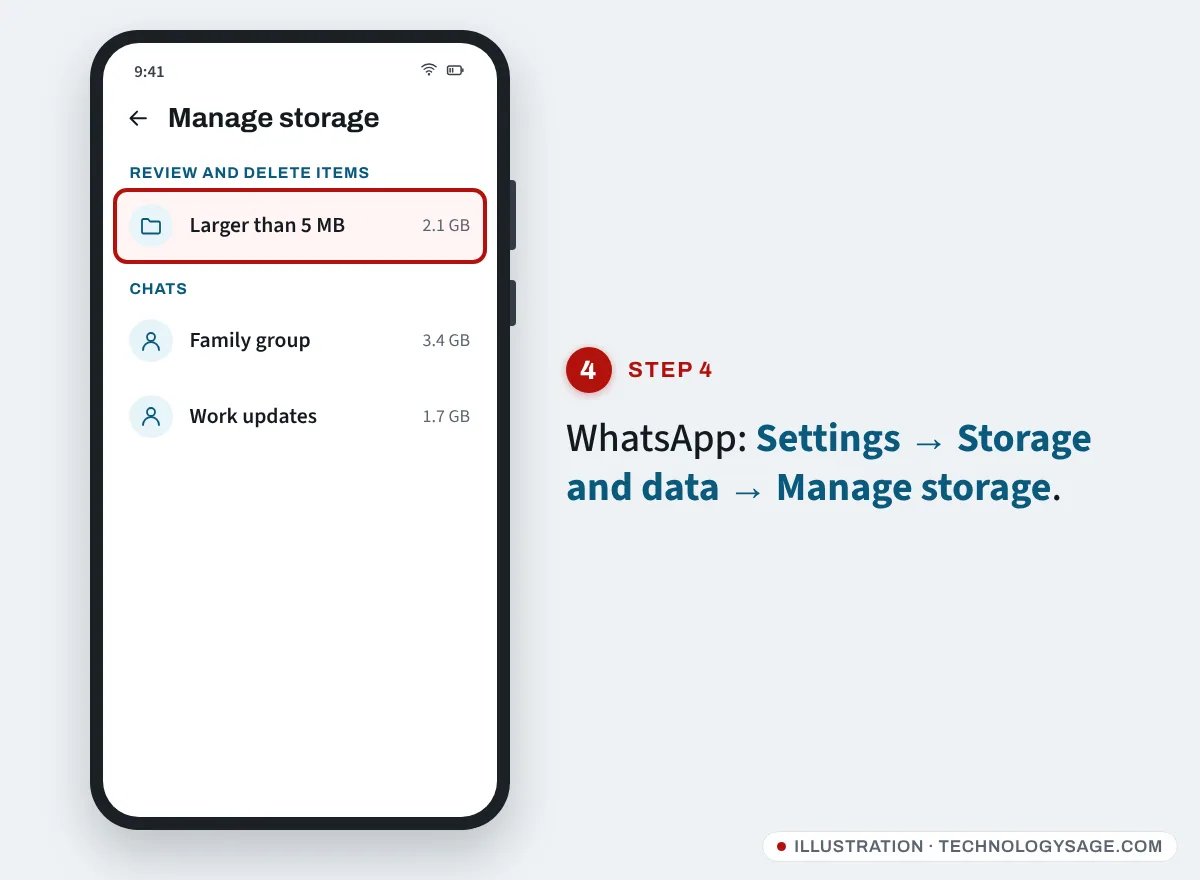
- Open WhatsApp → Settings → Storage and data → Manage storage.
- Review Larger than 5 MB and the biggest chats, select old videos and documents, and delete them.
- To stop it filling up again, turn off automatic photo and video downloads under Storage and data → Media auto-download, and switch off Media visibility if you don’t want every received photo in your Gallery. Moving to a bigger phone instead? See how to move WhatsApp to a new phone.
Telegram: open Settings → Data and Storage → Storage Usage, tap Clear Cache, and set Keep Media to a shorter period such as one week. Your chats stay in the cloud and media downloads again when you open it.
Step 5: Fix a huge “System” storage
If System is taking a large share of your storage (for example 30-50 GB on a 64 or 128 GB phone), work through these in order.
Restart the phone
Hold Side + Volume down (or swipe down and tap the power icon) and tap Restart. A restart clears temporary files and makes the phone recount storage. Samsung community moderators also point to this as a first step, because the storage screen sometimes miscounts until a restart.
Finish or clear a pending software update
A downloaded but uninstalled update can sit in System storage.
- Open Settings → Software update.
- If an update is waiting, install it. That deletes the downloaded package afterwards.
Reduce or turn off RAM Plus
RAM Plus reserves part of your storage to use as extra (virtual) memory, typically 2-8 GB, and it is counted as System.
- Open Settings → Device care → Memory.
- Tap RAM Plus and choose a smaller size or turn it off.
- Restart the phone when prompted.
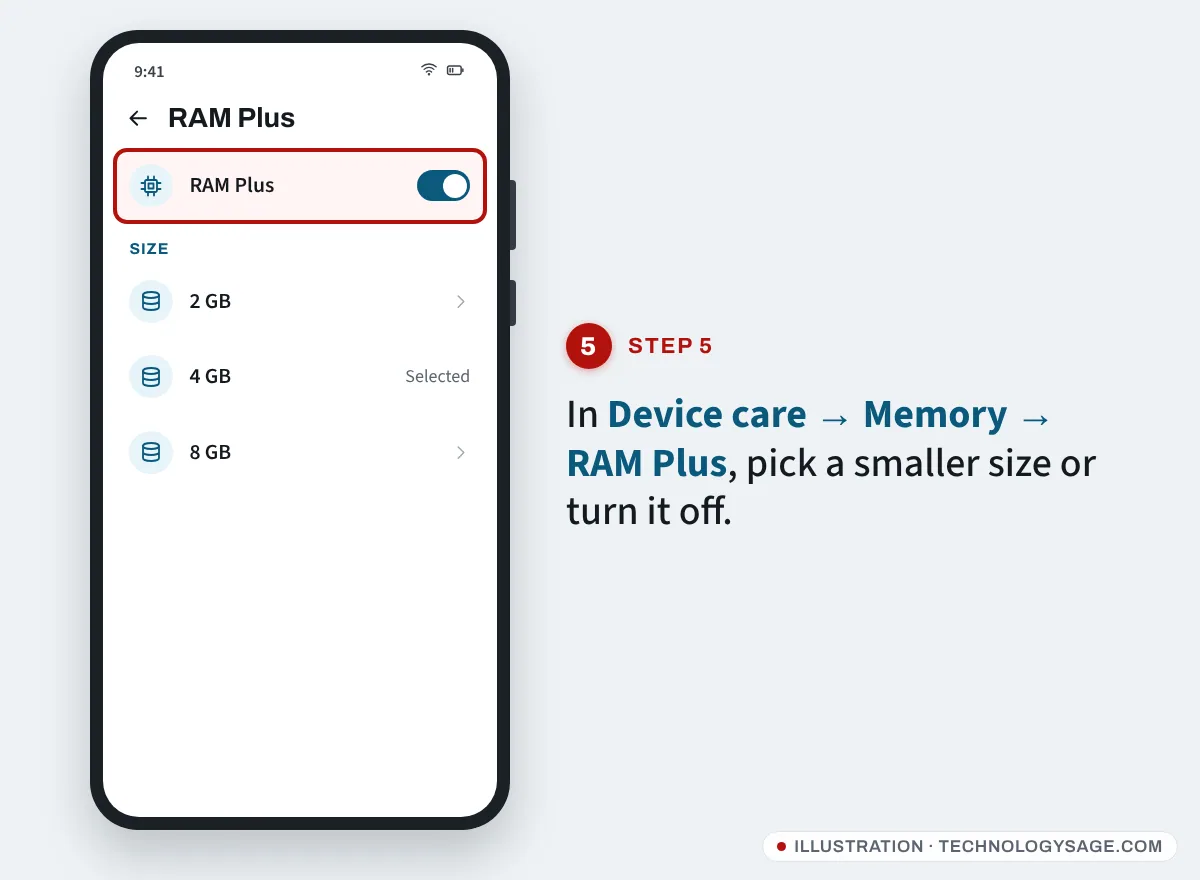
On a phone with 4 GB of RAM you may notice apps reloading a little more often with RAM Plus off; you can always set it back to a smaller size.
Wipe the cache partition from recovery mode
This clears system cache files without deleting photos, apps or accounts. On newer models recovery also has Repair apps, which rebuilds app optimisation after an update.
- Turn the phone off.
- On most current Galaxy phones, connect it to a computer or a USB audio device with a cable first; many recent models only open recovery with a cable connected.
- Press and hold Volume up + Side until the Samsung logo appears, then release.
- Use the volume keys to select Wipe cache partition and press Side to confirm. Choose Yes.
- Select Reboot system now.
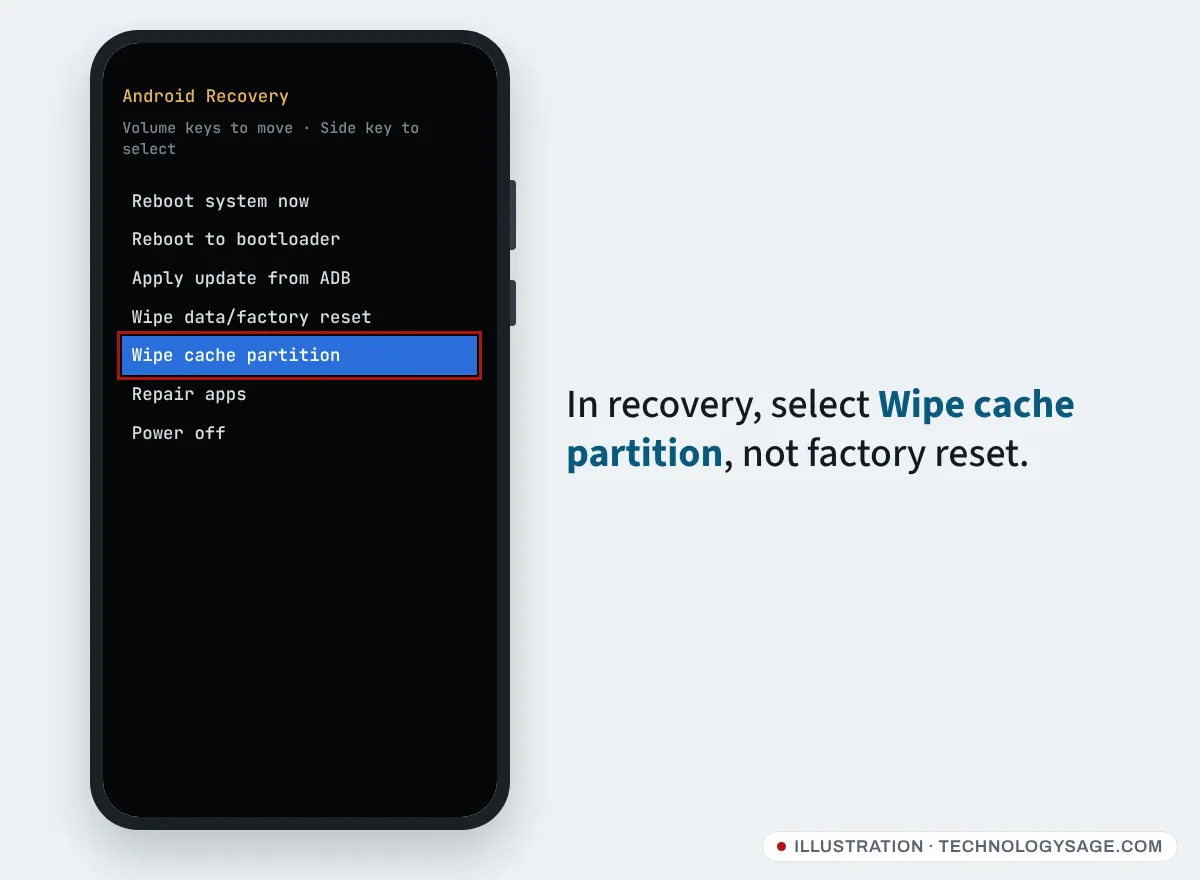
Do not choose “Wipe data/factory reset” in that menu unless you mean to erase the phone.
Step 6: Find large and duplicate files
- Open My Files.
- Tap Analyze storage (on some versions, the three-dot menu → Analyze storage, or Manage storage).
- Check Large files, Duplicate files and Unused apps.
Old screen recordings, downloaded movies and APK files in the Download folder are common finds. For more ways to track down copies, see how to find and delete duplicate files on Android.
Step 7: Move photos and videos off the phone
- microSD card: most Galaxy A phones still have a card slot. In Camera → Settings → Storage location, choose SD card so new photos and videos go there. Move old ones in My Files by long-pressing a folder → Move.
- Cloud backup: Google Photos can back up and then remove the device copies with Free up space. Make sure backup has finished first.
- Computer: connect with a USB cable, choose File transfer on the phone, and copy the DCIM folder.
The older tips in how to reduce storage use on Android still apply too: fewer duplicate apps, lighter “Lite” versions and streaming instead of downloading.
If it doesn’t work
- Storage still shows full after deleting files: restart, then check Trash again. Some apps (Gallery, My Files) move deletions to Trash rather than freeing space immediately.
- System is still huge after all the steps above: update to the latest software, then use Samsung Members → Support → Phone diagnostics, or visit a Samsung service centre; Samsung’s own moderators recommend a check if storage stays full with little personal data.
- Phone too full to install the update: move photos and videos to an SD card or computer first, and uninstall large games you can re-download later.
- Last resort: factory reset. Back up first (Samsung Cloud, Google, Smart Switch to a PC or SD card), then follow our guide to factory reset a Samsung phone. Only reset your own phone, and make sure you know the Google account and password on it: after a reset, Factory Reset Protection (FRP) asks for that account before you can use the phone.
Beware “cleaner” and “booster” apps that promise to free gigabytes. Most only clear cache (which you can do yourself) and add ads.
FAQ
Why is my Samsung storage full when I have nothing on it?
Usually it’s a mix of app data (especially WhatsApp, Telegram and TikTok), Trash that hasn’t been emptied, and System space. Check Settings → Device care → Storage to see which category is largest, then start with that one.
Can I delete System storage on Samsung?
Not directly; it holds Android itself. You can shrink the parts that are temporary: restart, install pending updates, reduce RAM Plus and wipe the cache partition.
What is “Other files” on Samsung storage?
Files that aren’t photos, videos, audio, documents or apps: downloads such as APKs and ZIPs, and app folders. Use My Files → Analyze storage to find the large ones.
Will clearing cache delete my photos or WhatsApp chats?
No. Clearing cache removes temporary files only. Clear data is different: it resets the app, so avoid it for WhatsApp unless you have a backup.
How much free space should I keep?
Try to keep at least 10-15% free. When storage is almost full, updates fail, the camera stops saving and the phone slows down. If speed is the problem rather than space, see how to make your Android phone run faster.