In this guide
To move WhatsApp to a new Android phone, you have two official, free options. If both phones are with you, use Transfer chats: on the old phone go to Settings → Chats → Transfer chats, then scan the QR code shown on the new phone. No Google Drive backup is needed. If the old phone is lost, broken or already wiped, restore your last Google Account backup on the new phone instead.
Both methods work between any Android brands, so you can go from a Tecno to a Samsung Galaxy A, an Infinix to a Redmi, or an itel to anything else. You do not need a paid “WhatsApp transfer” app.
Which method should you use?
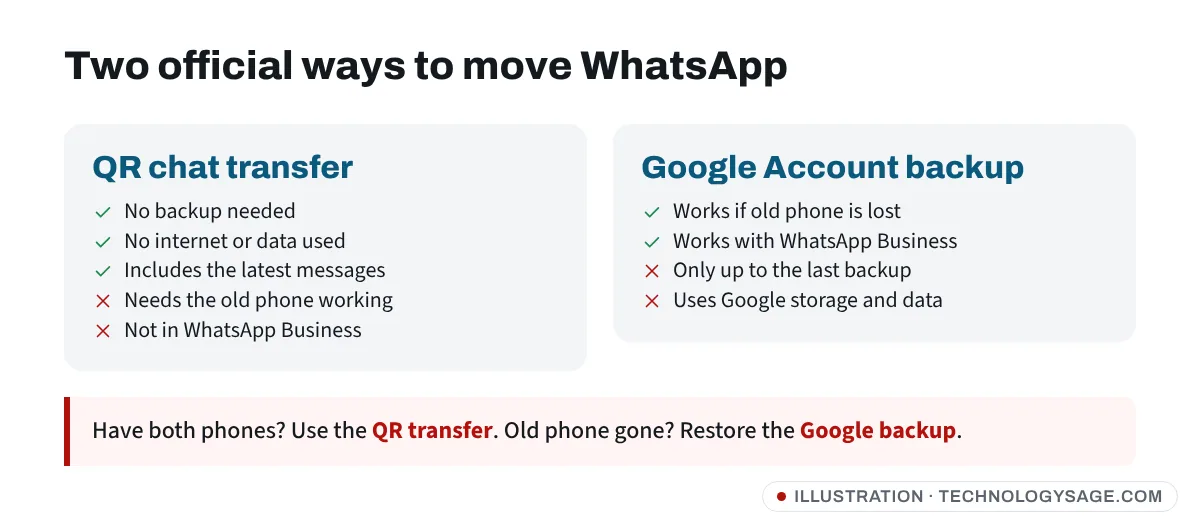
| QR chat transfer | Google Account backup | |
|---|---|---|
| Needs the old phone | Yes, working and unlocked | No |
| Needs internet | No (Wi-Fi must be switched on, but no network is needed) | Yes, to download the backup |
| Uses Google storage | No | Yes |
| Gets messages up to the last minute | Yes | Only up to the last backup |
If you still have the old phone, the QR transfer is usually the better choice: it is faster, it does not use mobile data and nothing is uploaded to the cloud.
Before you start
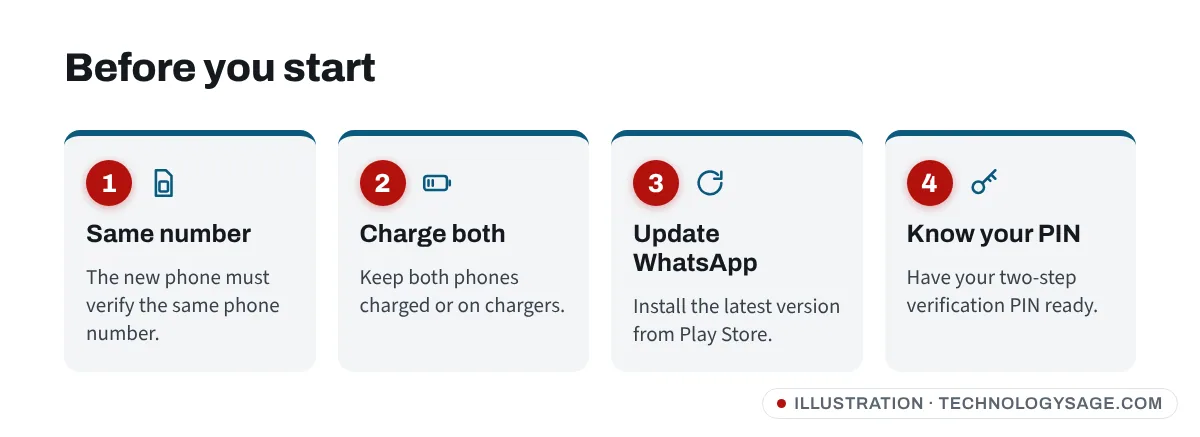
- Keep the same phone number. Put your SIM in the new phone or make sure it can receive the WhatsApp verification SMS or call on that number. Both methods move your account to the same number. If you are changing numbers too, use Settings → Account → Change number on the old phone first.
- Android 6 or later on both phones. Almost every phone sold in the last several years qualifies.
- Charge both phones or keep them on chargers. A large chat history with lots of videos can take a while.
- Update WhatsApp on the old phone from the Google Play Store.
- Do not set up WhatsApp on the new phone yet if you want the QR transfer. The transfer has to happen during the new phone’s first registration.
- Know your two-step verification PIN if you set one (Settings → Account → Two-step verification). You will be asked for it on the new phone.
Method 1: Transfer chats with a QR code (no backup needed)
This is WhatsApp’s built-in phone-to-phone transfer. It copies your chats, photos, videos and voice notes directly over a local Wi-Fi connection between the two phones.
On the old phone
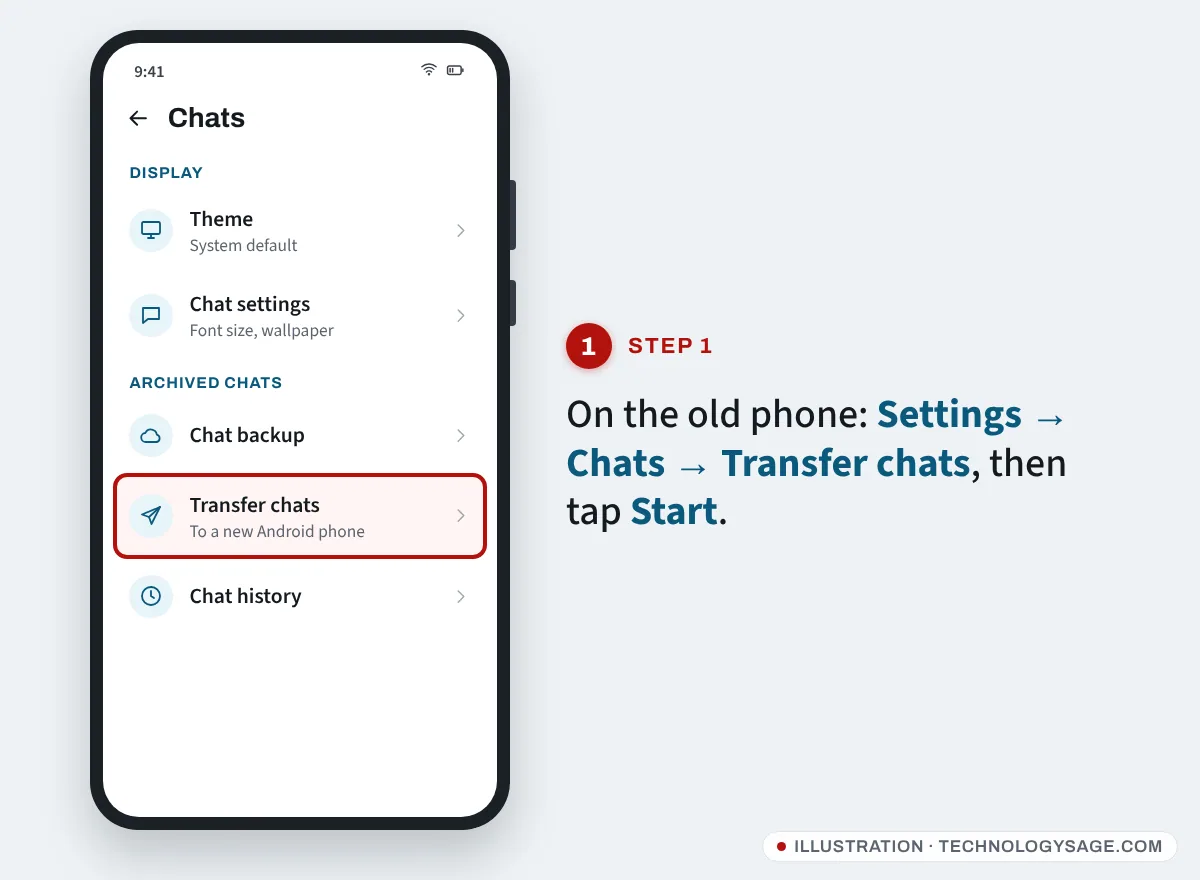
- Open WhatsApp and tap the three dots (More options) → Settings.
- Tap Chats → Transfer chats.
- Tap Start and allow the permissions WhatsApp asks for (nearby devices, and on Android 12 and older, precise location). WhatsApp uses location only to find the other phone over Wi-Fi.
The old phone now opens its camera, ready to scan a QR code.
On the new phone
- Install WhatsApp from the Play Store and open it.
- Tap Agree and continue, enter your phone number and verify it with the code.
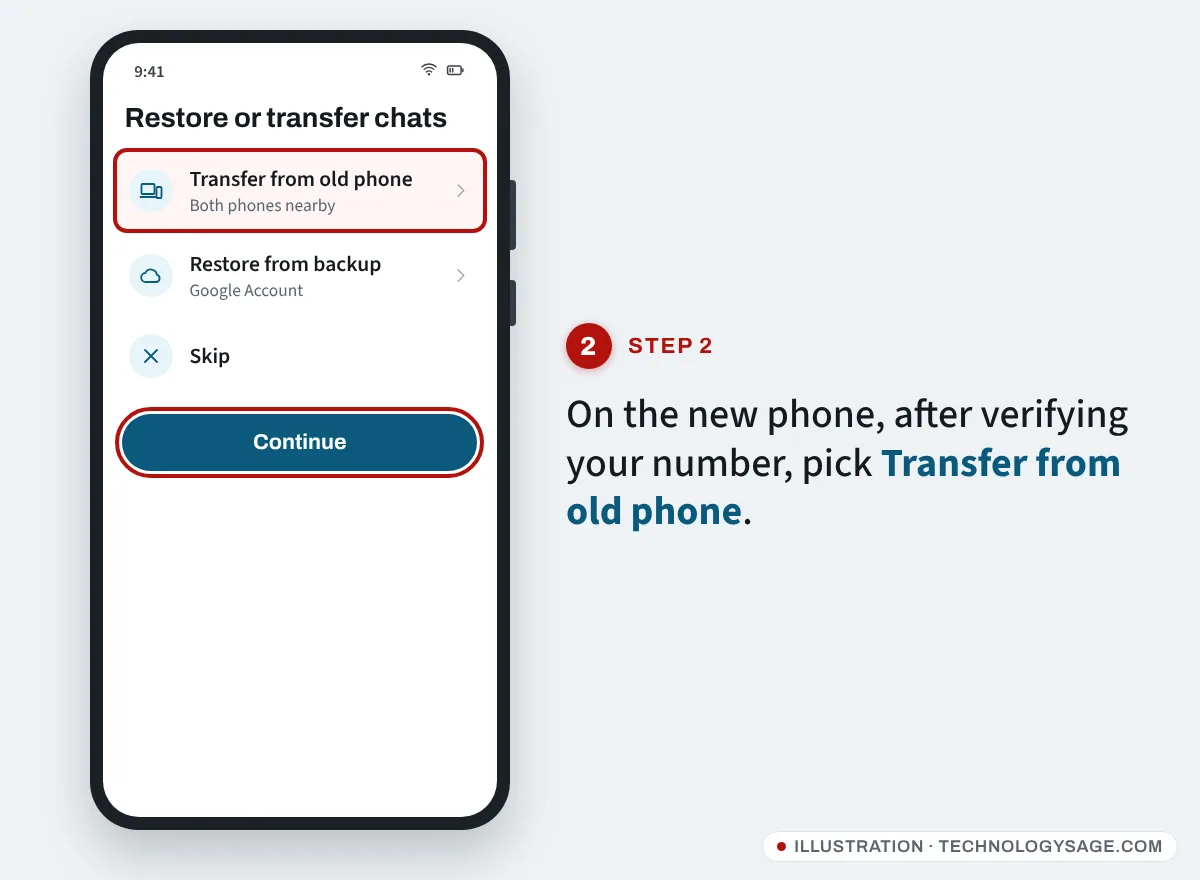
- On the Restore or transfer chats screen, choose Transfer from old phone.
- Tap Continue, then Start, and allow access to nearby Wi-Fi devices.
- A QR code appears on the new phone.
Scan and wait
- Point the old phone’s camera at the QR code on the new phone.
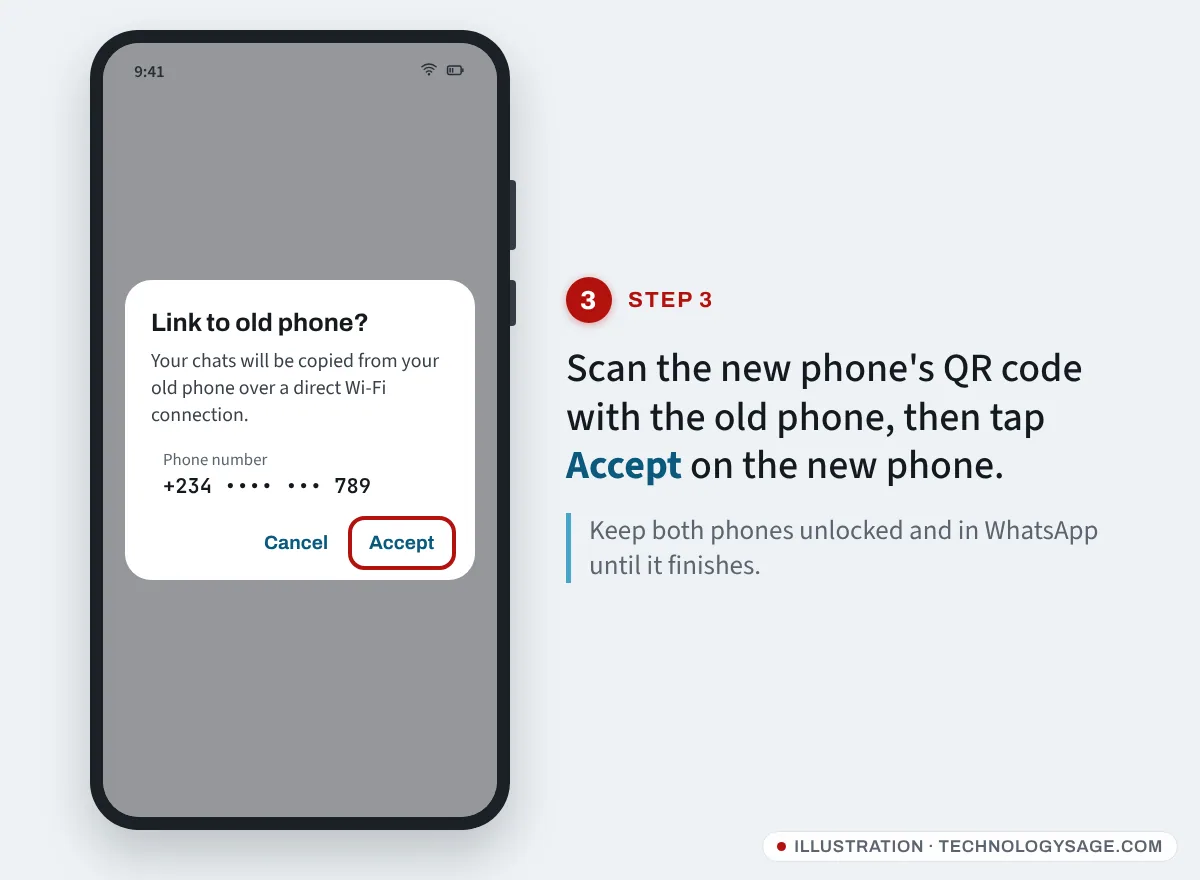
- Tap Accept on the new phone to link the two.
- Keep both phones unlocked, close together and inside WhatsApp until the progress bar finishes. Messaging is paused during the transfer.
- When it says the import is complete, tap Next on the new phone and finish setting up your profile.
Do not delete WhatsApp, clear its data or factory reset the old phone until you have opened a few chats on the new phone and checked your photos and voice notes are there.
Method 2: Restore from a Google Account backup
Use this if the old phone is lost, broken or already reset, or if the QR transfer keeps failing.
Step 1: Make a fresh backup (if you still have the old phone)
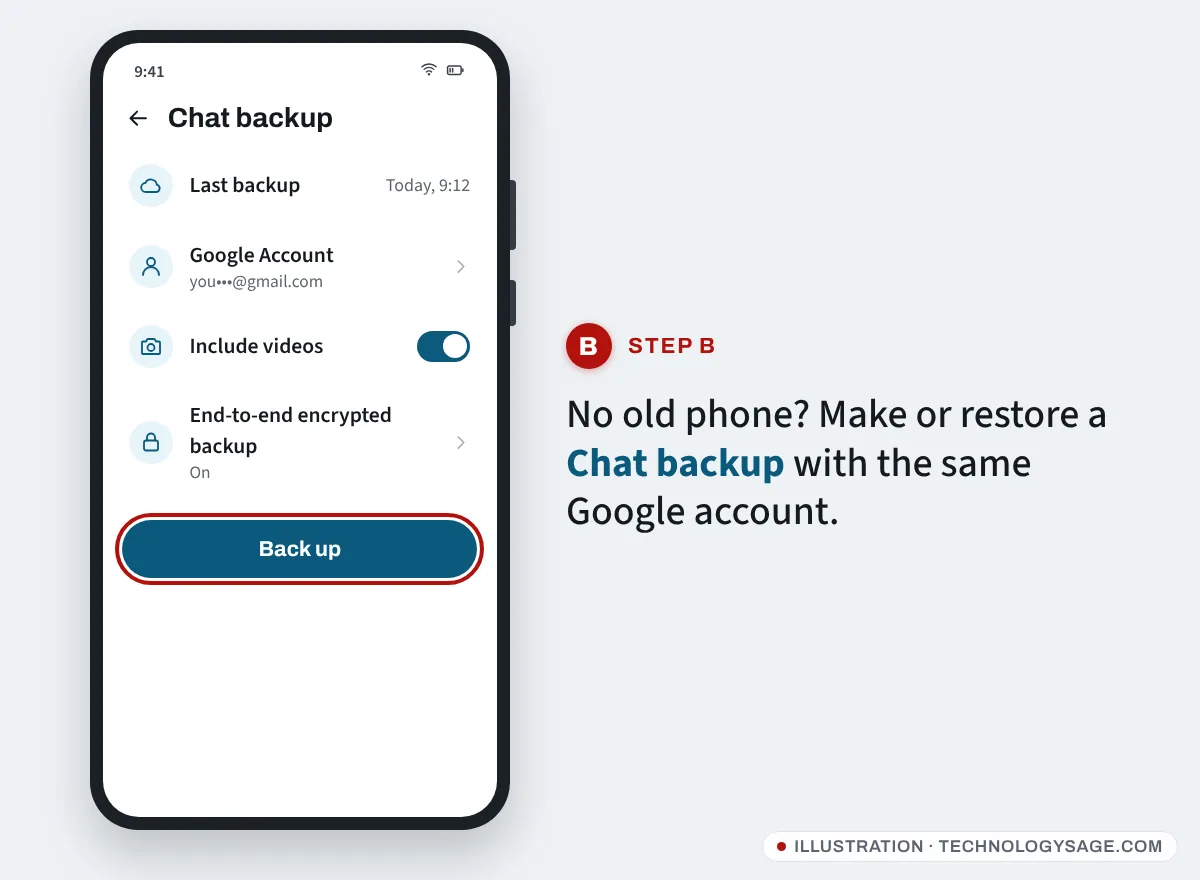
- On the old phone, open WhatsApp → Settings → Chats → Chat backup.
- Check the Google Account shown is the one you will use on the new phone.
- Turn on Include videos if you want videos restored.
- Tap Back up and wait for it to finish.
If the old phone is gone, you can only restore the last backup it made. To check one exists, open the Google One app on any phone signed in to the same Google account and go to Storage → Other; WhatsApp backups are listed there. WhatsApp keeps only the most recent backup, and Google may delete a backup that has not been updated for about five months.
Step 2: Restore on the new phone
- During the new phone’s setup, sign in with the same Google account that holds the backup (or add it later in Settings → Passwords & accounts or Accounts and backup, depending on your phone).
- Install WhatsApp, open it and verify the same phone number.
- When WhatsApp finds the backup, tap Restore.
- If your backup is end-to-end encrypted, enter the password or 64-digit key you created. WhatsApp cannot reset this for you, and you get a limited number of attempts.
- Tap Next when your chats appear. Photos and videos keep downloading in the background, so stay on Wi-Fi for a while.
Messages you sent or received after the last backup will not come back with this method.
If it doesn’t work
The QR code does not appear on the new phone. Turn on Wi-Fi on both phones (it does not need to be connected to a network), accept every permission WhatsApp asks for, and on Android 12 or older turn on location. Make sure you are scanning the code shown after you verified your number.
There is no “Transfer from old phone” option. WhatsApp is probably already set up on the new phone. Uninstall it, reinstall it and start again. You cannot merge old chats into an account that is already active on the new phone.
The transfer stops halfway. Restart both phones (power off, wait 30 seconds, power on), keep them on chargers, turn off battery saver, and try again. On some Tecno, Infinix and itel phones, aggressive battery management closes apps in the background, so keep the screens on and WhatsApp open on both.
“No backup found”. Check you are signed in to the same Google account and using the same phone number that made the backup. In your phone’s account settings, sync the Google account, or remove and re-add it, then reinstall WhatsApp. Also make sure WhatsApp is allowed to access photos and videos.
“Not enough storage”. The new phone needs more free space than the size of the backup. Delete or move a few large files and try again.
You use WhatsApp Business. The QR chat transfer does not currently work in the WhatsApp Business app. Use a Google Account backup instead.
Moving to an iPhone instead? That uses Apple’s Move to iOS app, not the methods above. See how to transfer WhatsApp chats from Android to iPhone.
What does not move
- Peer-to-peer payment messages.
- Media received through WhatsApp Channels.
- Anything sent after the last backup, if you use the Google backup method.
Your linked devices (WhatsApp Web, desktop, tablet) may need to be linked again after the move, from Settings → Linked devices.
Stay safe while switching phones
WhatsApp will text or call you a 6-digit code during setup. Never share that code with anyone, even someone who says they sent it “by mistake” or claims to be from WhatsApp support. That is the most common way accounts are stolen. If it happens, follow our guide on what to do if your WhatsApp is hacked. If the code does not arrive at all, see WhatsApp verification code not received.
Before you sell or give away the old phone, remove your Google account and factory reset it. If you skip removing the account, the next owner will hit Google’s Factory Reset Protection and need your Google password.
FAQ
Can I move WhatsApp to a new phone without a Google Drive backup?
Yes. Use Settings → Chats → Transfer chats on the old phone and scan the QR code on the new one. It needs both phones, but no backup and no internet connection.
Will my contacts and friends know I changed phones?
Your chats carry on as normal. Contacts who have security notifications turned on may see a “security code changed” note in your chat, which is normal after a phone change. Read more in what “your security code changed” means.
Can I recover chats if I never backed up and the old phone is broken?
Usually not. WhatsApp does not keep copies of your messages on its servers. If the old phone still turns on, try the QR transfer; otherwise only a backup can bring the chats back. Our guide to recovering deleted WhatsApp messages and media covers what is possible.
Do I need the same SIM card in the new phone?
You need the same phone number, and it must be able to receive the verification SMS or call. The SIM can be in the new phone or in another phone nearby while you verify.
Are third-party WhatsApp transfer apps safe?
For Android to Android, you do not need them: the built-in QR transfer and Google backup are free. Paid tools need access to your private messages, so stick to the official methods.