In this guide
- First: find out where it fails
- Fix 1: Restart the router and the PC properly
- Fix 2: Swap the cable and the port
- Fix 3: Make sure the IP settings are automatic
- Fix 4: Release and renew the IP address
- Fix 5: Reset Winsock and the TCP/IP stack
- Fix 6: Turn the adapter off and on, then update or reinstall the driver
- Fix 7: Check Speed & Duplex
- Fix 8: Disable VPNs, firewalls and extra adapters
- Fix 9: Run Network reset
- Fix 10: Check the router’s DHCP and your ISP
- On a Mac
- FAQ
“Unidentified network” on Ethernet means Windows can see a cable connection but couldn’t get proper network settings from your router — usually because it didn’t receive an IP address. Start by restarting the router and PC, trying a different cable and router port, and then running ipconfig /release and ipconfig /renew; if that fails, reset the network stack and the adapter driver as shown below.
“Ethernet connected but no internet” is a close cousin: the PC did get an address, but can’t reach beyond the router. The two-minute check in the first section tells you which one you have, so you can skip straight to the fixes that matter. Steps are for Windows 11 and 10, with a Mac note at the end.
First: find out where it fails
- Check another device. Does a phone or another computer have internet from the same router right now? If nothing works, the problem is the router or your ISP, not your PC — restart the router and see our guide to a router showing a red light.
- Look at the port. On most PCs and routers, a light next to the Ethernet port glows or blinks when a cable is connected. No light at all points to the cable, the port or the adapter.
- Check your IP address. Right-click Start → Terminal (or open Command Prompt) and type:
ipconfigFind the Ethernet adapter section and read the IPv4 Address:
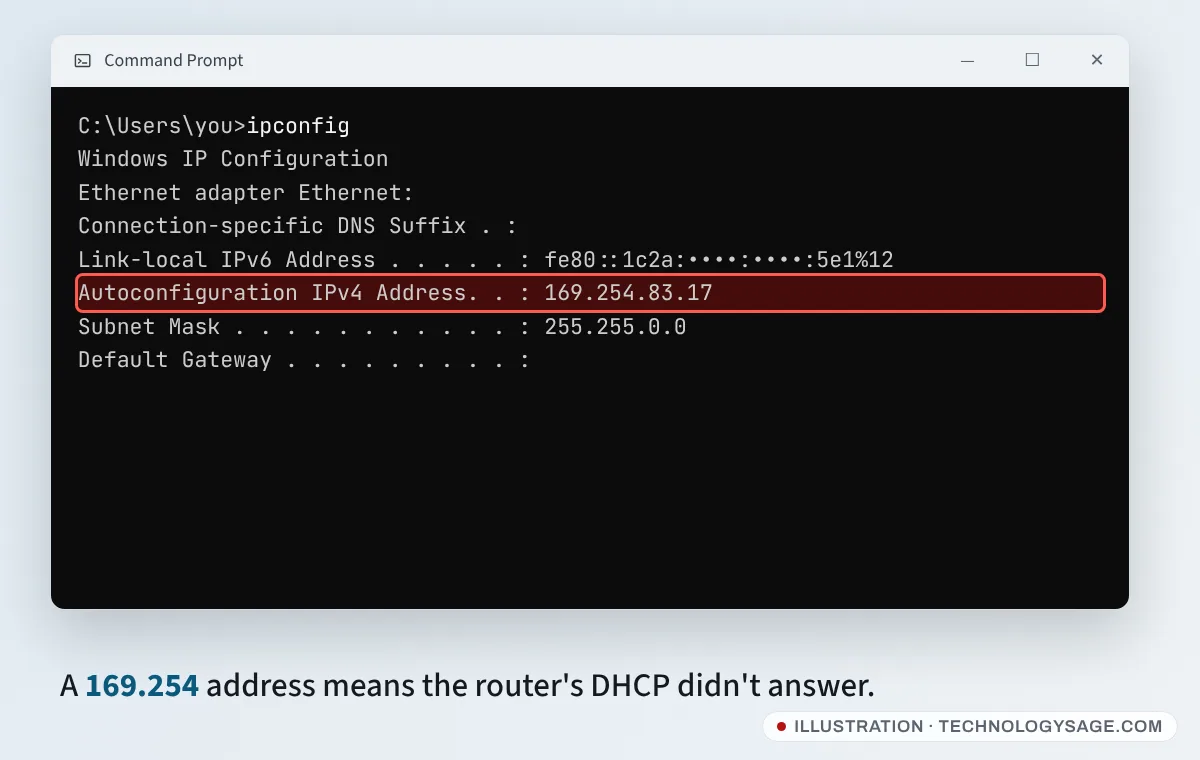
- 169.254.x.x — Windows gave itself an emergency address because the router’s DHCP didn’t answer. This is the classic Unidentified network. Start at Fix 1.
- 192.168.x.x, 10.x.x.x or similar, with a Default Gateway — you have an address, but no internet. Jump to Fix 5 (DNS and network reset) and check whether the router itself is online.
- “Media disconnected” — Windows doesn’t see a link at all: cable, port, adapter or driver. Start at Fix 2.
Fix 1: Restart the router and the PC properly
Turn the PC off. Unplug the router (and modem, if separate) from power for 30 seconds, plug it back in, and wait until its lights settle — often 2-3 minutes. Then start the PC.
If your PC plugs straight into an ISP modem with no router, the modem may be locked to the last device it saw. Power-cycling the modem lets it hand an address to the new device.
Fix 2: Swap the cable and the port
Ethernet cables fail more often than people expect: a broken clip, a crushed section under a chair leg or a bent pin is enough.
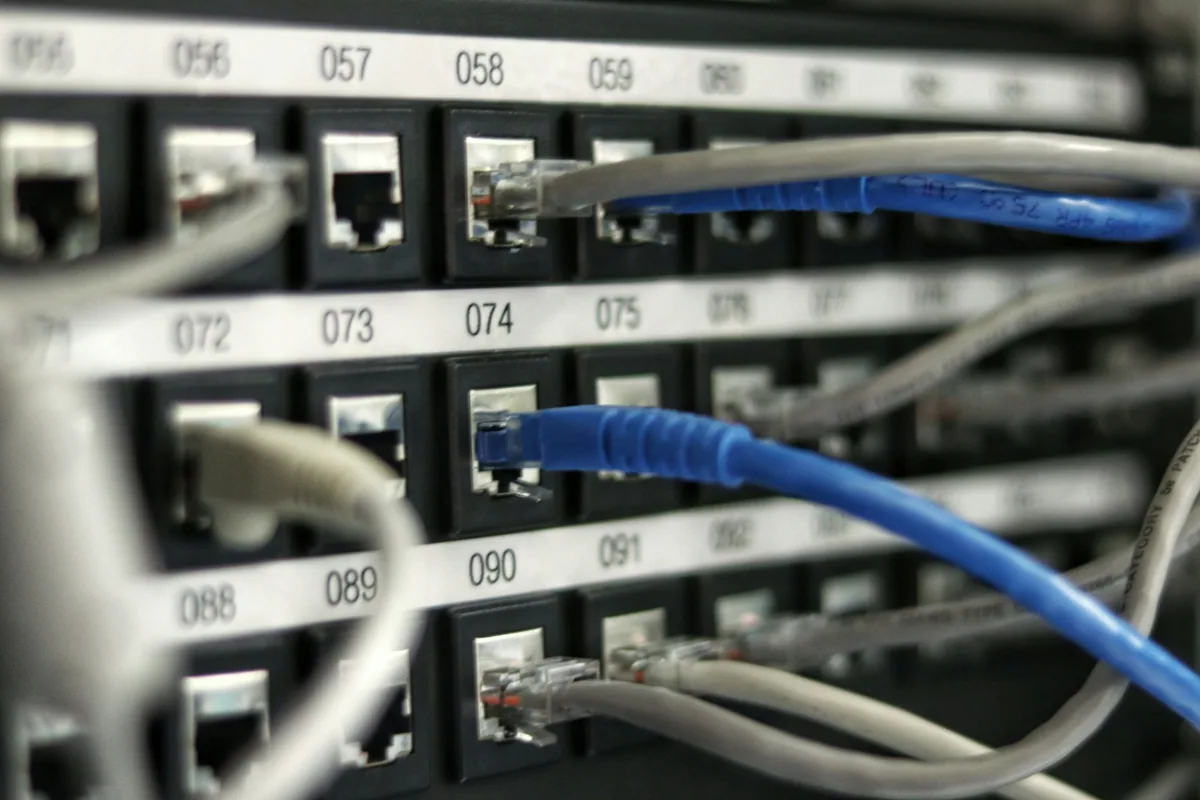
Photo: Jordan Harrison on Unsplash
- Try a different cable you know works.
- Use a different LAN port on the router. Don’t use the port labelled WAN or Internet — that’s for the modem.
- If you use a USB-to-Ethernet adapter or a dock, plug it directly into the laptop (not a hub) and try another USB port.
- Wall sockets and powerline adapters add more places to fail; test with a cable straight to the router.
Fix 3: Make sure the IP settings are automatic
A static IP left over from an old network or a “speed tweak” stops the PC getting an address.
- Open Settings → Network & internet → Ethernet.
- Next to IP assignment, click Edit and choose Automatic (DHCP). Do the same for DNS server assignment if it shows Manual.
- Click Save.
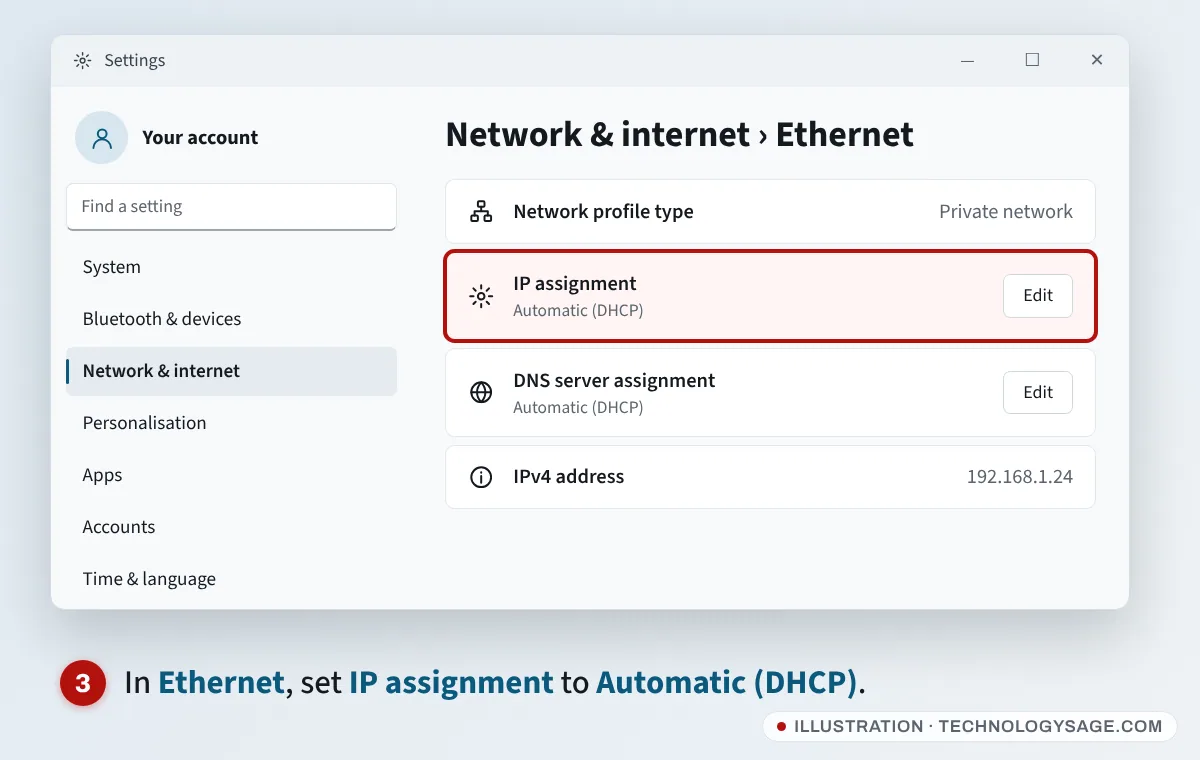
On Windows 10: Settings → Network & Internet → Ethernet → [your network] → IP settings → Edit → Automatic (DHCP).
If you need a static IP (some offices do), check the address, subnet, gateway and DNS with whoever runs the network. Our guide on changing a computer’s IP address shows where each field goes.
Fix 4: Release and renew the IP address
Open Command Prompt as administrator (search cmd, choose Run as administrator) and run these one at a time:
ipconfig /release
ipconfig /renew
ipconfig /flushdns
If /renew finishes and ipconfig now shows a normal address (not 169.254), test the internet. If it says “An error occurred while renewing interface Ethernet: unable to contact your DHCP server”, the PC isn’t hearing the router — go back to Fix 1 and 2, or try another device on the same cable to see which side is faulty.
Fix 5: Reset Winsock and the TCP/IP stack
These commands put Windows networking settings back to defaults. They don’t delete files; you may need to re-enter VPN or proxy settings afterwards. In an administrator Command Prompt:
netsh winsock reset
netsh int ip reset
Restart the PC when they finish.
Fix 6: Turn the adapter off and on, then update or reinstall the driver
- Right-click Start → Device Manager, expand Network adapters.
- Right-click your Ethernet adapter (names like Realtek PCIe GbE Family Controller or Intel Ethernet Connection) and choose Disable device, then Enable device.
- If that doesn’t help, choose Update driver → Search automatically for drivers, or download the latest LAN driver from your PC or motherboard maker’s support page.
- Still failing? Choose Uninstall device (don’t tick any box to delete the driver unless you have a newer one ready), then restart. Windows reinstalls the adapter.
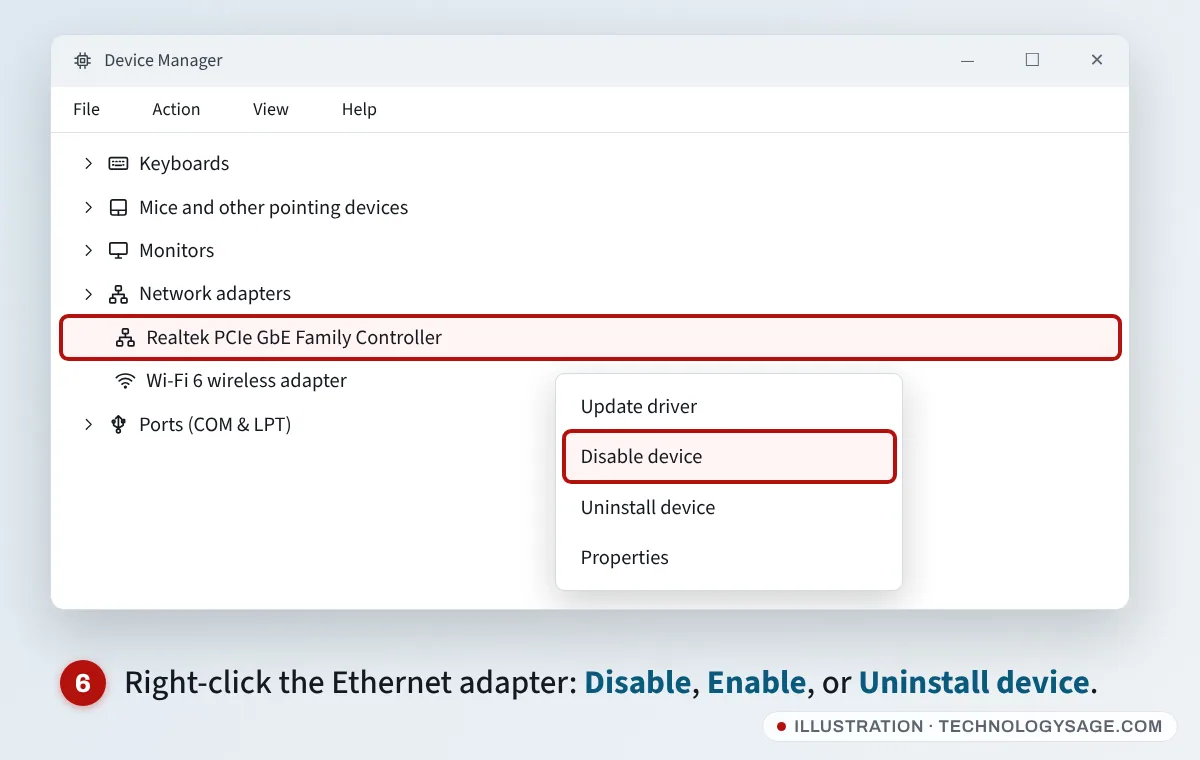
While you’re there, open the adapter’s Properties → Power Management and untick Allow the computer to turn off this device to save power. A sleeping adapter that doesn’t wake properly is a common cause of Ethernet that works after a restart but drops later.
Fix 7: Check Speed & Duplex
On the same adapter’s Properties → Advanced tab, find Speed & Duplex and set it to Auto Negotiation. If a long or older cable is the problem and Auto keeps failing, try 100 Mbps Full Duplex as a test: if the connection comes alive, replace the cable (Cat5e or better for gigabit).
Fix 8: Disable VPNs, firewalls and extra adapters
VPN clients, third-party firewalls and virtual adapters (VirtualBox, VMware, Hyper-V) sometimes hijack the network. Temporarily disconnect or uninstall the VPN, turn off a third-party firewall, and in Control Panel → Network and Sharing Center → Change adapter settings disable virtual adapters you don’t use. Test again.
Fix 9: Run Network reset
Windows 11: Settings → Network & internet → Advanced network settings → Network reset → Reset now. Windows 10: Settings → Network & Internet → Status → Network reset.
This removes and reinstalls every network adapter and restores default settings, then restarts the PC. You’ll need to reconnect to Wi-Fi networks and reinstall VPN software afterwards, so keep this for when the earlier fixes haven’t worked.
Fix 10: Check the router’s DHCP and your ISP
If no wired device gets an address, the router’s DHCP server may be switched off or out of addresses. Sign in to the router and check that DHCP is enabled. If you have a new router plugged into an ISP box, make sure the cable goes from a LAN port on the ISP box to the WAN port on your router.
If devices get addresses but nothing has internet, the fault is upstream. Our guides to Wi-Fi connected but no internet and DNS_PROBE_FINISHED_NO_INTERNET cover DNS and ISP-side checks that apply to cable connections too.
On a Mac
Open System Settings → Network → Ethernet → Details → TCP/IP and click Renew DHCP Lease. Make sure Configure IPv4 is Using DHCP. If you use a USB-C Ethernet adapter, unplug and reconnect it, and try another port.
FAQ
Why does my Ethernet say unidentified network?
Windows didn’t get valid settings from the router, almost always because DHCP didn’t hand out an IP address. Typical causes are a faulty cable or port, a router that needs a restart, a leftover static IP, or a network driver problem.
How do I fix “Ethernet connected but no internet”?
Check whether other devices have internet. If they do, run ipconfig /flushdns, netsh winsock reset and netsh int ip reset as administrator, restart, and set DNS to automatic. If nothing has internet, restart the router and contact your ISP.
Why is my Ethernet stuck on “Identifying”?
Windows is waiting for an answer from the router. If it never finishes, the PC usually ends up with a 169.254 address. Restart the router, try another cable and port, then release and renew the IP.
Can a bad Ethernet cable cause no internet?
Yes. A damaged cable can show a link light but fail to pass data reliably, or connect only at 10/100 Mbps. Swapping the cable is one of the quickest tests.
Is Wi-Fi affected by the same fixes?
Mostly. Winsock reset, IP renew and Network reset affect all adapters. If your laptop’s Wi-Fi also keeps dropping, see laptop Wi-Fi keeps disconnecting.