In this guide
Fastboot mode is a special start-up mode built into most Android phones’ bootloaders. It lets a computer connected by USB send low-level commands to the phone — to reboot it, read its details or install (flash) system software. Most people land in it by accident, by holding Power + Volume Down together. To exit fastboot mode, choose Start or Reboot with the volume keys and press Power, or hold the Power button for 10-30 seconds until the phone restarts.
Being in fastboot mode doesn’t harm the phone or erase anything. This guide explains what the screen means on different brands, every way to get out of it, what to do if the phone keeps returning to it, and the handful of fastboot commands worth knowing.
What is fastboot mode used for?
Fastboot is both a mode on the phone and a command-line tool on a computer (part of Google’s free Android SDK Platform-Tools). Together they’re used to:
- Install official firmware or updates on phones whose makers support fastboot flashing
- Unlock or lock the bootloader on your own phone (this wipes it)
- Read device information such as the product name and bootloader state
- Reboot into recovery or normal Android
Repair technicians and developers use it a lot. For everyday users, it’s mostly the screen you see when a button combination or a failed update sends the phone there.
What the fastboot screen looks like
It differs by brand, but you’ll usually see the word FASTBOOT somewhere:
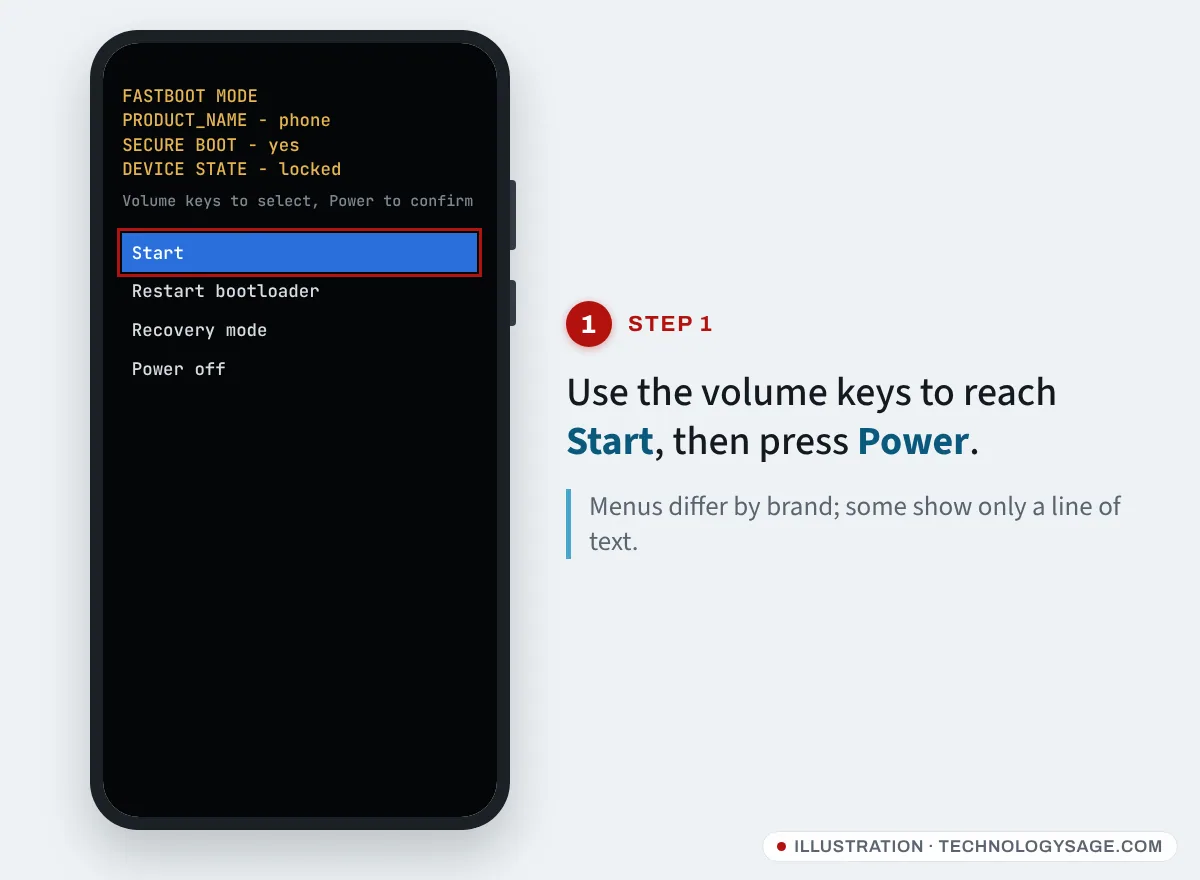
- Google Pixel: an Android robot lying down, Fastboot Mode in red, device details, and a menu at the top (Start, Restart bootloader, Recovery mode, Power off).
- Xiaomi, Redmi, POCO: a picture of a rabbit fixing an Android robot, with FASTBOOT in orange.
- Motorola: a text screen titled Fastboot Flash Mode with a menu.
- Many MediaTek phones (including some Tecno, Infinix and itel models): a black screen with a single small line such as => FASTBOOT mode… in the corner.
- OnePlus and OPPO/realme: a fastboot or bootloader screen with a menu, on models that use it.
Samsung Galaxy phones don’t have fastboot mode. The equivalent is Download mode (sometimes called Odin mode), a blue screen with “Downloading… Do not turn off target”. iPhones don’t have fastboot either; they use Recovery or DFU mode.
Newer Android versions (10 and later) also have fastbootd, a fastboot mode that runs from the recovery system rather than the bootloader. It looks like a recovery menu titled “fastbootd”. You exit it the same way.
Why is my phone in fastboot mode?
- You pressed the button combo. Holding Power + Volume Down while the phone starts is the fastboot shortcut on many brands. It’s easy to do by accident in a pocket or tight case.
- A stuck Volume Down button. If the button is jammed or the case presses it, the phone may boot into fastboot every time.
- A failed update or damaged system software. If Android can’t start, some phones fall back to fastboot.
- After unlocking, rooting or flashing — a common result of an incomplete or wrong flash.
How to exit fastboot mode
Try these in order. None of them erase your data.
1. Use the on-screen menu (if there is one)
On Pixels, Motorola and many others: press Volume Up or Volume Down to move through the menu until Start, Reboot or Reboot system now is shown, then press Power to select it.
2. Hold the Power button
Hold Power alone for 10-30 seconds until the screen goes off and the phone restarts. Some phones need longer — up to a minute. Release it as soon as the logo appears.
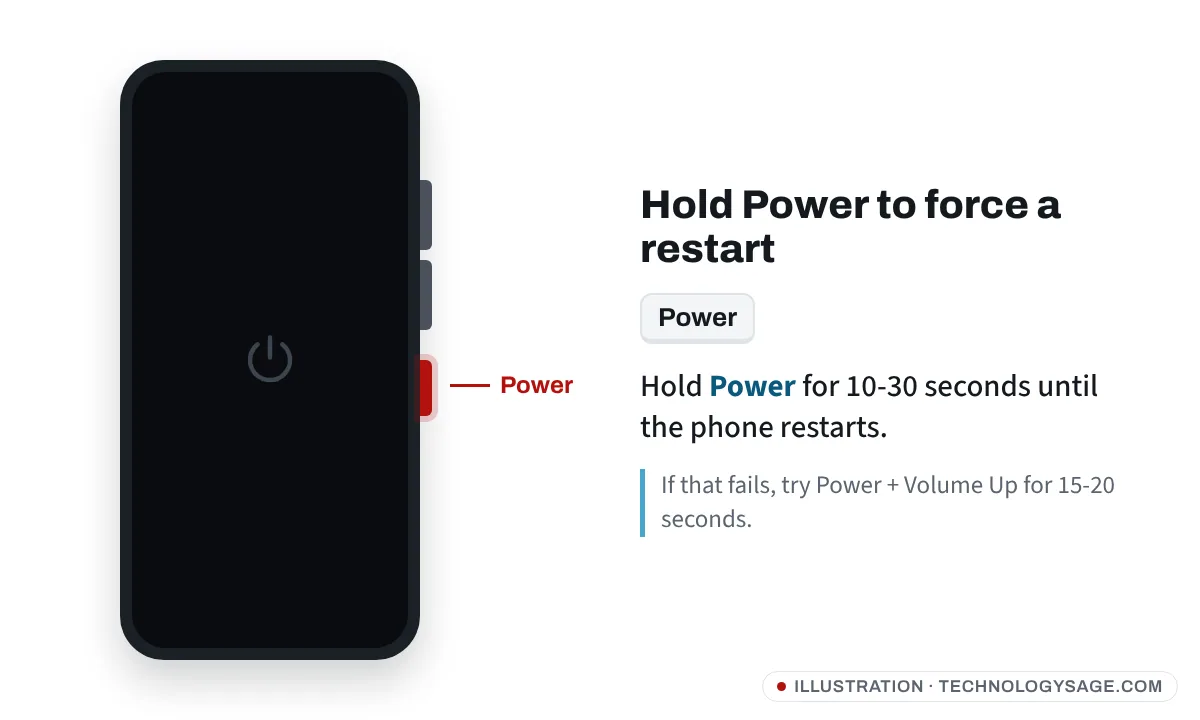
If that doesn’t work, hold Power + Volume Up for 15-20 seconds on brands where Volume Up isn’t the recovery shortcut, or check your maker’s support page for the exact force-restart combination.
3. Check the Volume Down button and the case
Take the phone out of its case and press the volume buttons a few times to make sure neither is stuck. Then restart. If it still goes straight to fastboot, a faulty button is a strong suspect — that needs a repair, not a reset.
4. Reboot from a computer
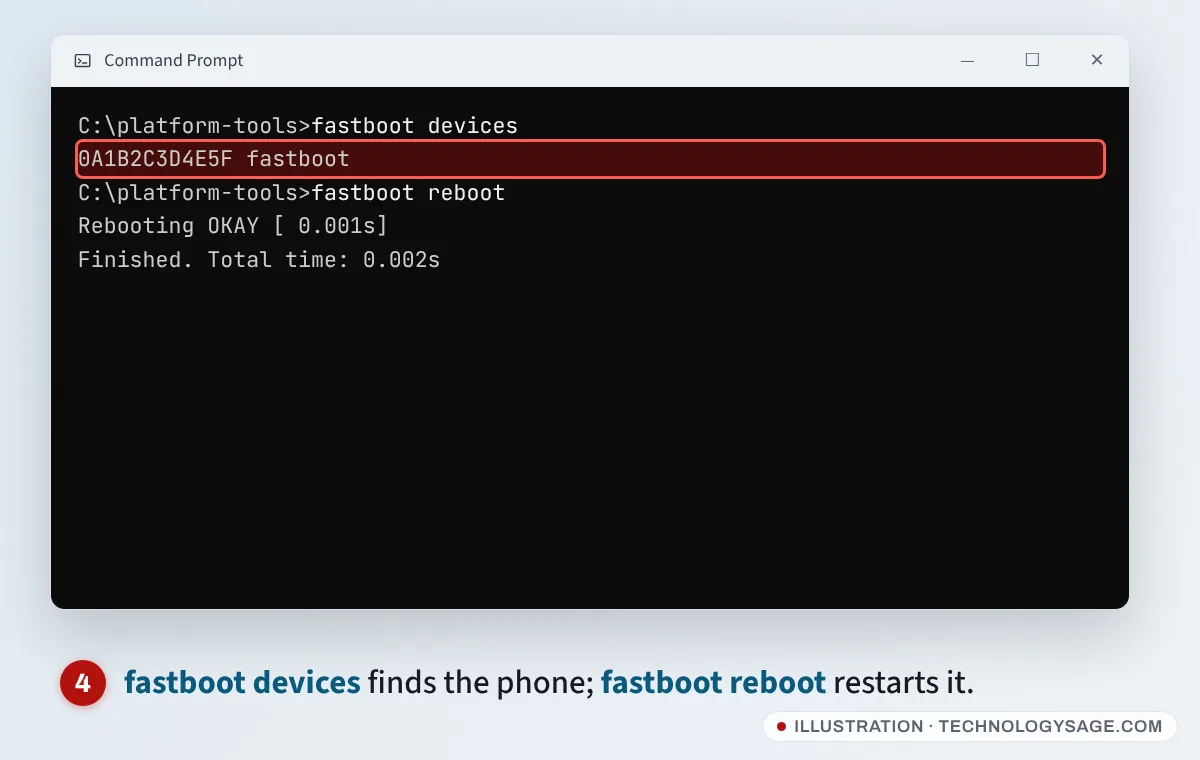
If you have the ADB and fastboot tools set up, connect the phone with a data cable and run:
fastboot devices
fastboot reboot
fastboot devices should list your phone’s serial number. If it shows nothing, Windows may need the phone maker’s USB driver (Google’s USB driver for Pixels). fastboot reboot restarts into normal Android.
5. Let the battery run out
As a last no-tools option, leave the phone on the fastboot screen until the battery dies, then charge it for 30 minutes and turn it on normally.
If the phone keeps going back to fastboot
If every restart returns to fastboot and the buttons are fine, Android’s software is likely damaged. Your options, from least to most drastic:
- Try recovery mode. Use the menu or button combination to open Recovery, then choose Reboot system now. If that fails, recovery’s Wipe data/factory reset may get the phone working — but it erases everything on the phone. After a reset you’ll need the Google account that was on the phone (Factory Reset Protection), so make sure you know it. Our guides to resetting a Tecno phone and fixing a boot loop cover this step by step.
- Flash the official firmware for your exact model, using the maker’s official tool or method. This also usually erases data. See how to flash a Tecno phone for the MediaTek approach, and our older walkthrough for an itel stuck on fastboot.
- Go to an authorised service centre. If the phone is under warranty, or you’re not comfortable flashing, this is the safest route.
These steps are for your own phone. Don’t use fastboot to get around someone else’s lock screen or Google account lock — it won’t remove Factory Reset Protection anyway.
Useful fastboot commands (and which are risky)
These are run from a computer with the phone in fastboot mode:
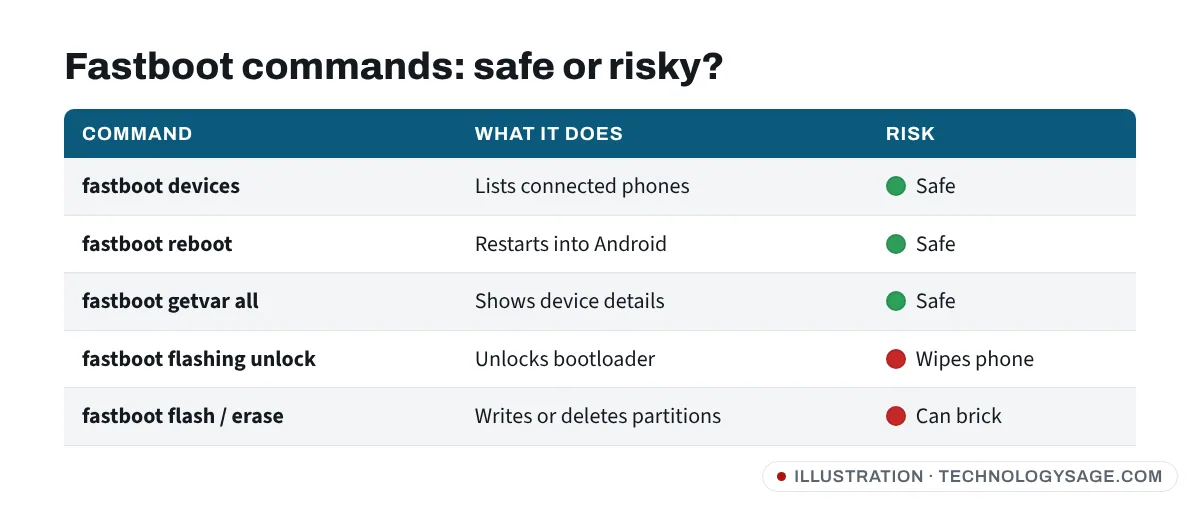
Safe — read or reboot only:
fastboot devices
fastboot getvar all
fastboot reboot
fastboot reboot bootloader
fastboot getvar all prints device information, including whether the bootloader is unlocked. Some phones only support certain variables.
Risky — can erase data or stop the phone booting:
fastboot flashing unlock(older phones:fastboot oem unlock) unlocks the bootloader and wipes the phone. It only works if OEM unlocking is turned on in Developer options, and some brands and carriers don’t allow it at all.fastboot flash <partition> <file>writes a partition. The wrong file for your model can leave the phone unable to start.fastboot erase <partition>deletes a partition.
Only use risky commands with official instructions for your exact model, after backing up your data.
To get into fastboot from a working phone with USB debugging on, run adb reboot bootloader. If ADB shows your phone as “unauthorized”, see ADB device unauthorized.
Do you need paid “fastboot exit” software?
No. Many search results for this problem are from companies selling one-click repair tools. Exiting fastboot only needs the buttons or the free fastboot reboot command, and real software damage is better fixed with the maker’s official firmware or service centre.
FAQ
Is fastboot mode harmful to my phone?
No. Fastboot mode is a normal part of the bootloader. Sitting on the fastboot screen doesn’t damage anything or delete data; only certain commands sent from a computer can.
How do I get out of fastboot mode without a computer?
Use the volume keys to select Start or Reboot and press Power, or hold the Power button for 10-30 seconds. If it keeps returning, check for a stuck Volume Down button.
Will exiting fastboot mode delete my data?
No. Restarting from fastboot keeps all your data. Only a factory reset, flashing firmware or unlocking the bootloader erases the phone.
Why does my phone say fastboot mode when I charge it?
Usually a volume button is being pressed (by a case, a stand or a fault) while the phone starts up during charging. Remove the case and restart.
What’s the difference between fastboot and recovery mode?
Fastboot lets a computer control the phone over USB. Recovery mode is a small menu on the phone itself for rebooting, applying updates and factory resets. Both are reached with button combinations.