In this guide
- What “package appears to be invalid” actually means
- 1. Download the file again (corrupt or incomplete APK)
- 2. Check you have a real APK, not a split bundle
- 3. Make sure the app suits your phone and Android version
- 4. Uninstall the existing version (signature conflict or downgrade)
- 5. Free up storage
- 6. Give permission to the app that’s installing
- 7. Don’t override Play Protect without a good reason
- 8. Try a different file manager or move the file
- If you built the app yourself
- Stay safe with APK files
- FAQ
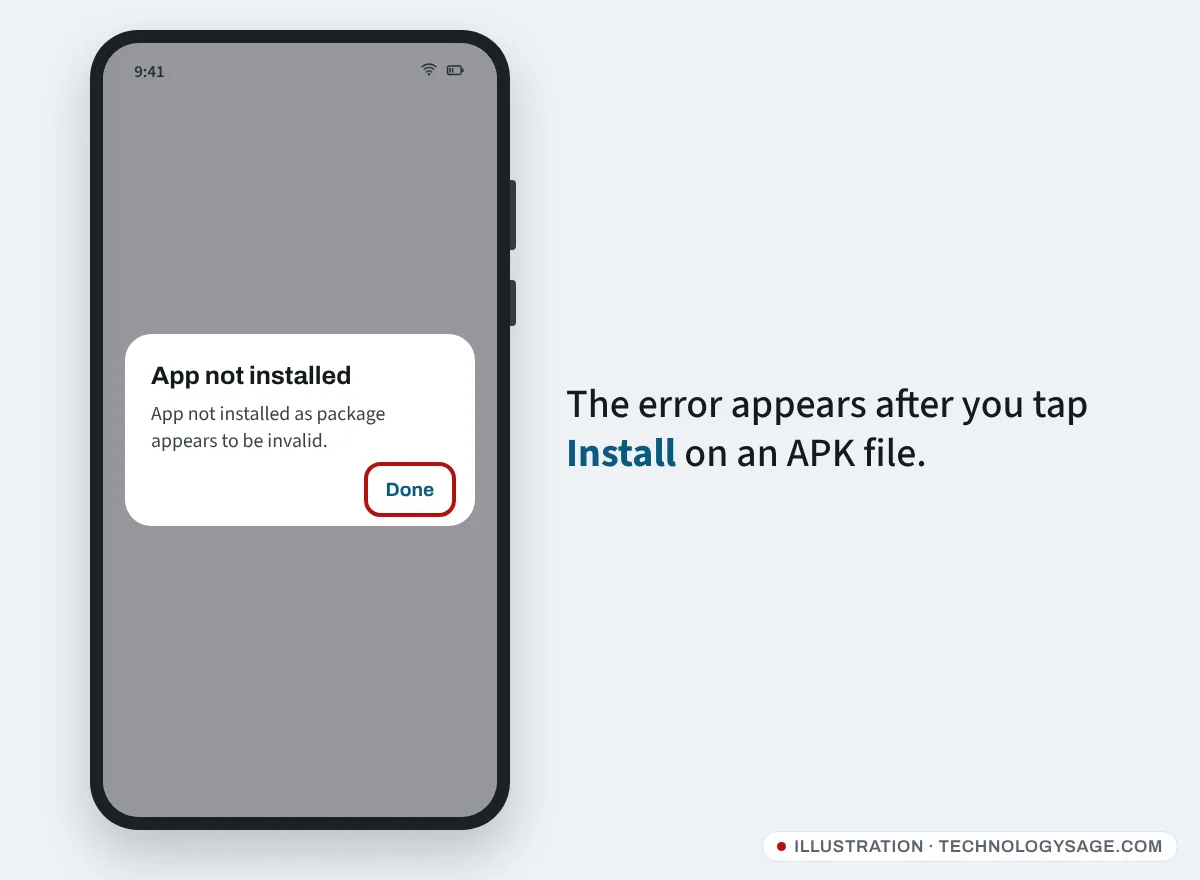
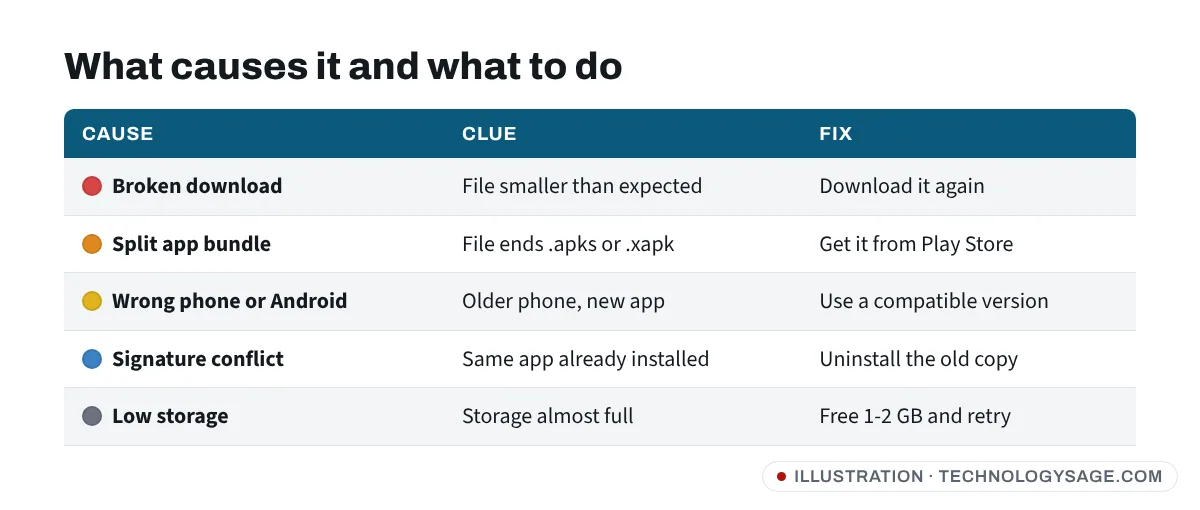
“App not installed as package appears to be invalid” means Android checked the APK file you tapped and refused it, because the file is damaged, isn’t a complete app, doesn’t suit your phone, or clashes with a copy of the app you already have. The fix is usually to download the file again from the developer’s official source, or to uninstall the old version first. If the app is on Google Play, installing it from there avoids the problem entirely.
This guide covers every legitimate cause, on any Android phone (Samsung, Tecno, Infinix, Xiaomi, Pixel and others). It doesn’t cover modified or “cracked” APKs: those are a common cause of this error and a common way phones get infected with malware.
What “package appears to be invalid” actually means
An Android app is distributed as a package (an APK). Before installing, Android checks that the package is complete, correctly signed by its developer, and built for your phone. “Appears to be invalid” is the generic message when that check fails. Some phones show a shorter App not installed message, or App not installed as package conflicts with an existing package, which points straight at a version clash (fix 4).
1. Download the file again (corrupt or incomplete APK)
The most common cause is a download that stopped part-way, especially on a weak mobile connection or when the browser saved a partial file.
- Delete the APK you downloaded (it’s usually in Files → Downloads).
- Connect to stable Wi-Fi and download it again from the developer’s own website or official page.
- Compare the file size with the size shown on the download page. If it’s much smaller, the download broke again.
Also make sure you downloaded an app and not a web page: if the file is tiny (a few KB), you probably saved an error page with an .apk name.
2. Check you have a real APK, not a split bundle
Many modern apps are published as a set of files (a “split APK” or app bundle) instead of one APK. These come as .apks, .xapk or .apkm files, or as a ZIP of several APKs. Android’s built-in installer can’t install them by tapping, and renaming the file to .apk doesn’t work; it gives exactly this error.
What to do:
- If the app is on Google Play, install it from Play. This is the simplest and safest option.
- If a developer gives you the app directly (a company app, a school app, a beta), ask them for a single universal APK, or follow their own installation instructions.
3. Make sure the app suits your phone and Android version
An APK can be valid but built for a different phone:
- Android version too old. Each app has a minimum Android version. Check yours in Settings → About phone → Android version (on Samsung, Settings → About phone → Software information). If the app needs a newer Android, look for an older release from the same developer, or use the web version.
- Processor type. Apps are built for particular processors (most phones use 64-bit ARM, shown as arm64-v8a; older and budget phones may be 32-bit armeabi-v7a). Developers who offer several downloads usually label them; pick the one for your phone, or the “universal” build. Some newer phones run 64-bit apps only, so an old 32-bit app won’t install.
- Wrong device type. Apps made for Android TV, Wear OS watches or car units won’t install on a phone.
4. Uninstall the existing version (signature conflict or downgrade)
Android only lets you update an app with a file signed by the same developer key. You’ll see this error, or “package conflicts with an existing package”, if:
- the app is already installed from Google Play and you’re installing a copy from somewhere else (or the reverse), or
- you’re installing an older version over a newer one.
The fix is to uninstall the installed version first: Settings → Apps → [app name] → Uninstall, then install the APK. Uninstalling deletes the app’s data on the phone, so back up anything important inside the app first (chats, notes, game progress, using the app’s own backup or account sync).
Pre-installed system apps can’t be fully uninstalled; you can only remove their updates. If a file tries to replace a system app with a differently signed copy, it will never install.
5. Free up storage
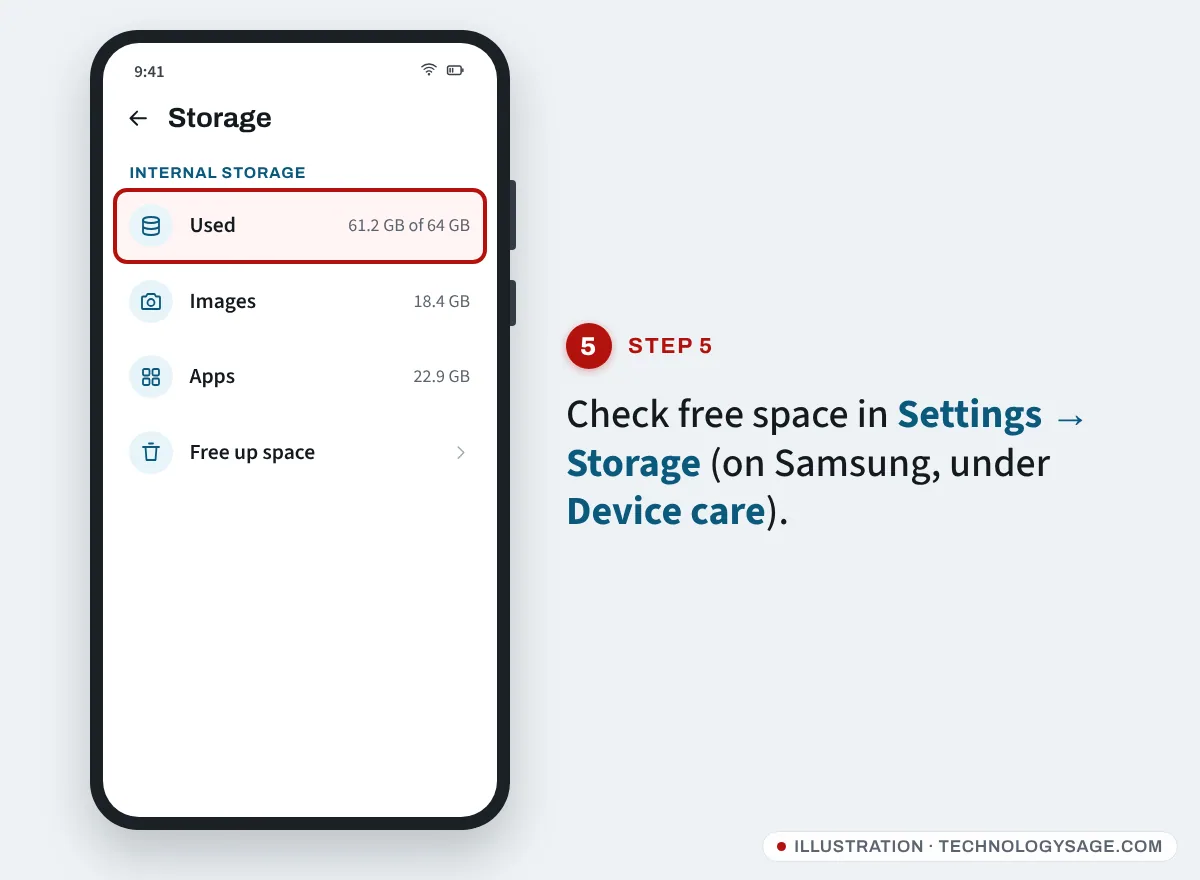
Installing needs room for the APK, the installed app and its optimised code, often two or three times the file size. If your phone is nearly full, installation can fail with this or a similar error.
- Open Settings → Storage (on Samsung, look under Battery and device care, called Device care on newer One UI versions). If you can’t find it, search Settings for “Storage”.
- Clear large videos, old downloads (including the APKs you already installed) and app caches until you have at least 1-2 GB free.
For a deeper clean-up, see our guide to freeing space when Samsung internal storage is full; the steps work on most phones.
6. Give permission to the app that’s installing
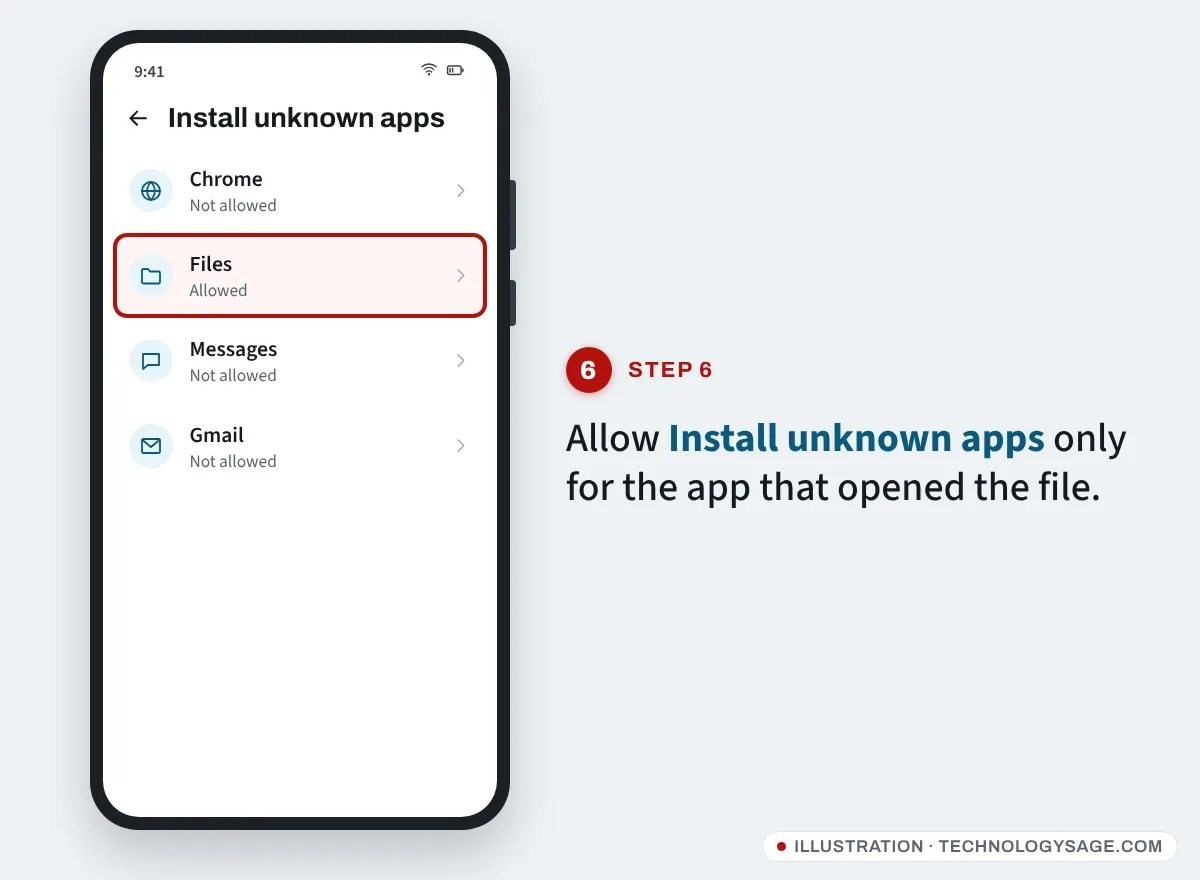
Android needs your permission for the app that opens the APK (your browser or file manager) to install apps. If that app isn’t allowed, you’ll normally get a prompt; if you dismissed it, the install can fail.
- Open Settings and search for Install unknown apps.
- Pick the app you’re opening the file with (for example Files or Chrome) and turn on Allow from this source.
The path varies: on Android 13 and later it’s usually Settings → Apps → Special app access → Install unknown apps; on Samsung, Settings → Apps → ⋮ → Special access → Install unknown apps. Turn the permission off again once you’re done.
On Samsung Galaxy phones, Auto Blocker (in Settings → Security and privacy → Auto Blocker) blocks installs from anywhere except authorised stores such as Google Play and Galaxy Store. Samsung says to turn it off only temporarily, and only for an app you’re sure is safe.
7. Don’t override Play Protect without a good reason
Google Play Protect scans apps you install from outside Play and can block ones that look harmful. In some countries it also blocks sideloaded apps that request sensitive permissions often abused by fraudsters. If Play Protect blocks a file, treat that as a warning, not an obstacle: get the app from Google Play or the developer’s official site instead. Only choose to install anyway if the app comes from a developer you know and trust (for example, your employer’s IT team).
8. Try a different file manager or move the file
Occasionally the installer can’t read the APK from where it’s saved, for example on an SD card or in a messaging app’s private folder. Move the file to Internal storage → Download and open it with Files by Google or your phone’s own file manager.
If you built the app yourself
Developers often see this error when testing:
- The APK must be signed. Unsigned release builds won’t install.
- Builds marked as test-only only install through ADB with the
-toption. See how to install apps from a computer with ADB, and if ADB shows “unauthorized”, our ADB device unauthorized fix. - If you changed your signing key, uninstall the old build from the test phone first.
Stay safe with APK files
- Download APKs only from the developer’s official site or a source you trust. Fake “premium” or modded apps are a leading cause of adware and stolen accounts; if your phone has started showing strange ads, see how to stop pop-up ads on Android.
- Never install an APK someone sends you on WhatsApp or by SMS claiming to be from your bank, a courier or a tax office. Real organisations point you to the Play Store.
- Nobody legitimate will ask for your passwords, PIN or one-time codes to “help” you install an app.
FAQ
Why does my phone say “App not installed” when I have enough space?
The most likely reasons are a damaged download, a split app bundle (.apks or .xapk) that the normal installer can’t open, an app built for a newer Android version, or a clash with a version that’s already installed. Work through fixes 1 to 4 above.
How do I fix “package conflicts with an existing package”?
Uninstall the app that’s already on the phone, then install the new file. Back up the app’s data first, because uninstalling removes it.
Can I install an older version of an app over a newer one?
Not directly. Android blocks downgrades with a normal install, so you’d have to uninstall the newer version first, which deletes its data.
Does renaming an XAPK file to APK work?
No. An XAPK or APKS file contains several pieces, and renaming it makes the installer reject it as invalid. Install the app from Google Play, or ask the developer for a single APK.
Is it safe to turn off Play Protect to install an app?
It isn’t recommended. Play Protect blocks apps for a reason; get the app from an official source instead. If you do switch it off briefly for an app you trust, turn it straight back on.