In this guide
Emergency calls only means your phone can’t connect to your own carrier’s network, but it can see another network that will carry emergency calls. Your phone says this when the signal from your carrier is too weak or missing, when there’s a problem with the SIM or eSIM, or when your line isn’t active. On iPhone the same situation shows as SOS or SOS only in the status bar in some countries.
You can still dial your local emergency number (such as 112, 911 or 999). For everything else, work through the fixes below, starting with the simplest.
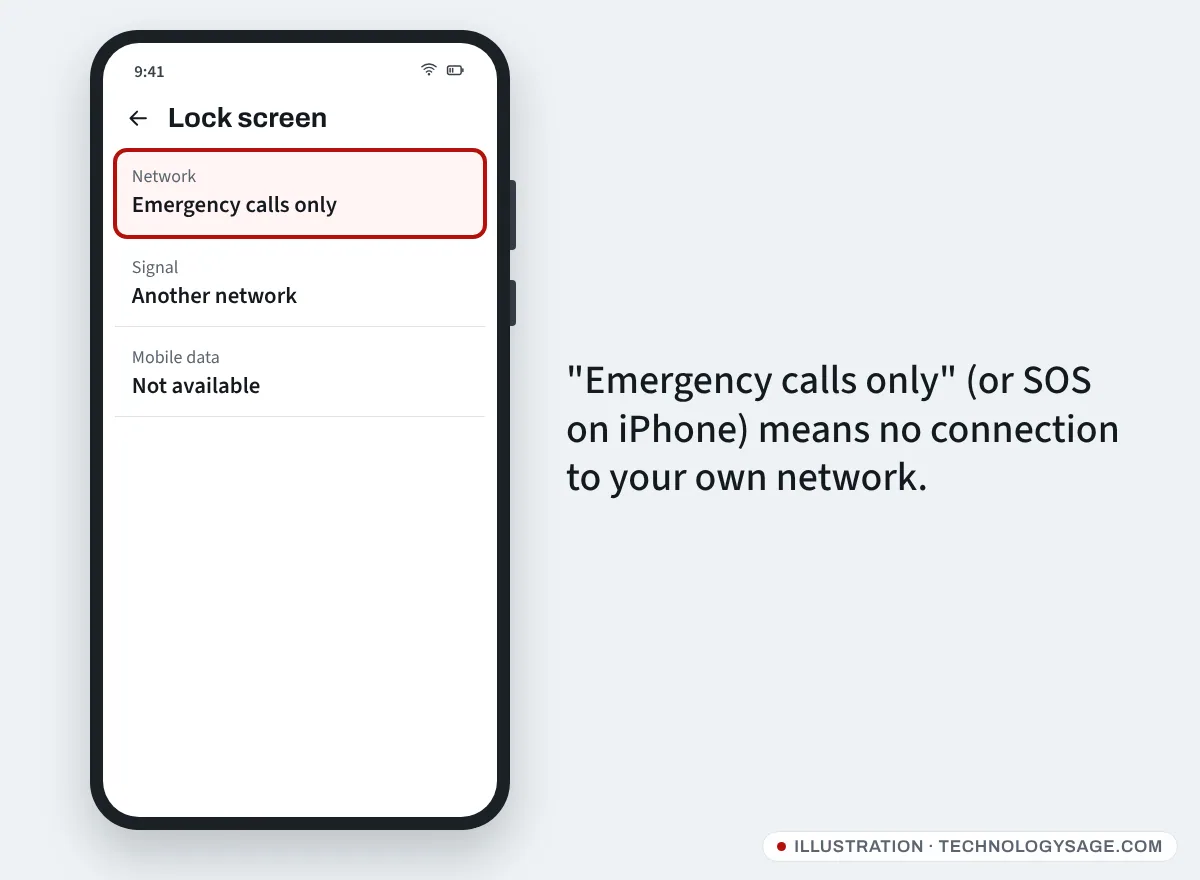
Emergency calls only meaning
Every phone can make emergency calls through any network in range, even one you don’t have a plan with. Normal calls, texts and data only work on your own carrier’s network (or a partner network when roaming). So “Emergency calls only” tells you two things:
- your phone can hear at least one network, and
- it can’t register on your carrier’s network.
Samsung’s own support page puts the causes into two groups: signal problems and SIM or eSIM problems. Account problems (unpaid, suspended or unregistered lines) look the same from the phone’s side.
Why does my phone say emergency calls only?
- Weak or no coverage from your carrier where you are: indoors, basements, rural areas, lifts.
- A local network outage.
- Roaming abroad with roaming off, or with no roaming agreement.
- The SIM is loose, dirty, damaged, or not activated; or the eSIM isn’t set up.
- The line is suspended, expired, unpaid, or blocked because the SIM isn’t registered to your ID (required in many countries).
- Wrong network settings: a manually selected network or an unsupported network mode.
- The phone is locked to another carrier, or its IMEI is missing or blocked.
How to fix emergency calls only
1. Move to better coverage and check for an outage
Go outside or near a window and wait a minute. Ask someone on the same carrier nearby whether they have service, or check the carrier’s website or social media for outage notices. If it’s an outage, all you can do is wait.
2. Restart the phone
Turn it fully off, wait 30 seconds, and turn it on again. This forces a fresh search for your network.
3. Toggle Airplane mode
Turn Airplane mode on for 30 seconds, then off. It’s quicker than a restart and often reconnects the phone.
4. Set network selection to automatic
If the phone was set to a specific network (for example while travelling), it can’t connect when that network isn’t available.
- Samsung: Settings → Connections → Mobile networks → Network operators → Select automatically (on).
- Pixel and most Android phones: Settings → Network & internet → SIMs → your SIM → Automatically select network (on).
- Tecno, Infinix, itel, Xiaomi: look under Settings → SIM cards & mobile networks or Mobile network → your SIM → Network operators (names vary by version).
- iPhone: Settings → Mobile Data (or Cellular) → Network Selection → Automatic (on). This option appears only on some networks and in some countries.
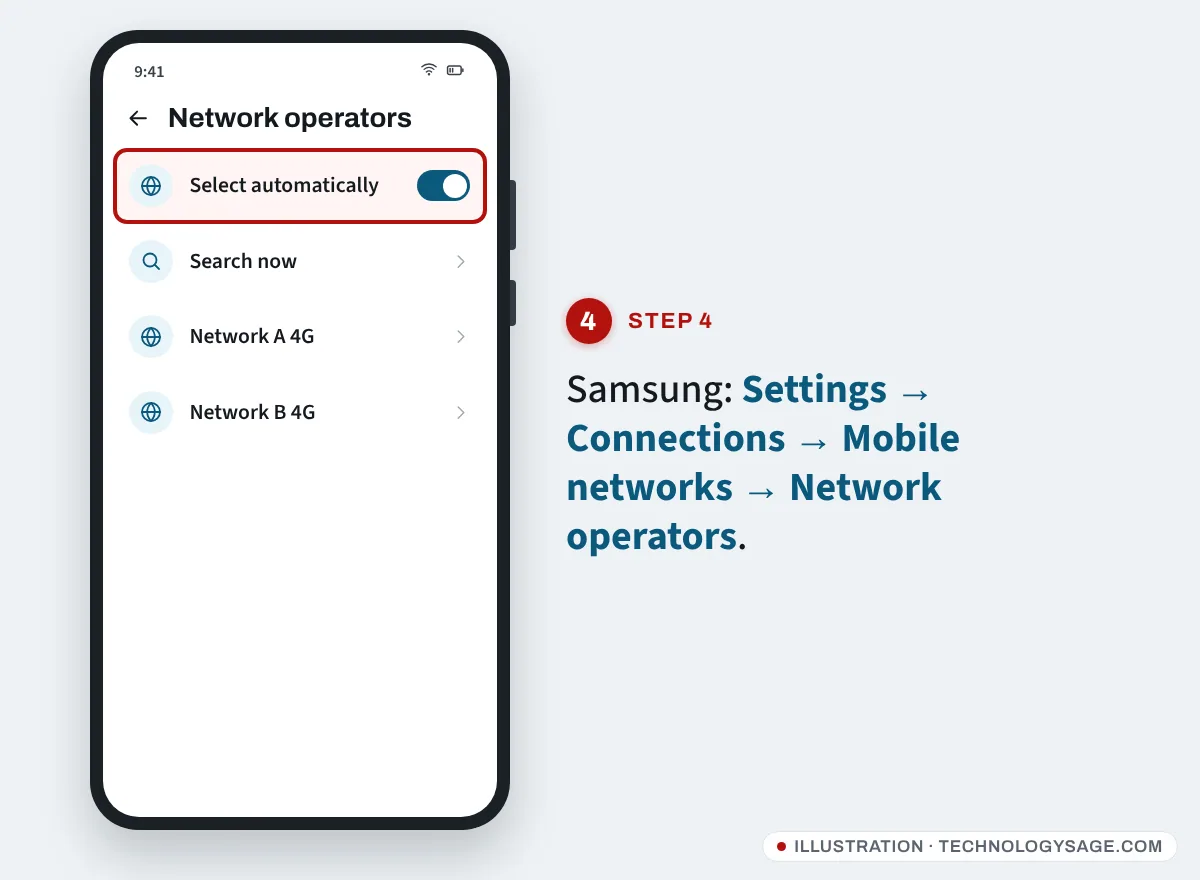
If automatic finds nothing, tap Search now (Android) and choose your carrier from the list once to test.
5. Check the network mode
Under Mobile networks (Samsung) or your SIM’s settings (other Android phones), open Network mode or Preferred network type and choose the widest automatic option, such as 5G/4G/3G/2G (auto connect) or LTE/3G/2G (auto connect). A mode set to 5G only or 4G only loses service where that network isn’t available. (Some carriers have switched off 2G or 3G, so “3G only” won’t work everywhere.)
6. Reseat or test the SIM
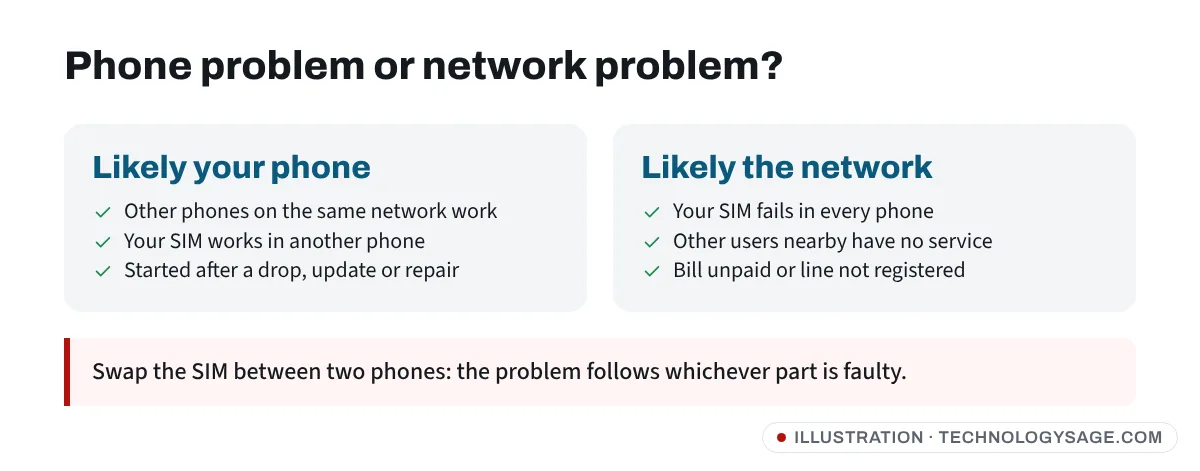
Turn the phone off, take out the SIM, check it for dirt or damage, put it back and turn the phone on. Then try your SIM in another phone and another SIM in yours:
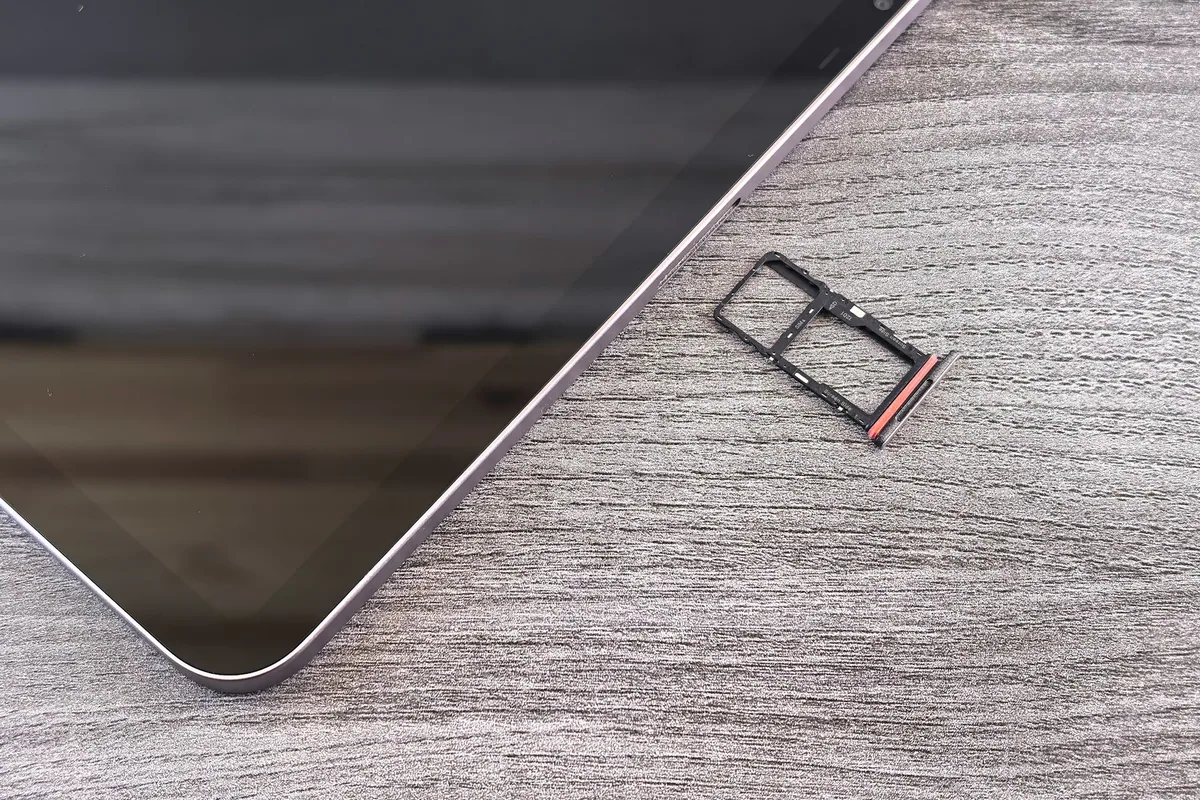 Photo: Andrey Matveev on Unsplash
- Your SIM fails in every phone: the SIM or your account is the problem. Ask your carrier.
- Every SIM fails in your phone: the phone may be locked, or the IMEI may be missing or blocked. Dial
*#06#; a blank or “null” IMEI needs an authorised service centre. See our Invalid SIM guide for these checks.
7. Turn roaming on when abroad
If you’re in another country, go to Settings → Connections → Mobile networks → Data roaming (Samsung), Settings → Network & internet → SIMs → Roaming (Pixel) or Settings → Mobile Data → Mobile Data Options → Data Roaming (iPhone), and make sure roaming is allowed on your plan. Roaming charges can be high, so check your carrier’s rates first, or use a local SIM or eSIM.
8. Update software and carrier settings
Install any system update. On iPhone, also check Settings → General → About for a carrier settings update. On Android, update Carrier Services from the Play Store.
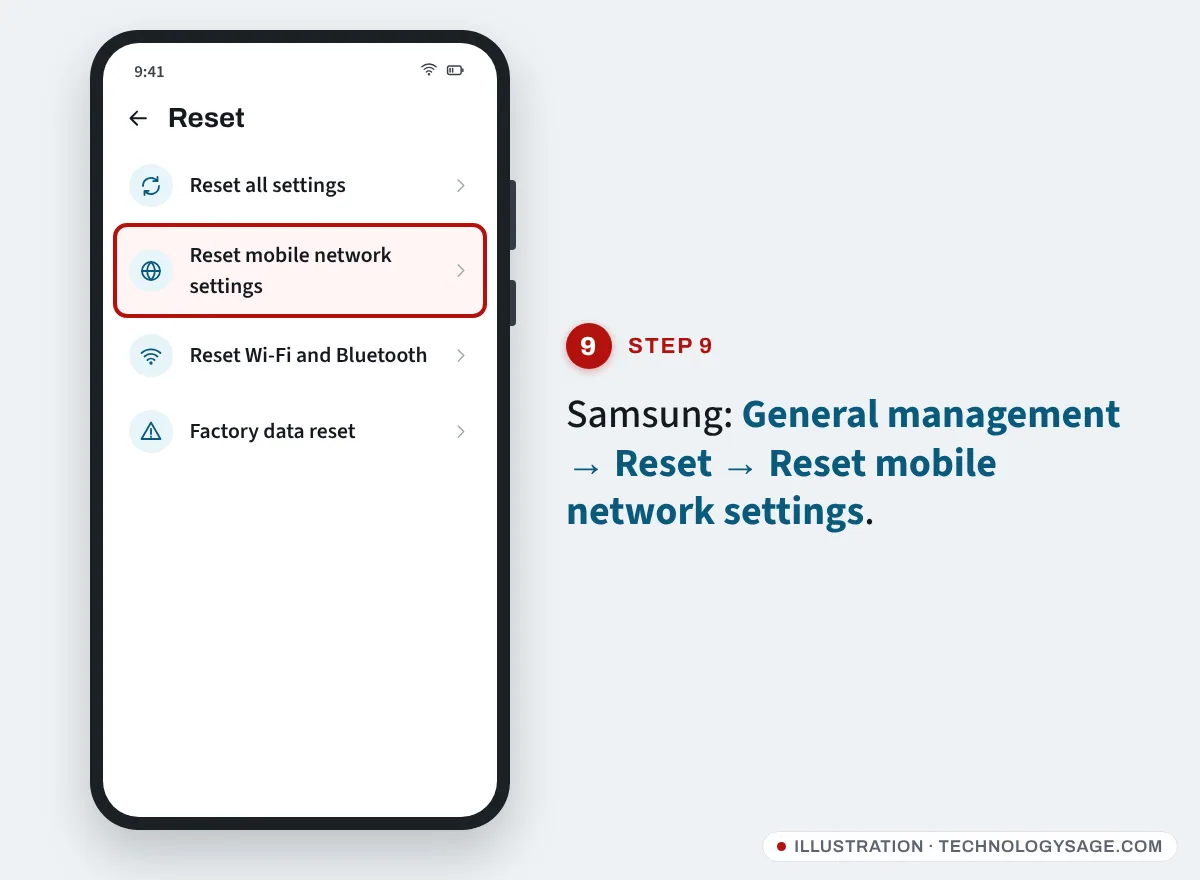
9. Reset mobile network settings
This clears mobile network settings (and on some phones Wi-Fi and Bluetooth), but not your photos or apps.
- Samsung: Settings → General management → Reset → Reset mobile network settings (or Reset network settings on some models).
- Pixel: Settings → System → Reset options → Reset Mobile Network Settings.
- iPhone: Settings → General → Transfer or Reset iPhone → Reset → Reset Network Settings.
Don’t jump to a factory reset. It rarely fixes this and erases your data. If you do it as a very last resort, back up first and have your Google account password ready, because the phone will ask for it after the reset.
When to contact your carrier
Contact your carrier (from another phone, or on Wi-Fi through its official app or website) if:
- your SIM shows “Emergency calls only” in every phone,
- you recently got a new or replacement SIM, or moved your number,
- your bill is unpaid or a prepaid line has been unused for a long time,
- you haven’t completed SIM registration with your ID.
If your SIM stopped working suddenly and you changed nothing, ask whether a SIM swap was made on your number. Unauthorised SIM swaps are used to steal bank and mobile money codes, so act fast and alert your bank.
Your carrier will never ask for your PIN, a one-time code, or payment in airtime or gift cards to “restore service”. Use only contacts listed on the carrier’s own website or app.
FAQ
What does emergency calls only mean?
Your phone can’t connect to your carrier’s network for normal calls, texts or data, but it can still reach emergency services through any network in range.
Can I make emergency calls with no SIM card?
In many countries, yes: phones can dial the emergency number without a SIM. Some countries don’t allow it, so don’t rely on it.
Why does my phone say emergency calls only when I have a SIM?
Usually weak coverage, a SIM that’s loose or not activated, a suspended line, or a manual network setting. Restart, toggle Airplane mode, set network selection to automatic and reseat the SIM.
Is emergency calls only the same as SOS on iPhone?
Yes, it describes the same situation. On iPhone, SOS or SOS only means you’re not connected to your carrier’s network but can still make emergency calls.
What if it says SIM not provisioned instead?
That means the SIM isn’t activated on the network yet. See SIM not provisioned: what it means and how to fix it. If calls reach your phone but go to voicemail, see why calls go straight to voicemail.