In this guide
- Can you flash a Tecno without a computer?
- Step 1: Identify the exact model and chipset
- Step 2: Check whether your Tecno can be flashed at home
- Step 3: Get the right firmware
- Step 4: Prepare the computer
- Step 5: Flash with SP Flash Tool
- Step 6: If the phone isn’t detected, check Device Manager
- After flashing
- Common SP Flash Tool errors
- FAQ
To flash a Tecno phone with a MediaTek chip, you need a Windows PC, the MediaTek USB drivers, SP Flash Tool and the exact stock firmware for your model. Load the firmware’s scatter file in SP Flash Tool, choose Download Only, click Download, then connect the switched-off phone by USB. Tecno phones with Unisoc chips (common in Pop and some Spark Go models) use a different tool and a .pac firmware file.
Flashing reinstalls the phone’s software. It fixes boot loops, a phone stuck on the logo and badly corrupted software, but it erases all data and, done wrong, can leave the phone dead. Only flash your own phone, and if it’s still under warranty, let Carlcare do it for you first.
Can you flash a Tecno without a computer?
Not properly. Reinstalling the full firmware needs a computer. Without one, your options are:
- Install official updates: search System update in Settings and install anything waiting. Tecno updates arrive over the air.
- Factory reset: fixes most software problems short of a corrupt system. See our Tecno hard reset guide; it includes recovery mode, which works even when the phone won’t start.
- Carlcare: service centres flash phones with official software. It’s free under warranty and usually inexpensive outside it.
Apps that claim to “flash your phone without a PC” can’t rewrite the system partitions on a normal phone and are often malware.
Step 1: Identify the exact model and chipset
- Find the model code. It’s on the box label and in Settings → About phone. Tecno model codes are short letter-and-number codes; two phones sold under the same name can have different codes (for example 4G and 5G versions).
- Find the chipset (processor). Check the official spec page on tecno-mobile.com, or look under About phone for Processor or CPU.
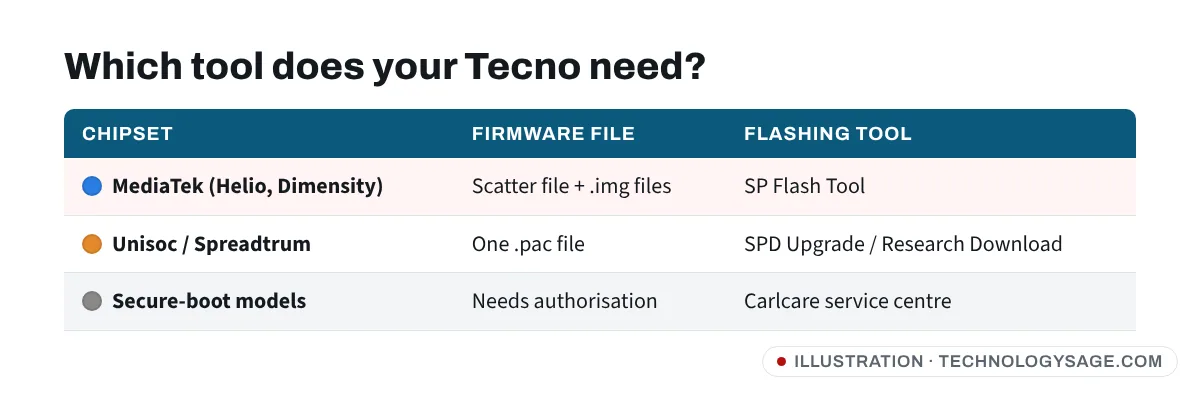
In short: MediaTek (Helio, Dimensity) firmware comes as a folder with an MTxxxx_Android_scatter.txt file and is flashed with SP Flash Tool. Unisoc/Spreadtrum firmware is a single .pac file flashed with the SPD Upgrade Tool or Research Download.
This guide covers SP Flash Tool. For Unisoc phones, follow our SPD UpgradeDownload guide with the .pac file for your model.
Step 2: Check whether your Tecno can be flashed at home
Most recent MediaTek phones, including many Tecno models from the last few years, have secure boot with authentication (often called SLA/DAA). On these phones SP Flash Tool stops with an authentication error unless it’s given an authorisation file that only authorised service centres have.
If your phone is a recent Camon, Pova, Phantom or 5G Spark, expect this. The honest answer then is Carlcare. We don’t cover authentication bypass tools: they come from unofficial sources, often contain malware, and can break your warranty.
Older or entry-level MediaTek phones may flash normally. The only way to know is to try with the correct firmware.
Step 3: Get the right firmware
Tecno doesn’t publish full firmware downloads for the public. Stock ROMs are shared on third-party forums and file sites, so be careful:
- The firmware must match your model code exactly, and ideally the same or newer software build. Wrong firmware can kill the display, touch, camera or network.
- Download only from long-established sources, scan the file with antivirus, and never run
.exe“firmware installers” from unknown sites. - Extract the archive to a short folder path such as
C:\firmware. You should see.imgand.binfiles plus the scatter file.
If anything about the source looks wrong, stop and use Carlcare instead.
Step 4: Prepare the computer
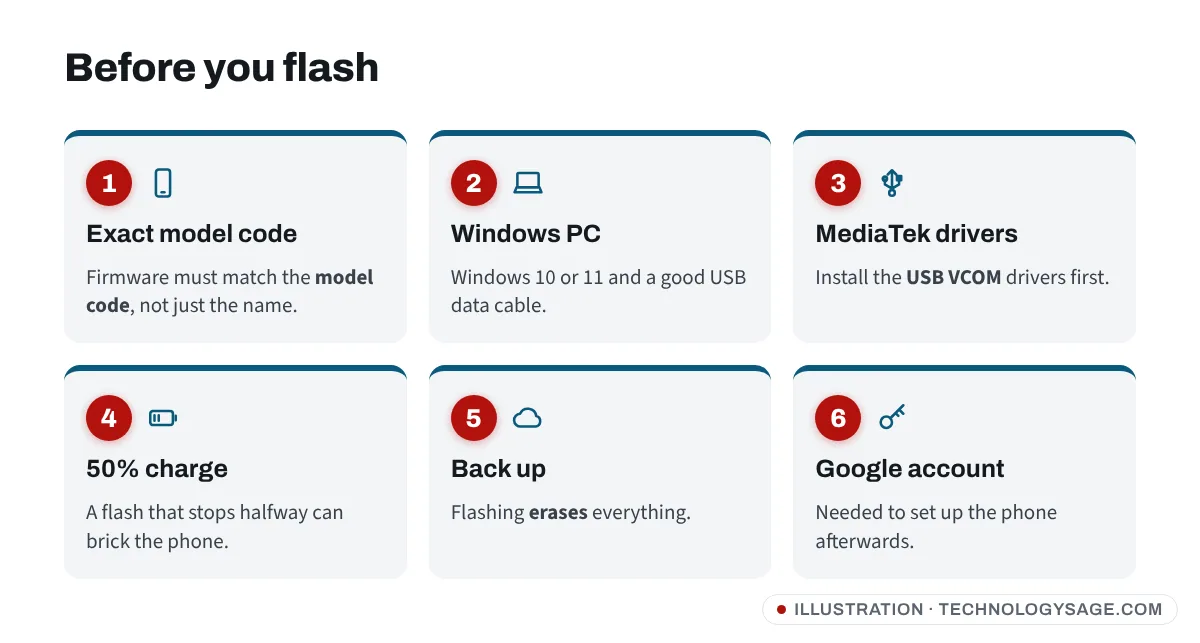
- Use a Windows 10 or 11 PC and a good data cable (preferably the original).
- Install the MediaTek USB VCOM drivers (often included with firmware or SP Flash Tool packages).
- Download SP Flash Tool. MediaTek doesn’t run a public download page, so get it from a trustworthy source; use v5 for most phones. Some newer chips need v6, which has a different layout.
- Charge the phone to at least 50%.
- Back up whatever you can. Flashing erases user data.
Step 5: Flash with SP Flash Tool
- Extract SP Flash Tool and run flash_tool.exe (right-click → Run as administrator).
- Open the Download tab.
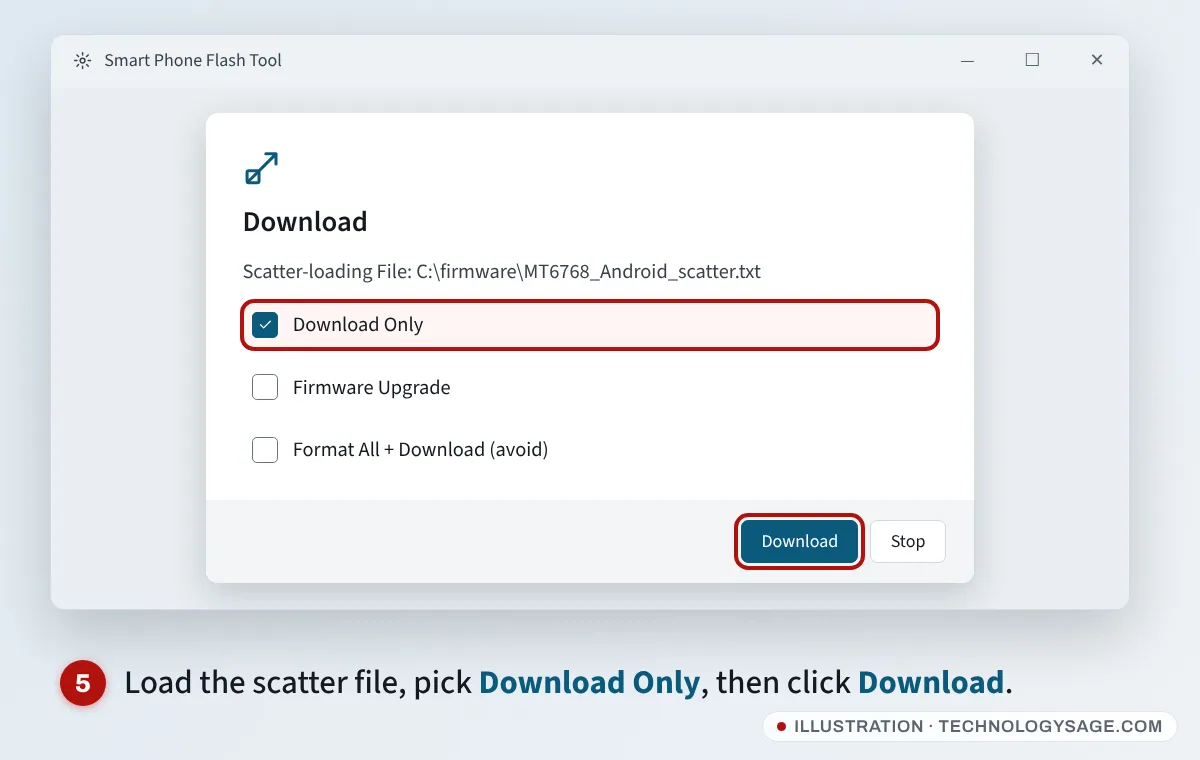
- Next to Scatter-loading File, click Choose and select the
MTxxxx_Android_scatter.txtfile from your firmware folder. The partition list fills in automatically. - Leave Download-Agent on the default file unless your firmware came with its own.
- In the drop-down, choose Download Only. Don’t choose Format All + Download.
- Click Download (the green arrow).
- Switch the phone off completely, then plug it into the PC. If nothing happens, unplug, hold Volume Down (or both volume keys) and plug it in again.
- A red bar, then a yellow progress bar, appears. Don’t touch the phone or cable.
- When the Download OK window with a green tick appears, unplug the phone and hold Power to turn it on.
The first boot after flashing can take 10 minutes or more.
Why never use “Format All + Download”?
Format All + Download wipes every partition, including the area that holds your IMEI and network calibration on many MediaTek phones. The phone may then boot with no signal and an invalid IMEI, which only a service centre can fix legally. Download Only is enough for almost every repair. Firmware Upgrade is also safe on many phones if Download Only fails.
Step 6: If the phone isn’t detected, check Device Manager
- Right-click Start and choose Device Manager.
- Expand Ports (COM & LPT) and plug in the switched-off phone.
- A MediaTek PreLoader USB VCOM or MediaTek USB Port entry should appear for a few seconds.
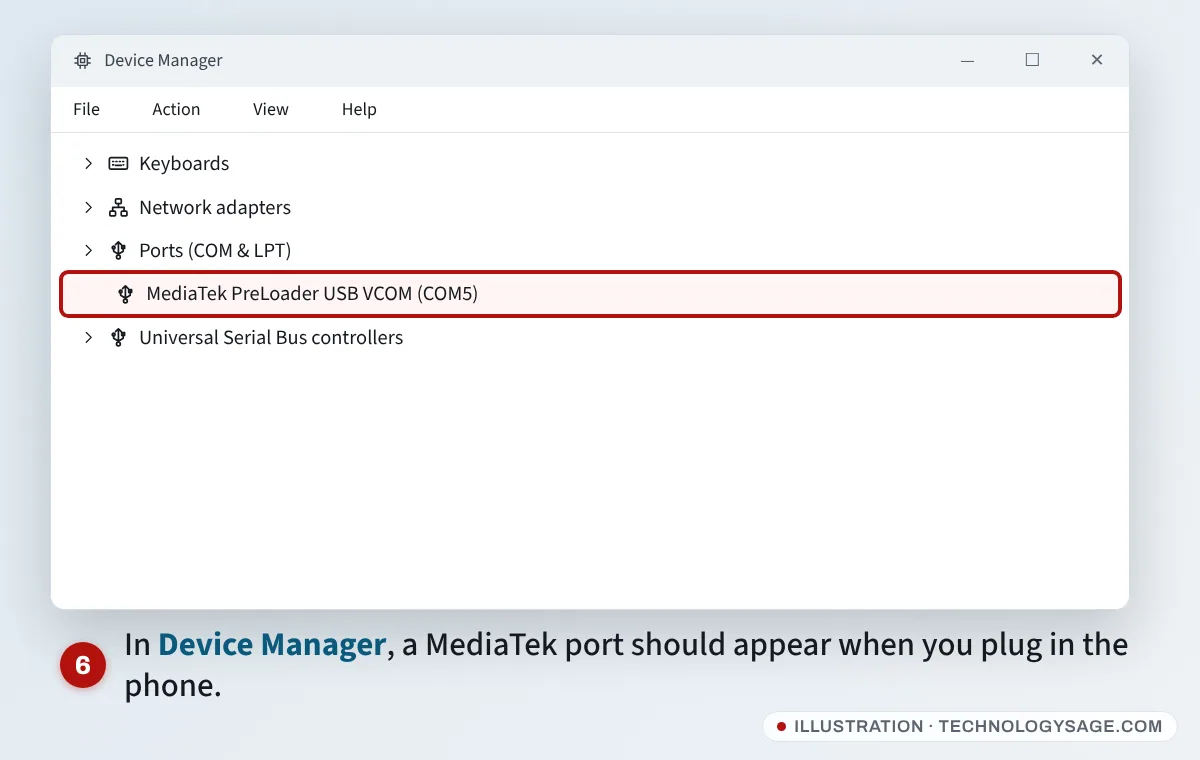
If you see an unknown device with a yellow warning icon instead, reinstall the MediaTek VCOM drivers and try another USB port (a rear port on a desktop).
After flashing
- Set the phone up and sign in with the Google account that was on it. Flashing doesn’t remove Factory Reset Protection, so you’ll need it.
- Dial *#06# and check the IMEI matches the box. If it shows zeros, take the phone to Carlcare.
- Check for updates in System update.
Common SP Flash Tool errors
- BROM error 2004 / S_BROM_DOWNLOAD_DA_FAIL: usually a driver, cable or Download-Agent mismatch. See our fix for SP Flash Tool error 2004.
- Authentication or “SLA” error: the phone has secure boot. Stop and take it to Carlcare.
- PMT changed / partition errors: the firmware doesn’t match the phone’s layout. Get firmware for the exact model code; don’t switch to Format All.
- Nothing happens when you plug in: drivers, cable or the phone isn’t fully off. Try holding a volume key while plugging in.
- Phone boots but touch or camera doesn’t work: wrong firmware build. Flash the correct one.
For background on scatter files and an older walkthrough, see our earlier guides on flashing with SP Flash Tool and scatter files for MTK phones.
FAQ
Will flashing remove the Google account lock?
No. Factory Reset Protection survives flashing on modern phones. You need the Google account that was on the phone, or proof of purchase for Carlcare’s Phone Unlocking Appeal.
Does flashing void my Tecno warranty?
Carlcare’s policy excludes damage from unauthorised service or modification, so a bad flash at home may not be covered. Use our Tecno warranty check first; if you’re covered, let Carlcare flash it.
How do I flash a Tecno Spark or Pop 5?
The same way: identify the model code and chipset, then use SP Flash Tool for MediaTek models or the SPD tool for Unisoc models, with firmware for that exact code.
Is flashing the same as rooting?
No. Flashing stock firmware reinstalls Tecno’s official software. Rooting modifies it to give apps full system access, which weakens security and can stop banking apps working.