In this guide
To factory reset a Tecno phone you can unlock, open Settings → System → Reset options → Erase all data (factory reset), tap Erase all data and enter your PIN. If you’re locked out or the phone is stuck on the logo, turn it off, hold Volume Up + Power to open recovery mode, and choose Wipe data/factory reset. Both methods delete everything on the phone.
(For Samsung phones, see how to factory reset a Samsung phone.) This guide covers current Tecno Spark, Camon, Pop and Pova phones running HiOS 14, 15 or 16, and older models too. Only reset your own phone. After a reset, Google’s Factory Reset Protection (FRP) asks for the Google account that was on the phone, so have it ready.
Before you start
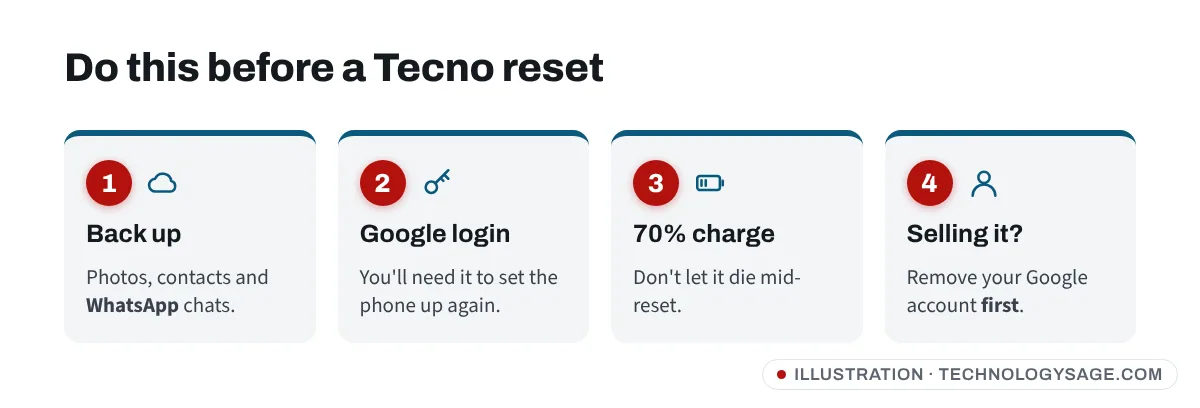
- Back up photos, contacts and files to your Google account or a computer, and back up WhatsApp separately (see moving WhatsApp to a new phone).
- Write down your Google account email and password. Without them, the phone will stay locked after the reset.
- Changed your Google password recently? Google says to wait 24 hours before resetting.
- Charge to 70% or more. A reset can take up to an hour.
- Take out the SIM and microSD card.
- Handing the phone on? Remove your Google account first in Settings → Accounts (the name varies slightly by HiOS version), then reset.
Method 1: Reset from HiOS Settings
- Open Settings and tap System.
- Tap Reset options.
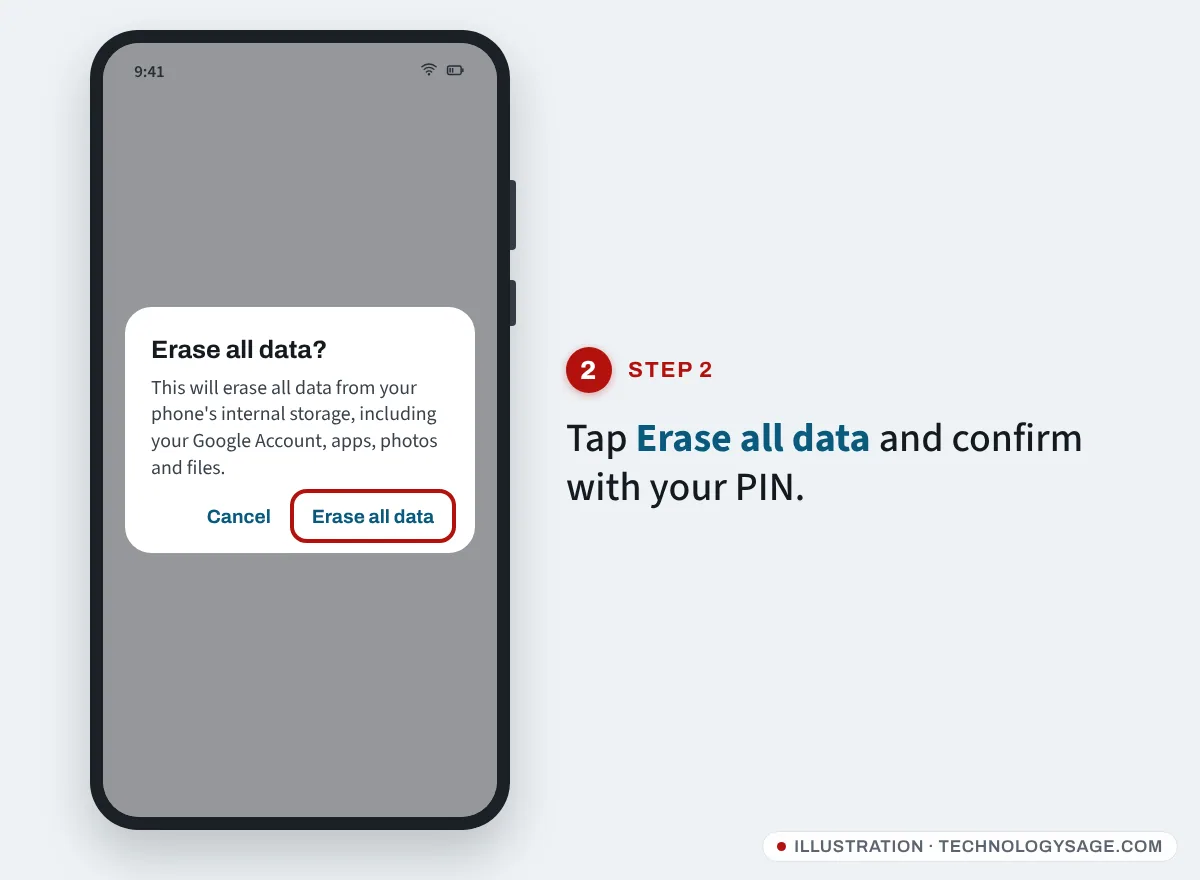
- Tap Erase all data (factory reset).
- Read the summary of what will be deleted and tap Erase all data.
- Enter your lock screen PIN, pattern or password, and confirm.
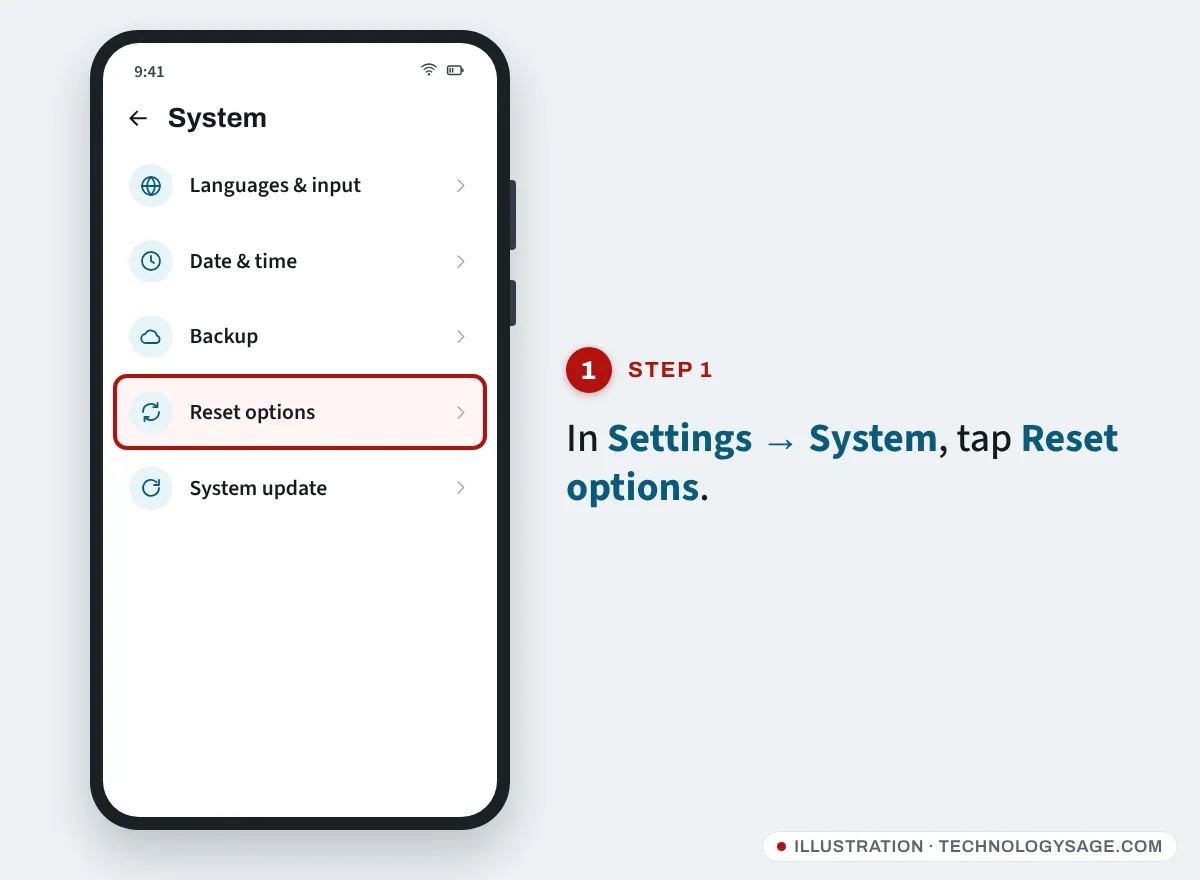
On some models the menu sits in a slightly different place. Type reset into the Settings search bar and it will take you straight there.
Before wiping, consider the lighter options in the same menu: Reset app preferences fixes apps that won’t open or default apps that keep changing, and Reset Wi-Fi, mobile & Bluetooth fixes most connection problems. Neither deletes your files. If the phone is just slow, try the tips in how to make Android run faster first.
Method 2: Hard reset with the buttons
Use this when you’ve forgotten your pattern or PIN, or the phone won’t load past the Tecno logo.
1. Switch the phone off
Hold Power and tap Power off. If the phone is frozen, hold Power for about 15 seconds (or Power + Volume Down on some models) until the screen goes black.
2. Open recovery mode
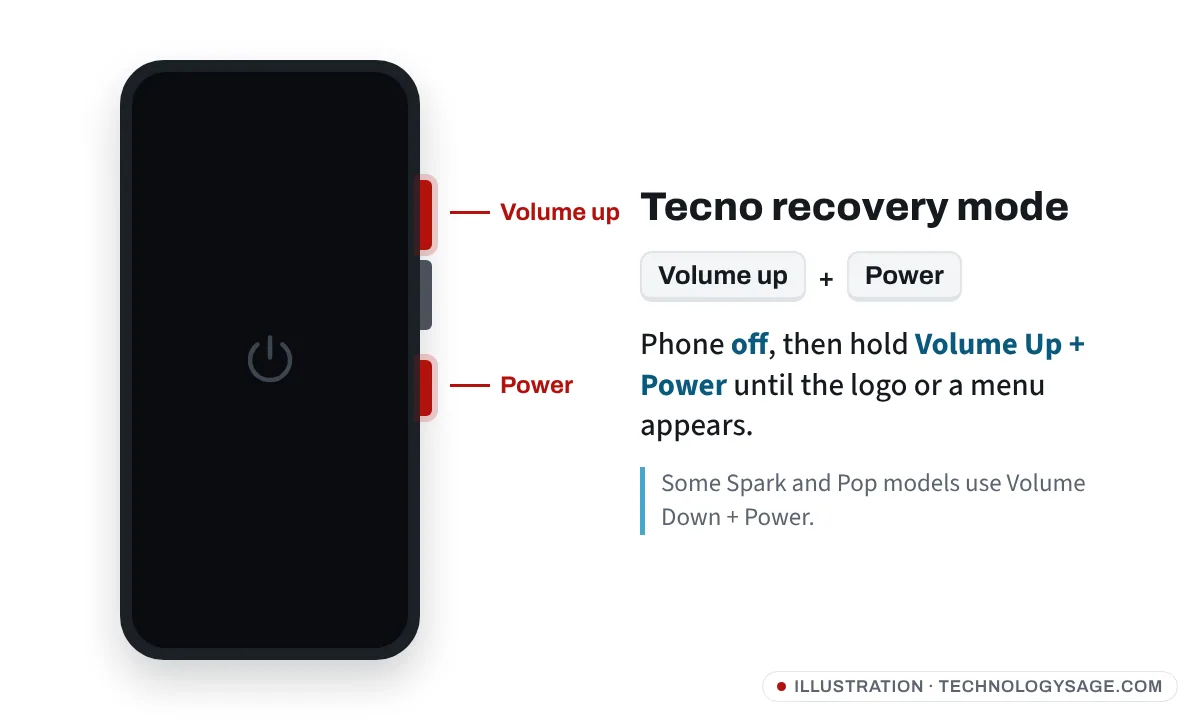
Hold Volume Up + Power together. Let go when the Tecno logo, a boot menu or a recovery screen appears.
- If you see Recovery Mode / Fastboot Mode / Normal Boot in small text, press Volume Up to highlight Recovery Mode and Volume Down to choose it.
- If you see a robot with No command, press and hold Power, tap Volume Up once, then release Power.
- If the phone simply restarts, try again, or try Volume Down + Power, which some Spark and Pop models use.
3. Wipe the phone
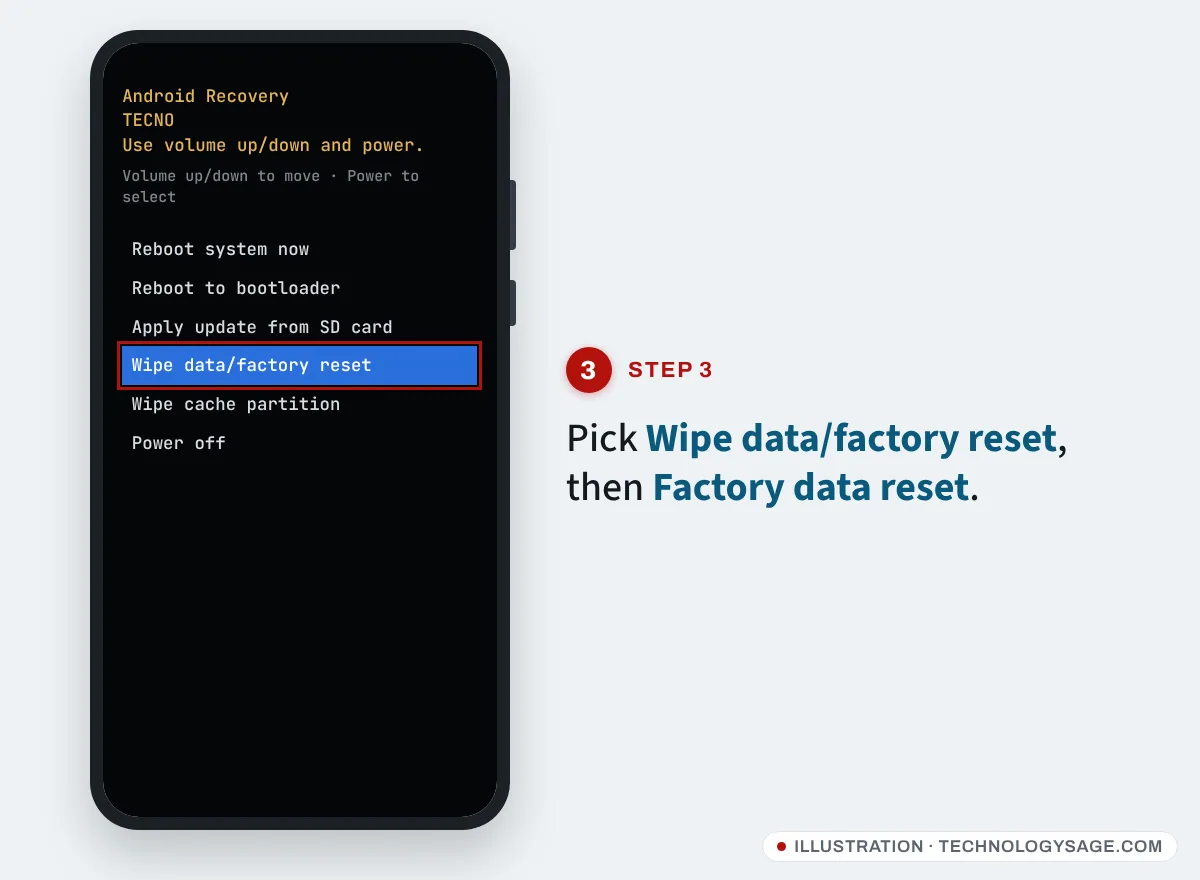
In recovery, the screen doesn’t respond to touch. Volume keys move, Power selects.
- Move to Wipe data/factory reset and press Power.
- Choose Factory data reset (or Yes) to confirm.
- When “Data wipe complete” appears, choose Reboot system now.
The first boot can take 5 to 10 minutes. Leave it alone until the welcome screen appears.
Method 3: Reset a lost Tecno remotely
If the phone is lost or stolen and you want to protect your data, sign in to Find Hub (Google’s service, formerly Find My Device) at google.com/android/find with the Google account on the phone, select the phone and choose Factory reset device. The phone must be switched on and online for this to work.
After the reset: signing in again
The setup wizard will ask you to verify the Google account that was previously synced. Connect to Wi-Fi and sign in. This lock (FRP) can’t be removed by another reset or by Carlcare without proof that the phone is yours.
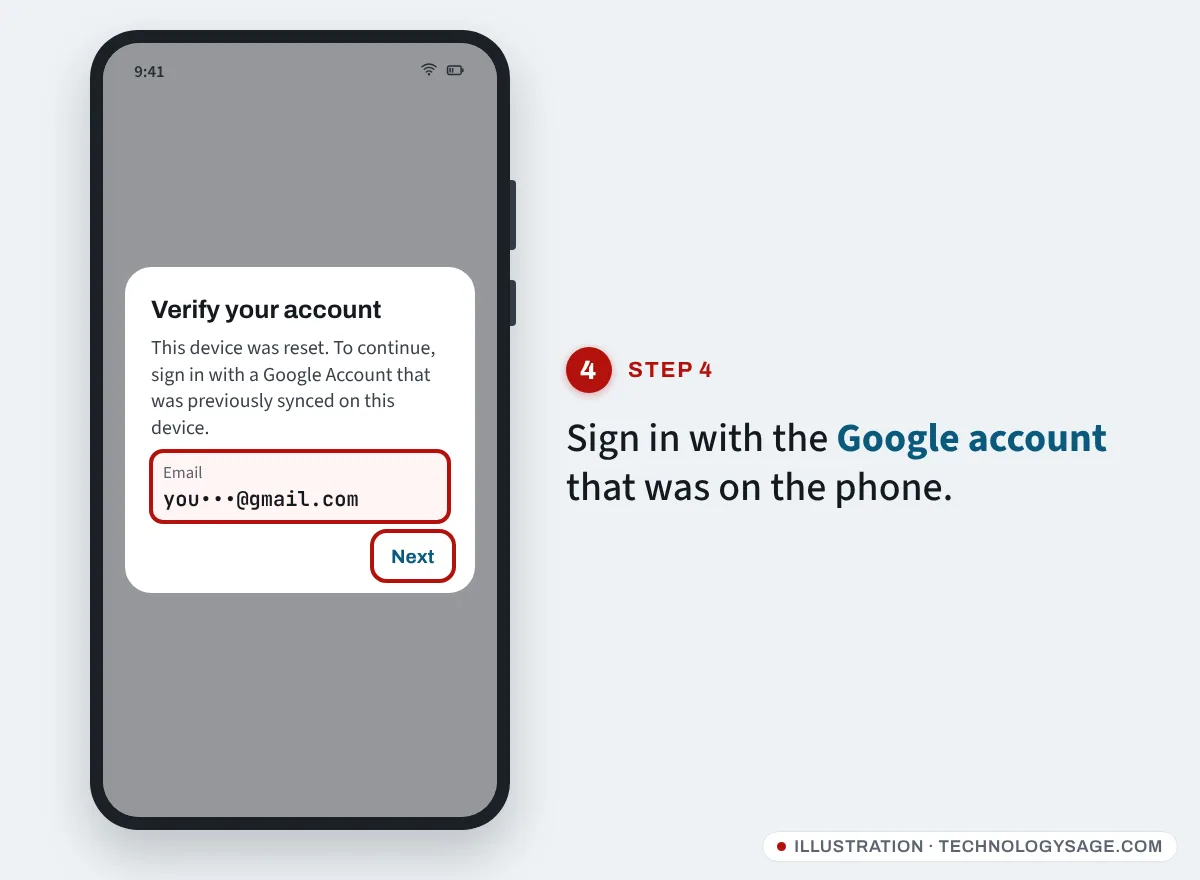
If you’ve forgotten the password, recover the account on another device first; our guide on recovering a Gmail account without a phone number can help. If you bought the phone second-hand and it’s locked to the seller’s account, ask the seller to remove it. If that’s impossible, take the phone and your receipt to Carlcare; the Carlcare website also has a Phone Unlocking Appeal page under Support.
If it doesn’t work
- The phone keeps booting normally instead of recovery: it wasn’t fully off. Hold Power for 15 seconds, wait 10 seconds, then press the combination.
- “No command” screen loops: the trick is pressing Volume Up while already holding Power. Try a few times.
- Stuck on the Tecno logo after the reset: go back to recovery, run Wipe cache partition and reboot. If it still won’t start, the software may be damaged; see how to flash a Tecno phone or visit Carlcare.
- Still faulty after a clean reset: it’s probably hardware. If the phone is under warranty, use our Tecno warranty check guide and book a Carlcare repair.
FAQ
What’s the Tecno factory reset code?
There’s no secret code for Tecno smartphones. Use Settings or recovery mode. Be careful with codes shared online; some can change hidden settings.
Will a hard reset remove a forgotten pattern?
Yes, it erases the pattern along with all your data. You’ll still need the Google account to finish setting up.
Does the Tecno Pop reset the same way?
Yes. Pop phones run HiOS (or an Android Go-based version of it), and the Settings path and Volume Up + Power combination work the same way. A few entry models may need Volume Down + Power.
Is it safe to reset if the phone is under warranty?
Yes. A reset doesn’t void the warranty. Flashing unofficial firmware or unlocking the bootloader can lead to a claim being refused.