In this guide
A laptop fan runs loud when the processor is working hard or can’t get rid of its heat. To quiet it, open Task Manager (Ctrl + Shift + Esc) and close anything using a lot of CPU, set Settings → System → Power & battery → Power mode to Balanced, use the laptop on a hard, flat surface, and clean dust out of the vents. If the fan grinds, clicks or rattles rather than just whooshing, it’s worn or damaged and needs a repair.
Some fan noise is normal, especially during Windows updates, video calls, games or when charging. The problem is when it’s loud all the time, even when you’re doing nothing.
What’s making your fan loud?
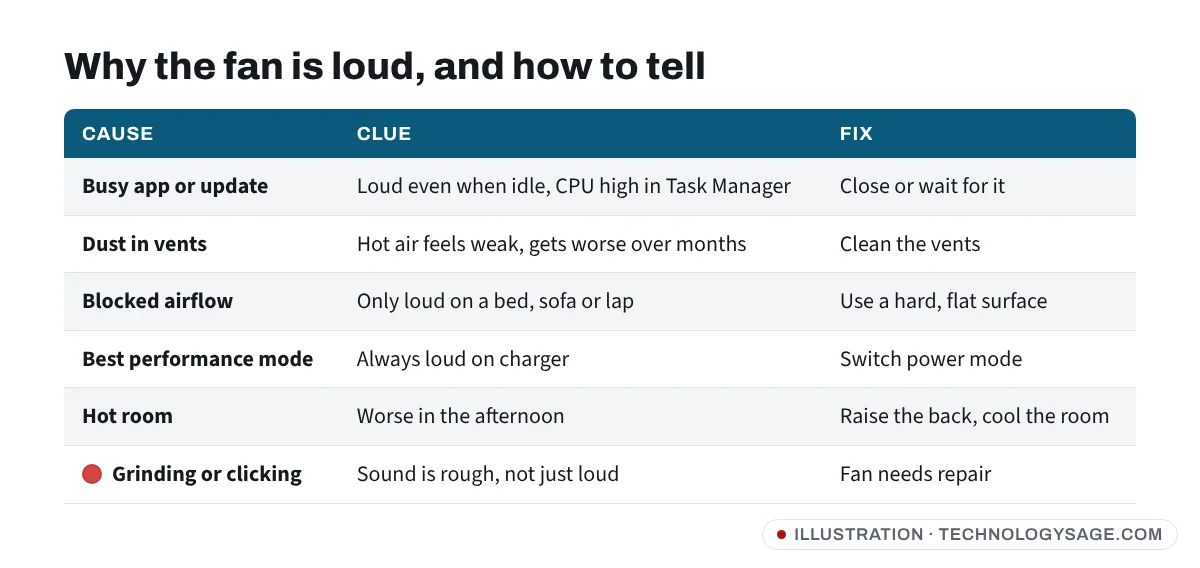
Listen to the sound first:
- Smooth whoosh that gets louder and quieter: the fan is doing its job. Something is creating heat. Fixes 1 to 5 apply.
- Grinding, rattling, buzzing or clicking: a worn fan bearing, a loose part or something touching the blades. Shut down and see “When it’s a hardware fault” below.
- Loud and the laptop feels very hot or shuts down: dust and dried thermal paste are likely. See Fix 5, and our older guide on laptop overheating and shutting down.
Fix 1: Find what’s working the processor
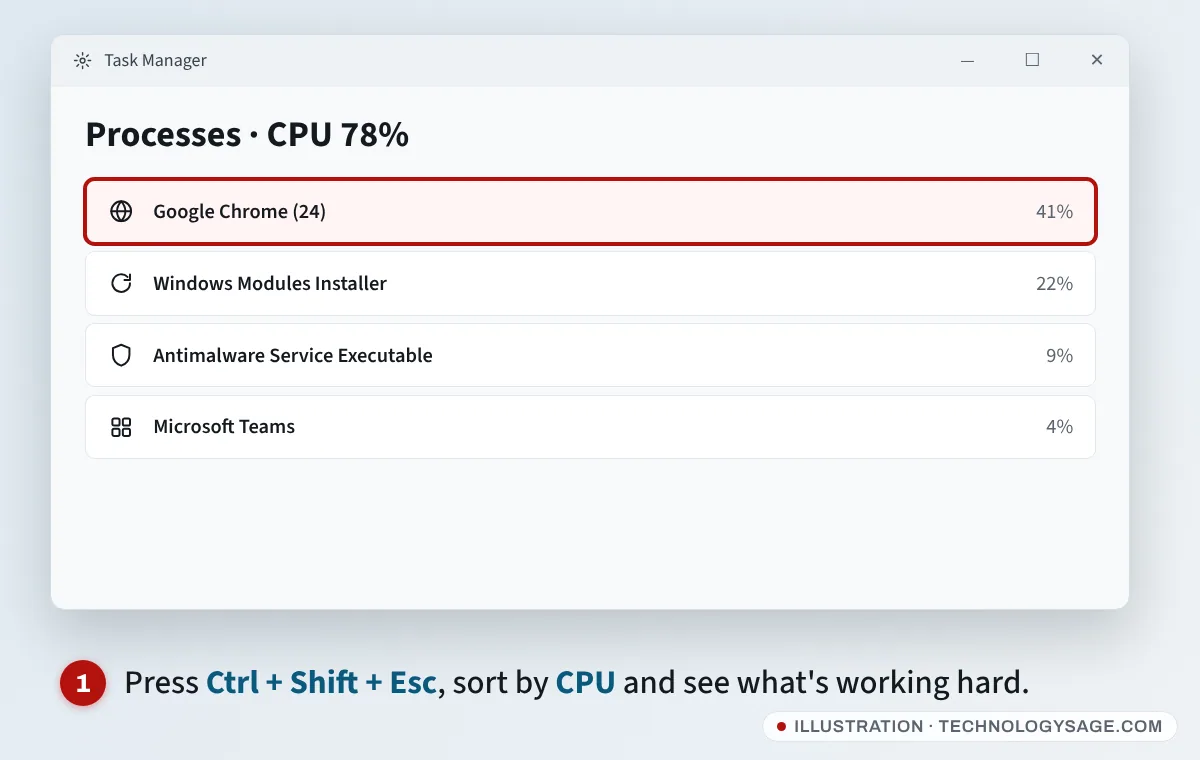
- Press Ctrl + Shift + Esc to open Task Manager.
- On Processes, select the CPU column to sort by it.
- Wait a minute with nothing open. If an app keeps using more than about 20-30% of the CPU, that’s what’s spinning the fan.
Common culprits:
- Browsers with many tabs (Chrome, Edge). Close tabs you don’t need, especially video and social media tabs.
- Windows Modules Installer or Windows Update: an update is installing. Let it finish with the charger plugged in. If it never finishes, see Windows Update stuck.
- Antimalware Service Executable: Windows Security is scanning. It usually calms down after a while.
- Unknown apps using high CPU all the time, especially after installing cracked software or “free” downloaders: scan with Windows Security → Virus & threat protection → Quick scan, and uninstall anything you don’t recognise. Hidden crypto-mining malware makes fans run constantly.
To close a stuck app, select it and choose End task.
Fix 2: Change the power mode
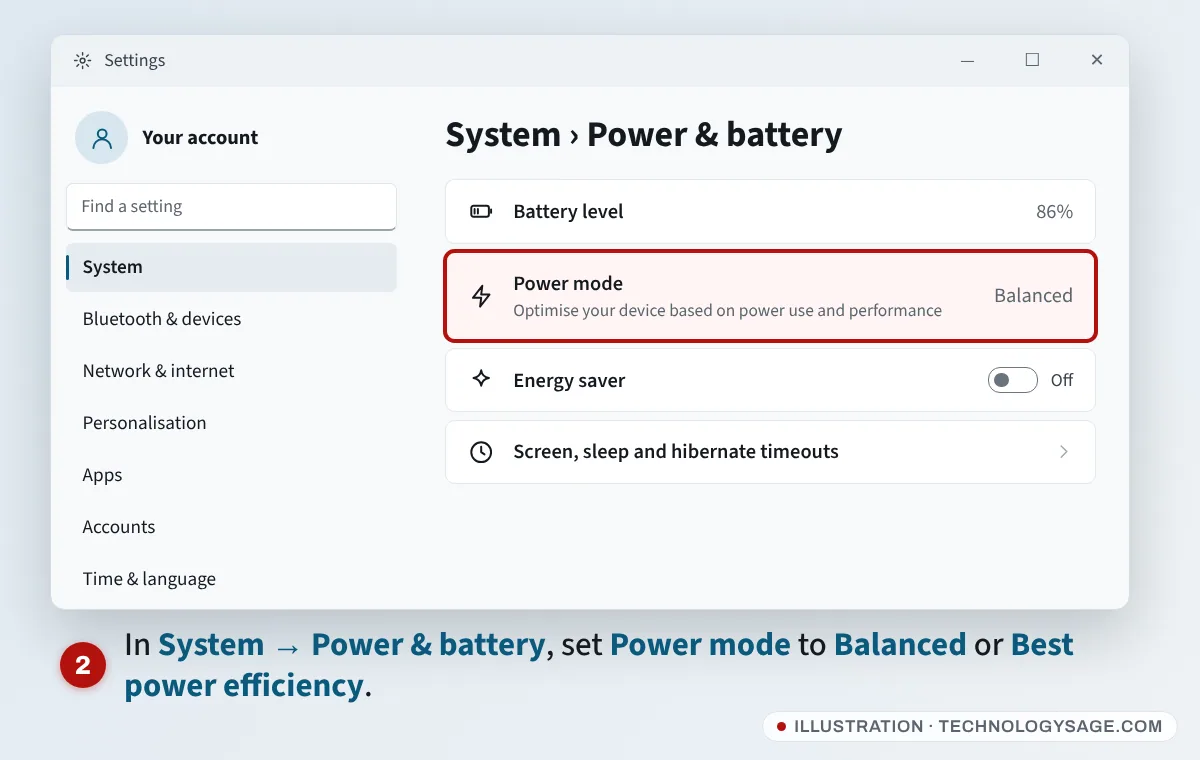
- Press Windows + I and go to System → Power & battery.
- Under Power mode, choose Balanced, or Best power efficiency for the quietest option. Best performance lets the processor run hotter and faster, so the fan works harder.
- If Power mode is greyed out, a custom power plan is active. Open Control Panel → Power Options and choose Balanced.
Many laptops also have the maker’s own fan or performance setting, which overrides Windows. Look in the maker’s app, such as Lenovo Vantage, MyASUS, HP or OMEN apps, Dell power apps or Acer utilities, for a mode called something like Quiet, Silent, Cool or Balanced. Gaming laptops often have a keyboard shortcut to switch fan modes; check the manual.
Fix 3: Stop apps running in the background
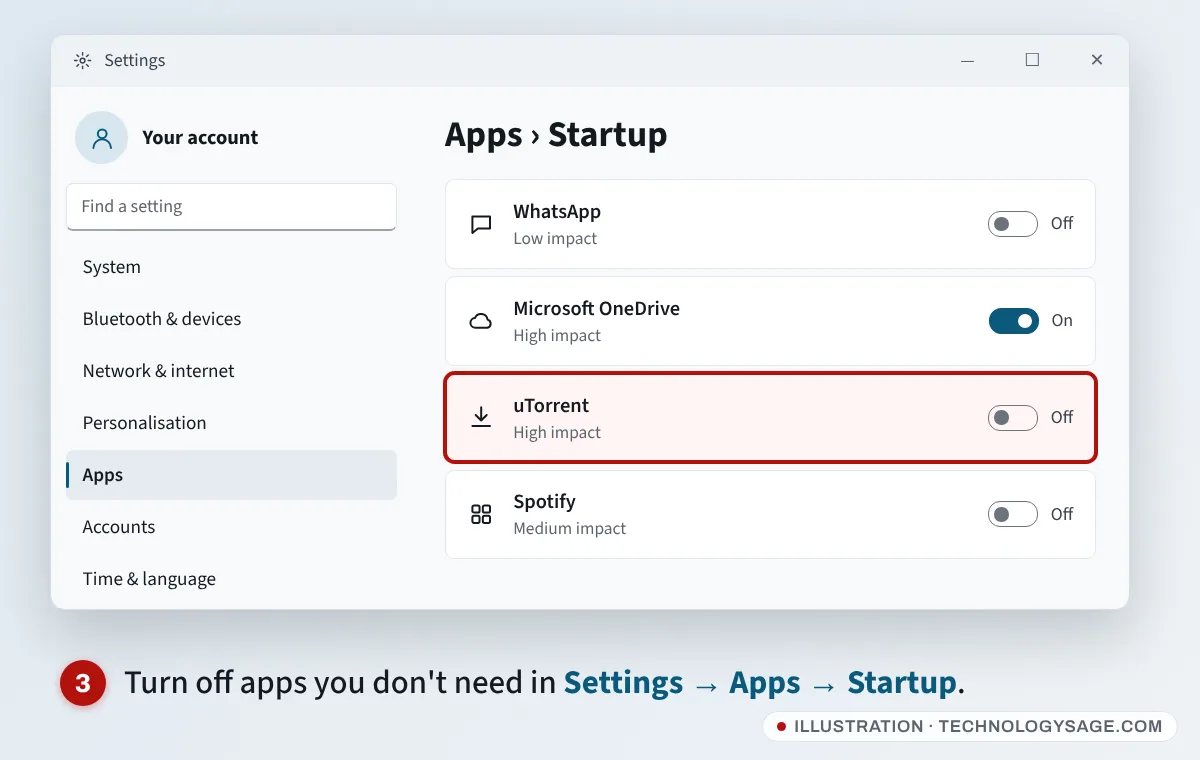
- Go to Settings → Apps → Startup.
- Turn off apps you don’t need the moment Windows starts, especially ones marked High impact (torrent clients, game launchers, updaters).
- Restart the laptop.
Also check the system tray (the ^ arrow near the clock) for apps running in the background, and quit those you don’t use.
Fix 4: Give the laptop room to breathe
Most laptops pull cool air in from underneath and push hot air out of the side or back.
- Use it on a desk or table, not a bed, pillow, blanket or your lap. Soft surfaces block the intake vents.
- Raise the back slightly with a laptop stand or a book so air can get underneath. A cooling pad with a fan helps in hot rooms.
- Keep it out of direct sunlight. In hot weather (common across West Africa, India and Pakistan), the fan has to work much harder; use a fan in the room or work in a cooler spot during the hottest hours.
- Keep the charger plugged into a wall socket and let the laptop charge before heavy work. Charging and heavy use together create extra heat.
Fix 5: Clean the vents
Dust builds up on the fan and the metal fins behind the vent, especially in dusty areas, homes with pets, or during the harmattan season. Then air can’t get out and the fan spins faster.
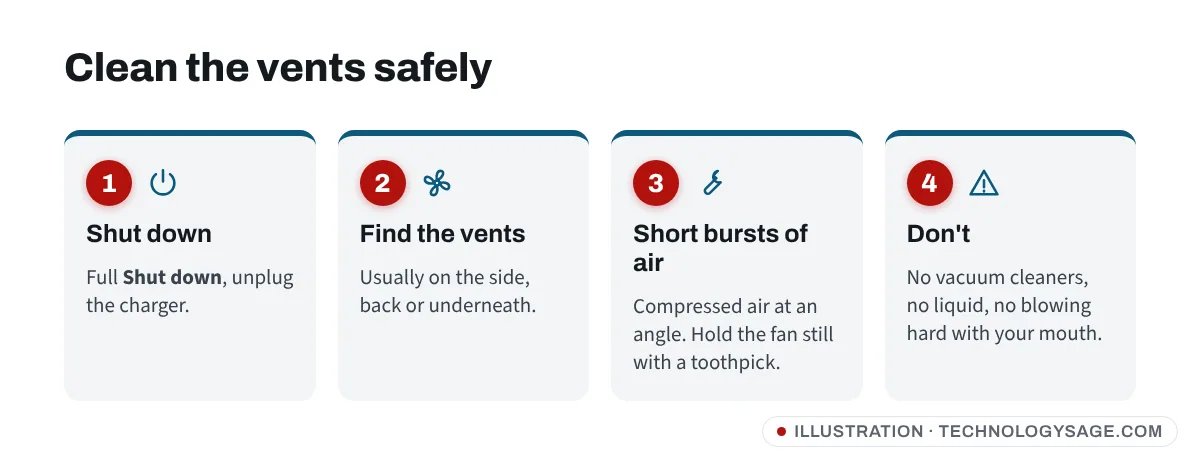
- Shut down the laptop fully (not sleep) and unplug the charger.
- Find the vents: usually on one side or the back, plus intake holes underneath.
- Hold a can of compressed air upright and blow short bursts into the exhaust vent at an angle, then into the intake holes.
- If you can see the fan through the vent, hold it still with a toothpick so it doesn’t spin too fast while you blow.
- Don’t use a vacuum cleaner (it can create static), liquids, or a hair dryer.
A deep clean means opening the bottom panel, cleaning the fan and heatsink fins, and often replacing the dried thermal paste between the processor and its heatsink. If you’re not comfortable doing that, or the laptop is under warranty, let an authorised service centre do it. Opening it yourself can affect the warranty on some models. Our guide on taking your laptop for repair covers what to ask.
Fix 6: Update BIOS, drivers and Windows
Laptop makers often release BIOS and firmware updates that change how the fan behaves.
- Install all updates in Settings → Windows Update, including Advanced options → Optional updates.
- Visit your laptop maker’s support site (HP, Dell, Lenovo, ASUS, Acer), enter your model or serial number, and install the latest BIOS and chipset updates. Keep the charger plugged in during a BIOS update and don’t turn the laptop off.
- Some laptops have a Fan Always On option in the BIOS setup. If it’s enabled, the fan never stops; turn it off.
Results vary: a BIOS update fixes constant fan noise on some models and makes no difference on others.
When it’s a hardware fault
Stop using the laptop and get it checked if:
- The fan grinds, rattles, buzzes or clicks.
- The fan doesn’t spin at all and the laptop gets very hot, shuts down or slows to a crawl.
- You see an error at start-up such as “fan error” or “system fan (90B)” (common on HP laptops).
Many makers include a built-in hardware test you can run before Windows starts, for example HP PC Hardware Diagnostics or Dell’s ePSA test; check your laptop’s support page for how to start it. A replacement laptop fan is usually inexpensive, but use a fan made for your exact model.
If it still doesn’t work
- Loud only when charging: normal while the battery charges fast. If it’s very hot, check the charger is the original or the correct rating.
- Loud only in games or video editing: that’s expected. Cap the frame rate in game settings and use Balanced mode.
- Loud and the screen also flickers or goes black: heat can affect the graphics chip; see laptop screen flickering.
FAQ
Is it bad if my laptop fan is always running?
Not immediately, but a fan running flat out all the time usually means dust or a busy background app. Over time, the extra heat wears the battery and the fan.
Can I turn off my laptop fan?
No, and you shouldn’t. The fan stops the processor from overheating. Instead, reduce the heat with Balanced or Best power efficiency mode and clean vents.
Why is my new laptop fan so loud?
New laptops run setup tasks, updates and virus scans for the first few days. If it’s still loud after a week, check the maker’s app for a Quiet mode and install BIOS updates.
How often should I clean my laptop fan?
Blow out the vents every three to six months in dusty conditions. A full internal clean every year or two keeps most laptops running cool.