In this guide
Thermal throttling is when your processor (CPU) or graphics chip (GPU) deliberately slows down because it has reached its temperature limit. It protects the chip from damage, but you feel it as games that start smooth then stutter, video exports that crawl, or a laptop that’s fast for a minute and sluggish after. You can confirm it by watching the CPU’s speed and temperature under load with free tools such as Task Manager and HWiNFO.
The fix is almost always better cooling: clean the vents and fans, give the laptop room to breathe, choose a sensible power mode, and on older machines replace the thermal paste. Here’s how to check, what’s normal, and what to do.
What is thermal throttling?
Every modern CPU and GPU constantly adjusts its clock speed. When it’s cool and has power to spare, it boosts high; when it hits a temperature limit, it drops its speed (and voltage) until the temperature comes back down. That drop is thermal throttling.
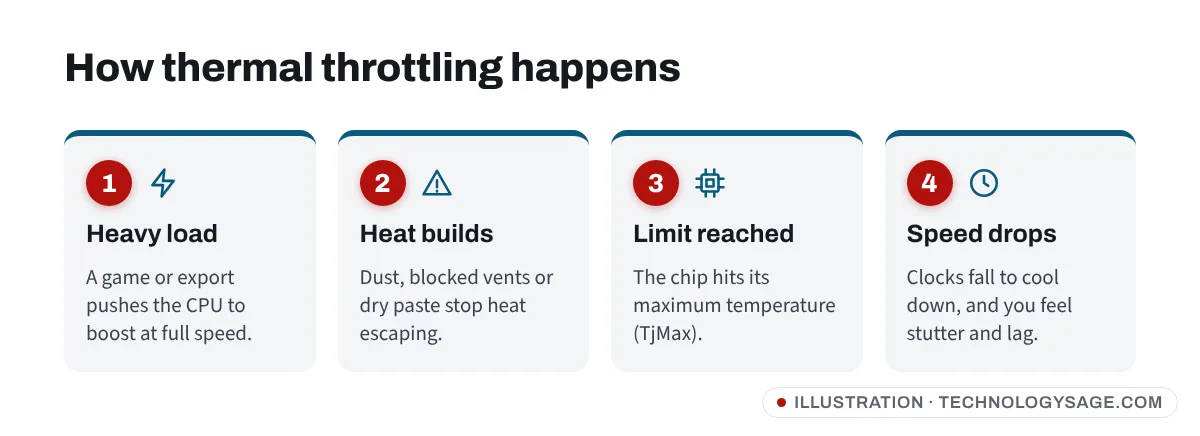
Three related kinds of slowdown are worth telling apart, because the fixes differ:
- Thermal throttling — the chip itself is too hot. Fix: cooling.
- Power-limit throttling — the chip is held to a power budget set by the laptop maker or by the charger it’s using. It can happen at quite normal temperatures. Fix: power mode, the right charger, the maker’s performance setting.
- External throttling (often shown as BD PROCHOT) — another part of the laptop, such as the battery, charger circuitry or voltage regulators, tells the CPU to slow down. A failing battery or an underpowered or non-original charger is a common trigger.
It’s normal for a thin laptop to throttle a little during long heavy loads. It’s a problem when performance falls well below what the machine should do, or it happens during light work.
Symptoms of thermal throttling
- Games run well for a few minutes, then frame rates drop and stutter
- Long tasks (rendering, compiling, exports) slow down after the first minute or two
- Fans roar constantly, and the keyboard or underside is uncomfortably hot
- Performance is worse on a bed or sofa than on a desk
- In severe cases, the PC shuts down to protect itself — see laptop overheating and shutting down
How to check if your CPU is throttling
Quick check with Task Manager
- Press Ctrl + Shift + Esc, open Performance, then click CPU.
- Start a heavy task: a game, a video export, or a free CPU benchmark that runs a sustained load.
- Watch Speed. If it starts near the CPU’s boost clock and then sinks well below its base speed while utilisation stays high, something is limiting it.
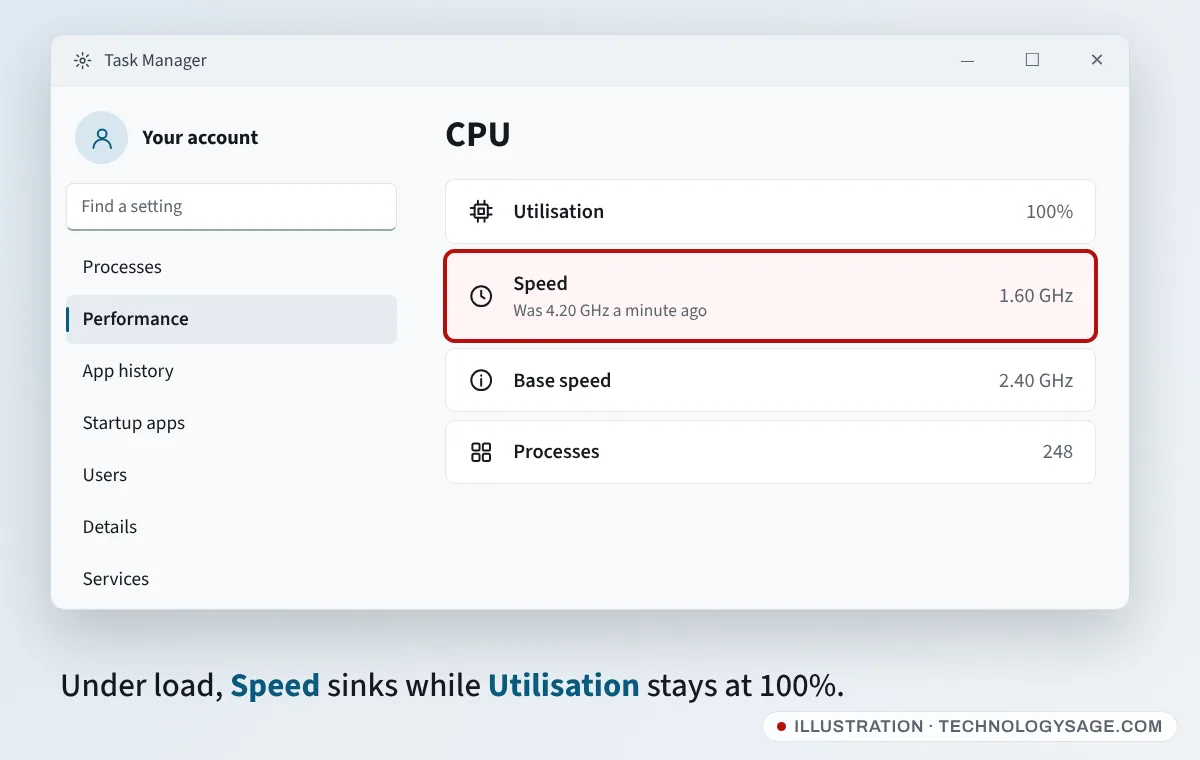
Task Manager doesn’t show temperature or why the CPU slowed, so use it as a first hint.
Confirm with HWiNFO (free)
- Download HWiNFO from its official website and run it in Sensors-only mode.
- Run your heavy task for 10-15 minutes with HWiNFO open.
- Look at the Maximum column for:
- CPU Package or Core Max temperature
- Rows with Thermal Throttling in the name, which show Yes if it happened
- PROCHOT rows (external throttling) and Power Limit Exceeded rows (power throttling), where your CPU reports them
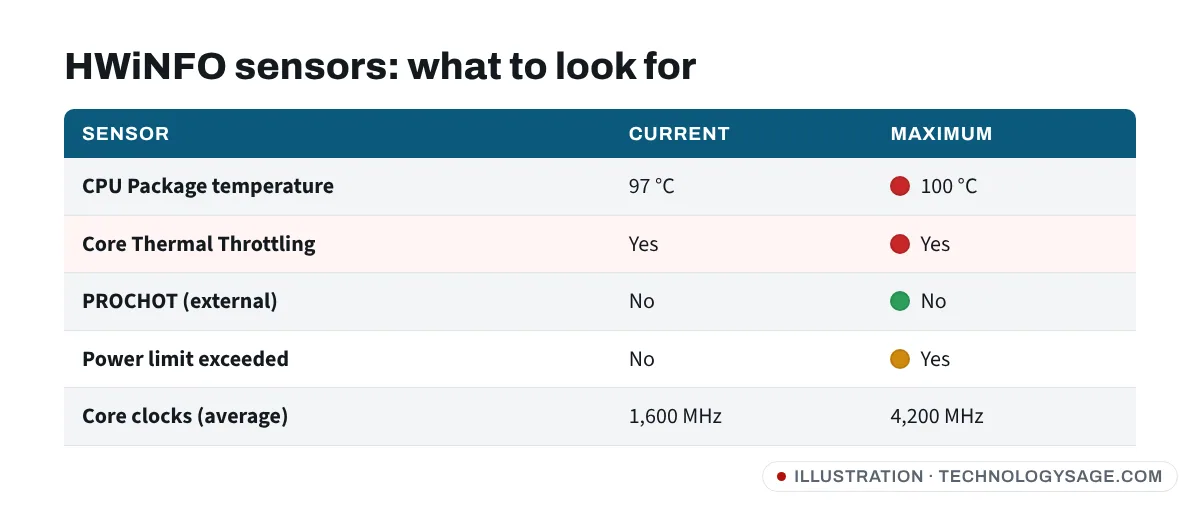
Row names vary between Intel and AMD processors and HWiNFO versions, so look for the words thermal, PROCHOT and limit rather than an exact label. One brief “Yes” isn’t a problem; constant throttling during normal use is.
Check the GPU too
For graphics cards, the free GPU-Z tool has a Sensors tab with PerfCap Reason, which shows Thrm when the GPU is limited by temperature and Pwr when it’s limited by power. Many games’ performance overlays also show GPU temperature.
What CPU temperature is too hot?
Each chip has a maximum (often called TjMax). Many Intel processors have a limit around 100°C, and recent AMD Ryzen desktop chips are designed to run up to about 95°C under load. The exact figure for your model is on the maker’s specification page.
A rough guide for everyday use:
| Temperature under load | What it means |
|---|---|
| Under 80°C | Comfortable for laptops and desktops |
| 80-90°C | Normal for thin laptops under heavy load; worth cleaning if it’s new behaviour |
| 90°C to the limit | Throttling likely; improve cooling |
| At idle, over 60-70°C | Something’s wrong: dust, a stuck fan, dried paste, or a background process |
How to stop thermal throttling: 9 fixes
Start with the free, easy ones. Turn the PC off and unplug it before any physical cleaning.
1. Give it airflow
Use the laptop on a hard, flat surface — never a bed, pillow or lap blanket, which block the intake vents underneath. A simple stand or even a book under the back edge improves airflow. For desktops, keep the case off carpet and away from walls.
2. Clean the vents and fans
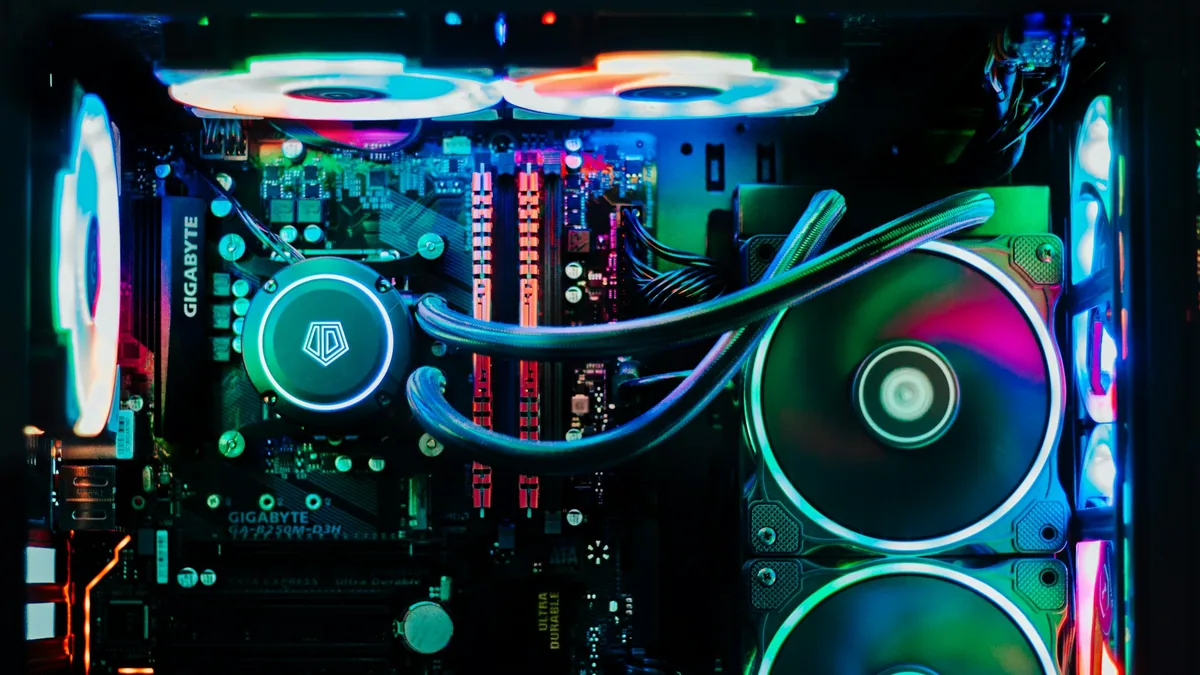
Dust is the most common cause. Blow short bursts of compressed air into the vents (hold the fan still with a toothpick through the grille so it doesn’t over-spin). On desktops, clean dust filters and the CPU cooler fins.
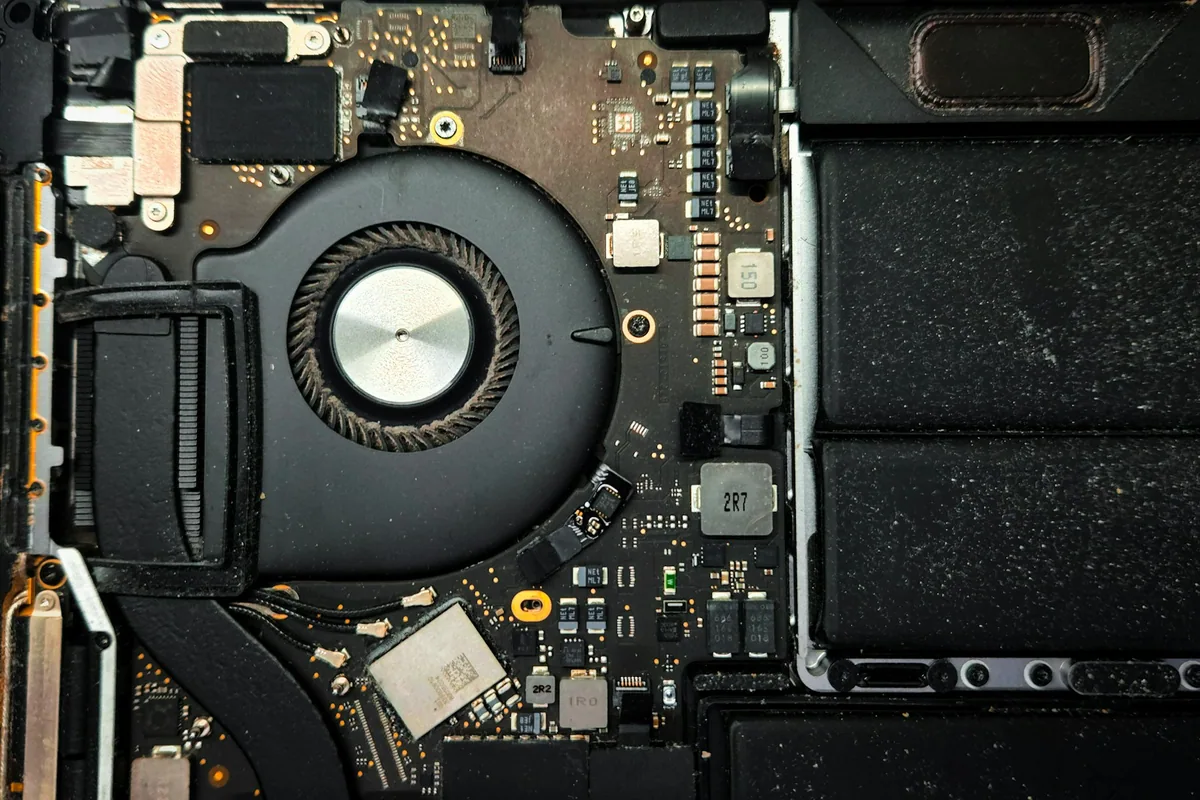
Photo: Zoshua Colah on Unsplash
If your fan is loud or rattling, our guide to laptop fan noise covers cleaning and fan replacement in more detail.
3. Check the power mode
Open Settings → System → Power & battery → Power mode (on Windows 10, click the battery icon and use the slider). Best performance lets the CPU run hotter and louder; Balanced or Best power efficiency reduce heat. Choose based on what matters more for the task.
4. Use the maker’s cooling or performance setting
Many laptops have their own app with thermal profiles — for example Lenovo Vantage, HP’s Command Center or OMEN Gaming Hub, MSI Center, ASUS Armoury Crate, Dell’s power manager or Acer’s NitroSense, depending on model. A “Quiet” profile can force heavy throttling; “Balanced” or “Performance” with higher fan speeds can reduce it. Some laptops switch profiles with a key combination.
5. Use the original charger
A lower-wattage or third-party charger can make some laptops limit performance or trigger external throttling. Use the charger rated for your model, and check the laptop’s battery health if throttling started as the battery aged.
6. Close what’s using the CPU in the background
In Task Manager’s Processes tab, sort by CPU. Browser tabs, updates, cloud sync and malware can keep the CPU hot even when you think it’s idle.
7. Cap the processor’s maximum speed
If you’d rather have a cooler, quieter laptop than peak speed: open Control Panel → Power Options → Change plan settings → Change advanced power settings → Processor power management → Maximum processor state and set it to 99%. On many Intel laptops this disables turbo boost, cutting heat noticeably at the cost of some speed. Set it back to 100% to undo.
8. Replace the thermal paste (older machines)
Thermal paste between the chip and the heatsink dries out over the years. On a laptop or desktop several years old that throttles even when clean, re-pasting often makes a big difference. Only do it if you’re comfortable opening the device and it’s out of warranty; otherwise ask a repair shop.
9. Consider the room
A PC in a 35°C room will run far hotter than one in 22°C. In hot climates, avoid direct sunlight, use a cooling pad, and run heavy tasks at cooler times of day.
A note on undervolting: tools that lower CPU voltage used to be a popular fix, but many recent laptops lock it for security reasons, and a wrong setting can cause crashes. It’s not worth chasing for most people.
Phones throttle too
Phones throttle the same way during long gaming or video recording, often dimming the screen and dropping frame rates. Remove thick cases while gaming, avoid charging while playing, and keep the phone out of the sun. See smartphone overheating problems.
FAQ
Is thermal throttling bad for my PC?
Throttling itself protects the chip, so occasional throttling is harmless. Constant throttling is a sign of poor cooling, which means lost performance and more heat stress on other parts, so it’s worth fixing.
How do I know if my laptop is thermal throttling?
Run a heavy task and watch the CPU speed in Task Manager and the temperature and throttling flags in HWiNFO. If the speed drops while temperatures sit at the limit and “Thermal Throttling” shows Yes, it’s throttling.
Can thermal throttling cause stuttering in games?
Yes. When the CPU or GPU suddenly drops its clock speed, frame times jump, which you see as stutter. If stutter starts after several minutes of play rather than straight away, heat is a likely cause.
Does a cooling pad help with thermal throttling?
It can, especially on laptops that draw air from underneath. Expect a few degrees, not miracles; cleaning the fans and using a hard surface usually help more.
Can thermal throttling cause random restarts?
Throttling alone slows things down rather than restarting. If temperatures keep rising past the limit, the PC shuts down to protect itself. Random restarts at normal temperatures point elsewhere — see why a PC restarts randomly.