In this guide
- Moving around Windows 11 without a touchpad
- 1. Turn the touchpad back on with the keyboard
- 2. Switch it on in Windows 11 Settings
- 3. Restart and check for tablet mode or a stuck pointer
- 4. Reinstall the touchpad driver in Device Manager
- 5. Install the touchpad driver from your laptop maker
- 6. Check the BIOS
- If it still doesn’t work
- FAQ
When a laptop touchpad stops working, it has usually just been switched off. Press the touchpad key on your keyboard (often F6, F9 or Fn plus one of those, marked with a touchpad icon), or on an HP, double-tap the top-left corner of the touchpad. If that doesn’t help, open Settings → Bluetooth & devices → Touchpad and switch Touchpad on. The rest of this guide covers driver, setting and hardware fixes for when the simple switch isn’t the problem.
You can do all of this with the keyboard alone if the cursor is gone. The tips in the next section show how, or plug in a USB mouse if you have one.
Moving around Windows 11 without a touchpad
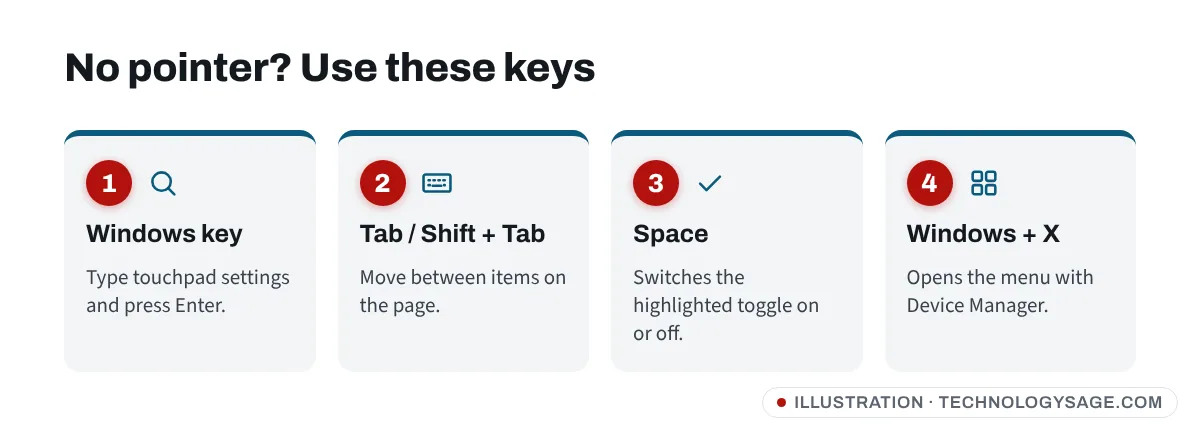
- Press the Windows key, type a word such as
touchpadand press Enter to open a setting. - Press Tab to move between items and Shift + Tab to go back. Use the arrow keys inside lists.
- Press Space to switch a toggle on or off, and Enter to press a button.
- Press Windows + X to open the power-user menu (Device Manager is in it).
1. Turn the touchpad back on with the keyboard
Most laptops have a key that switches the touchpad off. It’s easy to press by accident.
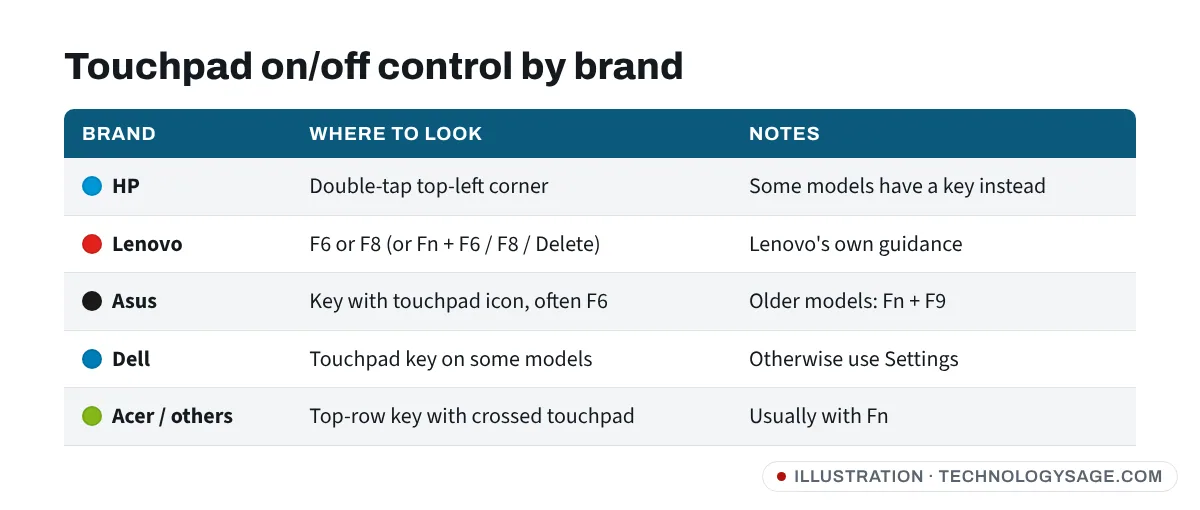
- Lenovo: Lenovo’s support page says to press the touchpad key, such as F6, F8, or Fn + F6 / F8 / Delete, depending on the model.
- HP: many HP touchpads have a small dot or mark in the upper-left corner. Double-tap it quickly to switch the touchpad on or off. On some models a small light in that corner shows when the touchpad is off. Some HP models have a touchpad key instead.
- Asus: look for a function key with a touchpad icon. On many Asus laptops it’s F6 (or Fn + F6). Older ones may use Fn + F9.
- Dell: some Dell models have a touchpad key in the top row. Many newer Dells don’t, so use the Settings toggle below.
- Acer and others: look along the top row for a key showing a touchpad with a line through it, often used with Fn.
Not every keyboard has such a key. Look closely at the small icons printed on the top row.
2. Switch it on in Windows 11 Settings
- Press the Windows key, type
touchpad settingsand press Enter. Or go to Settings → Bluetooth & devices → Touchpad. - Make sure the Touchpad toggle at the top is On. Press Tab until it’s highlighted and press Space to change it.
- Expand the arrow next to the toggle and tick Leave touchpad on when a mouse is connected. If this is unticked, plugging in a mouse (or just its wireless receiver) switches the touchpad off.
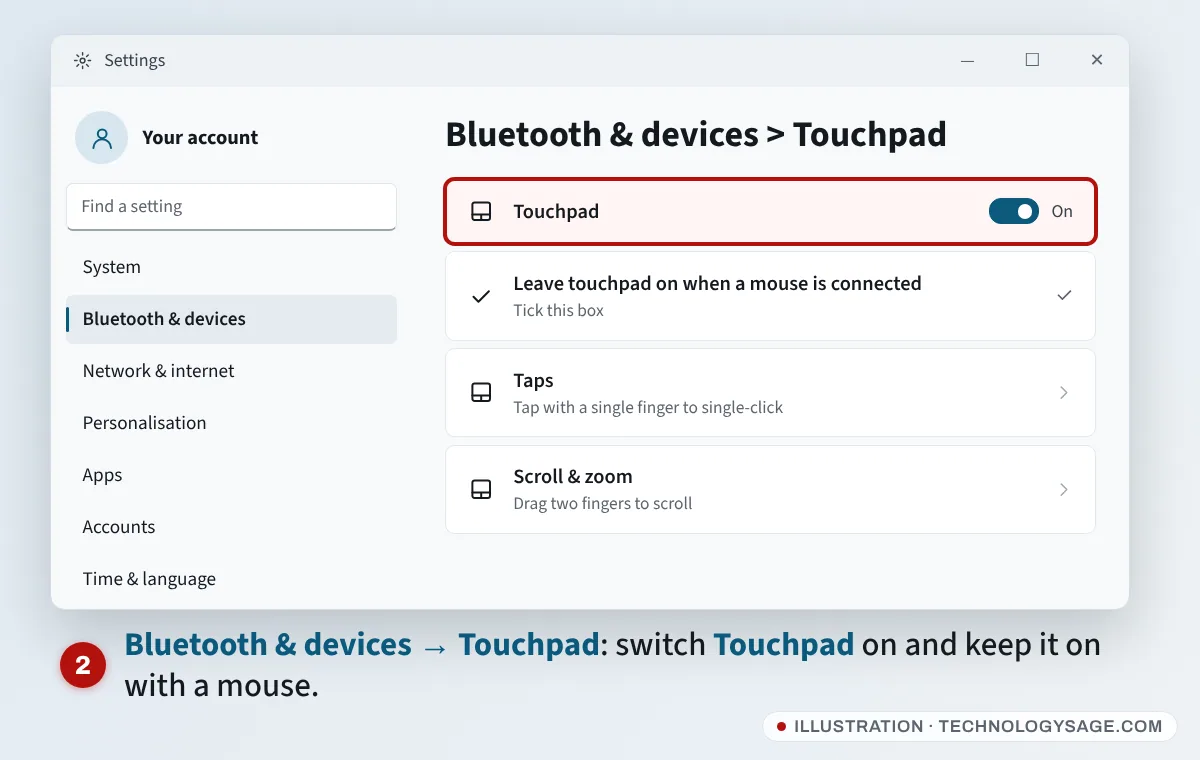
While you are on this page, open Taps and check that Tap with a single finger to single-click is ticked. If the cursor moves but tapping does nothing, that setting is usually why. If gestures behave oddly, expand the Touchpad section and use Reset to put all touchpad settings back to their defaults.
If there’s no Touchpad page at all, Windows isn’t detecting the touchpad as a precision touchpad. That’s a driver problem. Go to fix 4.
3. Restart and check for tablet mode or a stuck pointer
- Restart properly. Press Windows + X, then U, then R to restart. A restart reloads the touchpad driver.
- Unplug USB mice and receivers, then try again (see the “Leave touchpad on” setting above).
- On 2-in-1 laptops, fold the screen back to laptop position. Some models switch off the keyboard and touchpad in tablet position, and a faulty hinge sensor can leave them stuck off.
- Clean the touchpad with a slightly damp cloth and dry your hands. Moisture, grease or a phone resting on the palm rest can make it jumpy or unresponsive.
4. Reinstall the touchpad driver in Device Manager
- Press Windows + X and choose Device Manager.
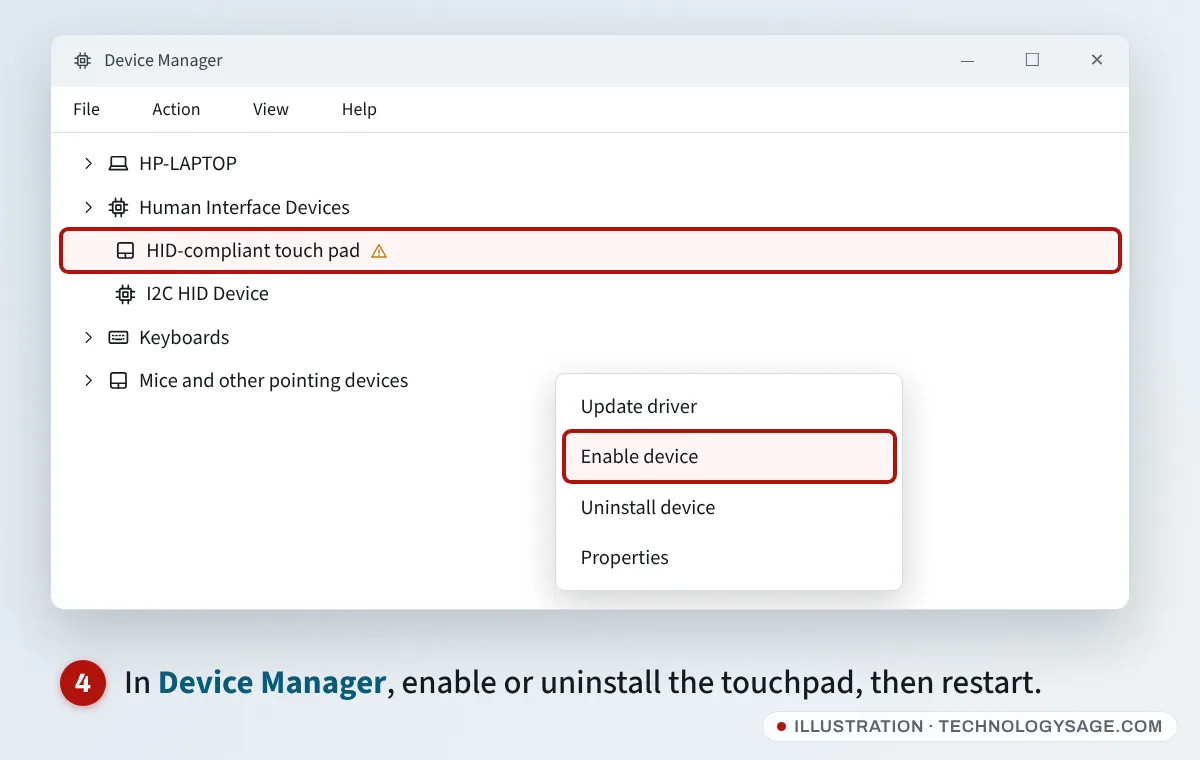
- Expand Human Interface Devices and Mice and other pointing devices. The touchpad usually appears as HID-compliant touch pad, I2C HID Device, or a brand name such as Synaptics, ELAN or Precision Touchpad.
- If one shows a down arrow, it’s disabled: select it, press Shift + F10 (the right-click menu) and choose Enable device.
- If it shows a yellow warning sign, or enabling doesn’t help, open the same menu and choose Uninstall device, then restart. Windows reinstalls the driver on startup.
If the touchpad isn’t listed at all, it may be switched off in the BIOS or its connection inside the laptop may be loose (see fix 6).
5. Install the touchpad driver from your laptop maker
Windows’ generic driver is fine for most laptops, but some need the maker’s own driver, and Lenovo specifically recommends it when the touchpad key doesn’t work.
- HP: the HP Support Assistant app, or the drivers page for your model on support.hp.com.
- Lenovo: Lenovo Vantage, or the drivers page on support.lenovo.com.
- Dell: SupportAssist, or dell.com/support.
- Asus: MyASUS, or the support page for your model on asus.com.
Also check Settings → Windows Update → Advanced options → Optional updates for touchpad or “HID” driver updates. Our guide on how to install drivers explains how to install a downloaded driver.
If the touchpad stopped working straight after an update, open the device in Device Manager, go to Properties → Driver and choose Roll Back Driver if it’s available.
6. Check the BIOS
Some laptops let you disable the touchpad (often called Internal Pointing Device or Touchpad) in the BIOS or UEFI settings. Restart and press the setup key: usually F2 on Lenovo, Dell, Asus and Acer, or Esc then F10 on HP. Lenovo IdeaPad models may need Fn + F2. Look for a touchpad setting, make sure it’s Enabled, then save and exit.
The BIOS is also a useful test. If the touchpad moves the pointer in the BIOS (on models with a mouse-driven BIOS screen), the hardware works and the fault is in Windows.
If it still doesn’t work
- The pointer moves but clicks don’t work: check the Taps settings above, and press the physical click area firmly. A swollen battery can push up from underneath and stop the touchpad clicking. If the touchpad or keyboard deck is bulging, stop using the laptop, unplug it and have the battery replaced. A swollen battery is a fire risk.
- Only works sometimes: update the BIOS and chipset drivers from the maker’s site, and set Windows to Best performance in Settings → System → Power & battery.
- Touchpad and keyboard both dead: see laptop keyboard not working. Both often share the same internal cable.
- After liquid damage or a drop: stop using it and take it for repair. Our guide to taking your laptop for repair helps you avoid common traps.
For an old HP ProBook with a touchpad light that won’t go off, see our earlier guide on the HP 4520s trackpad lock.
FAQ
Why did my touchpad suddenly stop working?
Most often it was switched off by a function key, a double-tap on an HP touchpad corner, or plugging in a mouse. Driver updates and 2-in-1 tablet mode are the next most common causes.
What is the touchpad key on a Lenovo laptop?
Lenovo says it’s usually F6 or F8, or Fn with F6, F8 or Delete. Look for the key with a touchpad icon. Some models don’t have one.
How do I turn on the touchpad without a mouse?
Press the Windows key, type touchpad settings, press Enter, then use Tab to reach the Touchpad toggle and press Space.
Why is there no Touchpad page in Windows 11 Settings?
Windows only shows it when it detects a precision touchpad. Reinstall the touchpad driver from Device Manager or your laptop maker’s support site.
Can I use my laptop without a touchpad?
Yes. A cheap USB or wireless mouse works straight away, and you can get around Windows with the keyboard shortcuts at the top of this guide.