
In this guide
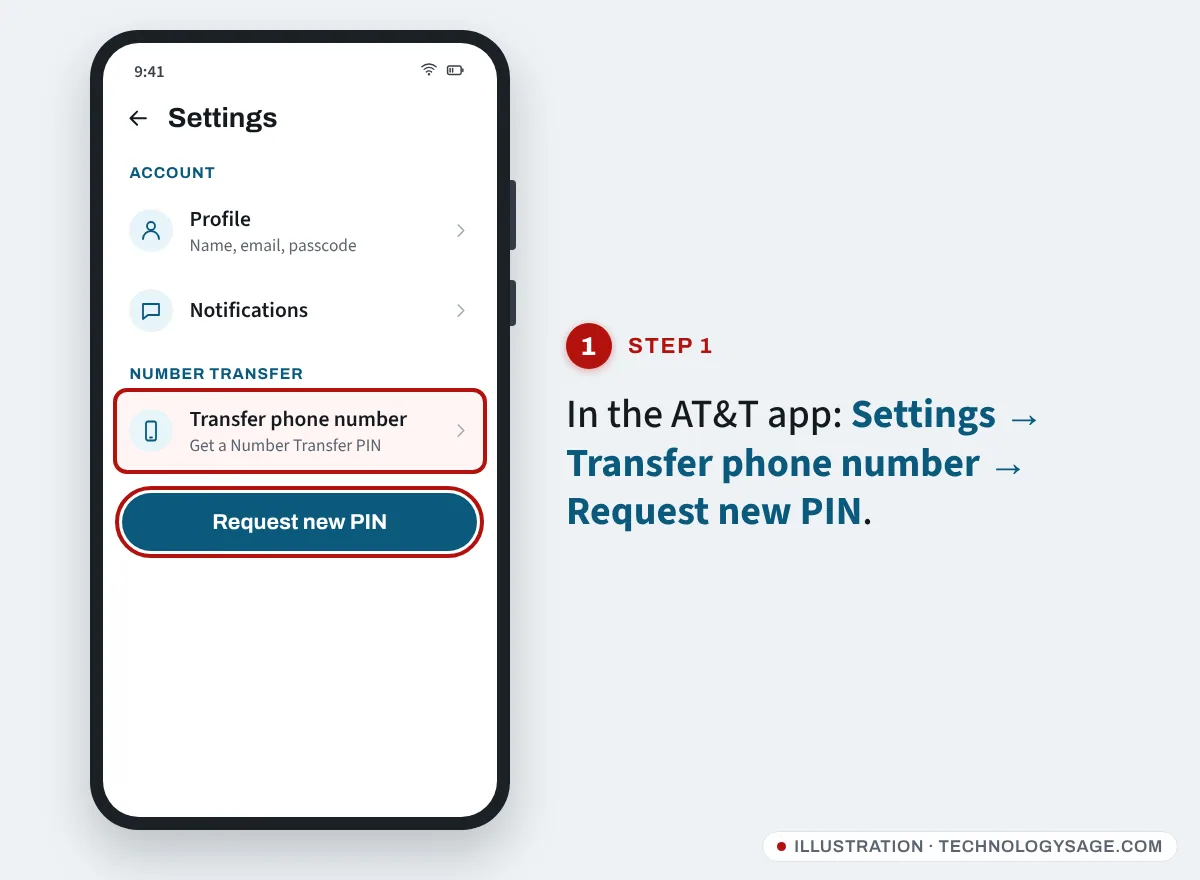
To get your AT&T transfer PIN, dial *PORT (*7678) from your AT&T phone and follow the prompts, or sign in to the AT&T app or att.com and go to Settings → Transfer phone number → Request new PIN. AT&T texts or shows you a Number Transfer PIN that your new carrier asks for, along with your AT&T account number. A personal-account PIN expires 4 days after you request it (14 days for business accounts), so get it when you’re ready to switch.
AT&T calls it a Number Transfer PIN; other carriers and blogs call it a port out PIN or port-out passcode. It’s the same thing. You need one to move your AT&T number to any other carrier, including Verizon, T-Mobile, prepaid brands and cable providers.
What is an AT&T transfer PIN?
An AT&T Number Transfer PIN is a one-time code that proves the person asking to move a number is the account holder. Carriers added these PINs to stop port-out fraud: a scammer who knows your number and a few personal details could otherwise move your number to their own SIM and receive your texts, including bank verification codes.
A few facts from AT&T’s own Number Transfer PIN help page that the “switch to us” blogs often get wrong:
- One PIN covers every number on the account you’re transferring.
- It expires after 4 days on personal accounts and 14 days on business accounts. If it expires, request a new one.
- Only someone with primary online access to the account can request it online or in the app.
- The PIN is not your account passcode or your voicemail password. They’re separate.
How to get your AT&T transfer PIN
In the AT&T app
- Open the AT&T app (formerly myAT&T) and sign in.
- Tap your profile icon.
- Tap Settings, then Manage or remove account, then Settings again.
- Scroll to Transfer phone number and tap Request new PIN.
- The PIN appears on screen. Write it down or screenshot it.
Menu names in the app change from time to time. If you don’t see this path, search the app for “transfer” or look under your profile settings.
Online at att.com
- Go to att.com and sign in to your account.
- Open your account profile and select Settings.
- Scroll to Transfer phone number and select Request new PIN.
By dialing *PORT
- On a phone that’s active on your AT&T account, open the dialer and call *PORT (on the keypad, that’s *7678).
- Follow the automated prompts. You’ll need your account passcode.
- AT&T texts the Number Transfer PIN to you.
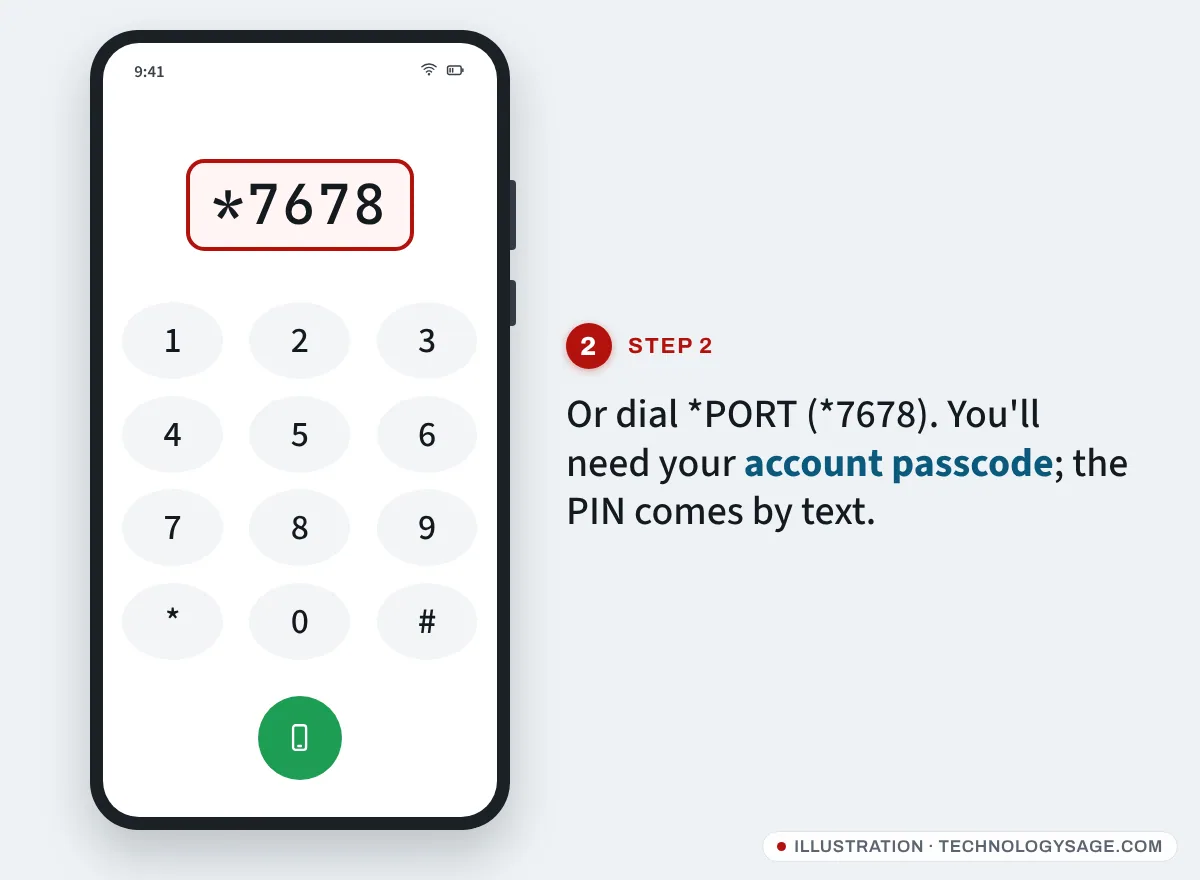
*PORT is the fastest route if you’re standing in a store with your new carrier. It doesn’t work for business accounts, and if your account is suspended, AT&T says you can only get the PIN online or in the app, not by text.
Business accounts
On an AT&T business account, only the primary user can request the PIN. They can do it online, or contact AT&T, and a representative emails the PIN. The app and *PORT methods aren’t available for business accounts.
What else your new carrier needs
Besides the PIN, the new carrier will usually ask for:
- Your AT&T account number. For postpaid accounts it’s in your account overview online or in the app, and in the top-right corner of a paper bill. AT&T moved many wireless accounts to new 12-digit account numbers, so use the number on a recent bill. For AT&T Prepaid, AT&T’s help page says to dial 611 from your AT&T phone to get your account number.
- The name and billing ZIP code on the account, exactly as AT&T has them.
- The phone number(s) you’re moving.
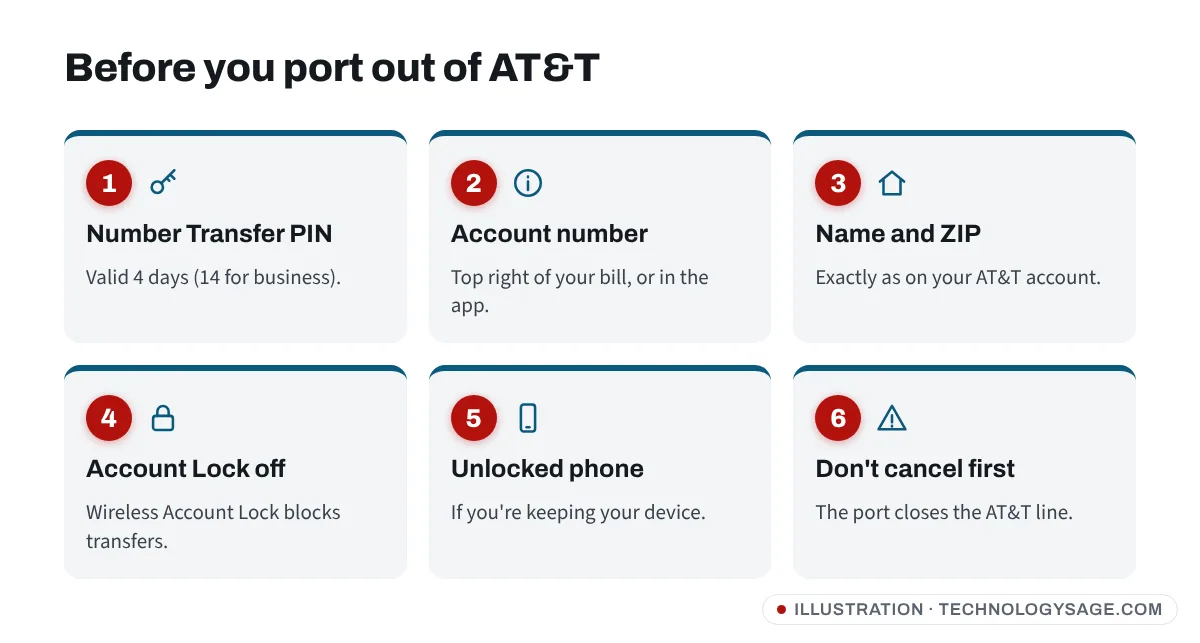
Don’t cancel AT&T first. Keep your AT&T service active until the new carrier has completed the transfer. The port itself closes that line on AT&T. If you disconnect early, the number has to be reactivated before it can move. If you have other lines staying on AT&T, the rest of the account carries on as normal.
If you’re taking your phone with you, make sure it’s unlocked first. AT&T locks devices that aren’t paid off or haven’t met its unlock requirements, and you request an unlock through AT&T’s device unlock portal. If you’re moving to an eSIM on the new carrier, our guide to activating an eSIM walks through the setup.
AT&T transfer PIN not working or won’t generate?
Wireless Account Lock is on
AT&T’s Wireless Account Lock blocks number transfers until you turn it off. This is the most common reason a port is rejected even with a valid PIN. To turn it off on a postpaid account:
- Open the AT&T app and sign in.
- Tap the person icon.
- Scroll to Wireless account lock and tap Unlock the account.
On AT&T Prepaid, go to Profile & Settings → Account Info & Preferences, select Turn off under Wireless Account Lock, then enter the one-time code AT&T texts to your phone. Only users with primary or secondary access can change the lock, and AT&T notifies the account holder by email and every line by text when it changes.
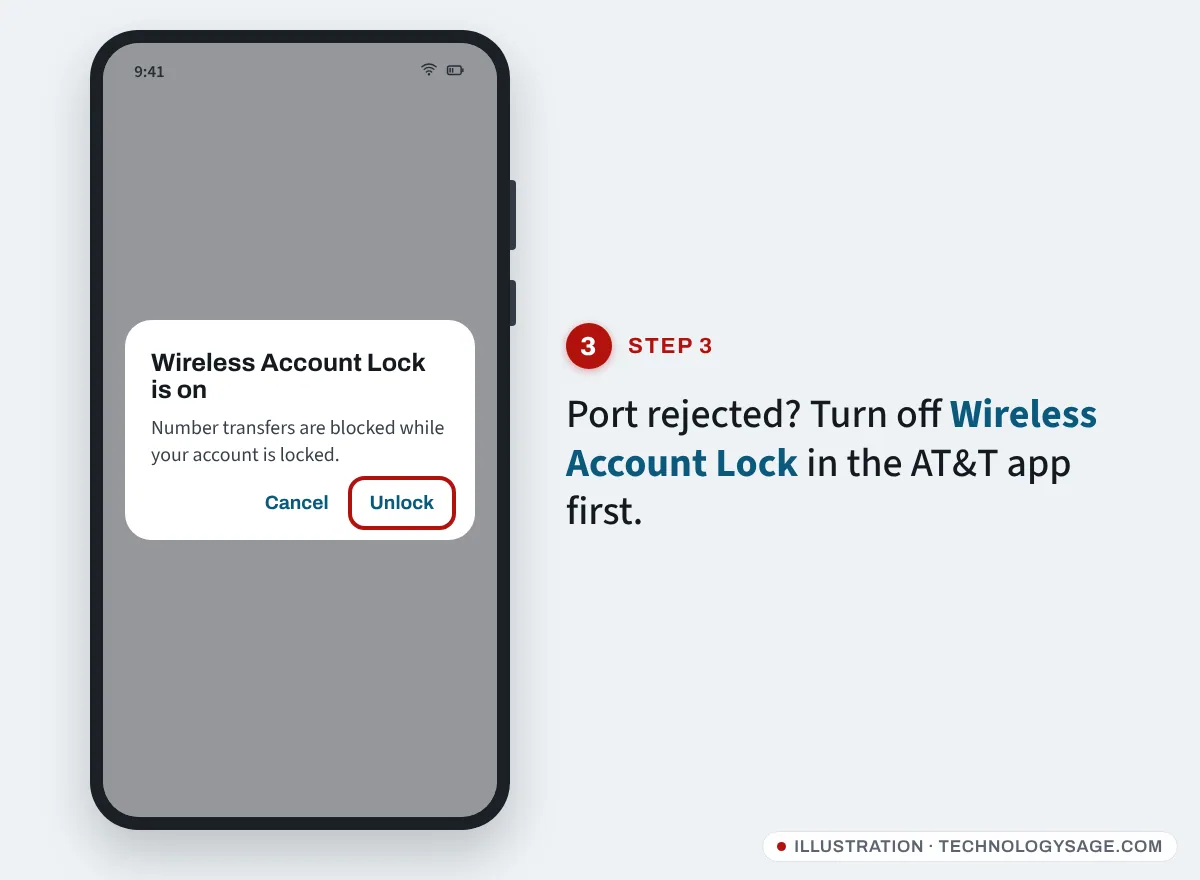
AT&T says it will never call or text you asking you to turn off Wireless Account Lock. If someone does, it’s a scam.
“Request new PIN” is missing or greyed out
- You may not have primary online access. Ask the account owner to request the PIN, or to give you that access.
- Account Lock may be on (see above): options that the lock blocks are greyed out.
- On a business account, use the web method as the primary user, or contact AT&T.
The new carrier says the PIN or account number is wrong
- Check the PIN hasn’t expired (4 days for personal accounts). Request a fresh one.
- Make sure you’re giving the account number, not the phone number, and that it’s the current one from a recent bill.
- Check the name and ZIP match what’s on your AT&T account. A recent move or a typo is enough to fail the check.
- If several numbers are moving, give the same PIN for each.
*PORT doesn’t work
Dial it from a phone with an active AT&T SIM, not over Wi-Fi calling from another carrier’s phone. If your phone shows Emergency calls only or no service, use the app or website instead. Business and suspended accounts can’t use *PORT.
The port is taking a long time
Most mobile ports finish within minutes to a few hours, but some take longer, especially for several lines or a business account. Keep your old SIM handy until the new line works; if it’s been more than a day, ask the new carrier for the status of the port request. If your new SIM shows SIM not provisioned after the move, the activation usually just hasn’t finished yet.
Protect your number from port-out fraud
The same PIN that lets you leave AT&T is what a scammer needs to steal your number. To stay safe:
- Never give your transfer PIN, account passcode or a texted code to anyone who contacts you. Only give the PIN to the new carrier you chose, in their app, website or store.
- Leave Wireless Account Lock on until the day you switch, then turn it off just before you port.
- If you get a text from AT&T about a PIN or lock change you didn’t make, contact AT&T straight away through the AT&T app or att.com.
- Only use support contacts you reach yourself through the AT&T app or att.com. Search ads and forum posts can list fake “AT&T support” numbers. Real AT&T staff won’t ask for remote access to your phone, gift cards, crypto, or your password.
- Only request a PIN for your own number or an account you manage.
FAQ
How do I get my AT&T transfer PIN?
Dial *PORT from your AT&T phone and follow the prompts (you’ll need your account passcode), or go to Settings → Transfer phone number → Request new PIN in the AT&T app or on att.com.
How long is an AT&T transfer PIN good for?
Four days on personal accounts and 14 days on business accounts. After that, request a new one.
Is the AT&T transfer PIN the same as my account PIN?
No. Your account passcode is what you use to verify yourself with AT&T (and to use *PORT). The Number Transfer PIN is a separate one-time code just for moving your number.
Does requesting a transfer PIN cancel my AT&T service?
No. Requesting a PIN changes nothing. Your line only closes when the new carrier completes the transfer, so keep AT&T active until then.
Can I get a transfer PIN for a number on someone else’s account?
Only the person with primary access can request it. If you’re on a family plan, ask the account owner to request the PIN for you.