In this guide
- How to add a signature in new Outlook for Windows
- How to add a signature in classic Outlook (File > Options > Mail > Signatures)
- How to add a signature in Outlook on the web and Outlook.com
- How to add a signature in Outlook for Mac
- How to add a signature in the Outlook app on iPhone and Android
- How to set a default signature for each account
- How to add a logo, image or links to your Outlook signature
- Outlook signature not showing? How to fix it
- Why your Outlook signature isn’t syncing between devices
- Signatures on replies and forwards
- Tips for a professional email signature
- FAQ
To add a signature in Outlook, open Settings → Accounts → Signatures in new Outlook for Windows or Outlook on the web, select Add signature, type it, tick when it should be used and select Save. In classic Outlook, go to File → Options → Mail → Signatures; on a Mac, Outlook → Settings → Mail → Signatures; and in the iPhone or Android app, Settings → Signature (under Mail). Each version keeps its own signature, so if yours is missing on one device, you usually just need to set it up there too.
Not sure which Outlook you have? New Outlook for Windows has a simple ribbon and a New Outlook toggle at the top right; classic Outlook has a File menu. Microsoft’s What version of Outlook do I have? page shows how to check.
How to add a signature in new Outlook for Windows
New Outlook (the free app that replaced Windows Mail and Calendar, and the default for many Microsoft 365 users) stores signatures with your account.
- Select the Settings gear at the top right.
- Go to Accounts → Signatures.
- If you’ve added more than one email account, choose the account the signature is for in the drop-down.
- Select Add signature (or + New signature), give it a name such as “Work” or “Short reply”, then type and format it in the box.
- Under the editing box, choose it for new messages and, if you want, for replies and forwards.
- Select Save.
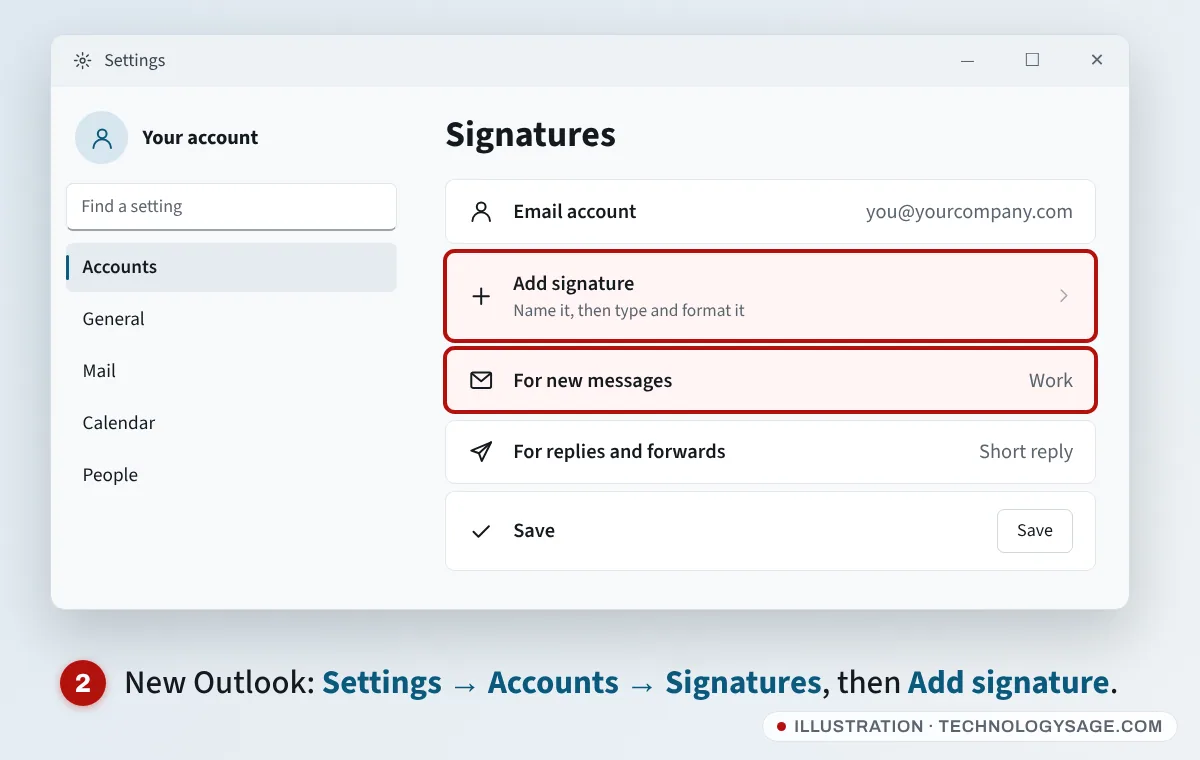
To change your signature in Outlook later, go back to Settings → Accounts → Signatures, select the signature (or its pencil Edit button), make your changes and Save. To insert one by hand in a message, select Signature on the Insert (or Message) tab while writing and pick it from the list.
How to add a signature in classic Outlook (File > Options > Mail > Signatures)
Classic Outlook for Windows (Outlook 2016, 2019, 2021, 2024 and Microsoft 365 desktop) uses the older Signatures and Stationery window.
- Select File → Options → Mail, then select Signatures… (Or, in a new message, Message → Signature → Signatures….)
- On the E-mail Signature tab, select New, type a name and select OK.
- Type your signature in the Edit signature box. Use the toolbar for font, size, colour, links and pictures.
- On the right, under Choose default signature, pick the E-mail account, then choose the signature for New messages and for Replies/forwards (or leave it as (none)).
- Select Save, then OK.
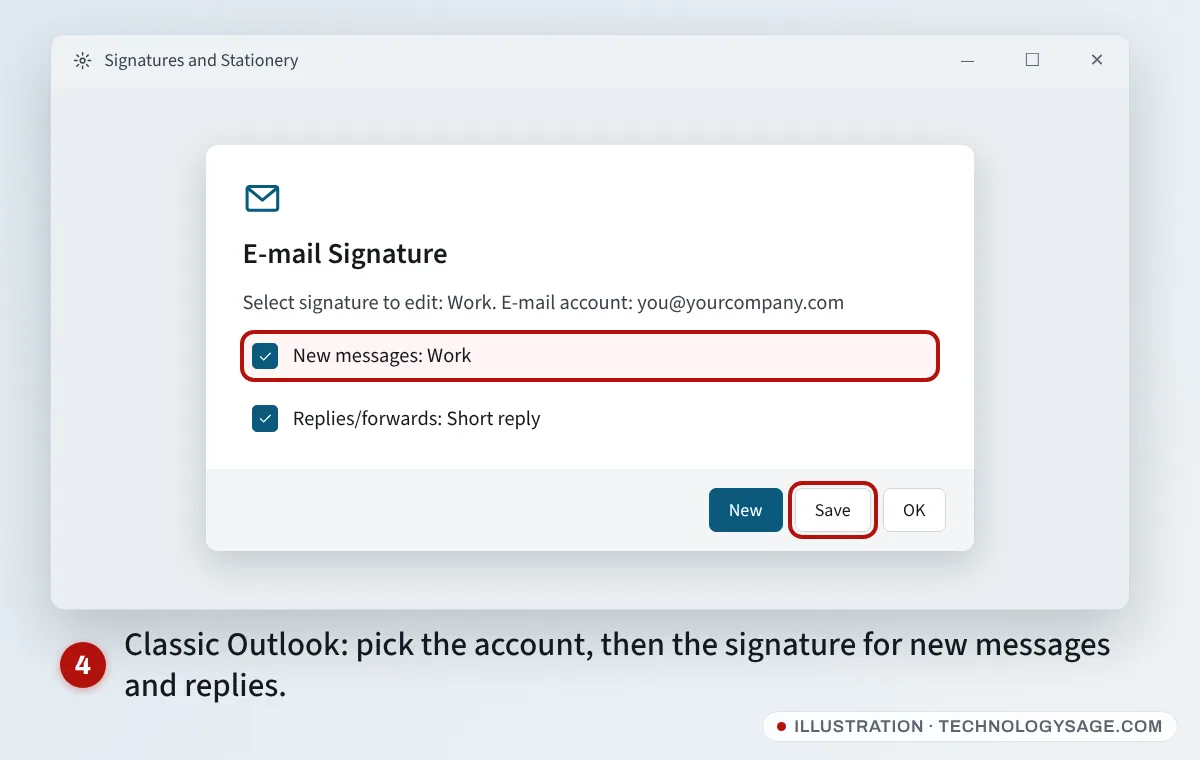
One thing catches a lot of people out: classic Outlook doesn’t add a new signature to the message you already had open. Close it and start a new email to see it. Microsoft’s guide also suggests building complex layouts (tables, borders) in Word and pasting them into the Edit signature box.
How to add a signature in Outlook on the web and Outlook.com
The steps are the same for a work account at outlook.office.com and a personal account at outlook.com.
- Sign in, then select the Settings gear.
- Go to Accounts → Signatures (on older layouts, Mail → Compose and reply).
- Select Add signature, name it, then type and format it.
- Choose it as the default for new messages and/or replies and forwards, then select Save.
For a work or school Microsoft 365 account, a signature made in Outlook on the web usually appears in new Outlook for Windows too, because both read the same settings from your mailbox. Microsoft notes that if you use desktop Outlook and Outlook on the web with a personal Microsoft account, you may need to create the signature in both.
How to add a signature in Outlook for Mac
In current Outlook for Mac:
- On the menu bar, select Outlook → Settings (called Preferences on older versions).
- Under Mail, select Signatures.
- Add a new signature, give it a name and type it in the editor. You can add images and links here.
- Under Set default signature, select the account, then set the signature for New messages and Replies/forwards. Do this for each account.
To insert a signature by hand, click in the message and choose Signature on the ribbon. Microsoft’s Outlook for Mac signature guide covers both the new and legacy Mac layouts.
How to add a signature in the Outlook app on iPhone and Android
The mobile app has its own signature, separate from your computer. By default it adds “Get Outlook for iOS” or “Get Outlook for Android”, which you can replace.
- Open the Outlook app and tap your profile picture or account icon at the top left.
- Tap the Settings gear.
- Under Mail, tap Signature.
- Delete the default text and type your own. If you’ve added several accounts, turn on Per Account Signature to give each one its own.
- Go back; the change saves on its own.
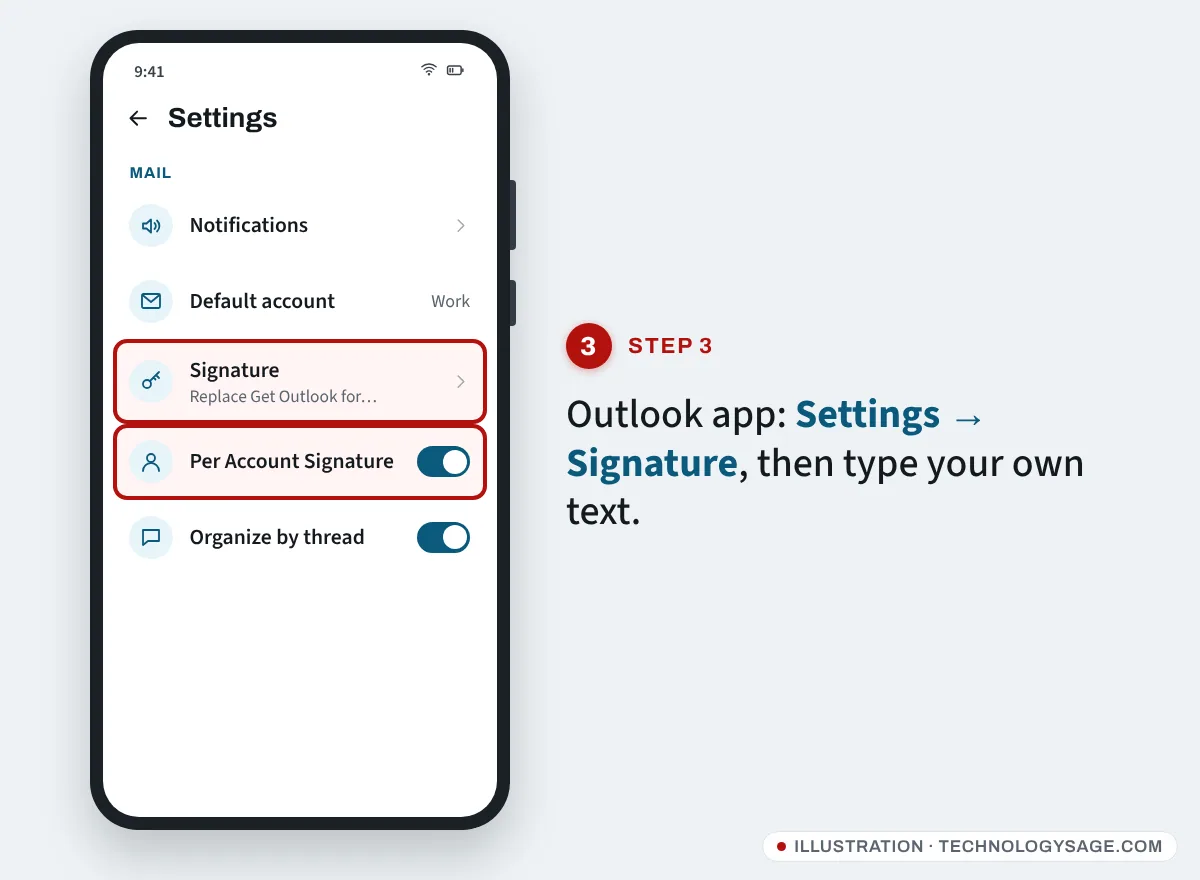
Microsoft’s Can I change my email signature? page lists these steps. The mobile signature editor is basic: it is mostly plain text, and pasted images and complex layouts often don’t come through well.
How to set a default signature for each account
Every desktop and web version lets you choose a default per account:
- New Outlook and Outlook on the web: pick the account at the top of Settings → Accounts → Signatures, then set the defaults for new messages and replies/forwards.
- Classic Outlook: in Signatures and Stationery, change the E-mail account drop-down, then set New messages and Replies/forwards for that account.
- Mac: under Set default signature, set it account by account.
- Mobile: turn on Per Account Signature.
A common setup is a full signature (name, title, company, phone, website) for new messages and a short one (name and phone) for replies and forwards, so long threads don’t fill up with repeated logos.
How to add a logo, image or links to your Outlook signature
Classic Outlook: in the Edit signature box, select the Picture icon and choose your logo file. To resize it, right-click the image, select Picture, open the Size tab and keep Lock aspect ratio ticked. To add a link, select text and choose the Hyperlink icon.
New Outlook and Outlook on the web: use the picture button in the signature editor’s toolbar, or copy and paste the image in. For links, select the text and use the link button (or press Ctrl+K).
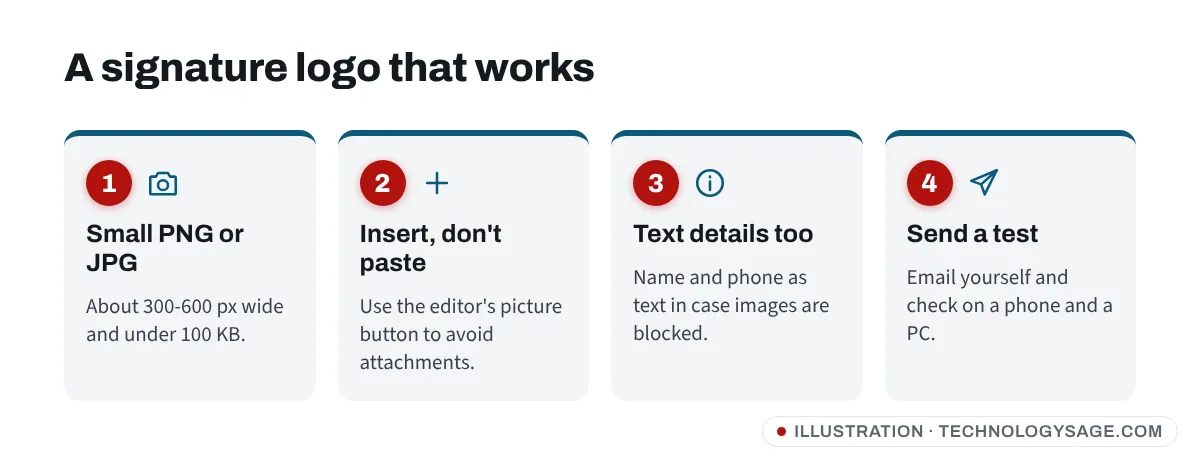
Tips that stop logos breaking:
- Keep the image small, around 300-600 pixels wide and well under 100 KB. Big files are slow and get flagged by some filters.
- Use PNG or JPG. Avoid SVG; many mail apps won’t display it.
- Expect it to be blocked sometimes. Many recipients see “Click to download pictures” until they trust you, so put your name and contact details in text, not only inside the image.
- If the logo arrives as an attachment, the signature may have been pasted from another program. Microsoft notes that some formatting (VML code from older templates) makes images show as attachments; rebuild the signature directly in the editor.
Outlook signature not showing? How to fix it
Work through these in order:
- Check the default is set. Open the signature settings and make sure New messages and Replies/forwards aren’t set to (none) for the account you’re sending from.
- Check the right account. If you have two addresses in Outlook, the signature might be attached to the other one. Look at the From line of the message.
- Open a fresh message. Classic Outlook won’t add it to an email that was already open.
- Check the message format. In classic Outlook, plain-text emails drop images and formatting. Under Format Text, choose HTML.
- Restart Outlook after changing settings, and install any pending Office updates.
- Your organisation might add one for you. Some companies add a signature on the server after you send, so it doesn’t appear while you’re writing. Ask IT before adding a second one.
If the problem is that mail isn’t arriving at all, see our guide to Outlook not receiving emails.
Why your Outlook signature isn’t syncing between devices
Outlook signatures don’t follow you to every version automatically. Here’s how it works now:
- New Outlook for Windows and Outlook on the web read signatures from your mailbox, so for Microsoft 365 work and school accounts one setup usually covers both.
- Classic Outlook can store signatures in the cloud for Microsoft 365 and Outlook.com mailboxes, but only if your setup supports it. Signatures listed under Signatures on this device stay on that one PC. Microsoft recommends managing your signature through your account where it’s offered so it carries across Outlook versions.
- Outlook for Mac keeps its own signatures.
- The iPhone and Android apps have a separate signature that doesn’t sync with your desktop.
- IMAP, POP and Gmail accounts added to Outlook generally keep signatures on the device you made them on.
The practical fix: create the signature once on the desktop, copy it, and paste it into each other version you use. Keep a copy in a document so you can paste it again on a new computer.
Signatures on replies and forwards
Outlook treats new messages and replies/forwards separately. If your signature appears on new emails but not on replies, set a signature in the Replies/forwards box (classic and Mac) or tick the replies and forwards option (new Outlook and the web). If you don’t want one on replies, set it to (none) and insert it by hand when you need it with Insert → Signature.
Tips for a professional email signature
- Keep it to 3-5 lines: name, job title, company, one phone number and your website.
- One small logo at most, and no inspirational quotes or large banners.
- Use text you can click: a website link and, if you need it, one social link.
- Use a standard font (Aptos, Calibri, Arial) in a dark colour, and size 10-12.
- Don’t include sensitive details such as your home address or personal mobile in signatures sent to strangers.
- Check it on your phone by sending yourself a test email.
- Follow any legal rules that apply. For example, UK and Irish registered companies have rules on business details in emails; check with your company.
If emails you send aren’t reaching people, our general guide to not receiving emails covers spam filters and blocked senders, and using Yahoo Mail in Outlook with POP3 or IMAP explains how added accounts work.
FAQ
How do I change my signature in Outlook?
Open the same place you created it: Settings → Accounts → Signatures in new Outlook or on the web, File → Options → Mail → Signatures in classic Outlook, or Outlook → Settings → Mail → Signatures on a Mac. Select the signature, edit it and save. Change it in each Outlook version you use.
Why is my signature not showing in Outlook?
Usually the default is set to (none) for that account, you’re sending from a different account, or (in classic Outlook) the message was already open when you created the signature. Check the defaults for new messages and replies/forwards, then start a new email.
Can I have more than one signature in Outlook?
Yes. Create as many as you like and pick one per message with Insert → Signature. You can also set different defaults for each account and for replies.
Why does my logo show as an attachment?
The signature probably has formatting copied from another program, or the image is too large. Delete the image, insert a small PNG or JPG with the signature editor’s picture button, and send a test email.
Does my Outlook signature sync to my phone?
No. The Outlook app for iPhone and Android has its own signature under Settings → Signature. Type or paste your signature there separately.
For more, see Microsoft’s guide on how to add and change an email signature in Outlook.