In this guide
“VCRUNTIME140.dll was not found” means the program you opened needs Microsoft’s Visual C++ runtime, and Windows can’t find a working copy of it. The usual cause is that the Microsoft Visual C++ Redistributable is missing, damaged or the wrong type (32-bit vs 64-bit). The quickest fix is to install the latest supported Visual C++ v14 Redistributable from Microsoft, both the x64 and the x86 versions, then restart your PC.
That fixes VCRUNTIME140_1.dll too, along with its close cousins MSVCP140.dll and VCRUNTIME140.dll errors in games, Adobe and Autodesk apps, OBS, Python tools and many others.
What does “VCRUNTIME140.dll was not found” mean?
You’ll see one of these messages when a program starts:
- “The code execution cannot proceed because VCRUNTIME140.dll was not found. Reinstalling the program may fix this problem.” (Windows 10 and 11)
- “The program can’t start because VCRUNTIME140_1.dll is missing from your computer. Try reinstalling the program to fix this problem.” (older wording)
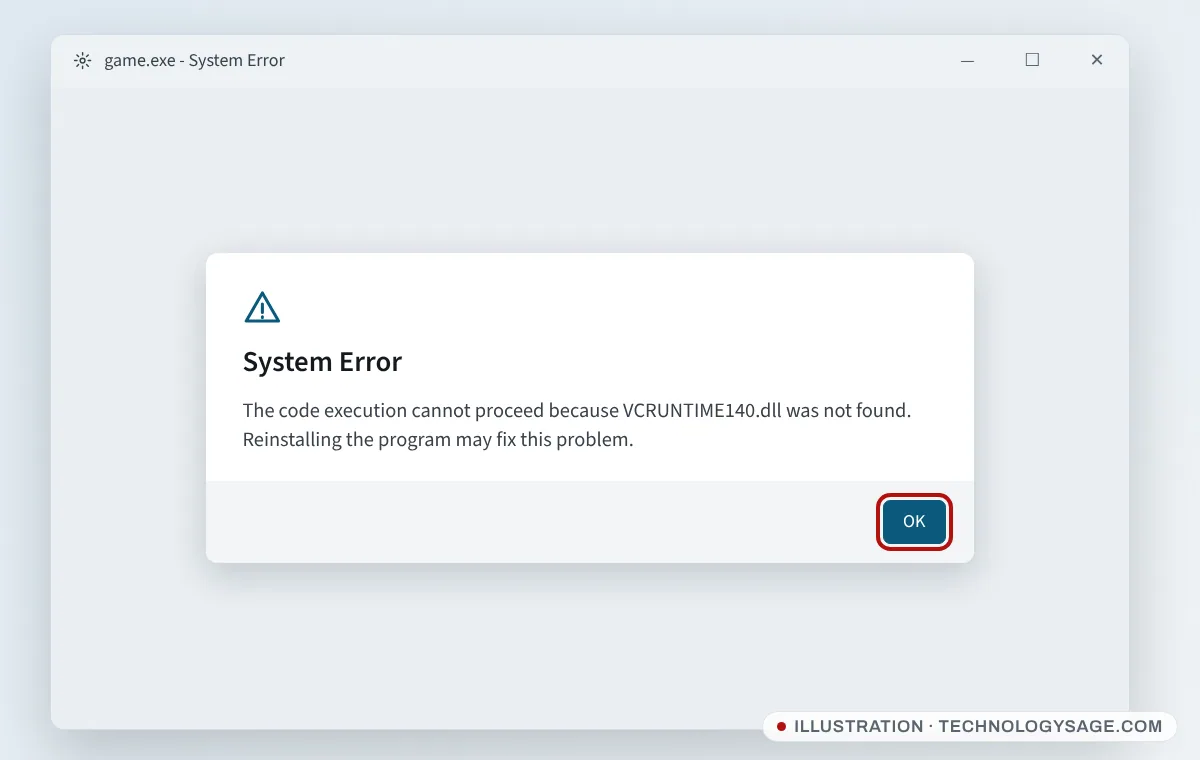
VCRUNTIME140.dll is part of the C++ runtime library that programs built with Microsoft’s Visual Studio tools rely on. Rather than ship it with every app, developers expect it to be installed once by the Visual C++ Redistributable package. The “140” means version 14, which is shared by everything built with Visual Studio 2015 and later.
VCRUNTIME140_1.dll is an extra file added in the Visual Studio 2019 generation of the runtime and used by 64-bit apps. If you only have an older 2015 or 2017 runtime, you can have VCRUNTIME140.dll but still get an error about VCRUNTIME140_1.dll. Installing the current x64 package adds it.
Common triggers:
- A new PC or fresh Windows install where the runtime was never installed.
- A program’s installer that skipped or failed its runtime step.
- Someone (or a “cleaner” app) uninstalled a “Microsoft Visual C++” entry that looked like clutter.
- You installed only the 64-bit runtime, but the program is 32-bit (or the reverse).
- Antivirus quarantined or a disk error damaged the file.
Quick fixes
1. Install the latest Visual C++ Redistributable (x64 and x86)
This is the fix Microsoft documents, and it solves most cases.
- Open Microsoft’s Latest supported Visual C++ Redistributable downloads page on Microsoft Learn.
- Under Latest supported redistributable version, download the X64 file (vc_redist.x64.exe) and the X86 file (vc_redist.x86.exe).
- Run each file, tick I agree to the license terms and conditions, and select Install. Approve the administrator prompt.
- Restart your PC, then open the program again.
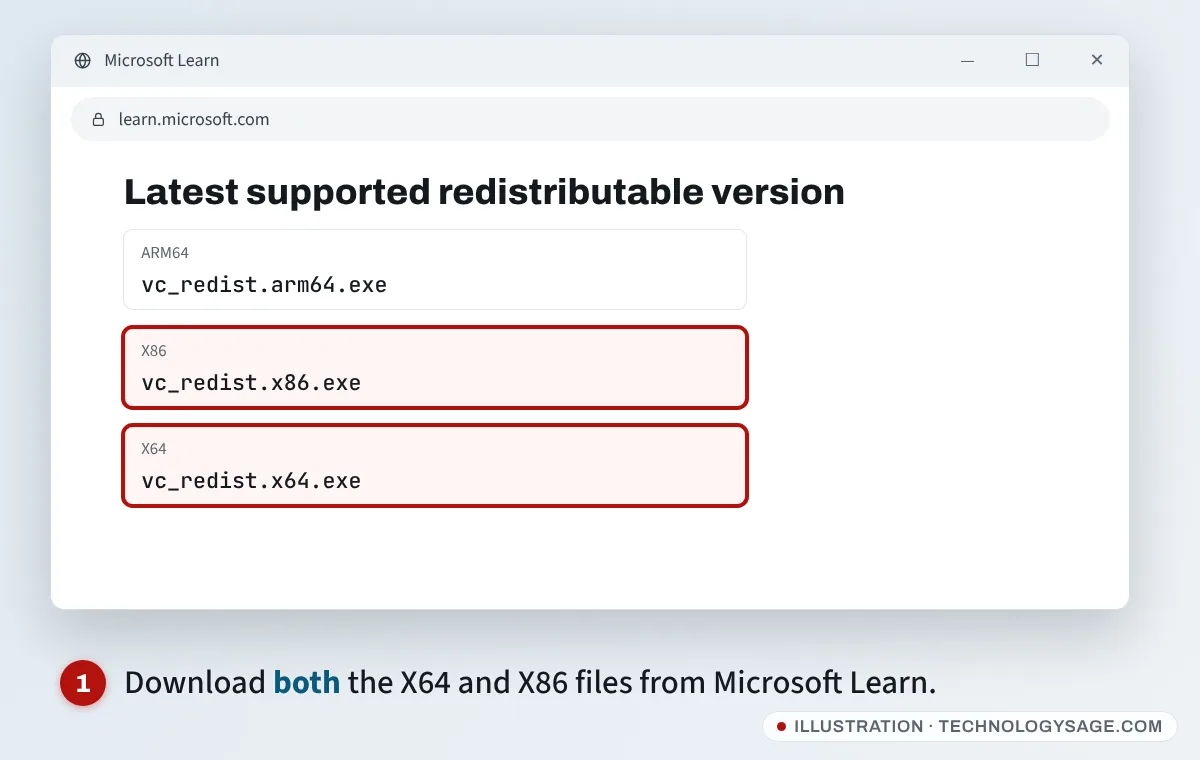
Why both? A 64-bit Windows PC runs 64-bit and 32-bit programs, and each needs a runtime of the same type. A 32-bit program can’t use the x64 runtime, so if you only install one, the error can stay. Installing both is safe; they live side by side.
Which package for which PC:
- 64-bit Windows (almost every PC sold in the last decade): install x64 and x86.
- 32-bit Windows: install x86 only. The x64 package won’t install.
- Windows on Arm (Snapdragon laptops): install x64, which Microsoft says contains the ARM64 files too, and x86 for 32-bit apps.
Not sure which you have? Go to Settings → System → About and look at System type.
On the Microsoft page the current package is called the “Visual C++ v14 Redistributable” and covers apps built with Visual Studio 2017 and later. Once installed, it may still appear in your app list as “Microsoft Visual C++ 2015-2022 Redistributable”; that’s the same family, so don’t worry about the year range in the name. Microsoft notes the newest versions support Windows 10 and 11 only.
2. Repair the Visual C++ entries you already have
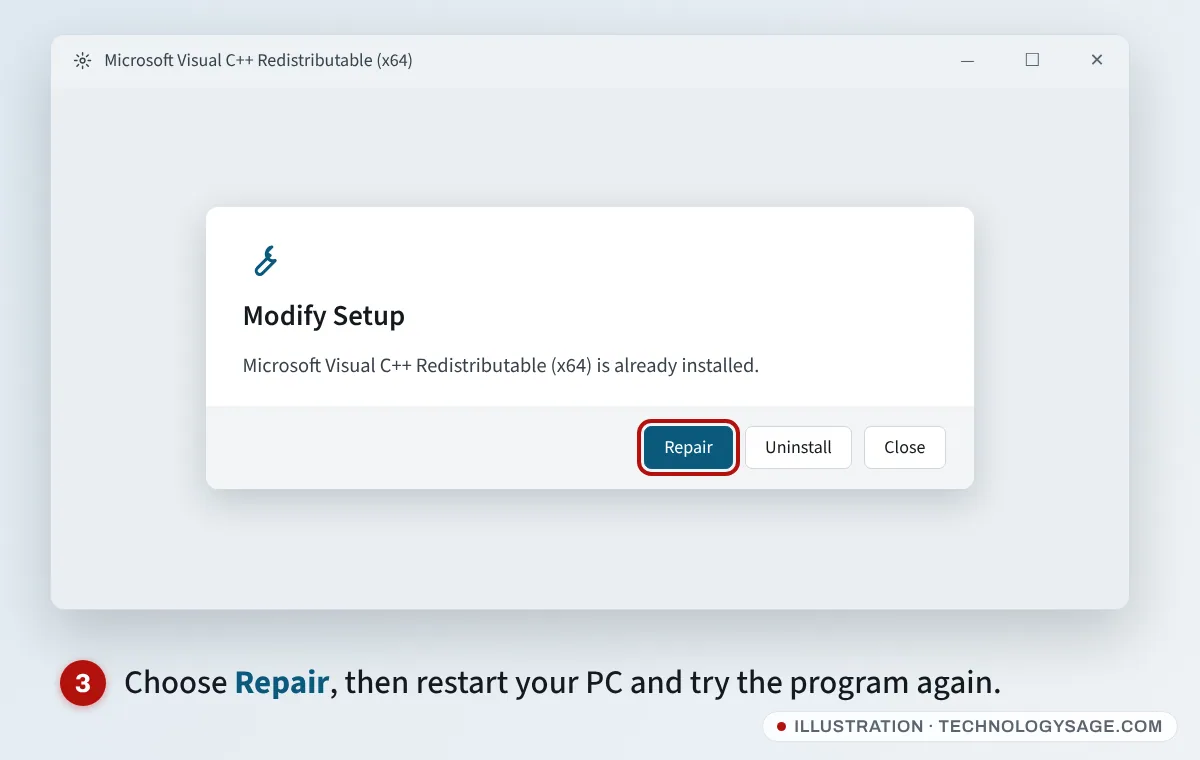
If the installer says a newer version is already installed (or fails with error 0x80070666), the runtime is there but may be damaged. Repair it:
- Open Settings → Apps → Installed apps (Windows 10: Settings → Apps → Apps & features).
- Search for Visual C++.
- Select the three dots next to Microsoft Visual C++ 2015-2022 Redistributable (x64) (or the newest year range shown), then Modify.
- Select Repair, wait, then do the same for the (x86) entry.
- Restart.
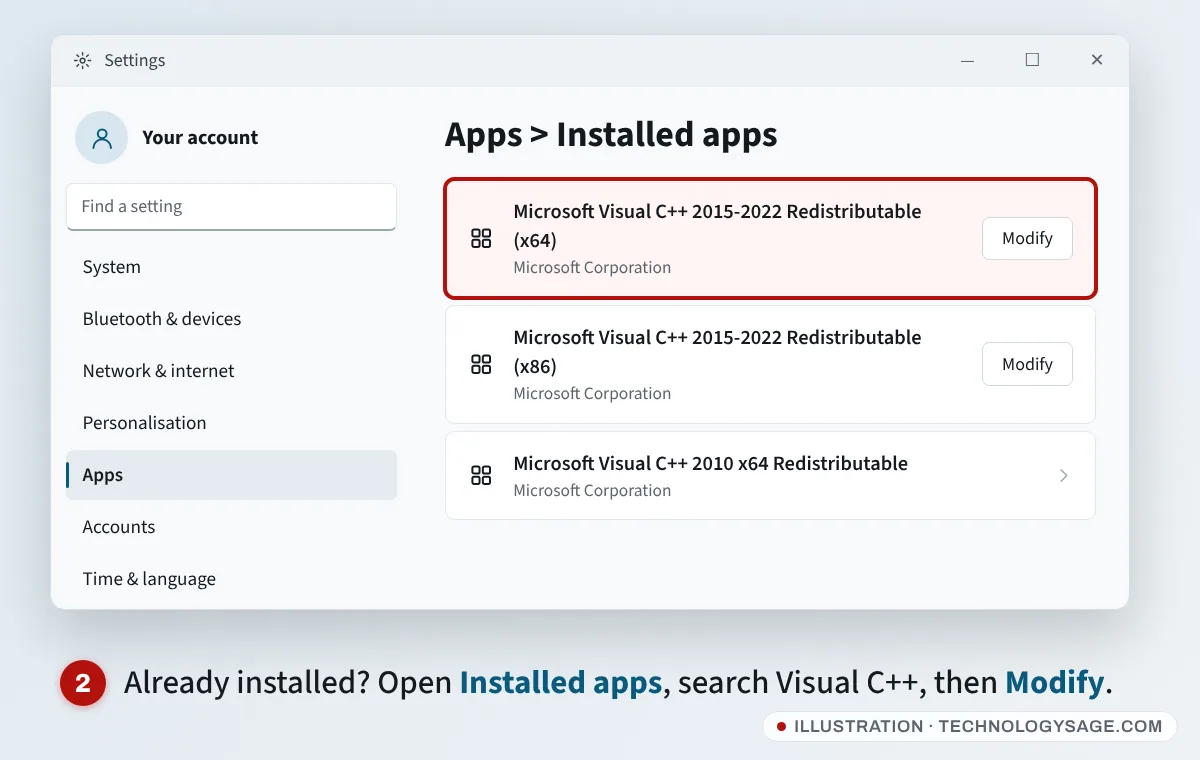
On older Windows, the same entries are in Control Panel → Programs and Features; select one and choose Change → Repair.
3. Reinstall the program that shows the error
Many games and apps include the exact runtime they need. Uninstall the program, restart, and install it again from its official source. For Steam games, right-click the game in your Library, select Properties → Installed Files → Verify integrity of game files; many games also keep runtime installers in a _CommonRedist folder inside the game folder.
Don’t download VCRUNTIME140.dll from a DLL website
Search results are full of sites offering “vcruntime140.dll free download”. Avoid them, even if a forum post says it worked:
- You can’t check what you’re getting. A DLL is program code. A tampered file runs with the same rights as the app that loads it, which makes fake DLLs an easy way to spread malware.
- It’s often the wrong version. VCRUNTIME140.dll must match the rest of the runtime (VCRUNTIME140_1.dll, MSVCP140.dll and others). A single copied file can swap one error for a crash or a new missing-file message.
- The wrong folder breaks things. On 64-bit Windows, 64-bit DLLs live in
C:\Windows\System32and 32-bit DLLs inC:\Windows\SysWOW64. Copying the wrong type into the wrong place is a classic way to get error 0xc000007b. - It won’t get security updates. The Redistributable is updated by Microsoft; a loose file isn’t.
Microsoft’s own guidance is to install Visual C++ Redistributables only from a Microsoft site and only if they’re signed by Microsoft. The same goes for “DLL fixer” or “PC repair” tools that ask for payment: you don’t need them.
More fixes
4. Install pending Windows updates and restart (PC)
Microsoft lists outdated system components as an occasional cause of Redistributable install failures. Go to Settings → Windows Update, install everything offered, restart, and then run the vc_redist installers again. If Windows Update itself is stuck, see Windows Update stuck at 0% or 100%.
5. Run the installer as administrator, with antivirus paused
If the Redistributable installer fails with “Setup failed”, error 1603 or “access denied” (code 5):
- Right-click vc_redist.x64.exe and select Run as administrator.
- If that fails, turn off your antivirus’s real-time protection for a few minutes, install, then turn it back on straight away.
- Close other programs (error 32 means a file is in use) and try again.
6. Check antivirus quarantine
If the error appeared suddenly in a program that used to work, open your antivirus (in Windows Security: Virus & threat protection → Protection history) and see whether it removed a file from the program’s folder. If the program is from a trusted source, restore it or reinstall the program. If you’re not sure the program is genuine, leave the file in quarantine and get the program again from its official site.
7. Repair Windows system files
If the runtime installs fine but the error keeps coming back, or several programs show different DLL errors, repair Windows itself. Open Terminal (Admin) or Command Prompt (Admin) and run:
DISM /Online /Cleanup-Image /RestoreHealth
sfc /scannow
Our SFC vs DISM guide explains what each result means.
8. Programs that bundle their own copy
Some apps (Python tools, portable apps, older game launchers) carry a private copy of VCRUNTIME140.dll in their own folder. If that copy is old or damaged, it can be used before the system one. Reinstalling the app usually fixes it; if not, ask the app’s support whether removing its private copy is safe, rather than deleting files yourself.
If nothing works
Collect these details before asking for help:
- The exact error text (take a photo or screenshot) and the program name and version.
- Whether the program is 32-bit or 64-bit (the developer’s download page usually says).
- Your Windows version (Settings → System → About).
- Which Visual C++ entries appear in Installed apps.
Then contact the program’s developer: Microsoft’s own download page says that if you’re trying to fix an app by updating the runtime, the app vendor should tell you which runtime it needs. For installer failures, Microsoft’s Visual C++ Redistributable troubleshooting guide explains how to collect the install logs. Microsoft support never asks for payment by gift card, and nobody legitimate will offer to “remote in” to fix a DLL for a fee via a social media message.
FAQ
How do I fix VCRUNTIME140.dll was not found?
Download vc_redist.x64.exe and vc_redist.x86.exe from Microsoft’s “Latest supported Visual C++ Redistributable downloads” page, install both, restart, and try the program again. If they say they’re already installed, use Repair from Installed apps.
Is VCRUNTIME140.dll a virus?
No. The genuine file is part of Microsoft’s Visual C++ runtime and sits in C:\Windows\System32 and C:\Windows\SysWOW64. A file with this name in an odd place, or downloaded from a DLL website, is a different matter, so let your antivirus scan anything you’re unsure of.
Which Visual C++ do I need for VCRUNTIME140_1.dll?
The latest supported v14 Redistributable, x64 version. VCRUNTIME140_1.dll arrived with the Visual Studio 2019 generation of the runtime, so an old 2015 package doesn’t include it.
Can I delete old Microsoft Visual C++ Redistributables?
Better not. Each year version (2008, 2010, 2012, 2013, 2015 and later) is used by different programs, and removing one can break apps that need it. They take up little space.
Why do I get MSVCP140.dll was not found as well?
MSVCP140.dll is the C++ standard library file from the same package, so the same fix applies: install or repair the x64 and x86 v14 Redistributables. If it still appears, reinstall the program that shows it.