In this guide
ERR_CONNECTION_RESET means the connection between your browser and the website was cut off halfway: something sent a “reset” signal and dropped the line before the page arrived. On your side, the usual culprits are a VPN or proxy, antivirus or firewall software that inspects web traffic, or a router or Wi-Fi network that is blocking or dropping the connection. The quickest fix is to reload, try the site on mobile data, and turn off any VPN or proxy; if it still fails, reset your network settings.
This guide is for the person seeing the error, not the website’s owner. It works for Chrome, Edge, Brave, Opera and the other Chromium browsers, on PC and phone. Firefox shows the same problem as “The connection was reset” (PR_CONNECT_RESET_ERROR).
What does ERR_CONNECTION_RESET mean?
Chrome shows a grey page that says:
This site can’t be reached The connection was reset. Try: Checking the connection · Checking the proxy and the firewall · Running Windows Network Diagnostics ERR_CONNECTION_RESET
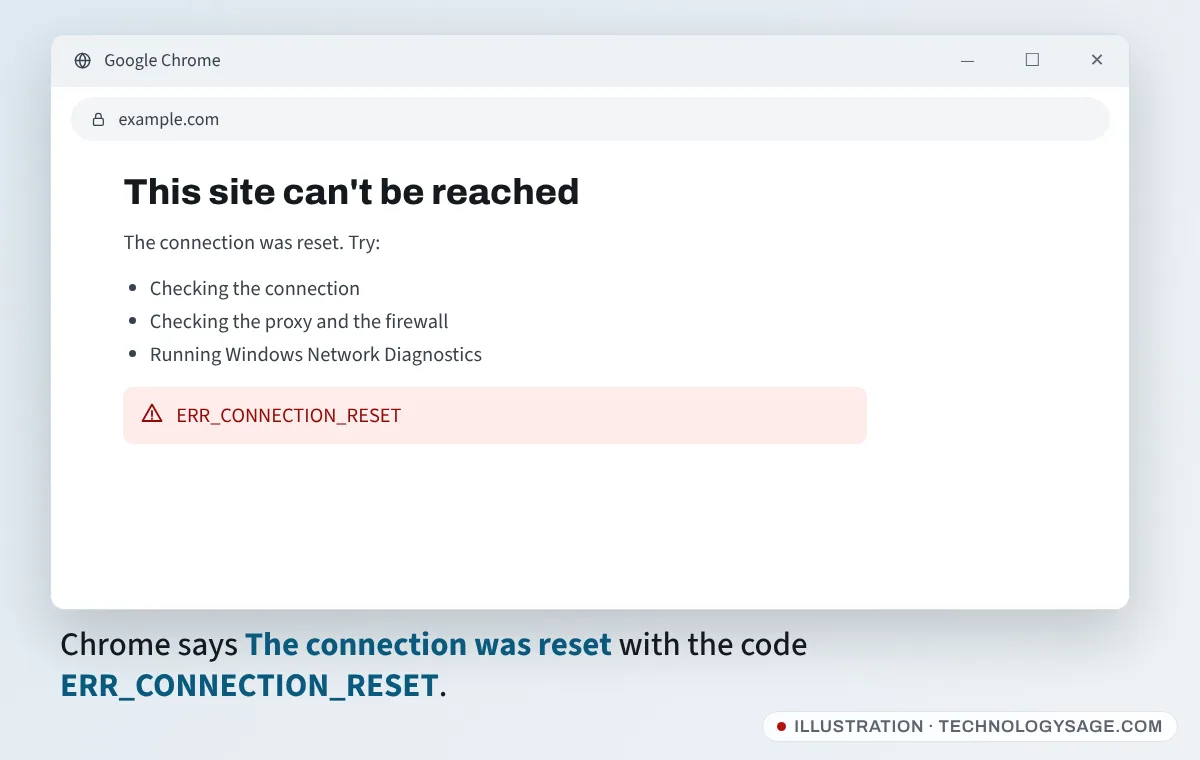
In Chromium’s own list of network errors, ERR_CONNECTION_RESET (error -101) is described as “a connection was reset (corresponding to a TCP RST)”. A TCP reset is a message that slams a connection shut. The website’s server can send it, but so can anything in between: your VPN, your antivirus, your router, your internet provider, or a firewall at work or school. Google’s own list of common Chrome error messages simply says something interrupted the connection to the page.
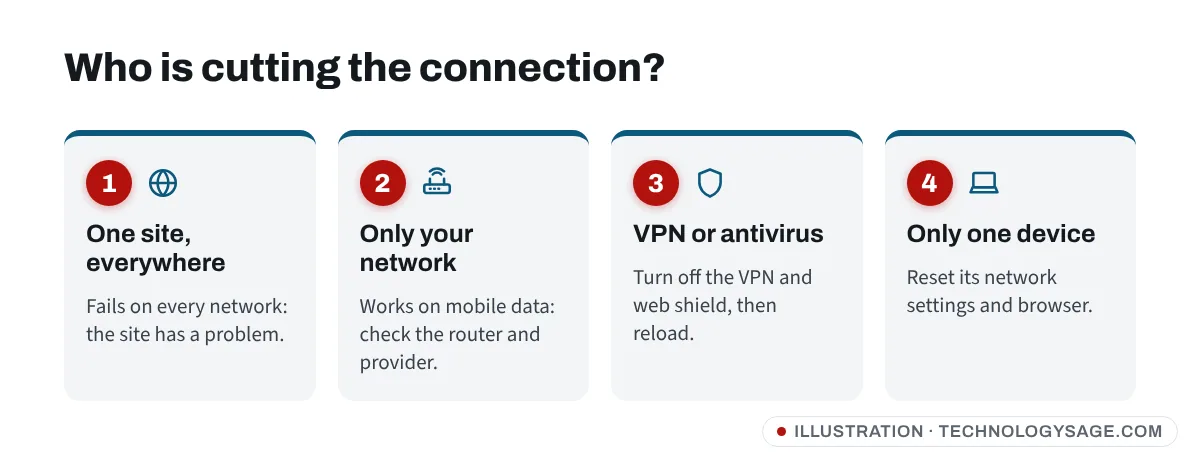
So the job is to find out who is cutting the line:
- Only one site fails, on every network and device: the problem is probably the site. Wait and try again later.
- The site works on mobile data but not on your Wi-Fi: your router, network or provider is resetting the connection.
- The site fails only on one device or browser: a VPN, proxy, extension or security program on that device is the likely cause.
Quick fixes
1. Reload, then try another network (all devices)
Resets are often one-offs. Press F5 (or pull down to refresh on a phone). If the error comes back, open the same site on mobile data, a phone hotspot or another Wi-Fi. If it loads there, skip to the router fixes below; your device is fine.
2. Turn off your VPN or proxy (all devices)
VPNs and proxies sit between you and every website, and a busy or blocked VPN server is the most common cause of reset connections. Disconnect the VPN app completely and reload. Then check for a proxy:
- Windows: Settings → Network & internet → Proxy. Under Manual proxy setup, turn off Use a proxy server unless your workplace set it.
- Mac: System Settings → Network → your connection → Details → Proxies, and switch off any proxies you didn’t set up.
- Android: long-press your Wi-Fi network (or tap the gear), open the advanced options and set Proxy to None.
- iPhone: Settings → Wi-Fi → tap (i) next to the network → Configure Proxy → Off.
A free VPN that keeps dropping connections is also a privacy warning sign; see are free VPNs safe.
3. Pause antivirus web scanning (PC and Mac)
Many antivirus suites have a “web shield”, “HTTPS scanning” or “secure browsing” feature that intercepts encrypted traffic. When it stumbles, it resets the connection. Open your antivirus, turn the web protection feature off for a minute, and reload. If the page now loads, turn the feature back on and look for an update or an exception list for that site. Don’t leave your protection off.
More fixes
4. Restart the router and check what it blocks (home Wi-Fi)
If the site fails on every device on your Wi-Fi but works on mobile data:
- Unplug the router (and modem, if separate), wait 30 seconds and plug it back in.
- Log in to the router’s admin page or app and check for parental controls, website blocking or a security feature that filters sites. These often reset blocked connections instead of showing a warning page.
- If you’re on public, school or office Wi-Fi, the network itself may block the site. Try mobile data instead, and don’t use tricks to get around an employer’s rules.
If the router’s internet light is red or every site is failing, see router red light and Wi-Fi connected but no internet.
5. Clear the browser’s cache and try Incognito (all devices)
Open the site in an Incognito window (Ctrl+Shift+N on Windows, Cmd+Shift+N on Mac). Incognito turns off most extensions and ignores saved cookies. If the page works there:
- Go to ⋮ → Extensions → Manage Extensions and turn off ad blockers, VPN or proxy extensions and “privacy” add-ons one at a time.
- Delete cached data: press Ctrl+Shift+Delete, choose All time, tick Cookies and other site data and Cached images and files, and click Delete data.
On Android or iPhone, open Chrome’s ⋮ (or ⋯) menu and choose Delete browsing data.
6. Flush DNS and reset network settings on Windows
A damaged network setup on Windows can make connections drop. Open Command Prompt as administrator (search for cmd, right-click it, Run as administrator) and run these one at a time:
ipconfig /flushdns
netsh winsock reset
netsh int ip reset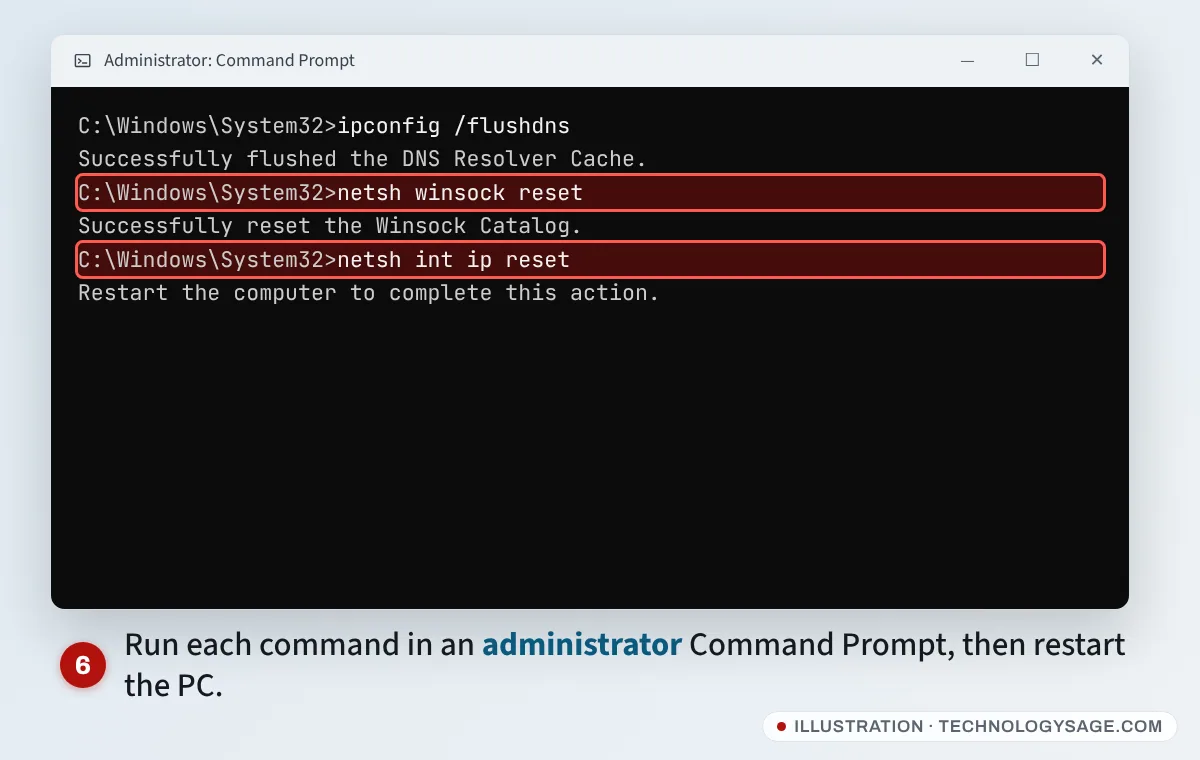
Restart the PC afterwards. If that doesn’t help, use Settings → Network & internet → Advanced network settings → Network reset → Reset now. This removes and reinstalls your network adapters and forgets saved Wi-Fi networks, so have your Wi-Fi password ready. VPN apps may need reinstalling afterwards.
7. Reset network settings on a phone
- Android (Pixel and similar): Settings → System → Reset options, then the Wi-Fi/mobile network reset option. On Samsung: Settings → General management → Reset, then the network settings reset. Newer versions split this into separate Wi-Fi and mobile network resets.
- iPhone: Settings → General → Transfer or Reset iPhone → Reset → Reset Network Settings.
Both forget saved Wi-Fi passwords and VPN profiles, but your photos and apps are untouched.
8. Check the date, Windows updates and the network driver (PC)
A wrong clock breaks secure connections, so make sure the date, time and time zone are set automatically. Then install pending updates in Settings → Windows Update, and update your Wi-Fi or Ethernet driver from your laptop or motherboard maker’s support site. If your Wi-Fi also drops out regularly, follow laptop Wi-Fi keeps disconnecting.
9. Reset Chrome’s settings
If only Chrome fails, go to Settings → Reset settings → Restore settings to their original defaults. This turns off extensions and clears temporary data but keeps your bookmarks, history and saved passwords.
If you run the website
If visitors report ERR_CONNECTION_RESET on many networks, look at the server side: a firewall, WAF or DDoS protection resetting connections, web server timeouts or crashes, TLS configuration problems, or a CDN that can’t reach your origin. Your hosting provider’s logs are the place to start.
If nothing works
- Collect the facts: which site, which browser, which networks it fails on (home Wi-Fi, mobile data), and whether a VPN or antivirus is installed.
- Contact your internet provider if the site fails only on your home connection with every device and the router has no blocking turned on. Some providers block sites for legal reasons.
- Contact the website through its social media or another channel if it fails for you on every network.
- Ask in the Google Chrome Help Community with those details.
FAQ
Is ERR_CONNECTION_RESET my fault or the website’s?
It can be either. If the site works on mobile data or another device, the cause is on your side (VPN, antivirus, router). If it fails everywhere for everyone, the website’s server is the problem and only its owner can fix it.
Why do I get ERR_CONNECTION_RESET on only one website?
Usually the site is blocked or filtered somewhere: by your router’s parental controls, your provider, a school or office firewall, or your antivirus. It can also be the site’s own firewall blocking your IP address, especially if you use a VPN.
How do I fix ERR_CONNECTION_RESET on Android?
Reload, switch between Wi-Fi and mobile data, turn off any VPN app, set the Wi-Fi proxy to None, delete Chrome’s browsing data, and finally reset network settings. If it happens in every app, restart the router.
Does ERR_CONNECTION_RESET mean I’ve been hacked?
No. It’s a connection error, not a sign of an attack. But if you didn’t set up a proxy and find one in your settings, remove it and run a malware scan, because some unwanted programs add proxies.
Is “The connection was reset” the same error?
Yes. Chrome and Edge show “The connection was reset” with the code ERR_CONNECTION_RESET, while Firefox shows “The connection was reset” with PR_CONNECT_RESET_ERROR. The fixes are the same.